概要信息:
Siebel Remote and
Replication Manager
Administration Guide
Siebel Innovation Pack 2013
Version 8.1/8.2
September 2013

Copyright © 2005, 2013 Oracle and/or its affiliates. All rights reserved.
This software and related documentation are provided under a license agreement containing restrictions
on use and disclosure and are protected by intellectual property laws. Except as expressly permitted in
your license agreement or allowed by law, you may not use, copy, reproduce, translate, broadcast,
modify, license, transmit, distribute, exhibit, perform, publish, or display any part, in any form, or by any
means. Reverse engineering, disassembly, or decompilation of this software, unless required by law for
interoperability, is prohibited.
The information contained herein is subject to change without notice and is not warranted to be error-
free. If you find any errors, please report them to us in writing.
If this is software or related documentation that is delivered to the U.S. Government or anyone licensing
it on behalf of the U.S. Government, the following notice is applicable:
U.S. GOVERNMENT END USERS: Oracle programs, including any operating system, integrated software,
any programs installed on the hardware, and/or documentation, delivered to U.S. Government end users
are “commercial computer software” pursuant to the applicable Federal Acquisition Regulation and
agency-specific supplemental regulations. As such, use, duplication, disclosure, modification, and
adaptation of the programs, including any operating system, integrated software, any programs installed
on the hardware, and/or documentation, shall be subject to license terms and license restrictions
applicable to the programs. No other rights are granted to the U.S. Government.
This software or hardware is developed for general use in a variety of information management
applications. It is not developed or intended for use in any inherently dangerous applications, including
applications that may create a risk of personal injury. If you use this software or hardware in dangerous
applications, then you shall be responsible to take all appropriate fail-safe, backup, redundancy, and
other measures to ensure its safe use. Oracle Corporation and its affiliates disclaim any liability for any
damages caused by use of this software or hardware in dangerous applications.
Oracle and Java are registered trademarks of Oracle and/or its affiliates. Other names may be
trademarks of their respective owners.
Intel and Intel Xeon are trademarks or registered trademarks of Intel Corporation. All SPARC trademarks
are used under license and are trademarks or registered trademarks of SPARC International, Inc. AMD,
Opteron, the AMD logo, and the AMD Opteron logo are trademarks or registered trademarks of Advanced
Micro Devices. UNIX is a registered trademark of The Open Group.
This software or hardware and documentation may provide access to or information on content,
products, and services from third parties. Oracle Corporation and its affiliates are not responsible for and
expressly disclaim all warranties of any kind with respect to third-party content, products, and services.
Oracle Corporation and its affiliates will not be responsible for any loss, costs, or damages incurred due
to your access to or use of third-party content, products, or services.
Documentation Accessibility
For information about Oracle's commitment to accessibility, visit the Oracle Accessibility Program website
at http://www.oracle.com/pls/topic/lookup?ctx=acc&id=docacc.
Access to Oracle Support
Oracle customers have access to electronic support through My Oracle Support. For information,
visit http://www.oracle.com/pls/topic/lookup?ctx=acc&id=info or visit
http://www.oracle.com/pls/topic/lookup?ctx=acc&id=trs if you are hearing impaired.
Siebel Remote and Replication Manager Administration Guide Version 8.1/
8.2
3
Contents
Siebel Remote and Replication Manager Administration Guide 1
Chapter 1: What’s New in This Release
Chapter 2: About Siebel Remote
Overview of Siebel Remote 13
Siebel Mobile Products That Siebel Remote Supports 14
About Using This Book 16
How This Book Indicates Computer Code and Variables 17
How This Book Describes Objects 17
Getting Help from Oracle 19
Chapter 3: Architecture of Siebel Remote
Overview of the Siebel Remote Architecture 22
How Siebel Remote Flows Data Through the Architecture 24
How Siebel Remote Uses Siebel Servers 26
Server Components That Siebel Remote Uses 27
How Siebel Remote Uses Mobile Web Clients 30
How Siebel Remote Handles Files on Remote Clients 31
Requirements for Remote Clients 31
Configuration Options That You Can Specify for Remote Clients 32
Synchronization Options That Users Can Choose 32
How Siebel Remote Uses TrickleSync to Manage Synchronization Frequency 33
Visibility Modifications That Affect Access to Records 33
Remote Client Usage in a Development Environment 33
How Siebel Remote Creates Local Databases 33
How Siebel Remote Creates Local Databases 34
How Siebel Remote Extracts Local Databases 34
How Siebel Remote Initializes Local Databases 35
How Siebel Remote Synchronizes Local Databases 36
Overview of How Siebel Remote Synchronizes Local Databases 36
How Siebel Remote Synchronizes Data That Users Modify 39
How Siebel Remote Resolves Conflicts in Data It Synchronizes 42
How Siebel Remote Synchronizes File Attachments 45
How Siebel Remote Automatically Synchronizes Information 45
Siebel Remote and Replication Manager Administration Guide Version 8.1/
8.2
Contents ■
4
How Siebel Remote Manages the Amount of Data it Synchronizes 46
How Siebel Remote Filters the Data It Synchronizes 46
How Siebel Remote Validates and Authenticates Information 49
How Siebel Remote Validates Synchronization 50
How Siebel Remote Uses Security Adapter Authentication 51
How Siebel Remote Authenticates Passwords 51
How Siebel Remote Encrypts Fields 53
Other Considerations for Design and Development 53
Roadmap for Implementing Siebel Remote 54
Chapter 4: Configuring the Siebel Server
Process of Configuring the Siebel Server 57
Configuring Server Properties and Environment Variables 57
Configuring Virtual Memory for the Siebel Server 57
Configuring Server Environment Variables for DB2 for z/OS 58
Process of Configuring System Preferences for the Siebel Server 59
Process of Completing the Remote System Preferences Form 59
Configuring System Preferences for Transaction Logging 64
Configuring System Preferences for Timestamps 65
Configuring System Preferences for Resolving Conflicts 66
Configuring Server Components for Synchronization and Transactions 67
Running the Generate New Database Server Component 68
Creating a New Database for Siebel Remote 69
Distributing Database Templates to Siebel Servers 70
Setting the Password for the Local Database Administrator 71
Using a Character Data Type with an Extension Column 72
Configuring the Collating Sequence 72
Encrypting the Local Database 73
Options for Configuring the Siebel Server 73
Using Assignment Manager to Reduce Traffic 73
Using Time Filters to Prevent Sending Old Data 74
Disabling Local Access to Views 77
Optimizing the Transaction Processor Server Component 78
Optimizing the Transaction Router Server Component 78
Optimizing the Transaction Merger Server Component 80
Optimizing Server Components 80
Contents ■
Siebel Remote and Replication Manager Administration Guide Version 8.1/
8.2
5
Chapter 5: Configuring the Remote Client
Process of Configuring the Remote Client 81
Configuring the Hardware, Software, and Network 81
Modifying the Siebel Configuration File 82
Creating a Remote Client 87
Using an Administrative View to Create a Remote Client 87
Using EIM to Create Multiple Siebel Remote Clients 91
Process of Configuring Encryption and Authentication for the Remote Client 93
Configuring the Encryption Type 93
Configuring Encryption for the Local Database Password 95
Creating Accounts and Passwords 96
Setting the Local Database Password 98
Controlling the Data That Siebel Remote Routes to Clients 99
Using Selective Retrieval to Route Data 99
Using Responsibilities to Route Data 102
Modifying a Routing Model 102
Limiting the Views That a Remote Client Displays 102
Limiting Access to Views by Modifying Responsibilities 103
Limiting Access to Views by Disabling Local Access in Routing Model Responsibilities 104
Limiting Access to Views for All Responsibilities 105
Limiting Access to the Global Accounts View 105
Chapter 6: Extracting and Initializing a Remote Database
Process of Extracting the Server Database 107
Verifying the Reporting Hierarchy and Employee Status 107
Extracting the Server Database 109
Options for Extracting the Server Database 114
Extracting a Database for Multiple Users 115
Extracting a Database for Hundreds of Users 115
Running Multiple Instances of Database Extract 116
Using a Transaction Log to Optimize Performance 116
Setting Encryption on the Local Database Password 116
Setting Encryption on the Local Database Password for a Developer 117
Extracting a Database to a CD-ROM or Other Portable Media 117
Truncating the dobjinst.dbf Database Tables 119
Saving Transactions That Siebel Remote Does Not Include in an Extract 119
Extracting a Database for Use with Siebel Tools 119
Initializing the Local Database 120
Options for Initializing the Local Database 122
Siebel Remote and Replication Manager Administration Guide Version 8.1/
8.2
Contents ■
6
Chapter 7: Synchronizing the Remote Client
Synchronizing the Remote Client 125
User Preferences for Synchronization 126
About the Siebel Remote Dialog Box 127
Options for Synchronizing and Starting the Remote Client 130
Configuring the Remote Client to Automatically Synchronize 130
Using the Stand-Alone Synchronizer 132
Deploying a Predefined Routing Model 136
Configuring Siebel Remote to Use Siebel QuickStart to Start the Remote Client 138
Setting Parameters on the Connect String of the Local Database 142
Using Synchronization Manager to Manage the Cache 142
Configuring TrickleSync 143
Configuring TrickleSync from the Siebel Server 143
Configuring TrickleSync from the Remote Client 145
Options for Configuring TrickleSync 145
Chapter 8: Monitoring and Reporting
Monitoring and Logging for Siebel Remote 149
Naming Conventions for Log Files 149
Automatic Notification of Critical Conditions 150
Monitoring the Transaction Backlog 151
Monitoring Various Transaction Logs 152
Monitoring the Status of the Siebel Server 155
Configuring Traces for a Server Component 155
Configuring Logs on the Remote Client 158
Using Siebel Audit Trail with Siebel Remote 160
Viewing Reports 161
Viewing Reports for Synchronization Sessions 161
Viewing Administrative Status Reports 163
Viewing Reports on the Remote Client 163
Chapter 9: Administering Siebel Remote
Doing Basic Configuration and Administrative Tasks 169
Process of Administering Siebel Remote 172
Administering Server Components for Siebel Remote 173
Using the Administrative Interface to Administer Server Components 173
Using the Command Line Interface to Administer Server Components 174
Managing Synchronization 177
Determining How Frequently to Synchronize 178
Contents ■
Siebel Remote and Replication Manager Administration Guide Version 8.1/
8.2
7
Optimizing Transaction Routing by Extracting All Remote Clients 179
Sending a Message to a User During Synchronization 179
Administering the Remote Client 179
Adding a New Remote Client 180
Deactivating a Remote Client 180
Reactivating a Remote Client 181
Deleting a Remote Client 181
Resetting the Password of a Remote Client 182
Refreshing the Local Database of a Remote Client 183
Moving Remote Clients to a Different Siebel Server 184
Modifying the Routing Model for a Remote Client 187
Maintaining Siebel Remote 188
Chapter 10:About Replication Manager
Overview of Replication Manager 191
Hierarchy of a Replication Manager Implementation 191
How Replication Manager Uses Routing Groups 194
Server Components That Replication Manager Uses 196
Support for Siebel Server Features on a Regional Node 197
How Replication Manager Filters a Regional Workflow 197
Chapter 11:Implementing Replication Manager
Process of Implementing Replication Manager 199
Installing Servers and File Systems on the Headquarters Node 200
Installing Servers and File Systems on the Regional Node 200
Installing the Server Database Configuration Utilities on the Regional Node 202
Installing the Siebel File System on the Regional Node 204
Defining the Regional Node 204
Extracting the Regional Database 206
Extracting the Regional Database by Using the Single Thread Option 206
Extracting Regional Databases in Parallel 208
Options for Extracting the Regional Database 210
Initializing the Regional Database 212
Recovering from a Failure While Initializing a Regional Database 215
Configuring the Regional Node to Support Remote Clients 216
Configuring the Replication Agent Server Component 216
Starting and Stopping the Replication Agent Server Component 217
Siebel Remote and Replication Manager Administration Guide Version 8.1/
8.2
Contents ■
8
Setting Tasks to Start Automatically for the Replication Agent when the Siebel Server
Starts 219
Using Replication Agent to Control Synchronization 220
Resolving Synchronization Conflicts 220
Installing Another Siebel Server on the Regional Node 220
Chapter 12:Administering Siebel Replication Manager
Process of Administering Siebel Replication Manager 221
Adding a Connected User to a Regional Node 221
Adding a User to a Regional Node 222
Deleting a Remote Client from a Regional Node 223
Managing Synchronization for a Regional Node 223
Modifying the Routing Group for a Regional Node 224
Deactivating a Regional Node 224
Reactivating a Regional Node 225
Upgrading a Regional Node 226
Modifying Authentication for Replication Manager 228
Maintaining Replication Manager 229
Guidelines for Doing Administrative Work 230
Chapter 13:Troubleshooting Siebel Remote
Troubleshooting a Merge Problem 233
Troubleshooting an Assignment Manager Merge Problem 233
Troubleshooting a Transaction Merger Problem 235
Troubleshooting a Synchronization Manager Problem 237
Troubleshooting a Problem That Synchronization Manager Logs in the Log File 238
Troubleshooting an Initialization or Synchronization Problem 239
Troubleshooting an Initialization or Synchronization That Requires too Much Time to
Complete 240
Troubleshooting a Bad Connection During Synchronization Problem 240
Troubleshooting a Problem Where the User Cannot View Records Locally 243
Troubleshooting a Large Transaction Backlog Problem 246
Recovering from a Failure 249
Recovering from a Failed Siebel Server 249
Recovering from Failed Media That Resides on the Siebel Server 249
Recovering from Corrupted Transactions That Reside on the Siebel Server 251
Recovering from a Failed Server Database 252
Recovering from Truncated or Deleted Server Database Records 253
Recovering from Failed Media That Resides on a File Server 253
Restoring the File System After Recovering from a Previous Image 253
Contents ■
Siebel Remote and Replication Manager Administration Guide Version 8.1/
8.2
9
Recovering from a Failed Local Database 254
Recovering from a Failed Client Initialization 254
Recovering from a Failed Transmission 255
Using Troubleshooting Utilities 255
Using the Endtxnutl Utility to Adopt Orphaned Records 255
Using the Txnskip Utility to Examine Skipped Transactions 258
Using the Txnutl Utility to Examine Corrupt Transactions 260
Using the Txnutlr Utility to Create Statistics 262
Using the Visutl Utility to Determine Visibility for a User 265
Configuring Session Parameters for a Utility 267
Appendix A: Modifications to Dock Objects
Dock Objects That Oracle Modified 269
Dock Objects That Oracle Added 274
Dock Objects That Oracle Discontinued 278
Visibility Rules That Oracle Modified 279
Visibility Rules That Oracle Removed in Version 7.8 280
Visibility Rules That Oracle Added in Version 7.8 289
Visibility Rules That Oracle Removed in Version 8.0 303
Visibility Rules That Oracle Added in Version 8.0 333
Appendix B: Predefined Routing Models
Predefined Routing Models for Siebel Remote 344
Predefined Routing Models for Siebel Financial Services 352
Appendix C: Reference Materials for Siebel Remote
Values for System Preferences 357
Server Component Parameters 358
Parameters of the Synchronization Manager Server Component 360
Parameters of the Transaction Processor Server Component 363
Parameters of the Transaction Router Server Component 364
Parameters of the Transaction Merger Server Component 366
Parameters of the Generate New Database Server Component 367
Parameters of the Database Extract Server Component 368
Parameters of the Replication Agent Server Component 372
Field Descriptions for Administration Screens 374
Predefined Administrative Reports 382
Siebel Server Features on a Regional Node 385
Siebel Remote and Replication Manager Administration Guide Version 8.1/
8.2
Contents ■
10
Parameters of the Regional Database Initialization Program 390
Index
Siebel Remote and Replication Manager Administration Guide Version 8.1/
8.2
11
1 What’s New in This Release
What’s New in Siebel Remote and Replication Manager Administration
Guide, Version 8.1/8.2
Table 1 lists modifications described in this version of the documentation to support this release of
the software.
What’s New in Siebel Remote and Replication Manager Administration
Guide, Version 8.1, Rev. B and Version 8.2
Table 2 lists modifications described in this version of the documentation to support this release of
the software.
Table 1. What’s New in Siebel Remote and Replication Manager Administration Guide,
Version 8.1/8.2
Topic Description
Permanently Setting Event Levels in
Windows XP or Windows 2000,
Permanently Setting Event Levels in
Windows NT
Topic removed. You can no longer set event levels for
these operating systems.
Table 2. What’s New in Siebel Remote and Replication Manager Administration Guide, Version 8.1,
Rev. B and Version 8.2
Topic Description
“Configuring Server Environment Variables
for DB2 for z/OS” on page 58
New topic. If your Siebel Server runs on DB2 for z/OS,
then you must set an environment variable to remove
compensation empty string matching.
“Encrypting the Local Database” on
page 73
Modified topic. To encrypt the local database, you must
use the sse_utf8.dbf template file.
“Configuring Siebel Remote to Use Siebel
QuickStart to Start the Remote Client” on
page 138
Modified topic. Starting with Siebel CRM Fix Pack
8.1.1.4, Siebel QuickStart is not available as a
Windows service. Content that describes how to use
Siebel QuickStart as a Windows service is removed
from this guide.
“Troubleshooting an Unexpected Read-
Only Field” on page 246
New topic. If Siebel Remote displays a read-only field
in the remote client, and if your implementation does
not expect Siebel Remote to display this field, then it
is recommended that you get help from Oracle.
Siebel Remote and Replication Manager Administration Guide Version 8.1/
8.2
What’s New in This Release ■
12
Other Modifications
This guide also includes structural modifications to the content, such as topic organization and
heading arrangement.
Siebel QuickStart Behavior After a Reboot Topic removed. Siebel QuickStart is no longer
supported as a Windows service.
Siebel QuickStart Behavior on the
Windows Vista Operating System
Topic removed. Siebel QuickStart is no longer
supported as a Windows service.
Table 2. What’s New in Siebel Remote and Replication Manager Administration Guide, Version 8.1,
Rev. B and Version 8.2
Topic Description
Siebel Remote and Replication Manager Administration Guide Version 8.1/
8.2
13
2 About Siebel Remote
This chapter describes an overview of Oracle’s Siebel Remote. It includes the following topics:
■ “Overview of Siebel Remote” on page 13
■ “About Using This Book” on page 16
Overview of Siebel Remote
Siebel Remote is an Oracle product that allows a Mobile Web Client (MWC) that typically runs
remotely while disconnected to do synchronization, which is the process of synchronizing the data
that resides on a remote computer with the data that resides on the Siebel Server. Siebel Remote
allows disconnected uses to share information with other members of virtual teams and connected
users. If the disconnected user enters new data, or updates data in the local database, then the client
software for Siebel Remote tracks these modifications as synchronization transactions. Siebel
Remote can then upload these transactions from the remote client to the Siebel Server when the
user connects to the Siebel Server through a network connection.
The Siebel Server prepares transactions that other users have applied to the server database
between synchronizations. Server components then write these transactions to a separate outbox
for each user. You can configure Siebel Remote to combine these transactions with updated,
published, or requested marketing literature, correspondence templates, and other types of file
attachments. Siebel Remote downloads these transactions to the remote client during the next
synchronization.
Siebel Bookshelf
This guide assumes that you have successfully installed your Siebel application and completed the
installation steps that the Siebel Applications Administration Guide describes. The Siebel Bookshelf
is available on Oracle Technology Network (http://www.oracle.com/technetwork/indexes/
documentation/index.html) and Oracle E-Delivery. It might also be installed locally on your intranet
or on a network location.
Siebel Remote and Replication Manager Administration Guide Version 8.1/
8.2
About Siebel Remote ■ Overview of Siebel Remote
14
Siebel Mobile Products That Siebel Remote Supports
Figure 1 illustrates the hardware platforms where the Siebel product line of mobile applications runs.
Explanation of Callouts
The Siebel product line includes the following mobile applications:
1 Siebel Remote and Mobile Web Client. Server software and a disconnected client that is fully
functional. These applications provide transaction routing, data synchronization, and store and
forward messaging capabilities.
2 Oracle’s Siebel Handheld. A disconnected client that is fully functional and includes data
filtering, data synchronization, and store and forward messaging capabilities.
3 Oracle’s Siebel Wireless. Siebel Industry Applications that Oracle delivers to a client browser
that connects to a Siebel Server through a wireless network.
Figure 1. Siebel Mobile Product Hardware Platforms
About Siebel Remote ■ Overview of Siebel Remote
Siebel Remote and Replication Manager Administration Guide Version 8.1/
8.2
15
Mobile Product Components and Client Devices That Siebel Remote
Supports
Table 3 describes the mobile product components and client devices that Siebel Remote supports.
Table 3. Mobile Product Components and Client Devices That Siebel Remote Supports
Product Group Server Components
Client
Component Supported Client Devices
Siebel Remote Oracle supports the
following server
components:
■ Siebel Remote
■ Store and Forward
Messaging
Siebel Mobile
Web Client
Oracle supports the following
client devices:
■ Desktop PCs
■ Laptop PCs
■ Tablet PCs
Siebel Handheld Oracle supports the
following server
components:
■ Handheld
Synchronization
Object Manager
■ Store and Forward
Messaging
Siebel Handheld
Client
Windows Mobile Devices
Siebel Wireless Oracle supports the
following server
components:
■ Wireless Object
Manager
Client Browser Any mobile device that runs a
supported client browser,
including wireless devices and
handheld devices.
Siebel Remote and Replication Manager Administration Guide Version 8.1/
8.2
About Siebel Remote ■ About Using This Book
16
Mobile Products That Siebel Business Applications Support
Table 4 describes mobile products that Siebel Business Applications support.
Tablet Personal Computers That Siebel Remote Supports
Siebel Remote support for tablet personal computers includes the full functionality that Siebel CRM
supports, including special functions, such as signature capture, and personalized content delivery
(PCD).
About Using This Book
This book uses the following terms:
■ A Siebel CRM object is an object that resides in the Siebel Repository File. For example, a screen,
view, applet, business component, menu, and control and each an example of a Siebel object. A
Siebel Remote applet in is not equivalent to a Java applet. For more information, see Configuring
Siebel Business Applications.
Table 4. Mobile Products That Siebel Business Applications Support
Product Group Supported Application Reference
Siebel Remote Siebel Remote supports
almost all Siebel CRM
applications.
You can use the following reference sources:
■ Siebel Remote and Replication Manager
Administration Guide
■ Siebel Store-and-Forward Messaging
Guide for Mobile Web Client
Siebel
Handheld
Siebel Handheld supports the
following applications:
■ Siebel Sales
■ Siebel Field Service
■ Siebel Consumer Goods
■ Siebel eMedical
■ Siebel ePharma
You can use the following reference sources:
■ Siebel Sales Handheld Guide
■ Siebel Service Handheld Guide
■ Siebel Consumer Goods Handheld Guide
■ Siebel Medical Handheld Guide
■ Siebel Pharma Handheld Guide
■ Siebel Store-and-Forward Messaging
Guide for Handheld
Siebel Wireless Siebel Wireless supports the
following applications:
■ Siebel Sales
■ Siebel Field Service
■ Siebel Partner Relationship
Management
You can use Siebel Wireless Administration
Guide.
About Siebel Remote ■ About Using This Book
Siebel Remote and Replication Manager Administration Guide Version 8.1/
8.2
17
■ The Mobile Web Client is a a disconnected Siebel CRM client that is fully functional. It typically
runs on a laptop computer that a professional in the field uses. For brevity, this book refers to
the Mobile Web Client generically as the remote client.
■ A user is a person who uses the remote client of a Siebel business application to access Siebel
CRM data.
■ The user interface is the interface that the user uses in the remote client.
■ The server is the Siebel Server, unless noted otherwise.
■ The local database is a database that resides on the remote client. It contains Siebel application
tables that store user data and a local transaction log that stores transactions that the user
creates.
■ An administrator is anyone who uses an administrative screen in the administrative client to
configure Siebel CRM. The Administration - Server Configuration screen is an example of an
administrative screen.
■ Predefined Siebel CRM is the out-of-the-box version of Siebel Remote that Oracle provides you
before you make any customization to Siebel Remote.
■ A predefined object is an object that comes defined with Siebel CRM. The objects that Oracle’s
Siebel Tools displays in the Object List Editor immediately after you install Siebel Tools and the
SRF (Siebel Repository File) but before you make any customization are predefined objects.
■ The term focus indicates the currently active object in the remote client. To indicate the object
that is in focus, Siebel CRM typically sets the border of this object to a solid blue line.
Depending on the software configuration that you purchase, your Siebel business application might
not include all the features that this book describes.
How This Book Indicates Computer Code and Variables
Computer font indicates a value you enter or text that Siebel CRM displays. For example:
This is computer font
Italic text indicates a variable value. For example, the n and the method_name in the following format
description are variables:
Named Method n: method_name
The following is an example of this code:
Named Method 2: WriteRecord
How This Book Describes Objects
For brevity, this book describes how an object, such as a user property, does something. For
example, this book states the following:
The Copy Contact user property copies contacts.
Siebel Remote and Replication Manager Administration Guide Version 8.1/
8.2
About Siebel Remote ■ About Using This Book
18
In strict technical terms, the Copy Contact user property only includes information that some other
Siebel CRM object uses to copy contacts.
For brevity, to describe how Siebel CRM uses the value that a property contains, this book typically
only describes the property name. For example, assume Siebel CRM displays the value that the
Display Name property contains. This is a property of a tree node object. This book only states the
following:
Siebel CRM displays the Display Name property of the tree node.
In reality, Siebel CRM displays the value that the Display Name property contains.
About Objects and Metadata
A Siebel object definition defines the metadata that Siebel Remote uses to run a Siebel application.
The Account List Applet that Siebel Tools displays in the Object List Editor is an example of an object
definition. It includes metadata that Siebel Remote uses to render the Account List Applet, such as
the height and width of all controls in the applet, and all the text labels that it must display on these
controls. The Siebel Repository is a set of database tables that stores these object definitions.
Examples of types of objects include applets, views, business components, and tables. You use Siebel
Tools to create or modify an object definition.
The object manager hosts a Siebel application, providing the central processing for HTTP
transactions, database data, and metadata, which is data that the object definitions contain. It is
different from Siebel CRM data, which is data that is specific to your business, such as account names
and account addresses.
For more information, Configuring Siebel Business Applications.
How This Book Describes Relationships Between Objects
An object definition includes properties and a property includes a value. For example, the Business
Object property of the Account Address view contains a value of Account. To describe this
relationship, this book states the following:
The Account Address view references the Account business object.
Sometimes the relationship between objects occurs through multiple objects. For brevity, this book
does not always describe the entire extent of relationships that exists between objects through the
entire Siebel object hierarchy. For example, because the Account business object references the
Account business component, and the Account Address view references the Account business object,
this book states the following:
The Account Address view references the Account business component.
About Siebel Remote ■ About Using This Book
Siebel Remote and Replication Manager Administration Guide Version 8.1/
8.2
19
Getting Help from Oracle
To get help from Oracle with configuring Siebel Remote, you can create a service request (SR) on My
Oracle Support. Alternatively, you can phone Global Customer Support directly to create a service
request or to get a status update on your current SR. Support phone numbers are listed on My Oracle
Support. You can also contact your Oracle sales representative for Oracle Advanced Customer
Services to request assistance from Oracle's Application Expert Services.
For more information about Siebel Remote, see the Master Note For Siebel CRM Remote, 1280615.1
(Article ID), on My Oracle Support.
Siebel Remote and Replication Manager Administration Guide Version 8.1/
8.2
About Siebel Remote ■ About Using This Book
20
Siebel Remote and Replication Manager Administration Guide Version 8.1/
8.2
21
3 Architecture of Siebel Remote
This chapter describes the architecture that Siebel Remote uses. It includes the following topics:
■ “Overview of the Siebel Remote Architecture” on page 22
■ “How Siebel Remote Flows Data Through the Architecture” on page 24
■ “How Siebel Remote Uses Siebel Servers” on page 26
■ “How Siebel Remote Uses Mobile Web Clients” on page 30
■ “How Siebel Remote Creates Local Databases” on page 33
■ “How Siebel Remote Synchronizes Local Databases” on page 36
■ “How Siebel Remote Manages the Amount of Data it Synchronizes” on page 46
■ “How Siebel Remote Validates and Authenticates Information” on page 49
■ “Other Considerations for Design and Development” on page 53
■ “Roadmap for Implementing Siebel Remote” on page 54
Siebel Remote and Replication Manager Administration Guide Version 8.1/
8.2
Architecture of Siebel Remote ■ Overview of the Siebel Remote Architecture
22
Overview of the Siebel Remote
Architecture
Figure 2 illustrates the components of the Siebel Remote architecture.
Explanation of Callouts
The Siebel Remote architecture includes the following components:
1 Server database. A database that stores information about the organizational structure of your
company, job responsibilities, sales personnel, sales territories, accounts, sales opportunities,
contacts, product lines, and so on. It resides on the Siebel Server. It stores data for users who
use a stationary client or a remote client. It contains the following items:
■ Metadata for a Siebel application
■ Tables that store user data for a Siebel application
■ A master transaction log table that stores modifications made since the last database
extraction
2 Siebel File System. A folder structure that includes the following items:
■ Siebel Encyclopedia items
■ Correspondence templates
■ File attachments
Figure 2. Siebel Remote Architecture
Architecture of Siebel Remote ■ Overview of the Siebel Remote Architecture
Siebel Remote and Replication Manager Administration Guide Version 8.1/
8.2
23
■ Other files that support client access and download
The Siebel Server must possess network connectivity to the Siebel File System that might be
located on another Siebel Server on the network, or that Siebel CRM uses with the Database
Configuration Utilities. For more information, see “How Siebel Remote Handles Files on Remote
Clients” on page 31.
3 Database Configuration Utilities. A set of files. You use the Siebel Enterprise Server installer
to install these files on a Siebel Server. You typically use an ODBC driver and the connectivity
package for the database vendor to create the connectivity that these utilities require. You must
provide this access over a 100 MB or faster network connection, such as Fast Ethernet or FDDI,
due to the amount of data that Siebel Remote exchanges between the Siebel Server and the
Database Configuration Utilities. For more information, see “Installing the Server Database
Configuration Utilities on the Regional Node” on page 202.
4 Siebel Server. A Siebel Server that runs the server components that Siebel Remote uses to
manage synchronizations with the remote client. For more information, see “How Siebel Remote
Uses Siebel Servers” on page 26.
5 Modem, LAN, WAN, or VPN. The hardware and software that allows the remote client to
communicate with the Siebel Server. The remote client uses the TCP/IP networking protocol to
communicate with the Siebel Server. You can use the following types of networks:
■ Local Area Network (LAN)
■ Wide Area Network (WAN)
■ Virtual Private Network (VPN)
■ A modem that uses dial-up networking
6 Software on remote client. For more information, see “How Siebel Remote Uses Mobile Web
Clients” on page 30.
7 Remote client. A computer that runs a Siebel application that uses a local database and a local
file system. For more information, see “How Siebel Remote Uses Mobile Web Clients” on page 30.
8 SRF (Siebel Repository File). A file that contains the object definitions that Siebel CRM uses
for the Siebel application and database schema. You install it when you install the Siebel Server.
For more information about:
■ Where to place the SRF, see “Modifying the Siebel Configuration File” on page 82.
■ How to use a custom SRF, see “Upgrading a Regional Node” on page 226.
Siebel Remote and Replication Manager Administration Guide Version 8.1/
8.2
Architecture of Siebel Remote ■ Overview of the Siebel Remote Architecture
24
How Siebel Remote Flows Data Through the
Architecture
Figure 3 illustrates the flow of data through the architecture for Siebel Remote. For more information
about the server components and files that this architecture uses, see “How Siebel Remote Uses
Siebel Servers” on page 26.
Explanation of Callouts
Data flows through the Siebel Remote architecture in the following sequence:
1 Siebel Remote considers every action in the server database as a transaction. These actions
include adding and deleting rows, updating rows, and merging rows. It stores a copy of each
transaction in the Master Transaction Log table (S_DOCK_TXN_LOG), provided that Siebel CRM
does the transaction.
To minimize the size of the S_DOCK_TXN_LOG table, Siebel Remote stores transactions at the
field level. If Transaction Logging is turned on, and if an action occurs, then Siebel Remote stores
only the modifications that occurred to fields as transactions. This configuration helps to optimize
the synchronization process.
For more information, see “Modifying the S_DOCK_TXN_LOG Table” on page 54.
2 The Transaction Processor server component does the following work:
Figure 3. Flow Siebel Remote Flows Data Through the Architecture
Architecture of Siebel Remote ■ Overview of the Siebel Remote Architecture
Siebel Remote and Replication Manager Administration Guide Version 8.1/
8.2
25
■ Copies the transactions that exist in the S_DOCK_TXN_LOG table to the docking\txnproc
folder.
■ Copies the file system transactions that are of type External File from the file system to the
docking\txnproc folder.
■ Clears the S_DOCK_TXN_LOG table of the transactions.
3 The Transaction Router server component determines the users who must receive the
transactions that the docking\txnproc folder contains.
4 Siebel Remote creates a docking folder on the Siebel Server for the user the first time that it
extracts a database for this user. It does the following work:
a Creates an inbox and an outbox. The outbox stores any future extracts and DX files that Siebel
Remote receives from the Transaction Router.
b Sends these DX files to the outbox for each remote client that resides in the docking folder on
the Siebel Server, according to visibility rules and routing rules.
c The Transaction Router finishes the task it is processing, and then configures the Transaction
Processor server component to remove any DX files that exist in the docking\txnproc folder,
according to the following Transaction Processor parameter:
Clean .dx files iterations
5 When you install a Siebel application you specify at least one Siebel Server as a remote server.
This Siebel Server hosts all or some of the users and it contains the docking folders for these
users. It uses these folders to transfer the files that are involved with the synchronization
process. These files include the following items:
■ New database templates that the Generate New Database task creates
■ Database extracts that Siebel Remote uses with the templates to initialize the local database
■ DX files (.dx)
■ TOC files (.toc)
■ Visibility data for the remote client. This data resides in the visdata.dbf file and the
dobjinst.dbf visibility database file.
6 The remote client processes any transactions that exist in the local database while disconnected.
Siebel Remote stores a copy of each transaction in the Local Transaction Log, which is similar to
the Master Transaction Log on the Siebel Server. It does not create any audit trail records on the
disconnected client. If a Siebel application uses Siebel Audit Trail, then it eventually uses the
information that it stores about disconnected transactions to create audit trail records on the
Siebel Server.
7 If the user starts the synchronization process, then the remote client creates DX files from the
log, and then moves these DX files to the remote client outbox.
Siebel Remote and Replication Manager Administration Guide Version 8.1/
8.2
Architecture of Siebel Remote ■ How Siebel Remote Uses Siebel Servers
26
8 The synchronization process begins when the remote client starts a synchronization.
The Synchronization Manager server component must be running. It authenticates the remote
client according to the type of authentication that the parameters for the Synchronization
Manager specify.
The synchronization process includes handling communication between the remote client and the
file system. It moves the DX files from the outbox of the docking folder to the inbox on the
remote client. It also moves files from the outbox on the remote client to the inbox of the docking
folder. It copies any attachments, correspondence, or templates that the remote client creates
to the Siebel File System.
9 The remote client applies the DX files to the local database as soon as it receives the first
transaction file or after it completes the file exchange with the Siebel Server, depending on the
user synchronization options or command line options that you choose. Siebel Remote does not
modify the server database until the file exchange finishes and the remote client disconnects.
10 The Transaction Merger server component on the Siebel Server pulls the DX files from the inbox
in the docking folder.
11 The Transaction Merger applies the modifications to the server database.
If your Siebel application uses Siebel Audit Trail, then the Transaction Merger places information
about disconnected transactions that synchronize successfully to the server database tables that
Siebel Audit Trail uses.
The Transaction Merger also identifies synchronization conflicts. The System Conflict Resolution
system preference uses one of the following values to determine if the Siebel Server or the
remote client wins during conflict resolution:
■ Server Wins
■ Client Wins
Siebel Remote communicates any conflicts that exist to the user during the next synchronization.
The Transaction Merger deletes any DX files that reside in the inbox in the docking folder.
The Transaction Merger does not create audit records for a disconnected transaction that does
not synchronize. If the user approves a disconnected transaction that Siebel Remote detects as
a conflict, then the Transaction Merger creates audit information on the Siebel Server when the
user approves the transaction.
How Siebel Remote Uses Siebel Servers
This topic describes how Siebel Remote uses the Siebel Server. For a visual representation of where
some of the components that this topic describe reside on the Siebel Server, see “How Siebel Remote
Flows Data Through the Architecture” on page 24.
Architecture of Siebel Remote ■ How Siebel Remote Uses Siebel Servers
Siebel Remote and Replication Manager Administration Guide Version 8.1/
8.2
27
About the Siebel Enterprise and the Siebel Enterprise Server
A Siebel Enterprise is a system that includes all users on all Siebel Servers in an environment that
includes multiple Siebel Servers. The Siebel Enterprise Server is a logical grouping of Siebel Servers
that support a group of users who access a common server database in a multiple server
environment. You can configure, manage, and monitor the Siebel Servers that the Siebel Enterprise
Server contains as a single, logical group that allows you to start, stop, monitor, or set parameters
for all of these servers. For an example of a Siebel Enterprise, see Figure 8 on page 192. For more
information, see Siebel System Administration Guide.
Server Folders That Siebel Remote Uses for Remote Clients
Siebel Remote uses a separate folder and subfolders that reside on the Siebel Server for each
registered remote client. The Database Extract server component creates these folders.
CAUTION: The installation program creates a folder named txnproc in the SIEBEL_ROOT\docking
folder. You must not modify the contents of this folder under any circumstances.
The following example includes a portion of the tree of the Siebel Server folder after Siebel Remote
extracts databases for remote clients named Adams and Scott:
siebel
docking
adams
inbox
outbox
scott
inbox
outbox
txnproc
Server Components That Siebel Remote Uses
Table 5 lists some of the server components that Siebel Remote uses. For more information, see
“Server Component Parameters” on page 358.
Table 5. Server Components That Siebel Remote Uses
Server Component Alias Log File Name
Synchronization Manager synchmgr SynchMgr_task Id.log
Transaction Processor txnproc TxnProc_task Id.log
Transaction Router txnroute TxnRoute_task Id.log
Transaction Merger txnmerge TxnMerge_task Id.log
Generate New Database gennewdb GenNewDb_task Id.log
Database Extract dbxtract DbXtract_task Id.log
Siebel Remote and Replication Manager Administration Guide Version 8.1/
8.2
Architecture of Siebel Remote ■ How Siebel Remote Uses Siebel Servers
28
Generate New Database Server Component
The Generate New Database server component creates the local database template for a schema
version of the server database. It reads the schema definition from the SRF, and then creates Siebel
tables and indexes in a database template file that Siebel Remote stores in the SIEBEL_ROOT\dbtempl
folder. The Local Database Initialization program uses the local database template when it initializes
a new database on the remote client. For more information, see “Running the Generate New Database
Server Component” on page 68.
Dictionary Data That Supports Multiple Languages
The Dicdata.dat file and the diccache.dat file are the same dictionary file. Siebel Remote names the
Dicdata.dat file differently for the remote client. These files store metadata about schema definitions,
visibility rules, and other items. The Generate New Database server component copies the
diccache.dat file to the dicdata.dat file in the dbtempl folder. Siebel Remote downloads the
dicdata.dat file to the remote client, and then uses it during synchronization when it applies
transactions to the local database. For help with interchanging the dicdata.dat file between remote
clients to support different languages, see “Getting Help from Oracle” on page 19.
Database Extract Server Component
The Database Extract server component creates a snapshot file of the server database for each user.
This file contains the data that Siebel Remote uses to initialize the local database. Database Extract
gets data according to routing rules that define the level of access to information for each remote
client. For more information, see “Extracting the Server Database” on page 109, and “Extracting
Regional Databases in Parallel” on page 208.
Synchronization Manager Server Component
The Siebel Server starts a Synchronization Manager task for each incoming synchronization request
that it receives from a remote client. This task does the following work for each request:
■ Verifies the status and credentials of the remote client, provided that authentication for Siebel
Remote is enabled. Credentials include user ID and password.
■ Transfers the local database template and local database extract, if applicable.
■ Exchanges transaction files.
■ Transfers file attachments to and from the Siebel File Server.
Parallel Database Extract pdbxtract Not applicable.
Replication Agent repagent RepAgent_task Id.log
Table 5. Server Components That Siebel Remote Uses
Server Component Alias Log File Name
Architecture of Siebel Remote ■ How Siebel Remote Uses Siebel Servers
Siebel Remote and Replication Manager Administration Guide Version 8.1/
8.2
29
Each Synchronization Manager task services only one remote client at any one time. The Siebel
Server can run multiple synchronization tasks concurrently. You can use the Max Task parameter of
the Synchronization Manager server component to configure this behavior. You must configure the
Synchronization Manager for the user to allow the remote client to connect to the Siebel Server.
Siebel Remote starts tasks for Synchronization Manager automatically. It is not necessary for you to
manually start these tasks.
The Siebel File System parameter of the Synchronization Manager server component identifies the
location of the file system for the remote client.
Transaction Processor Server Component
The Transaction Processor server component scans the master transaction log of the Database
Configuration Utilities, and then prepares transactions for the Transaction Router server component.
To avoid a deadlock problem, the Transaction Processor uses one of the following values according
to the type of database that your Siebel application uses:
■ DB2. The last log entry.
■ MS SQL. The value 1000.
For more information, see “Using Time Filters to Prevent Sending Old Data” on page 74.
Transaction Router Server Component
The Transaction Router server component examines the transactions that the Transaction Processor
creates in DX files in the txnproc folder. It determines visibility and routing for each transaction.
Routing rules determine the dock object instances that Siebel Remote copies to each remote client.
For more information, see “Optimizing the Transaction Router Server Component” on page 78.
Transaction Merger Server Component
The Transaction Merger server component applies transactions to the Database Configuration
Utilities that the user uploads to the Siebel Server inbox. It applies these transactions to the server
database after the synchronization finishes and the remote client disconnects. For more information,
see “Optimizing the Transaction Merger Server Component” on page 80.
How Siebel Remote Makes Sure Server Components Can Run
Concurrency
Siebel Remote uses the following rules and behaviors to make sure server components can run
successfully in a concurrent environment:
■ The Transaction Processor server component can run while any other server component runs.
■ Each Siebel Server can use only one Transaction Processor.
■ Only one instance of the Transaction Router, Transaction Merger, Synchronization Manager, or
Database Extract server components can process a remote client at any one time:
■ Two Transaction Router server processes cannot route transactions to the same remote client
at the same time.
Siebel Remote and Replication Manager Administration Guide Version 8.1/
8.2
Architecture of Siebel Remote ■ How Siebel Remote Uses Mobile Web Clients
30
■ Two Transaction Merger processes cannot merge transactions from the same remote client
at the same time.
To improve performance, multiple instances of these server components can run on one Siebel
Server.
■ The following server components cannot process a remote client while a database extract is in
progress for that client:
■ Transaction Router
■ Transaction Merger
■ Synchronization Manager
■ If a Transaction Router, Transaction Merger, or Synchronization Manager resides on the same
Siebel Server, then they can process the same remote client at the same time.
■ Multiple instances of Database Extract that run at the same time allow Siebel Remote to extract
multiple lists of users. This configuration reduces the duration of the overall extract.
About Redundant Disks on the Siebel Server
Each Siebel Server manages a distinct group of users that Siebel Remote assigns to this server. Other
applications, such as Oracle’s Enterprise Integration Manager (EIM), might run on the same Siebel
Server. To maintain a high level of integrity and availability, the Siebel Server provides an interim
storage area for the data that Siebel Remote requires to synchronize a local database with the
Database Configuration Utilities. It is recommended that you use a redundant disk configuration for
the Siebel Server. Using redundant disk configuration reduces the likelihood that malfunctioning
hardware will result in a loss of data on the Siebel Server. If a malfunction does occur, then you can
reextract the remote clients that are registered on the affected Siebel Server.
How Siebel Remote Uses Mobile Web
Clients
The Mobile Web Client is a a disconnected Siebel CRM client that is fully functional. It typically runs
on a laptop computer that a professional in the field uses. For brevity, this book refers to the Mobile
Web Client generically as the remote client, and the person who uses this remote client as the user.
The remote client includes the following items:
■ Local Database and file system
■ Local Database Initialization Program
This local database and file system contain data and files that Siebel Remote synchronizes with the
database and the Siebel File System that reside on the Siebel Server. The remote client manages this
synchronization process. It communicates directly with the Synchronization Manager server
component on the Siebel Server during synchronization.
Architecture of Siebel Remote ■ How Siebel Remote Uses Mobile Web Clients
Siebel Remote and Replication Manager Administration Guide Version 8.1/
8.2
31
The Siebel application that runs on a remote client runs in a typical Web browser. The architecture
layers of a Siebel application, including the local database and file system, reside on the remote
client and run business logic locally. This architecture requires you to install Siebel CRM on each client
computer.
The remote client includes a lightweight HTTP listener that listens on a dynamic port for HTTP
requests from the local computer. Siebel Remote ignores requests from other computers on the
network. Minimal security risk exists when the user uses the Siebel application on the network.
How Siebel Remote Handles Files on Remote Clients
The Siebel File System is a file system that stores attachments, correspondence, templates, and
other types of unstructured data for the user. It uses the File System Manager server component. A
connected user accesses files from the Siebel File System. A connected user is a user who connects
directly to the Siebel Server. The Siebel Server can transfer files between the user and the file system
during synchronization.
The File System Manager server component manages the Siebel File System, handles interplatform
security, and handles most of the interactions with the Siebel File System that resides in the Siebel
application. The Synchronization Manager server component also interacts with the Siebel File
System during a synchronization. The Web Client, Developer Web Client, and server components that
use these files can use the Server Request Broker to make requests to the File System Manager.
The local database is a database that resides on the remote client. It contains Siebel application
tables that store user data and a local transaction log that stores transactions that the user creates.
Siebel Remote copies these transactions to the Siebel Server when the remote client synchronizes.
The Siebel Server sends the Siebel File System files that reside on this server to the local Siebel File
System that resides on the remote client. The remote client uses these local files when the user
disconnects from the Siebel Server. During synchronization, Siebel Remote uploads any files that the
user added to the local Siebel File System while disconnected. It uploads these files to the Siebel File
System that resides on the Siebel Server. The user can also request files to download to the local file
system during synchronization. You can specify the files that Siebel Remote publishes or distributes
to users.
For more information, see Siebel System Administration Guide.
Requirements for Remote Clients
The following requirements are mandatory for the remote client:
■ Each remote client must use exactly one local database at any one time.
■ Only one user can access the local database at any one time. Siebel Remote does not support
multiple logins.
■ You must not rename any folder that contains software for the remote client.
■ You must not rename or delete any DX file.
Siebel Remote and Replication Manager Administration Guide Version 8.1/
8.2
Architecture of Siebel Remote ■ How Siebel Remote Uses Mobile Web Clients
32
■ You must not directly modify the local transaction log under any circumstances.
CAUTION: Never directly modify the local transaction log. The Synchronization Client
automatically removes all entries from the local transaction log table.
To optimize performance, it is recommended that the user defragment the local hard drive regularly.
For more information, see the defragment policies for your company.
Configuration Options That You Can Specify for Remote
Clients
You can specify the following options when you configure a remote client:
■ DockConnString. A parameter in the configuration file that specifies how to synchronize to the
Siebel Server. For more information, see “Modifying the Siebel Configuration File” on page 82 and
“Formatting the DockConnString Parameter” on page 85.
■ AutoStopDB. A parameter in the configuration file that configures Siebel Remote to
automatically shut down the local database if the Siebel application shuts down. For more
information, see “AutoStopDB Parameter” on page 141.
■ Parameters on the Connect String. For more information, see “Setting Parameters on the
Connect String of the Local Database” on page 142.
■ Sort Order. Determines the sort order of the SQL Anywhere database. For more information, see
“Configuring the Sort Order” on page 87.
■ EIM. For more information, see “Using EIM to Create Multiple Siebel Remote Clients” on page 91.
Synchronization Options That Users Can Choose
The user can do one of the following to synchronize the remote client:
■ Background synchronization. The user chooses the File menu, and then the Synchronize
Database menu item while the remote client is running. This action starts the remote client as a
background process so that the user can continue to use a Siebel application or other Windows
applications during the synchronization process.
■ Stand-alone synchronization. The user uses the Siebel Remote icon or a scheduling program
from a third party. This action allows the user to synchronize without starting the Siebel
application. TrickleSync also does a stand-alone synchronization when it starts a synchronization
session. For more information, see “How Siebel Remote Uses TrickleSync to Manage
Synchronization Frequency” on page 33.
For more information, see “How Siebel Remote Synchronizes Local Databases” on page 36.
Architecture of Siebel Remote ■ How Siebel Remote Creates Local Databases
Siebel Remote and Replication Manager Administration Guide Version 8.1/
8.2
33
How Siebel Remote Uses TrickleSync to Manage
Synchronization Frequency
TrickleSync is a feature that improves usability by increasing how frequently Siebel Remote
synchronizes. Frequent synchronization decreases transaction volume for each session and shortens
the average connect time. The user can use the DB Synchronization view of the User Preferences
screen to enable or disable TrickleSync. It is recommended that the user synchronize with the Siebel
Server at least daily.
The TrickleSync agent runs in the background at scheduled times to do an automatic synchronization
when the remote client is connected to the network. You can enable a synchronization reminder that
prompts the user to synchronize if a specified period of time expires without doing a synchronization.
The user can call TrickleSync from the remote client or you can configure TrickleSync for the user. In
earlier Siebel CRM versions, TrickleSync was known as autosynchronization. For more information,
see “Configuring TrickleSync” on page 143.
Visibility Modifications That Affect Access to Records
Siebel Remote does not typically lose transactions after a client reextract. However, if a visibility
modification exists that prevents the user from accessing a record in the future, then any
transactions that the user makes to this record that Siebel Remote has not synchronized are lost
when it reextracts the user. For information about saving client transactions, see “Extracting the
Server Database” on page 109.
Remote Client Usage in a Development Environment
The software that you install for the Mobile Web Client is the same software that you install for the
Developer Web Client in earlier releases. Oracle only supports the Developer Web Client in a test
environment. The installation program requires more input to install a Developer Web Client than it
does to install a Mobile Web Client. If you do all the setup steps for the Developer Web Client that
you typically do for a Mobile Web Client, including registering the user as a Mobile Web Client and
extracting a local database, then the Developer Web Client uses the local database and local Siebel
File System and you can use it in a test environment the same way that you use a Mobile Web Client
in a production environment. You must also modify the configuration file that the Developer Web
Client references so that it uses test versions of the server database and the Siebel File System. For
more information, see “Modifying the Siebel Configuration File” on page 82.
How Siebel Remote Creates Local
Databases
This topic describes how Siebel Remote creates the local database.
Siebel Remote and Replication Manager Administration Guide Version 8.1/
8.2
Architecture of Siebel Remote ■ How Siebel Remote Creates Local Databases
34
How Siebel Remote Creates Local Databases
When you configure a Siebel Server for the first time you must create a new database template,
which is a database that contains no user data but that contains the structure that Siebel Remote
uses to work with a Siebel application. You run the Generate New Database server component to
create a new database template. This server component creates a template and places it in the
dbtempl folder on the Siebel Server. For more information, see “Running the Generate New Database
Server Component” on page 68.
The user must exist in Siebel CRM as a user before Siebel Remote can register this user. For
information on adding a user to Siebel CRM, see Siebel Applications Administration Guide.
How Siebel Remote Extracts Local Databases
The first step in creating a local database for a new user is to extract the server database on the
Siebel Server. You run the Database Extract server component to extract a remote client. It extracts
visible data for the user to a snapshot file in the Mobile outbox folder of the Web client on the Siebel
Server. This extract gets data according to the routing rules that define the level of access to
information for each remote client. It creates compressed files that contain data that Siebel Remote
loads to a local database when the remote client starts a synchronization with the server database.
Each local database is unique. A user cannot use multiple computers with the same remote client.
Figure 4 illustrates how Siebel Remote extracts a local database.
Explanation of Callouts
Siebel Remote does the following work to extract a local database:
1 Prompt for connect information. Prompts the user to enter the user ID, the name of the
remote client, and a password. A user might use multiple clients, such as two clients on two
separate computers. If the user starts the remote client to initialize the database, then Siebel
Remote sets the user ID to the value that the user provides, by default.
2 Connect. Siebel Remote does the following work:
Figure 4. How Siebel Remote Extracts a Local Database
Architecture of Siebel Remote ■ How Siebel Remote Creates Local Databases
Siebel Remote and Replication Manager Administration Guide Version 8.1/
8.2
35
■ If the user can access the Siebel Server, and if the port for the Synchronization Manager is
open, then the Synchronization Client connects to the Siebel Server.
■ If the user specifies to use a modem, then the Synchronization Client dials the modem and
connects to the Siebel Server.
■ Siebel Remote starts a new synchronization thread for the remote client. For example, a VPN
setup might require the user to enter a special PIN (personal identification number) and
security number, such as an RSA key (Rivest, Shamir and Adleman).
3 Validate remote client. The Synchronization Manager does the following work:
a Validates the node name of the remote client with the list of valid users that exist in the server
database.
b Makes sure that the remote client is connected to the correct Siebel Server.
c If authentication for Siebel Remote is turned on, then it authenticates the remote client
credentials.
4 Confirm status of database extract. The Synchronization Manager does the following work:
a Verifies that a database extract is pending in the outbox on the Siebel Server.
b Determines if uaf files or toc files exist in the outbox folder for the user. If it does not find these
files, then the Synchronization Client prompts the user to contact the Siebel administrator to do
a database extract.
5 Download snapshot and file attachments. Prompts the user to download a new database.
The Synchronization Client downloads the extract and file attachments to the inbox folder on the
remote client.
6 Disconnect. The Synchronization Client closes the connection with the Synchronization
Manager. The user can disconnect from the network.
7 Create and load database. The Synchronization Client shuts down the remote client or Siebel
Remote program, and then starts the Siebel Upgrade Wizard. This wizard does the following
work:
■ Creates a new local database
■ Loads data from the extract file to the local database
■ Applies file attachments to the local file system
For more information, see “Initializing the Local Database” on page 120, and “Configuring Siebel
Remote to Use Siebel QuickStart to Start the Remote Client” on page 138.
How Siebel Remote Initializes Local Databases
If Siebel Remote determines that all of the following items are true, then it does an initialization:
■ A user logs in for the first time.
■ A local database does not exist.
■ The user specifies the local database as the data source.
Siebel Remote and Replication Manager Administration Guide Version 8.1/
8.2
Architecture of Siebel Remote ■ How Siebel Remote Synchronizes Local Databases
36
Initialization is the process of configuring a remote client. This work includes making sure connect
information is correct, validating that the remote client is connected to the correct Siebel Server,
extracting a database to a new local database, and so on.
How Siebel Remote Synchronizes Local
Databases
This topic describes how Siebel Remote synchronizes local databases. It includes the following
topics:
■ “Overview of How Siebel Remote Synchronizes Local Databases” on page 36
■ “How Siebel Remote Synchronizes Data That Users Modify” on page 39
■ “How Siebel Remote Resolves Conflicts in Data It Synchronizes” on page 42
■ “How Siebel Remote Synchronizes File Attachments” on page 45
■ “How Siebel Remote Automatically Synchronizes Information” on page 45
For more information, see “How Siebel Remote Manages the Amount of Data it Synchronizes” on
page 46.
Overview of How Siebel Remote Synchronizes Local
Databases
Figure 5 illustrates how Siebel Remote synchronizes the data that a local database contains with the
data that the server database contains.
Explanation of Callouts
Siebel Remote does the following work to synchronize the remote client any time a user logs into an
existing client:
Figure 5. How Routing and Merging Synchronizes a Remote Client
Architecture of Siebel Remote ■ How Siebel Remote Synchronizes Local Databases
Siebel Remote and Replication Manager Administration Guide Version 8.1/
8.2
37
1 Connect. Siebel Remote does one of the following:
■ If the remote client is connected to the Siebel Server through a LAN or WAN connection, then
Siebel Remote does a handshake to validate that a network connection exists.
■ If the user specifies to use a modem, then Siebel Remote uses connection information from
the Windows phone book to dial the modem. Siebel Remote establishes network connectivity,
and then connects the remote client to the Siebel Server.
2 Validate the remote client and examine the version. Synchronization Manager does the
following work:
■ Validates the remote client:
❏ Validates the remote client name with the list of valid remote client names that exist in
the server database.
❏ Verifies that the remote client is connected to the correct Siebel Server. If it is not, then
Synchronization Manager reconnects the remote client to the server, and then updates
the local configuration information on the remote client.
❏ If authentication for Siebel Remote is turned on, then the Synchronization Manager
authenticates the remote client credentials.
■ Examines the version. Synchronization Manager uses data on the Siebel Server to make sure
the remote client runs the current version of the Siebel application. If the remote client is
not running the current version, then Synchronization Manager prompts the user to download
a new version of the Siebel application.
3 Examine database extract. Synchronization Manager does the following work:
■ Determines if a database extract is pending for the remote client.
■ If a database extract is not pending, then the synchronization continues.
■ If a database extract is pending, then the Synchronization Client uses the process described
in “How Siebel Remote Initializes Local Databases” on page 35 to reinitialize the remote client.
Siebel Remote starts another synchronization in this situation.
4 Get and send transactions and file attachments. The remote client does the following work:
■ Gets transactions and file attachments:
❏ Gets transaction files that the Transaction Router creates. It creates these files from the
outbox folder of the remote client that resides on the Siebel Server.
❏ Stores the transaction files in the local inbox folder on the remote client.
❏ Gets any file attachments from the Siebel File Server that the user requests, publishes,
or broadcasts.
■ Sends transactions and file attachments:
❏ Extracts pending transactions from the local transaction log to the transaction files.
❏ Sends the transaction files to the user inbox folder that resides on the Siebel Server.
5 Apply modifications to the server database. The Transaction Merger applies the incoming
transaction files from the user inbox folder that resides on the Siebel Server to the server
database, and then applies retrieved file attachments to the Siebel File System.
Siebel Remote and Replication Manager Administration Guide Version 8.1/
8.2
Architecture of Siebel Remote ■ How Siebel Remote Synchronizes Local Databases
38
6 Apply modifications to the local database. The remote client does the following work:
■ Applies the incoming transaction files from the inbox folder that resides on the remote client
to the local database that resides on the remote client
■ Applies retrieved file attachments to the local file system that resides on the remote client
The user can use the remote client while this client applies modifications to the local database.
The timing for applying the incoming transactions depends on the options that you choose. The
remote client begins applying transactions as soon as Siebel Remote downloads the first
transaction file, by default. You can do the following to configure the remote client to apply
transactions only after download finishes, or to postpone applying transactions until a later time:
■ Use command line options. For more information, see “Using the Stand-Alone
Synchronizer” on page 132.
■ Use synchronization options. For more information, see “Synchronizing the Remote Client”
on page 125.
7 Disconnect. Siebel Remote closes the connection with the Siebel Server, and then does one of
the following depending on if the remote client created the network connection automatically:
■ Created connection automatically. It disconnects the modem.
■ Did not create connection automatically. The user can manually disconnect from the
network.
8 Clean up on the remote client. The remote client deletes any transaction files that exist in the
local outbox folder on the remote client. These are files that the Transaction Merger successfully
applied to the server database during the previous synchronization.
9 Clean up on the server. The Synchronization Manager deletes any transaction files that exist
in the outbox folder on the Siebel Server for the remote client that Siebel Remote successfully
applied to the local database during the previous synchronization.
How Siebel Remote Minimizes Connect Time
The Transaction Router and Transaction Merger server components continuously route and apply
transactions for remote clients. It does this work to minimize the connect time that occurs between
the remote client and the Siebel Server. These server components process data asynchronously from
the synchronization sessions. One or more Transaction Router tasks continuously do the following
work:
■ Route outgoing transactions to the outbox folders that reside on the remote client. These
transactions reside in the txnproc folder. The Transaction Processor creates these transactions.
■ Merge incoming transactions from the inbox folders that reside on the remote client to the server
database and the Siebel File System that reside on the Siebel Server.
Architecture of Siebel Remote ■ How Siebel Remote Synchronizes Local Databases
Siebel Remote and Replication Manager Administration Guide Version 8.1/
8.2
39
How Siebel Remote Synchronizes Data That Users
Modify
The Siebel Server prepares transactions that other users apply to the server database between
synchronizations. Server components on the Siebel Server write these transactions to a separate
folder for each user that resides on the server. Siebel Remote downloads these transactions and other
items from the file system to the remote client during the next synchronization. Items in the file
system include updated, published, or requested marketing literature, correspondence templates,
and other types of file attachments. A similar process occurs on the remote client, although without
using the server component.
Scenario for Synchronizing Modified Data with Connected Users
This topic describes how Siebel Remote downloads data that users have modified from the server
database to the local database. It describes the steps that occur when a connected user creates a
new opportunity until Siebel Remote displays this opportunity in the local database. It describes a
telesales user who works in a Call Center who talks with a potential customer who is replying to a
new advertising campaign.
Figure 6 illustrates a scenario for synchronizing data with a connected user.
Explanation of Callouts
Siebel Remote does the following work to synchronize data with a connected user:
1 A telesales user creates a new opportunity. Siebel Remote saves this opportunity as a transaction
in the opportunities table on the server database. It saves a copy to the master transaction log.
2 The Transaction Processor copies this transaction and other transactions to the Siebel Server.
Figure 6. Scenario for Synchronizing Data with Connected Users
Siebel Remote and Replication Manager Administration Guide Version 8.1/
8.2
Architecture of Siebel Remote ■ How Siebel Remote Synchronizes Local Databases
40
3 A Transaction Router task writes each transaction from the txnproc folder to transaction files that
reside in separate outbox folders for each remote client. Siebel Remote stores these outbox
folders on the remote client on the Siebel Server.
4 The user starts a synchronization from the remote client.
Siebel Remote does steps Step 5 through Step 11 to download the new opportunity to the local
database during the synchronization.
5 The remote client uses an existing modem or LAN connection to dial the modem so that Siebel
Remote can connect to the Siebel Server.
6 The remote client connects to the Siebel Server.
7 The Siebel Server starts the synchronization for the remote client.
8 The Synchronization Manager validates the node name that resides on the remote client with the
list of valid node names that exist in the server database. The remote client receives transaction
files that Siebel Remote routes to and from the Siebel Server. It also gets file attachments.
9 The remote client gets transaction (.dx) files from the user outbox folder that resides on the
Siebel Server, and then stores them in the local inbox folder that resides on the remote client.
The remote client also gets any requested, published, or broadcasted file attachments that reside
on the Siebel File Server.
10 Siebel Remote inserts the new opportunity in the opportunity table in the local database that
resides in the client.
11 The remote client closes the connection with the Siebel Server. The user can use the remote
client while it applies synchronized data to the local database.
Scenario for Synchronizing Modified Data with Unconnected Users
This scenario describes how Siebel Remote uploads data that a user has modified from the local
database to the server database. It describes how a telesales user works in a Call Center and meets
with a potential new customer who Siebel Remote represents as an existing opportunity in the local
database. Another user created this opportunity at an earlier time, and then uploaded it to the Siebel
Server during a synchronization. The telesales user then downloaded it during a subsequent
synchronization.
Architecture of Siebel Remote ■ How Siebel Remote Synchronizes Local Databases
Siebel Remote and Replication Manager Administration Guide Version 8.1/
8.2
41
Figure 7 illustrates a scenario for synchronizing data with an unconnected user.
Explanation of Callouts
Siebel Remote does the following work to synchronize data with an unconnected user:
1 The user modifies an existing opportunity that resides in the local database. The user enters
these modifications immediately after meeting with the potential customer while working offline.
2 Siebel Remote saves the modified opportunity in the opportunities table that resides in the local
database.
3 Siebel Remote saves a transaction record to the local transaction log.
4 Siebel Remote extracts pending transactions from the local transaction log to transaction dx files.
It then places these DX files in the outbox folder that resides on the remote client.
5 The user starts a synchronization from the remote client.
Siebel Remote does Step 6 through Step 12 to record the modifications that occur to the
opportunity during this session.
6 Siebel Remote dials the modem to connect to the Siebel Server. If the user is in the office, then
Siebel Remote can use a LAN connection.
7 The remote client connects to the Siebel Server.
8 The Siebel Server starts the synchronization for the user.
9 Synchronization Manager validates the remote client name with the list of valid clients that exist
in the server database.
Figure 7. Scenario for Synchronizing Data with Unconnected Users
Siebel Remote and Replication Manager Administration Guide Version 8.1/
8.2
Architecture of Siebel Remote ■ How Siebel Remote Synchronizes Local Databases
42
10 Synchronization Manager sends any transaction files that exist in the user outbox folder on the
remote client to the user inbox folder that resides on the Siebel Server.
11 Siebel Remote closes the connection with the Siebel Server.
12 Siebel Remote inserts the modified opportunity in the opportunity table on the server database.
How Siebel Remote Resolves Conflicts in Data It
Synchronizes
Data divergence is a situation that occurs when the local databases on different remote clients
become less synchronized. Data divergence can occur if Siebel Remote does not detect or resolve
these complex modifications. Siebel Remote uses conflict detection and resolution logic to prevent
data divergence.
To support team selling and field service, Siebel Remote allows different users to access the same
data. This situation creates the possibility that two users might make conflicting modifications to the
same data when they are disconnected from the Siebel Server. To automatically detect update
conflicts, Siebel Remote compares transactions at the field level. It uses rules to resolve conflicts for
the following modifications:
■ Modifications that update values in an existing row
■ Modifications that delete an existing row
■ Modifications that add a new row
More complex conflicts involve deleting and adding database rows. For example:
■ One user might modify a value in a database row and another user might delete the entire row.
■ One user might add a database row to a local database but the primary key for this row might
be in use by an existing row in the server database or in the local database of another remote
client.
Architecture of Siebel Remote ■ How Siebel Remote Synchronizes Local Databases
Siebel Remote and Replication Manager Administration Guide Version 8.1/
8.2
43
Update Conflict
An update conflict is a type of conflict that occurs if two users update the same data. For example,
one user modifies the area code for a contact to 415 and another user modifies it to 408. Table 6
describes values you can use in the System Conflict Resolution field of the Remote System
Preferences form to specify how to resolve conflicts. For more information, see “Setting Preferences
for Visibility, Logging, Timestamps, and Conflict Resolution” on page 62.
If Siebel Remote rejects an update from a remote client, then the user can determine if an update
conflict occurred. If the conflict resolution is not correct, then the user can manually reapply the
modification to the local database. Siebel Remote sends it again to the Siebel Server during the next
synchronization when the remote client sends database modifications to the server. If users have not
made any other modifications to the data value since the last synchronization, then the modification
does not conflict and it succeeds on the server.
Siebel Remote processes transactions in the order that the user synchronizes them. For the purposes
of conflict resolution, any successful database update that a remote client sends to the Siebel Server
becomes a server transaction.
Insert Conflict
An insert conflict is a type of conflict that occurs if a user adds a database row to a local database
or to the server database, and this added or inserted transaction duplicates a new entry that exists
in another database that resides elsewhere that the Siebel Server has not yet processed. If the user
primary key of a new row matches the user primary key of an existing row, then Siebel Remote
determines that an insert or duplicate conflict exists.
Siebel Remote cannot determine if the transaction is a true duplicate or simply an erroneous use of
the same identifier for two different data entities. Siebel Remote cannot ignore the duplicate
transaction. Instead, it adds the new row and sets the CONFLICT_ID column to the ROW_ID of the
record. This configuration indicates that the row is a duplicate and makes sure the value for the _U1
index is unique. To determine if an insert conflict, also known as a duplicate conflict, has occurred,
the user can examine the Remote Status view and determine if duplicates exist in a view that
contains Siebel CRM data, such as the Accounts view or the Contacts view. For example, the user
might modify the user primary key and resend the update. When the user resolves the conflict, Siebel
Remote captures the local database update so that it can resynchronize this update with the Siebel
Server during the next synchronization.
Table 6. Values for the System Conflict Resolution Field
Value Description
Server Wins The value in the server database overrides the value in the local database. Server
Wins is the default value. It is strongly recommended to resolve such conflicts
because modifications converge more quickly. The Client Wins rule requires more
time for data to converge.
Client Wins The value in the local database overrides the value in the server database.
Siebel Remote and Replication Manager Administration Guide Version 8.1/
8.2
Architecture of Siebel Remote ■ How Siebel Remote Synchronizes Local Databases
44
The user must monitor and resolve any conflict that the Siebel Server creates. The conflict is visible
as duplicate records in a view that contains Siebel CRM data, such as the Accounts view or the
Contacts view. To resolve an insert conflict, the user can use the Merge Record feature to merge the
duplicate records. This feature is available only after the user chooses more than two records in the
applet. To use it, the user chooses the Edit menu, and then the Merge Records menu item.
The user can also modify the user keys of one of the duplicate records to resolve the conflict.
The user must resolve conflicts before you can use EIM to merge records. If the user does not resolve
conflicts, then the conflict flag in the interface table columns is not accurate.
The local database treats a null value as a unique value. If the user leaves a key field null for two or
more records, then the local database allows duplicates.
Delete Conflict
A delete conflict is a type of conflict that occurs if a user deletes a row in the local database, and
another user updates this same row in a different database. If Siebel Remote encounters a delete
transaction, then it uses the following rule whether or not the transaction is in conflict with another
update:
Delete Always Wins
If one transaction updates a database row and another transaction deletes this row, then Siebel
Remote ignores the update and deletes the row.
The Delete Always Wins rule supersedes the System Conflict Resolution field of the Remote System
Preferences form.
If the user synchronizes, and if the Merger Friendly Notification system preference is TRUE, then
Siebel Remote displays deleted records in the Session Actions list of the Remote Status view of the
User Preferences screen. For more information, see “Process of Configuring System Preferences for the
Siebel Server” on page 59.
Merge Conflict
A merge conflict is a type of conflict that occurs if Siebel Remote merges records separately on the
remote client and on the Siebel Server. The following example illustrates this problem:
1 Siebel Remote merges data from account A with data from account B on the remote client.
2 Siebel Remote merges data from account A with data from account B on the Siebel Server.
3 Delete transactions have the highest priority in Siebel Remote. The situation described in Step 1
and Step 2 can cause the following delete transactions:
■ One delete transaction exists from the remote client.
■ One delete transaction exists from the Siebel Server.
4 Siebel Remote deletes data from these accounts.
To avoid this problem, it is recommended that users do not merge data on remote clients.
Architecture of Siebel Remote ■ How Siebel Remote Synchronizes Local Databases
Siebel Remote and Replication Manager Administration Guide Version 8.1/
8.2
45
How Siebel Remote Synchronizes File Attachments
If a user attaches a file to a record in the local database, then Siebel Remote does the following work:
■ Stores the metadata for this file in the local database
■ Stores the file in the local Siebel File System
If the user synchronizes with the Siebel Server, then Siebel Remote copies the file to the Siebel File
System that resides on the Siebel Server. It also copies the metadata to the server database.
If another user accesses the record where the file is attached, then Siebel Remote transfers the
metadata for the file to the local database for this user the next time the user synchronizes. Siebel
Remote does not transfer the file attachment to the local Siebel File System unless the user requests
the file. Some types of file attachments include a Distribution Method setting. For example, a
Literature item. If Siebel CRM sets the Distribution Method to Publish, then Siebel Remote
automatically transfers the file to the user.
A user can click the attachment link in a Siebel application or choose the Request File check box for
the attachment to request a file attachment. Siebel Remote then queues the request for the file. The
user must synchronize again so that Siebel Remote can copy the file to the local Siebel File System.
The user must click the link again to view the file after the synchronization finishes.
How Siebel Remote Automatically Synchronizes
Information
You can configure a remote client to use Store and Forward Messaging to automatically send
information to and receive information from the local database rather than waiting for the user to
manually synchronize. This functionality is useful for field service professionals who receive
dispatched activity updates throughout a work day.
If new information originates in the remote client, and if Store and Forward Messaging is enabled for
this remote client, then Siebel Remote automatically sends local database transactions to the server
database.
If new information originates on the Siebel Server, then Siebel Remote handles the information
differently depending on if the new information resides in one of the following objects:
■ Business object. The Action business object is the only business object that Siebel Remote
predefines to support Store and Forward Messaging. Siebel Remote delivers information from
other business objects according to the routing rules, by default. You can configure more business
objects to use Store and Forward Messaging. For more information, see Siebel Store-and-
Forward Messaging Guide for Mobile Web Client.
If the delivery that uses Store and Forward Messaging does not complete in the configured
timeout period, then Siebel Remote delivers this delayed message. Siebel Remote applies the
modification to the local database only one time regardless of the delivery method that succeeds
first.
■ Field. If the field is enabled for Store and Forward Messaging, then Siebel Remote uses Store
and Forward Messaging to send the information that this field contains. If a field does not use
Store and Forward Messaging, then Siebel Remote uses the routing rules to send the information.
Siebel Remote and Replication Manager Administration Guide Version 8.1/
8.2
Architecture of Siebel Remote ■ How Siebel Remote Manages the Amount of Data it
Synchronizes
46
For more information, see Siebel Store-and-Forward Messaging Guide for Mobile Web Client.
How Siebel Remote Handles Large Attachments with Store and
Forward Messaging
You can set the threshold that Store and Forward Messaging uses for a large file attachment. If you
set a threshold, then Siebel Remote uses Store and Forward Messaging to deliver a large attachment
that originates on the remote client. Siebel Remote delivers this attachment only during
synchronization. For a transaction that originates on the Siebel Server, synchronization delivers all
attachments regardless of attachment size.
How Siebel Remote Manages the Amount
of Data it Synchronizes
The following factors determine the size of the SQL Anywhere local database:
■ The position and responsibilities that the remote client requires. For more information,
see “How Positions, Organizations, and Responsibilities Affect Access” on page 108.
■ The Data Routing Model. The Data Routing Model that Siebel Remote assigns to the remote
client affects the amount of data that it stores in the local database.
A typical mobile user requires about 200 MB to 350 MB of storage space. Some users require 700
MB to 1 GB of storage space. Although no physical limitation exists until about 4 GB, it is
recommended that the local database be no larger than 700 MB. The following benefits typically exist
with a smaller local database:
■ Less time required to extract and synchronize
■ Improved application performance
For more information about reducing the size of the local database, you can review this guide for
features that prevent Siebel Remote from synchronizing unnecessary data. For example, for
information about time filtering, see “Using Time Filters to Prevent Sending Old Data” on page 74. For
help with reducing the size of the local database, see “Troubleshooting a Merge Problem” on page 233.
How Siebel Remote Filters the Data It Synchronizes
Siebel Remote uses routing rules and routing models to filter the data that it synchronizes. For
example, the data that a field sales representative requires might be different from the data that a
field service representative requires. The sales representative might require detailed information
about opportunities while the service representative requires detailed information about service
requests. Routing rules provide the logic for the Database Extract and the Transaction Router server
components. These rules reflect the data visibility and data access policies that exist in the Siebel
application. For more information, see the following items:
■ “Controlling the Data That Siebel Remote Routes to Clients” on page 99
■ Appendix A, “Modifications to Dock Objects”
Architecture of Siebel Remote ■ How Siebel Remote Manages the Amount of Data it
Synchronizes
Siebel Remote and Replication Manager Administration Guide Version 8.1/
8.2
47
■ Configuring Siebel Business Applications
Dock Objects
A dock object is a logical grouping of tables that include schema structures that Siebel Remote uses
to synchronize data between a server database and a local database. A routing rule belongs to a dock
object.
Table 7 describes the types of dock objects that Siebel Remote uses.
Routing Rules
A routing rule is an SQL (Structured Query Language) statement that the Transaction Router and the
Database Extract server components use to determine the records that Siebel Remote must route to
each user. They provide the following benefits:
■ Protects data integrity
■ Allows the user to view the same data that the user can view when the user connects to the
Siebel Server
■ Facilitates access control
■ Maintains application logic and functionality
A transaction in Siebel CRM is associated with a set of routing rules that might cause Siebel Remote
to route the transaction to a user. A Siebel release can include more than a thousand active routing
rules. For more information, see “Modifying a Routing Model” on page 102.
Table 7. Types of Dock Objects That Siebel Remote Uses
Type Description
Enterprise Siebel Remote sends all the contents of the dock object to the remote client. An
Enterprise dock object provides visibility to all users that exist in the Siebel
application. Examples include currency and catalog. For more information, see “About
the Siebel Enterprise and the Siebel Enterprise Server” on page 27.
Limited Siebel Remote sends all the contents of the dock object to the remote client only if
the instance is visible to the user. This data might or might not be visible to a user.
Most user data is of the Limited type. A Limited dock object contains routing rules that
determine the records that Siebel Remote routes to the user.
Private Siebel Remote does not send any content from the dock object to the remote client.
It does send data that a user creates on the remote client to the Siebel Server. It does
not return updates to the remote client. For more information, see “Controlling the
Data That Siebel Remote Routes to Clients” on page 99.
Siebel Remote and Replication Manager Administration Guide Version 8.1/
8.2
Architecture of Siebel Remote ■ How Siebel Remote Manages the Amount of Data it
Synchronizes
48
Routing Models
A routing model is a collection of routing rules. It identifies the data that Siebel Remote extracts to
the user and the subsequent transactions that it routes to this user. You can associate a user with
any routing model. Transaction routing behaves differently for each user depending on the routing
model that you associate with the user. One of the following routing models is adequate for most
users:
■ MOBILE CLIENT - STANDARD
■ MOBILE CLIENT - EXTRACT ONLY
■ Executive Management
You must carefully apply docking rules to reduce the size of the local database. A smaller local
database can reduce synchronization times and transaction application times. Docking visibility rules
identify the records that Siebel Remote synchronizes from the server database to each user. For more
information, see “Predefined Routing Models for Siebel Remote” on page 344.
A routing model also affects the data that Siebel Remote extracts to regional servers and the
subsequent transactions that it routes to regional nodes. For more information, see “Comparison
Between Siebel Remote and Siebel Replication Manager” on page 194.
Displaying Views for Data That Routing Models Route
You can configure Siebel Remote so that a Siebel application displays only the views that display data
that the routing model routes. You can use this configuration for a user who is assigned to one of the
following predefined routing models:
■ Sales Rep Standard
■ Sales Mgr Standard
■ Field Technician
■ Analyst
■ Sr. Field Engineer
■ Field Engineer
Each user is associated with one routing model. The combination of the routing model and the routing
rules determine if Siebel Remote routes a record to a remote client. For more information, see
“Predefined Routing Models for Siebel Remote” on page 344.
Specialized Routing Models
It might be necessary to use a specialized routing model to help minimize the size of the local
database. It is strongly recommended that you get help from Oracle before you deploy Siebel Remote
with a specialized routing model. For more information, see “Getting Help from Oracle” on page 19.
Architecture of Siebel Remote ■ How Siebel Remote Validates and Authenticates
Information
Siebel Remote and Replication Manager Administration Guide Version 8.1/
8.2
49
Selective Retrieval Routing Model
The Selective Retrieval routing model can reduce the amount of data that Siebel Remote
synchronizes, reduce synchronization time, and reduce the size of the local database. This routing
model is appropriate for the user who uses connected and disconnected versions of a Siebel
application. It might not be appropriate for a user who only uses the remote client or who requires
access to some features, such as quotes or forecasting because Selective Retrieval limits the
functionality of the Siebel application in some areas. Enabling records for synchronization also
requires a direct connection to a Siebel Enterprise Server or to a regional server if the regional server
contains the records that are enabled for synchronization. For more information, see “Using Selective
Retrieval to Route Data” on page 99, and “About the Siebel Enterprise and the Siebel Enterprise Server”
on page 27.
How Selective Retrieval Works
A user can enable or disable records for synchronization at any time. If you assign a user to the
Selective Retrieval routing model, and if this user enables a record for synchronization, then Siebel
Remote synchronizes this record to the remote client that is associated with the enabling User ID. It
also synchronizes any records that are related to the enabled record to maintain data integrity. For
example, if the user enables an account record, then Siebel Remote synchronize the records for the
contacts and addresses that are associated with this account.
If the user enables records for synchronization before Siebel Remote extracts the server database
for the remote client, then the Transaction Router server component handles fewer items on the
subsequent synchronization.
If you assign a user to the Selective Retrieval routing model, and if this user disables a record for
synchronization, then Siebel Remote removes this record and any associated records from the local
database during the next synchronization.
How Siebel Remote Validates and
Authenticates Information
This topic describes the validation and authentication that Siebel Remote uses. It includes the
following topics:
■ “How Siebel Remote Validates Synchronization” on page 50
■ “How Siebel Remote Uses Security Adapter Authentication” on page 51
■ “How Siebel Remote Authenticates Passwords” on page 51
■ “How Siebel Remote Encrypts Fields” on page 53
For more information, see Siebel Security Guide.
Siebel Remote and Replication Manager Administration Guide Version 8.1/
8.2
Architecture of Siebel Remote ■ How Siebel Remote Validates and Authenticates
Information
50
How Siebel Remote Validates Synchronization
This topic describes the data that the Synchronization Manager server component validates when a
remote client synchronizes with the Siebel Server. The Synchronization Manager authenticates
incoming client requests to make sure that the remote client is valid. Siebel Remote does not route
the data that the Data Validation Manager uses. For help with Data Validation Manager, see “Getting
Help from Oracle” on page 19.
Validating the Remote Client Name
The Synchronization Manager validates the name of the remote client with the list of valid clients
that the server database contains. It validates that the effective end date for the client name is valid
or is NULL.
Validating the Siebel Server
The App Server Name field identifies the name of the Siebel Server. It resides in the Mobile Clients
view of the Administration - Siebel Remote screen. The DockConnString parameter identifies the
local database. This parameter resides in the configuration file of the Siebel application on the
remote client. For more information, see “Modifying the Siebel Configuration File” on page 82.
If the value of the App Server Name field does not equal the value of the DockConnString parameter,
then the Synchronization Manager does the following work:
■ Reroutes the connection to the Siebel Server that the App Server Name field identifies
■ Sets the value of the DockConnString parameter to the value that the App Server Name field
contains
Validating the User Credentials
If the Authentication Method parameter of the Synchronization Manager is not set to None, then the
Synchronization Manager validates the authentication credentials for synchronization with the
remote client. The authentication credentials that Siebel Remote uses depends on when the user
attempts to synchronize:
■ User synchronizes before Siebel Remote initializes the local database. Siebel Remote
uses the user ID and password that the user provides during the login.
■ User synchronizes after Siebel Remote initializes the local database. Siebel Remote uses
the user ID and password from the DB Synchronization view of the User Preferences screen on
the remote client.
The authentication method is a Synchronization Manager parameter that identifies the type of
authentication that Siebel Remote uses during synchronization. For more information, see
“Parameters of the Synchronization Manager Server Component” on page 360.
Architecture of Siebel Remote ■ How Siebel Remote Validates and Authenticates
Information
Siebel Remote and Replication Manager Administration Guide Version 8.1/
8.2
51
How Siebel Remote Uses Security Adapter
Authentication
An authentication system is a data store that holds the information that allows the user to connect
to a data source or to a server component. This information typically includes a database account
and a Siebel user ID. The authentication system that Siebel Remote uses resides outside of the
server database.
Guidelines for Using a Security Adapter
Siebel Remote can use a security adapter to authenticate a synchronization for a remote client. A
security adapter is a plug-in to the Authentication Manager. To get the Siebel user ID, the security
adapter uses credentials from a database account and, optionally, a set of roles from the
authentication system. The user enters these credentials or an authentication service provides them.
The Synchronization Manager server component accepts requests for synchronization and manages
the synchronization. It delivers credentials to the security adapter and receives the server database
credentials of the user from the security adapter.
If you configure Siebel Remote to use a security adapter, then consider the following guidelines:
■ You can use the following parameters:
■ Security Adapter Mode. Specifies the type of authentication that the security adapter uses.
■ Security Adapter Name. Specifies the name of the security adapter profile, which is the
named subsystem.
You can set these parameters for a Siebel Enterprise, a Siebel Server, or for a server component.
Any setting that you make at a lower level, such as at the component level, overrides any setting
that you make at a higher level, such as at the enterprise level. If you must set these parameters
at the component level for use with synchronization, then you set them in the Synchronization
Manager server component. For more information, see “About the Siebel Enterprise and the Siebel
Enterprise Server” on page 27.
■ You can use the same folder or different folders for synchronization authentication and for
authentication with other data sources or server components.
■ You cannot configure Siebel Remote to use Web Single Sign On for synchronization.
For more information, see “How Siebel Remote Validates Synchronization” on page 50 and Siebel
Security Guide.
How Siebel Remote Authenticates Passwords
Siebel Remote authenticates the password before it connects to the local database. The remote client
only supports database authentication through the security adapter on the remote client.
CAUTION: The remote client does not support authentication from a third party or authentication
that is proprietary to your organization.
Siebel Remote and Replication Manager Administration Guide Version 8.1/
8.2
Architecture of Siebel Remote ■ How Siebel Remote Validates and Authenticates
Information
52
How Siebel Remote Sets the Local Database Password
You can set the password in the local database in one of the following ways:
■ The password that you assign during database initialization for the local database is the same as
the password that you assign on the Siebel Server to synchronize with this local database.
■ The user can assign a different password for the local database.
For information about setting the local database password, see “Configuring Encryption for the
Local Database Password” on page 95.
You can configure Siebel Remote to encrypt the local database password before it sends this
password to the Siebel Server for authentication. For information about RSA SHA-1 encryption of the
local database password, see “Configuring Encryption for the Local Database Password” on page 95 and
“Setting Encryption on the Local Database Password” on page 116.
Features You Can Use to Manage Remote Passwords
You can use the following features to manage the remote database password:
■ Application Lockout. You can specify the maximum number of consecutive, unsuccessful login
attempts that the user can make. If the user unsuccessfully attempts to log in after exceeding
the number of times that you specify, then Siebel Remote locks this user out of the Siebel
application on the remote client for a time period that you can also specify. The user cannot
synchronize the local database with the server database during this time period.
■ Password Expiration. You can configure a password for a remote database to expire
automatically after a set interval. If you use this feature, then Siebel Remote examines the age
of each remote database password when the user starts the remote client and when stand-alone
synchronization starts. If the password expires, then Siebel Remote prompts the user to set a
new password before this user can synchronize or log in to the Siebel application on the remote
client.
■ Password Syntax Validation. You can require that a remote client password conform to format
guidelines regarding the number and combination of alphabetic characters, numerals, or special
characters that this password must contain. Format validation also examines any new password
that the user enters to make sure that it does not duplicate any old passwords that this user
used. You can specify the number of old passwords that Siebel Remote examines.
■ User Password Reset. You can use an administrator account to log in to the Siebel application
on the remote client to reset a user password. You reset the user password so that it expires
immediately. Siebel Remote then prompts the user to modify the password during the next login.
For more information about:
■ Application lockout, password expiration, and password format validation, see “Process of
Configuring System Preferences for the Siebel Server” on page 59
■ Resetting a password, see “Resetting the Password of a Remote Client” on page 182
Architecture of Siebel Remote ■ Other Considerations for Design and Development
Siebel Remote and Replication Manager Administration Guide Version 8.1/
8.2
53
How Siebel Remote Encrypts Fields
Siebel Remote provides the following functionality for field encryption. For more information, see
“Process of Configuring Encryption and Authentication for the Remote Client” on page 93 and Siebel
Security Guide:
■ If you extract a local database for a remote client, then the extract process detects encrypted
fields and stores the unencrypted contents in a compressed binary dat file. Siebel Remote uses
the clear text value of the field to determine the hashed value of each encrypted field. This
extract process does not modify the hashed value.
■ If the Transaction Router server component prepares modified data for a user, then it detects
encrypted fields and stores the unencrypted contents in the compressed binary dx file. Siebel
Remote uses the clear text value of the field to determine the hashed value of each encrypted
field. The preparation of the dx file does not modify the hashed value. Some utilities can read
data from a dx file. It is recommended that you prevent unnecessary user access to the following
folders where dx files might exist:
■ Txnproc folder
■ Inbox folder
■ Outbox folder
■ If Siebel Remote synchronizes the server database with a local database, then data that it
encrypts at the field level in the server database is decrypted in the local database. To maintain
data security, you can configure Siebel Remote to encrypt the entire local database. For more
information, see “Creating a New Database for Siebel Remote” on page 69.
■ If your Siebel implementation includes regional nodes, then it must meet the following
requirements:
■ The regional nodes must use the same encryption as the Siebel Enterprise Server.
■ The keyfile.bin file on the regional server must be identical to the corresponding file on the
Siebel Server of the headquarters node.
Data that passes between the server database and the local database for a regional node remains
encrypted. For more information, see “Overview of Replication Manager” on page 191.
■ You can use the DockConnString parameter in the configuration file to specify how to encrypt the
network traffic that occurs during a synchronization.
Other Considerations for Design and
Development
This topic describes some of the other items that you can consider that this book does not describe
elsewhere.
Siebel Remote and Replication Manager Administration Guide Version 8.1/
8.2
Architecture of Siebel Remote ■ Roadmap for Implementing Siebel Remote
54
Modifying the S_DOCK_TXN_LOG Table
The Transaction Processor and the Transaction Router server components run on the Siebel Server
and route transactions from the master transaction log to the outbox folder on the remote client. The
Transaction Processor removes rows from the log after Siebel Remote writes transactions from the
S_DOCK_TXN_LOG table to DX files in the txnproc folder.
CAUTION: You must not directly modify the contents or structure of the master transaction log
under any circumstances.
In a Microsoft SQL Server or DB2 environment, truncation of the S_DOCK_TXN_LOG table in a server
database causes Siebel Remote to reset the txn_id values that it assigns to new transactions. Siebel
Remote does not reset the corresponding txn_id values in the S_DOCK_STATUS table. In this
situation, new transactions that Siebel Remote inserts in the S_DOCK_TXN_LOG table contain a
txn_id mismatch when compared to the values that the S_DOCK_STATUS table contain. The
Transaction Processor does not process these transactions. It removes them from the
S_DOCK_TXN_LOG table.
If Siebel Remote truncates the S_DOCK_TXN_LOG table, then you must reextract all remote clients
and delete all existing transactions and local databases before you reinitialize these clients. The
reextract process resets the txn_id values in the S_DOCK_STATUS table so that the values
correspond with the txn_id values that exist in the S_DOCK_TXN_LOG table. Deleting transactions
and local databases is necessary to prevent mismatch errors between new S_DOC_STATUS txn_id
values and older txn_id values that exist in the local databases.
Modifying Siebel Tables Directly Through SQL
Siebel CRM does not support modifying a Siebel table directly through SQL. Siebel CRM does not
record SQL modifications in the Master Transaction Log (S_DOCK_TXN_LOG) for SQL modifications
that run outside of the Siebel application. Siebel Remote does not route them to the remote client.
Using Oracle Real Application Clusters with Siebel Remote
Siebel Remote does not support usage of Active Oracle Real Application Clusters (Oracle RAC)
because Oracle RAC requires the sequence cache to be disabled. Disabling the sequence cache
causes Oracle RAC to not scale properly.
Roadmap for Implementing Siebel
Remote
To implement Siebel Remote, you do the following:
1 “Process of Configuring the Siebel Server” on page 57
2 “Process of Configuring the Remote Client” on page 81
3 “Process of Extracting the Server Database” on page 107
4 “Initializing the Local Database” on page 120
Architecture of Siebel Remote ■ Roadmap for Implementing Siebel Remote
Siebel Remote and Replication Manager Administration Guide Version 8.1/
8.2
55
5 “Synchronizing the Remote Client” on page 125
6 “Process of Administering Siebel Remote” on page 172
7 “Process of Implementing Replication Manager” on page 199
8 “Process of Administering Siebel Replication Manager” on page 221
Siebel Remote and Replication Manager Administration Guide Version 8.1/
8.2
Architecture of Siebel Remote ■ Roadmap for Implementing Siebel Remote
56
Siebel Remote and Replication Manager Administration Guide Version 8.1/
8.2
57
4 Configuring the Siebel Server
This chapter describes how to configure the Siebel Server for use with Siebel Remote. It includes the
following topics:
■ “Process of Configuring the Siebel Server” on page 57
■ “Configuring Server Properties and Environment Variables” on page 57
■ “Process of Configuring System Preferences for the Siebel Server” on page 59
■ “Configuring Server Components for Synchronization and Transactions” on page 67
■ “Running the Generate New Database Server Component” on page 68
■ “Options for Configuring the Siebel Server” on page 73
Process of Configuring the Siebel Server
This process is a step in “Roadmap for Implementing Siebel Remote” on page 54.
To configure the Siebel Server, you do the following:
1 “Configuring Server Properties and Environment Variables” on page 57
2 “Process of Configuring System Preferences for the Siebel Server” on page 59
3 “Configuring Server Components for Synchronization and Transactions” on page 67
4 “Running the Generate New Database Server Component” on page 68
Configuring Server Properties and
Environment Variables
This topic describes how to configure server properties and environment variables. It includes the
following topics:
■ “Configuring Virtual Memory for the Siebel Server” on page 57
■ “Configuring Server Environment Variables for DB2 for z/OS” on page 58
■ “Configuring Server Environment Variables for DB2 for z/OS” on page 58
You can do these tasks in any order.
Configuring Virtual Memory for the Siebel Server
This task is a step in “Process of Configuring the Siebel Server” on page 57.
Siebel Remote and Replication Manager Administration Guide Version 8.1/
8.2
Configuring the Siebel Server ■ Configuring Server Properties and Environment Variables
58
The size that you set on the Siebel Server for virtual memory for Windows, or that you set for the
swap space for UNIX, affects performance. For best results, it is recommended that you set this size
to 1.5 times the size of the physical memory (RAM) of the Siebel Server. You can use typical operating
system configurations to accomplish this.
To configure virtual memory for a Siebel Server
■ For a Windows server, from the desktop, right-click the My Computer icon, and then choose
Properties.
a In the System Properties dialog box, choose the Advanced tab, and then click Settings.
b In the Performance Options dialog box, click the Advanced tab, and then click Change in the
Virtual memory section.
c In the Virtual Memory dialog box, choose Custom Size, and then enter a value that is twice the
size of the physical memory.
d Click Set, and then click OK.
■ For a UNIX server, you can use the following typical command to set swap space size:
swap
For more information about the swap command, see the documentation for the server operating
system.
Configuring Server Environment Variables for DB2 for
z/OS
If your Siebel Server runs on DB2 for z/OS, then you must set the environment variable that this
topic describes. For more information, see the topic about configuring environment variables in
Siebel System Administration Guide and Siebel Installation Guide for UNIX.
To configure server environment variables for DB2 for z/OS
1 If you use a Windows server, then do the following:
a On the desktop of the Siebel Server, right-click My Computer.
b Choose Properties, and then click the Advanced tab.
c Click Environment Variables.
d In the System variables section, click New.
e In the New System Variable dialog box, add a new system variable using values from the
following table.
Variable Name Variable Value
SIEBEL_REMOVE_COMPENSATION_EMPTY_STRING_MATCHING t
Configuring the Siebel Server ■ Process of Configuring System Preferences for the Siebel
Server
Siebel Remote and Replication Manager Administration Guide Version 8.1/
8.2
59
2 If you use a UNIX server, and if you use a Bourne shell or a Korn shell, then enter the following
commands at the shell prompt:
SIEBEL_REMOVE_COMPENSATION_EMPTY_STRING_MATCHING=t
export SIEBEL_REMOVE_COMPENSATION_EMPTY_STRING_MATCHING
As an alternative, you can enter the following command:
export SIEBEL_REMOVE_COMPENSATION_EMPTY_STRING_MATCHING=t
3 If you use a UNIX server, and if you use a C shell, then enter the following command at the shell
prompt:
setenv SIEBEL_REMOVE_COMPENSATION_EMPTY_STRING_MATCHING t
4 Restart the Siebel Server.
Process of Configuring System
Preferences for the Siebel Server
This task is a step in “Process of Configuring the Siebel Server” on page 57.
To configure system preferences for the Siebel Server, you do the following work:
1 “Process of Completing the Remote System Preferences Form” on page 59
2 “Configuring System Preferences for Transaction Logging” on page 64
3 “Configuring System Preferences for Timestamps” on page 65
4 “Configuring System Preferences for Resolving Conflicts” on page 66
Extracting the Server Database After You Modify System Preferences
A number of system preferences affect the way Siebel Remote manages the modifications that it
makes to the server database. You can use the Remote System Preferences view to set the system
preferences for Siebel CRM during the initial implementation.
CAUTION: If you modify a system preference after you extract the server database, then you must
reextract the server database for all remote clients. For more information, see “Caution About
Extracting the Server Database” on page 112.
You can examine the Dock Object Visibility Rules under the SystemPref Dock Object in Siebel Tools
to identify the modifications that Siebel Remote routes to clients. For more information, see
“Transaction Router Server Component” on page 29 and Configuring Siebel Business Applications.
Process of Completing the Remote System Preferences
Form
This task is a step in “Process of Configuring System Preferences for the Siebel Server” on page 59.
Siebel Remote and Replication Manager Administration Guide Version 8.1/
8.2
Configuring the Siebel Server ■ Process of Configuring System Preferences for the Siebel
Server
60
To complete the Remote System Preferences form, you do the following:
1 “Setting Password and Lockout Preferences” on page 60
2 “Setting Preferences for Visibility, Logging, Timestamps, and Conflict Resolution” on page 62
3 “Setting Preferences for Update Notifications, Visibility Rules, and Routing Rules” on page 63
4 “Setting Preferences for File Attachments and Saving Your Preferences” on page 64
Setting Password and Lockout Preferences
This task is a step in “Process of Completing the Remote System Preferences Form” on page 59.
You set system preferences on the Remote System Preferences form. You begin by setting password
and lockout preferences.
To set password and lockout preferences
1 On the Siebel Server, navigate to the Administration - Siebel Remote screen, and then the
Remote System Preferences view.
2 Optional. Enable the user password to expire:
a Make sure the Enable Mobile Password Expiration check box contains a check mark.
b In the Expiration Period field, specify the number of days that each user can continue to use the
same password.
The Expiration Period applies only if the Enable Mobile Password Expiration check box
contains a check mark.
c In the Warning Period field, specify the number of days to display a warning to the user before
the user password expires.
The user receives a warning before the password expires. The value you enter in the Warning
Period field determines the lead time between the warning and the expiration. If the user
modifies a password, then the expiration period starts again. The warning period applies only
if the Enable Mobile Password Expiration check box contains a check mark.
To allow the user to use the password indefinitely, do not place a check mark in the Enable Mobile
Password Expiration check box.
3 Optional. Configure the Siebel Server to validate the password format:
a Make sure the Enable Mobile Password Syntax Check check box contains a check mark.
b In the Minimum Number of Characters field, specify the minimum number of characters that the
password must contain for each user account that resides on the remote client.
The Minimum Number of Characters field applies only if the Enable Mobile Password Syntax
Check check box contains a check mark.
Configuring the Siebel Server ■ Process of Configuring System Preferences for the Siebel
Server
Siebel Remote and Replication Manager Administration Guide Version 8.1/
8.2
61
c In the Password Content field, specify the type of characters that the password must include.
Use a value from the following table.
The Password Content field applies only if the Enable Mobile Password Syntax Check check box
contains a check mark.
d In the Password Recycle History field, specify the number of past passwords that Siebel CRM
examines for repetition for each user.
A user cannot reuse any of the last n passwords, where n is the value you enter in the
Password Recycle History field. The Password Recycle History field applies only if the Enable
Mobile Password Syntax Check check box contains a check mark.
4 Optional. Set a limit for login attempts.
a Make sure the Enable Mobile Web Client Lockout check box contains a check mark.
b In the Failed Login Attempts field, specify the number of consecutive unsuccessful user login
attempts that Siebel CRM counts.
If the count reaches the value you specify, then the remote client prevents the user from
logging in for the number of days that you specify in the Lockout Period field. The Failed Login
Attempts field applies only if the Enable Mobile Web Client Lockout check box contains a check
mark.
c In the Lockout Period field, specify the number of days that the user cannot log in after the user
exceeds the value that you specify in the Failed Login Attempts field.
The Lockout Period field applies only if the Enable Mobile Web Client Lockout check box
contains a check mark.
List of Special Characters
The following items are special characters:
■ * (asterisk)
■ @ (at sign)
■ ^ (caret)
Value Description
Alphanumeric The password must contain at least one alphabetic character and one
numeric character.
Alphanumeric
Special Character
The password must contain at least one alphabetic character, one
numeric character, and one valid special character. The Description
column for the Special Characters value in this table lists these
characters.
None Siebel CRM does not require that this password include any character
types.
Special Characters The password must contain at least one special character. For more
information, see “List of Special Characters” on page 61.
Siebel Remote and Replication Manager Administration Guide Version 8.1/
8.2
Configuring the Siebel Server ■ Process of Configuring System Preferences for the Siebel
Server
62
■ : (colon)
■ , (comma)
■ - (dash)
■ $ (dollar sign)
■ = (equal sign)
■ ! (exclamation point)
■ > (greater than symbol)
■ ( (left parenthesis)
■ < (less than symbol)
■ # (number sign)
■ % (percent sign)
■ . (period)
■ + (plus sign)
■ ) (right parenthesis)
■ ? (question mark)
■ _ (underscore)
Setting Preferences for Visibility, Logging, Timestamps, and Conflict
Resolution
This task is a step in “Process of Completing the Remote System Preferences Form” on page 59.
To set preferences for visibility, logging, timestamps, and conflict resolution
1 In the Remote System Preferences form, place a check mark next to the Optimized Visibility
Check check box.
For more information, see “Configuring System Preferences for Transaction Logging” on page 64.
2 Make sure the Enable Transaction Logging field is set correctly to enable transaction logging.
To use Siebel Remote, you must enable transaction logging. For more information, see
“Configuring System Preferences for Transaction Logging” on page 64.
3 In the Docking Timestamp Source field, specify the source for the timestamp.
For more information, see “Configuring System Preferences for Timestamps” on page 65.
4 In the System Conflict Resolution field, specify how Siebel Remote resolves conflicting database
updates. Use a value from Table 7 on page 47.
CAUTION: For important caution information about setting system conflict resolution, see
“Caution About Extracting the Server Database” on page 112.
For more information, see “Update Conflict” on page 43.
Configuring the Siebel Server ■ Process of Configuring System Preferences for the Siebel
Server
Siebel Remote and Replication Manager Administration Guide Version 8.1/
8.2
63
5 In the Intersection Table Conflict Resolution field and in the Intersection Table Merge Rule field,
specify how to handle a record that is involved in an insert conflict.
For more information, see “Configuring System Preferences for Resolving Conflicts” on page 66.
How Optimized Visibility Can Improve Performance
If the Optimized Visibility Check check box contains a check mark, then the Transaction Router server
component uses a predefined algorithm to examine visibility. This algorithm uses information that
an individual transaction carries to reduce the number of visibility rules that Siebel Remote
examines. The algorithm reduces the number of database queries that the Transaction Router
requires which improves performance. It is recommended that you use this algorithm in most
situations.
Setting Preferences for Update Notifications, Visibility Rules, and
Routing Rules
This task is a step in “Process of Completing the Remote System Preferences Form” on page 59.
To set preferences for update notifications, visibility rules, and routing rules
1 In the Merger Friendly Notification field, specify how Siebel Remote writes information about
database updates to the Siebel Remote Status view on the remote client. Use a value from the
following table.
2 In the Merger Transactions per Commit field, specify how many database transactions the
Transaction Merger server component processes before it sends a database commit:
■ You can set a low value, such as 1, to reduce how often the user encounters a locked
database row, and to reduce the risk of deadlock.
■ You can set a high value, such as 10, to minimize processing overhead.
For default values and recommended settings for various databases, see “Values for System
Preferences” on page 357.
3 Specify how to handle visibility and routing rules:
a In the Visibility Rules per Statement field, specify the number of visibility or routing rules that
the Transaction Router server component for each SQL statement examines.
b In the Visibility Rules per Statement 1 field, specify the number of visibility or routing rules
according to the following items:
❏ Examine each SQL statement that the Database Extract server component processes.
Value Description
Conflicts Siebel Remote writes information about database updates that caused
conflicts.
FALSE Siebel Remote does not write information about database updates.
TRUE Siebel Remote writes information about database updates.
Siebel Remote and Replication Manager Administration Guide Version 8.1/
8.2
Configuring the Siebel Server ■ Process of Configuring System Preferences for the Siebel
Server
64
❏ Examine only the first SQL statement that includes header information.
c In the Visibility Rules per Statement N field, specify the number of visibility or routing rules that
Siebel Remote examines for each SQL statement that the Database Extract server component
processes for other SQL statements.
Do not modify these values without assistance. For help with visibility and routing rules, see
“Getting Help from Oracle” on page 19.
For more information, see “Controlling the Data That Siebel Remote Routes to Clients” on page 99
and “Values for System Preferences” on page 357.
Setting Preferences for File Attachments and Saving Your Preferences
This task is a step in “Process of Completing the Remote System Preferences Form” on page 59.
To set preferences for file attachments and save your preferences
1 In the SFM: Maximum File Attachment (KB) field, specify the maximum size in kilobytes that a
file attachment can contain when using Store and Forward Messaging.
If an attachment exceeds the value you enter, then Siebel Remote transfers the attachment. For
more information, see “How Siebel Remote Automatically Synchronizes Information” on page 45
and Siebel Store-and-Forward Messaging Guide for Mobile Web Client.
2 To save your preferences, click Save.
Configuring System Preferences for Transaction
Logging
This task is a step in “Process of Configuring System Preferences for the Siebel Server” on page 59.
The Enable Transaction Logging field allows you to enable or disable transaction logging.
CAUTION: If Siebel Remote does not rebuild the dobjinst.dbf visibility database file when
Transaction Logging is enabled, then remote clients might experience data discrepancy or visibility
problems.
For more information, see “Using Transaction Logging with EIM or Assignment Manager” on page 92.
To configure system preferences for transaction logging
1 On the Siebel Server, navigate to the Administration - Siebel Remote screen, and then the
Remote System Preferences view.
2 In the Remote System Preferences form, make sure the Enable Transaction Logging check box
contains a check mark.
3 Restart the Transaction Processor.
Configuring the Siebel Server ■ Process of Configuring System Preferences for the Siebel
Server
Siebel Remote and Replication Manager Administration Guide Version 8.1/
8.2
65
4 For each active remote client, reextract and reinitialize the local database for that client to make
sure that it contains data this is current.
An active remote client is any client that contains no set End Date. This step is necessary because
Siebel Remote does not route any transaction that is not logged to the remote client that
otherwise receives the transaction. This situation is true even if you choose Enable Transaction
Logging again.
Disabling Transaction Logging
You can disable transaction logging.
CAUTION: Disabling Transaction Logging prevents Siebel Remote from working.
To disable transaction logging
1 Navigate to the Administration - Siebel Remote screen, and then the Remote System Preferences
view.
2 In the Remote System Preferences form, make sure the Enable Transaction Logging check box
does not contain a check mark.
3 Restart the Siebel Server.
Transaction Logging and Database Extract
To log modifications to the local database, you must enable transaction logging when you do a
database extract.
Configuring System Preferences for Timestamps
This task is a step in “Process of Configuring System Preferences for the Siebel Server” on page 59.
A row in a table on the server database includes the date that Siebel CRM last modified the row. If
a remote client updates a row, then Siebel Remote can stamp the date in one of the following ways:
■ Client transaction time. The time when Siebel Remote modified the remote client. Using the
client timestamp promotes consistency across local and server databases, but it can be
misleading if the clock for a remote client is not set correctly, or if this client resides in a different
time zone.
■ Server database merge time. The time when Siebel Remote modified the Siebel Server. Using
the server timestamp makes sure that the timestamp is accurate, but it also causes the
timestamp for the same row on the remote client to be different from the timestamp that resides
on the server.
To configure system preferences for timestamps
■ Set the Docking Timestamp Source parameter to client transaction time or to server database
merge time.
Siebel Remote and Replication Manager Administration Guide Version 8.1/
8.2
Configuring the Siebel Server ■ Process of Configuring System Preferences for the Siebel
Server
66
Setting the Docking Timestamp Source parameter does not affect conflict resolution or the priorities
for Siebel Remote. Siebel Remote stores updated timestamps only for informational purposes.
Configuring System Preferences for Resolving Conflicts
This task is a step in “Process of Configuring System Preferences for the Siebel Server” on page 59.
This topic describes system preferences that you can configure to resolve conflicts.
Setting the Intersection Table Conflict Resolution Field
If a record that is involved in an insert conflict is associated with extension records and child records,
then Siebel Remote uses the same conflict resolution process to resolve these records that it uses to
resolve the parent record. The user can navigate to the User Preferences screen, and then the
Remote Status view to examine the results of conflict resolution operations that reside in the local
database.
CAUTION: For important caution information about setting the Intersection Table Conflict Resolution
field, see “Caution About Extracting the Server Database” on page 112.
To set the Intersection Table Conflict Resolution field
■ Set the Intersection Table Conflict Resolution field using values from the following table.
Intersection Table Conflict Resolution with Various Siebel Releases
In releases earlier than Siebel CRM version 7.7, Siebel CRM handled an insert conflict on an
intersection table by creating a duplicate record with a nonzero value in the Conflict ID field.
Beginning with Siebel CRM version 7.7, you can choose between available values for this preference
to determine how Siebel CRM handles insert conflicts on intersection tables in enterprise, regional,
and local databases. For more information, see “About the Siebel Enterprise and the Siebel Enterprise
Server” on page 27.
Value Description
First In Keeps the existing record and the associated extension records and child
records. Deletes all values from the record where Siebel Remote attempted an
insertion. It also deletes the extension records and child records that are
associated with the record where Siebel Remote attempted an insertion.
Last In Replaces the existing record with the record that Siebel Remote is inserting.
Replaces the associated extension records and child records of the existing
record with the associated extension records and child records of the record
Siebel Remote is inserting.
Merge (Default value) Combines values from these records and their extension records
and child records. The exact behavior that Siebel Remote uses depends on the
fields that it populates with non-NULL values and on the value of the
Intersection Table Merge Rule system preference. For more information, see
“Setting the Intersection Table Merge Rule Field” on page 67.
Configuring the Siebel Server ■ Configuring Server Components for Synchronization and
Transactions
Siebel Remote and Replication Manager Administration Guide Version 8.1/
8.2
67
Setting the Intersection Table Merge Rule Field
The Intersection Table Merge Rule field depends on the following value that you set in the
Intersection Table Conflict Resolution field:
■ Merge. The Intersection Table Merge Rule field determines the field values that survive when
Siebel Remote merges two records to resolve an insert conflict on an intersection table.
■ A value other than Merge. Siebel Remote ignores the Intersection Table Merge Rule field.
CAUTION: For important caution information about setting the Intersection Table Merge Rule field,
see “Caution About Extracting the Server Database” on page 112.
For more information about resolving insert conflicts, see “Setting the Intersection Table Conflict
Resolution Field” on page 66.
To set the Intersection Table Merge Rule field
1 Set the Intersection Table Conflict Resolution field to Merge.
2 Set the Intersection Table Merge Rule field to one of the following values:
■ First In. (Default value) Siebel Remote applies the following rules to fields in parent records,
child records, and associated extension records:
❏ Siebel Remote replaces existing NULL values with new, non-NULL values
❏ Siebel Remote preserves existing, non-NULL values
■ Last In. Siebel Remote applies the following rules to fields in parent records, child records,
and associated extension records:
❏ Siebel Remote replaces existing NULL values and non-NULL values with new, non-NULL
values.
❏ If the corresponding new value is NULL, then Siebel Remote preserves existing, non-NULL
values.
Configuring Server Components for
Synchronization and Transactions
This task is a step in “Process of Configuring the Siebel Server” on page 57.
To configure server components for synchronization and transactions
1 Make sure the following field of the Components list is in an Online state for each of the server
components that Siebel Remote requires:
State (Icon)
For a basic implementation, all the components that are listed in Table 5 on page 27 must be
online, except for Parallel Database Extract and Replication Agent. For more information about
using the Components list, see “Using the Administrative Interface to Administer Server
Components” on page 173.
Siebel Remote and Replication Manager Administration Guide Version 8.1/
8.2
Configuring the Siebel Server ■ Running the Generate New Database Server Component
68
2 Configure start-up parameters for the Synchronization Manager server component.
a Configure parameters for encryption.
For more information, see “Process of Configuring Encryption and Authentication for the Remote
Client” on page 93,
b Configure parameters to manage the cache.
For more information, see “Using Synchronization Manager to Manage the Cache” on page 142,
3 Configure start-up parameters for the Transaction Processor server component.
For more information, see “Using Time Filters to Prevent Sending Old Data” on page 74.
4 Configure start-up parameters for the Transaction Router server component.
For more information, see “Optimizing the Transaction Router Server Component” on page 78.
5 Configure start-up parameters for the Transaction Merger server component.
For more information, see “Optimizing the Transaction Merger Server Component” on page 80 and
For more information, see “Server Component Parameters” on page 358.
Running the Generate New Database
Server Component
This task is a step in “Process of Configuring the Siebel Server” on page 57. It includes the following
topics:
■ “Creating a New Database for Siebel Remote” on page 69
■ “Distributing Database Templates to Siebel Servers” on page 70
■ “Setting the Password for the Local Database Administrator” on page 71
■ “Using a Character Data Type with an Extension Column” on page 72
■ “Configuring the Collating Sequence” on page 72
■ “Encrypting the Local Database” on page 73
A database template is a database that contains no user data but does contain the structure that
Siebel Remote requires for use with a Siebel application. You run the Generate New Database server
component to create a new database template. If you modify the server database schema, then you
must create a new database template. The following items are examples of modifying the server
database schema:
■ You install the Database Configuration Utilities
■ You upgrade to a new version of a Siebel application
■ Use Siebel Tools to extend the server database schema, except if you use Oracle’s Siebel
Anywhere to deliver a database schema upgrade kit. An extension can include extension tables,
extension columns, or extension indexes. For more information, see “Using a Character Data Type
with an Extension Column” on page 72.
Configuring the Siebel Server ■ Running the Generate New Database Server Component
Siebel Remote and Replication Manager Administration Guide Version 8.1/
8.2
69
■ You use a collating sequence other than the default sequence. For more information, see
“Configuring the Collating Sequence” on page 72.
For more information, see “Controlling the Data That Siebel Remote Routes to Clients” on page 99.
Siebel Remote No Longer Supports Dbinit
Some earlier versions of Siebel Remote supported the creation of a new empty database file through
the Dbinit utility that Siebel Remote used with a SQL Anywhere database. Siebel Remote no longer
supports this utility. You must still create a new database template before you can extract a
database. Siebel Remote uses these files to create a new database template. They are not a
substitute for a database template.
Creating a New Database for Siebel Remote
This topic describes how to run the Generate New Database server component to create a new
database template.
To create a new database for Siebel Remote
1 Log in to the Siebel Server with administrator privileges.
For more information, see “Logging In to the Siebel Server as an Administrator” on page 169.
2 Navigate to the Administration - Server Management screen, and then the Jobs view.
3 In the Jobs list, click New.
4 In the Component/Job field, choose Generate New Database.
5 In the Requested Server field, enter the name of the Siebel Server where the job for Generate
New Database runs.
The Execution Server field displays the name of the Siebel Server that runs the job after the job
finishes.
6 In the Job Parameters list, click New.
7 In the Name field, click the select icon, and then query for SQL Anywhere Database.
8 Click OK to return to the main window.
Siebel Remote sets the Value field to sse_utf8.dbf and displays it automatically, by default. To
use an encrypted template file, you must replace this value with sse_encr.dbf. For more
information, see “Encrypting the Local Database” on page 73.
9 To modify the values for another parameter, repeat Step 6 and substitute a different parameter
name in Step 7:
a If you run the Generate New Database component after you modify the schema, then you must
make sure that the Use DDL File parameter is set to FALSE.
For more information, see “Parameters of the Generate New Database Server Component” on
page 367.
Siebel Remote and Replication Manager Administration Guide Version 8.1/
8.2
Configuring the Siebel Server ■ Running the Generate New Database Server Component
70
b Optional. Configure the Generate New Database server component to modify the password for
the local database administrator.
For more information, see “Setting the Password for the Local Database Administrator” on
page 71.
c Optional. Modify other parameters.
For more information, see “Parameters of the Generate New Database Server Component” on
page 367.
10 In the Jobs list, with the Generate New Database job still chosen, click Submit Job.
Siebel CRM creates a new database file. This step typically requires a few minutes to complete.
11 Optional. Monitor the progress of the job:
a Navigate to the Administration - Server Management screen, and then the Components view.
b To view status information, choose the Generate New Database component, and then click the
Tasks view tab.
12 If necessary, distribute database templates to Siebel Servers:
a To set the environment variables, open a DOS window and then run the siebenv.bat file.
b To create the destination folders and the server database template files, run the distmpl.bat file.
For more information, see “Distributing Database Templates to Siebel Servers” on page 70.
Distributing Database Templates to Siebel Servers
If your deployment includes multiple Siebel Servers, then you must distribute the server database
templates. You can run the distmpl.bat file to distribute the templates to each Siebel Server. This file
creates the proper folder on each Siebel Server and it copies the server database template to the
folder. As an alternative, you can run the Generate New Database server component on each Siebel
Server to create the database template file.
For more information, see “Creating a New Database for Siebel Remote” on page 69.
Examples of Running the Distmpl.bat File
This topic includes two examples of running the distmpl.bat file.
In this example, you specify the following computer name:
distmpl \\apsrvr1\siebapp
where:
■ appsrvr1 is the computer name of the Siebel Server
■ siebapp is a folder that resides on the Siebel Server
Configuring the Siebel Server ■ Running the Generate New Database Server Component
Siebel Remote and Replication Manager Administration Guide Version 8.1/
8.2
71
In this example, you specify the following drive:
distmpl c:\siebapp
where:
■ c: is a drive that resides on the Siebel Server
■ siebapp is a folder that resides on the Siebel Server
Setting the Password for the Local Database
Administrator
This topic describes how to set the password of the local database administrator on a remote client.
It includes the following topics:
■ “Setting the Password of the Local Database Administrator by Default” on page 71
■ “Setting the Password of the Local Database Administrator for the Current Run Only” on page 72
■ “Setting the Password of the Local Database Administrator Indefinitely” on page 72
Siebel CRM configures the password when you create the server database template that it uses to
create the local database for the remote client. To configure the password of the local database
administrator, you use the New DBA Password (NewDbaPwd) parameter of the Generate New
Database server component.
For more information, see “Running the Generate New Database Server Component” on page 68.
Setting the Password of the Local Database Administrator by Default
If you do not specify a value for the New DBA Password parameter, then the Generate New Database
server component sets the password according to the following rules:
■ If the enterprise name contains 8 or more characters, then it sets the password of the local
database administrator to the first eight characters of the enterprise name
■ If the enterprise name contains fewer than 8 characters, then it sets the password of the local
database administrator to the enterprise name concatenated with nnn, where nnn is equal to
1234
For example, it sets the password to ONECUSTO for a Siebel Enterprise that is named OneCustomer,
or to SIEBEL12 for a Siebel Enterprise that is named Siebel, by default.
For more information, see “About the Siebel Enterprise and the Siebel Enterprise Server” on page 27.
To set the password of the local database administrator by default
■ Do not specify a value for the following parameter:
New DBA password
Siebel Remote and Replication Manager Administration Guide Version 8.1/
8.2
Configuring the Siebel Server ■ Running the Generate New Database Server Component
72
Setting the Password of the Local Database Administrator for the
Current Run Only
You can specify a password for the local database administrator that Siebel CRM uses only for the
current run of the Generate New Database server component. If you specify a value for the New DBA
Password parameter at runtime, then the value you specify overrides the default parameter value
that comes predefined with Siebel CRM and any value that an administrative view contains.
To set the password of the local database administrator for the current run only
■ Specify the following parameter when you run the Generate New Database server component:
New DBA password
Setting the Password of the Local Database Administrator Indefinitely
You can use an administrative view to specify a password for the local database administrator that
Siebel CRM uses for indefinite runs of the Generate New Database server component. If you specify
the New DBA Password parameter in an administrative view, then it is not necessary to specify it
every time the component runs.
To set the password of the local database administrator indefinitely
1 Locate the record for the Server Manager server component on an enterprise server.
For more information, see “Disabling Transaction Logging” on page 65.
2 In the Component Parameters list, query for the following parameter:
New DBA password
3 In the Value field, enter the password for the local database administrator.
4 Save the record.
For more information about setting the password for the local database administrator in UNIX, see
Siebel Installation Guide for UNIX.
Using a Character Data Type with an Extension Column
If you create a new extension column in the Siebel schema, and if you define the Datatype as
Character (CHAR), then Transaction Merger might not work properly if the length is greater than 1.
If the length is greater than 1, then you must use VARCHAR as the Datatype.
Configuring the Collating Sequence
Siebel CRM uses Unicode encoding to create the templates that you use when you create a new
database. Siebel Remote supports every collating sequence.
Configuring the Siebel Server ■ Options for Configuring the Siebel Server
Siebel Remote and Replication Manager Administration Guide Version 8.1/
8.2
73
To configure the collating sequence
■ Set the SortCollation parameter in the configuration file.
If you do not specify the SortCollation parameter, then the Siebel application uses Unicode
multilingual collation. For help with a collation template that does not come predefined with
Siebel CRM, see “Getting Help from Oracle” on page 19. For more information, see “Modifying the
Siebel Configuration File” on page 82.
Encrypting the Local Database
You must use the sse_utf8.dbf template file to encrypt the local database. This file is a local database
template file that comes predefined with Siebel CRM. It provides the starting point to create your
own database template. It is not encrypted. To encrypt the local database, you must extract this
database with the EncryptLocalDbMethod parameter set to AES. For more information, see Step 10
on page 111.
Options for Configuring the Siebel
Server
This topic describes configuration options for the Siebel Server. It includes the following topics:
■ “Using Assignment Manager to Reduce Traffic” on page 73
■ “Using Time Filters to Prevent Sending Old Data” on page 74
■ “Disabling Local Access to Views” on page 77
■ “Optimizing the Transaction Processor Server Component” on page 78
■ “Optimizing the Transaction Router Server Component” on page 78
■ “Optimizing the Transaction Merger Server Component” on page 80
■ “Optimizing Server Components” on page 80
Using Assignment Manager to Reduce Traffic
You can configure the Assignment Manager server component to determine the transactions that
Siebel Remote sends to a remote client. During typical operations, Assignment Manager frequently
updates the timestamps for large numbers of records even if there are no other modifications to
many of those records. You can use the LogTxnChgOnly parameter to avoid sending large numbers
of transactions to a remote client when the only modification is to the timestamp. For more
information, see Siebel Assignment Manager Administration Guide.
To use Assignment Manager to reduce traffic
■ Set the LogTxnChgOnly parameter of the Assignment Manager server component to TRUE at the
component level.
Siebel Remote and Replication Manager Administration Guide Version 8.1/
8.2
Configuring the Siebel Server ■ Options for Configuring the Siebel Server
74
If you set the LogTxnChgOnly parameter to TRUE, then Assignment Manager logs transactions only
if you modified an assignment, such as modifying the membership of a team or modifying the
primary for a team. This parameter affects only the Assignment Manager transactions. Siebel Remote
sends any record modifications made in an other way to remote clients.
Using Time Filters to Prevent Sending Old Data
You can use the Time Filters feature to prevent Siebel Remote from sending some kinds of older data
to remote clients during database extraction or synchronization. Reducing the amount of data that
Siebel Remote sends can reduce the amount of time that it requires to extract and synchronize with
the server database. Time filtering can also improve response time for the remote client.
Siebel Remote deploys time filtering for each dock object. You can choose a cutoff date for a dock
object, such as Activity. If the user modifies data before the cutoff date occurs, then Siebel Remote
does not include this data in the extraction or synchronization.
The cutoff date for each dock object is a fixed date that Siebel Remote does not dynamically adjust.
If you modify the cutoff date, then you must reextract the remote client. If you do not reextract the
remote client after you modify the cutoff date, then this client retains unnecessary older data in the
local database. Storage of this old data can degrade performance.
For more information, see “Transaction Router Server Component” on page 29.
Starting Time Filtering for Dock Objects
This topic describes how to start time filtering for a dock object.
CAUTION: For important caution information setting time filtering, see “Caution About Extracting the
Server Database” on page 112.
To start time filtering for dock objects
1 Log in to a remote client that is connected to the Siebel Server.
2 Navigate to the Administration - Siebel Remote screen, and then the Time Filters view.
3 In the Time Filters list, click New to display an empty record.
4 In the Dock Object field, choose the dock object where you must configure time filtering.
If the remote client does not display the dock object you require, then you can define it. For more
information, see “Defining a New Dock Object for Time Filtering” on page 75.
5 Specify a date and time in the Cutoff Time field.
Specifying this date and time limits the data that Siebel Remote extracts and synchronizes for
the dock object that you chose in Step 4.
6 To save the time filter, step off the record.
Configuring the Siebel Server ■ Options for Configuring the Siebel Server
Siebel Remote and Replication Manager Administration Guide Version 8.1/
8.2
75
7 Restart the Transaction Router server component.
You can create a time filter while the Transaction Router is running. The time filter you create
affects database extracts that Siebel Remote starts after it saves the time filter. To affect
synchronizations, you must restart the Transaction Router server component after you save the
time filter.
Stopping Time Filtering for Dock Objects
If you use time filtering but determine that your business requires Siebel Remote to synchronize
older data, then you can stop time filtering for a dock object.
To stop time filtering for dock objects
1 Log in to the Siebel Server with administrator privileges.
For more information, see “Logging In to the Siebel Server as an Administrator” on page 169.
2 Navigate to the Administration - Siebel Remote screen, and then the Time Filters view.
3 In the Time Filters list, choose the record that lists the dock object where Siebel Remote must
synchronize older data.
4 Click Delete.
Repeat Step 3 and Step 4 for other dock objects that no longer require time filtering.
5 Restart the Transaction Router server component.
You can delete a time filter while the Transaction Router is running. The time filter you delete
affects database extracts that Siebel Remote starts after it deletes the time filter. To affect
synchronizations, you must restart the Transaction Router server component after you delete the
time filter. For more information, see “Configuring Server Components for Synchronization and
Transactions” on page 67.
6 Reextract local databases for remote clients that require access to the older data.
For more information, see Chapter 6, “Extracting and Initializing a Remote Database”.
Defining a New Dock Object for Time Filtering
This topic describes how to make time filtering available for a dock object that is not predefined for
time filtering. Beginning with Siebel CRM version 7.7, you can customize the dock objects that you
specify with a time filter. Time filtering is predefined on the following dock objects:
■ Activity
■ Expense
■ Expense Report
■ Invoice
■ Opportunity
■ Price List
Siebel Remote and Replication Manager Administration Guide Version 8.1/
8.2
Configuring the Siebel Server ■ Options for Configuring the Siebel Server
76
■ Project
■ Project Item
■ Quote
■ Service Request
You can define more dock objects for time filtering. For many Siebel implementations most of the
benefits that time filtering provides comes from using predefined dock objects.
To define a new dock object for time filtering
1 If necessary, expose the Dock Object object type.
For more information, see “Preparing Siebel Tools to Configure Siebel Remote” on page 76.
2 In the Object Explorer, choose Dock Object.
3 In the Dock Objects list, examine the list of names in the Name property to locate the dock object
where you must use time filtering, and then make a note of the exact spelling of the name.
4 Log in to the Siebel Server with administrator privileges.
For more information, see “Logging In to the Siebel Server as an Administrator” on page 169.
5 Navigate to the Administration - Data screen, and then the List of Values view.
This example adds a new value to a List of Values (LOV). For more information, see Siebel
Applications Administration Guide.
6 In the Type field of the List of Values list, enter the following query:
*DOCK_OBJ_TIME_FILTER*
7 Choose a record, click Menu, and then chose the Copy Record menu item.
8 In the Language-Independent Code field of the new record, enter the exact name of the dock
object that you identified in Step 3.
9 In the Display Value field of the new record, enter the name to display in the Siebel application
when you configure time filtering for this dock object.
10 Examine the copied values in the other fields of the new record, make required modifications,
and then save the record.
11 Start time filtering for the dock object.
For more information, see “Starting Time Filtering for Dock Objects” on page 74.
Preparing Siebel Tools to Configure Siebel Remote
This topic describes how to prepare Siebel Tools to configure Siebel Remote.
To prepare Siebel Tools to configure Siebel Remote
1 Log in to Siebel Tools.
Configuring the Siebel Server ■ Options for Configuring the Siebel Server
Siebel Remote and Replication Manager Administration Guide Version 8.1/
8.2
77
2 Choose the View menu, and then the Options menu item.
3 Click the Object Explorer tab.
4 In the Object Explorer Hierarchy window, make sure there is a check mark with a white
background next to the Dock Object check box.
5 Click OK.
Disabling Local Access to Views
You can disable local access to some views. If you allow the user to use the All views filter when
connected to a local database, and if the table that a business object references possess limited
visibility, then the remote client attempts to fix foreign key relationships when displaying data, and
Siebel Remote sends the modified data to the server database and other remote clients. This
behavior corrupts these databases. You must not allow the user to use the All views filter in this
situation.
Consider an example that illustrates this behavior. If the remote client cannot locate an account for
an opportunity in the local database, then the All Opportunity List view resets the value of the
primary account of the opportunity to NULL. Siebel Remote copies the opportunity to the local
database because an activity that the user owns references the opportunity. Siebel Remote copies
the opportunity so that the remote client can display the opportunity name and the activity in the
Activity List view. If the user is not a member of the sales team for the opportunity, then Siebel
Remote does not copy the primary account of the opportunity. If the user accesses the All
Opportunity List view to display the opportunity, and if the remote client does not find the primary
account of the opportunity in the local database, then Siebel Remote resets the primary account of
the opportunity to NULL, and then copies this modification to other databases. In this situation,
limited visibility is related to the following types of visibility that are available with Siebel remote:
■ Enterprise
■ Limited
■ Private
To disable local access to views
1 Log in to an administrative client.
2 Navigate to the Administration - Application screen, and then the Views view.
3 In the Views list, choose a view, such as the All Opportunity List view.
4 In the Responsibilities list, make sure the Local Access check box does not contain a check mark.
5 Repeat Step 2 through Step 4 for each view that Siebel CRM assigns to the user responsibilities.
Siebel Remote and Replication Manager Administration Guide Version 8.1/
8.2
Configuring the Siebel Server ■ Options for Configuring the Siebel Server
78
Optimizing the Transaction Processor Server
Component
Only one Transaction Processor can run for each database installation in a Siebel Enterprise that
includes more than one Siebel Server. At startup, the Transaction Processor verifies that another
Transaction Processor is not running on the same Siebel Server. This configuration makes sure that
the Transaction Processor is not kept from running because it cannot find a valid node during
synchronization. For example, assume two Siebel Servers run in the same Siebel Enterprise and
reference the same database. Siebel Remote extracts a remote client for one of the Siebel Servers
during synchronization, and then correctly applies all the updates from the local database to the
server database. It does not apply any server updates to the local database and the Siebel
application creates an error similar to the following:
Transaction Processor determined that this node does not have any mobile clients or
regional servers that need to receive transactions. Please do a DB extract on one
of these nodes before restarting this component.
In this situation, Siebel Remote does not apply any server updates to the local database during
synchronization. To correct this problem, you can reextract and reinitialize the remote client on the
Siebel Server where it failed. To avoid the problem entirely, you must use only one transaction
process for each database installation.
For more information, see the following topics:
■ “Transaction Processor Server Component” on page 29
■ “Optimizing Server Components” on page 80
■ “Parameters of the Transaction Processor Server Component” on page 363
Optimizing the Transaction Router Server Component
The Transaction Router server component takes transactions from the docking\txnproc folder and
constructs DX files. It then sends these DX files to the outbox that corresponds to the user.
CAUTION: Do not run a Transaction Router and Ddlsync at the same time. It can cause Transaction
Router to shut down.
For more information, see “Transaction Router Server Component” on page 29, and “Parameters of the
Transaction Router Server Component” on page 364.
Running Multiple Transaction Router Processes
You must run at least one Transaction Router on each Siebel Server. To improve performance, it is
recommended that you start multiple Transaction Router processes on the same Siebel Server. This
configuration increases the throughput of transactions to the user outbox:
■ Each Transaction Router process can simultaneously route transactions from the server database
to a different remote client. For example, if you start four Transaction Router processes, then
these four processes can simultaneously route transactions to four different remote clients.
Configuring the Siebel Server ■ Options for Configuring the Siebel Server
Siebel Remote and Replication Manager Administration Guide Version 8.1/
8.2
79
■ Using multiple Transaction Router processes reduces the total time that Siebel Remote requires
to route transactions to remote clients.
You can start as many concurrent Transaction Router processes as the server database and the Siebel
Server can support:
■ Monitor the server database and Siebel Server to make sure the concurrent Transaction Router
processes do not overload the Siebel application.
■ Start with two Transaction Router processes, and then increase the number of processes.
■ You typically run multiple Transaction Router processes for each server.
For more information, see “Optimizing Server Components” on page 80.
Routing Transactions from the Siebel Server
Only one Transaction Router process can route transactions from the Siebel Server to a remote client
at any one time:
■ The Transaction Router locks the following folder on the remote client to prevent other
Transaction Router processes from routing transactions to the same remote client:
outbox
■ If another Transaction Router process is already processing a remote client, then other
Transaction Router processes skip this remote client.
■ The Transaction Router finishes routing transactions to the remote client, and then it releases
the lock and searches for another unlocked remote client to process.
Modifying Routing Rules
A Siebel application includes predefined user routing rules. These routing rules include a combination
of implicit security rules, according to responsibility, and assignment rules that determines the
information the user can access. For help with configuring routing rules for optimal performance with
a large number of objects, such as assets, accounts, or activities, see “Getting Help from Oracle” on
page 19.
Setting the Threshold That Siebel Remote Uses to Route Transactions
You can use the Operation Routing Rate Threshold parameter of the Transaction Router to set the
number of transactions that Siebel Remote routes in one second. You can adjust this threshold to
avoid receiving the following system alert:
Router is experiencing lower performance throughput than expected
This alert is an informational alert. It does not indicate that an error occurred. You can also adjust
the threshold to avoid an unnecessary increase in the number of DX files.
Siebel Remote and Replication Manager Administration Guide Version 8.1/
8.2
Configuring the Siebel Server ■ Options for Configuring the Siebel Server
80
To set the threshold that Siebel Remote uses to route transactions
1 Locate the record for the Transaction Router server component.
For more information, see “Disabling Transaction Logging” on page 65.
2 In the bottom applet, click the Parameters tab, and then query the Parameter field for the
following parameter:
Operation Routing Rate Threshold
3 In the Value on Restart field, enter a numeric value.
The default value is 2.8. You can increase the value in the Value on Restart field to prevent Siebel
Remote from logging excessive messages in the Transaction Router log file. For example, you can
enter 5.6. You can also disable notification for the Transaction Router server component.
Optimizing the Transaction Merger Server Component
The Transaction Merger server component gets DX files from the inbox in the docking folder that
resides on the Siebel Server, and then applies these files to this server. It also resolves conflicts. You
must run at least one Transaction Merger process on each Siebel Server. You can run multiple
Transaction Merger processes on the same Siebel Server to improve performance. For more
information, see the following topics:
■ “Transaction Merger Server Component” on page 29
■ “Optimizing Server Components” on page 80
■ “Parameters of the Transaction Merger Server Component” on page 366
Optimizing Server Components
The optimal number of Siebel Servers and the number of tasks for the Transaction Processor,
Transaction Router, and Transaction Merger depends on the number of users, the number of
transactions that Siebel CRM creates, and other aspects of Siebel CRM. For more information, see
the following topics:
■ For help with hardware planning and sizing, see “Getting Help from Oracle” on page 19.
■ For information about starting multiple processes, see “Using the Command Line to Start Multiple
Tasks for a Server Component” on page 177.
■ For information about tuning, see Siebel Performance Tuning Guide.
Siebel Remote and Replication Manager Administration Guide Version 8.1/
8.2
81
5 Configuring the Remote Client
This chapter describes the work you must do to configure the remote client. It includes the following
topics:
■ “Process of Configuring the Remote Client” on page 81
■ “Creating a Remote Client” on page 87
■ “Process of Configuring Encryption and Authentication for the Remote Client” on page 93
■ “Controlling the Data That Siebel Remote Routes to Clients” on page 99
■ “Limiting the Views That a Remote Client Displays” on page 102
Process of Configuring the Remote
Client
This process is a step in “Roadmap for Implementing Siebel Remote” on page 54.
You do the following work to configure the remote client:
1 “Configuring the Hardware, Software, and Network” on page 81
2 “Modifying the Siebel Configuration File” on page 82
3 “Creating a Remote Client” on page 87
4 “Process of Configuring Encryption and Authentication for the Remote Client” on page 93
5 “Controlling the Data That Siebel Remote Routes to Clients” on page 99
6 “Limiting the Views That a Remote Client Displays” on page 102
Configuring the Hardware, Software, and Network
This task is a step in “Process of Configuring the Remote Client” on page 81.
This topic describes how to install the hardware and software, and then establish network
connectivity.
To configure the hardware, software, and network
1 Install and configure the hardware and software for a Siebel application.
This step might include configuring users. Do not modify the ODBC code page settings from
multiple byte to single byte. For more information, see Siebel Installation Guide for the operating
system you are using.
Siebel Remote and Replication Manager Administration Guide Version 8.1/
8.2
Configuring the Remote Client ■ Process of Configuring the Remote Client
82
2 Establish network connectivity.
Install the hardware and software on the remote client that this client requires to exchange files
with the Siebel Server. This step might include choosing communication settings and installing
networking cards, modems, and software. For more information, see Siebel Installation Guide for
the operating system you are using, and Siebel System Requirements and Supported Platforms
on Oracle Technology Network.
Modifying the Siebel Configuration File
This task is a step in “Process of Configuring the Remote Client” on page 81.
The remote client reads configuration parameters in the Siebel configuration file to determine the
location of the Siebel Server folders, the Siebel File Server folders, and the server database
installation. The siebel.cfg file for Siebel Sales is an example of a configuration file.
You must set the values for the configuration parameters before you configure Siebel Remote. If you
install a Siebel application, then the Siebel installation program creates a siebel.cfg file in the
following folder on the remote client. This file includes default values for each configuration
parameter:
bin
Siebel Remote reads the configuration parameters from the configuration file that the Windows
shortcut specifies for the remote client or for the synchronizer, depending on whether the user starts
synchronization while using the remote client or uses the stand-alone synchronizer. The Installer sets
up the shortcut to use siebel.cfg as the configuration file, by default. You can modify this setting.
Siebel Remote reads the configuration information from the configuration file when it does a
synchronization. For example, if you use Siebel Call Center, then it reads configuration information
from the uagent.cfg file. The user can choose the File menu, Database, and then the Synchronize
menu item to start a synchronization.
To modify the Siebel configuration file
1 Locate, and then open the configuration file in a text editor.
For more information, see “Locating the Siebel Application Configuration File” on page 171.
2 Locate the Siebel section, and then do the following work:
a Set the ClientRootDir parameter.
The ClientRootDir parameter is the name of the installation folder that resides on the remote
client.
b Set the DockRepositoryName parameter.
The DockRepositoryName parameter is the name of the SRF (Siebel Repository File) that you
are currently using. This parameter must contain the same value as the SRF file on the Siebel
Server.
Configuring the Remote Client ■ Process of Configuring the Remote Client
Siebel Remote and Replication Manager Administration Guide Version 8.1/
8.2
83
c If the remote client uses Quick Start, then set the EnableFQDN parameter to False.
If the user connects to a VPN and then restarts the remote client with Quick Start, then Siebel
Remote might display the following error message:
Page cannot be displayed.
To avoid this situation, you must set EnableFQDN to false. Setting EnableFQDN to false might
affect other functionality, such as the behavior of a pop-up blocker. For more information,
see “Configuring Siebel Remote to Use Siebel QuickStart to Start the Remote Client” on
page 138, and Siebel System Administration Guide.
3 Locate the Local section, and then do the following work:
a Set the DockConnString parameter.
The DockConnString parameter is the logical network address of the Siebel Server where
Siebel Remote connects to synchronize. For more information, see “Formatting the
DockConnString Parameter” on page 85 and “Using VPN When Synchronizing Through the
Internet” on page 86.
b Set the TableOwner parameter.
The TableOwner parameter is the name of the account on the local database where the Siebel
schema resides. The default value is SIEBEL.
c Set the DockTxnsPerCommit parameter.
For more information, see “Recommended Configurations for Setting the Number of
Transactions That Siebel Remote Applies Before a Commit” on page 84.
4 Optional. Modify the configuration file to use a different data source.
If your organization requires data and applications that are stored on separate devices, then you
can use a data source that is different from the one that you specify in the Local section of the
configuration file.
CAUTION: Make sure you modify the description of the existing local data source in the
configuration file. Do not add more local data sources to the configuration file because Siebel
Remote does not support these additional local data sources.
a In the Local section of the configuration file, edit the information of the data source so that it
identifies the location of the sse_data.dbf file.
b Open the ODBC Data Source Administrator program, and then choose the SEAW Local Db default
instance.
c Click Configure.
d Click the Database tab.
e Edit the name of the local database file so that it identifies the location of your local database file.
f Click OK two times.
Siebel Remote and Replication Manager Administration Guide Version 8.1/
8.2
Configuring the Remote Client ■ Process of Configuring the Remote Client
84
5 Optional. Specify a location for the SRF.
Beginning with Siebel CRM Version 7.7, you can locate the SRF outside of the
SIEBEL_ROOT\objects\language folder. To place the SRF file in a location of your choice, you do
the following steps:
a Place a copy of the SRF in a location of your choice.
b In the Siebel section of the configuration file, set the value of the RepositoryFile parameter to
the full path of where the SRF file resides, including the name of the SRF.
For example:
c:\my custom folder\siebel.srf
6 Optional. Configure the sort order.
For more information, see “Configuring the Sort Order” on page 87.
7 Save your modifications, and then close the configuration file.
8 Implement your modifications across the Siebel Enterprise.
You must apply any modification that you make to the repository file to the Siebel Servers that
serve the modified application to the Web clients. For more information, see “Upgrading a
Regional Node” on page 226.
Recommended Configurations for Setting the Number of Transactions
That Siebel Remote Applies Before a Commit
Table 8 describes recommended configurations for setting the number of transactions that Siebel
Remote applies before a commit. The DockTxnsPerCommit parameter sets the number of
transactions that Siebel Remote applies to the local database before it does a commit. You must set
this configuration parameter to a value that satisfies the requirements at your site. The default value
is 500.
Table 8. Recommended Configurations for Setting the Number of Transactions
Situation Recommended Configuration
The user uses the Synchronize
Database menu item of the File
menu in a Siebel application.
Set the DockTxnsPerCommit parameter to a high value. A
merged transaction does not lock out another user. This
configuration improves performance.
The user uses a stand-alone
synchronizer.
Set the DockTxnsPerCommit parameter to a high value only if
the program is the only active user on the server database. For
more information, see “Using the Stand-Alone Synchronizer” on
page 132.
The Siebel application applies
transactions while the user
accesses the server database
through this Siebel application.
Set the DockTxnsPerCommit parameter to a low value to
prevent locking out other users while Siebel Remote merges
transactions.
Configuring the Remote Client ■ Process of Configuring the Remote Client
Siebel Remote and Replication Manager Administration Guide Version 8.1/
8.2
85
Verifying Database Connectivity on UNIX or DB2
You can use odbcsql to verify database connectivity with SQL Anywhere on a UNIX or on a DB2
operating system.
To verify database connectivity on UNIX or DB2
1 Set the SIEBEL_UNIXUNICODE_DB environment variable to ORACLE.
2 Test the connection.
For more information, see Siebel Installation Guide for UNIX.
Formatting the DockConnString Parameter
Siebel Remote uses the DockConnString parameter in the configuration file to synchronize to the
Siebel Server. This parameter contains the name of the computer where you install the Siebel Server
software and where you extract the remote client. Make sure you set the DockConnString parameter
before you initialize the remote client. You must use the following format when you set the
DockConnString parameter:
siebel_server_name:network_protocol:sync_port_number:service:encryption
where:
■ siebel_server_name is the logical network address of the Siebel Server that the remote client
uses to connect and synchronize.
■ network_protocol is the name of the networking protocol to use. TCP/IP is the only valid value
and is the default value if you do not specify any value.
■ sync_port_number is the TCP/IP port number that Siebel Remote dedicates to the
Synchronization Manager. If you do not specify any value, then the default value is 40400. For
more information, see “Setting the Port Number” on page 86.
■ service is the TCP/IP service. SMI is the only valid value and is the default value if you do not
specify any value.
■ encryption is the encryption package. The encryption facility must match the type that the Siebel
Server uses. Siebel Remote supports MSCRYPTO and RSA.
The following examples are valid values for the DockConnString parameter:
SIEBAPP1:TCPIP:40400:SMI:RSA
SIEBAPP1:TCPIP:9000
SIBAPP1::9000
SIEBAPP1
All elements of the DockConnString parameter are optional except the Siebel Server name. If you do
not include an element, then you must include adjacent colons. For example, the following example
does not include the network protocol element:
SIBAPP1::9000
Siebel Remote and Replication Manager Administration Guide Version 8.1/
8.2
Configuring the Remote Client ■ Process of Configuring the Remote Client
86
Setting the Port Number
You can modify the default value of the port number that you specify in the DockConnString
parameter. You can also specify this port number as a command line option when you start the Siebel
Server.
To modify the port number
1 Make sure advanced parameters are visible.
For more information, see “Making Advanced Server Parameters Visible” on page 171.
2 To use the administrative interface to modify the port number, do the following work:
a Locate the record for the Synchronization Manager server component.
For more information, see “Locating the Record for a Server Component” on page 172.
b In the bottom applet, click the Parameters tab, click Advanced, and then query the Parameter
field for Static Port Number.
c Specify a value in the Value on Restart field.
d Restart the Siebel Server.
e Update the remote client configuration file so that it matches the setting you specified in Step c.
For more information, see “Modifying the Siebel Configuration File” on page 82.
3 To use the Server Manager command line interface to modify the port, do the following work:
a On the Siebel Server, navigate to the following folder:
SIEBEL_ROOT\bin
b Open the Server Manager command line.
For more information, see “Opening the Command Line Interface for Server Manager” on
page 174.
c Enter the following command:
srvrmgr> change param portnumber=port number for comp synchmgr
d To list the port numbers, you can enter the following command:
list advanced param portnumber for comp synchmgr
Using VPN When Synchronizing Through the Internet
It is recommended that every synchronization occur within the corporate firewall. If your deployment
must support synchronization to the Internet from outside the firewall, then it is recommended that
you use a VPN (Virtual Private Network). If there is a firewall on the network between the remote
client and the Siebel Server, or between the VPN Server and the Siebel Server, then the port for
synchronizing with the Siebel Server must be opened on the firewall, and this port must be a port
other than port 80.
If you do not use a VPN connection, then it is possible that your Internet Service Provider (ISP) or
another host on the router could block communication on the port that you specify for synchronizing.
Configuring the Remote Client ■ Creating a Remote Client
Siebel Remote and Replication Manager Administration Guide Version 8.1/
8.2
87
Configuring the Sort Order
You can configure the sort order for the local database or for the sample database.
Configuring the sort order
1 Access the remote client computer, and then locate the configuration file.
For example, locate siebel.cfg or uagent.cfg. For more information, see “Modifying the Siebel
Configuration File” on page 82.
2 Use a text editor to open the configuration file that you located in Step 1, and then modify the
SortCollation parameter.
The SortCollation parameter determines the sort order that the SQL Anywhere database uses.
For optimal performance, it is recommended that you set the SortCollation parameter to Binary.
For more information, see Siebel System Administration Guide.
Creating a Remote Client
This task is a step in “Process of Configuring the Remote Client” on page81. You do one of the following
to create a remote client:
■ “Using an Administrative View to Create a Remote Client” on page 87
■ “Using EIM to Create Multiple Siebel Remote Clients” on page 91
Using an Administrative View to Create a Remote Client
You can use an administrative view to create a remote client.
To use an administrative view to create a remote client
1 Make sure you already configured the user as a user in the Siebel application.
This user will use the remote client that you create in this topic.
2 Log in to the Siebel Server with administrator privileges.
For more information, see “Logging In to the Siebel Server as an Administrator” on page 169.
3 Make sure the user possesses access to the required views in the user responsibilities.
For more information, see “Views That Siebel Remote Users Requires” on page 89.
4 Navigate to the Administration - Siebel Remote screen, and then the Mobile Clients view.
5 In the Parent Server form, query the Server Name field to locate the correct server.
If your deployment does not use Replication Manager, then the correct server is Headquarters
(HQ). For more information, see “Overview of Replication Manager” on page 191.
For more information, see “How Siebel Remote Populates the App Server Name Field” on page 89.
Siebel Remote and Replication Manager Administration Guide Version 8.1/
8.2
Configuring the Remote Client ■ Creating a Remote Client
88
6 In the Mobile Clients list, click New.
7 In the Mobile Client field, enter the remote client name.
It is recommended that you use the User ID of the remote client that you specify in Step 8. You
cannot use Unicode characters in the login ID. If the user login ID contains Unicode characters,
then the initialization will fail.
8 In the User ID field, click the select icon, and then choose the user ID for the user.
Siebel Remote uses the user ID to access the local database during initialization and
synchronization.
9 In the Routing Model field, click the select icon, and then choose the data routing model that
Siebel Remote uses to route data to the user.
For more information, see “Controlling the Data That Siebel Remote Routes to Clients” on page 99.
10 In the Language(s) field, click the select icon, and then choose the preferred language or
languages for the user. If the preferred languages are not available, then click New and follow
the instructions that the administrative view displays in the dialog boxes.
For more information, see “User Language Preferences” on page 91.
11 Complete the remaining fields:
■ Enter a value in the SAF Queue Subsystem field to configure Store and Forward Messaging
for this client. For more information, see Siebel Store-and-Forward Messaging Guide for
Mobile Web Client.
■ If the authentication method in the Siebel Server Component Parameters is Siebel, then the
Synchronization Manager uses the Sync Password field. You can set the password in this field,
and then communicate it to the user. To display this field, it might be necessary for you to
use Columns Displayed.
12 If you do not use the Standard routing model, then add the user to the responsibility:
a Navigate to the Administration - Application screen, and then the Responsibilities view.
b In the Responsibility field, query for the Responsibility that contains the Routing Model suffix.
The Responsibility that contains the Routing Model suffix references the data routing model
that you assign in Step 8. For more information, see “Limiting the Views That a Remote Client
Displays” on page 102.
c In the Users list, add a new record.
d In the Add Users dialog box, choose the user, and then click OK.
Configuring the Remote Client ■ Creating a Remote Client
Siebel Remote and Replication Manager Administration Guide Version 8.1/
8.2
89
Views That Siebel Remote Users Requires
Table 9 describes the views that a Siebel Remote user requires. For more information about
configuring employees and providing access to views, see Siebel Applications Administration Guide.
How Siebel Remote Populates the App Server Name Field
Siebel Remote does not populate the App Server Name field until you run the Database Extract for
the user. When Siebel Remote creates the S_NODE record for the remote client, the App Server Name
field is NULL. If you use EIM to create remote clients, then the Mobile Clients list does not display
any records that do not contain headquarters (HQ) as the parent server. Siebel Remote stores the
parent server in the following columns of the EIM_NODE table:
■ PAR_NAME
■ PAR_NODE_TYPE_CD
EIM does not require these columns. Siebel Remote does require them. If you use the Mobile Clients
view to enter users, then Siebel Remote populates these columns, by default.
For more information about EIM, see “Using EIM to Create Multiple Siebel Remote Clients” on page 91.
For more information about headquarters nodes, see “Overview of Replication Manager” on page 191.
Table 9. Views That a Siebel Remote User Requires
View Description
Mobile User
Summary View
Displays the current state of the remote client. The user can use it to get
information about when Siebel Remote extracted and initialized the remote
client, and to get information about the last synchronization. To display this
view, the user navigates to the User Preferences screen, and then the Mobile
User Summary view.
Dock Session Log Displays information about each synchronization, including information about
conflicts and other results of each synchronization. To display this view, the
user navigates to the User Preferences screen, and then the Remote Status
view.
Auto
Synchronization
View
Allows each user to do the following work:
■ Configure TrickleSync and synchronization reminders. For more
information, see “How Siebel Remote Uses TrickleSync to Manage
Synchronization Frequency” on page 33.
■ Configure synchronization authentication credentials.
■ Set parameters that determine synchronization behavior.
The feature known as Auto Synchronization in previous releases is now named
TrickleSync. The view for configuring TrickleSync is still named the Auto
Synchronization view. To display this view, the user navigates to the User
Preferences screen, and then the DB Synchronization view.
Siebel Remote and Replication Manager Administration Guide Version 8.1/
8.2
Configuring the Remote Client ■ Creating a Remote Client
90
Format That Siebel Remote Uses for the Remote Client Name,
Database Name, Login ID, and Windows Password
Table 10 describes important format requirements that you must follow when you define a remote
client name, database name, login ID, or password for a Microsoft Windows user account. Each of
these items must meet the format that SQL Anywhere requires and that DOS requires for naming
files.
CAUTION: The remote client name, database name, login ID, and password must meet the
requirements that this topic describes.
Siebel Remote uses the remote client name to create inbox and outbox folders on the Siebel Server.
This name must conform to a specific format.
The remote client name, database name, login ID, or Windows password can contain only the
following items:
■ Roman characters
■ Alphanumeric characters
■ The underscore (_)
Character Usage
The remote client name, database name, login id, or Windows password cannot contain any of the
following items:
■ Any special character listed in “List of Special Characters” on page 61, except for the underscore
(_).
■ Any of the following special characters:
■ \ (backslash)
■ dash (-), except for the server database name, which can contain a dash
■ " (quotation mark)
■ / (slash)
Table 10. Format Requirements for the Remote Client Name, Database Name, Login ID, and
Windows Password
Object Length Case
Client
Name
Can contain more than eight characters. Uppercase or lowercase.
Database
Name
Cannot exceed 30 bytes. The limit is 30 characters in a
single byte character set, or 15 characters in a double
byte character set.
Uppercase only.
Login ID Cannot exceed 50 characters. Uppercase only.
Password Can contain more than eight characters. Uppercase or lower case.
Configuring the Remote Client ■ Creating a Remote Client
Siebel Remote and Replication Manager Administration Guide Version 8.1/
8.2
91
■ (space)
■ | (vertical bar)
Unicode Usage for the User Login ID
If the user login ID contains Unicode characters, then the initialization fails. You cannot use Unicode
in the user login ID.
User Language Preferences
A language preference allows the user to download data in a preferred language for the following
dock objects that contain translation tables:
■ LOV
■ Product
■ Literature
■ Catalog
■ Catalog Category
This configuration helps optimize the size of the local database. Siebel Remote sets the Language
field to empty to make sure the user receives data in all the languages for these dock objects, by
default. Siebel Remote routes data for each of the other dock objects to the remote client according
to the visibility rules.
For more information, see “Transaction Router Server Component” on page 29.
Using EIM to Create Multiple Siebel Remote Clients
You can use EIM (Enterprise Integration Manager) to do a batch load if Siebel Remote must load a
significant amount of data, such as when it creates a large number of remote clients. If you use EIM
to import records to the server database, then Siebel Remote logs transactions in the file system to
improve performance. If a remote client possesses read and write access to the records that EIM
imports during an EIM session, then it is strongly recommended that you use row by row logging.
For more information, see Siebel Enterprise Integration Manager Administration Guide.
If your deployment includes Replication Manager, then Siebel CRM supports this EIM functionality
only on the Siebel Server of the headquarters node. For more information about headquarters nodes,
see “Overview of Replication Manager” on page 191. For more information on how to load data in
interface tables, and then populate base tables, see Siebel Enterprise Integration Manager
Administration Guide.
Siebel Remote and Replication Manager Administration Guide Version 8.1/
8.2
Configuring the Remote Client ■ Creating a Remote Client
92
Using Transaction Logging with EIM or Assignment Manager
If you use EIM or Assignment Manager, and if the Enable Transaction Logging check box contains a
check mark, then Siebel Remote logs modifications in the S_DOCK_TXN_LOG table, and then
synchronizes them to the remote clients. If a large amount of data exists, then the Transaction
Processor and Transaction Router might require a significant amount of time to process the
modifications for each remote client. It might take so long that it is faster to reextract the remote
client, and then apply the extract remotely.
It is recommended that you turn off transaction logging while EIM runs to avoid a rapid expansion
of the S_DOCK_TXN_LOG table. After EIM finishes loading data, you must turn on transaction logging
and reextract the remote clients. This configuration also prevents the risk of overloading the
Transaction Processor and the Transaction Router.
A larger batch typically improves performance for EIM but can also cause problems for Siebel
Remote. If you use EIM and Siebel Remote, then it is recommended that you limit batch sizes to 1000
or fewer records.
For more information, see “Modifying the S_DOCK_TXN_LOG Table” on page 54.
To use transaction logging with EIM or Assignment Manager
1 Disable transaction logging.
For more information, see “Disabling Transaction Logging” on page 65
2 Use EIM to load data or use Assignment Manager to assign data.
Make sure you limit batch sizes for EIM to 1000 or fewer records.
3 Enable transaction logging.
For more information, see Step 1 on page 64.
Using Set-Based Logging for EIM
EIM logs transactions differently according to the following value of the LOG TRANSACTIONS TO FILE
parameter:
■ TRUE. EIM logs transactions in the following folder with only one marker logged in the
S_DOCK_TXN_LOG table:
FileSystem\eim
■ FALSE. EIM logs transactions in sets to reduce database contention in the S_DOCK_TXN log. It
only records one transaction for each EIM set in the S_DOCK_TXN_LOG table.
Avoiding Transaction Processor Failures That Are Caused by Moving
the File System
The Transaction Processor might fail with an error that is similar to the following:
Unable to open User Txn Log file for reading or writing in FileSystem\eim\*.dx.
The following situation can cause this error:
Configuring the Remote Client ■ Process of Configuring Encryption and Authentication for
the Remote Client
Siebel Remote and Replication Manager Administration Guide Version 8.1/
8.2
93
1 EIM runs with the LOG TRANSACTIONS TO FILE parameter set to the default TRUE to collect EIM
transactions in the FileSystem\eim folder.
2 You move the file system from the FileSystem\eim folder to another folder, such as
NewFileSystem\eim.
3 You delete the FileSystem\eim folder.
4 You start the Transaction Processor.
The master transaction in the S_DOCK_TXN_LOG table indicates that the EIM log exists in the
FileSystem\eim, folder. The Transaction Processor fails when it cannot open the
FileSystem\eim\*.dx file. For more information, see “Modifying the S_DOCK_TXN_LOG Table” on
page 54.
To avoid Transaction Processor failures that are caused by moving the file system
1 Make sure the Transaction Processor finishes processing all transaction that exist in the following
folder before you move the file system:
FileSystem\eim
2 If you already moved the file system, then do the following:
a Create the FileSystem\eim folder.
b Copy all dx files from the NewFileSystem\eim folder to the FileSystem\eim folder.
3 Start the Transaction Processor.
Process of Configuring Encryption and
Authentication for the Remote Client
This task is a step in “Process of Configuring the Remote Client” on page 81. You do the following tasks
to configure encryption and authentication for the remote client:
1 “Configuring the Encryption Type” on page 93
2 “Configuring Encryption for the Local Database Password” on page 95
3 “Creating Accounts and Passwords” on page 96
4 “Setting the Local Database Password” on page 98
Configuring the Encryption Type
This task is a step in “Process of Configuring Encryption and Authentication for the Remote Client” on
page 93.
Siebel Remote uses MSCRYPTO or RSA in the following ways:
■ Encrypts data traffic between the Siebel Server and the remote client
Siebel Remote and Replication Manager Administration Guide Version 8.1/
8.2
Configuring the Remote Client ■ Process of Configuring Encryption and Authentication for
the Remote Client
94
■ Encrypts the username and password that Siebel Remote uses for synchronization and
initialization
■ Does not encrypt the local database
■ Does not encrypt data in the local database
■ Configured at the component level for replication with the remote client and the Siebel Server
Siebel Remote does not support Secure Sockets Layer (SSL) for synchronization.
To use encryption, the Siebel Server and the remote client must enforce encryption in their
connection parameters. If these parameters do not match each other, then a connection error occurs.
To configure the encryption type
1 Make sure advanced parameters are visible.
For more information, see “Making Advanced Server Parameters Visible” on page 171.
2 Set the Encryption Type parameter of the Synchronization Manager server component to RSA or
MSCrypto:
■ To use the administrative interface, you do the following steps:
❏ Locate the record for the Synchronization Manager server component. For more
information, see “Locating the Record for a Server Component” on page 172.
❏ In the bottom applet, click the Parameters tab, click Advanced, and then query the
Parameter field for Encryption Type.
❏ Set the Value on Restart field to RSA or MSCrypto.
■ To use the Server Manager interface, enter the following command:
srvrmgr> change param Crypt=RSA for comp SynchMgr
For more information, see “Opening the Command Line Interface for Server Manager” on
page 174, and Siebel Security Guide.
3 Restart the Synchronization Manager.
4 Access the remote client, and then use a text editor to open the configuration file.
For more information, see “Modifying the Siebel Configuration File” on page 82.
5 Edit the fifth parameter in the DockConnString for the local database.
Override the default NONE value with MSCRYPTO or RSA. You can use one of the following values:
■ AASRVR:TCPIP:40400:SMI:MSCRYPTO
■ RSA
■ APPSRV::::MSCRYPTO
Configuring the Remote Client ■ Process of Configuring Encryption and Authentication for
the Remote Client
Siebel Remote and Replication Manager Administration Guide Version 8.1/
8.2
95
Configuring Encryption for the Local Database Password
This task is a step in “Process of Configuring Encryption and Authentication for the Remote Client” on
page 93.
To add a layer of security, encryption removes the relationship that exists between the password that
Siebel Remote stores in the local database and the unencrypted password that the user enters. You
can configure RSA SHA-1 encryption, which is a one way hashing algorithm. Siebel Remote applies
this algorithm to the local database password before it sends this password to the local database for
authentication. Siebel Remote uses the security adapter on the remote client to encrypt the local
database password. You must configure the Siebel Server and the remote client to encrypt the local
database password.
To configure encryption for the local database password
1 Make sure synchronization is configured for encryption.
For more information, see “Process of Configuring Encryption and Authentication for the Remote
Client” on page 93.
2 Make sure the parameters in the configuration file on the remote client contain the values that
Siebel Remote requires to encrypt the local database password.
For more information, see “Configuration File Parameters That Siebel Remote Uses to Encrypt the
Local Database Password” on page 95.
3 Make sure you set the following parameter correctly when you extract the server database:
Encrypt client Db password
For more information, see “Setting Encryption on the Local Database Password” on page 116.
Configuration File Parameters That Siebel Remote Uses to Encrypt the
Local Database Password
Table 11 describes the parameters and their values that you must set to encrypt the local database
password. Siebel CRM comes predefined with most of these values already set. However, it is strongly
recommended that you confirm them. For more information, see “Modifying the Siebel Configuration
File” on page 82 and “Setting Encryption on the Local Database Password” on page 116.
Table 11. Configuration File Parameters That Siebel Remote Uses to Encrypt the Local Database
Password
Section Parameter and Value Description
InfraSecMgr SecAdptName = DBSecAdpt DBSecAdpt is the default name for the section in
the configuration file that defines the security
adapter.
SecAdptMode = DB DB (database authentication mode) is the only
supported authentication mode that Siebel
Remote uses for local database authentication.
Siebel Remote and Replication Manager Administration Guide Version 8.1/
8.2
Configuring the Remote Client ■ Process of Configuring Encryption and Authentication for
the Remote Client
96
Creating Accounts and Passwords
This task is a step in “Process of Configuring Encryption and Authentication for the Remote Client” on
page 93.
You must create an account for each client to authenticate a remote client when it synchronizes. The
authentication method you choose determines the account you must create.
DBSecAdpt SecAdptDllName = sscfsadb Specifies the dll name for the default security
adapter. This is a default setting and applies in
Windows and UNIX environments.
DataSourceName = Local Specifies to apply this security adapter section to
the Local data source section in this
configuration file.
DBSecAdpt_PropagateChange
= TRUE
TRUE allows the user to modify the local
database password.
Local DSHashUserPwd = TRUE Set to TRUE to encrypt the local database
password in the Local data source. If you
configure the Siebel Server to enable local
database password encryption, then the Upgrade
Wizard makes this setting when it initializes the
local database.
DSHashAlgorithm = RSASHA1 Use RSA SHA-1 encryption. If you configure the
Siebel Server to enable local database password
encryption, then the Upgrade Wizard makes this
setting when it initializes the local database.
Table 11. Configuration File Parameters That Siebel Remote Uses to Encrypt the Local Database
Password
Section Parameter and Value Description
Configuring the Remote Client ■ Process of Configuring Encryption and Authentication for
the Remote Client
Siebel Remote and Replication Manager Administration Guide Version 8.1/
8.2
97
To create accounts and passwords
■ Create an account and password according to the type of authentication you use. Use values from
the following table.
How the Change Password Functionality Affects Authentication
If you use the change password functionality on the remote client while connected to the Siebel
Server, then Siebel Remote modifies the server password and stores it in a table that is specific to
the server database, and not in a Siebel table. In this situation, the remote client is not synchronized
with the local database. The user must continue to use the old user password to access the local
database until the next time Siebel Remote reextracts the node.
Authentication Work You Must Do
AppServer
authentication
Create a user account on the Siebel Server for each remote client:
■ If the Siebel Server runs in a supported Windows environment, then
create a Windows user account and password for each remote client
on the Siebel Server or on the domain. The user name and password
must use file naming conventions that DOS requires. For more
information, see “Format That Siebel Remote Uses for the Remote
Client Name, Database Name, Login ID, and Windows Password” on
page 90, and “Unicode Usage for the User Login ID” on page 91.
■ If the Siebel Server runs in a UNIX environment, then create the user
on the Siebel Server that hosts Siebel Remote. For more information,
see Siebel Installation Guide for UNIX.
For more information, see “How the Change Password Functionality Affects
Authentication” on page 97
Database
authentication
Create a database account and password for each remote client.
Siebel
authentication
Do the following:
■ Access the Mobile Clients view of the Administration - Siebel Remote
screen, and then set the password for each remote client.
■ Communicate the password to the user so this user can synchronize
with the Siebel Server.
SecurityAdapter
authentication
Create the accounts and passwords that your third party authentication
system requires. For example, it might be necessary for you to create
records in an LDAP or ADS folder.
No authentication Do not create accounts or passwords for authentication.
Siebel Remote and Replication Manager Administration Guide Version 8.1/
8.2
Configuring the Remote Client ■ Process of Configuring Encryption and Authentication for
the Remote Client
98
Summary of Accounts, User IDs, and Passwords That Siebel Remote
Uses
Table 12 summarizes the accounts, user IDs, and passwords that Siebel Remote uses.
Setting the Local Database Password
This task is a step in “Process of Configuring Encryption and Authentication for the Remote Client” on
page 93.
Using different credentials to access and synchronize the local database provides a layer of security
against unauthorized access to the local database and the server database. In releases prior to Siebel
CRM version 8.0, the password that the Siebel application uses to connect to the local database is
the same as the password that it uses to synchronize the local database with the enterprise database
or the regional database, by default. The user can redefine the password for the local database so
that it is different from the synchronization password. For more information, see “About the Siebel
Enterprise and the Siebel Enterprise Server” on page 27 and “Siebel CRM Version 8.0 Modifications to
User IDs and Passwords for Local Databases” on page 171.
Table 12. Summary of Accounts, User IDs, and Passwords That Siebel Remote Uses
Password, User ID, or
Account Description
Local Database Password Maintains different credentials to access and synchronize the local
database. For more information, see “Setting the Local Database
Password” on page 98.
User ID for the Local
Database
For more information, see “Siebel CRM Version 8.0 Modifications to User
IDs and Passwords for Local Databases” on page 171.
Local DBA Password Configured when you create the server database template. For more
information, see “Setting the Password for the Local Database
Administrator” on page 71.
User ID and password on
the server database
For more information, see “Parameters of the Synchronization Manager
Server Component” on page 360.
Password for the DBA
account
Configured when you run the Generate New Database server
component. For more information, see “Parameters of the Generate New
Database Server Component” on page 367.
Synchronization
password
For more information, see “Configuring the Remote Client to
Automatically Synchronize” on page 130.
Authentication accounts
and passwords
For more information, see “Creating Accounts and Passwords” on
page 96.
User name and password
for the gateway
For more information, see “Registering a New Password with the
Gateway” on page 242.
Tableowner password on
the regional database
For more information, see “Parameters of the Regional Database
Initialization Program” on page 390.
Configuring the Remote Client ■ Controlling the Data That Siebel Remote Routes to
Clients
Siebel Remote and Replication Manager Administration Guide Version 8.1/
8.2
99
To modify the local database password
1 Start the remote client.
2 Log in to the local database.
For more information, see “Logging in to the Local Database” on page 170.
3 Navigate to the User Preferences screen, and then the Profile view.
4 Enter the new password in the Password field and in the Verify Password field.
5 Click Save.
Controlling the Data That Siebel Remote
Routes to Clients
This topic describes how to configure dock objects and routing models that allow you to control the
data that Siebel Remote routes to clients. It includes the following topics:
■ “Using Selective Retrieval to Route Data” on page 99
■ “Using Responsibilities to Route Data” on page 102
■ “Modifying a Routing Model” on page 102
You can use any of these topics to configure dock objects.
CAUTION: For important caution information about modifying the server database schema, see
“Caution About Extracting the Server Database” on page 112.
For more information, see “How Siebel Remote Filters the Data It Synchronizes” on page 46.
Using Selective Retrieval to Route Data
You can assign a remote client to the Selective Retrieval routing model. You can also assign the user
to a responsibility that corresponds to the Selective Retrieval routing model, such as the Selective
Retrieval Routing Model responsibility.
For more information about:
■ Selective retrieval, see “Selective Retrieval Routing Model” on page 49.
■ Assigning a routing model when you register a remote client, see “Configuring the Remote Client
to Automatically Synchronize” on page 130.
■ Modifying a routing model, see “Modifying the Routing Model for a Remote Client” on page 187.
■ Assigning a responsibility, see Siebel Security Guide.
Enabling Records for Selective Retrieval While Logged in as a User
This topic describes how to enable a record for selective retrieval while logged in as a user.
Siebel Remote and Replication Manager Administration Guide Version 8.1/
8.2
Configuring the Remote Client ■ Controlling the Data That Siebel Remote Routes to
Clients
100
To enable records for selective retrieval while logged in as a user
1 Log in to the Siebel application using a direct connection to the Siebel Server.
Do not log in with a connection to the local database. Use the User ID that is associated with the
user that you must enable for selective retrieval.
2 Navigate to the screen that contains the record you must synchronize.
Selective Retrieval supports the following screens:
■ Accounts
■ Contacts
■ Opportunities
■ Projects
■ Service Requests
3 Navigate to a predefined view for the chosen screen.
For example, navigate to the My Accounts view or the All Accounts view of the Accounts screen,
or the Project List view of the Projects screen.
4 Query for the record that you must include in future synchronizations.
5 In the list or in the form that the Siebel application displays for the record, click Menu, and then
choose Make Available Offline.
Disabling Records for Selective Retrieval While Logged in as a User
This topic describes how to disable a record for selective retrieval while logged in as a user.
To disable records for selective retrieval while logged in as a user
1 Do Step 1 on page 100 except log in to the Siebel application using a direct connection to the
Siebel Server or the local database.
2 Do Step 2 on page 100 through Step 5 on page 100 except choose the Make Unavailable Offline
menu item.
Enabling Records for Selective Retrieval While Logged In as an
Administrator
This topic describes how to enable a record for selective retrieval while logged in as an administrator.
To enable records for selective retrieval while logged in as an administrator
1 Log in to the Siebel Server with administrator privileges.
For more information, see “Logging In to the Siebel Server as an Administrator” on page 169.
2 Navigate to an administrative view that displays the record you must synchronize:
■ For an account, navigate to the Accounts screen, and then the Accounts Administration view.
Configuring the Remote Client ■ Controlling the Data That Siebel Remote Routes to
Clients
Siebel Remote and Replication Manager Administration Guide Version 8.1/
8.2
101
■ For a contact, navigate to the Contacts screen, and then the Administration view.
■ For an opportunity, navigate to the Opportunities screen, and then the Opportunities
Administration view.
■ For a project, navigate to the Administration - Data screen, and then the Projects view.
■ For a service request, navigate to the Service screen, and then the Service Requests List
view. Use the visibility filter to display All Service Requests.
3 Query for the record that you must include in future synchronizations for a user.
4 If the object is an account, contact or opportunity, then click Menu, choose Columns Displayed,
and then move the field described in the following list to Selected Columns:
■ For an account, display the Account Team field in the Accounts list.
■ For a contact, display the Contacts Team field in the Contacts list.
■ For an opportunity, display the Sales Team in the Opportunities list.
■ For a project, skip this step. The Members field is already visible in the Details area of the
Project form.
■ For a service request, skip this step. A service request contains a single owner. The owner is
the only user for whom you can enable the record for synchronization.
5 Click Save.
6 Display the dialog box according to the type of record you are enabling for selective retrieval:
■ For an account, click the select icon in the Account Team field to display the Account Team
Member dialog box.
■ For a contact, click the select icon in the Contact Team field to display the Access List dialog
box.
■ For an opportunity, click the select icon in the Sales Team field to display the Team Members
dialog box.
■ For a project, in the Details area of the Projects form, click the select icon in the Members
field.
■ For a service request, skip this step, and proceed to Step 8.
7 In the Selected list, choose the user with whom Siebel Remote must synchronize the record,
scroll to the right, make sure the Available Offline check box contains a check mark, and then
click OK.
8 For a service request, in the All Service Requests list, click Menu, and then choose the Make
Available Offline menu item.
Disabling Records for Selective Retrieval While Logged in as an Administrator
This topic describes how to disable a record for selective retrieval while logged in as an administrator.
To disable records for selective retrieval while logged in as an administrator
1 Do Step 1 on page 100 through Step 6 on page 101.
Siebel Remote and Replication Manager Administration Guide Version 8.1/
8.2
Configuring the Remote Client ■ Limiting the Views That a Remote Client Displays
102
2 Remove the record from selective retrieval:
■ For an account, contact, opportunity, or project, do Step 7 on page 101, except make sure
the Available Offline check box does not contain a check mark.
■ For a service request, do Step 8 on page 101, except choose the Make Unavailable Offline
menu item instead of the Make Available Offline menu item.
Using Responsibilities to Route Data
Some routing models include a predefined responsibility. You can use the responsibility and the
routing model to control the data that Siebel Remote routes to a remote client.
To use responsibilities to route data
1 Log in to the Siebel Server with administrator privileges.
For more information, see “Logging In to the Siebel Server as an Administrator” on page 169.
2 Navigate to the Administration - Application screen, and then the Responsibilities view.
3 In the Responsibilities list, query the Responsibility field for the name of the routing model, such
as Sales Manager Routing Model.
4 Examine the Views list.
5 Use the responsibility and the routing model to control the data that Siebel Remote routes to a
remote client.
Modifying a Routing Model
If you use the Database Extensibility feature to create an extension table, then you can sometimes
use the docking wizard in Siebel Tools to create a routing rule. You can use this wizard for a custom
table that you have not yet placed in a dock object or for a custom extension column that you have
not yet added to a predefined table. If you use this wizard to create a new rule, then to maintain
optimum performance, it is recommended that you index the server database columns that the new
rule affects. For help with modifying a routing model, see “Getting Help from Oracle” on page 19. For
more information about the docking wizard, see Configuring Siebel Business Applications.
Limiting the Views That a Remote Client
Displays
This task is a step in “Process of Configuring the Remote Client” on page 81. This topic includes the
following topics:
■ “Limiting Access to Views by Modifying Responsibilities” on page 103.
■ “Limiting Access to Views by Disabling Local Access in Routing Model Responsibilities” on page 104.
Configuring the Remote Client ■ Limiting the Views That a Remote Client Displays
Siebel Remote and Replication Manager Administration Guide Version 8.1/
8.2
103
■ “Limiting Access to Views for All Responsibilities” on page 105.
■ “Limiting Access to the Global Accounts View” on page 105.
You can use one or more of these topics to limit how Siebel Remote displays views in the remote
client
You can assign a user to a routing model to optimize the size of the local database that Siebel Remote
uses for this user. You can limit the views that the user can access to match the data that Siebel
Remote routes to the user. It is recommended that you limit views for all users except users who use
the Standard routing models or models that are similar to the Standard models, such as the Life
Sciences User routing model.
Determining the views a user can access depends on the responsibilities that you assign to this user
and on the views that you assign to each responsibility. Each view that is associated with a
responsibility includes a Local Access flag. You can turn this flag off to remove access to the view.
This limitation applies only if the user uses a remote client. It does not apply if the user uses a Siebel
Web client.
Limiting Access to Views by Modifying Responsibilities
This topic describes how to limit access to a view by modifying the user responsibilities. For important
caution information, see “How Positions, Organizations, and Responsibilities Affect Access” on
page 108.
To limit access to views by modifying responsibilities
1 Log in to the Siebel Server with administrator privileges.
For more information, see “Logging In to the Siebel Server as an Administrator” on page 169.
2 Identify the responsibilities that are assigned to this user:
a Navigate to the Administration - User screen, and then the Users view.
b Query the User ID field for the user that Siebel Remote must limit access.
c Click the select icon in the Responsibility field.
d Examine the Selected window to identify the responsibilities that are assigned to this user.
You can assign a user to multiple responsibilities, and each of these responsibilities can include
the same view. If the Local Access check box does not contain a check mark for the view in any
of the responsibilities that are assigned to the user, then the view is not available on the remote
client. In this situation, the view does not display in any navigation element on this client,
including the Site Map.
3 Identify the views that the user does not require.
4 Navigate to the Administration - Application screen, and then the Responsibilities list.
5 Query the Responsibility field for the primary responsibility that is assigned to the user.
6 In the Views list, query the View Name field for the view that the user does not require.
Siebel Remote and Replication Manager Administration Guide Version 8.1/
8.2
Configuring the Remote Client ■ Limiting the Views That a Remote Client Displays
104
7 Make sure the Local Access check box does not contain a check mark.
8 Repeat Step 6 and Step 7 for each additional view that the user does not require.
9 Repeat Step 5 and Step 8 for each additional responsibility that is assigned to the user.
10 Inform the user to log out, and then log back in to the remote client.
For more information, see “Updating a Responsibility” on page 109.
Limiting Access to Views by Disabling Local Access in
Routing Model Responsibilities
This topic describes how to limit the views that a routing model responsibility allows. A a routing
model responsibility is a type of responsibility that includes Routing Model as the suffix in the
responsibility name. The Sales Representative Routing Model is an example of a routing model
responsibility. If you use this configuration, then is not necessary for you to examine the local access
settings for other responsibilities.
To limit access to views by disabling local access in routing model responsibilities
1 Log in to the Siebel Server with administrator privileges.
For more information, see “Logging In to the Siebel Server as an Administrator” on page 169.
2 Navigate to the Administration - Application screen, and then the Responsibilities list.
3 Locate the responsibilities that contain the routing model suffix. Do the following work:
a Click Query.
b Enter the following value in the Responsibility field:
*Routing Model*
c Press Enter.
Siebel CRM displays the following routing model responsibilities:
■ Sales Representative Routing Model
■ Sales Manager Routing Model
■ Minimal Data Routing Model
■ Analyst Routing Model
4 In the Views list, add a view to the responsibility that the user must not access.
5 Make sure the Local Access check box does not contain a check mark for the view you added in
Step 4.
6 Optional. Repeat Step 4 and Step 5 to limit access to more views.
Configuring the Remote Client ■ Limiting the Views That a Remote Client Displays
Siebel Remote and Replication Manager Administration Guide Version 8.1/
8.2
105
Limiting Access to Views for All Responsibilities
Limiting access to a view provides a more global way to limit access than limiting access to a view
according to a responsibility. If you use the procedure that this topic describes, then Siebel Remote
limits access to the view for every responsibility that references the view.
To limit access to views for all responsibilities
1 Log in to the Siebel Server with administrator privileges.
For more information, see “Logging In to the Siebel Server as an Administrator” on page 169.
2 Navigate to the Administration - Application screen, and then the Views list.
3 In the Views list, query the Name field for the view where you must limit access.
4 Make sure the Default Local Access check box does not contain a check mark.
The Views list includes the entire list of views that the Siebel application displays. It includes a
subordinate Responsibilities list that allows you to identify the responsibilities that Siebel CRM
associates with a view. The Local Access flag determines if a view is available for the user that Siebel
CRM assigns to the responsibility.
Limiting Access to the Global Accounts View
It is recommended that you limit access to the My Global Accounts view for the remote client. The
My Global Accounts view references tables that private dock objects use. For example, the table that
the Global Account Detail - Sub Account view references is a part of the following visibility:
Dynamic Hierarchy Dock Object with Private
If the user accesses this view, then Siebel CRM might display an error message that is similar to the
following message:
The selected record is not included as part of your responsibility.
The Global Accounts view is not of the All visibility type. It is recommended that the view not be
available to the user. Data visibility is one of the following types:
■ Enterprise
■ Limited
■ Private
This visibility controls only data routing from the Siebel Server to the remote client. It does not
control the visibility of any views on the remote client. The responsibility that Siebel CRM uses for
the remote client determines if a view is visible.
Siebel Remote and Replication Manager Administration Guide Version 8.1/
8.2
Configuring the Remote Client ■ Limiting the Views That a Remote Client Displays
106
Siebel Remote and Replication Manager Administration Guide Version 8.1/
8.2
107
6 Extracting and Initializing a
Remote Database
This chapter describes how to extract and initialize a remote database. It includes the following
topics:
■ “Process of Extracting the Server Database” on page 107
■ “Options for Extracting the Server Database” on page 114
■ “Initializing the Local Database” on page 120
Process of Extracting the Server
Database
This process is a step in “Roadmap for Implementing Siebel Remote” on page 54.
You do the following tasks to extract the server database for a remote client:
1 “Verifying the Reporting Hierarchy and Employee Status” on page 107
2 “Extracting the Server Database” on page 109
You must repeat this process for each remote client.
Verifying the Reporting Hierarchy and Employee Status
This process is a step in “Process of Extracting the Server Database” on page 107.
You must make sure that the reporting hierarchy for your organization is accurate and that the
employee status is valid before you can extract the server database for a remote client.
To verify the reporting hierarchy and employee status
1 Log in to the Siebel Server with administrator privileges.
For more information, see “Logging In to the Siebel Server as an Administrator” on page 169.
2 Make sure the reporting hierarchy for your organization is valid:
a Navigate to the Administration - Group screen, and then the Positions view.
b Verify that the user you are about to extract contains a valid position in your organization
hierarchy.
The routing rules use information from the Positions view of the Administration - Group
screen. This information might affect the server database extract. For more information, see
“How Positions, Organizations, and Responsibilities Affect Access” on page 108, and Siebel
Applications Administration Guide.
Siebel Remote and Replication Manager Administration Guide Version 8.1/
8.2
Extracting and Initializing a Remote Database ■ Process of Extracting the Server
Database
108
3 Verify the employment status.
You must make sure that the Employee record for the remote client displays a status of Active.
Some earlier versions of Siebel CRM did not populate this field. An inactive status or a null field
value might prevent a successful extraction and initialization, and might cause incorrect data
routing. You do the following work:
a Navigate to the Administration - User screen, and then the Employees view.
b Query the User ID field for the employee record you must verify.
c Click the Last Name field.
d Click the Job Information view tab.
To view the Job Information view tab, it might be necessary for you to click the down arrow
that is located at the far right of the view tab bar.
e In the Job Information form, verify that the Employment Status field is Active.
The remote client environment requires a value of Active.
How Positions, Organizations, and Responsibilities Affect Access
Employee responsibilities and positions determine the access that the user possesses to the server
database. Balancing the data routing model with user access helps to optimize the size of the local
database for this user. It also helps to minimize synchronization time. You must make sure the
routing model is consistent with the user responsibilities and position. For information about
configuring the routing model, see “Configuring the Remote Client to Automatically Synchronize” on
page 130.
Keeping Organization Information Current on the Remote Client
Modifications that you make to your organization, such modifying a position, division, or territory,
can cause routers to reevaluate visibility for objects that are related to these modified objects. These
modifications can affect Transaction Router performance and can result in a large backlog of
transactions.
Siebel Remote creates progressively more transactions the higher in the hierarchy where you modify,
add, or delete a position. The Transaction Processor and the Transaction Router might require a
significant amount of time to work through the backlog and route these modifications to users. You
can do the following to improve throughput:
■ Keep organization information current on the remote client
■ Use multiple routers
To keep organization information current on the remote client
■ Reextract users after you modify your organization.
CAUTION: For important caution information about modifying a position for a user or modifying a
routing model, see “Caution About Extracting the Server Database” on page 112.
For more information, see “About the Standard Routing Model” on page 348.
Extracting and Initializing a Remote Database ■ Process of Extracting the Server
Database
Siebel Remote and Replication Manager Administration Guide Version 8.1/
8.2
109
Updating a Responsibility
If you modify a user responsibility, then Siebel Remote downloads this new information to the local
database during the next synchronization. It is not necessary to reextract the server database. For
more information, see “Limiting Access to Views by Modifying Responsibilities” on page 103.
To update a responsibility
1 Modify the responsibility on the Siebel Server.
2 Inform the user to synchronize, log out, and then log back in to the remote client.
This step is necessary to access the views that Siebel Remote displays under the new
responsibility.
Extracting the Server Database
This process is a step in “Process of Extracting the Server Database” on page 107.
Database extraction uses the server database template that the Siebel Server creates when you run
the Generate New Database Template server component. This template provides an up to date
database schema to a new or existing remote client. It is strongly recommended that you distribute
all database schema modifications to all remote clients. For more information, see “Controlling the
Data That Siebel Remote Routes to Clients” on page 99.
The Database Extraction server component does the following work, beginning with Siebel CRM
version 7.5:
1 Identifies visible instances for all members of a list of nodes.
2 Identifies the commonly visible instances and extracts the records only one time for all these
nodes.
3 Extracts instances that reside outside of the common set for each node.
This configuration helps to reduce the time that Siebel Remote requires to extract a large number of
users. The Optimal Mode parameter enables this process. If the Optimal Mode parameter is TRUE,
then other parameters can affect the time that Siebel Remote requires to complete the extraction.
Example parameters include Nodes Per Group and Extract All Repository Files. For more information,
see “Parameters of the Database Extract Server Component” on page 368.
For more information, see “How Siebel Remote Extracts Local Databases” on page 34 and “Options for
Extracting the Server Database” on page 114.
To extract the server database
1 Make sure you complete all required work.
CAUTION: Do all required work before you extract the server database.
For more information, see “Caution About Extracting the Server Database” on page 112.
Siebel Remote and Replication Manager Administration Guide Version 8.1/
8.2
Extracting and Initializing a Remote Database ■ Process of Extracting the Server
Database
110
2 Log in to the Siebel Server with administrator privileges.
For more information, see “Logging In to the Siebel Server as an Administrator” on page 169.
3 If the local database contains unsynchronized transactions, then you must attempt to
synchronize those transactions before you proceed.
4 Navigate to the Administration - Server Management screen, and then the Jobs view.
5 In the Jobs list, click New.
6 In the Component/Job field, choose Database Extract from the picklist.
7 In the Requested Server field, enter the name of the Siebel Server where Siebel Remote runs the
Database Extract job.
After the job finishes, the read-only Execution Server field displays the name of the Siebel Server
that ran the job. For a Database Extract job, this server is the same as the Requested Server.
8 Locate the Job Parameters list that resides below the Jobs list and the Job Detail form.
9 Click New in the Job Parameters list that you located in Step 8, and then add a parameter using
values from the following table.
For more information, see “Extracting a Database for Multiple Users” on page 115.
Parameter Name Description
Client Name Enter the remote client name.
Extracting and Initializing a Remote Database ■ Process of Extracting the Server
Database
Siebel Remote and Replication Manager Administration Guide Version 8.1/
8.2
111
10 Optional. To use strong encryption for the local database, click New one time for each parameter
that the following table describes.
If you use strong encryption for the local database, then Siebel Remote sends and stores the
encryption key in encrypted format.
11 Optional. Do the following work to extract a database that is not encrypted:
a Click New, and then enter the parameter that the following table describes.
b Set the following parameter to False:
Encrypt client Db password
For more information see “Parameters of the Database Extract Server Component” on
page 368.
Parameter Name Description
Client Database
encryption method
Enter the following value for strong encryption:
AES
AES is Advanced Encryption Standard.
Client Database
encryption key
Enter a value of your own choosing for the key to extract a database for
a single user who requires an encrypted local database, For example,
enter a key value, such as bbb1aa2bbb3yy2. Alternatively, you can leave
the key field empty and Siebel Remote will automatically create the key.
Enter the following command to extract a database for multiple users who
each require an encrypted local database:
@//server/keyfile.txt
where:
■ server/keyfile.txt is the path to a text file that contains pairs of user
IDs and their encryption keys. You can use a space, comma,
semicolon, new line, or a tab to separate each pair.
Parameter Name Value
Client Database encryption method You must manually enter the following text:
none
Siebel Remote and Replication Manager Administration Guide Version 8.1/
8.2
Extracting and Initializing a Remote Database ■ Process of Extracting the Server
Database
112
12 Optional. To use DAT format for the server database extract file, click New, and then add a
parameter using values from the following table.
Beginning with Siebel CRM version 8.0, Siebel Remote sets the Data File Type to BCP (Bulk Copy),
by default. A database extraction that uses BCP might complete more quickly than an extract
that uses DAT. If the server database contains an encrypted field, then you might prefer to use
the compressed binary DAT format instead of BCP. DAT displays all field values in clear text.
13 Optional. To specify a password for the database administrator on the remote client, click New,
and then add a parameter using values from the following table.
14 With the Database Extract record still chosen, click Start in the Jobs list.
Siebel Remote extracts the server database for the remote client. This step might require a few
minutes to finish.
If you receive an error that is similar to the following, then see “Rerunning a Database Extract to
Avoid a Concurrency Error” on page 113:
Target node is currently in use by another server process
15 If performance degrades during the extract, then take corrective action.
For more information, see “Monitoring Performance of a Server Database Extract” on page 114.
Caution About Extracting the Server Database
CAUTION: It is recommended that you do all the items that this topic describes before you extract
the server database. If you do not do this, then it might be necessary for you to reextract the server
database for all users, which can be a time consuming and tedious task.
Do all the following tasks before you extract the server database:
■ Make sure the same conflict resolution rule is in effect for the local databases and for the server
databases to maintain integrity across databases. You can specify the rule as part of the initial
Siebel Remote implementation on your server database before you run a database extract for
any client so that Siebel Remote copies the rule consistently to all remote clients.
■ Set the Intersection Table Conflict Resolution field before you extract any remote client. If you
modify this field after extraction, then you must reextract all remote clients. If you do not
reextract all clients, then server data and client data might diverge.
■ Set the Intersection Table Merge Rule field before you extract any remote client. If you modify
this field after extraction, then you must reextract all clients. If you modify this field after
extraction, and if you do not reextract all clients, then server data and client data might diverge.
Parameter Name Value
Data File Type DAT
Parameter Name Value
Client DBA Password Use the same value that you use with Generate New Database.
Extracting and Initializing a Remote Database ■ Process of Extracting the Server
Database
Siebel Remote and Replication Manager Administration Guide Version 8.1/
8.2
113
■ Make sure you test time filtering thoroughly before you use it in a production environment. Make
sure the cutoff dates you choose for time filtering allow the necessary data to reach the test
remote clients. Deploying an incorrect cutoff date can prevent stable but necessary data from
reaching the remote client. Price lists or rate lists are examples of this data. If you must choose
an earlier cutoff date after you deploy Siebel Remote to a production environment, then it might
be necessary for you to reextract all remote clients.
■ If you modify the server database schema after you deploy Siebel Remote to a production
environment, then you must run the Generate New Database Template server component and
reextract all remote clients, or you must use a Siebel Anywhere kit to distribute this modification
to all remote clients. It is strongly recommended that you do this even if this modification only
affects a private dock object because individual tables in a private dock object might become
visible to a remote client at a later time. Problems might occur if the server database structure
does not match the local database structure.
■ Define all positions and routing models before you deploy Siebel Remote to a production
environment. If you must modify the Position for a user or a routing model, then you must
reextract the server database to the remote client so that Siebel Remote deletes the records that
it must not display to the user, according to the modified position. This configuration also
improves Transaction Router performance because a reporting hierarchy reorganization for your
company creates many transactions on the Siebel Server, and these transactions might cause a
backlog.
■ Set the routing group before you deploy Siebel Remote to a production environment. If you
modify the routing group from Standard to Full Copy after deployment, then you must reextract
all remote clients that are associated with the regional node.
■ You must not rename or delete any DX files that exist in the siebsrvr\docking\client\inbox
folder. If you rename or delete these files, then you will lose the transactions and you must
reextract the remote client.
Rerunning a Database Extract to Avoid a Concurrency Error
If another Siebel Server process uses the target node, then Siebel CRM might display an error
message. For example, if another Siebel Server process is accessing the inbox or outbox folder for
user sjones, then Siebel CRM might display an error message that is similar to the following:
Target node “sjones” is currently in use by another server process. Try again later.
Rerunning a database extract to avoid a concurrency error
■ Wait a few minutes, and then rerun the server database extract.
If you wait a few minutes, then the file might be available and unlocked.
Siebel Remote and Replication Manager Administration Guide Version 8.1/
8.2
Extracting and Initializing a Remote Database ■ Options for Extracting the Server
Database
114
Monitoring Performance of a Server Database Extract
if you observe performance degradation, then it might be necessary to limit the number of children
records for each parent record. The visibility for all children must be examined for each child.
Attaching many children to the same parent record can degrade the performance of the router and
the server database extract. This is true for objects with limited visibility. If more than 10,000 child
records are attached to a parent record, such as with contacts attached to an account, then you must
thoroughly test the performance of the server database extract and router.
How Siebel CRM Manages Modifications in the S_DOCK_SESSION
Table
Beginning with Siebel CRM version 7.5, Siebel Remote stores the synchronization history of the
remote client in the S_DOCK_SESSION table. It uses the data in this table for one of the Siebel
Remote status reports. Although it does not remove the data in this table, reextracting a remote
client automatically cleans up table rows that Siebel Remote associates with that client. For example,
if you create a new account and assign it to the remote client, then Siebel Remote adds a new row
for this client to the S_DOCK_SESSION table. If you reextract and reinitialize the remote client, then
Siebel Remote removes the row that it created in the S_DOCK_SESSION table for the account. To
clean up the S_DOCK_SESSION table, it is not necessary to resynchronize the remote client.
The LAST_ATTACH_BYTES column of the S_DOCK_SESSION table contains the last chunk of bytes
for the last file attachment that Siebel Remote processes. It uses this column with the
LAST_ATTACH_FILE column that stores the file name of the last attachment file that it processed.
Options for Extracting the Server
Database
This topic describes options available to you when you extract the Server database. It includes the
following topics:
■ “Extracting a Database for Multiple Users” on page 115
■ “Extracting a Database for Hundreds of Users” on page 115
■ “Running Multiple Instances of Database Extract” on page 116
■ “Using a Transaction Log to Optimize Performance” on page 116
■ “Setting Encryption on the Local Database Password” on page 116
■ “Setting Encryption on the Local Database Password for a Developer” on page 117
■ “Extracting a Database to a CD-ROM or Other Portable Media” on page 117
■ “Truncating the dobjinst.dbf Database Tables” on page 119
■ “Saving Transactions That Siebel Remote Does Not Include in an Extract” on page 119
■ “Extracting a Database for Use with Siebel Tools” on page 119
Extracting and Initializing a Remote Database ■ Options for Extracting the Server
Database
Siebel Remote and Replication Manager Administration Guide Version 8.1/
8.2
115
Extracting a Database for Multiple Users
To simultaneously extract a database for multiple users, you create a text file that includes a list of
the User IDs of the users. You then reference that text file in the Client Name parameter of the
database extract.
In this example, assume you must configure Siebel Remote to do a database extract for the following
users: AMARTIN, CCHENG, PSINGH and RMARLOW. To create a database extract for multiple users
at the same time, you must create a text file that contains the user IDs of these users.
To extract a database for multiple users
1 Create a text file named clientlist.txt that contains the user IDs of the following new users:
■ AMARTIN
■ CCHENG
■ PSINGH
■ RMARLOW
The text file must contain the user ID for each user. To separate each user ID in this file, you can
use a space, comma, semicolon, new line, or tab.
2 Do the procedure that starts with “Extracting the Server Database” on page 109.
In Step 9 on page 110, enter the following:
\\server\clientlist.txt
where:
■ \\server\clientlist.txt is the path to the text file you created in Step 1.
3 To view the new subfolders for AMARTIN, CCHENG, PSINGH, and RMARLOW, examine the
c:\sea14010\siebsrvr\docking folder.
4 To confirm successful extraction, determine if compressed files exist in the outbox subfolder for
each new folder that you examined in Step 3.
5 If you are using more than one list, then start another instance of Database Extract.
Make sure you specify a different value for the TS Table Number parameter.
Extracting a Database for Hundreds of Users
You can extract a database for hundreds of users.
To extract a database for hundreds of users
1 Separate users into multiple lists that contain about 50 to 100 users for each list, where each list
contains users who all synchronize with the same Siebel Server.
2 Log on to the Siebel Server that Siebel Remote uses to synchronize the users in this list.
Siebel Remote and Replication Manager Administration Guide Version 8.1/
8.2
Extracting and Initializing a Remote Database ■ Options for Extracting the Server
Database
116
3 Start a Database Extract task for each list.
Running Multiple Instances of Database Extract
You can run multiple instances of the Database Extract server component. If you do run multiple
instances, to reduce contention, it is recommended that you assign each task to use a different
temporary name for the S_DOCK_INITM_n table. Siebel Remote supports up to 100 such tasks. The
Siebel schema includes 48 S_DOCK_INITM tables. If you require more temporary tables, then you
can use Siebel Tools to create them. For more information, see “Parameters of the Database Extract
Server Component” on page 368.
To run multiple instances of database extract
■ Assign a different temporary S_DOCK_INITM_n table for the TS Table Number parameter for
each instance of Database Extract that you run.
For example, assign S_DOCK_INITM_2 for one instance, and assign S_DOCK_INITM_3 for
another instance.
Using a Transaction Log to Optimize Performance
When operating without a transaction log, SQL Anywhere must use a checkpoint at the end of every
transaction. Writing these modifications consumes considerable resources, and it can degrade
performance.
To enable SQL Anywhere to write notes that detail modifications as they occur, you can use a
transaction log. SQL Anywhere can write the new database pages all at one time and at a time that
is more efficient. Checkpoints make sure information enters the server database file and that this
information is consistent and up to date.
To use a transaction log to optimize performance
1 Open the Server Manager command line.
For more information, see “Opening the Command Line Interface for Server Manager” on page 174.
2 Enter the following command:
srvrmgr> change param ClientDbTxnLog=True for comp dbxtract
This command sets the ClientDbTxnLog parameter to True for the Database Extract server
component. Subsequent database extracts include a transaction log.
Setting Encryption on the Local Database Password
You can encrypt the local database password.
Extracting and Initializing a Remote Database ■ Options for Extracting the Server
Database
Siebel Remote and Replication Manager Administration Guide Version 8.1/
8.2
117
To set encryption on the local database password
1 Make sure the Siebel Server and the parameters in the configuration file are configured to allow
for encryption.
For more information, see “Process of Configuring Encryption and Authentication for the Remote
Client” on page 93.
2 When you run a database extract, set the following parameter to TRUE:
Encrypt client Db password
For more information about:
■ Parameters, see “Parameters of the Database Extract Server Component” on page 368.
■ Extracting a database, see “Extracting the Server Database” on page 109.
Setting Encryption on the Local Database Password for
a Developer
Password encryption interferes with project checkin and checkout. If the developer checks projects
in and out, then you must not use password encryption in the remote client.
To set encryption on the local database password for a developer
■ When you run a database extract, do the following:
■ Set the following parameter to FALSE:
Encrypt client Db password
■ Set the following parameter to none:
Client Database encryption method
Extracting a Database to a CD-ROM or Other Portable
Media
A database extract stores the compressed file on the Siebel Server, by default. To download data and
initialize the local database, the user logs on to the Siebel Server. A database extract can also store
the compressed file in a folder that you specify in the server database extract parameters. This
feature allows you to copy the compressed database file from a folder, and then make an image of
the files on a CD-ROM or other media device, that you can then distribute to users. The user can
initialize the local database directly from the CD-ROM rather than having to download it from the
Siebel Server.
The remote client must synchronize before it gets a database extract from a CD-ROM. The remote
client requires a network connection to do this synchronization.
Siebel Remote and Replication Manager Administration Guide Version 8.1/
8.2
Extracting and Initializing a Remote Database ■ Options for Extracting the Server
Database
118
To extract a database to a CD-ROM or other portable media
1 On the Siebel Server, delete any .toc, .uaf, and .dat files that exist in the docking folder of the
user.
Removing these files makes sure that the remote client does not attempt to download the files
from the Siebel Server during the next synchronization.
2 Complete the procedure described in “Extracting the Server Database” on page 109, with the
following modifications:
a After you add the Client Name in the Component Request Parameters list, click New to add the
CD Directory parameter using values from the following table.
b Modify the values of other parameters, as necessary.
For more information, see “Parameters of the Database Extract Server Component” on
page 368.
3 In the Component Requests form, click Menu, and then click Submit.
Siebel Remote extracts the local database to the folder that you specify in the CD Directory
parameter. You can create an image of these files on a CD-ROM or other media device.
Specifying the Folder That Stores Files
Beginning with Siebel CRM version 7.7, the DbinitLocalSource parameter in the Local section of the
configuration file on the remote client specifies the folder that Siebel Remote uses to store files that
it downloads to initialize the local database. To enable the remote client to initialize a local database
from a CD-ROM or a folder other than the default location on the Siebel Server, it might be necessary
for you to modify the value of this parameter. In previous releases, Siebel Remote used the
FileSystem parameter for this purpose. Beginning with Siebel CRM version 7.7, Siebel Remote
ignores the FileSystem parameter in the Local section of the configuration file on the remote client.
You can extract groups of users simultaneously. You can use one CD for more than one user. The
names of the files contain the remote client names.
For more information, see “Modifying the Siebel Configuration File” on page 82.
Parameter Name Value
CD Directory Specify the name of the folder on the CD-ROM that Siebel Remote
uses to extract the server database files. For example, type the
following text:
e:\db_extract\username
where:
■ e is the drive that contains the CD-ROM
■ db_extract\username is a folder on the CD-ROM
Extracting and Initializing a Remote Database ■ Options for Extracting the Server
Database
Siebel Remote and Replication Manager Administration Guide Version 8.1/
8.2
119
Truncating the dobjinst.dbf Database Tables
During the cleanup of the dobjinst.dbf database tables, you can choose to truncate or delete the
tables. For more information, see “Parameters of the Database Extract Server Component” on
page 368.
To truncate the dobjinst.dbf database tables
■ Set the Truncate TS Table parameter to TRUE.
CAUTION: If two instances of Database Extract use the same table, then do not set Truncate TS
Table to TRUE. One instance can truncate the records that Siebel Remote enters from another
instance.
Saving Transactions That Siebel Remote Does Not
Include in an Extract
To prevent the loss of local transactions that a user might enter in the local database, you can use
the Save Client Transactions parameter. This feature is valid for a typical reextract of the local
database for the user. It does not work during a major upgrade or for records that Siebel Remote
does not display for the user.
If Siebel Remote extracts a server database for a remote client, and if Save Client Transactions is
TRUE, then Siebel Remote does the following:
1 Extracts transactions that it has not yet synchronized with the Siebel Server. It extracts these
transactions from the current local database, and then stores them in the user inbox as DX files.
2 Replaces the current local database with the new extract.
3 Applies the DX files from the user inbox to the new local database. These files include the
transactions that it has not yet synchronized with the Siebel Server.
4 Sends the transactions to the Siebel Server during the next synchronization.
To save client transactions that Siebel Remote does not include in an extract
■ Make sure the Save Client Transactions parameter is set to TRUE.
Extracting a Database for Use with Siebel Tools
This topic describes requirements that you must meet if you extract a database that you use with
Siebel Tools.
Siebel Remote and Replication Manager Administration Guide Version 8.1/
8.2
Extracting and Initializing a Remote Database ■ Initializing the Local Database
120
Requirement to Maintain a Single Database for Siebel Tools and the
Remote Client
Beginning with Siebel CRM version 8.0, if Siebel Remote uses the default settings to extract the
server database, then it encrypts the local database. If you use Siebel Tools to access the local
database, then Siebel Tools does not automatically connect to the server database when you use the
remote client. You must maintain only one local database for use with Siebel Tools and with the
remote client. This configuration is necessary to make sure the user can use the remote client to
view any modification that you make in Siebel Tools. You must make sure you connect Siebel Tools
and the remote client to the same local database. For more information, see Using Siebel Tools. For
more information on how to connect Siebel Tools and the remote client to a local database that is
encrypted, see 475398.1 (Article ID) on My Oracle Support. This document was previously published
as FAQ 2293.
Requirement to Use the Standard Routing Model When Using Siebel
Tools
If you use Siebel Tools with an extracted database, then you must use the Standard Routing Model.
You cannot use the Selective Retrieval routing model in this situation.
Strings That Siebel Remote Does Not Send to the Local Database
Siebel Remote does not send some strings to the local database. These strings reside in the S_MSG
table. For example, some workflow processes include steps that use the Error Code property. When
Siebel Remote extracts the server database for a local developer, it does not correctly route the
records in the S_MSG table that the Error Code property uses.
Initializing the Local Database
This process is a step in “Roadmap for Implementing Siebel Remote” on page 54.
This topic describes the following ways to initialize the local database:
■ “Initializing the Local Database by Using the GUI” on page 121
■ “Initializing the Local Database from the Command Line” on page 121
■ “Initializing the Local Database During Login” on page 122
For options, see “Options for Initializing the Local Database” on page 122.
If you configure Siebel Remote to extract a database for a remote client, then you must initialize the
local database so that Siebel Remote can exchange data exchange between this client and the Siebel
Server. This includes uploading any local database modifications. Siebel Remote must download a
substantial amount of information from the Siebel Server when it initializes a local database. It is
strongly recommended that you create a LAN connection rather than using a modem or WAN
connection between the server and the remote client.
You can also initialize the local database from a CD-ROM or other media. For more information, see
“Extracting a Database to a CD-ROM or Other Portable Media” on page 117.
Extracting and Initializing a Remote Database ■ Initializing the Local Database
Siebel Remote and Replication Manager Administration Guide Version 8.1/
8.2
121
Initializing the Local Database by Using the GUI
This topic describes how to initialize the local database by using the GUI.
To initialize the local database by using the GUI
1 Make sure the TableOwner parameter in the configuration file is set to the following default value:
Siebel
For more information, see “Modifying the Siebel Configuration File” on page 82.
2 Create a connection between the Siebel Server and the remote client.
3 In the Siebel program group on the remote client, click the Siebel Remote icon.
The target of the icon must reference the correct configuration file. The default value is
siebel.cfg.
4 In the Siebel Remote Parameters dialog box, enter the following information:
a In the Client Name field, enter the registered remote client name.
b In the User Name field, enter the user login name.
For more information, see “Format That Siebel Remote Uses for the Remote Client Name,
Database Name, Login ID, and Windows Password” on page 90.
5 Enter the password.
The password must match the authenticated password.
6 Click Continue.
Siebel Remote starts the initialization.
7 To monitor the process for errors, you can click the opposing arrows in the lower right corner of
the screen.
Initializing the Local Database from the Command Line
This topic describes how to initialize the local database from the command line.
To initialize the local database from the command line
1 Make sure the TableOwner parameter in the configuration file is set to the following default value:
Siebel
For more information, see “Modifying the Siebel Configuration File” on page 82.
2 Use the stand-alone synchronizer.
For more information, see “Using the Stand-Alone Synchronizer” on page 132.
Siebel Remote and Replication Manager Administration Guide Version 8.1/
8.2
Extracting and Initializing a Remote Database ■ Initializing the Local Database
122
Initializing the Local Database During Login
This topic describes how to initialize the local database during login.
To initialize the local database during login
1 Make sure the TableOwner parameter in the configuration file is set to the following default value:
Siebel
For more information, see “Modifying the Siebel Configuration File” on page 82.
2 Log in to the remote client. When you log in, set the following window of the log in screen to
Local:
Connect to
For more information, see “Logging in to the Local Database” on page 170.
When the Siebel application cannot find a local database, it runs the procedure that begins with
Step 1 on page 121 to initialize the local database.
Options for Initializing the Local Database
This topic describes some of the options that are available when you initialize the local database.
Initializing the Local Database as a Nonadministrative User When
Using Vista
This topic describes how to allow a user who does not possess administrator privileges to initialize
the local database when the remote client runs on Microsoft Vista.
To Initialize the local database as a nonadministrative user when using Vista
1 Log in to the Siebel Server with administrator privileges.
For more information, see “Logging In to the Siebel Server as an Administrator” on page 169.
2 Configure the remote client.
For more information, see “Process of Configuring the Remote Client” on page 81
3 In Windows Explorer, right-click the folder for the remote client, choose Properties, and then click
the Security Tab.
4 Choose the Group or User name.
5 Add the nonadministrative user.
6 Give full permissions, and then click OK.
7 Initialize the local database.
For more information, see “Initializing the Local Database” on page 120.
Extracting and Initializing a Remote Database ■ Initializing the Local Database
Siebel Remote and Replication Manager Administration Guide Version 8.1/
8.2
123
Initializing the Local Database from a CD-ROM
You can initialize the local database from a CD-ROM. For more information, see 475730.1 (Article ID)
on My Oracle Support. This document was previously published as FAQ 1231.
To initialize the local database from a CD-ROM
1 Add the following line to the Local section of the configuration file on the remote client computer:
DbinitLocalSource = path
where:
■ path is the CD drive and folder on the remote client where the files are stored.
For example, if the files on the CD are in a folder named db_extract\username, and if the CD is
mounted on the e drive, then you add the following line to the Local section of the configuration
file:
DbinitLocalSource = e:\db_extract\username
For more information, see “Modifying the Siebel Configuration File” on page 82 and “Specifying the
Folder That Stores Files” on page 118.
2 Initialize the local database.
For more information, see “Initializing the Local Database” on page 120.
Initializing the Local Database When Using AIX or DB2390
If you use a RAS connection on AIX or DB2390, then you must set the Database Connection Timeout
parameter before you initialize the local database.
To initialize the local database when using AIX or DB2390
1 Set the Database Connection Timeout parameter of the Synchronization Manager server
component to a value that is less than the actual timeout of the connection.
For example, modify the DBConnectionTimeout parameter to 360. For more information, see
“Parameters of the Synchronization Manager Server Component” on page 360.
2 Initialize the local database.
For more information, see “Initializing the Local Database” on page 120.
Improving the Performance of a Local Database Initialization
To improve the performance of a local database initialization, you can increase the size of the local
database template file. Rather than specifying the number of pages, it is recommended that you
specify the DBSPACE parameter. The following example increases the size of the space for the server
database by 400 megabytes:
ALTER DBSPACE system ADD 400 MB
Siebel Remote and Replication Manager Administration Guide Version 8.1/
8.2
Extracting and Initializing a Remote Database ■ Initializing the Local Database
124
In the past, the mobile database was set to less than 500 MB. With the advent of larger mobile
databases, it is more feasible to increase the value for the DBSPACE parameter. It is recommended
that you use the following guidelines:
■ Add 320 MB for a mobile database that is less than 1 GB in size.
■ Add 20 percent more DBSPACE for a mobile database that is greater than or equal to 1 GB in size.
To improve the performance of a local database initialization
1 On the Siebel Server, make a backup copy of the sse_utf8.dbf file that resides in the
SIEBEL_ROOT\DBTEMPL folder.
2 Using dbisqlc.exe, connect to the sse_utf8.dbf file.
This utility might also reside in the SIEBEL_ROOT\bin folder. For more information on how to log
on to a SQL Anywhere (Adaptive Server Anywhere) local database, see 475652.1 (Article ID) on
My Oracle Support. This document was previously published as FAQ 1210.
3 Run the following command:
ALTER DBSPACE SYSTEM ADD 80000
The ALTER DBSPACE command allocates space in the SQL Anywhere database in 4KB pages. For
example, if you add 80000, then this command allocates 320MB, where 80,000 multiplied by 4KB
equals 320MB.
Siebel Remote and Replication Manager Administration Guide Version 8.1/
8.2
125
7 Synchronizing the Remote
Client
This chapter describes how to synchronize and start the remote client. It includes the following
topics:
■ “Synchronizing the Remote Client” on page 125
■ “Options for Synchronizing and Starting the Remote Client” on page 130
■ “Configuring TrickleSync” on page 143
Synchronizing the Remote Client
This task is a step in “Roadmap for Implementing Siebel Remote” on page 54. It includes the following
topics:
■ “User Preferences for Synchronization” on page 126
■ “About the Siebel Remote Dialog Box” on page 127
To get and view updates that exist in the server database, the user must synchronize. These updates
might include CRM data, such as accounts and contacts, and other information that exists in the file
system, such as documentation, marketing literature, and sales brochure. This topic describes how
to synchronize while using a Siebel application. To synchronize in stand-alone mode, the user can
also use the Siebel Remote icon.
To synchronize the remote client
1 Access the remote client.
2 Navigate to the Siebel program group, and then start the Siebel application, such as Siebel Sales.
3 Set synchronization parameters:
a Navigate to the User Preferences screen, and then the DB Synchronization view.
b In the DB Synchronization form, set the synchronization parameters.
For more information, see “User Preferences for Synchronization” on page 126.
4 To open the Siebel Remote dialog box, do one of the following:
■ Choose the File menu in a Siebel application, and then the Synchronize Database menu item.
■ Run the stand-alone synchronizer. For more information, see “Using the Stand-Alone
Synchronizer” on page 132.
5 Place a check mark next to each synchronization action that you must run.
For more information, see “Synchronization Actions” on page 127.
Siebel Remote and Replication Manager Administration Guide Version 8.1/
8.2
Synchronizing the Remote Client ■ Synchronizing the Remote Client
126
6 Click Synchronize.
Siebel Remote displays a progress indicator. If a synchronization includes upload, download, or
apply operations, then the indicator initially displays the progress of the upload and download
operation. If upload and download finishes, then the indicator displays the progress of the apply
operation.
User Preferences for Synchronization
Table 13 describes parameters of the DB Synchronization view of the User Preferences screen. You
can modify these parameters while synchronization runs.
Retrieving Auto Update Files
The automatic update flag is local to each node. The user can choose to update files automatically
without affecting other users. If you do not choose the Retrieve Auto Update Files option during this
synchronization, then synchronization marks the files that must be updated. If Retrieve Auto Update
Files is enabled, then synchronization makes all automatic update files current during the next
session.
If the remote client receives a transaction on a file table, then synchronization determines if it must
get the file locally. The default behavior is not to download files to the remote client unless the user
requests the file. If the Retrieve Requested Files action is enabled, then file screens typically contain
a request field that the user can choose. This field allows the user to download the file during the
next docking session. If the user docks, then files are also uploaded to the Siebel Server.
Table 13. Synchronization Parameters
Parameter Description
Connection Allows the user to choose a dial-up networking connection. Leaving the box
empty configures the synchronization to use an existing network connection.
Modifications to dial-up networking options takes effect the next time
synchronization makes a connection to the Siebel Server.
Retrieve
Published Files
Synchronization gets files that are recently added to the Siebel File System,
provided that the user possesses visibility to those files.
Retrieve Auto
Update Files
Synchronization gets updates to local files that are marked for automatic
update. Siebel Remote does not get any automatic update files that are not local
or that are not requested. For more information, see “Retrieving Auto Update
Files” on page 126.
Auto Start
Synchronization
Synchronization begins as soon as you call synchronization. Siebel Remote does
not display the synchronization dialog box. To display the dialog box throughout
your session, you can press SHIFT when you click Start.
Synchronizing the Remote Client ■ Synchronizing the Remote Client
Siebel Remote and Replication Manager Administration Guide Version 8.1/
8.2
127
If you modify a file, then you must upload the new file with the transaction to make the corporate
database consistent. Siebel Remote stores these files near the corporate database on a file server.
It is recommended that you name files carefully to avoid conflicts, such as two users attempting to
modify a file at the same time.
About the Siebel Remote Dialog Box
The Siebel Remote dialog box contains a list of synchronization actions that the user can set.
Synchronization Actions
Table 14 describes the synchronization actions that are available in the Siebel Remote
synchronization dialog box. Depending on the database options, the list of actions in the table might
be different from the list in the example in this topic. For instance, if you do not use a local database,
then the dialog box might contain only the Connect to Server action.
Table 14. Synchronization Actions in the Siebel Remote Dialog Box
Action Description
Connect to server Connects to the Siebel Server, dials the phone number if necessary, and
then examines the version, schema, and database initialization. If a Local
Database Initialization, dbinit, or an upgrade is pending, then this action
downloads and applies the pending Local Database Initialization or
upgrade.
This action must run successfully to start the following actions:
■ Send database modifications
■ Get database modifications
■ Get requested files
Send database
modifications
To send the local transactions to the Siebel Server, it sends one or more DX
files and associated file attachments to the server. This action displays the
number of transactions that Siebel Remote must still send.
Retrieve database
modifications
To get transactions from the Siebel Server, it gets one or more DX
transaction files and associated file attachments from the server. The
Transaction Router server component on the Siebel Server creates these
files. This action displays the number of transactions that Siebel Remote
must still get.
Retrieve requested
files
Gets file attachments from the Siebel Server that the user requests. This
action displays the number of files that Siebel Remote must still get.
Apply database
modifications
Applies database modifications that Siebel Remote gets from the Siebel
Server to the local database. This action displays the number of
transactions that Siebel Remote must still apply.
Siebel Remote and Replication Manager Administration Guide Version 8.1/
8.2
Synchronizing the Remote Client ■ Synchronizing the Remote Client
128
States of the Synchronization Action
Table 15 describes how the checkbox indicates the current state of a synchronization action. To
enable or disable each action, you can make sure the check box to the left of the action contains a
check mark.
While an action runs, you can click the check box for the action to disable it before the it finishes. If
an action is running when you disable it, then the actions stops as soon as possible and
synchronization continues to the next action.
The action status check boxes persist throughout the session. For example, if you start
synchronization with the Apply Database Changes action disabled, then it remains disabled
throughout the synchronization. If you restart the Siebel application, then the action status check
boxes return to their default, enabled states.
Item Status Notice
An action consists of one or more items and subitems. The item status notice displays updated status
information about the current action that Siebel Remote is running. For example, the following notice
displays information about an item of the Connect To Server action:
Initializing. . .(counting requested files)
The items and subitems that display in this notice provide updated information about the
synchronization for the user. On occasion, the Item Status notice might display the word Pausing for
an instant, and then replace it with a static message, such as the following:
Press Synchronize to begin.
Table 15. States of the Synchronization Actions
Appearance of Checkbox Description
Enabled. The action runs when it becomes the current action in the
queue of actions that Siebel Remote runs.
Not Enabled. The action runs when it becomes the current action in
the queue of actions that Siebel Remote runs.
Cannot run. The action cannot run because an action on which it
depends did not or will not run.
Finished. The action is finished.
Skipped. Siebel Remote skipped the action.
Synchronizing the Remote Client ■ Synchronizing the Remote Client
Siebel Remote and Replication Manager Administration Guide Version 8.1/
8.2
129
Progress Indicator for Transfer Time Remaining
The progress indicator for transfer time remaining is located below the item status notice. It indicates
the processing time for the item that Siebel Remote is currently processing. The progress indicator
provides a reasonably accurate time estimate for an action that requires a long time to finish, such
as transferring files or merging transactions. It provides less accurate estimates for an action that
requires less time to finish, such as connecting to the Siebel Server or server database.
Skip File Button
The Skip File button is active when Siebel Remote synchronizes an item or subitem that is not critical
to the current action. Retrieving an optional attachment file is the only item that can be skipped.
Clicking this button skips the current item or subitem and the current action continues. Double
clicking this button creates a prompt and skips all remaining optional items for this action.
Progress Indicator for Overall Transfer Progress
This indicator monitors communication with the Siebel Server. It displays the progress toward
completing the actions that require the communications line.
Transfer Time Remaining Notice
This notice contains the estimated time for completing the actions. If Siebel Remote transfers large
file attachments, then the estimated time might be inaccurate.
Synchronize Button
The Synchronize button starts synchronization. You can click this button even while Siebel Remote
is doing something that might not be visible to the user, such as connecting to the local database or
extracting local database modifications.
If you click Synchronize, then Siebel Remote hides the synchronization dialog box and sets the label
on the button to Stop. If you click Stop, then Siebel Remote stops the synchronization. If
synchronization finishes, then Siebel Remote sets the label for the button to OK. Clicking the button
again hides the synchronization dialog box.
Cancel and Hide Labels on the Synchronize Button
Clicking Synchronize automatically hides the synchronization dialog box unless you hold down the
SHIFT key when you click Synchronize. To display a hidden dialog box, you can click the
corresponding icon in the tray.
If the synchronization dialog box is displayed:
■ And if synchronization has not started, then clicking Cancel closes the synchronization dialog box
and aborts synchronization.
■ And if synchronization has started, then Siebel Remote sets the label on this button to Hide.
Clicking Hide hides the synchronization dialog box. If the dialog box is hidden while
synchronization is running, then starting synchronization redisplays the dialog box. If
synchronization is finished, then starting synchronization resets and redisplays the dialog box.
Siebel Remote and Replication Manager Administration Guide Version 8.1/
8.2
Synchronizing the Remote Client ■ Options for Synchronizing and Starting the Remote
Client
130
Options for Synchronizing and Starting
the Remote Client
This topic describes options for synchronizing and starting the remote client. It includes the following
topics:
■ “Configuring the Remote Client to Automatically Synchronize” on page 130
■ “Using the Stand-Alone Synchronizer” on page 132
■ “Deploying a Predefined Routing Model” on page 136
■ “Configuring Siebel Remote to Use Siebel QuickStart to Start the Remote Client” on page 138
■ “Setting Parameters on the Connect String of the Local Database” on page 142
■ “Using Synchronization Manager to Manage the Cache” on page 142
You can also configure TrickleSync. For more information, see “Configuring TrickleSync” on page 143.
Configuring the Remote Client to Automatically
Synchronize
This topic describes how to configure Siebel Remote to synchronize without requiring the user to
manually enter credentials. To automatically provide credentials, you can use either of the following
topics:
■ “Using Local Database Credentials to Automatically Synchronize” on page 131
■ “Using the Remember Credentials Feature to Automatically Synchronize” on page 131
Situations Where the User Must Manually Enter Credentials
If any of the following situations is true, then Siebel Remote prompts the user to manually enter
synchronization credentials:
■ The user has not configured the remote client to remember the synchronization password or to
use the local database password to synchronize.
■ The user has configured the local database credentials to synchronize but those credentials are
not valid synchronization credentials.
■ You modify the synchronization credentials on the Siebel Server. Siebel Remote prompts the user
regardless of how the user provides synchronization credentials.
If you configure authentication for synchronization, then the user must provide credentials to
synchronize. The user can manually enter credentials at each synchronization or you can configure
the remote client to automatically synchronize.
Synchronizing the Remote Client ■ Options for Synchronizing and Starting the Remote
Client
Siebel Remote and Replication Manager Administration Guide Version 8.1/
8.2
131
Depending on the type of authentication, the user might not be able to modify the valid user name
and password for synchronization from a Siebel application, although the user can do this task from
outside of the Siebel application. The user can modify the local database password in the remote
client. For more information, see “Configuring Encryption for the Local Database Password” on page95,
and “Unicode Usage for the User Login ID” on page 91.
Using Local Database Credentials to Automatically Synchronize
The user can use local database credentials that Siebel Remote sends automatically as part of a
synchronization request. The local database password must be identical to the valid synchronization
password. If synchronization uses the local database credentials, and if these credentials are valid
synchronization credentials, then Siebel Remote does not prompt the user to enter credentials during
synchronization.
For more information about:
■ Setting the authentication method for synchronization, see “Parameters of the Synchronization
Manager Server Component” on page 360.
■ Setting the local database password, see “Configuring Encryption for the Local Database Password”
on page 95.
To use local database credentials to automatically synchronize
1 Log in to the remote client.
2 Navigate to the User Preferences screen, and then the DB Synchronization view.
3 In the DB Synchronization form, make sure the Use Local Credentials check box contains a check
mark, and then click Save.
If entries exist in the User ID field, Password field, or the Remember Credentials field, then Siebel
Remote removes them.
To discontinue use of the local database credentials to automatically synchronize, make sure the Use
Local Credentials check box in the DB Synchronization form does not contain a check mark.
Using the Remember Credentials Feature to Automatically
Synchronize
The user can configure Siebel Remote to remember the synchronization credentials. For example, if
the user modifies the local database password so that it is different from the valid synchronization
password, then it is useful to remember the synchronization credentials. If the user sets
synchronization to use the local database credentials, then remembering the synchronization
credentials is not available.
Siebel Remote and Replication Manager Administration Guide Version 8.1/
8.2
Synchronizing the Remote Client ■ Options for Synchronizing and Starting the Remote
Client
132
If Siebel Remote remembers synchronization credentials, then it does not prompt the user for
credentials during synchronization. Siebel Remote stores the remembered synchronization password
in the local database with an added layer of 128 bit encryption.
CAUTION: If the user does not configure Siebel Remote to remember the synchronization password,
or if you do not configure Siebel Remote to automatically use the local database credentials to
synchronize, then Siebel Remote prompts the user to manually enter credentials during each
synchronization.
To use the remember credentials feature to automatically synchronize
1 Log in to the remote client.
2 Navigate to the User Preferences screen, and then the DB Synchronization view.
3 In the DB Synchronization form, make sure the Remember Credentials check box contains a
check mark.
4 Enter the User ID.
5 In the Password field, enter the synchronization password that you assign on the Siebel Server.
6 Make sure the Use Local Credentials check box does not contain a check mark.
7 Click Save.
Using the Stand-Alone Synchronizer
To control a synchronization, the user can run the remote client in a third-party scheduling program
that does a standalone synchronization. To choose the most convenient timing for the following
actions, the user can use command line options:
■ Download and upload transactions
■ Apply downloaded transactions to the local database
The command line options allow the user to do these actions separately rather than requiring the
user to do them together.
Using the Stand-Alone Synchronizer when the Remote Client is in Use
You must use the stand-alone synchronizer only when the remote client is not in use. If a local
connection to the remote client is open, and if the user uses the Siebel Remote icon to synchronize,
then synchronization works successfully. If a new database extract exists for that user, then
synchronization fails because it is trying to overwrite the sse_data.dbf file. This file is already in use.
Downloading and Uploading Transactions without Applying Them to
the Local Database
You can download and upload transactions without applying them to the local database.
Synchronizing the Remote Client ■ Options for Synchronizing and Starting the Remote
Client
Siebel Remote and Replication Manager Administration Guide Version 8.1/
8.2
133
To download and upload transactions without applying them to the local database
1 Make sure the remote client is not in use.
2 Enter the following command in a command line on the remote client:
siebsync.exe /n ClientName /u UserName /p Password /p2 Password /ApplyTxns N
Applying Downloaded Transactions to the Local Database
You can apply transactions that were downloaded to the remote client during an earlier
synchronization.
To apply downloaded transactions to the local database
1 Make sure the remote client is not in use.
2 Enter the following command in a command line on the remote client:
siebsync.exe /n ClientName /u UserName /p Password /p2 Password /SendTxns N /
RecvTxns N /RecvFiles N
Command Line Options of the Stand-Alone Synchronizer
Table 16 describes the command line options for the stand-alone synchronizer.
Siebel Remote and Replication Manager Administration Guide Version 8.1/
8.2
Synchronizing the Remote Client ■ Options for Synchronizing and Starting the Remote
Client
134
Table 16. Stand-Alone Synchronizer Command Line Options
Option Definition Required Description
? Help Optional Provides online help for usage.
a Autostart mode Optional Available modes are Y or N.
ApplyTxns Apply transactions
during this
synchronization
Optional Determines if Siebel Remote applies
transactions to the local database during
the current synchronization. Available
modes are Y or N. The default value is Y. A
value of N directs transactions that are
downloaded and uploaded, but not applied.
c Configuration file Required The default value is siebel.cfg.
comm Communication
parameters
Optional Used for modem connections.
d Data source Optional The default value is local.
help Help Optional Provides online help for usage.
i Iterations Optional Sets the number of iterations.
l Language Optional Language to use for the docking session.
n Client name Required Name of the remote client. You must use
uppercase letters.
p User password Required Password for the server database
connection. You must use uppercase
letters.
p2 Confirmation
password
Required Required when initializing.
ParallelApply Apply transactions
in parallel with
data transfers
Optional You can use one of the following values:
■ Y. Apply transactions to the local
database while Siebel Remote transfers
other transactions between the remote
client and the Siebel Server.
■ N. Apply all transactions after Siebel
Remote finishes data transfer.
The default value is Y.
If the ApplyTxns option is N, then Siebel
Remote ignores the ParallelApply option.
Synchronizing the Remote Client ■ Options for Synchronizing and Starting the Remote
Client
Siebel Remote and Replication Manager Administration Guide Version 8.1/
8.2
135
RecvAutoUpdFiles Receive auto
updates to files
Optional You can use one of the following values:
■ Y. The remote client downloads
updates to requested files.
■ N. The remote client does not
download updates to requested files.
RecvFiles Receive files Optional You can use one of the following values:
■ Y. The remote client downloads files
from the Siebel Server.
■ N. The remote client does not
download files from the Siebel Server.
RecvPubFiles Receive published
files
Optional You can use one of the following values:
■ Y. The remote client downloads
published files.
■ N. The remote client does not
download published files.
RecvTxns Receive
transactions
Optional You can use one of the following values:
■ Y. The remote client downloads
transactions from the Siebel Server.
■ N. The remote client does not
download transactions from the Siebel
Server.
SendTxns Send transactions Optional You can use one of the following values:
■ Y. The remote client sends transactions
to the Siebel Server.
■ N. The remote client does not send
transactions to the Siebel Server.
sleep Sleep time Optional Number of seconds to sleep between
iterations.
Table 16. Stand-Alone Synchronizer Command Line Options
Option Definition Required Description
Siebel Remote and Replication Manager Administration Guide Version 8.1/
8.2
Synchronizing the Remote Client ■ Options for Synchronizing and Starting the Remote
Client
136
Deploying a Predefined Routing Model
You must determine if it is feasible to deploy the predefined routing models that are described in
Appendix B, “Predefined Routing Models”.
To deploy a predefined routing model
1 Analyze the usage patterns for the user.
Identify the data that the user requires and does not require when using Siebel Remote locally.
2 Compare the usage pattern with the definition of each routing model.
Each routing model meets the requirements for a usage pattern.
3 Examine your Siebel installation and consider the following:
a Did you modify any of the views that are assigned to the Siebel Responsibilities?
For more information, see “Example of How Modifying a View Might Compromise Data Integrity”
on page 137.
b Did you modify any of the Siebel Responsibilities by adding new views that are accessible in local
mode?
For more information, see “What Happens If a View Does Not Reference a Routing Rule” on
page 137.
c Has a custom foreign key been exposed in a Siebel view and business component?
Siebel Remote might not support a custom foreign key. As a result, it does not route data to
support the foreign key. If the user modifies or even views any base record that contains this
foreign key in the local database, then Siebel Remote might inadvertently reset the reference
to null, and then synchronize this modificaiton to the Siebel Server.
4 If the answer to any question in Step 3 is yes, then you do not use the predefined routing models.
u User name Required Database connection user name. You must
use uppercase letters.
v Verbose mode Optional Available modes are Y or N. It might be
necessary to run the Stand-Alone
Synchronizer unattended by setting
verbose mode to N. After synchronization,
the Stand-Alone Synchronizer returns one
of the following values:
■ 0. The process succeeded.
■ A Siebel error code other than zero.
The process failed.
Table 16. Stand-Alone Synchronizer Command Line Options
Option Definition Required Description
Synchronizing the Remote Client ■ Options for Synchronizing and Starting the Remote
Client
Siebel Remote and Replication Manager Administration Guide Version 8.1/
8.2
137
5 If the answer to the questions in Step 3 is no, then you can conduct a field test with a small group
of representative users:
a Use predefined routing models.
For more information, see Appendix B, “Predefined Routing Models”.
b Assess how the predefined routing models affect the Transaction Router server component.
For more information, see “Expected Results from the Field Test of a Predefined Routing Model”
on page 138.
6 If the results from the field test are acceptable, then you can deploy the routing models to users.
Example of How Modifying a View Might Compromise Data Integrity
If you add an MVG field to an existing view, and if the user modifies any fields in the row or even
chooses the MVG field, then Siebel Remote might set the value of that MVG field to a No Match row
id. This situation exists because Siebel Remote does not synchronize any data for the MVG to the
remote client. This action implicitly creates an update transaction that Siebel Remote synchronizes
to the Siebel Server during the next synchronization. If Siebel Remote synchronizes this transaction
on the server, then it compromises database integrity.
What Happens If a View Does Not Reference a Routing Rule
A view typically references a routing rule that supports an object that possesses limited visibility. If
you add view that does not reference a corresponding routing rule, then Siebel Remote does not
synchronize any data for that view. If you add this view to a responsibility, and if your
implementation uses Client Wins to resolve an update conflict, then the following undesirable
situation might occur:
1 A user uses the new view on the remote client to create a new record.
2 The user synchronizes with the Siebel Server.
3 The user of a Web client modifies the same record on the Siebel Server.
4 The user synchronizes but does not see the updates that the user of the Web client made to the
record.
5 The user modifies the record in the remote client.
6 The user synchronizes and overwrites the content of the record that resides on the Siebel Server.
In this situation, the user unintentionally overwrites the updates that another user makes to a
same record.
Siebel Remote and Replication Manager Administration Guide Version 8.1/
8.2
Synchronizing the Remote Client ■ Options for Synchronizing and Starting the Remote
Client
138
Expected Results from the Field Test of a Predefined Routing Model
Table 17 describes the results that you can expect from a successful field test.
Configuring Siebel Remote to Use Siebel QuickStart to
Start the Remote Client
Siebel QuickStart is an agent that Siebel Remote can preload on the user computer at startup. It
reduces the amount of time that Siebel Remote requires to start the remote client. Siebel QuickStart
applies to subsequent instances of the same type of Siebel application session, running the same
application as the same user and with the same startup options. This performance improvement does
not take effect on the initial Siebel login. Subsequent logins of the same type of Siebel application
session benefit from QuickStart unless the user disables QuickStart.
Siebel Remote can use Siebel QuickStart only if the remote client connects to the local database or
to the Sample Database. Siebel Remote cannot use Siebel QuickStart with the Siebel Developer Web
Client or the Siebel Web Client.
Siebel QuickStart stores the encrypted Siebel user name and password in the siebel.local.client
cookie.
Starting with Siebel CRM Fix Pack 8.1.1.4, Siebel QuickStart is not available as a Windows service.
For more information, see Siebel Security Guide.
Table 17. Expected Results from The Field Test of a Predefined Routing Model
Expected Result Description
The size of the local database and the
amount of data that Siebel Remote
synchronizes decreases.
These metrics must be smaller if you use a predefined
routing model when compared to your previous routing
model.
The user can still do business tasks. Data must not be missing that prevents the user from
completing a critical business process.
Synchronization times decrease. The predefined routing model must result in a shorter
synchronization time than the synchronization time
that Siebel Remote experiences if you use the previous
routing model.
Siebel Remote routes every server
transaction to the remote client except
for those transactions that the routing
models explicitly exclude.
If Siebel Remote does not route every transaction,
then the user responsibility might not match the
routing model.
Every view that accesses data on the
Siebel Server displays the same data on
the remote client.
If every view that accesses data on the Siebel Server
does not display the same data on the remote client,
then there is a strong possibility that you included
incorrect views in the user responsibility.
Synchronizing the Remote Client ■ Options for Synchronizing and Starting the Remote
Client
Siebel Remote and Replication Manager Administration Guide Version 8.1/
8.2
139
Enabling Siebel QuickStart
This topic describes how to enable Siebel Quickstart.
To enable Siebel QuickStart
1 If Siebel QuickStart is currently enabled for an existing application session, then you must
disable it for that session now.
For more information, see “Disabling Siebel QuickStart” on page 139.
2 Use the remote client to start a Siebel application.
For example, double-click the shortcut for Siebel Call Center for your applicable language.
3 In the Siebel login screen, make sure the Enable Siebel QuickStart check box contains a check
mark.
Disabling Siebel QuickStart
You can disable Siebel Quickstart from the login screen or from the system tray.
To disable Siebel QuickStart
■ To disable Siebel QuickStart from the login screen:
a Use the remote client to start a Siebel application.
For example, double-click the shortcut for Siebel Call Center for your applicable language.
b In the Siebel login screen, make sure the Enable Siebel QuickStart check box does not contain
a check mark.
Siebel Remote does not load the QuickStart agent for this Siebel application session. It does
not load this agent for subsequent sessions.
■ To disable Siebel QuickStart from the tray, right-click the Siebel icon in the tray, and then choose
the Disable On Startup menu item.
For more information, see “Options in the Siebel Icon in the System Tray” on page 139.
Options in the Siebel Icon in the System Tray
If the Siebel application is running, or if the QuickStart agent is loaded, then the application displays
an icon in the tray. If the user right-clicks this icon, then the application displays a menu that
contains the following menu items:
■ Exit. Exits the QuickStart agent for the current Windows session. This item includes the following
states:
■ Available. Displays after the user logs out of the remote client.
■ Not available. Displays while the user is logged in to the remote client.
If QuickStart is enabled, then the agent loads again the next time the user starts the Siebel
application in the same way, or it starts Windows.
Siebel Remote and Replication Manager Administration Guide Version 8.1/
8.2
Synchronizing the Remote Client ■ Options for Synchronizing and Starting the Remote
Client
140
■ Disable On Startup. Disables QuickStart the next time the user reboots Windows. Exits the
QuickStart agent only if the user is not currently logging in according to the following logic:
■ If the Siebel application is not running, then the QuickStart agent exits.
■ If the Siebel application is running, then the QuickStart agent remains loaded until the user
logs out of the current session of the Siebel application.
The agent does not load during a subsequent session unless the user enables QuickStart.
The Disable On Startup menu option is inactive in either of the following situations:
■ QuickStart is not enabled.
■ QuickStart is enabled and siebel.exe is started after a reboot.
■ About. Displays information about a Siebel application. This option is available if the Siebel
application or if the QuickStart agent is running.
■ Help. Displays Siebel Online Help. This option is available if the Siebel application or if the
QuickStart agent is running.
Configuring Siebel QuickStart to Improve Performance
To improve performance with Siebel QuickStart, there are two parameters in the configuration file
that you can modify. The performance benefit occurs if the user starts and exits the Siebel application
multiple times in the same Windows session. For more information, see Siebel System Administration
Guide.
To configure Siebel QuickStart to improve performance
1 In a text editor, open the configuration for the Siebel application.
For example, open the uagent.cfg file in the c:\Siebel\81\21031\MWC\BIN\ENU folder. For more
information, see “Modifying the Siebel Configuration File” on page 82.
2 In the Preload section of the configuration file, specify the names of the views to precache.
For example:
[Preload]
View1 = Opportunity List View
View2 = All Service Request List View
When Siebel Remote loads the QuickStart agent, it preloads every view that you specify in the
Preload section of the configuration file. It preloads these views in the cache when the Siebel
application starts. If the user navigates to one of these view, then the Siebel application loads
the view more quickly than if the view is not precached.
3 In the Local section of the configuration file, set the AutoStopDB parameter to FALSE.
For more information, see “AutoStopDB Parameter” on page 141.
4 Save your modifications, and then close the file.
The modifications take affect the next time the user starts the remote client.
Synchronizing the Remote Client ■ Options for Synchronizing and Starting the Remote
Client
Siebel Remote and Replication Manager Administration Guide Version 8.1/
8.2
141
AutoStopDB Parameter
AutoStopDB is a configuration parameter that is part of the Local configuration. It can contain the
following values:
■ FALSE. Allows the local database engine to continue to run after the Siebel application shuts
down. This configuration helps to reduce the startup time if the user restarts a Siebel application.
The default value is FALSE.
■ TRUE. Shuts down the local database engine automatically if a Siebel application shuts down.
Using the Siebel Packager to Remove QuickStart Availability
Siebel QuickStart is available with the siebel.exe program, by default. You can use the Siebel
Packager utility to disable Siebel QuickStart so that the Enable Siebel QuickStart check box does not
display on the Siebel login screen. For more information, see Going Live with Siebel Business
Applications.
Opening Multiple Remote Client Sessions
It is recommended that you instruct the user not to open multiple remote client sessions that run
simultaneously. Opening multiple sessions can cause unexpected results because the user might
circumvent a critical validation. For example, if multiple sessions are open, then the user can do the
following undesirable actions:
■ Add a product to a call after the user saves the signature.
■ Delete an activity that includes a signature.
■ Create a sample adjustment that does not include a reason code.
These actions are not desirable because they allow the user to violate compliance requirements that
exist in the Siebel application.
Opening Multiple Sessions with Siebel QuickStart
If the Enable Siebel QuickStart check box contains a check mark, then the user cannot open multiple
sessions that run simultaneously. For example, assume the user places a check mark next to Enable
Siebel QuickStart during the log in for a remote session. If the user subsequently attempts to open
another remote session on the same computer without closing the first session, then an error dialog
might display regardless of whether the user places a check mark next to the Enable Siebel
QuickStart check box for the second session.
Siebel Remote and Replication Manager Administration Guide Version 8.1/
8.2
Synchronizing the Remote Client ■ Options for Synchronizing and Starting the Remote
Client
142
Setting Parameters on the Connect String of the Local
Database
Table 18 describes parameters that you can set on the connect string of the local database.
Using Synchronization Manager to Manage the Cache
The multithreaded Synchronization Manager maintains a collection of open database connections, or
context cache, that it can parcel out to the active task threads and reuse. Each server creates two
connections during start-up, by default. Synchronization Manager might create more contexts
dynamically, but the Siebel Server maintains a maximum of only 10 context caches, by default.
To specify the minimum cache size, you can use the Minimum Number of Cached Thread Contexts
parameter (MinCtxCache). To specify the maximum cache size, you can use the Maximum Number
of Cached Thread Contexts parameter (MaxCtxCache). A larger cache might be helpful for a
configuration where multiple remote clients synchronize. An excessive number of inactive database
connections can degrade system performance.
The Synchronization Manager creates the number of cached contexts that the MinCtxCache
parameter specifies at start-up. A cached context decreases the time that Siebel Remote requires to
start a new synchronization. If a large number of remote clients synchronize simultaneously, then
you can increase the cache size.
The Synchronization Manager can simultaneously service up to the number of synchronizations that
the MaxTasks parameter specifies. Synchronization Manager only keeps in memory, at most, the
number of cached contexts that the MaxCtxCache parameter specifies.
For more information, see “Parameters of the Synchronization Manager Server Component” on
page 360.
Table 18. Parameters You Can Set on the Connect String of the Local Database
Parameter Description
-q Start the local database in quiet mode. This configuration prevents an SQL
Anywhere window from displaying. An SQL Anywhere icon will display on the
Windows task bar whether or not you use the -q parameter. This allows the user
to manually stop the local database engine if the user leaves the engine running
after a Siebel application shuts down. The icon might not be visible in some
situations. For more information, see “Enabling Siebel QuickStart” on page 139.
- m Truncate the transaction log after the checkpoint.
-x NONE Do not load any network drivers.
-gp 4096 Specifies that the local database page size is 4,096 bytes.
-c40m -ch60m Sets the initial cache size to 40 MB, with a maximum of 60 MB. The cache size
is a suggested value that you can adjust. The SQL Anywhere engine determines
the cache size in the range of values.
Synchronizing the Remote Client ■ Configuring TrickleSync
Siebel Remote and Replication Manager Administration Guide Version 8.1/
8.2
143
Configuring TrickleSync
This topic describes how to configure TrickleSync on the Siebel Server or on the remote client. It
includes the following topics:
■ “Configuring TrickleSync from the Siebel Server” on page 143
■ “Configuring TrickleSync from the Remote Client” on page 145
■ “Options for Configuring TrickleSync” on page 145
For information about the synchronization credentials that relate to TrickleSync, see “Configuring the
Remote Client to Automatically Synchronize” on page 130. For more information, see “How Siebel
Remote Uses TrickleSync to Manage Synchronization Frequency” on page 33.
Configuring TrickleSync from the Siebel Server
You can configure TrickleSync for one or more users from the Siebel Server.
Configuring TrickleSync from the Siebel Server for Multiple Users
This topic describes how to configure TrickleSync for multiple users from the Siebel Server.
To configure TrickleSync from the Siebel Server for multiple users
1 Log in to the Siebel Server with administrator privileges.
For more information, see “Logging In to the Siebel Server as an Administrator” on page 169.
2 Navigate to the Administration - Siebel Remote screen, and then the TrickleSync view.
3 In the TrickleSync list, choose multiple users who require TrickleSync.
4 Choose the Edit menu, and then the Change Records menu item.
5 In the Change Records dialog box, in the first Field to Change section, choose TrickleSync
Enabled from the Field list.
6 In the accompanying Value field, enter Y.
7 In the second Field to Change section, choose TrickleSync Frequency from the Field list.
8 In the accompanying Value field, enter the synchronization frequency.
For more information, see “Options for Configuring How Frequently Siebel Remote Uses TrickleSync”
on page 146.
9 In the third Field to Change section, choose TrickleSync Schedule from the Field list.
10 In the accompanying Value field, enter a date and time, such as 11/17/2008 4:10 PM.
For more information, see “Options for Date and Time Scheduling of TrickleSync” on page 147.
11 Click OK.
Siebel Remote and Replication Manager Administration Guide Version 8.1/
8.2
Synchronizing the Remote Client ■ Configuring TrickleSync
144
12 Notify users to do a manual synchronization.
For more information, see “How Siebel Remote Synchronizes TrickleSync Modifications from the
Siebel Server” on page 144.
Configuring TrickleSync from the Siebel Server for One User
This topic describes how to configure TrickleSync for one user from the Siebel Server.
To configure TrickleSync from the Siebel Server for one user
1 Log in to the Siebel Server with administrator privileges.
For more information, see “Logging In to the Siebel Server as an Administrator” on page 169.
2 Navigate to the Administration - Siebel Remote screen, and then the TrickleSync view.
3 In the TrickleSync list, query the Name field for the user who requires TrickleSync.
4 In the TrickleSync form, make sure the Enable TrickleSync check box contains a check mark.
5 In the Synchronization Frequency field, choose the synchronization frequency.
For more information, see “Options for Configuring How Frequently Siebel Remote Uses TrickleSync”
on page 146.
6 In the corresponding time units field, choose the time interval to use between TrickleSync
operations for the user.
For example, if you set Synchronization Frequency to Minutes, then in the Minutes field, choose
a value that is between 10 minutes and 55 minutes.
7 Optional. Complete more fields in the form.
For more information, see “TrickleSync Options That You Can Specify” on page 146.
8 Save the record.
9 Notify the user to do a manual synchronization.
For more information, see “How Siebel Remote Synchronizes TrickleSync Modifications from the
Siebel Server” on page 144.
How Siebel Remote Synchronizes TrickleSync Modifications from the
Siebel Server
The Transaction Processor and Transaction Router server components make sure that Siebel Remote
places your TrickleSync configuration modifications in the user outbox on the Siebel Server. The user
must do one manual synchronization to send these modifications to the remote client. The user
finishes this manual synchronization, and then Siebel Remote runs TrickleSync at the times you
specify.
Synchronizing the Remote Client ■ Configuring TrickleSync
Siebel Remote and Replication Manager Administration Guide Version 8.1/
8.2
145
Configuring TrickleSync from the Remote Client
You can configure TrickleSync from a remote client that is initialized.
To configure TrickleSync from the remote client
1 Log in to the remote client.
2 Verify that the local database is initialized.
3 Verify that Siebel Remote added the Siebel TrickleSync program to the Windows Startup Group
during installation.
If not, copy it from the Siebel Program group. This allows the TrickleSync agent to start when
the Windows session starts.
4 Log in to the local database.
For more information, see “Logging in to the Local Database” on page 170.
5 Navigate to the User Preferences screen, and then the DB Synchronization view.
6 In the TrickleSync section of the TrickleSync form, define the TrickleSync options.
For more information, see “TrickleSync Options That You Can Specify” on page 146.
7 In the Synchronization Frequency section of the TrickleSync form, choose a frequency from the
Synchronization Frequency list, and then use the other fields to further define the frequency.
For more information, see “Options for Configuring How Frequently Siebel Remote Uses TrickleSync”
on page 146.
8 Optional. Configure a reminder:
a In the Synchronization Reminder section of the TrickleSync form, make sure the Enable
Synchronization Reminder check box contains a check mark.
b In the Max Days Between Sync Sessions field, choose the number of days to wait before
displaying the Synchronization Reminder dialog box, assuming that the remote client is running
and no synchronization has occurred during the specified number of days.
The reminder displays the following message:
Do database synchronization now?
The user can reply accordingly.
Options for Configuring TrickleSync
This topic describes configuration options you can set when you configure TrickleSync.
Siebel Remote and Replication Manager Administration Guide Version 8.1/
8.2
Synchronizing the Remote Client ■ Configuring TrickleSync
146
TrickleSync Options That You Can Specify
Table 20 describes options you can specify for TrickleSync. To avoid data integrity problems, do not
use TrickleSync if the user uses integrated synchronization for Siebel Handheld.
Siebel releases earlier than Siebel CRM version 7.7 include a Maximum Retries field. Beginning with
Siebel CRM version 7.7, there is no limit to the number of times that TrickleSync attempts to
complete a scheduled synchronization.
Options for Configuring How Frequently Siebel Remote Uses
TrickleSync
Table 20 describes options you can specify to configure how frequently Siebel Remote uses
TrickleSync.
Table 19. TrickleSync Options That You Can Specify
Option Description
Enable TrickleSync Required. Make sure the Enable TrickleSync check box contains a
check mark.
User Confirmation Optional. If the User Confirmation check box contains a check mark,
then the TrickleSync agent notifies the user before it begins a
synchronization and it waits for the user to click OK before
proceeding.
Maximum Network Latency Required. Sets a network latency that prevents the TrickleSync agent
from starting a synchronization. For example, at a connection speed
of 56K, the threshold can be 200 to 300 milliseconds. You can create
a policy for a value to use, but the individual user can modify the
value for synchronization.
Table 20. Options for or Configuring How Frequently Siebel Remote Uses TrickleSync
Option Description Retry
System boot up Do the next synchronization after the
computer starts and is operational.
 If a network connection is not
available, then try again the next time
the computer reboots.
Mobile Client
Startup
Synchronize after the remote client
starts.
If a network connection is not
available, try again the next time the
remote client starts.
Minutes Synchronize at the interval in minutes
that the Minutes picklist specifies. You
can configure a TrickleSync
synchronization to occur as frequently
as every 10 minutes.
Not applicable.
Synchronizing the Remote Client ■ Configuring TrickleSync
Siebel Remote and Replication Manager Administration Guide Version 8.1/
8.2
147
Options for Date and Time Scheduling of TrickleSync
Table 21 describes how Siebel Remote uses the value in the TrickleSync Schedule field according to
the value that you enter in the Synchronization Frequency field.
Hourly Synchronize every hour at the minute
after the hour that the Hourly At field
specifies. For example, if the Hourly At
field is 25, then Siebel Remote
synchronizes at a 1 to 25 ratio, a 2 to
25 ratio, and so on.
If the computer is not operational at
the specified time, then Siebel Remote
synchronizes at the earliest time when
the computer is operational.
Daily Synchronize every day at the time that
the Daily At field specifies. For
example, to specify synchronization to
occur every day at 10:00 in the
evening, you can enter 10:00 PM. It is
not necessary to enter periods in PM.
Weekly Synchronize every week on the day
that you choose in the Weekly On
picklist, and at the time that you enter
in the Weekly At field.
Table 21. How Siebel Remote Uses the TrickleSync Schedule According to the Synchronization
Frequency
Synchronization
Frequency
How Siebel Remote Interprets the Value in the TrickleSync
Schedule Field
Minutes The absolute value of the minutes in the date and time value determines
the number of minutes between synchronization attempts. For example, if
TrickleSync Schedule is 11/17/2008 4:10 PM, then synchronization
attempts occur every 10 minutes.
Hourly The absolute value of the minutes in the date and time value determines
the number of minutes after the hour when each synchronization attempt
occurs. For example, if TrickleSync Schedule is 11/17/2008 4:10 PM, then
synchronization attempts occur at 10 minutes after every hour.
Daily The absolute values of the hour and minutes in the date and time value
determines the hour and minute of the day when each synchronization
attempt occurs. For example, if TrickleSync Schedule is 11/17/2008 4:10
PM, then synchronization attempts occur at 4:10 PM each day.
Table 20. Options for or Configuring How Frequently Siebel Remote Uses TrickleSync
Option Description Retry
Siebel Remote and Replication Manager Administration Guide Version 8.1/
8.2
Synchronizing the Remote Client ■ Configuring TrickleSync
148
Weekly The day of the week for the date that the TrickleSync Schedule field
contains determines the day of the week when weekly synchronizations
occur. The absolute values of the hour and minutes in the TrickleSync
Schedule value determines the hour and minute of the day when each
synchronization attempt occurs. For example, if TrickleSync Schedule is 11/
17/2008 4:10 PM, and if 11/17/2008 is a Monday, then synchronization
attempts occur every Monday at 4:10 PM.
System boot up TrickleSync does not use Date and Time information for the System
frequency value. The user starts the computer, the computer establishes a
network connection, and then Siebel Remote synchronizes.
Mobile Client startup TrickleSync does not use Date and Time information for the Mobile
frequency value. The user starts the computer, the computer establishes a
network connection, and then Siebel Remote synchronizes.
Table 21. How Siebel Remote Uses the TrickleSync Schedule According to the Synchronization
Frequency
Synchronization
Frequency
How Siebel Remote Interprets the Value in the TrickleSync
Schedule Field
Siebel Remote and Replication Manager Administration Guide Version 8.1/
8.2
149
8 Monitoring and Reporting
This chapter describes how to monitor operations and how to access reports for Siebel Remote. It
includes the following topics:
■ “Monitoring and Logging for Siebel Remote” on page 149
■ “Viewing Reports” on page 161
Monitoring and Logging for Siebel
Remote
This topic describes how to monitor the status of the remote client and operations on the Siebel
Server for Siebel Remote. It includes the following topics:
■ “Naming Conventions for Log Files” on page 149
■ “Automatic Notification of Critical Conditions” on page 150
■ “Monitoring the Transaction Backlog” on page 151
■ “Monitoring Various Transaction Logs” on page 152
■ “Monitoring the Status of the Siebel Server” on page 155
■ “Configuring Traces for a Server Component” on page 155
■ “Configuring Logs on the Remote Client” on page 158
■ “Using Siebel Audit Trail with Siebel Remote” on page 160
Naming Conventions for Log Files
This topic lists naming conventions for server components and their associated log files on the Siebel
Server and the remote client.
Log Files on the Siebel Server
The “Server Components That Siebel Remote Uses” on page 27 topic describes server components and
the associated log files that Siebel Remote creates in the following folder:
■ On Windows, in the SIEBEL_ROOT/log folder on the Siebel Server. For example, /ses/siebsrvr/log.
■ On UNIX, in the /ses/siebsrvr/enterprises/enterprise_name/server_name/log folder on the
Siebel Server.
Siebel Remote and Replication Manager Administration Guide Version 8.1/
8.2
Monitoring and Reporting ■ Monitoring and Logging for Siebel Remote
150
These files include information that various server components create for SQL based events. The task
Id is the identification number of the server task that created the log file. For example,
TxnProc_7204.log.
For more information about:
■ Generating log files, see “Configuring Traces for a Server Component” on page 155.
■ An example log file, see “Example Log File for Transaction Merger” on page 236.
■ Other information sources, see “Information Sources for Tracing” on page 157.
Log Files on the Remote Client
Siebel Remote uses two naming conventions with log files on the remote client. The program log file
names are program.log, by default.
where:
■ program is Siebel or UpgWiz.
The name of the log file for the process or task Id is Syncthrd_123_456.log.
where:
■ 123 is the Id of the process.
■ 456 is the Id of the task.
The location of the log file, such as the SyncThrd log file, according to the following:
■ If you set SIEBEL_LOG_DIR to SIEBEL_LOG_DIR=dir, then Siebel Remote creates the log file in
the folder that the dir parameter specifies. Make sure this folder exists and permission to write
a file in that location exists.
■ If no SIEBEL_LOG_DIR is specified, then Siebel Remote creates the log file in the
SIEBEL_CLIENT_ROOT\log folder.
Automatic Notification of Critical Conditions
A critical condition might occur during processing on the Siebel Server that is related to the
Transaction Router, Transaction Processor, or Transaction Merger. You can configure the Siebel Server
so that if one of these conditions occurs, then the Siebel Server creates a notification alert and
automatically sends an email message to you. The purpose of this notification alert is to reduce the
amount of time that is required to detect and reply to these problematic conditions. The following
conditions can create this notification message:
■ A server component fails to start.
■ A typical system failure occurs, such as the component failing or exiting abnormally.
■ The Siebel Server cannot write event logs because no more disk space is available on this server.
Monitoring and Reporting ■ Monitoring and Logging for Siebel Remote
Siebel Remote and Replication Manager Administration Guide Version 8.1/
8.2
151
■ Siebel CRM reaches a critical throughput threshold for Siebel Remote during the Monitor Data
Calculate Period, which is the number of transactions that occurs in a time period that you
specify. This period can include the following items:
■ Visible event transactions. Transactions that affect the amount of visible data and who can
view that data, such as the addition of an Account.
■ Position rule transactions. Visible event transactions that affect who can view specified
data, such as assigning a user to an Account.
■ Combined transaction types.
■ Routing throughput of the Transaction Router.
To configure the email notification alert, you define the Monitor Data Calculate Period and other alert
notification settings. For more information, see Siebel System Administration Guide.
Monitoring the Transaction Backlog
Beginning with Siebel CRM version 7.7, the Transaction Backlog view displays information about the
number of Siebel Remote transactions that Siebel Remote backlogs. A backlog is a set of transactions
that is waiting for the Transaction Router to route them. The Transaction Backlog view includes a
count for each of the following items:
■ The number of backlogged transactions that exist in the Siebel Enterprise
■ The number of backlogged transactions that exist on a server, which includes users with waiting
transactions that reside on the Siebel Server that you choose
■ The number of backlogged transactions that exist for a user on the Siebel Server. You can specify
the user.
Backlog information is available for all Siebel Servers in the Siebel Enterprise, for an individual Siebel
Server, or for an individual user.
For more information, see “About the Siebel Enterprise and the Siebel Enterprise Server” on page 27,
and “Troubleshooting a Large Transaction Backlog Problem” on page 246.
To monitor the transaction backlog
1 Log in to the Siebel Server with administrator privileges.
For more information, see “Logging In to the Siebel Server as an Administrator” on page 169.
2 Monitor the combined transaction backlog for users in the Siebel Enterprise:
a Navigate to the Administration - Siebel Remote screen, and then the Transaction Backlog view.
b In the Enterprise form, click Calculate Backlog.
The number of backlogged transactions displays. This number is the sum of the individual
server backlogs.
3 Monitor the transaction backlog for a Siebel Server:
a Navigate to the Administration - Siebel Remote screen, and then the Transaction Backlog view.
Siebel Remote and Replication Manager Administration Guide Version 8.1/
8.2
Monitoring and Reporting ■ Monitoring and Logging for Siebel Remote
152
b In the Servers list, choose the Siebel Server you must monitor, and then click Calculate Server
Backlog.
4 Monitor the transaction backlog for a user:
a Navigate to the Administration - Siebel Remote screen, and then the Transaction Backlog view.
b In the Users list, query the User ID field for the user ID of the user you must monitor, and then
click Calculate Mobile Client Backlog.
To determine the count of backlogged transactions for a user, Siebel Remote calculates the
pending transactions that are not yet routed. This might include transactions that are visible
to the chosen user but are not routed to that user.
Monitoring Various Transaction Logs
This topic describes how to use the Administration - Siebel Remote views to monitor transaction logs.
It includes the following topics:
■ “Monitoring Transaction Logs” on page 152
■ “Monitoring Transaction Logs by Operation” on page 153
■ “Monitoring Transaction Logs by Node” on page 154
■ “Monitoring Transaction Logs by Table” on page 154
■ “Support for Fields That Include the CLOB Data Type” on page 155
Monitoring Transaction Logs
This topic describes how to monitor transaction logs.
To monitor transaction logs
1 Log in to the Siebel Server with administrator privileges.
For more information, see “Logging In to the Siebel Server as an Administrator” on page 169.
2 Navigate to the Administration - Siebel Remote screen, and then the Transaction Log view.
The Transaction Log list displays information about each transaction.
3 Examine fields in the Transaction Log list using information from the following table.
Field Description
Node Number ID of the node that created the transaction.
Operation Type of transaction completed, indicated with a letter. For example,
Insert (I), update (U), delete (D), and so on. For more information,
see Table 64 on page 380.
Item Table name of the transaction.
Monitoring and Reporting ■ Monitoring and Logging for Siebel Remote
Siebel Remote and Replication Manager Administration Guide Version 8.1/
8.2
153
4 Examine fields in the Detail form, using information from the following table.
Monitoring Transaction Logs by Operation
This topic describes how to monitor transaction logs by operation.
To monitor transaction logs by operation
1 Log in to the Siebel Server with administrator privileges.
For more information, see “Logging In to the Siebel Server as an Administrator” on page 169.
2 Navigate to the Administration - Siebel Remote screen, and then the Transaction Log By
Operation view.
The fields in the Transaction Log By Operation view display information about the number of
transactions for each operation, as described in the following table.
File Flag Flag to indicate if the transaction is on a file attachment related table.
Transaction ID Sequence number of the transaction.
Transaction Row ID ROW_ID of the transaction.
Transaction Updated Timestamp of when Siebel Remote last updated the transaction.
Field Description
Transaction Updated by ROW_ID of the user who last updated the transaction.
Transaction Conflict ID ID of the conflict for the base table record.
Transaction Mod ID Version number of the base table record.
Visibility Level Visibility event level for the transaction: Enterprise (E), or Limited
(L).
Visibility Event Indicates if the transaction is a visibility event.
Related Visibility Event Indicates if the transaction is a related visibility event.
Dock Object Code Dock object code of the transaction instance.
Primary Table Row ID ROW_ID of the Primary table for the instance of the dock object.
Length (Long Log data) Real length of the long column of the transaction data.
Log Data 1, 2, 3, 4, long These fields hold transaction data.
Field Description
Operation Type of the operation.
Number of transactions Total number of transaction for the operation type.
Field Description
Siebel Remote and Replication Manager Administration Guide Version 8.1/
8.2
Monitoring and Reporting ■ Monitoring and Logging for Siebel Remote
154
Monitoring Transaction Logs by Node
This topic describes how to monitor transaction logs by node.
To monitor transaction logs by node
1 Log in to the Siebel Server with administrator privileges.
For more information, see “Logging In to the Siebel Server as an Administrator” on page 169.
2 Navigate to the Administration - Siebel Remote screen, and then the Transaction Log By Node
view.
The fields in the Transaction Log By Node view display the number of transactions for each node,
as described in the following table.
A node is a remote client or a regional server. This view only displays transactions from users
and regional nodes. It does not include transactions that a person creates who is not a user who
connects directly to the Siebel Server.
Monitoring Transaction Logs by Table
This topic describes how to monitor transaction logs by table.
To monitor transaction logs by table
1 Log in to the Siebel Server with administrator privileges.
For more information, see “Logging In to the Siebel Server as an Administrator” on page 169.
2 Navigate to the Administration - Siebel Remote screen, and then the Transaction Log By Table
view.
The fields of the Transaction Log By Table view displays the number of transactions for each table
in the server database, as described in the following table.
Field Description
Node Name remote client node name.
Number of transactions Total number of transactions for the operation type.
Field Description
Item Table name.
Number of transactions Total number of transactions for the operation type.
Monitoring and Reporting ■ Monitoring and Logging for Siebel Remote
Siebel Remote and Replication Manager Administration Guide Version 8.1/
8.2
155
Support for Fields That Include the CLOB Data Type
Siebel Remote supports synchronization for database fields that include the CLOB data type. A CLOB
field can typically store up to 128K characters. CLOB can increase the maximum transaction size that
Siebel Remote can log. The S_DOCK_TXN_LOG table uses a special CLOB field that can store up to
2.25MB of data. A database table can contain up to three CLOB fields. For more information, see
“Modifying the S_DOCK_TXN_LOG Table” on page 54.
Monitoring the Status of the Siebel Server
To monitor Siebel Server tasks that are running or that have completed, you can use the Server
Manager to view the task state values and statistics. Each state value contains information about the
current operation of a server task or the server component where the task is running. The Siebel
Server records statistics at the task level for server tasks. When the task finishes, task statistics roll
up to the component and server levels.
To monitor the status of the Siebel Server
■ Use the Server Manager to view the state values and statistics for server components and server
tasks.
For more information, see Siebel System Monitoring and Diagnostics Guide.
Configuring Traces for a Server Component
Beginning with Siebel CRM version 7.5, Siebel Remote includes tracing capability for Remote and
Replication Manager server components that improves system diagnostics. Trace files track SQL
statements that a server component sends. They include some information about the task or function
that is in progress.
Configuring Traces for a Server Component by Using an
Administrative Screen
This topic describes how to set tracing for a server component by using an administrative screen.
To configure traces for a server component by using an administrative screen
1 Locate the record for the server component you must trace.
For more information, see “Server Components That You Can Use with Tracing” on page 157 and
“Locating the Record for a Server Component” on page 172.
2 In the Events list, choose the Event Type you must trace.
To help determine the Event Type to choose, you can use the Description field. For more
information, see “Using Event Logging with Server Components” on page 157.
Siebel Remote and Replication Manager Administration Guide Version 8.1/
8.2
Monitoring and Reporting ■ Monitoring and Logging for Siebel Remote
156
3 Set the value in the Log Level field to 4.
The log file for the server component you choose in Step 2 will contain the tracing information.
Configuring Traces for a Server Component by Using a Command Line
This topic describes how to set tracing for a server component by using the command line.
To configure traces for a server component by using a command line
■ From the Server Manager command line, enter the following command:
srvrmgr: change evtloglvl event type = 4 for server component name
where:
■ event type is the type of event that the Siebel Server traces
■ server component name is the name of the server component that the Siebel Server traces
For more information, see “Opening the Command Line Interface for Server Manager” on page 174.
How the Siebel Server Traces a Lock
A lock is a handle that a server component uses to identify the server component that can access an
object, such as a DX file that resides in the folder of the Transaction Processor. A lock on the tracing
feature displays the reason why the lock is set or released for the server component. A lock in the
trace file provides information than you can use to troubleshoot a problem to reduce the contention
between critical server components for Remote and Replication Manager.
For example, assume there is a problem with the Transaction Processor. It might be locking an object,
such as a DX file that resides in the docking folder but not releasing it. If you set the Log Level to 4
or 5, then the Siebel Server logs information about the lock in the Transaction Processor log file. This
functionality applies to the Remote and Replication Manager server components on the headquarters
or regional nodes. It is not available to the user. For more information, see “Overview of Replication
Manager” on page 191.
Tracing and logging of locks for server components includes the following objects on the Siebel
Server:
■ Dobjinst.dbf
■ DX files
■ Inbox
■ Outbox
■ Visdata.dbf
To enable the tracing for these locks, you can use the predefined Siebel event tracing features. The
trace level of the server component controls logging. It is not necessary to restart the Siebel Server.
For help with reducing contention, see “Getting Help from Oracle” on page 19.
For more information, see “Naming Conventions for Log Files” on page 149.
Monitoring and Reporting ■ Monitoring and Logging for Siebel Remote
Siebel Remote and Replication Manager Administration Guide Version 8.1/
8.2
157
Server Components That You Can Use with Tracing
You can use the following server components with tracing:
■ Database Extract
■ Generate New Database
■ Parallel Database Extract
■ Transaction Merger
■ Transaction Processor
■ Transaction Router
■ Replication Agent
■ Synchronization Manager
For more information, see “Server Component Parameters” on page 358.
Using Event Logging with Server Components
Event logs provide helpful information for diagnosing problems. For example, to log information for
the Database Extract server component, you can enter the following command in the Server Manager
command line interface:
change evtloglvl GenericLog=5, Trace=5, SQL=5, EVENT_GENERIC_PROFILE=5 for comp
dbxtract
start task for comp dbxtract server server_name with Client=client_name, SQLFlags=2,
TraceFlags=7
Information Sources for Tracing
Table 22 describes sources that you can access to get more information about tracing.
Table 22. More Information Sources for Tracing
Source Description
Siebel System Monitoring and
Diagnostics Guide.
Describes event logging for server components that
Siebel Remote uses.
477897.1 (Article ID) on My Oracle
Support. This document was previously
published as FAQ 2116.
Describes how to increase tracing for the Siebel object
manager.
477162.1 (Article ID) on My Oracle
Support. This document was previously
published as FAQ 1964.
Describes how to trace navigation and actions of an
application user.
477003.1 (Article ID) on My Oracle
Support. This document was previously
published as FAQ 1894.
Describes how to do SQL based event logging with server
components that Siebel Remote uses.
Siebel Remote and Replication Manager Administration Guide Version 8.1/
8.2
Monitoring and Reporting ■ Monitoring and Logging for Siebel Remote
158
Configuring Logs on the Remote Client
This topic describes how to set the parameters that control logging on the remote client. It includes
the following topics:
■ “Temporarily Setting Event Levels” on page 158
■ “Setting the Event Level” on page 159
■ “Setting the Number of Log Files That Siebel Remote Archives” on page 159
Temporarily Setting Event Levels
To modify the type of information that Siebel Remote collects, you can temporarily modify the
SIEBEL_LOG_EVENTS environment variable.
To temporarily set event levels
1 Open a DOS Window on the remote client computer.
2 Navigate to the SIEBEL_CLIENT_ROOT\bin folder.
3 Enter the following command:
477585.1 (Article ID) on My Oracle
Support. This document was previously
published as Technical Note 499.
Describes transaction gaps, their causes, and
recommendations on how to minimize their impact.
477144.1 (Article ID) on My Oracle
Support. This document was previously
published as FAQ 1930.
Describes how to trace the Transaction Processor server
component and read the corresponding log file.
 477002.1 (Article ID) on My Oracle
Support. This document was previously
published as FAQ 1895.
Describes how to trace the Transaction Router server
component and read the corresponding log file.
477138.1 (Article ID) on My Oracle
Support. This document was previously
published as FAQ 1944.
Describes how to trace the Transaction Merger server
component and read the corresponding log file.
477125.1 (Article ID) on My Oracle
Support. This document was previously
published as FAQ 1943.
Describes how to trace the Database Extract server
component and read the corresponding log file.
 477132.1 (Article ID) on My Oracle
Support. This document was previously
published as FAQ 1941.
Describes how to trace the Replication Agent server
component and read the corresponding log file.
Table 22. More Information Sources for Tracing
Source Description
Monitoring and Reporting ■ Monitoring and Logging for Siebel Remote
Siebel Remote and Replication Manager Administration Guide Version 8.1/
8.2
159
set SIEBEL_LOG_EVENTS=event level
For more information, see “Setting the Event Level” on page 159.
4 From the same DOS Window you opened in Step 1, log in to the remote client.
For example, enter the following command:
siebel /u username /p password /c cfg/ d local
where:
■ username is the name of the user
■ password is the password assigned to the user
■ cfg is the name and path to the configuration file
■ local specifies the local database
For more information, see “Locating the Siebel Application Configuration File” on page 171.
Setting the Event Level
The value for the event level can be between 0 and 5. A higher level collects more detailed
information and uses more disk space. If you use the default value of 1, then Siebel Remote collects
the minimum amount of information in the trace file. To troubleshoot a problem, you can set the
event level to 3 or higher. If you set the event level to a higher value, then make sure sufficient disk
space is available.
Setting the Number of Log Files That Siebel Remote Archives
The archive number is a positive integer that determines how many log files Siebel Remote archives.
Siebel Remote only retains ten archived log files, by default. It deletes the oldest log files.
To set the number of log files that Siebel Remote archives
1 On the remote client computer, in the Windows Start menu, choose Settings, and then Control
Panel.
2 In the Control Panel, choose System.
3 Open a DOS Window.
4 Navigate to the SIEBEL_CLIENT_ROOT\bin folder.
5 Enter the following command:
set SIEBEL_LOG_ARCHIVES=archive_number
For a log file that belongs to 1, each execution of the program does the following:
■ Creates a new program.log file
■ Archives the previous version as program_1.log, program_2.log, and so on, incrementing the
chronological order as it creates each new log
Siebel Remote and Replication Manager Administration Guide Version 8.1/
8.2
Monitoring and Reporting ■ Monitoring and Logging for Siebel Remote
160
Siebel Remote does not delete log files that belong to 2 regardless of the value of the
SIEBEL_LOG_ARCHIVES variable. For more information, see “Log Files on the Remote Client” on
page 150.
Using Siebel Audit Trail with Siebel Remote
If your Siebel implementation includes Siebel Audit Trail, then you can view audit trail records for
successfully synchronized remote client transactions and other audit trail records, provided that your
computer is connected to the headquarters database or to a regional node that includes Siebel Audit
Trail.
The headquarters database must audit all of the fields that regional nodes audit. A regional node is
not required to audit all of the fields that the headquarters database audits.
If the following requirements are met, then the user who is using the remote client can view audit
trail records while using the local database:
■ Siebel Audit Trail must be functioning correctly on the Siebel Server that Siebel Remote uses to
synchronize the remote client.
■ The remote client must use a local SRF (Siebel Repository File) that was compiled while Siebel
Audit Trail is enabled for the correct business components.
■ To view the audit trail for an audited record, the user must possess visibility to this record.
For more information, see “Overview of Replication Manager” on page 191 and Siebel Applications
Administration Guide.
To use Siebel Audit Trail with Siebel Remote
1 Start a remote client that connects to the headquarters database or a regional node where Siebel
Audit Trail is implemented.
Do not use a remote client that connects to the local database of a remote client.
2 Navigate to the Audit Trail screen, and then the Audit Trail Items view.
Alternatively, you can choose a screen for a business component that uses auditing. For example,
you can navigate to the Assets screen, click an asset, and then choose the Audit Trail link.
3 Use a typical query to locate the record you must modify.
The fields of the Audit Trail Items list display information about the transaction, as described in
the following table.
Field Description
Source A value of Sync indicates an audit trail record that Siebel Remote
created as the result of a transaction that it successfully
synchronized.
Monitoring and Reporting ■ Viewing Reports
Siebel Remote and Replication Manager Administration Guide Version 8.1/
8.2
161
Viewing Reports
This topic describes how to view reports. It includes the following topics:
■ “Viewing Reports for Synchronization Sessions” on page 161
■ “Viewing Administrative Status Reports” on page 163
■ “Viewing Reports on the Remote Client” on page 163
Viewing Reports for Synchronization Sessions
Oracle provides a number of online reports that display information about Siebel Remote and
Replication Manager components and system status. These reports allow you to do the following:
■ Get information about the Siebel Remote server components and users.
■ Monitor and manage deployment of Siebel Remote and Replication Manager.
■ Improve support.
■ Reduce administrative overhead.
This topic describes views you can access that provide information about the remote status.
Viewing the Remote Status View
The Remote Status view displays information about database updates that the Merger Friendly
Notification system preference determines. This view includes the following applets:
■ Session Summary. Displays synchronizations that occurred since Siebel Remote initialized the
last local database.
■ Session Actions. Displays information of the major actions of the synchronization session.
There are typically five major actions.
■ Session Actions Details. Displays details depending on the activities of the synchronization
session.
Siebel Remote archives synchronization details on the local database. It does not store them on the
server database:
■ On the local computer, Siebel Remote displays details of the previous synchronization in the
Remote Status view of the User Preferences screen.
Date Displays the date and time that the original transaction occurred
on the remote client.
Synchronization Date Displays the date and time that Siebel Remote synchronized the
transaction to the current server.
Field Description
Siebel Remote and Replication Manager Administration Guide Version 8.1/
8.2
Monitoring and Reporting ■ Viewing Reports
162
■ On the Siebel Server, Siebel Remote stores details only for the latest synchronization. It displays
these details in views in the Administration - Siebel Remote screen.
For more details about system preferences that affect the way Siebel Remote manages database
modifications, see “Process of Configuring System Preferences for the Siebel Server” on page 59.
To view the remote status view
1 In the remote client, navigate to the User Preferences screen, and then the Remote Status view.
2 Examine fields in the report, using descriptions from the following table.
Viewing the Current Siebel Remote Session Report
The Current Siebel Remote Session report provides the following kinds of information about the
chosen session:
■ List of actions completed during the session, such as connecting to server, sending database
modifications, retrieving database modifications, or retrieving requested files
■ Description of each action completed, including quantities of transactions, operations, and files
involved
■ Details for action items, where applicable
Applet Field Description
Session
Summary
Session Date Timestamp of the beginning of the
synchronization.
Session Status Result of the synchronization.
Session Result Summary Key summary information of the
synchronization.
Session Actions Item Name Name of major action.
Results Summary Summary result of the action.
Session Actions
Details
Item Type Type of object, such as Account or Opportunity.
Item Name The name of the field.
Action The kind of conflict or action.
Updated By Self-explanatory.
Date Updated Self-explanatory.
Item Details Detailed information that describes the work
that Siebel Remote completed.
Monitoring and Reporting ■ Viewing Reports
Siebel Remote and Replication Manager Administration Guide Version 8.1/
8.2
163
This report is available only for the remote client.
To view the Current Siebel Remote Session report
1 In the remote client, navigate to the User Preferences screen, and then the Remote Status view.
2 In the Session Summary list, query the Session Date field for the session that you must view.
3 Click the Reports button.
4 Choose Current Siebel Remote Session.
5 Wait for the report to display, and then examine the results.
Viewing Administrative Status Reports
Several predefined administrative status reports are available from various views in the
Administration - Siebel Remote screen. The reports provide the following types of information:
■ Synchronization frequency
■ Transaction backlog
■ Transaction Processor usage
■ Mobile users usage
These reports are accessible only to you except for the Client Status report. If the user responsibility
includes the Client Status view, then the Client Status report is available to the remote client. For
more information, see Siebel Applications Administration Guide.
To view administrative status reports
1 In the remote client, navigate to the Administration - Siebel Remote screen.
For example, you might require reports from the Synchronization Sessions view.
2 Choose the view tab that contains the report you must view.
For example, to view a report for synchronization sessions, choose the Synchronization Sessions
view tab. For a list of views to choose, see “Predefined Administrative Reports” on page 382.
3 Click the Reports button, and then choose the required report.
4 Wait for the report to display, and then examine the results.
Viewing Reports on the Remote Client
This topic describes views you can use in the Administration - Siebel Remote screen to monitor the
status and progress of remote clients. It includes the following topics:
■ “Using the Client Status View” on page 164
Siebel Remote and Replication Manager Administration Guide Version 8.1/
8.2
Monitoring and Reporting ■ Viewing Reports
164
■ “Using the Client Status Diagnostics View” on page 165
■ “Using the Synchronization Sessions View” on page 165
■ “Using the Upload Statistics View” on page 165
■ “Using the Download Statistics View” on page 166
Using the Client Status View
The Client Status view displays the current status of remote clients, including the following
information:
■ The last time each remote client synchronized
■ The product versions of each remote client
■ The last time Siebel Remote extracted and initialized each remote client
■ The amount of free disk space, in bytes
Siebel Remote updates the data in this screen at the start and end of each synchronization. It does
not update this data in the following situations:
■ During an initialization
If the Free Disk (Bytes) field is reset to zero during a database extract.
■ After applying modifications to the local database if these modifications are applied after data
transfers are complete
In these situations, because the work occurs after the remote client disconnects from the Siebel
Server, Siebel Remote does not update data in the status screen until the next synchronization. To
help avoid running out of disk space on the local computer, the user can examine this information
during this next synchronization.
To use the Client Status view
1 Log in to the Siebel Server with administrator privileges.
For more information, see “Logging In to the Siebel Server as an Administrator” on page 169.
2 Navigate to the Administration - Siebel Remote screen, and then the Client Status view.
3 In the Mobile Clients/Replication Servers list, choose the remote client that you must monitor.
4 Examine the Siebel Remote Client Status form that displays details for the remote client that is
currently chosen in the Mobile Clients/Replication Servers list.
For more information, see Table 59 on page 375.
Using the Client Status View with Siebel Anywhere
The Product Version field describes the Siebel Anywhere Upgrade kit that the user applied. This
information is typically one session behind the current state of the upgrade. When using Siebel
Anywhere, Siebel CRM does not update the Product Version field with the version information until
after the upgrade finishes, and then after the user finishes the next synchronization.
Monitoring and Reporting ■ Viewing Reports
Siebel Remote and Replication Manager Administration Guide Version 8.1/
8.2
165
Using the Client Status Diagnostics View
The Client Status Diagnostics view provides data routing information about the processors, remote
clients, and regional nodes.
To use the Client Status Diagnostics view
1 Log in to the Siebel Server with administrator privileges.
For more information, see “Logging In to the Siebel Server as an Administrator” on page 169.
2 Navigate to the Administration - Siebel Remote screen, and then the Client Diagnostics view.
3 Examine information in the Client form and the detailed form for the remote client.
For more information, see Table 60 on page 376.
Using the Synchronization Sessions View
The Synchronization Sessions view displays information about every user and the synchronization
session for each user for a period of time. A systems administrator is the only person who can access
this view.
To use the Synchronization Sessions view
1 Log in to the Siebel Server with administrator privileges.
For more information, see “Logging In to the Siebel Server as an Administrator” on page 169.
2 Navigate to the Administration - Siebel Remote screen, and then the Synchronization Sessions
view.
3 In the Synchronization Period form, choose the time frame for the period of time you must
investigate.
4 In the Mobile Users list, choose the remote client that you must examine.
5 In the Synchronization Sessions list, run a query by entering values in the fields.
6 Examine details that Siebel Remote displays the Synchronization Sessions list.
For more information, see Table 61 on page 377.
Using the Upload Statistics View
To configure Siebel Remote to save transactions on the Siebel Server after the remote client
synchronizes, you can use the Upload Statistics view. You can use this view to verify the last set of
transactions that Siebel Remote sent from the remote client to the server, and the last transaction
that it applied to the server. The Upload Statistics view displays information about transactions and
file attachments that Siebel Remote creates, receives, or applies in the following ways:
■ Created on each remote client
■ Received on the Siebel Server
■ Applied to the Siebel Server
Siebel Remote and Replication Manager Administration Guide Version 8.1/
8.2
Monitoring and Reporting ■ Viewing Reports
166
To use the Upload Statistics view
1 Log in to the Siebel Server with administrator privileges.
For more information, see “Logging In to the Siebel Server as an Administrator” on page 169.
2 Navigate to the Administration - Siebel Remote screen, and then the Upload Statistics view.
3 In the Mobile Clients/Replication Servers list, choose the remote client that you must monitor.
4 Examine the Siebel Remote Upload Statistics form that displays details for the remote client that
is currently chosen in the Mobile Clients/Replication Servers list.
For more information, see Table 62 on page 377.
Using the Download Statistics View
The Download Statistics view displays information about transactions and file attachments that are
created, received, or applied in the following ways:
■ Created on the Siebel Server
■ Received on the remote client
■ Applied to the remote client
To use the Download Statistics view
1 Log in to the Siebel Server with administrator privileges.
For more information, see “Logging In to the Siebel Server as an Administrator” on page 169.
2 Navigate to the Administration - Siebel Remote screen, and then the Download Statistics view.
3 In the Mobile Clients/Replication Servers list, choose the remote client that you must monitor.
4 Examine the Siebel Remote Download Statistics form that displays details for the remote client
that is currently chosen in the Mobile Clients/Replication Servers list.
For more information, see Table 63 on page 378.
Displaying Local Time in the User Preferences Screen
If UTC is enabled, then some fields in the User Preferences screen use the GMT (Greenwich Mean
Time) time zone to display time. Local time is the current time according to the local time zone on
the remote client computer. To display local time in these fields, you must use Siebel Tools to modify
the type property for each field, and then recompile the SRF file.
Table 23 describes the fields that display time in GMT if UTC is enabled.
Monitoring and Reporting ■ Viewing Reports
Siebel Remote and Replication Manager Administration Guide Version 8.1/
8.2
167
To display local time in the user preferences screen
1 Log in to Siebel Tools.
2 In the Object Explorer, click the Business Component object type.
3 In the Business Components list, query the Name property for the following value:
Sync Client Status Local
4 In the Object Explorer, expand the Business Component object type, and then choose Field.
5 In the Fields list, query the Name field for the following value:
C.Sess.When
6 Set the Type property to DTYPE_UTCDATETIME.
7 Repeat Step 3 through Step 6 for the Created field of the Session Log business component.
8 Compile your modifications, and then test them in a development environment.
9 Upgrade your Remote implementation.
For more information, see “Upgrading a Regional Node” on page 226.
Table 23. Fields in the User Preferences View That Use GMT If UTC is Enabled
View Display Name of Field Business Component
Business Component
Field
Mobile User
Summary View
Time of Last Sync
Session
Sync Client Status Local C.Sess.When
Dock Session Log Session Date Session Log Created
Siebel Remote and Replication Manager Administration Guide Version 8.1/
8.2
Monitoring and Reporting ■ Viewing Reports
168
Siebel Remote and Replication Manager Administration Guide Version 8.1/
8.2
169
9 Administering Siebel Remote
This chapter describes administrative tasks for Siebel Remote. It includes the following topics:
■ “Doing Basic Configuration and Administrative Tasks” on page 169
■ “Process of Administering Siebel Remote” on page 172
■ “Administering Server Components for Siebel Remote” on page 173
■ “Managing Synchronization” on page 177
■ “Administering the Remote Client” on page 179
■ “Maintaining Siebel Remote” on page 188
Doing Basic Configuration and
Administrative Tasks
This topic describes how to do basic configuration and administrative tasks. It includes the following
topics:
■ “Logging In to the Siebel Server as an Administrator” on page 169
■ “Logging in to the Local Database” on page 170
■ “Making Advanced Server Parameters Visible” on page 171
■ “Locating the Siebel Application Configuration File” on page 171
■ “Locating the Record for a Server Component” on page 172
Logging In to the Siebel Server as an Administrator
This topic describes how to log in to the Siebel Server as an administrator.
Logging in to the Siebel Server as an administrator
1 From the Windows Start menu, choose Programs.
2 Choose the folder where you installed the Siebel application, such as Siebel8_home1_21105, and
then choose Siebel Web Client version.
where:
■ version is the version of Siebel CRM that is currently installed, such as 8.1.
3 In the Siebel Web Client program group, choose a Siebel application, such as Siebel Sales - ENU.
The Siebel application starts and a splash screen displays that prompts you for log in information.
Siebel Remote and Replication Manager Administration Guide Version 8.1/
8.2
Administering Siebel Remote ■ Doing Basic Configuration and Administrative Tasks
170
4 In the User ID and Password windows of the splash screen, enter log in information that provides
administrator privileges, such as SADMIN.
Administrator privileges provide access to administrative screens from the Site Map, such as the
ability to manage server components, and so on.
5 In the Connect to window, choose Server, and then click OK.
Logging in to the Local Database
To log in to the local database, you can use the Adaptive Server Anywhere utility.
To log in to the local database
1 Log in to the Siebel Server with administrator privileges.
For more information, see “Logging In to the Siebel Server as an Administrator” on page 169.
2 Navigate to the Administration - Siebel Remote screen, and then the Mobile Clients view.
3 In the Mobile Clients list, query the Mobile Clients field for the remote client.
4 In the Additional Information field, click the select icon, and then query the Value field for the
following value:
RemLocSec:PlainKey
The query results display the encryption key for the user. Make a note of this key.
5 On the local computer, use Windows Explorer to navigate to the SIEBEL_CLIENT_ROOT\bin folder.
where:
■ SIEBEL_CLIENT_ROOT is the folder where you installed the remote client. For example,
c:\Siebel\8.1\Client_1_21105\bin.
6 Right-click the dbisqlc.exe file, and then choose the Open menu item.
7 In the Login tab of the Connect to Adaptive Server Anywhere dialog box, enter the User ID and
Password for the local database.
For more information, see “Siebel CRM Version 8.0 Modifications to User IDs and Passwords for
Local Databases” on page 171
8 Click the Database tab.
9 In the Database File window, enter the path and name for the local database file. Use the
following format:
SIEBEL_CLIENT_ROOT\local\file name of the local database
For example, c:\Siebel\8.1\Client_1_21105\local\sse_data.dbf
10 In the Encryption key window, enter the encryption key that you retrieved in Step 4.
Administering Siebel Remote ■ Doing Basic Configuration and Administrative Tasks
Siebel Remote and Replication Manager Administration Guide Version 8.1/
8.2
171
11 Click OK.
If the Interactive SQL application opens with the cursor active in the Command window, then you
successfully logged in to the local database.
Siebel CRM Version 8.0 Modifications to User IDs and Passwords for Local Databases
Beginning with Siebel CRM version 8.0, the user ID is DBA and the password is SIEBEL12. If you did
not modify the local database password in a version earlier than version 8.0, then the password is
the same as the password that the user uses to initialize or synchronize the local database.
Making Advanced Server Parameters Visible
To modify a setting for an advanced server parameter, you must make sure that the Show Advanced
Objects parameter of the Server Manager server component is set to True. The Show Advanced
Objects parameter controls whether or not advanced objects are visible when you click Advanced in
the Component Parameters list of the server component. The following are some of the advanced
objects you can modify that Siebel Remote uses:
■ The Id Db Recreate parameter of the Transaction Router server component
■ The Static Port Number parameter of the Synchronization Manager server component
■ The Default Tasks parameter of the Replication Agent server component
To make advanced parameters visible
1 Locate the record for the Server Manager server component.
For more information, see “Locating the Record for a Server Component” on page 172.
2 In the bottom applet, click the Parameters tab, and then query the Parameter field for Show
Advanced Objects.
3 Set the Value field to True.
4 Restart the server.
Locating the Siebel Application Configuration File
This topic describes how to locate the Siebel application configuration file. For more information, see
“Modifying the Siebel Configuration File” on page 82.
To locate the Siebel application configuration file
1 Log in to the computer where you installed the Siebel Server.
If you use a local database, then instead of logging in to the Siebel Server log in to the computer
where you installed the Siebel application, such as Call Center.
2 Open Windows explorer.
3 Navigate to the language folder.
Siebel Remote and Replication Manager Administration Guide Version 8.1/
8.2
Administering Siebel Remote ■ Process of Administering Siebel Remote
172
■ If you are on the Siebel Server, then navigate to the SIEBEL_ROOT\bin\language folder
where
language is the language code. For example, ENU.
■ If you are on the remote client, then navigate to the root folder on the remote client. For
example, c:\Siebel\81\21031\MWC\BIN\ENU.
4 Locate the configuration file.
For example, uagent.cfg or siebel.cfg.
Locating the Record for a Server Component
This topic describes how to locate the record of a server component on the Siebel Server or the Siebel
Enterprise Server.
To locate the record for a server component on the Siebel Server
1 Log in to the Siebel Server with administrator privileges.
For more information, see “Logging In to the Siebel Server as an Administrator” on page 169.
2 Navigate to the Administration - Server Configuration screen, and then the Servers view.
3 In the Siebel Servers list, query the Siebel Server field for the Siebel Server that you are
configuring.
4 In the Components list, query the Component field for the server component that you must
modify or examine.
After you locate the record, you can use the Events list and the Parameters list to view events
and parameters that are configured for the server component. These lists are located at the
bottom of the screen.
To locate the record for a server component on the Siebel Enterprise Server
1 Log in to the Siebel Server with administrator privileges.
For more information, see “Logging In to the Siebel Server as an Administrator” on page 169.
2 Navigate to the Administration - Server Configuration screen, and then the Enterprises view.
3 In the Enterprise Servers list, query the Enterprise Server field for the Siebel Server that you are
configuring.
4 In the Component Definition list, query the component field for the server component that you
must modify or examine.
Process of Administering Siebel Remote
This process is a step in “Roadmap for Implementing Siebel Remote” on page 54.
Administering Siebel Remote ■ Administering Server Components for Siebel Remote
Siebel Remote and Replication Manager Administration Guide Version 8.1/
8.2
173
To administer Siebel Remote, you do the following:
1 “Administering Server Components for Siebel Remote” on page 173
2 “Managing Synchronization” on page 177
3 “Administering the Remote Client” on page 179
4 “Maintaining Siebel Remote” on page 188
The order you use to do these steps vary according to your requirements.
Administering Server Components for
Siebel Remote
This task is a step in “Process of Administering Siebel Remote” on page 172.
This topic describes how to administer server components that Siebel Remote uses.
Using the Administrative Interface to Administer Server
Components
This topic describes how to use the Administrative interface to administer server components for
Siebel Remote. The following behavior occurs when you start the Siebel Server:
■ The Siebel Remote component group starts automatically when the Siebel Server starts, by
default. The Siebel Remote component group includes the server components that Siebel Remote
requires. For a list of these components, see “Server Components That Siebel Remote Uses” on
page 27.
■ If the Status of a server component is Enabled on the Siebel Server, then the component
automatically starts one task when the Siebel Server starts. This is true for the Transaction
Processor, Transaction Router, and Transaction Merger server components. To examine the
Status, you can navigate to the Components view of the Administration - Server Configuration,
and then the Servers screen. If necessary, use Columns Displayed to expose the Status field. For
more information, see Siebel System Administration Guide.
To use the administrative interface to administer server components
1 Make sure the Siebel Server is up and running.
In Siebel CRM version 8.0, you cannot manually start the Transaction Processor, Transaction
Router, or Transaction Merger server components through the GUI Server Manager unless the
Siebel Server is running.
2 Optional. Turn on event logging.
For more information, see “Using Event Logging with Server Components” on page 157.
3 Navigate to the Administration - Server Management screen, Servers, and then the Component
Groups view.
Siebel Remote and Replication Manager Administration Guide Version 8.1/
8.2
Administering Siebel Remote ■ Administering Server Components for Siebel Remote
174
4 In the Component Groups list, query the Name field for Siebel Remote.
5 To determine the state of the server component you must administer, examine the following field
in the Components list:
State (Icon)
The State (Icon) field indicates whether the component is Online, Paused, or Shutdown.
6 To administer the server component, click a button in the Components list.
You can resume, pause, startup, or shutdown the server component. If you click Startup, then a
new task for the server component starts.
7 Optional. Configure start-up parameters for the server component.
For more information, see “Configuring Server Components for Synchronization and Transactions”
on page 67.
8 To administer more server components, repeat Step 5 through Step 7 for each component.
Using the Command Line Interface to Administer Server
Components
This topic describes how to use the Server Manager command line interface to administer server
components. It includes the following topics:
■ “Opening the Command Line Interface for Server Manager” on page 174
■ “Using the Command Line to Administer Server Components” on page 175
■ “Using the Command Line to Stop or Start the Siebel Remote Component Group” on page 176
■ “Using the Command Line to Start a Task for a Server Component” on page 176
■ “Using the Command Line to Start Multiple Tasks for a Server Component” on page 177
Some of the commands in this topic reference the alias for the server component. For a list of these
aliases, see “Server Components That Siebel Remote Uses” on page 27.
Opening the Command Line Interface for Server Manager
To manage server components, you can use the Server Manager command line of the Server
Manager. If you open a Server Manager command line, then make sure you indicate the Siebel Server
name. If you do not, then the Server Manager is set to the Siebel Enterprise Server, by default. For
more information, see “About the Siebel Enterprise and the Siebel Enterprise Server” on page 27.
To open the command line interface for Server Manager
1 On the Siebel Server, choose Start, and then choose Run.
2 Type cmd in the Open window, and then click OK.
The command line interface opens.
Administering Siebel Remote ■ Administering Server Components for Siebel Remote
Siebel Remote and Replication Manager Administration Guide Version 8.1/
8.2
175
3 At the command line prompt, type srvrmgr server_name.
where:
■ server_name is the name of the Siebel Server where you must enter a command.
The Server Manager command line opens, and displays as follows:
srvrmgr server_name
Using the Command Line to Administer Server Components
To administer the Siebel Remote component group and individual server components, you can use
the Server Manager command line.
To use the command line to administer server components
1 Open the Server Manager command line.
For more information, see “Opening the Command Line Interface for Server Manager” on page 174.
2 Optional. Turn on event logging.
For more information, see “Using Event Logging with Server Components” on page 157.
3 Navigate to the SIEBEL_ROOT\bin folder.
4 Enter the following command:
srvrmgr /e enterprise server name /g gateway server name /u username /p password
where:
■ username is the username of the Siebel administrator
■ password is the password of the Siebel administrator
■ For more information, see “About the Siebel Enterprise and the Siebel Enterprise Server” on
page 27.
5 From the Server Manager command line, enter the following command:
enable compgrp remote
This command starts the Siebel Remote component group. This group includes the server
components that are described in “Server Components That Siebel Remote Uses” on page 27.
6 Optional. Start more tasks for individual server components.
For more information, see “Using the Command Line to Start Multiple Tasks for a Server
Component” on page 177.
7 Log in to the Siebel Server with administrator privileges.
For more information, see “Logging In to the Siebel Server as an Administrator” on page 169.
8 Navigate to the Administration-Server Configuration screen, Enterprises, and then the
Synchronize view.
Siebel Remote and Replication Manager Administration Guide Version 8.1/
8.2
Administering Siebel Remote ■ Administering Server Components for Siebel Remote
176
9 Click Synchronize.
For more information, see “About the Siebel Enterprise and the Siebel Enterprise Server” on
page 27.
Using the Command Line to Stop or Start the Siebel Remote
Component Group
This topic describes how to use the command line to stop or start the Siebel Remote component
group.
To use the command line to stop or start the Siebel Remote component group
■ To stop the Siebel Remote component group, from the Server Manager command line, enter the
following command:
disable compgrp remote
■ To start the Siebel Remote component group for a Siebel Server, from the Server Manager
command line, enter the following command:
enable compgrp remote for server server_name
This command enables Siebel Remote only on some Siebel Servers in the Siebel Enterprise,
rather than on every Siebel Server. For more information, see “About the Siebel Enterprise and
the Siebel Enterprise Server” on page 27.
■ To use the command line to start or stop an individual server component of the Siebel Remote
component group, from the Server Manager command line, enter the following command:
command compdef component_alias_name
where:
■ command is enable or disable. It starts or stops the server component.
■ component_alias_name is the name of the alias for the server component.
You can use the comp or compdef command. For more information, see Siebel System
Administration Guide.
Using the Command Line to Start a Task for a Server Component
You can use the Server Manager command line to start a task for a server component for Siebel
Remote. To automatically start Synchronization Manager, the Siebel Server uses the default
configuration. An explicit configuration is typically not required.
To use the command line to start a task for a server component
1 Open the Server Manager command line.
For more information, see “Opening the Command Line Interface for Server Manager” on page 174
2 To start a task for a server component, enter the following command in a single line:
Administering Siebel Remote ■ Managing Synchronization
Siebel Remote and Replication Manager Administration Guide Version 8.1/
8.2
177
start task for comp component_alias_name server server_name with
parameter_1=value_1, parameter_2=value_2,...
where:
■ component_alias_name is the name of the alias for the server component
■ server_name is the name of the Siebel Server where the server component runs
■ parameter_1 is a parameter of the server component
■ value_1 is the value for parameter_1
For example:
start task for comp dbxtract server sdchs20n512 with client=regional_node_1,
initmethod=ddl
For more information, see “Server Component Parameters” on page 358.
3 To administer another server components, repeat Step 2.
Using the Command Line to Start Multiple Tasks for a Server
Component
To start multiple tasks for a server component, you must use the start task command. For information
about how many tasks to start for a server component, see “Options for Configuring the Siebel Server”
on page 73.
To use the command line to start multiple tasks for a server component
■ From the Server Manager command line, enter the following command:
start task for comp component_alias_name
where:
■ component_alias_name is the alias name of the server component
For information about:
■ Event logging for server components that you can use with Siebel Remote, see “Monitoring and
Logging for Siebel Remote” on page 149
■ Using Server Manager, see “Opening the Command Line Interface for Server Manager” on page 174
Managing Synchronization
This task is a step in “Process of Administering Siebel Remote” on page 172.
This topic describes how to manage data synchronization. It includes the following topics:
■ “Determining How Frequently to Synchronize” on page 178
■ “Optimizing Transaction Routing by Extracting All Remote Clients” on page 179
Siebel Remote and Replication Manager Administration Guide Version 8.1/
8.2
Administering Siebel Remote ■ Managing Synchronization
178
■ “Sending a Message to a User During Synchronization” on page 179
Determining How Frequently to Synchronize
It is recommended that you develop guidelines for how frequently your users synchronize. Make sure
you recommend an appropriate interval between synchronizations, taking into consideration the
requirements and activities of your organization. You must also consider the frequency and schedule
that you specify for the Transaction Router.
Initially, you might recommend that users synchronize one time a day. You can then use the factors
described in this topic to evaluate your synchronization traffic and determine if your synchronization
schedule must be refined.
To determine how frequently to synchronize
■ Consider the connection time.
Frequent synchronization reduces the number of transactions that Siebel Remote sends during a
synchronization, and it reduces the connection time for this session. You can evaluate the
difference in connection time and cost between the following items:
■ Less frequent but longer synchronizations
■ More frequent but shorter sessions
■ Consider the disk space requirements.
Frequent synchronization reduces the number of transactions that accumulate between sessions,
and it reduces the amount of disk space required on the Siebel Server and the remote client.
Evaluate the amount of disk space that is available and determine the trade off between
increasing disk space and increasing synchronization frequency.
■ Consider database volatility.
Your synchronization schedule determines when Siebel Remote synchronizes modifications in the
server database to the local databases. In an industry with high sales volatility, frequent
synchronization can provide a significant advantage.
The Transaction Router detects and routes database modifications to the remote client outbox
for routing during the next synchronization. The operating status of the Transaction Router on
each Siebel Server affects data availability for users. In a volatile environment, it be might
necessary for you to run multiple Transaction Routers for each Siebel Server. You can also stop
monitoring the Transaction Router.
■ Consider user productivity.
Frequent synchronization can affect user productivity. Consider the environment where the user
operates and the convenience of completing a synchronization.
■ Consider the Siebel Server modem connections.
The ratio of remote clients to server modem connections influences your synchronization
schedule. If the ratio is high, then it might be necessary for you to assign synchronization times
to your users.
Administering Siebel Remote ■ Administering the Remote Client
Siebel Remote and Replication Manager Administration Guide Version 8.1/
8.2
179
Optimizing Transaction Routing by Extracting All
Remote Clients
A remote client that is extracted receives the latest transactions. It is not necessary for the routers
to route transactions that were created before the extract started. For details regarding the
synchronization process, see “How Siebel Remote Flows Data Through the Architecture” on page24 and
“How Siebel Remote Synchronizes Local Databases” on page 36.
To optimize transaction routing by extracting all remote clients
■ Extract all remote clients.
Extracting all remote clients enables the Transaction Processor to delete transactions that Siebel
Remote created before the extraction from the transaction log.
Sending a Message to a User During Synchronization
The message-of-the-day feature allows you to send a message to a user. When a user synchronizes
with the Siebel Server, the remote client displays the message of the day to the user each time
docking occurs.
To send a message to a user during synchronization
■ Place the motd.txt file in the SIEBEL_ROOT\admin folder.
For example, if Siebel is installed in the c:\sea700 folder, then place the motd.txt file in the
following folder:
c:\sea700\siebsrvr\admin
The user will see the message the next time the user synchronizes.
Administering the Remote Client
This task is a step in “Process of Administering Siebel Remote” on page 172.
This topic describes how to administer the remote client. It includes the following topics:
■ “Adding a New Remote Client” on page 180
■ “Deactivating a Remote Client” on page 180
■ “Reactivating a Remote Client” on page 181
■ “Deleting a Remote Client” on page 181
■ “Resetting the Password of a Remote Client” on page 182
■ “Refreshing the Local Database of a Remote Client” on page 183
■ “Moving Remote Clients to a Different Siebel Server” on page 184
Siebel Remote and Replication Manager Administration Guide Version 8.1/
8.2
Administering Siebel Remote ■ Administering the Remote Client
180
■ “Modifying the Routing Model for a Remote Client” on page 187
For information about logging on to the remote client, see “Viewing Reports on the Remote Client” on
page 163.
Adding a New Remote Client
This topic describes how to add a new remote client.
To add a new remote client
1 Create and register a remote client.
For more information, see “Configuring the Remote Client to Automatically Synchronize” on
page 130.
2 Do a database extract for the new remote client.
For more information, see “Extracting the Server Database” on page 109.
3 Initialize the local database for the remote client.
For more information, see “Initializing the Local Database” on page 120.
Deactivating a Remote Client
This topic describes how to deactivate a remote client.
To deactivate a remote client
1 Locate the record for the remote client.
For more information, see “Locating the Record of a Remote Client” on page 181.
2 In the End Date field, set a new effective end date that is the current date or an earlier date.
This step configures the Transaction Router, Transaction Merger, and Synchronization Manager
server components to stop processing requests for the remote client. For more information, see
“Deactivating a Large Number of Remote Clients” on page 181.
3 Click Menu, and then click Save Record.
4 Delete the docking folder for the remote client from the Siebel Remote folder on the Siebel
Server.
This step prevents the user from starting a synchronization with the Siebel Server. The docking
folder is located in the SIEBEL_ROOT\Docking folder of the Siebel Server. For more information,
see “Server Folders That Siebel Remote Uses for Remote Clients” on page 27.
5 To clear out any cached user information, stop the Transaction Processor and any Transaction
Router tasks that are running.
Administering Siebel Remote ■ Administering the Remote Client
Siebel Remote and Replication Manager Administration Guide Version 8.1/
8.2
181
Deactivating a Large Number of Remote Clients
You can stop the Transaction Processor and Transaction Router before you deactivate a large number
of remote clients.
CAUTION: It is recommended that you stop the Transaction Processor and Transaction Router before
you deactivate a large number of remote clients. If a large number of remote clients are end dated,
and if the Transaction Processor and Transaction Router are still running, then a very large backlog
might result in the siebelsrvr\docking\txnproc folder.
Reactivating a Remote Client
This topic describes how to reactivate remote clients.
To reactivate a remote client
1 Locate the record for the remote client.
For more information, see “Locating the Record of a Remote Client” on page 181.
2 Clear the End Date field so that it does not contain a date.
3 Click Menu, and then click Save Record.
4 Reextract and reinitialize the remote client.
Even if the date is in the future when you clear the End Date, it is still necessary to reextract and
reinitialize.
Locating the Record of a Remote Client
This topic describes how to locate the record of a remote client in the Mobile Clients view.
1 Log in to the Siebel Server with administrator privileges.
For more information, see “Logging In to the Siebel Server as an Administrator” on page 169.
2 Navigate to the Administration - Siebel Remote screen, and then the Mobile Clients view.
3 In the Parent Server form, locate the Siebel Server where the remote client connects.
4 In the Mobile Clients list, query the Mobile Client field for the remote client you must administer.
Deleting a Remote Client
This topic describes how to delete a remote client.
To delete a remote client
1 Deactivate the remote client.
For more information, see “Deactivating a Remote Client” on page 180.
Siebel Remote and Replication Manager Administration Guide Version 8.1/
8.2
Administering Siebel Remote ■ Administering the Remote Client
182
2 Shut down the server components of the Siebel Enterprise Server.
If the server components of the Siebel Enterprise Server must be kept running, then wait several
hours to make sure Siebel Remote updates these components. Before you delete a remote client,
you must make sure the user status of the remote client is updated across the server components
of the Siebel Enterprise. For more information, see “About the Siebel Enterprise and the Siebel
Enterprise Server” on page 27.
3 Make sure the remote client record that you deactivated in Step 1 is still chosen.
4 Click Menu, and then choose the Delete Record menu item.
5 Repeat Step 1 through Step 4 for each remote client you must delete.
Resetting the Password of a Remote Client
If the user forgets the user password, or if the user is locked out of the Siebel application due to too
many unsuccessful login attempts, then you can reset the remote client password.
To reset the password of a remote client
1 Locate the record for the remote client.
For more information, see “Locating the Record of a Remote Client” on page 181.
2 To display the Preferences dialog box, in the Additional Information field, click the select icon.
3 In the Preferences dialog box, click Query, leave all fields empty, and then click Go to display a
list of settings.
4 Note the value that displays for the SECADMIN password.
You will use this value later in this procedure.
5 Access the remote client.
You can use collaborative software, such as NetMeeting. You can also physically log in to the
remote client.
6 Start the remote client.
7 Log in to the Local database as the SECADMIN user, using the password that you noted in Step 4.
Siebel Remote displays the Reset Password dialog box. The password automatically resets when
you use the SECADMIN password to log in. If the remote client is not connected to the network,
then Siebel Remote does not send the password to the Siebel Server until the next successful
synchronization. For more information, see “Logging in to the Local Database” on page 170.
8 In the Reset Password dialog box, enter the User ID and a new password for the remote client,
and then click OK.
A message displays to inform you that the password is successfully reset. The user can now use
the new password to log in. For more information, see “Restoring Password Reset Privileges” on
page 183.
Administering Siebel Remote ■ Administering the Remote Client
Siebel Remote and Replication Manager Administration Guide Version 8.1/
8.2
183
Restoring Password Reset Privileges
If the user incorrectly enters the SECADMIN password on three consecutive attempts, then Siebel
Remote suspends the password reset privileges of the SECADMIN account. This topic describes how
to restore the password setting privileges. Siebel Remote does not reset the SECADMIN password
during this procedure.
To restore password reset privileges
1 Locate the record for the remote client.
For more information, see “Locating the Record of a Remote Client” on page 181.
2 Make sure the Enable Password Reset check box contains a check mark, and then save the
record.
3 Make sure the remote client is connected to the Siebel Server that Siebel Remote typically uses
to synchronize this client.
4 Start the remote client.
5 Log in as SECADMIN:
a When prompted to reset the user password, click Yes.
b In the Synchronization Credentials dialog box, supply your User ID, synchronization password,
and remote client node name.
c Click OK.
The Password Reset dialog box displays.
d In the Password Reset dialog box, supply a new password for the remote client, and then click
OK.
The user can now use the new password to log in.
Refreshing the Local Database of a Remote Client
Occasionally, it might be necessary for you to refresh the local database for a remote client. For
example, if you modify a system preference parameter on the Siebel Server, then you must do a
refresh or reextract to make sure Siebel Remote uses the new settings. For more information, see
“Process of Configuring System Preferences for the Siebel Server” on page 59.
To refresh the local database of a remote client
1 If transactions are ready for loading to the remote client, then inform the user to synchronize.
2 Make sure Transaction Merger successfully applied transactions to the server database.
To determine when transactions from a remote client are processed, you can do any of the
following:
■ To determine if Transaction Merger successfully applied transactions for the remote client,
use the Server Manager or the Siebel Client Status screen.
Siebel Remote and Replication Manager Administration Guide Version 8.1/
8.2
Administering Siebel Remote ■ Administering the Remote Client
184
■ Examine the inbox folder of the remote client on the Siebel Server. There must not be any
files that contain the .dx extension in the inbox folder.
3 Run Database Extract for the remote client.
Make sure the Save Transactions parameter is TRUE.
For more information, see “Extracting the Server Database” on page 109.
4 Notify the user to reinitialize the local database on the remote client.
For more information, see “Initializing the Local Database” on page 120.
Moving Remote Clients to a Different Siebel Server
To modify the Siebel Server for a remote client in releases prior to Siebel CRM version 8.0, you must
reextract the user from the new server. With Siebel CRM version 8.0 and higher, you can move one
or more remote clients from one server to another server without reextracting the user or restarting
server. Moving a remote client from one server to another server occurs in the same enterprise
server.
To move a remote client, you do the following:
■ Run the movehelper.exe utility on the source server. This Siebel Server currently serves the
remote client.
■ Run the nodemove.exe utility on the target server. This Siebel Server serves the remote client
after you finish the move.
These utilities move the following types of information:
■ Attributes of the remote client
■ Docking status of the remote client
■ Files and folders that exist in the docking folder for the remote client
To move remote clients to a different Siebel Server
1 Initialize the remote client with the source server.
2 Shut down the transaction processor on the source server and enable the transaction router to
route all DX files.
Shutting down the source transaction processor makes sure that the destination transaction
processor or node is synchronized with the remote client node. If this node and client are not
synchronized, then you might encounter an error that is similar to the following:
Warning: can't move nodes because the node's last routed transactions cannot be
found in current txnproc dx files.
3 Make sure the destination server and the source server reference the same gateway and use the
same Siebel database.
4 Start the destination server with the Remote component group running.
Administering Siebel Remote ■ Administering the Remote Client
Siebel Remote and Replication Manager Administration Guide Version 8.1/
8.2
185
5 Open a command window on the source server.
6 Navigate to the SIEBEL_ROOT/bin folder.
where:
■ SIEBEL_ROOT is the root folder of your Siebel Server installation
7 Run the movehelper.exe utility using values from the following table.
For more information, see “Example Movehelper Commands” on page 186.
8 Open a command window on the target server.
9 Navigate to the SIEBEL_ROOT/bin folder.
10 Make sure the destination server can access the file system of the source server.
Parameter Description
N node_name The name of the remote client that you are moving.
@file_name Optional. If you must move multiple remote clients between two servers,
then use the @file_name parameter instead of the node_name
parameter.
where:
■ file_name is the name of a text file that contains a list of clients to
move. Each line in the text file must include only the name of a single
remote client.
W option Optional. You can set the option for the W parameter to Y or N. You use Y
to instruct the Movehelper utility to wait for other processes to release
their locks on the relevant folders before proceeding. This parameter is
set to the following value, by default:
not used
This value configures the Movehelper utility to exit if another process
locked the relevant folders. It exits with a message that indicates that the
remote client is processing another component.
M option Required. You can set the option for the M parameter to P or C. You can
choose one of the following:
■ To prepare to move one or more remote clients between two servers,
use M P.
■ To cancel a move that is already in progress, use M C. The specified
client or clients return to full functionality on the source server.
Siebel Remote and Replication Manager Administration Guide Version 8.1/
8.2
Administering Siebel Remote ■ Administering the Remote Client
186
11 Run the nodemove.exe utility using values from the following table.
For more information, see “Example Nodemove Commands” on page 187.
12 Use a text editor to open the configuration file on the remote client.
For more information, see “Locating the Siebel Application Configuration File” on page 171.
13 To specify how the remote client connects to the new server, modify the value of the
DOCKCONNECTSTRING parameter.
14 Repeat Step 5 through Step 13 for each combination of source server and target server.
This procedure assumes that the same source server serves all the remote clients that you must
move, and that you must move all these clients to the same target server. If this situation is not
true, then you must repeat this procedure for each combination of source server and target
server.
Example Movehelper Commands
The following example commands for the Movehelper utility renames the docking folders for the
specified users to names of the format node_name_MOVING:
movehelper /N jsmith /W Y /M P
movehelper @d:\tmp\mwcs_to_move.txt /W Y /M P
Parameter Description
C odbc_data_source ODBC data source of the source server.
D tableowner Owner of the S_NODE table in the server database.
U username User name of the Siebel administrator on the source server.
P password Password of the Siebel administrator that you specify for the
username parameter.
n node_name Name of the remote client that you are moving.
@file_name Optional. To move multiple remote clients between two
servers, use the @file_name parameter instead of the /N
node_name parameter.
where:
■ file_name is the name of a text file that contains a list
of clients to move. Each line in the text file must include
only the name of a single remote client.
A target_server_name The name of the Siebel Server where you are running
nodemove and that Siebel Remote uses to communicate
with the remote client.
S source_docking_folder The path to the folder on the source server that holds the
docking folders for the remote clients.
Administering Siebel Remote ■ Administering the Remote Client
Siebel Remote and Replication Manager Administration Guide Version 8.1/
8.2
187
movehelper /N jsmith /M C (for canceling a move that is already in progress)
Example Nodemove Commands
The following example commands for the Nodemove utility copies the docking folder of the node from
the source server to the destination server, and then redirects the node to communicate with the
destination server for future synchronizations:
nodemove /C Siebel1 /D SADMIN /U username /p password /n jsmith /A Siebel2 /S
SIEBEL_ROOT\DOCKING
nodemove /C Siebel1 /D SADMIN /U username /p password @d:\tmp\mwcs_to_move.txt
/A Siebel2 /S SIEBEL_ROOT\DOCKING
Reversing the Outcome of a Nodemove Operation
The Nodemove utility does not provide cancel or roll back functionality. This topic describes how to
reverse the outcome of a Nodemove utility.
To reverse the outcome of a nodemove operation
1 Allow the nodemove operation to successfully finish.
2 Run a new nodemove operation.
This new operation copies the docking folder of the node back to the source server and redirects
the node to use this source server for future transactions.
Modifying the Routing Model for a Remote Client
This topic describes how to modify the routing model for a remote client.
To modify the routing model for a remote client
1 Instruct the user to synchronize with the Siebel Server and not to make any local database
modifications until after the next synchronization.
2 Locate the record for the remote client.
For more information, see “Locating the Record of a Remote Client” on page 181.
3 Modify the Routing Model field, as necessary.
For more information, see “Controlling the Data That Siebel Remote Routes to Clients” on page 99.
4 Step off the record to save your modifications.
5 Make sure the user responsibilities do not provide access to views that contain data that the new
Routing Model does not route.
A routing model is not related to a responsibility.
Siebel Remote and Replication Manager Administration Guide Version 8.1/
8.2
Administering Siebel Remote ■ Maintaining Siebel Remote
188
6 Do a database extract.
For more information, see “Extracting the Server Database” on page 109.
7 Notify the user to synchronize again.
The user can download the new extract at the beginning of the synchronization, and then resume
operation. This procedure reinitializes the local database. For more information, see “Initializing
the Local Database” on page 120.
Maintaining Siebel Remote
This task is a step in “Process of Administering Siebel Remote” on page 172.
This topic describes some of the management activities you can periodically do to keep your
implementation of Siebel Remote running efficiently.
To maintain Siebel Remote
■ Keep organization information current.
For more information, see “How Positions, Organizations, and Responsibilities Affect Access” on
page 108.
■ Clean the cache.
For more information, see “Cleaning the Cache of the Dispatch Board” on page 188.
Cleaning the Cache of the Dispatch Board
You might notice significant activity in the S_DSP_BRD_LOG table (Dispatch Board Log) that the
dispatch board cache uses. Siebel Remote uses this cache to help meet performance requirements
of the dispatch board. It is recommended that you do not modify the S_DSP_BRD_LOG table or
directly modify how Siebel Remote uses it. To clean up the S_DSP_BRD_LOG table, you can
periodically use the FS Activity Cache business service. To automatically do this work for you, you
can configure a repeating server component job. For more information, see Siebel Field Service
Guide.
To clean the cache of the dispatch board
1 Log in to the Siebel Server with administrator privileges.
For more information, see “Logging In to the Siebel Server as an Administrator” on page 169.
2 Navigate to the Administration - Business Service screen, and then the Simulator view.
3 In the Simulator list, create a new record.
4 In the Service Name field, click the select icon, and then choose FS Activity Cache.
The display name for this service is Field Service Activity Cache Service.
5 In the Method Name field, click the select icon, and then choose CleanUpCacheTable.
Administering Siebel Remote ■ Maintaining Siebel Remote
Siebel Remote and Replication Manager Administration Guide Version 8.1/
8.2
189
6 Click Run.
The business service method runs. It clears the data from the cache table of the Dispatch Board.
Siebel Remote and Replication Manager Administration Guide Version 8.1/
8.2
Administering Siebel Remote ■ Maintaining Siebel Remote
190
Siebel Remote and Replication Manager Administration Guide Version 8.1/
8.2
191
10 About Replication Manager
This chapter describes Oracle’s Siebel Replication Manager. It includes the following topics:
■ “Overview of Replication Manager” on page 191
Overview of Replication Manager
This topic describes Replication Manager. It includes the following topics:
■ “Hierarchy of a Replication Manager Implementation” on page 191
■ “How Replication Manager Uses Routing Groups” on page 194
■ “Server Components That Replication Manager Uses” on page 196
■ “Support for Siebel Server Features on a Regional Node” on page 197
■ “How Replication Manager Filters a Regional Workflow” on page 197
For more information, see “About the Siebel Enterprise and the Siebel Enterprise Server” on page 27.
Hierarchy of a Replication Manager Implementation
Replication Manager is a data replication technology that copies data throughout a network of Siebel
nodes. It copies data that originates in the headquarters node (HQ) to multiple regional nodes. These
regional nodes are subordinate to the headquarters node. It uses a hierarchical model.
A Replication Manager implementation includes a single headquarters node and one or more regional
nodes. The headquarters node contains the master set of data that the regional nodes use. A regional
node can possess one of the following types of relationships:
■ Subordinate to the headquarters node. The regional node synchronizes directly with the
headquarters node.
■ Subordinate to a regional node. The regional node synchronizes directly with this regional
node. A hierarchy of regional nodes is a hierarchy that includes a regional node that is a child
node of another regional node.
Each subordinate node is a Siebel Enterprise Server that contains a subset of users from the Siebel
Enterprise Server that resides on the parent node.
Siebel Remote and Replication Manager Administration Guide Version 8.1/
8.2
About Replication Manager ■ Overview of Replication Manager
192
Figure 8 illustrates an example configuration for Siebel Replication Manager. It includes the following
items:
■ Two regional nodes that are children of the headquarters node
■ One regional node that is a child node of a regional node.
Headquarters Node
A headquarters node is a separate Siebel Enterprise Server that includes the Database Configuration
Utilities, Siebel File System, and one or more Siebel Servers. The server database and file system
contain the entire set of database records and file attachments that the nodes use. Siebel Servers
that reside in the headquarters node manage replication to the following items:
■ Regional nodes that are children of the headquarters node
Figure 8. Example Configuration for Siebel Replication Manager
About Replication Manager ■ Overview of Replication Manager
Siebel Remote and Replication Manager Administration Guide Version 8.1/
8.2
193
■ Remote clients that synchronize with the headquarters node
A regional node can support connected users and remote clients that synchronize with the Siebel
Server of a regional node.
For more information, see “About the Siebel Enterprise and the Siebel Enterprise Server” on page 27.
Regional Node
A regional node is a separate Siebel Enterprise Server that includes a server database, Siebel
Servers, and Siebel File System that support a set of connected users. The set of registered users at
the regional node determines the set of connected users.
Each regional node is a child of a parent node. A parent node is another Siebel Enterprise Server that
is the headquarters node or another regional node. A regional node contains a full copy of data or a
subset of data from the parent node. This copy includes database records and file attachments. A
regional node is typically geographically separated from the headquarters node, but this
configuration is not required.
Replication Agent
The Replication Agent server component runs on the Siebel Server on the regional node. To keep
data current at these locations, it periodically synchronizes the regional database with the parent
database. Replication Agent runs as a service mode task, which is a type of task that runs
continuously after it starts.
Benefits of Siebel Replication Manager
Replication Manager can help solve the performance degradation that occurs if bandwidth is limited
or if network latency is a problem. Placing data closer to a cluster of connected users instead of
requiring data transfer from a single headquarters node can improve response time. This
configuration also provides the user with continuous access to the Siebel application even if the
network link to the headquarters node is not reliable or is only available intermittently. The user can
synchronize with a local regional node to decrease network costs and to improve the performance
and reliability of the synchronization process.
Siebel Remote and Replication Manager Administration Guide Version 8.1/
8.2
About Replication Manager ■ Overview of Replication Manager
194
Comparison Between Siebel Remote and Siebel Replication Manager
Table 24 provides a comparison between Siebel Remote and Replication Manager.
How Replication Manager Uses Routing Groups
A routing group is associated with each Siebel Server of a regional node. It does the following:
■ Determines the data that Replication Manager extracts and the transactions that it synchronizes
with the Siebel Server of a regional node.
■ Determines how much of the data from the parent node Replication Manager copies to the
regional database.
You cannot modify a routing group.
Each regional node contains a full copy of the Database Configuration Utilities in the parent node and
file system, or a subset of that data. To specify the routing group that the Replication Manager uses,
you can associate one of the following routing groups with the regional database:
■ “About the Regional Server - Full Copy Routing Group” on page 195
■ “About the Regional Server - Standard Routing Group” on page 195
To specify a routing group, you use the Administration - Siebel Remote screen when you register the
regional node.
For more information about the following items:
■ Registering a regional node, see “Defining the Regional Node” on page 204.
■ Routing, see “Controlling the Data That Siebel Remote Routes to Clients” on page 99.
■ Predefined user routing rules, see “Transaction Router Server Component” on page 29.
Table 24. Comparison of Siebel Remote to Siebel Replication Manager
Siebel Remote Siebel Replication Manager
Siebel Remote provides the following:
■ Supports data synchronization with
remote clients
■ Provides an extension of the server
database and file system for each user
■ Provides access to local data while the
remote client is disconnected from the
Siebel Server
■ Requires the user to periodically
synchronize local data with the server
database
Siebel Replication Manager provides the following:
■ Uses the same architecture as Siebel Remote
■ Uses a hierarchy of nodes that is different from
Siebel Remote
■ Supports server-based data replication in a
hierarchical set of Siebel Enterprise Servers
■ Supports multiple users in each replicated
node
■ Synchronizes data between the parent node
and the subordinate nodes of the parent
About Replication Manager ■ Overview of Replication Manager
Siebel Remote and Replication Manager Administration Guide Version 8.1/
8.2
195
About the Regional Server - Full Copy Routing Group
The Regional Server - Full Copy routing group copies all nonsystem data, including all user data, from
the parent database to the regional database. Full Copy disregards routing rules. It considers the
regional database as a full copy of the parent database. You must not use Full Copy as a backup
system for the headquarters node for the following reasons:
■ The Full Copy routing group might note copy some data that is related to Siebel CRM data.
■ If you cannot restore the parent node properly, then it might be necessary to reextract a regional
node.
■ The Full Copy routing group does not copy every user.
■ You cannot convert a regional node to a headquarters node.
CAUTION: If the headquarters node encounters a serious error or is not available, then you cannot
use the Regional Server - Full Copy routing group to establish a new headquarters node.
About the Regional Server - Standard Routing Group
The Regional Server - Standard routing group uses routing rules to identity the data to copy to the
regional database. The data that it copies to the regional database is the data that is visible to
connected users who you assign to the regional node. It applies predefined routing rules to
determine the data that the Replication Manager parent node copies to the regional node.
Advantages and Disadvantages of Full Copy and Standard Routing
Groups
Table 25 describes advantages and disadvantages of the Regional Server - Full Copy routing group
and the Regional Server - Standard routing group. Note the following:
■ If Replication Manager routes more than half of the data on the parent node to the regional node,
then it might be more beneficial to use Full Copy rather than Standard for optimal performance.
■ Replication Manager supports All views, such as All Opportunities Across Organizations, only on
a regional node that is assigned the Regional Server - Full Copy routing group.
Table 25. Advantages and Disadvantages of Full Copy and Standard Routing Groups
Routing Group Advantages Disadvantages
Regional Server -
Full Copy
Quick data routing because
Replication Manager does not use a
routing rule.
Replication Manager stores more
data at the regional node.
Full access to data for every user. More network traffic.
Not applicable. Requires more powerful hardware.
Siebel Remote and Replication Manager Administration Guide Version 8.1/
8.2
About Replication Manager ■ Overview of Replication Manager
196
Assignment to Multiple Databases
If you assign a user to multiple databases, then Replication Manager synchronizes the data that user
can view to each of these databases. If you assign a user to only one database, then this database
is a headquarters database or a regional database. An example of a user whom you assign to multiple
databases might include assignment to one headquarters database or regional database and one
Siebel Remote database.
Server Components That Replication Manager Uses
This topic describes the server components that Replication Manager uses. For more information, see
the following topics:
■ “Server Components That Siebel Remote Uses” on page 27
■ “Administering Server Components for Siebel Remote” on page 173
■ “Options for Configuring the Siebel Server” on page 73
Server Component Usage on Headquarters and Regional Nodes
The server components that Replication Manager uses on the headquarters node include the
components listed in Table 5 on page 27, except for the Replication Agent server component.
Table 5 on page 27 lists the server components that Replication Manager uses on the Siebel Server
in the regional node if that regional node includes remote clients or child regional nodes. In this
situation, Replication Manager also uses the Regional Database Initialization (srvrinit) server
component.
If a regional node does not contain remote clients or child regional nodes, then Replication Manager
uses the following server components on the Siebel Server in the regional node:
■ Regional Database Initialization (srvrinit). A server component that loads Database Extract
onto the Siebel Server of a regional node.
■ Replication Agent. A server component that copies the server database to a regional node
according to the assigned routing group.
Regional Server -
Standard
Replication Manager routes only
necessary data.
The Transaction Router must
determine the data that the
Replication Manager must route,
which increases processing time.
Replication Manager stores less data
at the regional node, which requires
fewer resources.
Not applicable.
Less network traffic. Not applicable.
Table 25. Advantages and Disadvantages of Full Copy and Standard Routing Groups
Routing Group Advantages Disadvantages
About Replication Manager ■ Overview of Replication Manager
Siebel Remote and Replication Manager Administration Guide Version 8.1/
8.2
197
Support for Siebel Server Features on a Regional Node
Most Siebel Server processes run only on the Siebel Server of the headquarters node. Some Siebel
Server features and server components do run on the regional node. For more information, see
“Siebel Server Features on a Regional Node” on page 385.
How Replication Manager Filters a Regional Workflow
Beginning with Siebel CRM version 7.5, workflow administration allows for filtering out a workflow
process that only applies at the regional level. Replication Manager routes to the regional node only
the records that are associated with workflows that the remote client requires. This configuration
decreases the amount of data and helps optimize the local database. For more information, see
Siebel Business Process Framework: Workflow Guide.
Siebel Remote and Replication Manager Administration Guide Version 8.1/
8.2
About Replication Manager ■ Overview of Replication Manager
198
Siebel Remote and Replication Manager Administration Guide Version 8.1/
8.2
199
11 Implementing Replication
Manager
This chapter describes how to implement Replication Manager. It includes the following topics:
■ “Process of Implementing Replication Manager” on page 199
■ “Installing Servers and File Systems on the Headquarters Node” on page 200
■ “Installing Servers and File Systems on the Regional Node” on page 200
■ “Defining the Regional Node” on page 204
■ “Extracting the Regional Database” on page 206
■ “Initializing the Regional Database” on page 212
■ “Configuring the Regional Node to Support Remote Clients” on page 216
■ “Configuring the Replication Agent Server Component” on page 216
■ “Installing Another Siebel Server on the Regional Node” on page 220
Process of Implementing Replication
Manager
This process is a step in “Roadmap for Implementing Siebel Remote” on page 54.
To implement Replication Manager, you do the following:
1 “Installing Servers and File Systems on the Headquarters Node” on page 200
2 “Installing Servers and File Systems on the Regional Node” on page 200
3 “Defining the Regional Node” on page 204
4 “Extracting the Regional Database” on page 206
5 “Initializing the Regional Database” on page 212
6 “Configuring the Regional Node to Support Remote Clients” on page 216
7 “Configuring the Replication Agent Server Component” on page 216
8 “Installing Another Siebel Server on the Regional Node” on page 220
For more information, see “About the Siebel Enterprise and the Siebel Enterprise Server” on page 27.
Siebel Remote and Replication Manager Administration Guide Version 8.1/
8.2
Implementing Replication Manager ■ Installing Servers and File Systems on the
Headquarters Node
200
Installing Servers and File Systems on
the Headquarters Node
To implement Replication Manager, you begin by installing servers and file systems on the
headquarters (HQ) node.
To install servers and file systems on the headquarters node
■ Install and test the following on the headquarters node:
■ Database Configuration Utilities
■ Siebel Server or Siebel Servers
■ Siebel File System
For more information, see the Siebel Installation Guide for the operating system you are using.
Deleting the Siebel Server on the Headquarters Node
If you use the Replication Server Administration view, then you must not delete the Siebel Server of
the headquarters node. If you delete the Siebel Server of the headquarters node, then the following
occurs:
■ The processes abort.
■ You must restore the Siebel Server you deleted from a backup or you must run SQL to rebuild
the record for the Siebel Server of the headquarters node and the remote clients.
CAUTION: Do not delete the Siebel Server of the headquarters node under any circumstances.
Installing Servers and File Systems on
the Regional Node
To install the regional node, you must configure a new Siebel Enterprise Server on the regional node
that contains a name that is different from the name that the headquarters node uses. For more
information, see “About the Siebel Enterprise and the Siebel Enterprise Server” on page 27.
To install servers and file systems on the regional node
1 Install the Siebel Name Server.
For more information, see the following items:
■ “Requirements for Connectivity with the Siebel Name Server” on page 201
■ Siebel Installation Guide for the operating system you are using
■ Siebel System Administration Guide
Implementing Replication Manager ■ Installing Servers and File Systems on the Regional
Node
Siebel Remote and Replication Manager Administration Guide Version 8.1/
8.2
201
2 Install the ODBC driver that the RDBMS vendor uses for your implementation.
For more information, see “Requirements for the ODBC Driver” on page 201.
3 Install the Siebel Server.
When the Siebel Server installation program prompts you, make sure you specify the correct
connectivity information for the Siebel Name Server, Siebel File System, and Database
Configuration Utilities on the regional node. Each regional node must be associated with a unique
Siebel Enterprise Server name. For more information, see “Requirements for Installing the Siebel
Server on the Regional Node” on page 201.
4 Install the Database Configuration Utilities.
Configuring the Database Configuration Utilities on the regional node is very different from
setting it up on the headquarters node. For more information, see “Installing the Server Database
Configuration Utilities on the Regional Node” on page 202.
5 Install the Siebel File System.
For more information, see “Installing the Siebel File System on the Regional Node” on page 204.
For more information on installing these components, see the Siebel Server installation guide for
your operating system.
Requirements for Connectivity with the Siebel Name Server
You must install and make sure the Siebel Name Server is running before you install the regional
node. The Siebel Name Server includes a persistent store that includes configuration parameters and
run-time information. This name server is part of the Siebel Gateway. Each Siebel Server accesses
the name server at start up and periodically while the Siebel Server runs. A reliable network
connection to the name server must exist. It is strongly recommended that you install a name server
that is local to your regional node.
Requirements for the ODBC Driver
If your implementation uses an Oracle RDBMS, then it is not necessary to install an ODBC driver. For
other supported RDBMS vendors, you must install an ODBC driver. For more information about the
name of the required ODBC driver and version information, see Siebel System Requirements and
Supported Platforms on Oracle Technology Network.
Requirements for Installing the Siebel Server on the Regional Node
Note the following requirements for installing a Siebel Server on the regional node:
■ Each regional node must contain at least one Siebel Server that synchronizes the regional node
with the parent node. This Siebel Server might also support users. Your implementation might
require more Siebel Servers, depending on the number of users and applications.
■ The Siebel Server on the regional node can be at the same version and installed on the same
operating system as the parent server. For example, if you run the headquarters node on
Windows 2003, then the regional node can use Windows 2003.
Siebel Remote and Replication Manager Administration Guide Version 8.1/
8.2
Implementing Replication Manager ■ Installing Servers and File Systems on the Regional
Node
202
■ In a heterogeneous server environment, the Siebel Server and server database that you install
on the regional node can be deployed to a different operating system. The version and patching
level of the server database that you install on the regional node must be the same as the version
and patching level of the server database that you install on the headquarters node.
■ The server databases on the headquarters node and the regional node must use the same
RDBMS. For example, if the RDBMS in the headquarters node is Oracle, then the RDBMS on the
regional node must also be Oracle.
■ The regional database can be on the same computer or on a separate computer in the same
regional location, according to the following requirements:
■ The number of users
■ The number of connected web clients
■ Database sizing requirements
■ Computer performance requirements
■ It is recommended that you set the NLS_LANG environment variable to the same value for the
headquarters node and for the regional nodes. This configuration makes sure that the language
environments of the server database and the client application are the same. The NLS_LANG
variable sets the language and territory environment that the server session uses and the client
application. The language and territory sections of the NLS_LANG variable determine the default
values for other parameters, such as date format, numeric characters, and linguistic sorting. For
more information, see the Siebel Installation Guide for the operating system you are using.
For more information about the Siebel Enterprise Server, see “About the Siebel Enterprise and the
Siebel Enterprise Server” on page 27.
Installing the Server Database Configuration Utilities on
the Regional Node
You can install the server Database Configuration Utilities on the regional node. The server Database
Configuration Utilities is a set of files that you install on a Siebel Server. To install them, you use the
Siebel Enterprise Server installer. To configure the server database on the RDBMS, you access these
files when you run the Database Configuration Wizard and the Siebel Upgrade Wizard. For more
information, see the Siebel Installation Guide for the operating system you are using. The server
Database Configuration Utilities were formerly known as the Siebel Database Server.
To install the server Database Configuration Utilities on the regional node
1 Have an Oracle database administrator set storage parameters.
The Regional Database Initialization program uses the default storage parameters for the data
and index tablespaces. For larger tables, you can modify the storage parameters after you create
the tables.
Implementing Replication Manager ■ Installing Servers and File Systems on the Regional
Node
Siebel Remote and Replication Manager Administration Guide Version 8.1/
8.2
203
2 Install the RDBMS software on the regional Siebel Server.
To create an empty database that contains adequate space for data and index storage, you must
install the RDMBS software. Do this in accordance with the documentation of the RDBMS vendor
and the guidelines for configuration and space allocation.
3 Create the server database accounts for the Siebel Tableowner and Siebel Administrator, and
then grant them the necessary privileges.
To create these users and to grant their privileges, you can use the application RDBMS tool. For
example:
■ For an Oracle RDBMS, you can grant connect, resource, and database administrator
privileges for each account.
■ For MS SQL, you can grant the Tableowner Security Administrator privilege on regional
nodes.
■ For DB2, you can grant the Tableowner database administrator privilege.
For more information, see “Implementing Srvrinit on the Regional Node” on page 203.
Implementing Srvrinit on the Regional Node
To successfully implement srvrinit on an Oracle regional node, the table owner must possess the
required privileges. You can grant these privileges without granting database administrator privileges
to the table owner. This topic describes how to enable srvrinit to work in Oracle without granting
database administrator privileges to the table owner.
To implement srvrinit on the regional node
1 Start SQL*Plus.
2 Log in as the system user, sys, or a database administrator user.
3 Run the following command:
grant sse_role, connect, alter user, create user, create table, create session to
table owner with admin option
If you only grant sse_role, then SQL*Plus displays an error message.
Options for Installing the Server Database Configuration Utilities on
the Regional Node
For a regional node that supports a smaller number of Remote or connected users, you can install
the server Database Configuration Utilities on the regional node on the same physical server that
supports the Siebel Server on the regional node. You must use the same version on the regional
Siebel Server and on the parent of the regional Siebel Server.
Siebel Remote and Replication Manager Administration Guide Version 8.1/
8.2
Implementing Replication Manager ■ Defining the Regional Node
204
Installing the Siebel File System on the Regional Node
Each regional node requires a local Siebel File System. If Replication Manager replicates the data
rows that exist in file attachments in Siebel File Systems, then it copies these file attachments to
Siebel File Systems on the regional nodes.
The File System Manager (FSM) server component manages the file system and handles requests for
files that reside in the Siebel File System. To make requests for access to files, the File System
Manager interacts directly with the Siebel File System. To access files, most server components send
a request to Server Request Manager to use the File System Manager. Server components for Siebel
Remote do not use File System Manager to access the file system, but instead use Synchronization
Manager.
To install the Siebel File System, see the Siebel Installation Guide for the operating system you are
using.
Defining the Regional Node
To define each regional node, you register the regional database and then add users for the server
database.
To define the regional node
1 Make sure the requirements for the parent node are met.
For more information, see “Requirements for the Parent Node” on page 205.
2 Make sure the requirements for the organization, territory, and Assignment Manager are met.
For more information, see “Requirements for Organization, Territory and Assignment Manager” on
page 205.
3 Log in to the Siebel Server with administrator privileges.
For more information, see “Logging In to the Siebel Server as an Administrator” on page 169.
4 Navigate to the Administration - Siebel Remote screen, and then the Replication Servers view.
5 In the Parent Server form, choose a node as the parent.
The Parent Server form displays the registered databases and indicates whether the server
database resides on a headquarters or on a regional node. You typically choose the headquarters
node. The Regional Databases list displays regional nodes that are children of a parent database
that is currently chosen in the Parent Server form. Only the headquarters database or a regional
database can be the parent of another database. A local database cannot be a parent.
6 Right-click in the Regional Databases list, and then choose the Columns Displayed menu item.
7 In the Columns Displayed dialog box, move Description from the Available Columns window to
the Selected Columns window, and then click Save.
8 In the Regional Databases list, click New.
Implementing Replication Manager ■ Defining the Regional Node
Siebel Remote and Replication Manager Administration Guide Version 8.1/
8.2
205
9 In the Server Name field, enter a name for the regional database.
For example, you can enter SIEBEL_EUROPE. For more information, see “Requirements for the
Siebel Server Name and Local Database Names” on page 205.
10 In the Description field, type in a description of the regional database.
For example, you can type in European Regional Database.
11 Specify the Routing Group where the regional database belongs:
a In the Routing Group field, click the select icon.
b In the Pick Routing Group dialog box, choose one of the following items:
❏ Regional Server-Full Copy
❏ Regional Server-Standard
For more information, see “How Replication Manager Uses Routing Groups” on page 194.
c Click OK.
12 Save the record.
13 Add the users.
For more information, see “Requirements for Adding a User to a Regional Node” on page 206.
Requirements for the Parent Node
You must configure the parent node before you can define a child of the parent node:
■ If you implement a single tier of regional nodes, then the headquarters node is the parent node.
■ If you implement two or more tiers of regional nodes, then the lower tier references a regional
node as the parent node. Two or more tiers of regional nodes is a hierarchy of regional nodes.
If you implement a regional node whose parent node is another regional node, then you must
synchronize the parent node with the headquarters node so that the parent node contains current
data. This configuration reduces the amount of data that Replication Manager must replicate after
you initialize the regional node.
For more information, see “Regional Node” on page 193.
Requirements for Organization, Territory and Assignment Manager
Before you define a regional node, you must make sure your organization setup and territory is
finished, and that Assignment Manager runs on the headquarters node. If you modify the
organization and territory after you extract and initialize the regional database, then it might be
necessary for you to reextract the regional database on the parent node, and then reinitialize it. If
you do not reextract and reinitialize in this situation, then Replication Manager might overload the
Transaction Routers.
Requirements for the Siebel Server Name and Local Database Names
Note the following requirements for the Siebel Server name and local database names:
Siebel Remote and Replication Manager Administration Guide Version 8.1/
8.2
Implementing Replication Manager ■ Extracting the Regional Database
206
■ The name must use to a specific format. For more information, see “Format That Siebel Remote
Uses for the Remote Client Name, Database Name, Login ID, and Windows Password” on page 90.
■ The name must be unique in the headquarters node and the regional nodes.
■ You cannot use the following names:
■ TXNPROC
■ OUTBOX
■ INBOX
■ The name does not have to match an existing database name.
Requirements for Adding a User to a Regional Node
Note the following requirements for adding a user to a regional node:
■ When defining a regional node, you must add users. These users must be connected to the
regional database.
■ You must specify at least one connected user for the regional node before you extract the
regional database.
For more information, see “Adding a User to a Regional Node” on page 222.
Extracting the Regional Database
You must extract each regional database. The regional database synchronizes with the same Siebel
Server where you extract it. Replication Manager automatically creates the regional database
objects, such as tables and indexes, when you extract and initialize the regional database. You can
continue to add remote clients to a regional node after you extract the regional database.
CAUTION: You must specify at least one connected user for the regional node before you extract
the regional database or the extraction will fail. For more information, see “Defining the Regional
Node” on page 204.
Extract the regional database, you can do one of the following:
■ “Extracting the Regional Database by Using the Single Thread Option” on page 206
■ “Extracting Regional Databases in Parallel” on page 208
Extracting the Regional Database by Using the Single
Thread Option
To extract a regional database by using the single thread option, you can use the administrative
interface or the command line interface.
Implementing Replication Manager ■ Extracting the Regional Database
Siebel Remote and Replication Manager Administration Guide Version 8.1/
8.2
207
Extracting the Regional Database by Using the Single Thread Option in
the Administrative Interface
You can extract the regional database by using the single thread option in the administrative
interface.
To extract the regional database by using the single thread option in the
administrative interface
1 Make sure that the required server components are synchronized.
For more information, see “Server Components That Replication Manager Uses” on page 196, and
Siebel System Administration Guide.
2 Log in to the Siebel Server with administrator privileges.
For more information, see “Logging In to the Siebel Server as an Administrator” on page 169.
3 Navigate to the Administration - Server Management screen, and then the Jobs view.
4 In the Jobs list, click New.
5 In the Component/Job field, choose Database Extract.
6 In the Requested Server field, enter the name of the Siebel Server where Siebel Remote must
run the extract job.
After the job finishes, the read-only Execution Server field displays the name of the Siebel Server
that ran the job. For a database extract job, this server is the same as the Requested Server.
7 Complete the remaining fields in the record, as necessary.
8 In the Job Parameters list, click New.
The Job Parameters list is located below the Jobs list and the Job Detail form:
a In the Name field, click the select icon to display the Job Parameters dialog box.
b Choose Client Name, and then click OK to return to the main window.
c In the Value field of the Client Name job parameter record, enter the name of the regional node.
d To create another new job parameter record, click New.
e In the Name field, click the select icon to display the Job Parameters dialog box.
f Choose Database Init Method, and then click OK to return to the main window.
g In the Value field of the Database Init Method job parameter record, replace the default value
with the following value:
DDL
9 Add other job parameters.
For more information, see “Parameters That You Can Specify When Extracting a Regional Database”
on page 211.
10 In the Jobs list, make sure the correct database extract job is chosen, and then click Start.
The Siebel Server modifies the Status field from Creating to Queued.
Siebel Remote and Replication Manager Administration Guide Version 8.1/
8.2
Implementing Replication Manager ■ Extracting the Regional Database
208
Extracting a Regional Database by Using the Single Thread Option in
the Server Manager Command Line Interface
You can extract a regional database by using the single thread option in the Server Manager
command line interface.
To extract a regional database by using the single thread option in the Server
Manager command line interface
■ From the Server Manager command line, enter the following command all on one line:
start task for comp dbxtract server server_name with client=regional_node_name,
initmethod=ddl
For more information, see “Opening the Command Line Interface for Server Manager” on page 174.
Extracting Regional Databases in Parallel
Parallel Database Extract is a version of the Database Extract server component that starts
extractions in parallel. The Parallel Database Extract server component improves performance when
Replication Manager extracts a large database for one or more regional nodes. It is an interactive
component, using server infrastructure features to do data extractions in parallel for a large regional
node. It uses multithreaded components to do this work more quickly than a single thread operation.
Parallel Database Extract requires more hardware, but it can significantly reduce the time that
Replication Manager requires to do a database extract.
To extract a regional database by using the Parallel Database Extract option, you can use the
administrative interface or the command line interface.
Extracting Regional Databases in Parallel by Using the Administrative
Interface
You can extract regional databases in parallel by using the administrative interface.
To extract regional databases in parallel by using the administrative interface
1 Make sure advanced parameters are visible.
For more information, see “Making Advanced Server Parameters Visible” on page 171.
2 Adjust the shared pool size.
For more information, see “Adjusting the Shared Pool Size for Parallel Database Extract” on
page 209.
3 Locate the record for the Parallel Database Extract server component.
For more information, see “Locating the Record for a Server Component” on page 172.
4 Use Columns Displayed to expose the Max Tasks field of the Components list.
Implementing Replication Manager ■ Extracting the Regional Database
Siebel Remote and Replication Manager Administration Guide Version 8.1/
8.2
209
5 In the bottom applet, click the Parameters tab, click Advanced, and then query the Parameter
field for the following value:
Maximum Number of Work Queue Threads
The Max Tasks field for the Parallel Database Extract server component displays the maximum
number of worker threads for each work queue. The Maximum Number of Work Queue Threads
parameter determines the degree of parallelism.
6 Complete the procedure for using the administrative interface that is described in “Extracting the
Regional Database by Using the Single Thread Option” on page 206, with the following
modifications:
■ In the Component/Job field, choose Parallel Database Extract.
■ To specify more than one regional node, you can create a text file and then enter the name
of each regional node on a single line in this file. When you specify the Value for the Client
Name parameter, you enter the path and file name, preceded by the at sign (@). For
example, a Windows client might specify the following value as the Value for the Client Name:
@D:\workdir\regnodes.txt
Extracting Regional Databases in Parallel by Using the Command Line
Interface
You can extract regional databases in parallel by using the command line interface.
To extract regional databases in parallel by using the command line interface
■ From the Server Manager command line, enter the following command, all on one line:
start task for comp pdbxtract server server_name with client=regional_node_name,
initmethod=ddl
For more information, see “Opening the Command Line Interface for Server Manager” on page 174.
To specify more than one regional node, you can use a command to separate each regional node
name. For example, if RN1, RN2, and RN3 are the names of three regional nodes, then you enter
the following command:
start task for comp pdbxtract server server_name with client=RN1,RN2,RN3,
initmethod=ddl
Adjusting the Shared Pool Size for Parallel Database Extract
To meet the cache requirements for a parallel database extract, the init.ora file contains a parameter
named SHARED_POOL_SIZE that you can adjust. The number of temporary tables that you use
depends on the size of the shared pool that the Siebel Server can access. If the size of the shared
pool is less than 300 MB, it is recommended that you use one temporary table and run one instance
of the Database Extract component. If the size of the shared pool is greater than 600 MB, then using
one temporary table for each instance of the Database Extract component might increase
throughput.
Table 26 describes some examples for setting the shared pool size.
Siebel Remote and Replication Manager Administration Guide Version 8.1/
8.2
Implementing Replication Manager ■ Extracting the Regional Database
210
For more about:
■ Sizing the shared pool, see Siebel Performance Tuning Guide
■ The init.ora file and the SHARED_POOL_SIZE parameter, see the Siebel Installation Guide for the
operating system you are using
Options for Extracting the Regional Database
This topic describes options for extracting the regional database.
Concurrently Extracting Multiple Regional Nodes
If you use Parallel Database Extract for concurrent extraction of two or more regional node
databases, then make sure you specify all of the applicable regional nodes as clients in a single
Parallel Database Extract job or Server Manager command. This configuration produces better
performance than starting multiple Parallel Database Extract component requests or tasks that
attempt to run concurrently.
Using Parallel Database Extract with Local Databases
Although it is possible to use Parallel Database Extract when extracting local databases, Parallel
Database Extract might not improve performance significantly during remote client extractions, so
this configuration is not recommended.
Table 26. Example Shared Pool Sizes for Parallel Database Extract
Number of Databases
Extracted in Parallel Table Usage
48 One database extract assigned to each S_DOCK_INITM_X table.
100 One database extract assigned to each S_DOCK_INITM_X table.
200 Two database extracts assigned to each S_DOCK_INITM_X table.
Implementing Replication Manager ■ Extracting the Regional Database
Siebel Remote and Replication Manager Administration Guide Version 8.1/
8.2
211
Parameters That You Can Specify When Extracting a Regional
Database
Table 27 lists parameters you can specify when extracting a regional database.
Example Folder Tree of the Parent Node
This following folder tree is an example of part of the server folder on the parent node after a
Database Extract runs for regional nodes named SIEBEL_EUROPE and SIEBEL_PACIFIC:
SIEBEL
DOCKING
SIEBEL_EUROPE
INBOX
OUTBOX
Table 27. Parameters You Can Specify When Extracting a Regional Database
Parameter Name Required Description
CD Directory CDDir Optional The folder on the computer of the parent
node where the Replication Manager writes
the extract files.
Client Name Client Required The name of the regional database that you
enter when you register the regional node.
See “Defining the Regional Node” on
page 204.
Database Init Method InitMethod Required You must set the Database Init Method
parameter to DDL. If you do not set the
Database Init Method parameter to DDL,
then the regional database initialization will
fail.
Maximum data file size DatFileSize Optional Sets the maximum size of a data file in
megabytes:
■ The minimum size is 1.
■ The maximum size is 1,000.
■ The default value is 500.
For Parallel Database Extract, the
recommend Minimum size is 100 MB.
 Language Code Language Optional Extract messages for the specified
language. The default value is ENU, for U.S.
English.
(Specify the remote
client version of
Siebel)
ClientVersion Optional Specifies the software version of the remote
client. The default value is 2000 for v7.x.
Siebel Remote and Replication Manager Administration Guide Version 8.1/
8.2
Implementing Replication Manager ■ Initializing the Regional Database
212
SIEBEL_PACIFIC
INBOX
OUTBOX
After you initialize a regional database, the folder structure on the regional node includes similar
folders with more regional nodes and it includes users.
Initializing the Regional Database
This topic describes how to initialize the regional database. Replication Manager loads the regional
database extract that you create in “Extracting the Regional Database” on page 206 in the regional
database. It creates database objects and populates them with data. You can initialize the regional
database from the administrative interface or the command line interface.
Initializing the Regional Database from the Administrative Interface
You can initialize the regional database from the administrative interface.
To initialize the regional database from the administrative interface
1 Make sure your environment meets the requirements for running the Regional Database
Initialization program.
For more information, see “Requirements for Running the Regional Database Initialization Program”
on page 214.
2 On the regional server, stop the Siebel Server.
You run the srvrinit command on the regional server. You must stop only the Siebel Server. Do
not stop the Gateway Server.
3 Open a command line on the regional server.
4 If the regional server runs on Windows, then navigate to the SIEBEL_ROOT folder, and then run
the siebenv.bat batch file, where SIEBEL_ROOT is the folder where you installed the Siebel Server.
The siebenv.bat batch file sets the environment variables that srvrinit.exe requires. Make sure
you run siebenv.bat in the same command shell where you run srvrinit.exe.
5 Navigate to the siebsrvr_root/bin folder.
6 Run the srvrinit program:
■ In Windows, the Regional Database Initialization program is named srvrinit.exe. You must
run srvrinit.exe from the DOS command prompt in the same window where you run
siebenv.bat in Step 4.
■ In UNIX, the Regional Database Initialization program is named srvrinit. You must run srvrinit
from the command line interface.
The srvrinit program runs the Regional Database Initialization program and displays the Regional
Database Initialization dialog box.
Implementing Replication Manager ■ Initializing the Regional Database
Siebel Remote and Replication Manager Administration Guide Version 8.1/
8.2
213
7 In the Siebel Remote Parameters fields, specify the values for each of the parameters that the
regional server uses to connect to the parent node.
For more information, see “Parameters of the Regional Database Initialization Program” on
page 390.
8 In the Regional Database Parameters fields, specify the values for each of the parameters that
the regional server uses to connect to the regional database.
For more information, see “Parameters of the Regional Database Initialization Program” on
page 390.
9 Click the following item:
Start Initialization
The Siebel Upgrade Wizard starts automatically and completes the work that Replication Manager
requires to initialize the regional database. If a dialog box does not display while the utility runs,
then something is wrong. If this situation occurs, or if the wizard fails, then see “Recovering from
a Failure While Initializing a Regional Database” on page 215. For more information, see “Error
Messages You Can Ignore” on page 214.
10 Wait for the initialization to finish.
11 Enable the required server components, such as Siebel Remote and the required object
managers.
For more information, see “Administering Server Components for Siebel Remote” on page 173. For
information about enabling object managers and other components, see Siebel System
Administration Guide.
12 If necessary, install the Siebel Web Server Extension (SWSE).
For more information, see “Requirements for Installing SWSE” on page 214.
13 If necessary, create user accounts.
Srvrinit does not create user accounts. You must create users for database accounts for all users
who access the regional node.
Initializing the Regional Database from the Command Line Interface
You can initialize the regional database from the command line interface.
To initialize the regional database from the command line interface
■ Navigate to the SIEBEL_ROOT\bin folder, and then enter the following command:
srvrinit flags
For more information, see “Parameters of the Regional Database Initialization Program” on
page 390.
Siebel Remote and Replication Manager Administration Guide Version 8.1/
8.2
Implementing Replication Manager ■ Initializing the Regional Database
214
Requirements for Running the Regional Database Initialization
Program
To initialize the regional database from the Siebel Server, you use the Regional Database
Initialization (srvrinit) program. Srvrinit does the following work:
■ Connects to the parent Siebel Server, and then downloads the regional database extract for the
regional node.
■ To initialize the database, it starts the Siebel Upgrade Wizard.
Note the following requirements:
■ You must do this work on the Siebel Server on the regional node.
■ You must make sure that sufficient transaction space, known as the Rollback Segment, is
available on the regional database. To determine if you must increase or modify the existing
rollback segment, you can work with your database administrator.
■ You must make sure that the database user ID and password that you use to run srvrinit exists
on the Siebel Server of the headquarters node and the regional node. Srvrinit only allows you to
specify one set of credentials. It must use those credentials for these computers. If credentials
on the two computers are different, then the process might not start, or it might fail before it
finishes.
Requirements for Installing SWSE
If you use the Web client to support users on a regional node, then you must install SWSE. If you
use the Developer Web Client to support users on a regional node, then SWSE is not required. You
can use the Developer Web Client only in a test environment or for troubleshooting. For more
information, see the Siebel Installation Guide for the operating system you are using.
Error Messages You Can Ignore
You can ignore the following error messages:
■ ORA-01921: role name 'SSE_ROLE' conflicts with another user or role name
■ ORA-01017: invalid username/password, or logon denied
■ ORA-00942:table or view does not exist
These messages might display while you initiate a regional database.
Options for Initializing the Regional Database
This topic describes options for initializing the regional database.
Running Srvrinit in Parallel to Improving Performance
If the Siebel Server includes multiple CPUs and disk arrays, then you can run srvrinit in parallel to
significantly improve performance.
Implementing Replication Manager ■ Initializing the Regional Database
Siebel Remote and Replication Manager Administration Guide Version 8.1/
8.2
215
Reducing the Rollback Segment
To reduce the size of the rollback segment that srvrinit requires, you can reduce the following extract
parameter for the regional database:
Maximum data file size (DatFileSize)
The srvrinit task sends commits for each file. The smaller the file, the smaller the rollback segment.
For more information, see “Parameters of the Database Extract Server Component” on page 368.
Reinitializing a Regional Node
If you reinitialize a regional node with remote clients, then you must verify that the remote clients
who synchronized with this node can reinitialize without having to delete their local databases.
Recovering from a Failure While Initializing a Regional
Database
If the regional database initialization fails, then you must recover from this failure before you restart
Replication Manager. An example cause for failure is insufficient storage space on the regional
database.
To recover from a failure while initializing a regional database
1 Restart the Regional Database Initialization program.
2 Examine the log files.
The log files include srvrinit.log and upgwiz.log on Windows or srvrupgwiz1.log on UNIX.
3 Do the required corrective actions.
4 To resume the procedure for initializing a regional database, restart the Siebel Upgrade Wizard.
To restart the executable for this wizard on Windows, you type siebupg.exe. On UNIX, you type
srvrupgwiz.
The state logging feature of the Siebel Upgrade Wizard allows you to restart the Siebel Upgrade
Wizard. The Siebel Upgrade Wizard remembers the progress of the initialization process and
resumes from the same location where it stopped.
If necessary, you can restart the entire procedure. For more information, see “Restarting the
Procedure to Initialize a Regional Database” on page 215.
Restarting the Procedure to Initialize a Regional Database
This topic describes how to restart an interrupted initialization procedure.
To restart the procedure to initialize a regional database
1 On the regional node, navigate to the SIEBEL_ROOT/bin folder.
Siebel Remote and Replication Manager Administration Guide Version 8.1/
8.2
Implementing Replication Manager ■ Configuring the Regional Node to Support Remote
Clients
216
2 If you are working in Windows, then do the following steps:
a Run the Siebel Upgrade Wizard.
b Click Cancel when this wizard prompts you to choose Yes to retry, No to abort, or Cancel to abort
and clean up.
3 If you are working in UNIX, then do the following steps:
a Locate the upgwiz.ucf file, and then delete it.
b Navigate to the SIEBEL_ROOT/upgrade folder, and then delete all files that contain state.log in
the file name.
4 Rerun the initialization procedure, starting with Step 1 on page 212.
Configuring the Regional Node to
Support Remote Clients
If the Siebel Server of a regional node includes remote clients, then you must start and configure
the server components that Siebel Remote uses on that Siebel Server.
To configure the regional node to support remote clients
1 Open the Server Manager command line.
For more information, see “Opening the Command Line Interface for Server Manager” on page 174
2 To create database templates on the Siebel Server on the regional node, use the Generate New
Database server component.
For more information, see “Running the Generate New Database Server Component” on page 68.
3 To extract remote clients, run Database Extract.
For more information, see “Extracting the Server Database” on page 109.
4 Start the Transaction Processor, Transaction Merger, and Transaction Router server components.
For more information, see “Administering Server Components for Siebel Remote” on page 173.
Configuring the Replication Agent
Server Component
This topic describes how to configure the Replication Agent server component. It includes the
following topics:
■ “Starting and Stopping the Replication Agent Server Component” on page 217
■ “Setting Tasks to Start Automatically for the Replication Agent when the Siebel Server Starts” on
page 219
■ “Using Replication Agent to Control Synchronization” on page 220
Implementing Replication Manager ■ Configuring the Replication Agent Server
Component
Siebel Remote and Replication Manager Administration Guide Version 8.1/
8.2
217
■ “Resolving Synchronization Conflicts” on page 220
For more information, see:
■ “Replication Agent” on page 193
■ Siebel System Administration Guide
Starting and Stopping the Replication Agent Server
Component
To synchronize the regional database, the Replication Agent server component must be in an Online
state. This topic describes how to start and stop Replication Agent while the Siebel Server is running.
Starting Replication Agent in the Administrative Interface
You can start Replication Agent in the administrative interface.
To start Replication Agent in the administrative interface
1 Locate the record for the Replication Agent server component.
For more information, see “Locating the Record for a Server Component” on page 172.
2 Set the HQ Application Server Name parameter:
a In the bottom applet, click the Parameters tab, and then query the Parameter field for the
following value:
HQ Application Server Name
b In the Value On Restart field, enter a value for the dock connect string.
For more information, see “Setting the HQ Application Server Name Parameter” on page 218.
3 Optional. Configure tasks for Replication Agent to start automatically when the Siebel Server
starts.
For more information, see “Setting Tasks to Start Automatically for the Replication Agent when the
Siebel Server Starts” on page 219.
4 Navigate to the Administration - Server Management screen, and then the Components view.
5 Start Replication Agent.
Starting or Stopping Replication Agent in the Server Manager
Command Line Interface
You can start or stop Replication Agent in the Server Manager command line interface.
Siebel Remote and Replication Manager Administration Guide Version 8.1/
8.2
Implementing Replication Manager ■ Configuring the Replication Agent Server
Component
218
To start or stop Replication Agent in the Server Manager command line interface
1 Open the Server Manager command line.
For more information, see “Opening the Command Line Interface for Server Manager” on page 174.
2 If necessary, to start Replication Agent, enter the following command all on one line:
start task for comp repagent server server_name with HQ=DockConnString,
sleeptime=number_of_seconds_to_sleep
Siebel CRM sets the sleeptime to 60 seconds, by default. It is not necessary for you to configure
sleeptime. For more information, see “Using Replication Agent to Control Synchronization” on
page 220.
3 If necessary, to stop Replication Agent, enter the following command:
stop task for comp repagent server server_nbame
Setting the HQ Application Server Name Parameter
You must set the HQ Application Server Name parameter that identifies the dock connect string of
the parent Siebel Server. The following format uses the same format that the Dock Connect String
uses:
server_name:TCPIP:port_number: SMI:encryption
where:
■ server_name identifies the name of the headquarters server
■ TCPIP is the network protocol
■ port_number identifies the port number for the synchronization manager. You can use one of the
following values. 40400 is the default value:
■ 40400
■ Any
■ SMI is the encryption service
■ encryption identifies the encryption type. You can use one of the following values. None is the
default value:
■ None
■ MSCRYPTO
■ RSA
Implementing Replication Manager ■ Configuring the Replication Agent Server
Component
Siebel Remote and Replication Manager Administration Guide Version 8.1/
8.2
219
Setting Tasks to Start Automatically for the Replication
Agent when the Siebel Server Starts
Beginning with Siebel CRM version 7.5, although Replication Agent starts automatically when the
Siebel Server starts, it starts with zero tasks, by default. To cause the Siebel Server to automatically
start tasks for Replication Agent when the Siebel Server starts, you can modify the Default Tasks
parameter to 1. For more information, see Siebel System Administration Guide.
To set tasks to start automatically for Replication Agent when the Siebel Server
starts
1 Make sure advanced parameters are visible.
For more information, see “Making Advanced Server Parameters Visible” on page 171.
2 Verify that the external resources that the current tasks access are running on the existing
Replication Agent server component.
3 Verify that the external resources that future tasks access that run on the reconfigured
Replication Agent server component are available.
Examples of external resources include the SRF (Siebel Repository File) and the configuration
files that you specify for the Replication Agent server component. For more information, see
“Modifying the Siebel Configuration File” on page 82.
4 Make sure the Default Tasks parameter is visible.
For more information, see “Making Advanced Server Parameters Visible” on page 171. For an
alternative, see “Using Server Manager to Set the Default Tasks Parameter” on page 219.
5 Locate the record for the Replication Agent server component.
For more information, see “Locating the Record for a Server Component” on page 172.
6 In the bottom applet, click the Parameters tab, click Advanced, and then query the Parameters
field for Default Tasks.
7 Set the value in the Value field to 1.
The Replication Agent starts automatically when the Siebel Server restarts.
Using Server Manager to Set the Default Tasks Parameter
To set the Default Tasks parameter, you can use the Server Manager instead of the administrative
interface.
To use Server Manager to set the default tasks parameter
■ From the Server Manager command line, enter the following command:
srvrmgr> change param DfltTasks=1 for comp repagent
For more information, see “Opening the Command Line Interface for Server Manager” on page 174.
Siebel Remote and Replication Manager Administration Guide Version 8.1/
8.2
Implementing Replication Manager ■ Installing Another Siebel Server on the Regional
Node
220
Using Replication Agent to Control Synchronization
To control synchronization, you can modify the parameters of the Replication Agent server
component.
To use Replication Agent to control synchronization
■ Modify parameters of the Replication Agent server component.
You can modify the following generic format to start Replication Agent from the Server Manager:
start task for comp repagent server server_name with parameter_1= value_1,
parameter_2= value_2,...
For more information, see “Parameters of the Replication Agent Server Component” on page 372.
Resolving Synchronization Conflicts
To resolve data conflicts or corrupted transactions that Replication Manager encounters, you can use
resolution rules. No log file is currently available. For more information, see “How Siebel Remote
Resolves Conflicts in Data It Synchronizes” on page 42.
Installing Another Siebel Server on the
Regional Node
Replication Manager can call Srvrinit only one time. Only one Siebel Server receives the dictionary
files when srvrinit runs. It places these files in the bin folder of the Siebel Server. An additional Siebel
Server is not functional because it does not contain a dictionary datafile. The Siebel Server of a
regional node does not contain repository rows. Replication Manager gets the dictionary information
from this data file. The additional server requires an operational copy of the dictionary.
To install another Siebel Server on the regional node
1 Install the additional Siebel Server.
For more information, see the Siebel Installation Guide for the operating system you are using.
2 Copy the dicdata.dat from the bin folder of the Siebel Server where you ran srvrinit to the bin
folder of the new application.
The dictionary data files are specific to a character set. You must use a codepage dictionary
cache.
Siebel Remote and Replication Manager Administration Guide Version 8.1/
8.2
221
12 Administering Siebel
Replication Manager
This chapter describes how to administer Replication Manager. It includes the following topics:
■ “Process of Administering Siebel Replication Manager” on page 221
■ “Guidelines for Doing Administrative Work” on page 230
Process of Administering Siebel
Replication Manager
This process is a step in “Roadmap for Implementing Siebel Remote” on page 54.
To administer Siebel Replication Manager, you do the following:
1 “Adding a Connected User to a Regional Node” on page 221
2 “Adding a User to a Regional Node” on page 222
3 “Deleting a Remote Client from a Regional Node” on page 223
4 “Managing Synchronization for a Regional Node” on page 223
5 “Modifying the Routing Group for a Regional Node” on page 224
6 “Deactivating a Regional Node” on page 224
7 “Reactivating a Regional Node” on page 225
8 “Upgrading a Regional Node” on page 226
9 “Modifying Authentication for Replication Manager” on page 228
10 “Maintaining Replication Manager” on page 229
The order you use to do these steps and how often you do them might vary according to your
requirements.
Adding a Connected User to a Regional Node
This topic describes how to add a connected user to a regional node.
To add a connected user to a regional node
1 Make sure the user is a connected user at the headquarters node.
You must add a user to the parent node before you add this user to a regional node. For more
information, see Siebel Applications Administration Guide.
Siebel Remote and Replication Manager Administration Guide Version 8.1/
8.2
Administering Siebel Replication Manager ■ Process of Administering Siebel Replication
Manager
222
2 Locate the record for the regional database where you must add a remote client.
For more information, see “Locating the Record for the Regional Database” on page 222.
3 In the Users field, click the select icon.
4 In the Database Users dialog box, choose a user from the Available list, and then click Add.
5 Repeat Step 3 through Step 4 for each connected user that you must add to the regional node.
For more information, see “Requirements for Adding a User to a Regional Node” on page 206.
6 Click OK.
7 Save the record.
8 Create a user access account on the regional node.
A user access account is a database account or other external folder service, such as LDAP. For
more information, see Siebel Security Guide.
9 Optional. To add more connected users, repeat Step 1 through Step 8 for each connected user.
10 Wait to make sure Replication Manager copies the new user data to the regional node.
Depending on your network and hardware configuration, this step might take a few hours to
finish.
Locating the Record for the Regional Database
This topic describes how to locate the record for the regional database that you must administer.
To locate the record for the regional database
1 Log in to the Siebel Server with administrator privileges.
For more information, see “Logging In to the Siebel Server as an Administrator” on page 169.
2 Navigate to the Administration - Siebel Remote screen, and then the Replication Servers view.
3 In the Parent Server form, query the Server Name field for the parent of the regional node where
the regional database resides.
4 In the Regional Databases list, query the Server Name field for the name of the regional database
that you must administer.
Adding a User to a Regional Node
This topic describes how to add a user to a regional node. For more information, see “Requirements
for a User on a Regional Node” on page 223.
CAUTION: If you add a user who is assigned to the Siebel Administrator position to a regional node,
then a very large download might occur. The Siebel Administrator position, including SADMIN, allows
the user to do a wide variety of administrative work. It includes access to most of the views that a
Siebel application displays.
Administering Siebel Replication Manager ■ Process of Administering Siebel Replication
Manager
Siebel Remote and Replication Manager Administration Guide Version 8.1/
8.2
223
To add a user to a regional node
1 Add the user as a connected user.
For more information, see “Adding a Connected User to a Regional Node” on page 221.
2 Add the user as a remote client.
For more information, see “Adding a New Remote Client” on page 180.
3 Repeat Step 2 and Step 3 for each user that you must add to the regional node.
Requirements for a User on a Regional Node
If a regional node supports users, then the following requirements apply:
■ You must first add every user on a regional node to the node as a connected user, and then add
that user as a remote client.
■ You can assign a user to only one Siebel Server of the headquarters node or to one regional node.
■ If you reassign a remote client to a different parent server, then you must synchronize and then
reextract that client.
Deleting a Remote Client from a Regional Node
This topic describes how to delete a remote client that resides on the regional node.
To delete a remote client from a regional node
■ Delete the remote client.
For more information, see “Deleting a Remote Client” on page 181.
Managing Synchronization for a Regional Node
During the course of operation after you complete an initial implementation of Replication Manager,
it might be necessary for you to adjust how Replication Manager synchronizes a regional node.
To manage synchronization for a regional node
■ Use parameters of the Replication Agent server component to more closely align synchronization
with your environment requirements.
For more information, see “Configuring the Replication Agent Server Component” on page 216.
Siebel Remote and Replication Manager Administration Guide Version 8.1/
8.2
Administering Siebel Replication Manager ■ Process of Administering Siebel Replication
Manager
224
Modifying the Routing Group for a Regional Node
You can modify the routing group for the Siebel Server of a regional node. For more information, see
“How Replication Manager Uses Routing Groups” on page 194.
To modify the routing group for a regional node
1 If the regional node contains remote clients, then synchronize these clients with the regional
node.
2 Send updates that exist in the regional node to the headquarters or parent node.
3 Stop any update activity on the regional node.
4 Locate the record for the regional database where you must modify the routing group.
The correct node for the parent in the Parent Server form is typically HQ. For more information,
see “Locating the Record for the Regional Database” on page 222.
5 In the Routing Group field, click the select icon.
6 In the Pick Routing Model dialog box, choose the new Routing Group, and then click OK.
CAUTION: For important caution information about modifying the routing group from Standard
to Full Copy, see “Caution About Extracting the Server Database” on page 112.
7 Extract the regional database.
For more information, see “Extracting the Regional Database” on page 206.
8 Initialize the regional database.
For more information, see “Initializing the Regional Database” on page 212.
9 Extract the server database for each remote client that exists on the new regional node.
For more information, see “Extracting the Server Database” on page 109.
10 Resume operations on the regional node.
Deactivating a Regional Node
This topic describes how to deactivate a regional node.
CAUTION: Make sure you do a full backup of the headquarters node and the regional nodes before
you deactivate a regional node.
To deactivate a regional node
1 Synchronize remaining transactions of the users who are assigned to the regional node.
2 Make sure all transactions are applied to the regional node.
For example, make sure the Transaction Merger on the regional node has processed the dx files.
3 Make sure the transactions are synchronized with the headquarters node.
Administering Siebel Replication Manager ■ Process of Administering Siebel Replication
Manager
Siebel Remote and Replication Manager Administration Guide Version 8.1/
8.2
225
4 Move sure every user who resides on the deactivated regional node is also assigned to the
headquarters node or to another regional node.
5 Shut down the following server components on the regional node:
■ Transaction Processor
■ Transaction Router
■ Transaction Merger
■ Replication Agent
For more information, see “Using the Command Line Interface to Administer Server Components”
on page 174.
6 Shut down the Transaction Processor and Transaction Router server components on the
headquarters node.
7 On the headquarters node, navigate to the Administration - Siebel Remote screen, and then the
Replication Servers view.
8 Set the Effective End Date for the regional node.
9 Restart the Transaction Processor and Transaction Router server components on the
headquarters node.
For more information, see “Using the Administrative Interface to Administer Server Components”
on page 173.
10 To make sure the connected users of the regional node reference the headquarters node, you
modify the ODBC sources and the configuration file.
For more information, see “Modifying the Siebel Configuration File” on page 82.
11 Delete the deactivated docking folder for the regional node from the SIEBEL_ROOT\docking folder
on the headquarters node.
Reactivating a Regional Node
You can reactivate a regional node.
To reactivate a regional node
1 Log in to the Siebel Server of the headquarters node with administrator privileges.
For more information, see “Logging In to the Siebel Server as an Administrator” on page 169.
2 Shut down the Transaction Processor and Transaction Router server components on the
headquarters node.
3 Navigate to the Administration - Siebel Remote screen, and then the Replication Servers view.
4 Set the Effective End Date to NULL for the regional node you are reactivating.
Siebel Remote and Replication Manager Administration Guide Version 8.1/
8.2
Administering Siebel Replication Manager ■ Process of Administering Siebel Replication
Manager
226
5 Reextract the regional database.
For more information, see “Extracting the Regional Database” on page 206.
6 Reinitialize the regional database.
For more information, see “Initializing the Regional Database” on page 212.
Upgrading a Regional Node
You must distribute any object definition modifications that you make to the headquarters, regional,
and local databases. This is known as a minor upgrade. Some examples of modifications to object
definitions include modifications to the behavior of an application or adding extension columns to a
table. You can use Siebel Tools to compile the definition of the Siebel application in an SRF (Siebel
Repository File). A set of DDL (Data Definition Language) operations represent schema object
modifications.
In any one schema hierarchy, each Replication Manager instance and each remote client must
contain the same database schema and SRF file. If the Siebel Server and the remote client do not
contain the same SRF file, then transactions can become corrupt. If you modify the schema or SRF
file, then you must configure Siebel Remote to upgrade each remote client during the next
synchronization. This upgrade is necessary even if this modification does not affect the schema.
During typical operations there can be a short moment where the Siebel Server and the remote client
contain a different SRF.
For more information, see “Overview of the Siebel Remote Architecture” on page 22.
To upgrade a regional node
1 Thoroughly test the repository modifications and upgrade steps.
2 It is strongly recommended that you thoroughly test the repository modifications and upgrade
steps in a separate test environment before you migrate them to a production
environment.Compile and distribute the upgraded SRF file.
3 Make sure each user synchronizes with the regional database.
After synchronizing, each user must not modify to the local database until after you finish the
upgrade. Replication Manager stores any modifications that users make after this point in the old
SRF file and schema. If you apply these modifications to the Siebel Server on the regional node,
then problems might occur.
4 Wait for Replication Manager to finish applying every transaction to the regional node.
5 To synchronize the regional node with the parent node, run Replication Agent.
The parent node is typically the headquarters node. Do not modify the regional node until after
you finish the upgrade. Replication Manager stores any modifications that you make after this
point in the old SRF file and schema. If you apply these to the parent node, then problems might
occur.
6 Wait for Replication Manager to finish applying the transactions to the server database on the
parent node.
Administering Siebel Replication Manager ■ Process of Administering Siebel Replication
Manager
Siebel Remote and Replication Manager Administration Guide Version 8.1/
8.2
227
7 If necessary, disconnect all users, and then stop the server components.
All upgrades do not require this step.
8 Apply the upgraded SRF file to the headquarters node.
For more information on installing a new repository, see Siebel Installation Guide for the
operating system you are using.
9 Finish the upgrade:
■ If you use Siebel Anywhere, then see “Finishing the Upgrade with Siebel Anywhere” on
page 227.
■ If you do not use Siebel Anywhere, then see “Finishing the Upgrade without Siebel Anywhere”
on page 227.
Finishing the Upgrade with Siebel Anywhere
If you use Siebel Anywhere, then you can use it to apply schema modifications.
To finish the upgrade with Siebel Anywhere
1 Restart server components, and then make the Siebel application is available to users.
2 Build the upgrade kit for the server database schema.
For more information, see Siebel Anywhere Administration Guide.
3 Distribute the upgrade kits, and then finish the upgrade.
For more information, see Siebel Anywhere Administration Guide.
Finishing the Upgrade without Siebel Anywhere
If you do not use Siebel Anywhere, then you must reextract and reinitialize the regional and Remote
nodes after you apply the repository modifications and synchronize the physical schema.
To finish the upgrade without Siebel Anywhere
1 Synchronize the repository with the physical schema.
2 Allow connected users at the headquarters node to reconnect and continue working using the
new SRF file.
3 To create a new database template on the parent node, use Generate New Database.
4 On the parent node, do a database extract of the regional node.
5 Initialize the regional node.
6 Allow connected users on the regional node to reconnect and to resume work using the new SRF
file.
7 Generate a new database template on the regional node.
Siebel Remote and Replication Manager Administration Guide Version 8.1/
8.2
Administering Siebel Replication Manager ■ Process of Administering Siebel Replication
Manager
228
8 Extract each remote client on the regional node.
9 Allow users to reinitialize their local databases and to resume work using the new SRF file.
Language Requirements
Although the language can vary for each instance in any one hierarchy, you must compile the SRF
file from the same repository. For example, the SRF file in a replication environment can be in a
language that is different from the SRF file in the headquarters environment even if you compile
these SRF files from the same SRF file. The language that a remote client uses can be different from
the language that another remote client in the same hierarchy uses even if you compile each client
from the same SRF file.
Generating Reporting Relationships
If you upgrade to a new version of the Siebel CRM software, or if the denormalized hierarchy
structure becomes out of synchronization with the data in the normalized tables, then it might be
necessary for you to do the Generate Reporting Relationships process. This process creates a large
number of transactions for Siebel users and regional nodes. It requires significant resources of time,
CPU, and memory. For more information, see Siebel Database Upgrade Guide.
Modifying Authentication for Replication Manager
To log on to the parent node, Replication Manager uses the user name and password of the
administrator. When logging on, it authenticates with the parent node according to the
Authentication Method that you set in the Synchronization Manager server component of the parent
node. The parent node is typically the headquarters node.
The regional application servers and srvrinit use the administrator login. It is recommended that you
use the same administrator user name and password on the headquarters database and on the
regional databases.
To modify authentication for Replication Manager
1 Modify the password according to the Authentication Method.
For example, if you set the Authentication Method to Database, and if you modify the password
in the server database of the parent node, then you must modify the same password on the
regional node. For more information, see “Parameters of the Synchronization Manager Server
Component” on page 360, see Siebel Security Guide.
2 To modify the password, use the Siebel Server on the regional node:
a Navigate to the Administration - Server Configuration screen, Enterprises, and then the
Parameters view.
b In the Enterprise Parameters list, query the Parameter field for Password.
c Enter a value in the Value field.
Administering Siebel Replication Manager ■ Process of Administering Siebel Replication
Manager
Siebel Remote and Replication Manager Administration Guide Version 8.1/
8.2
229
d Stop the Siebel application services.
For more information, see Siebel System Administration Guide.
e Restart the Siebel application services.
The siebel Server applies the modifications you make after the services restart. For more
information, see “About the Siebel Enterprise and the Siebel Enterprise Server” on page 27.
Maintaining Replication Manager
This topic describes some of the management activities not addressed elsewhere in this chapter that
you can do periodically to keep your Replication Manager implementation running efficiently.
Backing up and Recovering a Database on the Headquarters Node or
Regional Node
This topic describes how to backup and recover a database of the headquarters or regional node.
To back up and recover a database on the headquarters node or regional node
1 Make sure you do regular backups and maintenance tasks on the headquarters database and on
the regional databases.
It is strongly recommended that you regularly do this work.
2 If a failure occurs, then do the following work:
■ If a failure occurs on a regional database, and if you cannot recover it to the exact point of
failure, then you must reextract the regional database on the Siebel Server at the parent
node.
■ If transactions are lost on the headquarters node, then you must do the following:
❏ Reextract all child nodes.
❏ Reextract the users who synchronize with the regional server whose regional database
failed.
If you can recover the regional node to the exact point of failure, then the S_DOCK_STATUS values
of the headquarters and regional nodes are synchronized. Replication Manager synchronizes the
following transactions after recovery to the point of failure:
■ Transactions that Replication Manager had not synchronized at the time of failure
■ Transactions that Replication Manager created on the headquarters node and the regional nodes
after the point of failure
Backing Up and Recovering the Siebel Enterprise Server
To back up the entire server database or user schema, you can use an RDBMS tool that a third-party
vendor provides. You must take some precautions, such as not backing up the docking folders. For
more information, see Technical Note 0026 on My Oracle Support.
Siebel Remote and Replication Manager Administration Guide Version 8.1/
8.2
Administering Siebel Replication Manager ■ Guidelines for Doing Administrative Work
230
Administering Monitoring and Logging
This topic describes how to monitor Siebel Servers and how to manage data that Replication Manager
logs in the transaction log table.
Monitoring the Regional Siebel Servers
This topic describes how to monitor the regional Siebel Servers.
To monitor the regional Siebel Servers
■ To monitor server components and the movement of data between regional nodes and the parent
node, use the following screens in the administrative interface:
■ Administration - Siebel Remote
■ Administration - Server Management
It is also recommended that you monitor disk space availability.
Reducing the Transaction Log Table by Expiring Obsolete Transaction Processors
It is strongly recommended that you periodically expire each obsolete Transaction Processor. A
Transaction Processor can become obsolete in the following situations:
■ Replication Manager starts a Transaction Processor on the Siebel Server but then does not use it
■ Replication Manager starts a Transaction Processor and then you uninstall the Siebel Server
■ After an upgrade
For more information, see “Troubleshooting a Large Transaction Backlog Problem” on page 246.
To reduce the transaction log table by expiring obsolete transaction processors
1 Log in to the Siebel Server with administrator privileges.
For more information, see “Logging In to the Siebel Server as an Administrator” on page 169.
2 Navigate to the Administration - Siebel Remote screen, and then the Processor Status view.
3 In the Transaction Processors list, choose the obsolete Transaction Processor.
4 In the End Date field, enter an end date that has already occurred.
Guidelines for Doing Administrative
Work
This topic describes guidelines you can follow when doing administrative work.
Administering Siebel Replication Manager ■ Guidelines for Doing Administrative Work
Siebel Remote and Replication Manager Administration Guide Version 8.1/
8.2
231
Do Administrative Work on the Headquarters Node
It is recommended that you do administrative work only if you are connected to the Siebel Server of
the headquarters node. Example administrative work includes configuring and deactivating remote
clients when using the Replication Server Administration view. Although you can do some
administrative work on the Siebel Server of a regional node, doing so causes a delay before
Replication Manager copies the data to the headquarters database and then copies it to the regional
database. In this situation, a data conflict can occur.
Siebel Remote and Replication Manager Administration Guide Version 8.1/
8.2
Administering Siebel Replication Manager ■ Guidelines for Doing Administrative Work
232
Siebel Remote and Replication Manager Administration Guide Version 8.1/
8.2
233
13 Troubleshooting Siebel Remote
This chapter describes how to help resolve problems with Siebel Remote. It includes the following
topics:
■ “Troubleshooting a Merge Problem” on page 233
■ “Troubleshooting a Synchronization Manager Problem” on page 237
■ “Troubleshooting a Problem Where the User Cannot View Records Locally” on page 243
■ “Troubleshooting a Large Transaction Backlog Problem” on page 246
■ “Recovering from a Failure” on page 249
■ “Using Troubleshooting Utilities” on page 255
Troubleshooting a Merge Problem
This topic describes how to troubleshoot problems that occur during a merge. It includes the
following topics:
■ “Troubleshooting an Assignment Manager Merge Problem” on page 233
■ “Troubleshooting a Transaction Merger Problem” on page 235
Troubleshooting an Assignment Manager Merge
Problem
If the LogTxnChgOnly (Log Transaction on Change Only) parameter for Assignment Manager is True,
then Siebel Remote might log a lot of merge conflicts. You can safely ignore many of these merge
conflicts. This topic describes why this situation occurs and includes a scenario that describes how
these merge conflicts occur.
Why LogTxnChgOnly Affects the Quantity of Merge Conflicts
When LogTxnChgOnly is True, Assignment Manager does not log transactions for modifications that
only affect the ASGN_DT field for a record. The ASGN_DT field records the most recent date and time
that Assignment Manager assigned that record. This field is not typically visible in a Siebel
application.
Siebel Remote and Replication Manager Administration Guide Version 8.1/
8.2
Troubleshooting Siebel Remote ■ Troubleshooting a Merge Problem
234
If you modify only the value of the ASGN_DT field, then Siebel Remote does not log transactions and
it does not send these modifications to the remote client. Not sending these modifications causes a
discrepancy between the record version that is stored on the Siebel Server and the version that is
stored in the local database on the remote client. The discrepancy causes no immediate problem
because it does not affect the data fields that are visible for the record. Allowing such harmless
discrepancies can significantly reduce the amount of data that Siebel Remote must transfer to the
remote client during synchronization.
If Assignment Manager updates data fields that are visible in the record at a later time, then Siebel
Remote logs a transaction. In this situation, Siebel Remote detects the discrepancy in the value of
the ASGN_DT field the next time that the remote client attempts a synchronization, and it reports
the discrepancy as a merge conflict.
Scenario for a Harmless Merge Conflict
This topic gives one example of how a harmless merge conflict occurs. You might experience this
merge conflict differently, depending on your business requirements. For clarity, the value of the
ASGN_DT field that this scenario describes is a date only, although the field actually includes date
and time. The following sequence of events is an example that produces a harmless merge conflict:
1 The Siebel Server runs Assignment Manager and modifies the value of several fields in record X,
including setting the value of the ASGN_DT field to 2009-10-29. Siebel Remote modifies values
in one or more visible fields and logs a transaction.
2 A remote client synchronizes and receives the updated values for all fields in record X, including
the value of 2009-10-29 for the ASGN_DT field.
3 The Siebel Server runs Assignment Manager and modifies the value of the ASGN_DT field to
2009-10-30 but it does not modify values in any visible fields. Siebel Remote does not log a
transaction and it does not send the modified value of the ASGN_DT field to the remote client.
4 The Siebel Server runs Assignment Manager and modifies the value of several fields in record X,
including setting the value of the ASGN_DT field to 2009-10-31. Siebel Remote modifies values
in one or more visible fields and logs a transaction.
5 The remote client synchronizes and receives the updated values for all fields in record X,
including a value of 2009-10-31 for the ASGN_DT field. This situation causes a conflict because
the transaction updates the value of the ASGN_DT field from 2009-10-30 to 2009-10-31, but the
current value of ASGN_DT in the local database is 2009-10-29. The old value in the transaction
does not match the current value in the local database, so Siebel Remote reports a conflict.
Distinguishing Between a Harmless and a Meaningful Merge Conflict
This topic describes how to distinguish between a harmless merge conflict that is caused by
modifications to ASGN_DT fields and a potentially meaningful conflict that involves your data.
To distinguish between a harmless and a meaningful merge conflict
1 Using the remote client, navigate to the User Preferences screen, and then the Remote Status
view.
2 In the Remote Status list, choose the record of a synchronization session that interests you.
Troubleshooting Siebel Remote ■ Troubleshooting a Merge Problem
Siebel Remote and Replication Manager Administration Guide Version 8.1/
8.2
235
3 In the Session Actions list, choose a record that includes the following value in the Item Name
field:
Apply database changes
4 In the Session Action Details list, examine the messages in the Item Details field, using values
from the following table.
Troubleshooting a Transaction Merger Problem
This topic describes how to use a temporary solution to restart Transaction Merger until you can
determine the root cause for the problem.
CAUTION: For important caution information about renaming or deleting a DX file, see “Caution
About Extracting the Server Database” on page 112.
To troubleshoot a Transaction Merger problem
1 To identify the remote client and the dx file that is involved with this problem, examine the log
file of the Transaction Merger.
For more information, see “Example Log File for Transaction Merger” on page 236 and “Naming
Conventions for Log Files” on page 149.
Description Guideline
The Item Detail includes the following information:
■ Who updated the record. For example:
Updated by HKIM
■ A visible data field. For example:
Field: Product Under Warranty Flag, New Value: Y, Old
Value: N
This detail identifies a
potentially meaningful
conflict. To determine if Siebel
Remote resolves the conflict
correctly, you can examine
the values that exist on the
Siebel Server and the remote
client.
The Item Detail includes the following information:
■ Does not identify who updated the record. For example:
Updated by?
■ Identifies an Assignment Date field. For example:
Field: Assignment Date, New Value: 2003-11-04
11:09:18.000000, Old Value: 2003-10-25
10:10:02.000000
This detail identifies a
harmless conflict. You can
ignore it.
Siebel Remote and Replication Manager Administration Guide Version 8.1/
8.2
Troubleshooting Siebel Remote ■ Troubleshooting a Merge Problem
236
2 If the error is specific to one remote client, then you can rename the INBOX folder for this remote
client.
For example, rename the c:\sea704\siebsrvr\docking\sadmin\inbox folder, to
c:\sea704\siebsrvr\docking\sadmin\inbox_old.
This is a temporary solution because the remote client cannot synchronize.
3 Restart the Transaction Merger server component.
If Transaction Merger runs, then this problem only affects one remote client. If Transaction
Merger fails again, then the failure applies to multiple remote clients.
4 Get help.
For help with a Transaction Merger problem, see “Getting Help from Oracle” on page 19. Be
prepared to send the related dx file and the trace file.
Example Log File for Transaction Merger
For the example in this topic, the remote client is SADMIN and the dx file is 00000009.dx. The
VALUES line contains a series of question marks and each question mark is bound to a parameter
value. The line that displays immediately below the line that contains the question marks includes
the value for each question mark. For example:
INSERT INTO dbo.S_EMPLOYEE(NAME, AGE, SEX)
VALUES(?,?,?)
NAME: Bill
AGE: 40
SEX:  M
Example Log File
The following text is an example of a log file for Transaction Merger:
[TRC35] >>> Processing Client: SADMIN
[TRC35]   File: c:\Sea704\Siebsrvr\docking\SADMIN\inbox\00000009.dx
[TRC33] 2000-10-06 12:09:51 Client: SADMIN, File:
c:\Sea704\Siebsrvr\docking\SADMIN\inbox\00000009.dx.
[DBG33] 2000-10-06 12:09:51 Message: Generated SQL statement:,
Additional Message: SQLExecute: INSERT INTO dbo.S_OPTY_PROD_X (ATTRIB_01, ATTRIB_02,
ATTRIB_03, ATTRIB_04, ATTRIB_05, ATTRIB_06, ATTRIB_07, ATTRIB_08, ATTRIB_09,
ATTRIB_10, ATTRIB_11, ATTRIB_12, CONFLICT_ID, CREATED, CREATED_BY, LAST_UPD,
LAST_UPD_BY, MODIFICATION_NUM, PAR_ROW_ID, ROW_ID)
VALUES (?, ?, ?, ?, ?, ?, ?, ?, ?, ?, ?, ?, ?, ?, ?, ?, ?, ?, ?, ?)
[DBG33] 2000-10-06 12:09:51 Message: Error: An ODBC error occurred,
Additional Message: Function: DICInsRowExecStmt; ODBC operation: SQLExecute
For more information, see “Naming Conventions for Log Files” on page 149.
Troubleshooting Siebel Remote ■ Troubleshooting a Synchronization Manager Problem
Siebel Remote and Replication Manager Administration Guide Version 8.1/
8.2
237
Troubleshooting a Synchronization
Manager Problem
This topic describes guidelines for resolving problems that you might encounter with Synchronization
Manager. It includes the following topics:
■ “Troubleshooting a Problem That Synchronization Manager Logs in the Log File” on page 238
■ “Troubleshooting an Initialization or Synchronization Problem” on page 239
■ “Troubleshooting an Initialization or Synchronization That Requires too Much Time to Complete” on
page 240
■ “Troubleshooting a Bad Connection During Synchronization Problem” on page 240
Siebel Remote and Replication Manager Administration Guide Version 8.1/
8.2
Troubleshooting Siebel Remote ■ Troubleshooting a Synchronization Manager Problem
238
Troubleshooting a Problem That Synchronization
Manager Logs in the Log File
To resolve a problem that problem that Synchronization Manager logs in the log file, look for it in
Symptom column in Table 28. For more information, see “Naming Conventions for Log Files” on
page 149.
Table 28. Problems That Synchronization Manager Logs in the Log File
Symptom Diagnostic Steps or Cause Solution
DCK-00123: Error
opening file (null) for
read.
The Synchronization
Manager log contains
the following error
message:
[ERR33] (drl.cpp
5(206)
err=1700123
sys=1400022) DCK-
00123: Error
opening file
d:\siebfile\S_DOC
_PPSL_0-CQNE_0-
S9.saf for read
Possible causes include the
following items:
■ Unable to access the file
system folder.
■ File attachments do not
exist in the file system.
You can do the following:
■ If this problem occurs with only
one remote client, then make sure
the System DSN is configured
correctly.
■ Verify that the attachments are
available in the file system. A
Siebel application comes with a set
of predefined default templates.
Make sure you have copied the
files from the dbsrvr\files folder
to the Siebel File System.
DCK-00164: Error
connecting to
datasource (null)
((null))
The Synchronization
Manager log contains
the following error
message:
(syncsrvr.cpp
22(692)
err=1700213
sys=0)
The Siebel Gateway and
Services were started while the
Siebel Server was shut down.
You can do the following:
■ Navigate to the Administration -
Server Management screen, and
then the Components view.
■ Shut down the Synchronization
Manager, and then restart it.
■ To make sure that Synchronization
Manager contains a running state,
refresh the applet.
For more information, see “Configuring
Server Components for Synchronization
and Transactions” on page 67 and
Siebel System Administration Guide.
Troubleshooting Siebel Remote ■ Troubleshooting a Synchronization Manager Problem
Siebel Remote and Replication Manager Administration Guide Version 8.1/
8.2
239
Troubleshooting an Initialization or Synchronization
Problem
This topic describes how to troubleshooting an initialization or synchronization problem.
To troubleshoot an initialization or synchronization problem
1 Open a file in the SIEBEL_CLIENT_ROOT\log folder:
■ For an initialization problem, open an upgwiz log and the syncthrd log files.
■ For a synchronization problem, open a syncthrd log file.
For more information, see “Log Files on the Remote Client” on page 150.
2 Locate the error message in the log file.
3 Search this troubleshooting chapter and My Oracle Support for the error message.
DCK-00213: Another
Synchronization Server
is already servicing this
node.
Possible causes include the
following items:
■ A synchronization is
interrupted. If a remote
client synchronization
stops or disconnects
abnormally, then the Siebel
Synchronization Manager
might still be running.
■ If a user connects to a dial-
up line through TCP/IP and
the line is disconnected,
then the TCP/IP session
remains active for some
time. The Synchronization
Manager task cannot close
until the TCP/IP session is
released.
You can do the following:
■ Configure the TCP/IP timeout on
the Siebel Server. Contact your
System Administrator for
information about the TCP/IP keep
alive functionality.
DCK-00214: Directory
(null) does not exist
Docking folders of remote
clients are deleted.
You can do the following:
■ To recreate these docking folders
to enable the remote client to
download the latest snapshot files,
you can reextract the users.
■ Resynchronize with the Siebel
Server.
Table 28. Problems That Synchronization Manager Logs in the Log File
Symptom Diagnostic Steps or Cause Solution
Siebel Remote and Replication Manager Administration Guide Version 8.1/
8.2
Troubleshooting Siebel Remote ■ Troubleshooting a Synchronization Manager Problem
240
4 If Step 3 does not resolve the problem, then see “Recovering from a Failure” on page 249 to get
more information in the log file.
5 If Step 4, does not resolve the problem, then see “Getting Help from Oracle” on page 19. Be
prepared to send the log information with the trace information.
Troubleshooting an Initialization or Synchronization
That Requires too Much Time to Complete
This topic describes guidelines for resolving problems if it takes a long time to initialize or
synchronize. To resolve the problem, look for it in the Symptom column in Table 29.
Troubleshooting a Bad Connection During
Synchronization Problem
This topic describes how to troubleshoot a problem that occurs when connecting to the Siebel Server
during synchronization. If this problem occurs, then Siebel Remote typically displays a message that
indicates there is a problem with the connection between the remote client and the Siebel Server.
To troubleshoot a bad connection during synchronization problem
1 Log in to the remote client.
2 Open a DOS command-line window on the remote client.
3 To ping the Siebel Server, run the following command from:
Table 29. Problems That Occur During Initialization or Synchronization
Symptom Diagnostic Steps or Cause Solution
you receive the
CSSSISDockFgetACKMs
g msg error during
initialization or
synchronization.
You are working in a network
environment and the error
might occur due to very heavy
network traffic.
Work with your IT department to
troubleshoot the problem.
You are working over a
telephone line and the error
might occur due to an unstable
telephone line.
Do the following:
■ Try a different telephone line.
■ Replace the modems on the
remote client or the Siebel Server.
■ Work with your IT department to
troubleshoot the problem.
Troubleshooting Siebel Remote ■ Troubleshooting a Synchronization Manager Problem
Siebel Remote and Replication Manager Administration Guide Version 8.1/
8.2
241
ping name of the server computer
If you cannot ping the Siebel Server by name, then try pinging the IP address of the Siebel
Server. The expected result is that the ping can resolve the host name to an IP address and
connect to the computer.
4 Before attempting to synchronize again, increase the level of tracing on the remote client.
For more information, see “Recovering from a Failure” on page 249.
For help with a connection problem, see “Getting Help from Oracle” on page 19. Be prepared to
send the syncthrd log file. For more information, see “Log Files on the Remote Client” on page 150.
5 If the connection is created on the Siebel Server, or if the Synchronization Manager server
component is not running, then examine the Synchronization Manager log file.
For more information, see “Naming Conventions for Log Files” on page 149.
6 Examine the DockConnString in the Local section of the configuration file on the remote client.
For more information, see “Examining the DockConnString Parameter” on page 241.
7 If the failure message is Login Failed, then verify that Synchronization Manager references the
correct user name and password when it connects to the server database.
For more information, see “Registering a New Password with the Gateway” on page 242.
Examining the DockConnString Parameter
You can examine the DockConnString parameter. For more information, see “Formatting the
DockConnString Parameter” on page 85.
To examine the DockConnString parameter
1 Confirm that the DockConnString parameter is set to the host name of the Siebel Server where
this client synchronizes.
2 Get help.
For help with examining the DockConnString, see “Getting Help from Oracle” on page 19. Be
prepared to send the configuration file. For more information, see “Getting Help from Oracle” on
page 19 and “Modifying the Siebel Configuration File” on page 82.
3 Modify the port number, if necessary.
For more information, see “Troubleshooting a Problem with the Port Number” on page 241.
Troubleshooting a Problem with the Port Number
You can troubleshoot the port number.
Siebel Remote and Replication Manager Administration Guide Version 8.1/
8.2
Troubleshooting Siebel Remote ■ Troubleshooting a Synchronization Manager Problem
242
To troubleshoot a problem with the port number
1 Modify the port number.
For more information, see “Setting the Port Number” on page 86.
2 To test the connection, copy a configuration file from a user who can connect or synchronize to
the remote client where the connection problem occurs.
For more information, see “Modifying the Siebel Configuration File” on page 82.
3 Observe the results and compare the two configuration files for any noticeable differences.
4 If necessary, try other port numbers until you resolve the problem.
Registering a New Password with the Gateway
The correct user name is the system administrator user for Siebel CRM or SADMIN. It is not the
server database tableowner, which is SIEBEL or dbo. The system administrator password for Siebel
CRM in the server database must match the password that is registered in the Gateway Server. If
you modify the password for SADMIN in the server database but not in the Gateway Server, then the
you cannot log in to the Server Manager views. You must register a new password.
To register a new password with the gateway
1 Verify that the Gateway Server service is running.
2 Navigate to the SIEBEL_ROOT\bin folder.
3 Open the command line for the Server Manager.
For more information, see “Opening the Command Line Interface for Server Manager” on page 174.
4 Enter the following command:
srvrmgr /g gateway_name /e enterprise_server_name /u username /p password
where:
■ gateway_name is the host name of the computer that is running the gateway
■ enterprise_server_name is the name of the Siebel Enterprise Server
■ username is the user name of the Siebel administrator
■ password is the password of the Siebel administrator
CAUTION: Be careful if you modify the password. An incorrect entry can cause errors to occur
throughout Siebel CRM.
5 When the Server Manager prompt reappears, enter the following command:
srvrmgr> change ent param Password=NewSADMINPassword
6 Enter exit.
For an alternative to using Server Manager, see “Using Server Configurator Instead of Server
Manager” on page 243.
Troubleshooting Siebel Remote ■ Troubleshooting a Problem Where the User Cannot View
Records Locally
Siebel Remote and Replication Manager Administration Guide Version 8.1/
8.2
243
7 Stop and then restart the Siebel Server service.
8 If you have not modified the server database password, then you can use the Server Manager
views to modify the system administrator password.
Using Server Configurator Instead of Server Manager
You can use Server Configurator instead of Server Manager.
To use Server Configurator instead of Server Manager
1 Open the command line for Server Configurator.
2 Enter the following command:
srvrcfg /g gateway_name /e enterprise_server_name /m enterprise /w
Password=NewSADMINPassword
Troubleshooting a Problem Where the
User Cannot View Records Locally
There are several reasons why a user might not be able to view a record when connected to the local
database.
To troubleshoot a problem where the user cannot view records locally
1 Log in to the Siebel Server with administrator privileges.
For more information, see “Logging In to the Siebel Server as an Administrator” on page 169.
2 Examine the routing model:
a Navigate to the Administration - Siebel Remote screen, and then the Mobile Clients view.
b Make sure the remote client uses the correct routing model.
c Make sure the Receiving Transactions check box contains a check mark.
If the routing model is set correctly but Receiving Transactions does not contain a check mark,
then search the DbXtract log file for errors. It is an indication that the server database extraction
did not finish successfully. For more information, see “Naming Conventions for Log Files” on
page 149.
3 Examine the system preferences:
a Navigate to the Administration - Application screen, and then the System Preferences view.
b Verify that the following parameter is set to True:
Enable Transaction Logging
If this parameter is set to False, then set it to True, and then reextract the remote clients.
4 Examine the Transaction Processor and Transaction Router server components:
Siebel Remote and Replication Manager Administration Guide Version 8.1/
8.2
Troubleshooting Siebel Remote ■ Troubleshooting a Problem Where the User Cannot View
Records Locally
244
a Make sure the Transaction Processor and Transaction Router are running.
b Examine the log files of the Transaction Processor and Transaction Router for errors.
For more information, see “Naming Conventions for Log Files” on page 149.
5 For limited visibility records, make sure that the record in question is visible in one of the My
views when the user is connected directly to the Siebel Server.
The My Opportunities view is an example of a My view. If a dock object is associated with an
organization, opportunity, contact, or service request, and if the records are available through
drilldown from a My view, then Siebel Remote routes these records to the user. To find a list of
limited objects or objects that are visible in the Siebel Enterprise, you can use Siebel Tools to
query the repository. For more information, see “About the Siebel Enterprise and the Siebel
Enterprise Server” on page 27.
6 To determine if the user possesses visibility to the records, use the Visutl utility and then review
the log file that the Visutl utility creates.
For more information, see “Using the Visutl Utility to Determine Visibility for a User” on page 265.
7 Do one of the following:
■ If the Visutl utility reports that the record is not visible, then the record does not reside on
the local database. This situation might be a result of how you configured visibility rules. For
more information, see “Examining Visibility Rules of the Dock Object” on page 246.
■ If the Visutl utility reports that the record is visible, then see “Troubleshooting a Situation
Where the Visutl Utility Reports That the Record Is Visible” on page 244.
Troubleshooting a Situation Where the Visutl Utility Reports That the
Record Is Visible
This topic describes how to troubleshoot a situation where the Visutl utility reports that the record
is visible.
To troubleshoot a situation where the visutl utility reports that the record is visible
1 To verify that the record resides on the local database, use isql55 to log on to the local database.
For more information, see the Siebel FAQ on My Oracle Support about how to log on to a local
database using isql55.
2 To determine if the record resides on the local database, run the following query:
Select * from SIEBEL.TABLENAME where ROW_ID = ‘Row id of the record that is not
visible’
3 If the record resides on the local database but is not visible through the user interface, and if
you use a custom SRF (Siebel Repository File), then try to log in to the Siebel application using
the predefined SRF file.
If the records are visible, then something in the configuration is filtering out the records and you
must investigate the configuration.
Troubleshooting Siebel Remote ■ Troubleshooting a Problem Where the User Cannot View
Records Locally
Siebel Remote and Replication Manager Administration Guide Version 8.1/
8.2
245
4 To identify the configuration that filters out the records that must be visible, start up your Siebel
application with the s option and then examine the query or joins that the application runs.
The s option spools out the SQL that the Siebel application runs on the view that does not display
the record. For more information, see the following items:
■ “About the Siebel Enterprise and the Siebel Enterprise Server” on page 27.
■ The Siebel Technical Note on My Oracle Support that describes how to use the s option to
examine the SQL that a Siebel applications creates.
5 If the record does not reside on the local database, then this situation indicates a potential
problem with the server processes that Siebel Remote uses. You can do the following:
a Confirm that the user synchronized successfully with the Siebel Server.
b Examine the syncthrd log files for errors.
For more information, see “Log Files on the Remote Client” on page 150.
c If transaction, routing and synchronizing are fine, then reextract the user and determine if the
record is visible after the reextraction.
d If you are using a collating sequence other than 1252, then see the Siebel Alert on My Oracle
Support about how the SQL Anywhere collating sequence treats characters and their accented
or special counterparts as duplicates.
Requesting Assistance if the Visutl Utility Reports That the Record Is Visible
You can request assistance if the Visutl utility reports that the record is visible.
To request assistance if the Visutl utility reports that the record is visible
1 Create two transactions that Siebel Remote must display in the remote client.
2 Start the Transaction Processor.
3 Start the Transaction Router with the following event settings:
GenericLog=4, Trace=4, SqlparseandExecute=4
4 Get help from Oracle.
For help with troubleshooting a situation where the Visutl utility reports that the record is visible,
see “Getting Help from Oracle” on page 19. Be prepared to send the following files with your
service request:
■ The visutl.log that is located in the current folder where you run the Visutl utility.
■ The log files of the Transaction Processor and Transaction Router server components. For
more information, see “Naming Conventions for Log Files” on page 149.
■ The DX files that reside in the following folder:
SIEBEL_ROOT\docking\client\outbox
Siebel Remote and Replication Manager Administration Guide Version 8.1/
8.2
Troubleshooting Siebel Remote ■ Troubleshooting a Large Transaction Backlog Problem
246
Examining Visibility Rules of the Dock Object
You can examine the visibility rules of the dock object to identify the rules that determine if a user
can view a record.
To examine visibility rules of the dock object
1 On the Siebel Server, log in to Siebel Tools.
2 Click the Flat tab in the Object Explorer, and then navigate to the Dock Object Table.
3 Click the Types tab and then expand the object type named Dock Object.
4 Choose the Dock Object Visibility Rule object type.
5 In the Dock Object Visibility Rule list, scroll to the Comments property.
6 In the Comments property, examine the description that Siebel Tools displays for each rule that
is associated with the dock object.
Using the Work Offline Feature of Internet Explorer
If the user attempts to use the Work Offline feature of Internet Explorer when disconnected from the
internet, then some Siebel Remote features that use an ActiveX control might not work properly. For
example, assume a user who is disconnected from the internet does the following work:
1 Chooses the File menu in the Internet Explorer browser and then the Work Offline menu item so
that the Work Offline check box contains a check mark.
2 Attempts to navigate to the calendar screen.
The user is prompted to connect or stay offline.
3 If the user chooses Stay Offline, then Siebel CRM might hang.
4 Make sure you inform your users to not use the Work Offline feature.
Troubleshooting an Unexpected Read-Only Field
If Siebel Remote displays a read-only field in the remote client, and if your implementation does not
expect Siebel Remote to display this field, then it is recommended that you get help from Oracle. For
more information, see “Getting Help from Oracle” on page 19.
Troubleshooting a Large Transaction
Backlog Problem
This topic describes how to troubleshoot the following situations:
■ The S_DOCK_TXN_LOG table contains a large number of rows
■ There are a large number of dx files in the txnproc folder
Troubleshooting Siebel Remote ■ Troubleshooting a Large Transaction Backlog Problem
Siebel Remote and Replication Manager Administration Guide Version 8.1/
8.2
247
If the Enable Transaction Logging system preference is TRUE, then the Siebel application records
transactions to the S_DOCK_TXN_LOG transaction log table. The Transaction Processor server
component deletes entries from this table after the Transaction Processor server components copy
the transactions to the txnproc folder on the Siebel Server. Siebel Remote routes visible data across
the Siebel Enterprise to the active remote clients.
A transaction backlog is a situation that occurs if any of the following situations is true:
■ A large number of transactions exist in the S_DOCK_TXN_LOG table.
■ A large number of dx files reside in the txnproc folder.
To view the backlog in the S_DOCK_TXN_LOG table, you can run the following SQL query:
select count (TXN_ID) from S_DOCK_TXN_LOG
To determine the oldest transaction, you can run the following SQL query:
select min(CREATED) from S_DOCK_TXN_LOG
A backlog of 1000 transactions is not typically considered a problem.
For more information about:
■ Avoiding a backlog when deactivating remote clients, see “Deactivating a Large Number of Remote
Clients” on page 181.
■ Troubleshooting performance problems that might be associated with the Transaction Router
server component, see 476759.1 (Article ID) on My Oracle Support. This document was
previously published as Troubleshooting Steps 8.
■ The S_DOCK_TXN_LOG table, see “Modifying the S_DOCK_TXN_LOG Table” on page 54.
To troubleshoot a large transaction backlog problem
1 Log in to the Siebel Server with administrator privileges.
For more information, see “Logging In to the Siebel Server as an Administrator” on page 169.
2 Make sure the Transaction Processor server component and all Transaction Router server
components are running.
3 Navigate to the Administration - Server Management screen, and then the Server Tasks view.
4 Locate tasks for the Transaction Processor and Transaction Router server components.
5 Examine the Task State and Status for each record you locate in Step 4.
The following value is the correct value for Task State for the Transaction Processor and the
Transaction Router:
Running
Each Siebel Server requires at least one Transaction Processor, Transaction Router, and
Transaction Merger. Multiple Transaction Routers and Transaction Mergers can run on one Siebel
Server. It is recommended that you run multiple Transaction Routers, when necessary.
6 Make sure the Transaction Processor is processing transactions:
Siebel Remote and Replication Manager Administration Guide Version 8.1/
8.2
Troubleshooting Siebel Remote ■ Troubleshooting a Large Transaction Backlog Problem
248
a Navigate to the Administration - Siebel Remote screen, and then the Processor Status view.
b Examine the information that describes the last transaction and the last file.
The Transaction Processor creates this information in the txnproc folder on the Siebel Server.
These values increase continuously in typical situations and when no problems exist.
7 Expire the Transaction Processor entries that are obsolete.
Transaction Processor entries that are obsolete might exist in the S_NODE table. The transactions
remain active after an upgrade or they are possibly associated with a Siebel Server that is no
longer in use. To expire Transaction Processor entries that are not required, it is recommended
that you enter an end date that has already occurred.
8 Expire each Transaction Processor that is obsolete.
For more information, see “Reducing the Transaction Log Table by Expiring Obsolete Transaction
Processors” on page 230.
9 If you have recently modified the positional hierarchy or to territories, then reextract the remote
clients.
For more information, see “How Positions, Organizations, and Responsibilities Affect Access” on
page 108.
10 If you are using EIM, then set the LOG TRANSACTIONS TO FILE parameter to FALSE.
For more information, see “Using EIM to Create Multiple Siebel Remote Clients” on page 91.
11 Examine the indexes on the S_DOCK_TXN_LOG table and the S_DOCK_TXN_SET table.
The P1 index is on an ID column that increments. Siebel Remote deletes lower IDs. Index leaf
rows might reference rows that no longer exist. It is recommended that you regularly rebuild the
indexes in the following tables:
■ S_DOCK_TXN_LOG
■ S_DOCK_TXN_SET
12 If Siebel CRM is still experiencing a backlog, get help.
For help with handling a large transaction backlog, see “Getting Help from Oracle” on page 19. Be
prepared to send the log files of the Transaction Processor and Transaction Router server
components with the following flags set:
■ Use Server Manager to modify the following log events:
❏ evtloglvl sql=4
❏ sqlParseandExecute=4
❏ genericlog=4
For more information, see “Naming Conventions for Log Files” on page 149 and “Configuring
Traces for a Server Component” on page 155.
■ Run the Siebel Remote component with the following values:
❏ SQL Flag=2
❏ Trace Flag=1
Troubleshooting Siebel Remote ■ Recovering from a Failure
Siebel Remote and Replication Manager Administration Guide Version 8.1/
8.2
249
Recovering from a Failure
Siebel Remote is designed to minimize the impact of a software, communications, or hardware
failure. This topic describes the most likely failures you might encounter and how to recover from
them. It includes the following topics:
■ “Recovering from a Failed Siebel Server” on page 249
■ “Recovering from Failed Media That Resides on the Siebel Server” on page 249
■ “Recovering from Corrupted Transactions That Reside on the Siebel Server” on page 251
■ “Recovering from a Failed Server Database” on page 252
■ “Recovering from Truncated or Deleted Server Database Records” on page 253
■ “Recovering from Failed Media That Resides on a File Server” on page 253
■ “Restoring the File System After Recovering from a Previous Image” on page 253
■ “Recovering from a Failed Local Database” on page 254
■ “Recovering from a Failed Client Initialization” on page 254
■ “Recovering from a Failed Transmission” on page 255
Recovering from a Failed Siebel Server
Programs on the Siebel Server can recover automatically from a failure on the Siebel Server.
To recover from a failed Siebel Server
■ After returning Siebel CRM to an operational state, you can use the Server Manager to restart
the server components.
For more information, see Siebel System Administration Guide.
Recovering from Failed Media That Resides on the Siebel
Server
A head failure or other media failure that involves the Siebel Server might result in an unusable
server database. For more information, see “Protecting Against a Media Failure” on page 251.
To recover from failed media that resides on the Siebel Server
1 Stop the following server components on the Siebel Server:
■ Transaction Router
■ Transaction Merger
■ Transaction Processor
Siebel Remote and Replication Manager Administration Guide Version 8.1/
8.2
Troubleshooting Siebel Remote ■ Recovering from a Failure
250
2 Use the Server Manager to disable the Synchronization Manager.
3 Wait for the Siebel database administrator to return the Siebel Server to an operational state.
4 If the Transaction Router server component sent data to any remote clients after the most recent
backup of the server database was performed, then you must reinitialize the local database for
each remote client who received data after the last backup:
a To determine if a remote client is not processed because of a corrupted file, you can examine
the log file of the Transaction Router server component.
If the log indicates that the dobjinst.dbf visibility database is corrupt, then you must
reextract the server database for the user that the log identifies. It might be necessary to
delete the local database. For more information, see “Example Where You Must Delete the
Local Database” on page 250 and “Naming Conventions for Log Files” on page 149.
b Notify users to reinitialize their local databases.
c Run Database Extract for the affected clients.
For more information, see “Extracting the Server Database” on page 109.
d Notify each user that Siebel Remote will reinitialize the local database the next time the user
synchronizes.
This is a potentially time-consuming step. The user might be required to reinitialize at
different times. For example, to reduce download time, users who are located close to a field
office might be required to use a LAN connection. Other users might be required to reinitialize
during the evening or night when telephone rates are lower. For more information, see
“Initializing the Local Database” on page 120.
Example Where You Must Delete the Local Database
A database extract might not be sufficient to restore a local database. For example, assume the
following sequence of events occur:
1 On Monday a backup starts for user A and user B.
2 On Tuesday user A synchronizes.
3 On Wednesday the local database for user A becomes corrupt.
4 To restore the local database for user A, Siebel Remote uses the Monday backup.
5 Siebel Remote starts a database extract for users A and B.
6 User B synchronizes without error.
7 User A receives a mismatch error because the routed values between the remote client and the
Siebel Server are different.
8 User A must delete the local database before this user acquires a new local database.
Troubleshooting Siebel Remote ■ Recovering from a Failure
Siebel Remote and Replication Manager Administration Guide Version 8.1/
8.2
251
Protecting Against a Media Failure
It is strongly recommended that you run your Siebel Server with a redundant disk configuration. If
a device fails that contains inbox and outbox folders for remote clients, then a redundant
configuration can minimize data loss.
To protect against a media failure, it is strongly recommended that your database administrator take
preventive measures. For example:
■ Use disk mirroring
■ Use online backups
■ Use RAID (Redundant Array of Independent Disks)
If restoring the server database results in a permanent loss of transactions from the Siebel Server,
then the Transaction Router server component might have routed some of those lost transactions to
remote clients before the failure occurred. To complete a full recovery, it might be necessary for you
to resynchronize the server database with the local database.
Recovering from Corrupted Transactions That Reside on
the Siebel Server
If a media failure corrupts a file on a Siebel Server, then you must do the procedure that this topic
describes. A media failure on a Siebel Server can seriously disrupt synchronization. After the
Transaction Router server component routes transactions to files on the Siebel Server, the
Transaction Processor deletes those transactions from the master transaction table on the server
database. For more information, see “Protecting Against a Media Failure” on page 251.
To recover from corrupted transactions that reside on the Siebel Server
1 Fix the folders on the disk.
2 Instruct the user to send modifications to the Siebel Server.
3 Make sure the Transaction Merger server component applies to the server database those
transactions that the users send in Step 2.
4 Run Database Extract for each affected client.
For more information, see “Extracting the Server Database” on page 109.
5 Reinitialize the local database for each affected client.
For more information, see “Initializing the Local Database” on page 120.
Siebel Remote and Replication Manager Administration Guide Version 8.1/
8.2
Troubleshooting Siebel Remote ■ Recovering from a Failure
252
Recovering from a Failed Server Database
If the RDBMS fails, then the Siebel database administrator must diagnose and correct the problem.
When Siebel CRM returns to an operational state you can use the Server Manager to restart the
server components that Siebel Remote uses. These components automatically recover their process
states from the last committed transaction. A reextraction of the remote clients might be required
in the following situations:
■ If the server database recovered up to the point of failure, then no action is required because
there is no loss of data.
■ If the server database recovered up to a time that occurs before the point of failure, then you
must reextract and reinitialize all remote clients. In this situation, you do the procedure that this
topic describes.
To recover from a failed server database
1 Restore the server database from a backup.
2 Disable the Synchronization Manager server component.
3 Stop any tasks that are running for the following server components:
■ Transaction Router
■ Transaction Merger
■ Transaction Processor
4 Reextract all remote clients.
5 Start the Transaction Processor task.
6 Start the Transaction Router and Transaction Merger tasks.
7 Enable the Synchronization Manager server component.
8 If the user synchronized between the time the backup was completed and the time that the
failure occurred, then you must do the following:
a Rename the following databases:
SIEBEL_CLIENT_ROOT\local\sse_data.dbf
SIEBEL_CLIENT_ROOT\local\dicdata.dat
b Reinitialize the remote client.
Any modifications in the local database that were not sent to the Siebel Server are lost.
If the server database extract was run with the following parameter set to TRUE, then none of
the remote client modifications are lost:
Save Client Transaction
9 If the user synchronized before the backup was completed, then you can download a new
database for the remote client.
Troubleshooting Siebel Remote ■ Recovering from a Failure
Siebel Remote and Replication Manager Administration Guide Version 8.1/
8.2
253
Recovering from Truncated or Deleted Server Database
Records
If records are truncated or deleted on the server database, and if Siebel Remote sends these
transactions to the remote clients, then you cannot modify or reverse this situation. Even if you
restore the server database the restoration causes a data mismatch and corruption.
To recover from truncated or deleted server database records
1 Restore the server database to the time it failed.
2 Reextract all users.
For more information, see “Extracting the Server Database” on page 109.
Recovering from Failed Media That Resides on a File
Server
The Siebel file server stores file attachments, such as literature files and correspondence files. A
literature file is typically static and can be recovered from the most recent backup. File attachments
that are created after the last backup might be lost. It is strongly recommended that you protect
against a media failure. For more information, see “Protecting Against a Media Failure” on page 251.
Restoring the File System After Recovering from a
Previous Image
If you recover the docking folder and file system from a previous image, then the docking folders
might contain data that Siebel Remote already sent to the remote client or to the Siebel Server.
To restore the file system after recovering from a previous image
1 Restore the file system.
2 Stop any tasks that are running for the following server components:
■ Transaction Router
■ Transaction Merger
■ Transaction Processor
3 Remove all subfolders under the SIEBEL_ROOT\docking folder, except the
SIEBEL_ROOT\docking\txnproc folder.
4 Reextract all remote clients.
5 Start the Transaction Processor server component.
6 Start the Transaction Router and Transaction Merger server components.
Siebel Remote and Replication Manager Administration Guide Version 8.1/
8.2
Troubleshooting Siebel Remote ■ Recovering from a Failure
254
7 Reinitialize all remote clients.
For more information, see “Initializing the Local Database” on page 120.
Recovering from a Failed Local Database
The information that the local database contains is a subset of the information that the server
database contains. It is not practical to backup a remote client. Any modification that the user makes
on the local database since Siebel Remote performed the last docking is lost. It is strongly
recommended that the synchronization with the Siebel Server runs regularly. If a laptop or local
database fails, then you must reextract and reinitialize the local database.
To recover from a failed local database
■ Reextract and reinitialize the local database for the remote client who experienced the failure.
For more information, see “Extracting the Server Database” on page 109 and “Initializing the Local
Database” on page 120.
If a local database becomes unusable because of a media failure or other event, then you must
extract the server database for the remote client. Siebel Remote does not support restoring a local
database because it might result in inconsistency between the local database and the server
database.
If the remote client loses power during a merge, then the local database might be corrupted. To avoid
this situation, you must make sure the remote client possesses sufficient power before doing a
synchronization.
Modifications Users Have Not Synchronized
Depending on the kind of failure, if the user modifies the database or file attachments on the remote
client, and if Siebel Remote has not synchronized these modifications, then these might be lost. In
this situation, the user must reenter these modifications.
Recovering from a Failed Client Initialization
This topic describes how to recover from a failed client initialization when the initialization cannot be
resumed.
To recover from a failed client initialization
1 On the remote client, navigate to the SIEBEL_ROOT\bin folder.
2 Delete the upgwiz.ucf file.
3 Delete all files that exist in the following folders:
■ SIEBEL_ROOT\upgrade
■ SIEBEL_ROOT\local
Troubleshooting Siebel Remote ■ Using Troubleshooting Utilities
Siebel Remote and Replication Manager Administration Guide Version 8.1/
8.2
255
4 Rerun the initialization.
Recovering from a Failed Transmission
A remote client can experience an occasional transmission failure that noise on the telephone line
might cause. The Siebel Remote Synchronization Client and Synchronization Manager examine and
verify the integrity of every Siebel Remote transmission. If they detect an error, then Siebel Remote
automatically resends the files until the synchronization is successful.
Using Troubleshooting Utilities
This topic describes utilities that you can use to assist with troubleshooting. It includes the following
topics:
■ “Using the Endtxnutl Utility to Adopt Orphaned Records” on page 255
■ “Using the Txnskip Utility to Examine Skipped Transactions” on page 258
■ “Using the Txnutl Utility to Examine Corrupt Transactions” on page 260
■ “Using the Txnutlr Utility to Create Statistics” on page 262
■ “Using the Visutl Utility to Determine Visibility for a User” on page 265
■ “Configuring Session Parameters for a Utility” on page 267
Using the Endtxnutl Utility to Adopt Orphaned Records
This topic describes how to use the Endtxnutl utility to create parent records so that orphan records
synchronize. A database transaction can create an orphan record, which is a type of child record that
is not associated with a parent record. The Transaction Processor server component treats an orphan
record as an incomplete transaction that Siebel Remote must not synchronize. Orphan records also
cause the transaction log table (S_DOCK_TXN_LOG) to grow and degrade performance.
It is recommended that you frequently use the Endtxnutl utility, depending on how frequently the
data traffic creates orphan records. You can run endtxnutl as often as you require without
interrupting Siebel Remote operations. Siebel Remote runs endtxnutl one time every 24 hours, by
default.
For more information about:
■ The Endtxnutl utility and orphan records, see Siebel Technical Notes on My Oracle Support,
including Technical Note 634 and Troubleshooting Steps 38.
■ The S_DOCK_TXN_LOG table, see “Modifying the S_DOCK_TXN_LOG Table” on page 54.
Siebel Remote and Replication Manager Administration Guide Version 8.1/
8.2
Troubleshooting Siebel Remote ■ Using Troubleshooting Utilities
256
To use the Endtxnutl utility to adopt orphaned records
1 Configure parameters for the session.
For more information, see “Configuring Session Parameters for a Utility” on page 267.
2 To run the Endtxnutl utility, enter the following command in a single line:
endtxnutl /u username /p password /a Siebel_server_name /T
minimum_transaction_age_in_hours /o output_file_name
Use parameters described in the following table.
The following is an example of a typical command that runs the Endtxnutl utility:
endtxnutl /u sadmin /p sadmin /a siebsrvr78 /o d:\endtxnutl.out
where:
■ endtxnutl is the name of the utility.
■ sadmin is the user name.
■ sadmin is the password.
■ siebsrvr78 is the name of the Siebel Server.
■ d:\endtxnutl.out is the name of the output file.
Parameter Required Description
u username Required The login name for the administrator.
p password Required The password for the administrator.
a Siebel_server_name Required The name of the remote server that
the Endtxnutl utility uses to scan for
transactions in the
S_DOCK_TXN_LOG table that include
routing and docking information.
t minimum_transaction_age_in_hours Optional The Endtxnutl utility runs only on
orphan records from transactions
that Siebel Remote started at least by
the number of hours that you specify
in this parameter. The default value is
24. The range of acceptable values is
from 24 through 168.
o output_file_name Optional If you do not specify a path, then the
Endtxnutl utility creates the
endtxnutl.out output file in the
current folder.
Troubleshooting Siebel Remote ■ Using Troubleshooting Utilities
Siebel Remote and Replication Manager Administration Guide Version 8.1/
8.2
257
How the Endtxnutl Utility Finds an Adoptive Parent
The Endtxnutl utility scans the S_DOCK_TXN_LOG table for transactions that do not contain a
committed parent transaction and that are at least a set number of hours old. For each transaction
that meets these criteria, endtxnutl inserts a dummy parent transaction in the transaction log. When
the Transaction Processor detects the inserted parent transactions, it processes the child records
correctly.
Situations That Create Orphans
The following situations might result in the creation of an orphan record:
■ Using Siebel Audit Trail on the Products business component
■ Using Siebel Audit Trail on the Admin Sales Tool business component
■ Using Siebel Audit Trail on business components that use the CSSBCUser class
■ Importing a Product Model
■ Defining remote clients and Positions
■ Failure of a server component
Querying for Orphan Records
To examine orphan records in the server database, you can use an SQL query. This query locates
rows in the S_DOC_TXN_LOG table that meet any of the following conditions:
■ Row ID is not equal to the parent transaction ID
■ The parent transaction ID does not equal the row ID of any other row in the table
To query for orphan records
1 Query for the orphaned records:
■ To query in Oracle, use the following command:
SELECT B.TXN_ID, B.ROW_ID, B.PAR_TXN_ID, B.OPERATION, B.ITEM_NAME FROM
S_DOCK_TXN_LOG A, S_DOCK_TXN_LOG B WHERE A.ROW_ID(+) = B.PAR_TXN_ID AND
A.ROW_ID IS NULL
■ To query in DB2 or MS SQ Server, use the following command:
SELECT B.TXN_ID, B.ROW_ID, B.PAR_TXN_ID, B.OPERATION, B.ITEM_NAME FROM
S_DOCK_TXN_LOG A RIGHT OUTER JOIN S_DOCK_TXN_LOG B ON B.PAR_TXN_ID = A.ROW_ID
WHERE A.ROW_ID IS NULL
2 If you find a gap in transaction ID numbers, then use the Txnskip utility.
An orphan record does not necessarily cause a gap in transaction ID numbers. For situations
where you find a gap, you can use the Txnskip utility instead of the Endtxnutl utility. For more
information, see “Using the Txnskip Utility to Examine Skipped Transactions” on page 258.
Siebel Remote and Replication Manager Administration Guide Version 8.1/
8.2
Troubleshooting Siebel Remote ■ Using Troubleshooting Utilities
258
Using the Txnskip Utility to Examine Skipped
Transactions
This topic describes how to identify skipped transactions and how to use the Txnskip utility to identify
users who require reextraction. The Txnskip utility creates reports that identify users who are
affected by any skipped transactions. An affected user is a user who receives a transaction if that
transaction is not skipped. For data integrity, it might be necessary for you to reextract the local
database for each affected user. You can run txnskip without shutting down the server components
that Siebel Remote uses.
To use the Txnskip utility to examine skipped transactions
1 Log in to the Siebel Server with administrator privileges.
For more information, see “Logging In to the Siebel Server as an Administrator” on page 169.
2 Navigate to the Administration - Siebel Remote screen, and then the Transaction Skipped view.
3 In the Transaction Processor list, choose a record according to the Transaction Processor Name
and the Siebel Server name.
4 Examine the skipped transactions that display in the untitled list at the bottom of the screen.
If you use Siebel Tools to view the untitled list, then this untitled list is named Skipped
Transaction List Applet.
5 Make a note of the ID number of the first transaction and the ID number of the last transaction
in a sequence of skipped transactions.
In Step 7, you use the ID number of the first transaction for the first_transaction parameter. You
use the ID number of the last transaction for the last_transaction parameter.
6 Configure parameters for the session.
For more information, see “Configuring Session Parameters for a Utility” on page 267.
7 To run the Txnskip utility, enter the following command in a single line:
txnskip /u username /p password /o “output_file” /a Siebel_server_name /b
first_transaction /e last_transaction
Use parameters described in the following table.
Parameter Description
u username The login name for the administrator.
p password The password for the administrator.
o "output_file" The path and file name for the file that holds the report that the
Txnskip utility creates.
a Siebel_server_name Required. The name of the Siebel Server where the user
synchronizes.
Troubleshooting Siebel Remote ■ Using Troubleshooting Utilities
Siebel Remote and Replication Manager Administration Guide Version 8.1/
8.2
259
8 Examine the output file.
c ODBC_data_source The ODBC Data Source. The default environment variable is
SIEBEL_DATA_SOURCE.
d Siebel_table_owner The Siebel table owner. The default environment variable is
SIEBEL_TABLE_OWNER.
b first_transaction The transaction ID for the first skipped transaction in the
sequence.
e last_transaction The transaction ID for the last skipped transaction in the
sequence.
Parameter Description
Siebel Remote and Replication Manager Administration Guide Version 8.1/
8.2
Troubleshooting Siebel Remote ■ Using Troubleshooting Utilities
260
Using the Txnutl Utility to Examine Corrupt Transactions
The Txnutl utility gathers information about the transactions that DX files contain or that exist in the
transaction log table (S_DOCK_TXN_LOG). For example, if the transaction log table contains a
corrupt transaction, then you can use txnutl to identify the corrupt transaction. You can also use
txnutl to open and examine the contents of a DX file to help resolve an error that occurs when Siebel
Remote processes the DX file.
The Txnutl utility can provide information in the following ways:
■ To receive output on your computer monitor, you can not specify an output file.
■ To place output in a legible text file, you can append the output_file_name parameter at the end
of the command.
■ To place output in compressed files, you can specify parameters for the command that runs the
utility.
For more information, see “Modifying the S_DOCK_TXN_LOG Table” on page 54.
To use the Txnutl utility to examine corrupt transactions
1 Configure parameters for the session.
For more information, see “Configuring Session Parameters for a Utility” on page 267.
2 Enter the following command in a single line:
txnutl /u username /p password /r input_file_name /m y or n /s start_txn_id /v
[y/n] /e end_txn_id /w output_file_name /x y or n
Use parameters described in the following table.
Parameter Required Description
u username Required The login name for the administrator.
p password Required The password for the administrator.
r input_file_name Required The path and file name of the DX file or XML file that
you must examine. If the file is in XML code, then you
must also set the m parameter to y.
m y or n Optional Specifies if the input file is in XML code. If you use the
Txnutl utility to examine transactions that reside in an
XML file, then you set the m parameter to y to indicate
that the input file is in XML code.
For example, if you set the x parameter to y on a
previous run of the Txnutl utility, and if you must use
this output as input to a subsequent run of txnutl, then
you set the m parameter to y.
The default value is N for no, which indicates that the
input file is not in XML code.
Troubleshooting Siebel Remote ■ Using Troubleshooting Utilities
Siebel Remote and Replication Manager Administration Guide Version 8.1/
8.2
261
The following is an example of a typical command that runs the Txnutl utility:
txnutl /u sadmin /p sadmin /r my_input.dx /w abc.dx
where:
■ txnutl is the name of the utility.
■ sadmin is the user name.
■ sadmin is the password.
■ my_input.dx is the name of the file.
■ abc.dx is the name of the dx file.
You can arrange these parameters in any order.
3 Examine the output file.
s start_txn_id Optional If you use the Txnutl utility to examine a range of
transactions that exist in the S_DOCK_TXN_LOG table,
then you use the s parameter to specify the transaction
ID number that immediately precedes the range that
you must examine.
e end_txn_id Optional If you use the Txnutl utility to examine a range of
transactions that exist in the S_DOCK_TXN_LOG table,
then you use the e parameter to specify the last
transaction ID of the range that you must examine.
w output_file_name Optional Specifies an output file name:
■ If you include the w parameter, then the Txnutl
utility does not write to the S_DOCK_TXN_LOG
table.
■ If you do not include the w parameter, then the
Txnutl utility writes to the S_DOCK_TXN_LOG
table.
To prevent the Txnutl utility from creating duplicate
records in the S_DOCK_TXN_LOG table, previous
versions of Siebel Remote required that you use the w
parameter. This parameter is optional.
x y or n Optional If you set the x parameter to y, then the Txnutl utility
writes the output file in XML code instead of writing in
the DX file format. The default value is N.
Parameter Required Description
Siebel Remote and Replication Manager Administration Guide Version 8.1/
8.2
Troubleshooting Siebel Remote ■ Using Troubleshooting Utilities
262
Using the Txnutlr Utility to Create Statistics
The Txnutlr utility creates some operational statistics that you can use during troubleshooting when
you gather information about transactions for multiple users. You can create this report for any of
the following items:
■ A single user
■ A regional node
■ A list of users
To use the Txnutlr utility to create statistics
1 Configure parameters for the session.
For more information, see “Configuring Session Parameters for a Utility” on page 267.
Troubleshooting Siebel Remote ■ Using Troubleshooting Utilities
Siebel Remote and Replication Manager Administration Guide Version 8.1/
8.2
263
2 Enter the following command in a single line:
txnutlr /b beginning_transaction_number /e dx_file_end_time /f docking_folder /i
siebel_repository /l data_lines_per_user /n node_or_file_name /o output_file /r
[y/n] /s dx_file_start_time /t end_transaction_number /w y or n /x y or n
Use parameters described in the following table.
Parameter Required Description
b beginning_transaction_number Optional The number of the first transaction file in
the report. If you include this parameter,
then the Txnutlr utility ignores the
following parameters:
■ dx_file_end_time
■ dx_file_start_time
e dx_file_end_time Optional The date and time of the latest transaction
in the report. The format is yyyy-mm-dd
hh:mm:ss.
f docking_folder Required The path to the docking folder that Siebel
Remote uses.
l data_lines_per_user Optional The number of lines of data that the report
displays for one user. The default value is
20.
n node_or_file_name Required The node name of the Siebel Server on the
regional node.
Instead of this node name, you can also
use an at symbol (@) followed by the
name of a file that contains the required
user names. To separate each user name
in this file, you must use one of the
following items:
■ Comma
■ Space
■ Semicolon
■ Carriage return
o output_file Required The full path and file name of the output
file that contains the report. If you do not
include this path, then the Txnutlr utility
writes the file to the following current
working folder:
siebsrvr\bin
Siebel Remote and Replication Manager Administration Guide Version 8.1/
8.2
Troubleshooting Siebel Remote ■ Using Troubleshooting Utilities
264
The following is an example of a typical command that runs the Txnutlr utility:
txnutlr /f c:\sea80\siebsrvr\docking /n regional /w y
where:
■ txnutlr is the name of the utility.
■ c:\sea80\siebsrvr\docking is the docking_folder.
■ regional is the node_or_file_name.
■ y indicates to include data from all the DX files that reside in the folder.
3 Examine the output file.
The Txnutlr utility writes the report in the following location, by default:
■ For Windows, in the SIEBEL_ROOT\docking\reports folder.
■ For UNIX, in the SIEBEL_ROOT\reports folder.
s dx_file_start_time Optional The date and time of the earliest
transaction in the report. The format is
yyyy-mm-dd hh:mm:ss.
t end_transaction_number Optional The number of the last transaction that the
report includes. If you use the t parameter,
then the Txnutlr utility ignores following
parameters:
■ dx_file_end_time
■ dx_file_start_time
w y or n Optional Specifies to include or not include data
from all the DX files in the folder. If you set
the w parameter to y, then the Txnutlr
utility ignores the following parameters:
■ beginning_transaction_number
■ dx_file_end_time
■ dx_file_start_time
■ end_transaction_number
The default value is n for no.
x y or n Optional Specifies to display or not display detailed
transaction output on your computer
monitor.
Parameter Required Description
Troubleshooting Siebel Remote ■ Using Troubleshooting Utilities
Siebel Remote and Replication Manager Administration Guide Version 8.1/
8.2
265
Using the Visutl Utility to Determine Visibility for a User
You can use the Visutl utility to determine if a user is authorized to view a record, and to identify a
visibility rule that denies such authorization. If you encounter a situation where a user does not
receive some records, then you can determine if the user is currently authorized to view those
records. In a Siebel implementation, visibility rules determine if Siebel Remote includes a Siebel
record in the server database extract for the user and if it routes the record to the user during
synchronization.
Starting with Siebel CRM version 8.0, it is not necessary to stop all transaction routers before you
start the Visutl utility because it now creates a visdatautil.dbf file instead of using the visdata.dbf
file that the transaction routers use.
For more information about:
■ Dock objects, see “Examining Visibility Rules of the Dock Object” on page 246.
■ How to run the Visutl utility, see 475691.1 (Article ID) on My Oracle Support. This document was
previously published as FAQ 1163.
To use the Visutl utility to determine visibility for a user
1 In the Siebel application, locate the record that you must examine.
For example, to locate an opportunity, navigate to the opportunity screen, and then query the
Opportunity Name field for the record.
2 With the record you located in Step 1 still chosen, Click Menu, and then the About Record menu
item.
3 Note the value in the Row # field.
4 Configure parameters for the session.
For more information, see “Configuring Session Parameters for a Utility” on page 267.
Siebel Remote and Replication Manager Administration Guide Version 8.1/
8.2
Troubleshooting Siebel Remote ■ Using Troubleshooting Utilities
266
5 Enter the following command in a single line:
visutl /u username /p password /a application_server_name /c odbc_data_source /d
siebel_table_owner /n node_name /l log_file_name /v n or l or m or h or r
Use parameters described in the following table.
You can include parameters in any order.
The following is an example of a typical command that runs the Visutl utility:
visutl /u sadmin /p sadmin /a APPSVR01 /n JSMITH /v H
where:
■ visutl is the name of the utility.
■ sadmin is the user name.
■ sadmin is the password.
■ APPSVR01 is the name of the Siebel Server.
Parameter Required Description
u user_name Required The login name for the administrator.
p password Required The password for the administrator.
a application_server_name Required The name of the Siebel Server where the user
synchronizes.
n node_name Required The remote client where the Visutl utility examines
visibility. You must use all upper case characters.
l log_file_name Optional The name of the log file where the Visutl utility logs
results. The default value is visutl.log in the
current folder. To save the log in another location,
you can specify a full path and file name.
v n or l or m or h or r Optional The level of detail that the Visutl utility displays
while it runs and saves to the log:
■ n is None
■ l is Low
■ m is Medium
■ h is High
■ r is Recursive
In most situations, it is recommended that you use
the h level.
The recursive level does an exhaustive
examination of the visibility rules that apply to a
record. This level can degrade performance.
Troubleshooting Siebel Remote ■ Using Troubleshooting Utilities
Siebel Remote and Replication Manager Administration Guide Version 8.1/
8.2
267
■ JSMITH is the name of the node.
■ H specifies the level of detail to display and save.
6 When the Visutl utility prompts you for a table name, you must enter the name of the server
database table that contains the record you must examine.
For example, you enter S_ORG_EXT for an account record, or S_CONTACT for a contact record.
7 When the Visutl utility prompts you for a where clause, you must enter a valid where clause.
For example, if the row_id you noted in Step 3 is 7-4HWXY, then you enter the following clause:
where ROW_ID = '7-4HWXY'
8 When the Visutl utility prompts you for another where clause, you press the Enter key.
The Visutl utility displays information about a rule that grants or denies visibility to a user. It
displays this information according to the level of detail you specify.
Running the Visutl Utility on a Cluster
To run the Visutl utility on a cluster, you specify the name of the cluster in the
_CLUSTER_NETWORK_NAME_ environment variable. For more information, see Siebel Deployment
Planning Guide.
To run the Visutl utility on a cluster
1 Add the following line to the siebenv.bat file:
set _CLUSTER_NETWORK_NAME_= cluster name
where:
■ cluster name is the name of the cluster where the Visutl utility runs.
Make sure you include an underscore as the first and last character in the command.
2 Run the siebenv.bat file.
3 Run the Visutl utility.
Configuring Session Parameters for a Utility
This topic describes how to configure parameters that a utility requires to run a session.
To configure session parameters for a utility
1 Open a command line on the Siebel Server that uses Siebel Remote.
2 Navigate to the folder that includes the txnutl.exe file:
■ For a Siebel Server uses Windows, open a command window, and then navigate to the
SIEBEL_ROOT\siebsrvr\bin folder.
Siebel Remote and Replication Manager Administration Guide Version 8.1/
8.2
Troubleshooting Siebel Remote ■ Using Troubleshooting Utilities
268
■ For a Siebel Server that uses UNIX, navigate to the SIEBEL_ROOT/bin folder.
3 Configure parameters for the session:
■ For a Siebel Server that uses Windows, you run siebenv.bat.
■ For a Siebel Server that uses UNIX, you do the following:
❏ Run siebenv.sh.
❏ To set the SIEBEL_REPOSITORY environment variable to Siebel Repository, run the
setenv command.
Siebel Remote and Replication Manager Administration Guide Version 8.1/
8.2
269
A Modifications to Dock Objects
This appendix describes modifications to dock objects across versions of Siebel CRM. It includes
information about new dock objects, discontinued dock objects, and modifications to visibility rules.
It includes the following topics:
■ “Dock Objects That Oracle Modified” on page 269
■ “Dock Objects That Oracle Added” on page 274
■ “Dock Objects That Oracle Discontinued” on page 278
■ “Visibility Rules That Oracle Modified” on page 279
Dock Objects That Oracle Modified
This topic describes modifications that Oracle made to routing definitions of dock objects. It includes
the following topics:
■ “Dock Objects That Oracle Modified for Siebel CRM” on page 269
■ “Dock Objects That Oracle Modified for Siebel Industry Applications” on page 271
Use the following guidelines when reading the tables:
■ If the Version field of a row reads 7.8, then compare it with the 8.0 row immediately below it.
■ If the Version field of a row reads 8.0 and the Version field of the row immediately above it also
reads 8.0, then a dock object is new in version 8.0.
Dock Objects That Oracle Modified for Siebel CRM
Table 30 lists modifications that Oracle made to dock objects for Siebel CRM.
Table 30. Dock Objects That Oracle Modified for Siebel CRM
Version Dock Object
Visibility
Level Primary Table DO Active?
7.8 Access Control Private S_AC_RSRC Y
8.0 Access Control Limited S_AC_RSRC Y
7.8 Audit Log Limited S_AUDIT_ITEM Y
8.0 Audit Log Private S_AUDIT_ITEM Y
8.0 Audit Read Log Limited S_AUDIT_READ Y
7.8 Audit Trail Limited S_AUDIT_TRAIL Y
Siebel Remote and Replication Manager Administration Guide Version 8.1/
8.2
Modifications to Dock Objects ■ Dock Objects That Oracle Modified
270
8.0 Audit Trail Private S_AUDIT_TRAIL Y
8.0 Audit Version Enterprise S_AUDIT_VERSION Y
8.0 Collaboration Private S_TEAMSPACEARCH Y
8.0 DataQualitySystem Private S_DQ_SYST Y
8.0 DockDistLockMgr Private S_DOCK_DL_MGR Y
8.0 DockNodePref Private S_NODE_PREF Y
8.0 DockingTransactionSkip Private S_DOCK_TXN_SKIP Y
8.0 EMTPkg Private S_EMT_DPLYPKG Y
8.0 Enterprise Solution Enterprise S_ENT_SOLN Y
7.8 Forecast Series Enterprise S_FCSTSER Y
8.0 Forecast Series Limited S_FCSTSER Y
8.0 InstanceUpgradeHistory Private S_INST_UPG_HIST Y
8.0 MarketingOffer Limited S_MKTG_OFFR Y
8.0 PMLastRunLog Private S_PMITM_RN_LOG Y
8.0 QtaPartyAffl Limited S_QTA_PARTYAFFL Y
8.0 RealTimeSyncCfg Enterprise S_RTS_CFG Y
8.0 RealTimeSyncLog Private S_RTS_LOG Y
8.0 RealTimeSyncMsgHistry Private S_RTS_MSG_HSTRY Y
8.0 RealTimeSyncState Private S_RTS_STATE Y
8.0 RealTimeSyncTimeOut Private S_RTS_TIMEOUT Y
8.0 Sales Portfolio Limited S_SLS_PORTFOLIO Y
8.0 SalesQuota Limited S_SLS_QUOTA Y
8.0 Search Category Saved by
User
Limited S_SRCH_SAVED Y
8.0 Search Change Txn Log Private S_SRCH_CHG_TXN Y
8.0 Search Engine Category
Defn
Enterprise S_SRCH_CTGRY Y
8.0 Search Engine User
Preference
Limited S_SRCH_USR_PREF Y
8.0 ServerReqMgr History Private S_SRM_TASK_HIST Y
8.0 TaskBasedUILog Private S_TU_LOG Y
Table 30. Dock Objects That Oracle Modified for Siebel CRM
Version Dock Object
Visibility
Level Primary Table DO Active?
Modifications to Dock Objects ■ Dock Objects That Oracle Modified
Siebel Remote and Replication Manager Administration Guide Version 8.1/
8.2
271
Dock Objects That Oracle Modified for Siebel Industry Applications
Table 31 describes modifications that Oracle made to dock objects for Siebel Industry Applications.
8.0 TaskBasedUILogMap Private S_TU_LOG_MAP Y
8.0 TerrQuota Limited S_TERR_QUOTA Y
8.0 UI Framework Private S_UIF_WEB_FILE Y
8.0 WebChannelSession Private S_WEBCHNL_SES Y
8.0 WebChannelUser Private S_WEBCHNL_USR Y
7.8 Workflow Limited S_WF_STEP Y
8.0 Workflow Limited S_WF_STEP N
8.0 Workflow Analytics Info Private S_WFA_ANLY_INFO Y
8.0 Workflow Analytics Prop Private S_WFA_ANLY_PROP Y
8.0 Workflow Analytics
Timestamp
Private S_WFA_ANLY_TS Y
7.8 Workflow Instance Private S_WF_STEP_INST Y
8.0 Workflow Instance Private S_WF_STEP_INST N
8.0 Workflow Instance Param Enterprise S_WFA_INST_PRM Y
Table 31. Dock Objects That Oracle Modified for Siebel Industry Applications
Version Dock Object
Visibility
Level Primary Table DO Active?
7.8 Access Control Private S_AC_RSRC Y
8.0 Access Control Limited S_AC_RSRC Y
7.8 Audit Log Limited S_AUDIT_ITEM Y
8.0 Audit Log Private S_AUDIT_ITEM Y
8.0 Audit Read Log Limited S_AUDIT_READ Y
7.8 Audit Trail Limited S_AUDIT_TRAIL Y
8.0 Audit Trail Private S_AUDIT_TRAIL Y
8.0 Audit Version Enterprise S_AUDIT_VERSION Y
8.0 Collaboration Private S_TEAMSPACEARCH Y
8.0 DataQualitySystem Private S_DQ_SYST Y
Table 30. Dock Objects That Oracle Modified for Siebel CRM
Version Dock Object
Visibility
Level Primary Table DO Active?
Siebel Remote and Replication Manager Administration Guide Version 8.1/
8.2
Modifications to Dock Objects ■ Dock Objects That Oracle Modified
272
8.0 DockDistLockMgr Private S_DOCK_DL_MGR Y
8.0 DockNodePref Private S_NODE_PREF Y
8.0 DockingTransactionSkip Private S_DOCK_TXN_SKIP Y
8.0 EMTPkg Private S_EMT_DPLYPKG Y
8.0 Enterprise Solution Enterprise S_ENT_SOLN Y
7.8 Forecast Series Enterprise S_FCSTSER Y
8.0 Forecast Series Limited S_FCSTSER Y
8.0 HSApproverTemplate Enterprise S_APPR_TEMPLATE Y
8.0 HSArrest Limited S_ARREST Y
8.0 HSCaseLead Limited S_CASE_LEAD Y
8.0 HSCaseSequenceCounter Enterprise S_CASE_SEQ_CTR Y
8.0 HSCaseSequenceRule Enterprise S_CASE_SEQ_RULE Y
8.0 HSEvidence Limited S_EVIDENCE Y
8.0 HSIncident Limited S_INCIDENT Y
8.0 HSOffense Limited S_OFFENSE Y
8.0 HSSubject Limited S_SUBJECT Y
8.0 INSClaimSearchRequest Private S_CLM_SRCH_REQ Y
8.0 INSLossCode Limited S_INS_LOSS_CODE Y
8.0 INSReserveCode Limited S_INS_RSRV_CODE Y
8.0 InstanceUpgradeHistory Private S_INST_UPG_HIST Y
8.0 LSMCBudget Limited S_MC_BUDGET Y
8.0 MarketingOffer Limited S_MKTG_OFFR Y
8.0 PMLastRunLog Private S_PMITM_RN_LOG Y
8.0 PharmaTGT Limited S_TGT Y
8.0 PharmaTGTAdmin Enterprise YS_TGT_ADMN Y
8.0 PharmaTGTItmAdmn Limited S_TGT_ITM_ADMN Y
8.0 PhasingPattern Limited S_PROMO_PHSPTRN Y
8.0 Privacy Private S_PRIVACY Y
8.0 PrivacyContext Private S_PRVC_RGSTRY Y
8.0 QtaPartyAffl Limited S_QTA_PARTYAFFL Y
Table 31. Dock Objects That Oracle Modified for Siebel Industry Applications
Version Dock Object
Visibility
Level Primary Table DO Active?
Modifications to Dock Objects ■ Dock Objects That Oracle Modified
Siebel Remote and Replication Manager Administration Guide Version 8.1/
8.2
273
8.0 RealTimeSyncCfg Enterprise S_RTS_CFG Y
8.0 RealTimeSyncLog Private S_RTS_LOG Y
8.0 RealTimeSyncMsgHistry Private S_RTS_MSG_HSTRY Y
8.0 RealTimeSyncState Private S_RTS_STATE Y
8.0 RealTimeSyncTimeOut Private S_RTS_TIMEOUT Y
8.0 Sales Portfolio Limited S_SLS_PORTFOLIO Y
8.0 SalesQuota Limited S_SLS_QUOTA Y
8.0 SanctionedParty Private S_SANCTND_PTY Y
8.0 Search Category Saved by
User
Limited S_SRCH_SAVED Y
8.0 Search Change Txn Log Private S_SRCH_CHG_TXN Y
8.0 Search Engine Category
Defn
Enterprise S_SRCH_CTGRY Y
8.0 Search Engine User
Preference
Limited S_SRCH_USR_PREF Y
8.0 ServerReqMgr History Private S_SRM_TASK_HIST Y
8.0 TaskBasedUILog Private S_TU_LOG Y
8.0 TaskBasedUILogMap Private S_TU_LOG_MAP Y
8.0 TerrQuota Limited S_TERR_QUOTA Y
8.0 UCMAddressPer Private S_UCM_ADDR_PER Y
8.0 UCMAsset Private S_UCM_ASSET Y
8.0 UCMHousehold Private S_UCM_ORGGRP Y
8.0 UCMPrivacy Private S_UCM_PRIVACY Y
8.0 UI Framework Private S_UIF_WEB_FILE Y
8.0 WebChannelSession Private S_WEBCHNL_SES Y
8.0 WebChannelUser Private S_WEBCHNL_USR Y
7.8 Workflow Limited S_WF_STEP Y
8.0 Workflow Limited S_WF_STEP N
8.0 Workflow Analytics Info Private S_WFA_ANLY_INFO Y
8.0 Workflow Analytics Prop Private S_WFA_ANLY_PROP Y
Table 31. Dock Objects That Oracle Modified for Siebel Industry Applications
Version Dock Object
Visibility
Level Primary Table DO Active?
Siebel Remote and Replication Manager Administration Guide Version 8.1/
8.2
Modifications to Dock Objects ■ Dock Objects That Oracle Added
274
Dock Objects That Oracle Added
This topic lists dock objects that Oracle added. It includes the following topics:
■ “Dock Objects That Oracle Added in Siebel CRM Version 7.8” on page 274
■ “Dock Objects That Oracle Added in Siebel CRM Version 7.8 (for Siebel Industry Applications)” on
page 275
■ “Dock Objects That Oracle Added in Siebel CRM Version 8.0” on page 276
■ “Dock Objects That Oracle Added in Siebel CRM Version 8.0 (for Siebel Industry Applications)” on
page 277
Dock Objects That Oracle Added in Siebel CRM Version 7.8
Table 32 lists dock objects that Oracle added in Siebel CRM version 7.8.
8.0 Workflow Analytics
Timestamp
Private S_WFA_ANLY_TS Y
7.8 Workflow Instance Private S_WF_STEP_INST Y
8.0 Workflow Instance Private S_WF_STEP_INST N
8.0 Workflow Instance Param Enterprise S_WFA_INST_PRM Y
Table 32. Dock Objects Added in Siebel CRM Version 7.8
Routing Model Name Dock Object Name
Selective Retrieval AdjustmentGroup
Selective Retrieval Agreement Prorata Plan
Selective Retrieval Agreement Term Template
Selective Retrieval BundleDiscount
Selective Retrieval BundleSequence
Selective Retrieval CSFundTxn
Selective Retrieval CrossProductRuleExpr
Selective Retrieval CrossProductRuleSet
Selective Retrieval DynamicRuleMatrix
Selective Retrieval PartnerProgApplication
Selective Retrieval PartnerProgGroup
Table 31. Dock Objects That Oracle Modified for Siebel Industry Applications
Version Dock Object
Visibility
Level Primary Table DO Active?
Modifications to Dock Objects ■ Dock Objects That Oracle Added
Siebel Remote and Replication Manager Administration Guide Version 8.1/
8.2
275
Dock Objects That Oracle Added in Siebel CRM Version 7.8 (for Siebel
Industry Applications)
Table 33 lists dock objects that Oracle added in Siebel CRM Version 7.8 (for Siebel Industry
Applications).
Selective Retrieval PartnerProgram
Selective Retrieval ProductMessage
Selective Retrieval ShippingRate
Selective Retrieval ShippingZone
Selective Retrieval Terr
Selective Retrieval TerrAccnt
Selective Retrieval TerrAlgn
Selective Retrieval TerrAsset
Selective Retrieval TerrCon
Selective Retrieval TerrHier
Selective Retrieval TerrRegion
Selective Retrieval TerrZip
Table 33. Dock Objects Added in Siebel CRM Version 7.8 (for Siebel Industry Applications)
Routing Model Name Dock Object Name
Selective Retrieval AdjustmentGroup
Selective Retrieval Agreement Prorata Plan
Selective Retrieval BundleDiscount
Selective Retrieval BundleSequence
Selective Retrieval CrossProductRuleExpr
Selective Retrieval CrossProductRuleSet
Selective Retrieval DynamicRuleMatrix
Selective Retrieval FinancialBill
Selective Retrieval PartnerProgApplication
Selective Retrieval PartnerProgGroup
Selective Retrieval PartnerProgram
Selective Retrieval ProductMessage
Table 32. Dock Objects Added in Siebel CRM Version 7.8
Routing Model Name Dock Object Name
Siebel Remote and Replication Manager Administration Guide Version 8.1/
8.2
Modifications to Dock Objects ■ Dock Objects That Oracle Added
276
Dock Objects That Oracle Added in Siebel CRM Version 8.0
Table 34 lists dock objects that Oracle added in Siebel CRM version 8.0.
Selective Retrieval ShippingRate
Selective Retrieval ShippingZone
Selective Retrieval Terr
Selective Retrieval TerrAccnt
Selective Retrieval TerrAlgn
Selective Retrieval TerrAsset
Selective Retrieval TerrCon
Selective Retrieval TerrHier
Selective Retrieval TerrRegion
Selective Retrieval TerrZip
Table 34. Dock Objects Added in Siebel CRM Version 8.0
Routing Model Name Dock Object Name
Selective Retrieval Access Control
Selective Retrieval Audit Read Log
Selective Retrieval Audit Version
Selective Retrieval Enterprise Solution
Selective Retrieval MarketingOffer
Selective Retrieval QtaPartyAffl
Selective Retrieval RealTimeSyncCfg
Selective Retrieval Sales Portfolio
Selective Retrieval SalesQuota
Selective Retrieval Search Category Saved by User
Selective Retrieval Search Engine Category Defn
Selective Retrieval Search Engine User Preference
Selective Retrieval Server Domain User Map
Selective Retrieval TerrQuota
Selective Retrieval Workflow Instance Param
Table 33. Dock Objects Added in Siebel CRM Version 7.8 (for Siebel Industry Applications)
Routing Model Name Dock Object Name
Modifications to Dock Objects ■ Dock Objects That Oracle Added
Siebel Remote and Replication Manager Administration Guide Version 8.1/
8.2
277
Dock Objects That Oracle Added in Siebel CRM Version 8.0 (for Siebel
Industry Applications)
Table 35 lists dock objects that Oracle added in Siebel CRM Version 8.0 (for Siebel Industry
Applications).
Table 35. Dock Objects Added in Siebel CRM Version 8.0 (for Siebel Industry Applications)
Routing Model Name Dock Object Name
Selective Retrieval Access Control
Selective Retrieval Audit Read Log
Selective Retrieval Audit Version
Selective Retrieval Enterprise Solution
Selective Retrieval HSApproverTemplate
Selective Retrieval HSArrest
Selective Retrieval HSCaseLead
Selective Retrieval HSCaseSequenceCounter
Selective Retrieval HSCaseSequenceRule
Selective Retrieval HSEvidence
Selective Retrieval HSIncident
Selective Retrieval HSOffense
Selective Retrieval HSSubject
Selective Retrieval INSLossCode
Selective Retrieval INSReserveCode
Selective Retrieval LSMCBudget
Selective Retrieval MarketingOffer
Selective Retrieval PharmaTGT
Selective Retrieval PharmaTGTAdmin
Selective Retrieval PharmaTGTItmAdmn
Selective Retrieval PhasingPattern
Selective Retrieval QtaPartyAffl
Selective Retrieval RealTimeSyncCfg
Selective Retrieval Sales Portfolio
Selective Retrieval SalesQuota
Selective Retrieval Search Category Saved by User
Selective Retrieval Search Engine Category Defn
Siebel Remote and Replication Manager Administration Guide Version 8.1/
8.2
Modifications to Dock Objects ■ Dock Objects That Oracle Discontinued
278
Dock Objects That Oracle Discontinued
This topic lists dock objects that Oracle discontinued. It includes the following topics:
■ “Dock Objects That Oracle Discontinued in Siebel CRM Version 7.8” on page 278
■ “Dock Objects That Oracle Discontinued in Siebel CRM Version 7.8 (for Siebel Industry Applications”
on page 279
■ “Dock Objects That Oracle Discontinued in Version 8.0” on page 279
Dock Objects That Oracle Discontinued in Siebel CRM Version 7.8
Table 36 lists dock objects that were present in Siebel CRM version 7.7, but that Oracle discontinued
in Siebel CRM version 7.8.
Selective Retrieval Search Engine User Preference
Selective Retrieval Server Domain User Map
Selective Retrieval TerrQuota
Selective Retrieval Workflow Instance Param
Table 36. Dock Objects That are Discontinued in Siebel CRM Version 7.8
Routing Model Name Dock Object Name
Selective Retrieval DynamicMatrix
Selective Retrieval PSPFactorType
Selective Retrieval PSPValueMap
Selective Retrieval Quick Fill
Selective Retrieval ShippingCalcMatrix
Table 35. Dock Objects Added in Siebel CRM Version 8.0 (for Siebel Industry Applications)
Routing Model Name Dock Object Name
Modifications to Dock Objects ■ Visibility Rules That Oracle Modified
Siebel Remote and Replication Manager Administration Guide Version 8.1/
8.2
279
Dock Objects That Oracle Discontinued in Siebel CRM Version 7.8 (for
Siebel Industry Applications
Table 37 lists dock objects that were present in Siebel CRM Version 7.7 (for Siebel Industry
Applications), but that Oracle discontinued in Siebel CRM Version 7.8 (for Siebel Industry
Applications).
Dock Objects That Oracle Discontinued in Version 8.0
Table 38 lists dock objects that were present in Siebel CRM version 7.8 and Siebel CRM Version 7.8
(for Siebel Industry Applications), but that Oracle discontinued in Siebel CRM version 8.0 (for Siebel
Industry Applications).
Visibility Rules That Oracle Modified
This topic lists visibility rules that Oracle modified. It includes the following topics:
■ “Visibility Rules That Oracle Removed in Version 7.8” on page 280
■ “Visibility Rules That Oracle Added in Version 7.8” on page 289
■ “Visibility Rules That Oracle Removed in Version 8.0” on page 303
■ “Visibility Rules That Oracle Added in Version 8.0” on page 333
Table 37. Dock Objects That are Discontinued in Siebel CRM Version 7.8 (for Siebel Industry
Applications)
Routing Model Name Dock Object Name
Selective Retrieval DynamicMatrix
Selective Retrieval EmployeeDefault
Selective Retrieval PSPFactorType
Selective Retrieval PSPValueMap
Selective Retrieval Quick Fill
Selective Retrieval ShippingCalcMatrix
Table 38. Dock Objects That are Discontinued in Version 8.0
Routing Model Name Dock Object Name
Selective Retrieval Audit Log
Selective Retrieval Audit Trail
Selective Retrieval Workflow
Siebel Remote and Replication Manager Administration Guide Version 8.1/
8.2
Modifications to Dock Objects ■ Visibility Rules That Oracle Modified
280
Visibility Rules That Oracle Removed in Version 7.8
This topic lists visibility rules that Oracle removed in version 7.8 of the software. It includes the
following topics:
■ “Visibility Rules That Oracle Removed in Siebel CRM Version 7.8” on page 280
■ “Visibility Rules That Oracle Removed in Siebel CRM Version 7.8 (for Siebel Industry Applications)”
on page 282
Visibility Rules That Oracle Removed in Siebel CRM Version 7.8
Table 39 lists the visibility rules that were present in Siebel CRM version 7.7, but that Oracle removed
or inactivated for Siebel CRM version 7.8.
Table 39. Visibility Rules Removed in Siebel CRM Version 7.8
Routing Model Name Dock Object Name Visibility Rule Name
Analyst Server Domain Profile Sql: Regional
Consultant Opportunity Check: S_OPTY by S_REVN.OPTY_ID
Consultant Party Check: S_PER_PAY_PRFL by
S_INVOICE.PER_PAY_PRFL_ID
Consultant Server Domain Profile Sql: Regional
Field Engineer Opportunity Check: S_OPTY by S_REVN.OPTY_ID
Field Engineer Server Domain Profile Sql: Regional
Field Technician Opportunity Check: S_OPTY by S_REVN.OPTY_ID
Field Technician Party Check: S_PER_PAY_PRFL by
S_INVOICE.PER_PAY_PRFL_ID
Field Technician Server Domain Profile Sql: Regional
MOBILE CLIENT -
EXTRACT ONLY
Server Domain Profile Sql: Regional
MOBILE CLIENT -
STANDARD
Server Domain Profile Sql: Regional
Minimal Data Model MktgDvlFund Sql: All MDF
Minimal Data Model Opportunity Check: S_OPTY by S_REVN.OPTY_ID
Minimal Data Model Party Check: S_PER_PAY_PRFL by
S_INVOICE.PER_PAY_PRFL_ID
Mobile Partner User MktgDvlFund Sql: All MDF
Mobile Partner User Party Check: S_PER_PAY_PRFL by
S_INVOICE.PER_PAY_PRFL_ID
Mobile Partner User Server Domain Profile Sql: Regional
Modifications to Dock Objects ■ Visibility Rules That Oracle Modified
Siebel Remote and Replication Manager Administration Guide Version 8.1/
8.2
281
Sales Manager MktgDvlFund Sql: All MDF
Sales Manager Opportunity Check: S_OPTY by S_REVN.OPTY_ID
Sales Manager Party Check: S_PER_PAY_PRFL by
S_INVOICE.PER_PAY_PRFL_ID
Sales Manager Server Domain Profile Sql: Regional
Sales Representative MktgDvlFund Sql: All MDF
Sales Representative Opportunity Check: S_OPTY by S_REVN.OPTY_ID
Sales Representative Party Check: S_PER_PAY_PRFL by
S_INVOICE.PER_PAY_PRFL_ID
Sales Representative Server Domain Profile Sql: Regional
Selective Retrieval CompatibilityMatrix Check:
S_PRODCOMP_MTRX.REL_PROD_ID by
S_PROD_INT(Product)
Selective Retrieval DocAgreement Check: S_ENTLMNT by
S_ASSET_PRI.ENTLMNT_ID
Selective Retrieval DocQuote SEA-4
Selective Retrieval DocQuote SEA-5
Selective Retrieval DynamicMatrix Sql: Lang Filter
Selective Retrieval MktgDvlFund Sql: All MDF
Selective Retrieval Party Check: S_ADDR_ORG by
S_ORG_PAY_PRFL.BANK_ADDR_ID
Selective Retrieval Party Check: S_ADDR_ORG by
S_ORG_PAY_PRFL.BL_ADDR_ID
Selective Retrieval Party Check: S_CONTACT by
S_ORG_PAY_PRFL.CON_ID
Selective Retrieval Party Check: S_ORG_EXT by
S_ORG_PAY_PRFL.BANK_ACCT_ID
Selective Retrieval Party Check: S_ORG_EXT by
S_ORG_PAY_PRFL.BL_ACCT_ID
Selective Retrieval Party Check: S_PER_PAY_PRFL by
S_INVOICE.PER_PAY_PRFL_ID
Selective Retrieval PriceList Check 1:M Asset:
S_ASSET_PRI.PRI_LST_ID
Selective Retrieval Quick Fill Emp:S_QF_TMPL.OWNER_ID
Table 39. Visibility Rules Removed in Siebel CRM Version 7.8
Routing Model Name Dock Object Name Visibility Rule Name
Siebel Remote and Replication Manager Administration Guide Version 8.1/
8.2
Modifications to Dock Objects ■ Visibility Rules That Oracle Modified
282
Visibility Rules That Oracle Removed in Siebel CRM Version 7.8 (for
Siebel Industry Applications)
Table 40 lists the visibility rules that were present in Siebel CRM Version 7.7 (for Siebel Industry
Applications) but that Oracle removed or inactivated for Siebel CRM Version 7.8 (for Siebel Industry
Applications).
Selective Retrieval StandardEntlMatrix Check:
S_STDENTL_PMTRX.PAR_PROD_ID by
S_PROD_INT(Product)
Selective Retrieval StandardEntlMatrix Check:
S_STDENTL_PMTRX.ROOT_PROD_ID by
S_PROD_INT(Product)
Selective Retrieval StandardProdMatrix Check:
S_STDPROD_PMTRX.PAR_PROD_ID by
S_PROD_INT(Product)
Selective Retrieval StandardProdMatrix Check:
S_STDPROD_PMTRX.PROD_TMPL_VOD
NUM by S_VOD(VOD)
Selective Retrieval StandardProdMatrix Check:
S_STDPROD_PMTRX.ROOT_PROD_ID
by S_PROD_INT(Product)
Selective Retrieval VOD BusUnit: S_PSP_PROC_BU.BU_ID
Sr. Field Engineer Opportunity Check: S_OPTY by S_REVN.OPTY_ID
Sr. Field Engineer Server Domain Profile Sql: Regional
Table 40. Visibility Rules Removed in Siebel CRM Version 7.8 (for Siebel Industry Applications)
Routing Model Name Dock Object Name Visibility Rule Name
Analyst IntegrationObjectMap Sql: Regional
Analyst Server Domain Profile Sql: Regional
Claims Adjuster Asset FINS PostnMgr:
S_ASSET_POSTN.POSITION_ID
Claims Adjuster DocAgreement Check: S_DOC_AGREE.ROW_ID by
S_ORDER.AGREE_ID
Claims Adjuster DocQuote VCUT-1
Claims Adjuster IntegrationObjectMap Sql: Regional
Claims Adjuster Opportunity Check: S_OPTY by S_REVN.OPTY_ID
Table 39. Visibility Rules Removed in Siebel CRM Version 7.8
Routing Model Name Dock Object Name Visibility Rule Name
Modifications to Dock Objects ■ Visibility Rules That Oracle Modified
Siebel Remote and Replication Manager Administration Guide Version 8.1/
8.2
283
Claims Adjuster Party Check: S_PER_PAY_PRFL by
S_INVOICE.PER_PAY_PRFL_ID
Claims Adjuster Party Contact: FINS Check 1:M Call Script
Run: S_CS_RUN.CON_ID
Claims Adjuster Party Organization: FINS Check 1:M
DocQuote: S_DOC_QUOTE.PAY_OU_ID
Claims Adjuster Party Organization: FINS Check 1:M Order:
S_ORDER.PAY_OU_ID
Claims Adjuster Server Domain Profile Sql: Regional
Claims Manager DocAgreement Check: S_DOC_AGREE.ROW_ID by
S_ORDER.AGREE_ID
Claims Manager DocQuote VCUT-1
Claims Manager IntegrationObjectMap Sql: Regional
Claims Manager Opportunity Check: S_OPTY by S_REVN.OPTY_ID
Claims Manager Party Check: S_PER_PAY_PRFL by
S_INVOICE.PER_PAY_PRFL_ID
Claims Manager Party Contact: FINS Check 1:M Call Script
Run: S_CS_RUN.CON_ID
Claims Manager Party Organization: FINS Check 1:M
DocQuote: S_DOC_QUOTE.PAY_OU_ID
Claims Manager Party Organization: FINS Check 1:M Order:
S_ORDER.PAY_OU_ID
Claims Manager Server Domain Profile Sql: Regional
Consultant IntegrationObjectMap Sql: Regional
Consultant Opportunity Check: S_OPTY by S_REVN.OPTY_ID
Consultant Party Check: S_PER_PAY_PRFL by
S_INVOICE.PER_PAY_PRFL_ID
Consultant Server Domain Profile Sql: Regional
Credit Originator Asset FINS Check M:1 Contact:
S_ASSET.OWNER_CON_ID
Credit Originator Asset FINS Postn:
S_ASSET_POSTN.POSITION_ID
Credit Originator Asset FINS PostnMgr:
S_ASSET_POSTN.POSITION_ID
Table 40. Visibility Rules Removed in Siebel CRM Version 7.8 (for Siebel Industry Applications)
Routing Model Name Dock Object Name Visibility Rule Name
Siebel Remote and Replication Manager Administration Guide Version 8.1/
8.2
Modifications to Dock Objects ■ Visibility Rules That Oracle Modified
284
Credit Originator DocAgreement Check: S_DOC_AGREE.ROW_ID by
S_ORDER.AGREE_ID
Credit Originator DocQuote VCUT-1
Credit Originator DocQuote VPH-50
Credit Originator IntegrationObjectMap Sql: Regional
Credit Originator Party Contact: FINS Check 1:M Asset:
S_ASSET.OWNER_CON_ID
Credit Originator Party Contact: FINS Check 1:M Call Script
Run: S_CS_RUN.CON_ID
Credit Originator Party Organization: FINS Check 1:M
DocQuote: S_DOC_QUOTE.PAY_OU_ID
Credit Originator Party Organization: FINS Check 1:M Order:
S_ORDER.PAY_OU_ID
Credit Originator Payment VCG-1
Credit Originator Server Domain Profile Sql: Regional
Executive Management IntegrationObjectMap Sql: Regional
Field Engineer IntegrationObjectMap Sql: Regional
Field Engineer Opportunity Check: S_OPTY by S_REVN.OPTY_ID
Field Engineer Server Domain Profile Sql: Regional
Field Technician IntegrationObjectMap Sql: Regional
Field Technician Opportunity Check: S_OPTY by S_REVN.OPTY_ID
Field Technician Party Check: S_PER_PAY_PRFL by
S_INVOICE.PER_PAY_PRFL_ID
Field Technician Server Domain Profile Sql: Regional
Handheld User IntegrationObjectMap Sql: Regional
Institutional Finance
Analyst
Asset FINS Check M:1 Contact:
S_ASSET.OWNER_CON_ID
Institutional Finance
Analyst
DocAgreement Check: S_DOC_AGREE.ROW_ID by
S_ORDER.AGREE_ID
Institutional Finance
Analyst
DocQuote VCUT-1
Institutional Finance
Analyst
DocQuote VPH-50
Table 40. Visibility Rules Removed in Siebel CRM Version 7.8 (for Siebel Industry Applications)
Routing Model Name Dock Object Name Visibility Rule Name
Modifications to Dock Objects ■ Visibility Rules That Oracle Modified
Siebel Remote and Replication Manager Administration Guide Version 8.1/
8.2
285
Institutional Finance
Analyst
IntegrationObjectMap Sql: Regional
Institutional Finance
Analyst
Opportunity Check: S_OPTY by S_REVN.OPTY_ID
Institutional Finance
Analyst
Opportunity FINS Check 1:M Revenue:
S_OPTYPRD_ORG.OPTY_ID
Institutional Finance
Analyst
Opportunity FINS Check 1:M Revenue:
S_OPTYPRD_ORG.OPTY_ORG_ID
Institutional Finance
Analyst
Party Contact: FINS Check 1:M Asset:
S_ASSET.OWNER_CON_ID
Institutional Finance
Analyst
Party Contact: FINS Check 1:M Call Script
Run: S_CS_RUN.CON_ID
Institutional Finance
Analyst
Party FINS Check: S_CONTACT by
S_SRC_EVT.PR_HOST_EMP_ID
Institutional Finance
Analyst
Party FINS Check: S_FN_BILL.PAYEE_ID
Institutional Finance
Analyst
Party Organization: FINS Check 1:M
DocQuote: S_DOC_QUOTE.PAY_OU_ID
Institutional Finance
Analyst
Party Organization: FINS Check 1:M Order:
S_ORDER.PAY_OU_ID
Institutional Finance
Analyst
Payment VCG-1
Institutional Finance
Analyst
Server Domain Profile Sql: Regional
Institutional Finance
Sales Manager
Asset FINS Check M:1 Contact:
S_ASSET.OWNER_CON_ID
Institutional Finance
Sales Manager
Asset FINS PostnMgr:
S_ASSET_POSTN.POSITION_ID
Institutional Finance
Sales Manager
DocAgreement Check: S_DOC_AGREE.ROW_ID by
S_ORDER.AGREE_ID
Institutional Finance
Sales Manager
DocQuote VCUT-1
Institutional Finance
Sales Manager
DocQuote VPH-50
Institutional Finance
Sales Manager
IntegrationObjectMap Sql: Regional
Table 40. Visibility Rules Removed in Siebel CRM Version 7.8 (for Siebel Industry Applications)
Routing Model Name Dock Object Name Visibility Rule Name
Siebel Remote and Replication Manager Administration Guide Version 8.1/
8.2
Modifications to Dock Objects ■ Visibility Rules That Oracle Modified
286
Institutional Finance
Sales Manager
Party Contact: FINS Check 1:M Asset:
S_ASSET.OWNER_CON_ID
Institutional Finance
Sales Manager
Party Contact: FINS Check 1:M Call Script
Run: S_CS_RUN.CON_ID
Institutional Finance
Sales Manager
Party FINS Check: S_FN_BILL.PAYEE_ID
Institutional Finance
Sales Manager
Party Organization: FINS Check 1:M
DocQuote: S_DOC_QUOTE.PAY_OU_ID
Institutional Finance
Sales Manager
Party Organization: FINS Check 1:M Order:
S_ORDER.PAY_OU_ID
Institutional Finance
Sales Manager
Server Domain Profile Sql: Regional
Insurance Sales Agent DocAgreement Check: S_DOC_AGREE.ROW_ID by
S_ORDER.AGREE_ID
Insurance Sales Agent DocQuote VCUT-1
Insurance Sales Agent DocQuote VPH-50
Insurance Sales Agent IntegrationObjectMap Sql: Regional
Insurance Sales Agent Party Contact: FINS Check 1:M Call Script
Run: S_CS_RUN.CON_ID
Insurance Sales Agent Party FINS Check: S_CONTACT by
S_SRC_EVT.PR_HOST_EMP_ID
Insurance Sales Agent Party Organization: FINS Check 1:M
DocQuote: S_DOC_QUOTE.PAY_OU_ID
Insurance Sales Agent Party Organization: FINS Check 1:M Order:
S_ORDER.PAY_OU_ID
Insurance Sales Agent Payment VCG-1
Insurance Sales Agent Server Domain Profile Sql: Regional
Insurance Sales Manager DocAgreement Check: S_DOC_AGREE.ROW_ID by
S_ORDER.AGREE_ID
Insurance Sales Manager DocQuote VCUT-1
Insurance Sales Manager DocQuote VPH-50
Insurance Sales Manager IntegrationObjectMap Sql: Regional
Insurance Sales Manager Party Contact: FINS Check 1:M Call Script
Run: S_CS_RUN.CON_ID
Table 40. Visibility Rules Removed in Siebel CRM Version 7.8 (for Siebel Industry Applications)
Routing Model Name Dock Object Name Visibility Rule Name
Modifications to Dock Objects ■ Visibility Rules That Oracle Modified
Siebel Remote and Replication Manager Administration Guide Version 8.1/
8.2
287
Insurance Sales Manager Party FINS Check: S_CONTACT by
S_SRC_EVT.PR_HOST_EMP_ID
Insurance Sales Manager Party Organization: FINS Check 1:M
DocQuote: S_DOC_QUOTE.PAY_OU_ID
Insurance Sales Manager Party Organization: FINS Check 1:M Order:
S_ORDER.PAY_OU_ID
Insurance Sales Manager Payment VCG-1
Insurance Sales Manager Server Domain Profile Sql: Regional
Life Science User Activity EmpMgr:
S_EVT_ACT.PERFRM_BY_PER_ID
Life Science User Activity SEA-11
Life Science User IntegrationObjectMap Sql: Regional
Life Science User Server Domain Profile Sql: Regional
MOBILE CLIENT -
EXTRACT ONLY
IntegrationObjectMap Sql: Regional
MOBILE CLIENT -
EXTRACT ONLY
Server Domain Profile Sql: Regional
MOBILE CLIENT -
STANDARD
IntegrationObjectMap Sql: Regional
MOBILE CLIENT -
STANDARD
Server Domain Profile Sql: Regional
Minimal Data Model IntegrationObjectMap Sql: Regional
Minimal Data Model MktgDvlFund Sql: All MDF
Minimal Data Model Opportunity Check: S_OPTY by S_REVN.OPTY_ID
Minimal Data Model Party Check: S_PER_PAY_PRFL by
S_INVOICE.PER_PAY_PRFL_ID
Mobile Partner User IntegrationObjectMap Sql: Regional
Mobile Partner User MktgDvlFund Sql: All MDF
Mobile Partner User Party Check: S_PER_PAY_PRFL by
S_INVOICE.PER_PAY_PRFL_ID
Mobile Partner User Server Domain Profile Sql: Regional
Sales Manager IntegrationObjectMap Sql: Regional
Sales Manager MktgDvlFund Sql: All MDF
Sales Manager Opportunity Check: S_OPTY by S_REVN.OPTY_ID
Table 40. Visibility Rules Removed in Siebel CRM Version 7.8 (for Siebel Industry Applications)
Routing Model Name Dock Object Name Visibility Rule Name
Siebel Remote and Replication Manager Administration Guide Version 8.1/
8.2
Modifications to Dock Objects ■ Visibility Rules That Oracle Modified
288
Sales Manager Party Check: S_PER_PAY_PRFL by
S_INVOICE.PER_PAY_PRFL_ID
Sales Manager Server Domain Profile Sql: Regional
Sales Representative IntegrationObjectMap Sql: Regional
Sales Representative MktgDvlFund Sql: All MDF
Sales Representative Opportunity Check: S_OPTY by S_REVN.OPTY_ID
Sales Representative Party Check: S_PER_PAY_PRFL by
S_INVOICE.PER_PAY_PRFL_ID
Sales Representative Server Domain Profile Sql: Regional
Selective Retrieval CompatibilityMatrix Check:
S_PRODCOMP_MTRX.REL_PROD_ID by
S_PROD_INT(Product)
Selective Retrieval DocAgreement Check: S_ENTLMNT by
S_ASSET_PRI.ENTLMNT_ID
Selective Retrieval DocQuote SEA-4
Selective Retrieval DocQuote SEA-5
Selective Retrieval DynamicMatrix Sql: Lang Filter
Selective Retrieval IntegrationObjectMap Sql: Regional
Selective Retrieval MktgDvlFund Sql: All MDF
Selective Retrieval Party Check: S_ADDR_ORG by
S_ORG_PAY_PRFL.BANK_ADDR_ID
Selective Retrieval Party Check: S_ADDR_ORG by
S_ORG_PAY_PRFL.BL_ADDR_ID
Selective Retrieval Party Check: S_CONTACT by
S_ORG_PAY_PRFL.CON_ID
Selective Retrieval Party Check: S_ORG_EXT by
S_ORG_PAY_PRFL.BANK_ACCT_ID
Selective Retrieval Party Check: S_ORG_EXT by
S_ORG_PAY_PRFL.BL_ACCT_ID
Selective Retrieval Party Check: S_PER_PAY_PRFL by
S_INVOICE.PER_PAY_PRFL_ID
Selective Retrieval PriceList Check 1:M Asset:
S_ASSET_PRI.PRI_LST_ID
Selective Retrieval Quick Fill Emp:S_QF_TMPL.OWNER_ID
Table 40. Visibility Rules Removed in Siebel CRM Version 7.8 (for Siebel Industry Applications)
Routing Model Name Dock Object Name Visibility Rule Name
Modifications to Dock Objects ■ Visibility Rules That Oracle Modified
Siebel Remote and Replication Manager Administration Guide Version 8.1/
8.2
289
Visibility Rules That Oracle Added in Version 7.8
This topic lists visibility rules that Oracle added in version 7.8 of the software. It includes the
following topics:
■ “Visibility Rules That Oracle Added in Siebel CRM Version 7.8” on page 289
■ “Visibility Rules That Oracle Added in Siebel CRM Version 7.8 (for Siebel Industry Applications)” on
page 293
Visibility Rules That Oracle Added in Siebel CRM Version 7.8
Table 41 lists the visibility rules that were not present in Siebel CRM version 7.7 but that Oracle added
for Siebel CRM version 7.8.
Selective Retrieval StandardEntlMatrix Check:
S_STDENTL_PMTRX.PAR_PROD_ID by
S_PROD_INT(Product)
Selective Retrieval StandardEntlMatrix Check:
S_STDENTL_PMTRX.ROOT_PROD_ID by
S_PROD_INT(Product)
Selective Retrieval StandardProdMatrix Check:
S_STDPROD_PMTRX.PAR_PROD_ID by
S_PROD_INT(Product)
Selective Retrieval StandardProdMatrix Check:
S_STDPROD_PMTRX.PROD_TMPL_VODN
UM by S_VOD(VOD)
Selective Retrieval StandardProdMatrix Check:
S_STDPROD_PMTRX.ROOT_PROD_ID by
S_PROD_INT(Product)
Selective Retrieval VOD BusUnit: S_PSP_PROC_BU.BU_ID
Sr. Field Engineer IntegrationObjectMap Sql: Regional
Sr. Field Engineer Opportunity Check: S_OPTY by S_REVN.OPTY_ID
Sr. Field Engineer Server Domain Profile Sql: Regional
Table 41. Visibility Rules Added in Siebel CRM Version 7.8
Routing Model Name Dock Object Name Visibility Rule Name
Analyst PartnerProgApplication Sql: Regional
Analyst TerrAccnt Sql: Regional
Table 40. Visibility Rules Removed in Siebel CRM Version 7.8 (for Siebel Industry Applications)
Routing Model Name Dock Object Name Visibility Rule Name
Siebel Remote and Replication Manager Administration Guide Version 8.1/
8.2
Modifications to Dock Objects ■ Visibility Rules That Oracle Modified
290
Analyst TerrAlgn Sql: Regional
Analyst TerrAsset Sql: Regional
Analyst TerrCon Sql: Regional
Analyst TerrHier Sql: Regional
Analyst TerrRegion Sql: Regional
Analyst TerrZip Sql: Regional
Consultant PartnerProgApplication Sql: Regional
Consultant TerrAccnt Sql: Regional
Consultant TerrAlgn Sql: Regional
Consultant TerrAsset Sql: Regional
Consultant TerrCon Sql: Regional
Consultant TerrHier Sql: Regional
Consultant TerrRegion Sql: Regional
Consultant TerrZip Sql: Regional
Executive Management PartnerProgApplication Sql: Regional
Executive Management TerrAccnt Sql: Regional
Executive Management TerrAlgn Sql: Regional
Executive Management TerrAsset Sql: Regional
Executive Management TerrCon Sql: Regional
Executive Management TerrHier Sql: Regional
Executive Management TerrRegion Sql: Regional
Executive Management TerrZip Sql: Regional
Field Engineer PartnerProgApplication Sql: Regional
Field Engineer TerrAccnt Sql: Regional
Field Engineer TerrAlgn Sql: Regional
Field Engineer TerrAsset Sql: Regional
Field Engineer TerrCon Sql: Regional
Field Engineer TerrHier Sql: Regional
Field Engineer TerrRegion Sql: Regional
Field Engineer TerrZip Sql: Regional
Field Technician PartnerProgApplication Sql: Regional
Table 41. Visibility Rules Added in Siebel CRM Version 7.8
Routing Model Name Dock Object Name Visibility Rule Name
Modifications to Dock Objects ■ Visibility Rules That Oracle Modified
Siebel Remote and Replication Manager Administration Guide Version 8.1/
8.2
291
Field Technician TerrAccnt Sql: Regional
Field Technician TerrAlgn Sql: Regional
Field Technician TerrAsset Sql: Regional
Field Technician TerrCon Sql: Regional
Field Technician TerrHier Sql: Regional
Field Technician TerrRegion Sql: Regional
Field Technician TerrZip Sql: Regional
Handheld User PartnerProgApplication Sql: Regional
Handheld User TerrAccnt Sql: Regional
Handheld User TerrAlgn Sql: Regional
Handheld User TerrAsset Sql: Regional
Handheld User TerrCon Sql: Regional
Handheld User TerrHier Sql: Regional
Handheld User TerrRegion Sql: Regional
Handheld User TerrZip Sql: Regional
MOBILE CLIENT - EXTRACT ONLY PartnerProgApplication Sql: Regional
MOBILE CLIENT - EXTRACT ONLY TerrAccnt Sql: Regional
MOBILE CLIENT - EXTRACT ONLY TerrAlgn Sql: Regional
MOBILE CLIENT - EXTRACT ONLY TerrAsset Sql: Regional
MOBILE CLIENT - EXTRACT ONLY TerrCon Sql: Regional
MOBILE CLIENT - EXTRACT ONLY TerrHier Sql: Regional
MOBILE CLIENT - EXTRACT ONLY TerrRegion Sql: Regional
MOBILE CLIENT - EXTRACT ONLY TerrZip Sql: Regional
MOBILE CLIENT - STANDARD PartnerProgApplication Sql: Regional
MOBILE CLIENT - STANDARD TerrAccnt Sql: Regional
MOBILE CLIENT - STANDARD TerrAlgn Sql: Regional
MOBILE CLIENT - STANDARD TerrAsset Sql: Regional
MOBILE CLIENT - STANDARD TerrCon Sql: Regional
MOBILE CLIENT - STANDARD TerrHier Sql: Regional
MOBILE CLIENT - STANDARD TerrRegion Sql: Regional
MOBILE CLIENT - STANDARD TerrZip Sql: Regional
Table 41. Visibility Rules Added in Siebel CRM Version 7.8
Routing Model Name Dock Object Name Visibility Rule Name
Siebel Remote and Replication Manager Administration Guide Version 8.1/
8.2
Modifications to Dock Objects ■ Visibility Rules That Oracle Modified
292
Minimal Data Model PartnerProgApplication Sql: Regional
Minimal Data Model TerrAccnt Sql: Regional
Minimal Data Model TerrAlgn Sql: Regional
Minimal Data Model TerrAsset Sql: Regional
Minimal Data Model TerrCon Sql: Regional
Minimal Data Model TerrHier Sql: Regional
Minimal Data Model TerrRegion Sql: Regional
Minimal Data Model TerrZip Sql: Regional
Mobile Partner User PartnerProgApplication Sql: Regional
Mobile Partner User TerrAccnt Sql: Regional
Mobile Partner User TerrAlgn Sql: Regional
Mobile Partner User TerrAsset Sql: Regional
Mobile Partner User TerrCon Sql: Regional
Mobile Partner User TerrHier Sql: Regional
Mobile Partner User TerrRegion Sql: Regional
Mobile Partner User TerrZip Sql: Regional
Sales Manager PartnerProgApplication Sql: Regional
Sales Manager TerrAccnt Sql: Regional
Sales Manager TerrAlgn Sql: Regional
Sales Manager TerrAsset Sql: Regional
Sales Manager TerrCon Sql: Regional
Sales Manager TerrHier Sql: Regional
Sales Manager TerrRegion Sql: Regional
Sales Manager TerrZip Sql: Regional
Sales Representative PartnerProgApplication Sql: Regional
Sales Representative TerrAccnt Sql: Regional
Sales Representative TerrAlgn Sql: Regional
Sales Representative TerrAsset Sql: Regional
Sales Representative TerrCon Sql: Regional
Sales Representative TerrHier Sql: Regional
Sales Representative TerrRegion Sql: Regional
Table 41. Visibility Rules Added in Siebel CRM Version 7.8
Routing Model Name Dock Object Name Visibility Rule Name
Modifications to Dock Objects ■ Visibility Rules That Oracle Modified
Siebel Remote and Replication Manager Administration Guide Version 8.1/
8.2
293
Visibility Rules That Oracle Added in Siebel CRM Version 7.8 (for Siebel
Industry Applications)
Table 42 lists the visibility rules that were not present in Siebel CRM Version 7.7 (for Siebel Industry
Applications) but that Oracle added for Siebel CRM Version 7.8 (for Siebel Industry Applications).
Sales Representative TerrZip Sql: Regional
Selective Retrieval PartnerProgApplication Sql: Regional
Selective Retrieval TerrAccnt Sql: Regional
Selective Retrieval TerrAlgn Sql: Regional
Selective Retrieval TerrAsset Sql: Regional
Selective Retrieval TerrCon Sql: Regional
Selective Retrieval TerrHier Sql: Regional
Selective Retrieval TerrRegion Sql: Regional
Selective Retrieval TerrZip Sql: Regional
Sr. Field Engineer PartnerProgApplication Sql: Regional
Sr. Field Engineer TerrAccnt Sql: Regional
Sr. Field Engineer TerrAlgn Sql: Regional
Sr. Field Engineer TerrAsset Sql: Regional
Sr. Field Engineer TerrCon Sql: Regional
Sr. Field Engineer TerrHier Sql: Regional
Sr. Field Engineer TerrRegion Sql: Regional
Sr. Field Engineer TerrZip Sql: Regional
Table 42. Visibility Rules Added in Siebel CRM Version 7.8 (for Siebel Industry Applications)
Routing Model Name Dock Object Name Visibility Rule Name
Analyst PartnerProgApplication Sql: Regional
Analyst TerrAccnt Sql: Regional
Analyst TerrAlgn Sql: Regional
Analyst TerrAsset Sql: Regional
Analyst TerrCon Sql: Regional
Analyst TerrHier Sql: Regional
Analyst TerrRegion Sql: Regional
Table 41. Visibility Rules Added in Siebel CRM Version 7.8
Routing Model Name Dock Object Name Visibility Rule Name
Siebel Remote and Replication Manager Administration Guide Version 8.1/
8.2
Modifications to Dock Objects ■ Visibility Rules That Oracle Modified
294
Analyst TerrZip Sql: Regional
Claims Adjuster DocAgreement Check: S_DOC_AGREE by
S_ORDER.AGREE_ID(Order)
Claims Adjuster DocQuote Check: S_DOC_QUOTE by
S_EVT_ACT.QUOTE_ID
Claims Adjuster PartnerProgApplication Sql: Regional
Claims Adjuster TerrAccnt Sql: Regional
Claims Adjuster TerrAlgn Sql: Regional
Claims Adjuster TerrAsset Sql: Regional
Claims Adjuster TerrCon Sql: Regional
Claims Adjuster TerrHier Sql: Regional
Claims Adjuster TerrRegion Sql: Regional
Claims Adjuster TerrZip Sql: Regional
Claims Manager DocAgreement Check: S_DOC_AGREE by
S_ORDER.AGREE_ID(Order)
Claims Manager DocQuote Check: S_DOC_QUOTE by
S_EVT_ACT.QUOTE_ID
Claims Manager PartnerProgApplication Sql: Regional
Claims Manager TerrAccnt Sql: Regional
Claims Manager TerrAlgn Sql: Regional
Claims Manager TerrAsset Sql: Regional
Claims Manager TerrCon Sql: Regional
Claims Manager TerrHier Sql: Regional
Claims Manager TerrRegion Sql: Regional
Claims Manager TerrZip Sql: Regional
Consultant PartnerProgApplication Sql: Regional
Consultant TerrAccnt Sql: Regional
Consultant TerrAlgn Sql: Regional
Consultant TerrAsset Sql: Regional
Consultant TerrCon Sql: Regional
Consultant TerrHier Sql: Regional
Consultant TerrRegion Sql: Regional
Table 42. Visibility Rules Added in Siebel CRM Version 7.8 (for Siebel Industry Applications)
Routing Model Name Dock Object Name Visibility Rule Name
Modifications to Dock Objects ■ Visibility Rules That Oracle Modified
Siebel Remote and Replication Manager Administration Guide Version 8.1/
8.2
295
Consultant TerrZip Sql: Regional
Credit Originator Asset Check M:1 Contact:
S_ASSET.OWNER_CON_ID
Credit Originator DocAgreement Check: S_DOC_AGREE by
S_ORDER.AGREE_ID(Order)
Credit Originator DocQuote Check: S_DOC_QUOTE by
S_EVT_ACT.QUOTE_ID
Credit Originator PartnerProgApplication Sql: Regional
Credit Originator Party Check 1:M Asset:
S_ASSET.OWNER_CON_ID
Credit Originator TerrAccnt Sql: Regional
Credit Originator TerrAlgn Sql: Regional
Credit Originator TerrAsset Sql: Regional
Credit Originator TerrCon Sql: Regional
Credit Originator TerrHier Sql: Regional
Credit Originator TerrRegion Sql: Regional
Credit Originator TerrZip Sql: Regional
Executive Management PartnerProgApplication Sql: Regional
Executive Management TerrAccnt Sql: Regional
Executive Management TerrAlgn Sql: Regional
Executive Management TerrAsset Sql: Regional
Executive Management TerrCon Sql: Regional
Executive Management TerrHier Sql: Regional
Executive Management TerrRegion Sql: Regional
Executive Management TerrZip Sql: Regional
Field Engineer PartnerProgApplication Sql: Regional
Field Engineer TerrAccnt Sql: Regional
Field Engineer TerrAlgn Sql: Regional
Field Engineer TerrAsset Sql: Regional
Field Engineer TerrCon Sql: Regional
Field Engineer TerrHier Sql: Regional
Field Engineer TerrRegion Sql: Regional
Table 42. Visibility Rules Added in Siebel CRM Version 7.8 (for Siebel Industry Applications)
Routing Model Name Dock Object Name Visibility Rule Name
Siebel Remote and Replication Manager Administration Guide Version 8.1/
8.2
Modifications to Dock Objects ■ Visibility Rules That Oracle Modified
296
Field Engineer TerrZip Sql: Regional
Field Technician PartnerProgApplication Sql: Regional
Field Technician TerrAccnt Sql: Regional
Field Technician TerrAlgn Sql: Regional
Field Technician TerrAsset Sql: Regional
Field Technician TerrCon Sql: Regional
Field Technician TerrHier Sql: Regional
Field Technician TerrRegion Sql: Regional
Field Technician TerrZip Sql: Regional
Handheld User PartnerProgApplication Sql: Regional
Handheld User TerrAccnt Sql: Regional
Handheld User TerrAlgn Sql: Regional
Handheld User TerrAsset Sql: Regional
Handheld User TerrCon Sql: Regional
Handheld User TerrHier Sql: Regional
Handheld User TerrRegion Sql: Regional
Handheld User TerrZip Sql: Regional
Institutional Finance Analyst Asset Check M:1 Contact:
S_ASSET.OWNER_CON_ID
Institutional Finance Analyst DocAgreement Check: S_DOC_AGREE by
S_ORDER.AGREE_ID(Order)
Institutional Finance Analyst DocQuote Check: S_DOC_QUOTE by
S_EVT_ACT.QUOTE_ID
Institutional Finance Analyst PartnerProgApplication Sql: Regional
Institutional Finance Analyst Party Check 1:M Asset:
S_ASSET.OWNER_CON_ID
Institutional Finance Analyst Party Check: S_CONTACT by
S_SRC_EVT.PR_HOST_EMP_ID(Sou
rce)
Institutional Finance Analyst TerrAccnt Sql: Regional
Institutional Finance Analyst TerrAlgn Sql: Regional
Institutional Finance Analyst TerrAsset Sql: Regional
Institutional Finance Analyst TerrCon Sql: Regional
Table 42. Visibility Rules Added in Siebel CRM Version 7.8 (for Siebel Industry Applications)
Routing Model Name Dock Object Name Visibility Rule Name
Modifications to Dock Objects ■ Visibility Rules That Oracle Modified
Siebel Remote and Replication Manager Administration Guide Version 8.1/
8.2
297
Institutional Finance Analyst TerrHier Sql: Regional
Institutional Finance Analyst TerrRegion Sql: Regional
Institutional Finance Analyst TerrZip Sql: Regional
Institutional Finance Sales
Manager
Asset Check M:1 Contact:
S_ASSET.OWNER_CON_ID
Institutional Finance Sales
Manager
DocAgreement Check: S_DOC_AGREE by
S_ORDER.AGREE_ID(Order)
Institutional Finance Sales
Manager
DocQuote Check: S_DOC_QUOTE by
S_EVT_ACT.QUOTE_ID
Institutional Finance Sales
Manager
PartnerProgApplication Sql: Regional
Institutional Finance Sales
Manager
Party Check 1:M Asset:
S_ASSET.OWNER_CON_ID
Institutional Finance Sales
Manager
TerrAccnt Sql: Regional
Institutional Finance Sales
Manager
TerrAlgn Sql: Regional
Institutional Finance Sales
Manager
TerrAsset Sql: Regional
Institutional Finance Sales
Manager
TerrCon Sql: Regional
Institutional Finance Sales
Manager
TerrHier Sql: Regional
Institutional Finance Sales
Manager
TerrRegion Sql: Regional
Institutional Finance Sales
Manager
TerrZip Sql: Regional
Insurance Sales Agent DocAgreement Check: S_DOC_AGREE by
S_ORDER.AGREE_ID(Order)
Insurance Sales Agent DocQuote Check: S_DOC_QUOTE by
S_EVT_ACT.QUOTE_ID
Insurance Sales Agent PartnerProgApplication Sql: Regional
Insurance Sales Agent Party Check: S_CONTACT by
S_SRC_EVT.PR_HOST_EMP_ID(Sou
rce)
Insurance Sales Agent TerrAccnt Sql: Regional
Table 42. Visibility Rules Added in Siebel CRM Version 7.8 (for Siebel Industry Applications)
Routing Model Name Dock Object Name Visibility Rule Name
Siebel Remote and Replication Manager Administration Guide Version 8.1/
8.2
Modifications to Dock Objects ■ Visibility Rules That Oracle Modified
298
Insurance Sales Agent TerrAlgn Sql: Regional
Insurance Sales Agent TerrAsset Sql: Regional
Insurance Sales Agent TerrCon Sql: Regional
Insurance Sales Agent TerrHier Sql: Regional
Insurance Sales Agent TerrRegion Sql: Regional
Insurance Sales Agent TerrZip Sql: Regional
Insurance Sales Manager DocAgreement Check: S_DOC_AGREE by
S_ORDER.AGREE_ID(Order)
Insurance Sales Manager DocQuote Check: S_DOC_QUOTE by
S_EVT_ACT.QUOTE_ID
Insurance Sales Manager PartnerProgApplication Sql: Regional
Insurance Sales Manager Party Check: S_CONTACT by
S_SRC_EVT.PR_HOST_EMP_ID(Sou
rce)
Insurance Sales Manager TerrAccnt Sql: Regional
Insurance Sales Manager TerrAlgn Sql: Regional
Insurance Sales Manager TerrAsset Sql: Regional
Insurance Sales Manager TerrCon Sql: Regional
Insurance Sales Manager TerrHier Sql: Regional
Insurance Sales Manager TerrRegion Sql: Regional
Insurance Sales Manager TerrZip Sql: Regional
Life Science User Activity Check: S_ACTPART_MVMT by
S_INVOICE_CHRG.ACT_PART_MVM
T_ID(InvoicableCharge) FE, Sr. FE
routing models
Life Science User Activity Check: S_EVT_ACT by
S_INVOICE_CHRG.ACTIVITY_ID(In
voicableCharge) FE, Sr. FE routing
models
Life Science User Asset Check: S_ASSET by
S_INVOICE_CHRG.ASSET_ID(Invoi
cableCharge) FE, Sr. FE routing
models
Life Science User Barcode Sql: Handheld User
Life Science User Barcode Enable Sql: Handheld User
Table 42. Visibility Rules Added in Siebel CRM Version 7.8 (for Siebel Industry Applications)
Routing Model Name Dock Object Name Visibility Rule Name
Modifications to Dock Objects ■ Visibility Rules That Oracle Modified
Siebel Remote and Replication Manager Administration Guide Version 8.1/
8.2
299
Life Science User DocAgreement Check: S_AGREE_ITEM by
S_INVOICE_CHRG.AGREE_ITEM_ID
(InvoicableCharge) FE, Sr. FE
routing models
Life Science User DocAgreement Check: S_DOC_AGREE by
S_INVOICE_CHRG.AGREEMENT_ID(
InvoicableCharge) FE, Sr. FE routing
models
Life Science User DocAgreement Check: S_ENTLMNT by
S_INVOICE_CHRG.ENTLMNT_ID(In
voicableCharge) FE, Sr. FE routing
models
Life Science User Expense Check: S_EXP_ITEM by
S_INVOICE_CHRG.EXP_ITEM_ID(In
voicableCharge) FE, Sr. FE routing
models
Life Science User Handheld Admin Application Sql: Handheld User
Life Science User Handheld Admin Buscomp
Filter
Sql: Handheld User
Life Science User Handheld Admin Busobj
Filter
Sql: Handheld User
Life Science User Handheld Admin Setting Sql: Handheld User
Life Science User Handheld Admin Summary Sql: Handheld User
Life Science User Handheld Conflict Admin Sql: Handheld User
Life Science User InvoicableCharge Check: S_INVOICE_CHRG by
S_INVOICE_CHRG.PAR_INVC_CHR
G_ID(InvoicableCharge) FE, Sr. FE
routing models
Life Science User InvoicableCharge Check:
S_INVOICE_CHRG.PAR_INVC_CHR
G_ID by
S_INVOICE_CHRG(InvoicableCharg
e) FE, Sr. FE routing models
Life Science User InvoicableCharge Emp:
S_INVOICE_CHRG.CREATED_BY for
FE, and Sr. FE routing models
Table 42. Visibility Rules Added in Siebel CRM Version 7.8 (for Siebel Industry Applications)
Routing Model Name Dock Object Name Visibility Rule Name
Siebel Remote and Replication Manager Administration Guide Version 8.1/
8.2
Modifications to Dock Objects ■ Visibility Rules That Oracle Modified
300
Life Science User Order Check: S_ORDER by
S_INVOICE_CHRG.ORDER_ID(Invoi
cableCharge) FE, Sr. FE routing
models
Life Science User Order Check: S_ORDER_ITEM by
S_INVOICE_CHRG.ORDER_ITEM_I
D(InvoicableCharge) FE, Sr. FE
routing models
Life Science User Order Check: S_ORDPART_MVMT by
S_INVOICE_CHRG.SHIP_LINE_ITE
M_ID(InvoicableCharge)FE, Sr. FE
routing models
Life Science User PartnerProgApplication Sql: Regional
Life Science User Party Check: S_ADDR_ORG by
S_INVOICE_CHRG.BL_ADDR_ID(In
voicableCharge) FE, Sr. FE routing
models
Life Science User Party Check: S_ORG_EXT by
S_INVOICE_CHRG.ACCNT_ID(Invoi
cableCharge) FE, Sr. FE routing
models
Life Science User Party Check: S_ORG_EXT by
S_INVOICE_CHRG.BL_ACCNT_ID(I
nvoicableCharge) FE, Sr. FE routing
models
Life Science User Product Check: S_PROD_INT by
S_INVOICE_CHRG.PROD_ID(Invoic
ableCharge) FE, Sr. FE routing
models
Life Science User Project Check: S_PROJ_RSRC by
S_INVOICE_CHRG.PROJ_RSRC_ID(
InvoicableCharge) FE, Sr. FE routing
models
Life Science User ProjectItem Check: S_PROJITEM by
S_INVOICE_CHRG.PROJITEM_ID(In
voicableCharge) FE, Sr. FE routing
models
Life Science User RepairPart Check: S_PART_RPR by
S_INVOICE_CHRG.PART_RPR_ID(In
voicableCharge) FE, Sr. FE routing
models
Table 42. Visibility Rules Added in Siebel CRM Version 7.8 (for Siebel Industry Applications)
Routing Model Name Dock Object Name Visibility Rule Name
Modifications to Dock Objects ■ Visibility Rules That Oracle Modified
Siebel Remote and Replication Manager Administration Guide Version 8.1/
8.2
301
Life Science User ServiceRequest Check: S_SRV_REQ by
S_INVOICE_CHRG.SR_ID(Invoicabl
eCharge) FE, Sr. FE routing models
Life Science User TerrAccnt Sql: Regional
Life Science User TerrAlgn Sql: Regional
Life Science User TerrAsset Sql: Regional
Life Science User TerrCon Sql: Regional
Life Science User TerrHier Sql: Regional
Life Science User TerrRegion Sql: Regional
Life Science User TerrZip Sql: Regional
Life Science User Time Sheet Item Check: S_TMSHT_ITEM by
S_INVOICE_CHRG.TMSHT_ITM_ID(
InvoicableCharge) FE, Sr. FE routing
models
MOBILE CLIENT - EXTRACT
ONLY
PartnerProgApplication Sql: Regional
MOBILE CLIENT - EXTRACT
ONLY
TerrAccnt Sql: Regional
MOBILE CLIENT - EXTRACT
ONLY
TerrAlgn Sql: Regional
MOBILE CLIENT - EXTRACT
ONLY
TerrAsset Sql: Regional
MOBILE CLIENT - EXTRACT
ONLY
TerrCon Sql: Regional
MOBILE CLIENT - EXTRACT
ONLY
TerrHier Sql: Regional
MOBILE CLIENT - EXTRACT
ONLY
TerrRegion Sql: Regional
MOBILE CLIENT - EXTRACT
ONLY
TerrZip Sql: Regional
MOBILE CLIENT - STANDARD PartnerProgApplication Sql: Regional
MOBILE CLIENT - STANDARD TerrAccnt Sql: Regional
MOBILE CLIENT - STANDARD TerrAlgn Sql: Regional
MOBILE CLIENT - STANDARD TerrAsset Sql: Regional
MOBILE CLIENT - STANDARD TerrCon Sql: Regional
Table 42. Visibility Rules Added in Siebel CRM Version 7.8 (for Siebel Industry Applications)
Routing Model Name Dock Object Name Visibility Rule Name
Siebel Remote and Replication Manager Administration Guide Version 8.1/
8.2
Modifications to Dock Objects ■ Visibility Rules That Oracle Modified
302
MOBILE CLIENT - STANDARD TerrHier Sql: Regional
MOBILE CLIENT - STANDARD TerrRegion Sql: Regional
MOBILE CLIENT - STANDARD TerrZip Sql: Regional
Minimal Data Model PartnerProgApplication Sql: Regional
Minimal Data Model TerrAccnt Sql: Regional
Minimal Data Model TerrAlgn Sql: Regional
Minimal Data Model TerrAsset Sql: Regional
Minimal Data Model TerrCon Sql: Regional
Minimal Data Model TerrHier Sql: Regional
Minimal Data Model TerrRegion Sql: Regional
Minimal Data Model TerrZip Sql: Regional
Mobile Partner User PartnerProgApplication Sql: Regional
Mobile Partner User TerrAccnt Sql: Regional
Mobile Partner User TerrAlgn Sql: Regional
Mobile Partner User TerrAsset Sql: Regional
Mobile Partner User TerrCon Sql: Regional
Mobile Partner User TerrHier Sql: Regional
Mobile Partner User TerrRegion Sql: Regional
Mobile Partner User TerrZip Sql: Regional
Sales Manager PartnerProgApplication Sql: Regional
Sales Manager TerrAccnt Sql: Regional
Sales Manager TerrAlgn Sql: Regional
Sales Manager TerrAsset Sql: Regional
Sales Manager TerrCon Sql: Regional
Sales Manager TerrHier Sql: Regional
Sales Manager TerrRegion Sql: Regional
Sales Manager TerrZip Sql: Regional
Sales Representative PartnerProgApplication Sql: Regional
Sales Representative TerrAccnt Sql: Regional
Sales Representative TerrAlgn Sql: Regional
Sales Representative TerrAsset Sql: Regional
Table 42. Visibility Rules Added in Siebel CRM Version 7.8 (for Siebel Industry Applications)
Routing Model Name Dock Object Name Visibility Rule Name
Modifications to Dock Objects ■ Visibility Rules That Oracle Modified
Siebel Remote and Replication Manager Administration Guide Version 8.1/
8.2
303
Visibility Rules That Oracle Removed in Version 8.0
This topic lists visibility rules that Oracle removed in version 8.0 of the software. It includes the
following topics:
■ “Visibility Rules That Oracle Removed in Siebel CRM Version 8.0” on page 304
■ “Visibility Rules That Oracle Removed in Siebel CRM Version 8.0 (for Siebel Industry Applications)”
on page 314
Sales Representative TerrCon Sql: Regional
Sales Representative TerrHier Sql: Regional
Sales Representative TerrRegion Sql: Regional
Sales Representative TerrZip Sql: Regional
Selective Retrieval PartnerProgApplication Sql: Regional
Selective Retrieval TerrAccnt Sql: Regional
Selective Retrieval TerrAlgn Sql: Regional
Selective Retrieval TerrAsset Sql: Regional
Selective Retrieval TerrCon Sql: Regional
Selective Retrieval TerrHier Sql: Regional
Selective Retrieval TerrRegion Sql: Regional
Selective Retrieval TerrZip Sql: Regional
Sr. Field Engineer PartnerProgApplication Sql: Regional
Sr. Field Engineer TerrAccnt Sql: Regional
Sr. Field Engineer TerrAlgn Sql: Regional
Sr. Field Engineer TerrAsset Sql: Regional
Sr. Field Engineer TerrCon Sql: Regional
Sr. Field Engineer TerrHier Sql: Regional
Sr. Field Engineer TerrRegion Sql: Regional
Sr. Field Engineer TerrZip Sql: Regional
Table 42. Visibility Rules Added in Siebel CRM Version 7.8 (for Siebel Industry Applications)
Routing Model Name Dock Object Name Visibility Rule Name
Siebel Remote and Replication Manager Administration Guide Version 8.1/
8.2
Modifications to Dock Objects ■ Visibility Rules That Oracle Modified
304
Visibility Rules That Oracle Removed in Siebel CRM Version 8.0
Table 43 lists the visibility rules that were present in Siebel CRM version 7.8 but that Oracle removed
or inactivated for Siebel CRM version 8.0.
Table 43. Visibility Rules Removed in Siebel CRM Version 8.0
Routing Model Name Dock Object Name Visibility Rule Name
Analyst Audit Log Sql: Regional
Analyst Audit Trail Sql: Regional
Analyst Workflow Sql: Regional
Consultant Asset Check: S_ASSET by
S_AGREE_ITEM.CVRD_ASSET_ID
Consultant Asset Check: S_ASSET by
S_ORDER_ITEM.CVRD_ASSET_ID
Consultant Asset Check: S_ASSET.ASSEMBLY_PORT_ID
Consultant Audit Log Sql: Regional
Consultant Audit Trail Sql: Regional
Consultant DocAgreement Check: S_AGREE_ITEM.CVRD_ASSET_ID
Consultant DocQuote Check: S_QUOTE_ITEM.CVRD_ASSET_ID
Consultant DocQuote Check: S_QUOTE_ITM_REL.ASSET_ID
Consultant PriceList Check: S_PRI_CFG_ITEM.PAR_ITEM_ORIG_ID
Consultant Product Check: S_PROD_INT by
S_PROD_ITEM.PROD_ID
Consultant Product Check: S_PROD_ITEM by
S_AGREE_ITEM.PROD_PORT_ID
Consultant Product Check: S_PROD_ITEM by
S_ASSET.ASSEMBLY_PORT_ID
Consultant Product Check: S_PROD_ITEM by
S_ASSET.PORT_VALID_PROD_ID
Consultant Product Check: S_PROD_ITEM by
S_ORDER_ITEM.PROD_PORT_ID
Consultant Workflow Sql: Regional
Executive Management Audit Log Sql: Regional
Executive Management Audit Trail Sql: Regional
Executive Management Workflow Sql: Regional
Field Engineer Asset Check: S_ASSET by
S_QUOTE_ITEM.CVRD_ASSET_ID
Modifications to Dock Objects ■ Visibility Rules That Oracle Modified
Siebel Remote and Replication Manager Administration Guide Version 8.1/
8.2
305
Field Engineer Audit Log Sql: Regional
Field Engineer Audit Trail Sql: Regional
Field Engineer DocQuote Check: S_QUOTE_ITEM.CVRD_ASSET_ID
Field Engineer DocQuote Check: S_QUOTE_ITM_REL.ASSET_ID
Field Engineer Product Check: S_PROD_ITEM by
S_QUOTE_ITEM.PROD_PORT_ID
Field Engineer Workflow Sql: Regional
Field Technician Asset Check: S_ASSET by
S_ORDER_ITEM.CVRD_ASSET_ID
Field Technician Asset Check: S_ASSET by
S_QUOTE_ITEM.CVRD_ASSET_ID
Field Technician Audit Log Sql: Regional
Field Technician Audit Trail Sql: Regional
Field Technician DocQuote Check: S_QUOTE_ITEM.CVRD_ASSET_ID
Field Technician DocQuote Check: S_QUOTE_ITM_REL.ASSET_ID
Field Technician PriceList Check: S_PRI_CFG_ITEM.PAR_ITEM_ORIG_ID
Field Technician Product Check: S_PROD_ITEM by
S_ORDER_ITEM.PROD_PORT_ID
Field Technician Product Check: S_PROD_ITEM by
S_QUOTE_ITEM.PROD_PORT_ID
Field Technician Workflow Sql: Regional
Handheld User Activity Check: S_ACTPART_MVMT by
S_INVOICE_CHRG.ACT_PART_MVMT_ID(Invoi
cableCharge) FE, Sr. FE routing models
Handheld User Activity Check: S_EVT_ACT by
S_INVOICE_CHRG.ACTIVITY_ID(InvoicableCh
arge) FE, Sr. FE routing models
Handheld User Activity EmpMgr: S_EVT_ACT.PERFRM_BY_PER_ID
Handheld User Activity SEA-11
Handheld User Asset Check: S_ASSET by
S_INVOICE_CHRG.ASSET_ID(InvoicableChar
ge) FE, Sr. FE routing models
Handheld User AssignRuleGroup Sql: Regional
Handheld User Audit Log Sql: Regional
Table 43. Visibility Rules Removed in Siebel CRM Version 8.0
Routing Model Name Dock Object Name Visibility Rule Name
Siebel Remote and Replication Manager Administration Guide Version 8.1/
8.2
Modifications to Dock Objects ■ Visibility Rules That Oracle Modified
306
Handheld User Audit Trail Sql: Regional
Handheld User CHAMP Sql: Regional
Handheld User CTI Cfg Sql: Regional
Handheld User Call Script Question Sql: Regional
Handheld User Comm Sql: Regional
Handheld User Content Set Sql: Regional
Handheld User Content Type Sql: Regional
Handheld User DD Filter Sql: Regional
Handheld User DD Hierarchical
Attribute
Sql: Regional
Handheld User DD List Format Sql: Regional
Handheld User DD Measure Sql: Regional
Handheld User DD Measure-based
Attribute
Sql: Regional
Handheld User DD Sort Family Sql: Regional
Handheld User DD Source Code Format Sql: Regional
Handheld User DocAgreement Check: S_AGREE_ITEM by
S_INVOICE_CHRG.AGREE_ITEM_ID(Invoicabl
eCharge) FE, Sr. FE routing models
Handheld User DocAgreement Check: S_DOC_AGREE by
S_INVOICE_CHRG.AGREEMENT_ID(Invoicable
Charge) FE, Sr. FE routing models
Handheld User DocAgreement Check: S_ENTLMNT by
S_INVOICE_CHRG.ENTLMNT_ID(InvoicableCh
arge) FE, Sr. FE routing models
Handheld User DocQuote Check:
S_QUOTE_ITEM.OPTY_PROD_REVN_ID by
S_REVN.ROW_ID
Handheld User DockRoute Sql: Regional
Handheld User Docking Object Sql: Regional
Handheld User EAILookupMap Sql: Regional
Handheld User Employee Skill Sql: Employee Skill is Enterprise wide visible
for the Siebel Server of a regional node
Table 43. Visibility Rules Removed in Siebel CRM Version 8.0
Routing Model Name Dock Object Name Visibility Rule Name
Modifications to Dock Objects ■ Visibility Rules That Oracle Modified
Siebel Remote and Replication Manager Administration Guide Version 8.1/
8.2
307
Handheld User Expense Check: S_EXP_ITEM by
S_INVOICE_CHRG.EXP_ITEM_ID(InvoicableC
harge) FE, Sr. FE routing models
Handheld User GroupNews Sql: Regional
Handheld User IntegrationObjectMap Sql: Regional
Handheld User InvoicableCharge Check: S_INVOICE_CHRG by
S_INVOICE_CHRG.PAR_INVC_CHRG_ID(Invoi
cableCharge) FE, Sr. FE routing models
Handheld User InvoicableCharge Check:
S_INVOICE_CHRG.PAR_INVC_CHRG_ID by
S_INVOICE_CHRG(InvoicableCharge) FE, Sr.
FE routing models
Handheld User InvoicableCharge Emp: S_INVOICE_CHRG.CREATED_BY for FE,
and Sr. FE routing models
Handheld User ListofValue Sql: Regional
Handheld User MSProjectIntegration Sql: Consultant model
Handheld User Note Sql: Regional
Handheld User Order Check: S_ORDER by
S_INVOICE_CHRG.ORDER_ID(InvoicableChar
ge) FE, Sr. FE routing models
Handheld User Order Check: S_ORDER_ITEM by
S_INVOICE_CHRG.ORDER_ITEM_ID(Invoicabl
eCharge) FE, Sr. FE routing models
Handheld User Order Check: S_ORDPART_MVMT by
S_INVOICE_CHRG.SHIP_LINE_ITEM_ID(Invoi
cableCharge)FE, Sr. FE routing models
Handheld User OrgSource Sql: Regional
Handheld User OutlookIntegration Sql: Regional
Handheld User PartnerProgApplication Sql: Regional
Handheld User Party Check: S_ADDR_ORG by
S_INVOICE_CHRG.BL_ADDR_ID(InvoicableCh
arge) FE, Sr. FE routing models
Handheld User Party Check: S_ORG_EXT by
S_INVOICE_CHRG.ACCNT_ID(InvoicableChar
ge) FE, Sr. FE routing models
Table 43. Visibility Rules Removed in Siebel CRM Version 8.0
Routing Model Name Dock Object Name Visibility Rule Name
Siebel Remote and Replication Manager Administration Guide Version 8.1/
8.2
Modifications to Dock Objects ■ Visibility Rules That Oracle Modified
308
Handheld User Party Check: S_ORG_EXT by
S_INVOICE_CHRG.BL_ACCNT_ID(InvoicableC
harge) FE, Sr. FE routing models
Handheld User Party Contact: Check:
S_CONTACT.ACTIVE_TELESET_ID
Handheld User Party Organization: Check: S_ORG_EXT by
S_DOC_ORDER.CC_TXNPROC_VNDR_ID
Handheld User Party Sql: Regional - Associated User Role
Handheld User PostalCode Sql: PostalCode is virtually Enterprise
Handheld User Product Check: S_PROD_INT by
S_INVOICE_CHRG.PROD_ID(InvoicableCharg
e) FE, Sr. FE routing models
Handheld User ProductDefect Check 1:M Activity:
S_EVT_ACT.SRA_DEFECT_ID
Handheld User ProductDefect Check 1:M ProductDefect:
S_DEFECT_REL.REL_DEFECT_ID
Handheld User ProductDefect Check M:1 Product:
S_DEFECT_PRDINT.PRDINT_ID
Handheld User ProductDefect Check M:1 ProductDefect:
S_DEFECT_REL.REL_DEFECT_ID
Handheld User ProductDefect Check: S_DFCT_RESITEM.RESITEM_ID
Handheld User ProductDefect Check: S_PRDFCT_PRJITM.PROJ_ITEM_ID
Handheld User ProductDefect Emp:
S_PROD_DEFECT.REPORTED_BY_EMP_ID
Handheld User ProductDefect SEA-1
Handheld User ProductDefect SEA-2
Handheld User ProductDefect SEA-3
Handheld User Project Check: S_PROJ_RSRC by
S_INVOICE_CHRG.PROJ_RSRC_ID(Invoicable
Charge) FE, Sr. FE routing models
Handheld User ProjectItem Check: S_PROJITEM by
S_INVOICE_CHRG.PROJITEM_ID(InvoicableC
harge) FE, Sr. FE routing models
Handheld User PrspCon Sql: Regional
Table 43. Visibility Rules Removed in Siebel CRM Version 8.0
Routing Model Name Dock Object Name Visibility Rule Name
Modifications to Dock Objects ■ Visibility Rules That Oracle Modified
Siebel Remote and Replication Manager Administration Guide Version 8.1/
8.2
309
Handheld User RepairPart Check: S_PART_RPR by
S_INVOICE_CHRG.PART_RPR_ID(InvoicableC
harge) FE, Sr. FE routing models
Handheld User SA Application Sql: Regional
Handheld User SA ContentType Sql: Regional
Handheld User SA NameValueDef Sql: Regional
Handheld User SMQ Administration Sql: Regional
Handheld User SMQ History Sql: Regional
Handheld User Server Domain Sql: Regional
Handheld User Server Domain List of
Value
Sql: Regional
Handheld User Server Domain Profile Sql: Regional
Handheld User Server Domain
Translation Map
Sql: Regional
Handheld User ServiceRequest Check: S_SRV_REQ by
S_INVOICE_CHRG.SR_ID(InvoicableCharge)
FE, Sr. FE routing models
Handheld User Task Based Process Sql: Regional
Handheld User TerrAccnt Sql: Regional
Handheld User TerrAlgn Sql: Regional
Handheld User TerrAsset Sql: Regional
Handheld User TerrCon Sql: Regional
Handheld User TerrHier Sql: Regional
Handheld User TerrRegion Sql: Regional
Handheld User TerrZip Sql: Regional
Handheld User Time Sheet Item Check: S_TMSHT_ITEM by
S_INVOICE_CHRG.TMSHT_ITM_ID(Invoicable
Charge) FE, Sr. FE routing models
Handheld User UniversalInboxItem Sql: Regional
Handheld User UniversalInboxItmTyp Sql: Regional
Handheld User Workflow Sql: Regional
Handheld User Workflow Definition Sql: Regional
MOBILE CLIENT -
EXTRACT ONLY
Audit Log Sql: Regional
Table 43. Visibility Rules Removed in Siebel CRM Version 8.0
Routing Model Name Dock Object Name Visibility Rule Name
Siebel Remote and Replication Manager Administration Guide Version 8.1/
8.2
Modifications to Dock Objects ■ Visibility Rules That Oracle Modified
310
MOBILE CLIENT -
EXTRACT ONLY
Audit Trail Sql: Regional
MOBILE CLIENT -
EXTRACT ONLY
Workflow Sql: Regional
MOBILE CLIENT -
STANDARD
Audit Log Sql: Regional
MOBILE CLIENT -
STANDARD
Audit Trail Sql: Regional
MOBILE CLIENT -
STANDARD
Barcode Sql: Handheld User
MOBILE CLIENT -
STANDARD
Barcode Enable Sql: Handheld User
MOBILE CLIENT -
STANDARD
Handheld Admin
Application
Sql: Handheld User
MOBILE CLIENT -
STANDARD
Handheld Admin
Buscomp Filter
Sql: Handheld User
MOBILE CLIENT -
STANDARD
Handheld Admin Busobj
Filter
Sql: Handheld User
MOBILE CLIENT -
STANDARD
Handheld Admin
Setting
Sql: Handheld User
MOBILE CLIENT -
STANDARD
Workflow Sql: Regional
Minimal Data Model Asset Check: S_ASSET by
S_AGREE_ITEM.CVRD_ASSET_ID
Minimal Data Model Asset Check: S_ASSET by
S_ORDER_ITEM.CVRD_ASSET_ID
Minimal Data Model Asset Check: S_ASSET by
S_QUOTE_ITEM.CVRD_ASSET_ID
Minimal Data Model Asset Check: S_ASSET.ASSEMBLY_PORT_ID
Minimal Data Model Audit Log Sql: Regional
Minimal Data Model Audit Trail Sql: Regional
Minimal Data Model DocAgreement Check: S_AGREE_ITEM.CVRD_ASSET_ID
Minimal Data Model DocQuote Check: S_QUOTE_ITEM.CVRD_ASSET_ID
Minimal Data Model DocQuote Check: S_QUOTE_ITM_REL.ASSET_ID
Table 43. Visibility Rules Removed in Siebel CRM Version 8.0
Routing Model Name Dock Object Name Visibility Rule Name
Modifications to Dock Objects ■ Visibility Rules That Oracle Modified
Siebel Remote and Replication Manager Administration Guide Version 8.1/
8.2
311
Minimal Data Model Event Location Check: S_EVTLOC by
S_EVTLOC_REL.PAR_EVTLOC_ID (Event
Location)
Minimal Data Model Event Location Check: S_EVTLOC_REL.PAR_EVTLOC_ID by
S_EVTLOC(Event Location)
Minimal Data Model PriceList Check: S_PRI_CFG_ITEM.PAR_ITEM_ORIG_ID
Minimal Data Model Product Check: S_PROD_ITEM by
S_AGREE_ITEM.PROD_PORT_ID
Minimal Data Model Product Check: S_PROD_ITEM by
S_ASSET.ASSEMBLY_PORT_ID
Minimal Data Model Product Check: S_PROD_ITEM by
S_ASSET.PORT_VALID_PROD_ID
Minimal Data Model Product Check: S_PROD_ITEM by
S_ORDER_ITEM.PROD_PORT_ID
Minimal Data Model Product Check: S_PROD_ITEM by
S_QUOTE_ITEM.PROD_PORT_ID
Minimal Data Model Source Check: S_ORG_MKTG_PROG.OU_ID
Minimal Data Model Source Check: S_SRC_DCP.DCP_ID
Minimal Data Model Source Check: S_SRC_ORG.ORG_EXT_ID
Minimal Data Model Workflow Sql: Regional
Mobile Partner User Asset Check: S_ASSET.ASSEMBLY_PORT_ID
Mobile Partner User Audit Log Sql: Regional
Mobile Partner User Audit Trail Sql: Regional
Mobile Partner User DocAgreement Check: S_AGREE_ITEM.CVRD_ASSET_ID
Mobile Partner User PriceList Check: S_PRI_CFG_ITEM.PAR_ITEM_ORIG_ID
Mobile Partner User Product Check: S_PROD_ITEM by
S_AGREE_ITEM.PROD_PORT_ID
Mobile Partner User Workflow Sql: Regional
Sales Manager Asset Check: S_ASSET by
S_AGREE_ITEM.CVRD_ASSET_ID
Sales Manager Asset Check: S_ASSET by
S_ORDER_ITEM.CVRD_ASSET_ID
Sales Manager Asset Check: S_ASSET by
S_QUOTE_ITEM.CVRD_ASSET_ID
Sales Manager Asset Check: S_ASSET.ASSEMBLY_PORT_ID
Table 43. Visibility Rules Removed in Siebel CRM Version 8.0
Routing Model Name Dock Object Name Visibility Rule Name
Siebel Remote and Replication Manager Administration Guide Version 8.1/
8.2
Modifications to Dock Objects ■ Visibility Rules That Oracle Modified
312
Sales Manager Audit Log Sql: Regional
Sales Manager Audit Trail Sql: Regional
Sales Manager DocAgreement Check: S_AGREE_ITEM.CVRD_ASSET_ID
Sales Manager DocQuote Check: S_QUOTE_ITEM.CVRD_ASSET_ID
Sales Manager DocQuote Check: S_QUOTE_ITM_REL.ASSET_ID
Sales Manager PriceList Check: S_PRI_CFG_ITEM.PAR_ITEM_ORIG_ID
Sales Manager Product Check: S_PROD_INT by
S_PROD_ITEM.PROD_ID
Sales Manager Product Check: S_PROD_ITEM by
S_AGREE_ITEM.PROD_PORT_ID
Sales Manager Product Check: S_PROD_ITEM by
S_ASSET.ASSEMBLY_PORT_ID
Sales Manager Product Check: S_PROD_ITEM by
S_ASSET.PORT_VALID_PROD_ID
Sales Manager Product Check: S_PROD_ITEM by
S_ORDER_ITEM.PROD_PORT_ID
Sales Manager Product Check: S_PROD_ITEM by
S_QUOTE_ITEM.PROD_PORT_ID
Sales Manager Workflow Sql: Regional
Sales Representative Asset Check: S_ASSET by
S_AGREE_ITEM.CVRD_ASSET_ID
Sales Representative Asset Check: S_ASSET by
S_ORDER_ITEM.CVRD_ASSET_ID
Sales Representative Asset Check: S_ASSET by
S_QUOTE_ITEM.CVRD_ASSET_ID
Sales Representative Asset Check: S_ASSET.ASSEMBLY_PORT_ID
Sales Representative Audit Log Sql: Regional
Sales Representative Audit Trail Sql: Regional
Sales Representative DocAgreement Check: S_AGREE_ITEM.CVRD_ASSET_ID
Sales Representative DocQuote Check: S_QUOTE_ITEM.CVRD_ASSET_ID
Sales Representative DocQuote Check: S_QUOTE_ITM_REL.ASSET_ID
Sales Representative PriceList Check: S_PRI_CFG_ITEM.PAR_ITEM_ORIG_ID
Sales Representative Product Check: S_PROD_INT by
S_PROD_ITEM.PROD_ID
Table 43. Visibility Rules Removed in Siebel CRM Version 8.0
Routing Model Name Dock Object Name Visibility Rule Name
Modifications to Dock Objects ■ Visibility Rules That Oracle Modified
Siebel Remote and Replication Manager Administration Guide Version 8.1/
8.2
313
Sales Representative Product Check: S_PROD_ITEM by
S_AGREE_ITEM.PROD_PORT_ID
Sales Representative Product Check: S_PROD_ITEM by
S_ASSET.ASSEMBLY_PORT_ID
Sales Representative Product Check: S_PROD_ITEM by
S_ASSET.PORT_VALID_PROD_ID
Sales Representative Product Check: S_PROD_ITEM by
S_ORDER_ITEM.PROD_PORT_ID
Sales Representative Product Check: S_PROD_ITEM by
S_QUOTE_ITEM.PROD_PORT_ID
Sales Representative Workflow Sql: Regional
Selective Retrieval Asset Check: S_ASSET by
S_AGREE_ITEM.CVRD_ASSET_ID
Selective Retrieval Asset Check: S_ASSET by
S_ORDER_ITEM.CVRD_ASSET_ID
Selective Retrieval Asset Check: S_ASSET by
S_QUOTE_ITEM.CVRD_ASSET_ID
Selective Retrieval Asset Check: S_ASSET.ASSEMBLY_PORT_ID
Selective Retrieval Audit Log Sql: Regional
Selective Retrieval Audit Trail Sql: Regional
Selective Retrieval DocAgreement Check: S_AGREE_ITEM.CVRD_ASSET_ID
Selective Retrieval DocQuote Check: S_QUOTE_ITEM.CVRD_ASSET_ID
Selective Retrieval DocQuote Check: S_QUOTE_ITM_REL.ASSET_ID
Selective Retrieval Event Location Check: S_EVTLOC by
S_EVTLOC_REL.PAR_EVTLOC_ID (Event
Location)
Selective Retrieval Event Location Check: S_EVTLOC_REL.PAR_EVTLOC_ID by
S_EVTLOC(Event Location)
Selective Retrieval MaketingBudgetReq Check: S_MKTG_BDGT_REQ.SRC_ID by
S_SRC(Source)
Selective Retrieval MaketingBudgetReq Check: S_M_BDGTREQ_MDF.MDF_ID by
S_MDF(MktgDvlFund)
Selective Retrieval MaketingBudgetReq Check: S_M_BDGTREQ_PRD.PROD_INT_ID by
S_PROD_INT(Product)
Selective Retrieval PriceList Check: S_PRI_CFG_ITEM.PAR_ITEM_ORIG_ID
Table 43. Visibility Rules Removed in Siebel CRM Version 8.0
Routing Model Name Dock Object Name Visibility Rule Name
Siebel Remote and Replication Manager Administration Guide Version 8.1/
8.2
Modifications to Dock Objects ■ Visibility Rules That Oracle Modified
314
Visibility Rules That Oracle Removed in Siebel CRM Version 8.0 (for
Siebel Industry Applications)
Table 44 lists the visibility rules that were present in Siebel CRM Version 7.8 (for Siebel Industry
Applications) but that Oracle removed or inactivated for Siebel CRM Version 8.0 (for Siebel Industry
Applications).
Selective Retrieval Product Check: S_PROD_INT by
S_PROD_ITEM.PROD_ID
Selective Retrieval Product Check: S_PROD_ITEM by
S_AGREE_ITEM.PROD_PORT_ID
Selective Retrieval Product Check: S_PROD_ITEM by
S_ASSET.ASSEMBLY_PORT_ID
Selective Retrieval Product Check: S_PROD_ITEM by
S_ASSET.PORT_VALID_PROD_ID
Selective Retrieval Product Check: S_PROD_ITEM by
S_ORDER_ITEM.PROD_PORT_ID
Selective Retrieval Product Check: S_PROD_ITEM by
S_QUOTE_ITEM.PROD_PORT_ID
Selective Retrieval Source Check: S_CAMP_WAVE_DCP.DCP_ID by
S_DMND_CRTN_PRG(DemandCreationProgra
m)
Selective Retrieval Source Check: S_EVT_TRVL_PLAN.EVTLOC_ID by
S_EVTLOC(Event Location)
Selective Retrieval Source Check: S_ORG_MKTG_PROG.OU_ID
Selective Retrieval Source Check: S_SRC.MKTG_BDGT_REQ_ID by
S_MKTG_BDGT_REQ(MaketingBudgetReq)
Selective Retrieval Source Check:
S_SRC_COST_RMBL.EVTLOC_ROOM_ID by
S_EVTLOC_ROOM(Event Location)
Selective Retrieval Source Check: S_SRC_DCP.DCP_ID
Selective Retrieval Source Check: S_SRC_ORG.ORG_EXT_ID
Selective Retrieval Workflow Sql: Mobile Client
Selective Retrieval Workflow Sql: Regional
Sr. Field Engineer Audit Log Sql: Regional
Sr. Field Engineer Audit Trail Sql: Regional
Sr. Field Engineer Workflow Sql: Regional
Table 43. Visibility Rules Removed in Siebel CRM Version 8.0
Routing Model Name Dock Object Name Visibility Rule Name
Modifications to Dock Objects ■ Visibility Rules That Oracle Modified
Siebel Remote and Replication Manager Administration Guide Version 8.1/
8.2
315
Table 44. Visibility Rules That are Removed in Siebel CRM Version 8.0 (for Siebel Industry
Applications)
Routing Model Name Dock Object Name Visibility Rule Name
Analyst Audit Log Sql: Regional
Analyst Audit Trail Sql: Regional
Analyst Workflow Sql: Regional
Claims Adjuster Asset Check: S_ASSET by
S_AGREE_ITEM.CVRD_ASSET_ID
Claims Adjuster Asset Check: S_ASSET by
S_ORDER_ITEM.CVRD_ASSET_ID
Claims Adjuster Asset Check: S_ASSET by
S_QUOTE_ITEM.CVRD_ASSET_ID
Claims Adjuster Asset Check: S_ASSET.ASSEMBLY_PORT_ID
Claims Adjuster Audit Log Sql: Regional
Claims Adjuster Audit Trail Sql: Regional
Claims Adjuster DemandCreationProg
ram
Check: S_NOTE_DCP by
S_DMND_CRTN_PRG.CALL_GUIDE_NOTE_ID
Claims Adjuster DocQuote Check: S_QUOTE_ITEM.CVRD_ASSET_ID
Claims Adjuster DocQuote Check: S_QUOTE_ITM_REL.ASSET_ID
Claims Adjuster INSClaim FINS Check M:1 Organization:
S_INSCLM_BILL.OU_ID
Claims Adjuster PriceList Check: S_PRI_CFG_ITEM.PAR_ITEM_ORIG_ID
Claims Adjuster Product Check: S_PROD_INT by
S_PROD_ITEM.PROD_ID
Claims Adjuster Product Check: S_PROD_ITEM by
S_QUOTE_ITEM.PROD_PORT_ID
Claims Adjuster Source Check: S_ORG_MKTG_PROG.OU_ID
Claims Adjuster Source Check: S_SRC_DCP.DCP_ID
Claims Adjuster Source Check: S_SRC_ORG.ORG_EXT_ID
Claims Adjuster Workflow Sql: Regional
Claims Manager Asset Check: S_ASSET by
S_AGREE_ITEM.CVRD_ASSET_ID
Claims Manager Asset Check: S_ASSET by
S_ORDER_ITEM.CVRD_ASSET_ID
Claims Manager Asset Check: S_ASSET by
S_QUOTE_ITEM.CVRD_ASSET_ID
Siebel Remote and Replication Manager Administration Guide Version 8.1/
8.2
Modifications to Dock Objects ■ Visibility Rules That Oracle Modified
316
Claims Manager Asset Check: S_ASSET.ASSEMBLY_PORT_ID
Claims Manager Audit Log Sql: Regional
Claims Manager Audit Trail Sql: Regional
Claims Manager DemandCreationProg
ram
Check: S_NOTE_DCP by
S_DMND_CRTN_PRG.CALL_GUIDE_NOTE_ID
Claims Manager DocQuote Check: S_QUOTE_ITEM.CVRD_ASSET_ID
Claims Manager DocQuote Check: S_QUOTE_ITM_REL.ASSET_ID
Claims Manager INSClaim FINS Check M:1 Organization:
S_INSCLM_BILL.OU_ID
Claims Manager PriceList Check: S_PRI_CFG_ITEM.PAR_ITEM_ORIG_ID
Claims Manager Product Check: S_PROD_INT by
S_PROD_ITEM.PROD_ID
Claims Manager Product Check: S_PROD_ITEM by
S_QUOTE_ITEM.PROD_PORT_ID
Claims Manager Source Check: S_ORG_MKTG_PROG.OU_ID
Claims Manager Source Check: S_SRC_DCP.DCP_ID
Claims Manager Source Check: S_SRC_ORG.ORG_EXT_ID
Claims Manager Workflow Sql: Regional
Consultant Asset Check: S_ASSET by
S_AGREE_ITEM.CVRD_ASSET_ID
Consultant Asset Check: S_ASSET by
S_ORDER_ITEM.CVRD_ASSET_ID
Consultant Asset Check: S_ASSET.ASSEMBLY_PORT_ID
Consultant Audit Log Sql: Regional
Consultant Audit Trail Sql: Regional
Consultant DocAgreement Check: S_AGREE_ITEM.CVRD_ASSET_ID
Consultant DocQuote Check: S_QUOTE_ITEM.CVRD_ASSET_ID
Consultant DocQuote Check: S_QUOTE_ITM_REL.ASSET_ID
Consultant PriceList Check: S_PRI_CFG_ITEM.PAR_ITEM_ORIG_ID
Consultant Product Check: S_PROD_INT by
S_PROD_ITEM.PROD_ID
Consultant Product Check: S_PROD_ITEM by
S_AGREE_ITEM.PROD_PORT_ID
Table 44. Visibility Rules That are Removed in Siebel CRM Version 8.0 (for Siebel Industry
Applications)
Routing Model Name Dock Object Name Visibility Rule Name
Modifications to Dock Objects ■ Visibility Rules That Oracle Modified
Siebel Remote and Replication Manager Administration Guide Version 8.1/
8.2
317
Consultant Product Check: S_PROD_ITEM by
S_ASSET.ASSEMBLY_PORT_ID
Consultant Product Check: S_PROD_ITEM by
S_ASSET.PORT_VALID_PROD_ID
Consultant Product Check: S_PROD_ITEM by
S_ORDER_ITEM.PROD_PORT_ID
Consultant Workflow Sql: Regional
Credit Originator Asset Check: S_ASSET by
S_AGREE_ITEM.CVRD_ASSET_ID
Credit Originator Asset Check: S_ASSET by
S_ORDER_ITEM.CVRD_ASSET_ID
Credit Originator Asset Check: S_ASSET by
S_QUOTE_ITEM.CVRD_ASSET_ID
Credit Originator Asset Check: S_ASSET.ASSEMBLY_PORT_ID
Credit Originator Asset FINS Check:
S_ASSET_ITEM.PORT_VALID_PROD_ID
Credit Originator Asset FINS Check: S_ASSET_ITEM.PROD_PORT_ID
Credit Originator Audit Log Sql: Regional
Credit Originator Audit Trail Sql: Regional
Credit Originator DemandCreationProg
ram
Check: S_NOTE_DCP by
S_DMND_CRTN_PRG.CALL_GUIDE_NOTE_ID
Credit Originator DocAgreement Check: S_AGREE_ITEM.CVRD_ASSET_ID
Credit Originator DocQuote Check: S_QUOTE_ITEM.CVRD_ASSET_ID
Credit Originator DocQuote Check: S_QUOTE_ITM_REL.ASSET_ID
Credit Originator INSClaim FINS Check 1:M Payment:
S_SRCPAYMT_BILL.INSCLM_BILL_ID
Credit Originator INSClaim FINS Check M:1 INSClaimElement:
S_INSCLM_BILL.ELEMENT_ID
Credit Originator INSClaim FINS Check M:1 Organization:
S_INSCLM_BILL.OU_ID
Credit Originator INSClaimElement FINS Check 1:M INSClaim:
S_INSCLM_BILL.ELEMENT_ID
Credit Originator Party Organization: FINS Check 1:M INSClaim:
S_INSCLM_BILL.OU_ID
Table 44. Visibility Rules That are Removed in Siebel CRM Version 8.0 (for Siebel Industry
Applications)
Routing Model Name Dock Object Name Visibility Rule Name
Siebel Remote and Replication Manager Administration Guide Version 8.1/
8.2
Modifications to Dock Objects ■ Visibility Rules That Oracle Modified
318
Credit Originator Payment FINS Check M:1 INSClaim:
S_SRCPAYMT_BILL.INSCLM_BILL_ID
Credit Originator PriceList Check: S_PRI_CFG_ITEM.PAR_ITEM_ORIG_ID
Credit Originator ServiceRequest SQL ServiceRequest: Template Flag = 'Y'
Credit Originator Source Check: S_ORG_MKTG_PROG.OU_ID
Credit Originator Workflow Sql: Regional
Executive Management Audit Log Sql: Regional
Executive Management Audit Trail Sql: Regional
Executive Management Workflow Sql: Regional
Field Engineer Asset Check: S_ASSET by
S_QUOTE_ITEM.CVRD_ASSET_ID
Field Engineer Audit Log Sql: Regional
Field Engineer Audit Trail Sql: Regional
Field Engineer DocQuote Check: S_QUOTE_ITEM.CVRD_ASSET_ID
Field Engineer DocQuote Check: S_QUOTE_ITM_REL.ASSET_ID
Field Engineer Product Check: S_PROD_ITEM by
S_QUOTE_ITEM.PROD_PORT_ID
Field Engineer Workflow Sql: Regional
Field Technician Asset Check: S_ASSET by
S_ORDER_ITEM.CVRD_ASSET_ID
Field Technician Asset Check: S_ASSET by
S_QUOTE_ITEM.CVRD_ASSET_ID
Field Technician Audit Log Sql: Regional
Field Technician Audit Trail Sql: Regional
Field Technician DocQuote Check: S_QUOTE_ITEM.CVRD_ASSET_ID
Field Technician DocQuote Check: S_QUOTE_ITM_REL.ASSET_ID
Field Technician PriceList Check: S_PRI_CFG_ITEM.PAR_ITEM_ORIG_ID
Field Technician Product Check: S_PROD_ITEM by
S_ORDER_ITEM.PROD_PORT_ID
Field Technician Product Check: S_PROD_ITEM by
S_QUOTE_ITEM.PROD_PORT_ID
Field Technician Workflow Sql: Regional
Table 44. Visibility Rules That are Removed in Siebel CRM Version 8.0 (for Siebel Industry
Applications)
Routing Model Name Dock Object Name Visibility Rule Name
Modifications to Dock Objects ■ Visibility Rules That Oracle Modified
Siebel Remote and Replication Manager Administration Guide Version 8.1/
8.2
319
Handheld User Activity Check: S_ACTPART_MVMT by
S_INVOICE_CHRG.ACT_PART_MVMT_ID(Invoi
cableCharge) FE, Sr. FE routing models
Handheld User Activity Check: S_EVT_ACT by
S_INVOICE_CHRG.ACTIVITY_ID(InvoicableCh
arge) FE, Sr. FE routing models
Handheld User Activity EmpMgr: S_EVT_ACT.PERFRM_BY_PER_ID
Handheld User Activity SEA-11
Handheld User Asset Check: S_ASSET by
S_INVOICE_CHRG.ASSET_ID(InvoicableCharg
e) FE, Sr. FE routing models
Handheld User AssignRuleGroup Sql: Regional
Handheld User Audit Log Sql: Regional
Handheld User Audit Trail Sql: Regional
Handheld User CHAMP Sql: Regional
Handheld User CTI Cfg Sql: Regional
Handheld User Call Script Question Sql: Regional
Handheld User Content Set Sql: Regional
Handheld User Content Type Sql: Regional
Handheld User DD Filter Sql: Regional
Handheld User DD Hierarchical
Attribute
Sql: Regional
Handheld User DD List Format Sql: Regional
Handheld User DD Measure Sql: Regional
Handheld User DD Measure-based
Attribute
Sql: Regional
Handheld User DD Sort Family Sql: Regional
Handheld User DD Source Code
Format
Sql: Regional
Handheld User DocAgreement Check: S_AGREE_ITEM by
S_INVOICE_CHRG.AGREE_ITEM_ID(Invoicabl
eCharge) FE, Sr. FE routing models
Table 44. Visibility Rules That are Removed in Siebel CRM Version 8.0 (for Siebel Industry
Applications)
Routing Model Name Dock Object Name Visibility Rule Name
Siebel Remote and Replication Manager Administration Guide Version 8.1/
8.2
Modifications to Dock Objects ■ Visibility Rules That Oracle Modified
320
Handheld User DocAgreement Check: S_DOC_AGREE by
S_INVOICE_CHRG.AGREEMENT_ID(Invoicable
Charge) FE, Sr. FE routing models
Handheld User DocAgreement Check: S_ENTLMNT by
S_INVOICE_CHRG.ENTLMNT_ID(InvoicableCh
arge) FE, Sr. FE routing models
Handheld User DocQuote Check: S_QUOTE_ITEM.OPTY_PROD_REVN_ID
by S_REVN.ROW_ID
Handheld User DockRoute Sql: Regional
Handheld User Docking Object Sql: Regional
Handheld User EAILookupMap Sql: Regional
Handheld User Employee Skill Sql: Employee Skill is Enterprise wide visible
for the Siebel Server of a regional node
Handheld User Expense Check: S_EXP_ITEM by
S_INVOICE_CHRG.EXP_ITEM_ID(InvoicableCh
arge) FE, Sr. FE routing models
Handheld User GroupNews Sql: Regional
Handheld User InvoicableCharge Check: S_INVOICE_CHRG by
S_INVOICE_CHRG.PAR_INVC_CHRG_ID(Invoi
cableCharge) FE, Sr. FE routing models
Handheld User InvoicableCharge Check:
S_INVOICE_CHRG.PAR_INVC_CHRG_ID by
S_INVOICE_CHRG(InvoicableCharge) FE, Sr.
FE routing models
Handheld User InvoicableCharge Emp: S_INVOICE_CHRG.CREATED_BY for FE,
and Sr. FE routing models
Handheld User ListofValue Sql: Regional
Handheld User LoyaltyPartnerAttrMa
p
Sql: Regional
Handheld User LoyaltyPartnerZone Sql: Regional
Handheld User LoyaltyProgram Sql: Regional
Handheld User LoyaltyServerMap Sql: Regional
Handheld User LoyaltyTransaction Sql: Regional
Handheld User LoyaltyVoucher Sql: Regional
Handheld User MSProjectIntegration Sql: Consultant model
Table 44. Visibility Rules That are Removed in Siebel CRM Version 8.0 (for Siebel Industry
Applications)
Routing Model Name Dock Object Name Visibility Rule Name
Modifications to Dock Objects ■ Visibility Rules That Oracle Modified
Siebel Remote and Replication Manager Administration Guide Version 8.1/
8.2
321
Handheld User Note Sql: Regional
Handheld User Order Check: S_ORDER by
S_INVOICE_CHRG.ORDER_ID(InvoicableChar
ge) FE, Sr. FE routing models
Handheld User Order Check: S_ORDER_ITEM by
S_INVOICE_CHRG.ORDER_ITEM_ID(Invoicabl
eCharge) FE, Sr. FE routing models
Handheld User Order Check: S_ORDPART_MVMT by
S_INVOICE_CHRG.SHIP_LINE_ITEM_ID(Invoic
ableCharge)FE, Sr. FE routing models
Handheld User OutlookIntegration Sql: Regional
Handheld User PartnerProgApplicatio
n
Sql: Regional
Handheld User Party Check: S_ADDR_ORG by
S_INVOICE_CHRG.BL_ADDR_ID(InvoicableCh
arge) FE, Sr. FE routing models
Handheld User Party Check: S_ORG_EXT by
S_INVOICE_CHRG.ACCNT_ID(InvoicableCharg
e) FE, Sr. FE routing models
Handheld User Party Check: S_ORG_EXT by
S_INVOICE_CHRG.BL_ACCNT_ID(InvoicableC
harge) FE, Sr. FE routing models
Handheld User Party Contact: Check:
S_CONTACT.ACTIVE_TELESET_ID
Handheld User Party Organization: Check: S_ORG_EXT by
S_DOC_ORDER.CC_TXNPROC_VNDR_ID
Handheld User Party Sql: Regional - Associated User Role
Handheld User PostalCode Sql: PostalCode is virtually Enterprise
Handheld User Product Check: S_PROD_INT by
S_INVOICE_CHRG.PROD_ID(InvoicableCharge
) FE, Sr. FE routing models
Handheld User ProductDefect Check 1:M Activity:
S_EVT_ACT.SRA_DEFECT_ID
Handheld User ProductDefect Check 1:M ProductDefect:
S_DEFECT_REL.REL_DEFECT_ID
Handheld User ProductDefect Check M:1 Product:
S_DEFECT_PRDINT.PRDINT_ID
Table 44. Visibility Rules That are Removed in Siebel CRM Version 8.0 (for Siebel Industry
Applications)
Routing Model Name Dock Object Name Visibility Rule Name
Siebel Remote and Replication Manager Administration Guide Version 8.1/
8.2
Modifications to Dock Objects ■ Visibility Rules That Oracle Modified
322
Handheld User ProductDefect Check M:1 ProductDefect:
S_DEFECT_REL.REL_DEFECT_ID
Handheld User ProductDefect Check: S_DFCT_RESITEM.RESITEM_ID
Handheld User ProductDefect Check: S_PRDFCT_PRJITM.PROJ_ITEM_ID
Handheld User ProductDefect Emp:
S_PROD_DEFECT.REPORTED_BY_EMP_ID
Handheld User ProductDefect SEA-1
Handheld User ProductDefect SEA-2
Handheld User ProductDefect SEA-3
Handheld User Project Check: S_PROJ_RSRC by
S_INVOICE_CHRG.PROJ_RSRC_ID(Invoicable
Charge) FE, Sr. FE routing models
Handheld User ProjectItem Check: S_PROJITEM by
S_INVOICE_CHRG.PROJITEM_ID(InvoicableCh
arge) FE, Sr. FE routing models
Handheld User RepairPart Check: S_PART_RPR by
S_INVOICE_CHRG.PART_RPR_ID(InvoicableCh
arge) FE, Sr. FE routing models
Handheld User SA Application Sql: Regional
Handheld User SA ContentType Sql: Regional
Handheld User SA NameValueDef Sql: Regional
Handheld User SMQ Administration Sql: Regional
Handheld User SMQ History Sql: Regional
Handheld User Server Domain Sql: Regional
Handheld User Server Domain List of
Value
Sql: Regional
Handheld User Server Domain Profile Sql: Regional
Handheld User Server Domain
Translation Map
Sql: Regional
Handheld User ServiceRequest Check: S_SRV_REQ by
S_INVOICE_CHRG.SR_ID(InvoicableCharge)
FE, Sr. FE routing models
Handheld User Task Based Process Sql: Regional
Handheld User TerrAccnt Sql: Regional
Table 44. Visibility Rules That are Removed in Siebel CRM Version 8.0 (for Siebel Industry
Applications)
Routing Model Name Dock Object Name Visibility Rule Name
Modifications to Dock Objects ■ Visibility Rules That Oracle Modified
Siebel Remote and Replication Manager Administration Guide Version 8.1/
8.2
323
Handheld User TerrAlgn Sql: Regional
Handheld User TerrAsset Sql: Regional
Handheld User TerrCon Sql: Regional
Handheld User TerrHier Sql: Regional
Handheld User TerrRegion Sql: Regional
Handheld User TerrZip Sql: Regional
Handheld User Time Sheet Item Check: S_TMSHT_ITEM by
S_INVOICE_CHRG.TMSHT_ITM_ID(Invoicable
Charge) FE, Sr. FE routing models
Handheld User UniversalInboxItem Sql: Regional
Handheld User UniversalInboxItmTy
p
Sql: Regional
Handheld User Workflow Sql: Regional
Handheld User Workflow Definition Sql: Regional
Institutional Finance
Analyst
Asset Check: S_ASSET by
S_AGREE_ITEM.CVRD_ASSET_ID
Institutional Finance
Analyst
Asset Check: S_ASSET by
S_ORDER_ITEM.CVRD_ASSET_ID
Institutional Finance
Analyst
Asset Check: S_ASSET by
S_QUOTE_ITEM.CVRD_ASSET_ID
Institutional Finance
Analyst
Asset Check: S_ASSET.ASSEMBLY_PORT_ID
Institutional Finance
Analyst
Asset FINS Check:
S_ASSET_ITEM.PORT_VALID_PROD_ID
Institutional Finance
Analyst
Asset FINS Check: S_ASSET_ITEM.PROD_PORT_ID
Institutional Finance
Analyst
Audit Log Sql: Regional
Institutional Finance
Analyst
Audit Trail Sql: Regional
Institutional Finance
Analyst
DemandCreationProg
ram
Check: S_NOTE_DCP by
S_DMND_CRTN_PRG.CALL_GUIDE_NOTE_ID
Institutional Finance
Analyst
DocAgreement Check: S_AGREE_ITEM.CVRD_ASSET_ID
Table 44. Visibility Rules That are Removed in Siebel CRM Version 8.0 (for Siebel Industry
Applications)
Routing Model Name Dock Object Name Visibility Rule Name
Siebel Remote and Replication Manager Administration Guide Version 8.1/
8.2
Modifications to Dock Objects ■ Visibility Rules That Oracle Modified
324
Institutional Finance
Analyst
DocQuote Check: S_QUOTE_ITEM.CVRD_ASSET_ID
Institutional Finance
Analyst
DocQuote Check: S_QUOTE_ITM_REL.ASSET_ID
Institutional Finance
Analyst
INSClaim FINS Check 1:M Payment:
S_SRCPAYMT_BILL.INSCLM_BILL_ID
Institutional Finance
Analyst
INSClaim FINS Check M:1 INSClaimElement:
S_INSCLM_BILL.ELEMENT_ID
Institutional Finance
Analyst
INSClaim FINS Check M:1 Organization:
S_INSCLM_BILL.OU_ID
Institutional Finance
Analyst
INSClaimElement FINS Check 1:M INSClaim:
S_INSCLM_BILL.ELEMENT_ID
Institutional Finance
Analyst
Party Organization: FINS Check 1:M INSClaim:
S_INSCLM_BILL.OU_ID
Institutional Finance
Analyst
Payment FINS Check M:1 INSClaim:
S_SRCPAYMT_BILL.INSCLM_BILL_ID
Institutional Finance
Analyst
PriceList Check: S_PRI_CFG_ITEM.PAR_ITEM_ORIG_ID
Institutional Finance
Analyst
Product Check: S_PROD_ITEM by
S_AGREE_ITEM.PROD_PORT_ID
Institutional Finance
Analyst
Product Check: S_PROD_ITEM by
S_ASSET.PORT_VALID_PROD_ID
Institutional Finance
Analyst
Product Check: S_PROD_ITEM by
S_ORDER_ITEM.PROD_PORT_ID
Institutional Finance
Analyst
Product FINS Check: S_PROD_ITEM by
S_ASSET_ITEM.PORT_VALID_PROD_ID
Institutional Finance
Analyst
Product FINS Check: S_PROD_ITEM by
S_ASSET_ITEM.PROD_PORT_ID
Institutional Finance
Analyst
Source Check: S_ORG_MKTG_PROG.OU_ID
Institutional Finance
Analyst
Workflow Sql: Regional
Institutional Finance
Sales Manager
Asset Check: S_ASSET by
S_AGREE_ITEM.CVRD_ASSET_ID
Institutional Finance
Sales Manager
Asset Check: S_ASSET by
S_ORDER_ITEM.CVRD_ASSET_ID
Table 44. Visibility Rules That are Removed in Siebel CRM Version 8.0 (for Siebel Industry
Applications)
Routing Model Name Dock Object Name Visibility Rule Name
Modifications to Dock Objects ■ Visibility Rules That Oracle Modified
Siebel Remote and Replication Manager Administration Guide Version 8.1/
8.2
325
Institutional Finance
Sales Manager
Asset Check: S_ASSET by
S_QUOTE_ITEM.CVRD_ASSET_ID
Institutional Finance
Sales Manager
Asset Check: S_ASSET.ASSEMBLY_PORT_ID
Institutional Finance
Sales Manager
Asset FINS Check:
S_ASSET_ITEM.PORT_VALID_PROD_ID
Institutional Finance
Sales Manager
Asset FINS Check: S_ASSET_ITEM.PROD_PORT_ID
Institutional Finance
Sales Manager
Audit Log Sql: Regional
Institutional Finance
Sales Manager
Audit Trail Sql: Regional
Institutional Finance
Sales Manager
DemandCreationProg
ram
Check: S_NOTE_DCP by
S_DMND_CRTN_PRG.CALL_GUIDE_NOTE_ID
Institutional Finance
Sales Manager
DocAgreement Check: S_AGREE_ITEM.CVRD_ASSET_ID
Institutional Finance
Sales Manager
DocQuote Check: S_QUOTE_ITEM.CVRD_ASSET_ID
Institutional Finance
Sales Manager
DocQuote Check: S_QUOTE_ITM_REL.ASSET_ID
Institutional Finance
Sales Manager
INSClaim FINS Check 1:M Payment:
S_SRCPAYMT_BILL.INSCLM_BILL_ID
Institutional Finance
Sales Manager
INSClaim FINS Check M:1 INSClaimElement:
S_INSCLM_BILL.ELEMENT_ID
Institutional Finance
Sales Manager
INSClaim FINS Check M:1 Organization:
S_INSCLM_BILL.OU_ID
Institutional Finance
Sales Manager
INSClaimElement FINS Check 1:M INSClaim:
S_INSCLM_BILL.ELEMENT_ID
Institutional Finance
Sales Manager
Party Organization: FINS Check 1:M INSClaim:
S_INSCLM_BILL.OU_ID
Institutional Finance
Sales Manager
Payment FINS Check M:1 INSClaim:
S_SRCPAYMT_BILL.INSCLM_BILL_ID
Institutional Finance
Sales Manager
PriceList Check: S_PRI_CFG_ITEM.PAR_ITEM_ORIG_ID
Institutional Finance
Sales Manager
Product Check: S_PROD_ITEM by
S_AGREE_ITEM.PROD_PORT_ID
Table 44. Visibility Rules That are Removed in Siebel CRM Version 8.0 (for Siebel Industry
Applications)
Routing Model Name Dock Object Name Visibility Rule Name
Siebel Remote and Replication Manager Administration Guide Version 8.1/
8.2
Modifications to Dock Objects ■ Visibility Rules That Oracle Modified
326
Institutional Finance
Sales Manager
Product Check: S_PROD_ITEM by
S_ASSET.ASSEMBLY_PORT_ID
Institutional Finance
Sales Manager
Product Check: S_PROD_ITEM by
S_ASSET.PORT_VALID_PROD_ID
Institutional Finance
Sales Manager
Product Check: S_PROD_ITEM by
S_ORDER_ITEM.PROD_PORT_ID
Institutional Finance
Sales Manager
Product Check: S_PROD_ITEM by
S_QUOTE_ITEM.PROD_PORT_ID
Institutional Finance
Sales Manager
Product FINS Check: S_PROD_ITEM by
S_ASSET_ITEM.PORT_VALID_PROD_ID
Institutional Finance
Sales Manager
Product FINS Check: S_PROD_ITEM by
S_ASSET_ITEM.PROD_PORT_ID
Institutional Finance
Sales Manager
Source Check: S_ORG_MKTG_PROG.OU_ID
Institutional Finance
Sales Manager
Workflow Sql: Regional
Insurance Sales Agent Asset Check: S_ASSET by
S_AGREE_ITEM.CVRD_ASSET_ID
Insurance Sales Agent Asset Check: S_ASSET by
S_ORDER_ITEM.CVRD_ASSET_ID
Insurance Sales Agent Asset Check: S_ASSET by
S_QUOTE_ITEM.CVRD_ASSET_ID
Insurance Sales Agent Asset Check: S_ASSET.ASSEMBLY_PORT_ID
Insurance Sales Agent Audit Log Sql: Regional
Insurance Sales Agent Audit Trail Sql: Regional
Insurance Sales Agent DemandCreationProg
ram
Check: S_NOTE_DCP by
S_DMND_CRTN_PRG.CALL_GUIDE_NOTE_ID
Insurance Sales Agent DocAgreement Check: S_AGREE_ITEM.CVRD_ASSET_ID
Insurance Sales Agent DocQuote Check: S_QUOTE_ITEM.CVRD_ASSET_ID
Insurance Sales Agent DocQuote Check: S_QUOTE_ITM_REL.ASSET_ID
Insurance Sales Agent INSClaim FINS Check M:1 INSClaimElement:
S_INSCLM_BILL.ELEMENT_ID
Insurance Sales Agent INSClaimElement FINS Check 1:M INSClaim:
S_INSCLM_BILL.ELEMENT_ID
Insurance Sales Agent PriceList Check: S_PRI_CFG_ITEM.PAR_ITEM_ORIG_ID
Table 44. Visibility Rules That are Removed in Siebel CRM Version 8.0 (for Siebel Industry
Applications)
Routing Model Name Dock Object Name Visibility Rule Name
Modifications to Dock Objects ■ Visibility Rules That Oracle Modified
Siebel Remote and Replication Manager Administration Guide Version 8.1/
8.2
327
Insurance Sales Agent Product Check: S_PROD_INT by
S_PROD_ITEM.PROD_ID
Insurance Sales Agent Product Check: S_PROD_ITEM by
S_AGREE_ITEM.PROD_PORT_ID
Insurance Sales Agent Product Check: S_PROD_ITEM by
S_ASSET.ASSEMBLY_PORT_ID
Insurance Sales Agent Product Check: S_PROD_ITEM by
S_ASSET.PORT_VALID_PROD_ID
Insurance Sales Agent Product Check: S_PROD_ITEM by
S_ORDER_ITEM.PROD_PORT_ID
Insurance Sales Agent Product Check: S_PROD_ITEM by
S_QUOTE_ITEM.PROD_PORT_ID
Insurance Sales Agent Source Check: S_ORG_MKTG_PROG.OU_ID
Insurance Sales Agent Workflow Sql: Regional
Insurance Sales Manager Asset Check: S_ASSET by
S_AGREE_ITEM.CVRD_ASSET_ID
Insurance Sales Manager Asset Check: S_ASSET by
S_ORDER_ITEM.CVRD_ASSET_ID
Insurance Sales Manager Asset Check: S_ASSET by
S_QUOTE_ITEM.CVRD_ASSET_ID
Insurance Sales Manager Asset Check: S_ASSET.ASSEMBLY_PORT_ID
Insurance Sales Manager Audit Log Sql: Regional
Insurance Sales Manager Audit Trail Sql: Regional
Insurance Sales Manager DemandCreationProg
ram
Check: S_NOTE_DCP by
S_DMND_CRTN_PRG.CALL_GUIDE_NOTE_ID
Insurance Sales Manager DocAgreement Check: S_AGREE_ITEM.CVRD_ASSET_ID
Insurance Sales Manager DocQuote Check: S_QUOTE_ITEM.CVRD_ASSET_ID
Insurance Sales Manager DocQuote Check: S_QUOTE_ITM_REL.ASSET_ID
Insurance Sales Manager INSClaim FINS Check M:1 INSClaimElement:
S_INSCLM_BILL.ELEMENT_ID
Insurance Sales Manager INSClaimElement FINS Check 1:M INSClaim:
S_INSCLM_BILL.ELEMENT_ID
Insurance Sales Manager PriceList Check: S_PRI_CFG_ITEM.PAR_ITEM_ORIG_ID
Table 44. Visibility Rules That are Removed in Siebel CRM Version 8.0 (for Siebel Industry
Applications)
Routing Model Name Dock Object Name Visibility Rule Name
Siebel Remote and Replication Manager Administration Guide Version 8.1/
8.2
Modifications to Dock Objects ■ Visibility Rules That Oracle Modified
328
Insurance Sales Manager Product Check: S_PROD_INT by
S_PROD_ITEM.PROD_ID
Insurance Sales Manager Product Check: S_PROD_ITEM by
S_AGREE_ITEM.PROD_PORT_ID
Insurance Sales Manager Product Check: S_PROD_ITEM by
S_ASSET.ASSEMBLY_PORT_ID
Insurance Sales Manager Product Check: S_PROD_ITEM by
S_ASSET.PORT_VALID_PROD_ID
Insurance Sales Manager Product Check: S_PROD_ITEM by
S_ORDER_ITEM.PROD_PORT_ID
Insurance Sales Manager Product Check: S_PROD_ITEM by
S_QUOTE_ITEM.PROD_PORT_ID
Insurance Sales Manager Source Check: S_ORG_MKTG_PROG.OU_ID
Insurance Sales Manager Workflow Sql: Regional
Life Science User Audit Log Sql: Regional
Life Science User Audit Trail Sql: Regional
Life Science User Barcode Sql: Handheld User
Life Science User Barcode Enable Sql: Handheld User
Life Science User Handheld Admin
Application
Sql: Handheld User
Life Science User Handheld Admin
Buscomp Filter
Sql: Handheld User
Life Science User Handheld Admin
Busobj Filter
Sql: Handheld User
Life Science User Handheld Admin
Setting
Sql: Handheld User
Life Science User Handheld Admin
Summary
Sql: Handheld User
Life Science User Handheld Conflict
Admin
Sql: Handheld User
Life Science User Workflow Sql: Regional
MOBILE CLIENT -
EXTRACT ONLY
Audit Log Sql: Regional
MOBILE CLIENT -
EXTRACT ONLY
Audit Trail Sql: Regional
Table 44. Visibility Rules That are Removed in Siebel CRM Version 8.0 (for Siebel Industry
Applications)
Routing Model Name Dock Object Name Visibility Rule Name
Modifications to Dock Objects ■ Visibility Rules That Oracle Modified
Siebel Remote and Replication Manager Administration Guide Version 8.1/
8.2
329
MOBILE CLIENT -
EXTRACT ONLY
Workflow Sql: Regional
MOBILE CLIENT -
STANDARD
Audit Log Sql: Regional
MOBILE CLIENT -
STANDARD
Audit Trail Sql: Regional
MOBILE CLIENT -
STANDARD
Barcode Sql: Handheld User
MOBILE CLIENT -
STANDARD
Barcode Enable Sql: Handheld User
MOBILE CLIENT -
STANDARD
Handheld Admin
Application
Sql: Handheld User
MOBILE CLIENT -
STANDARD
Handheld Admin
Buscomp Filter
Sql: Handheld User
MOBILE CLIENT -
STANDARD
Handheld Admin
Busobj Filter
Sql: Handheld User
MOBILE CLIENT -
STANDARD
Handheld Admin
Setting
Sql: Handheld User
MOBILE CLIENT -
STANDARD
Workflow Sql: Regional
Minimal Data Model Asset Check: S_ASSET by
S_AGREE_ITEM.CVRD_ASSET_ID
Minimal Data Model Asset Check: S_ASSET by
S_ORDER_ITEM.CVRD_ASSET_ID
Minimal Data Model Asset Check: S_ASSET by
S_QUOTE_ITEM.CVRD_ASSET_ID
Minimal Data Model Asset Check: S_ASSET.ASSEMBLY_PORT_ID
Minimal Data Model Audit Log Sql: Regional
Minimal Data Model Audit Trail Sql: Regional
Minimal Data Model DocAgreement Check: S_AGREE_ITEM.CVRD_ASSET_ID
Minimal Data Model DocQuote Check: S_QUOTE_ITEM.CVRD_ASSET_ID
Minimal Data Model DocQuote Check: S_QUOTE_ITM_REL.ASSET_ID
Minimal Data Model Event Location Check: S_EVTLOC by
S_EVTLOC_REL.PAR_EVTLOC_ID (Event
Location)
Table 44. Visibility Rules That are Removed in Siebel CRM Version 8.0 (for Siebel Industry
Applications)
Routing Model Name Dock Object Name Visibility Rule Name
Siebel Remote and Replication Manager Administration Guide Version 8.1/
8.2
Modifications to Dock Objects ■ Visibility Rules That Oracle Modified
330
Minimal Data Model Event Location Check: S_EVTLOC_REL.PAR_EVTLOC_ID by
S_EVTLOC(Event Location)
Minimal Data Model PriceList Check: S_PRI_CFG_ITEM.PAR_ITEM_ORIG_ID
Minimal Data Model Product Check: S_PROD_ITEM by
S_AGREE_ITEM.PROD_PORT_ID
Minimal Data Model Product Check: S_PROD_ITEM by
S_ASSET.ASSEMBLY_PORT_ID
Minimal Data Model Product Check: S_PROD_ITEM by
S_ASSET.PORT_VALID_PROD_ID
Minimal Data Model Product Check: S_PROD_ITEM by
S_ORDER_ITEM.PROD_PORT_ID
Minimal Data Model Product Check: S_PROD_ITEM by
S_QUOTE_ITEM.PROD_PORT_ID
Minimal Data Model Source Check: S_ORG_MKTG_PROG.OU_ID
Minimal Data Model Source Check: S_SRC_DCP.DCP_ID
Minimal Data Model Source Check: S_SRC_ORG.ORG_EXT_ID
Minimal Data Model Workflow Sql: Regional
Mobile Partner User Asset Check: S_ASSET.ASSEMBLY_PORT_ID
Mobile Partner User Audit Log Sql: Regional
Mobile Partner User Audit Trail Sql: Regional
Mobile Partner User DocAgreement Check: S_AGREE_ITEM.CVRD_ASSET_ID
Mobile Partner User PriceList Check: S_PRI_CFG_ITEM.PAR_ITEM_ORIG_ID
Mobile Partner User Product Check: S_PROD_ITEM by
S_AGREE_ITEM.PROD_PORT_ID
Mobile Partner User Workflow Sql: Regional
Sales Manager Asset Check: S_ASSET by
S_AGREE_ITEM.CVRD_ASSET_ID
Sales Manager Asset Check: S_ASSET by
S_ORDER_ITEM.CVRD_ASSET_ID
Sales Manager Asset Check: S_ASSET by
S_QUOTE_ITEM.CVRD_ASSET_ID
Sales Manager Asset Check: S_ASSET.ASSEMBLY_PORT_ID
Sales Manager Audit Log Sql: Regional
Table 44. Visibility Rules That are Removed in Siebel CRM Version 8.0 (for Siebel Industry
Applications)
Routing Model Name Dock Object Name Visibility Rule Name
Modifications to Dock Objects ■ Visibility Rules That Oracle Modified
Siebel Remote and Replication Manager Administration Guide Version 8.1/
8.2
331
Sales Manager Audit Trail Sql: Regional
Sales Manager DocAgreement Check: S_AGREE_ITEM.CVRD_ASSET_ID
Sales Manager DocQuote Check: S_QUOTE_ITEM.CVRD_ASSET_ID
Sales Manager DocQuote Check: S_QUOTE_ITM_REL.ASSET_ID
Sales Manager PriceList Check: S_PRI_CFG_ITEM.PAR_ITEM_ORIG_ID
Sales Manager Product Check: S_PROD_INT by
S_PROD_ITEM.PROD_ID
Sales Manager Product Check: S_PROD_ITEM by
S_AGREE_ITEM.PROD_PORT_ID
Sales Manager Product Check: S_PROD_ITEM by
S_ASSET.ASSEMBLY_PORT_ID
Sales Manager Product Check: S_PROD_ITEM by
S_ASSET.PORT_VALID_PROD_ID
Sales Manager Product Check: S_PROD_ITEM by
S_ORDER_ITEM.PROD_PORT_ID
Sales Manager Product Check: S_PROD_ITEM by
S_QUOTE_ITEM.PROD_PORT_ID
Sales Manager Workflow Sql: Regional
Sales Representative Asset Check: S_ASSET by
S_AGREE_ITEM.CVRD_ASSET_ID
Sales Representative Asset Check: S_ASSET by
S_ORDER_ITEM.CVRD_ASSET_ID
Sales Representative Asset Check: S_ASSET by
S_QUOTE_ITEM.CVRD_ASSET_ID
Sales Representative Asset Check: S_ASSET.ASSEMBLY_PORT_ID
Sales Representative Audit Log Sql: Regional
Sales Representative Audit Trail Sql: Regional
Sales Representative DocAgreement Check: S_AGREE_ITEM.CVRD_ASSET_ID
Sales Representative DocQuote Check: S_QUOTE_ITEM.CVRD_ASSET_ID
Sales Representative DocQuote Check: S_QUOTE_ITM_REL.ASSET_ID
Sales Representative PriceList Check: S_PRI_CFG_ITEM.PAR_ITEM_ORIG_ID
Sales Representative Product Check: S_PROD_INT by
S_PROD_ITEM.PROD_ID
Table 44. Visibility Rules That are Removed in Siebel CRM Version 8.0 (for Siebel Industry
Applications)
Routing Model Name Dock Object Name Visibility Rule Name
Siebel Remote and Replication Manager Administration Guide Version 8.1/
8.2
Modifications to Dock Objects ■ Visibility Rules That Oracle Modified
332
Sales Representative Product Check: S_PROD_ITEM by
S_AGREE_ITEM.PROD_PORT_ID
Sales Representative Product Check: S_PROD_ITEM by
S_ASSET.ASSEMBLY_PORT_ID
Sales Representative Product Check: S_PROD_ITEM by
S_ASSET.PORT_VALID_PROD_ID
Sales Representative Product Check: S_PROD_ITEM by
S_ORDER_ITEM.PROD_PORT_ID
Sales Representative Product Check: S_PROD_ITEM by
S_QUOTE_ITEM.PROD_PORT_ID
Sales Representative Workflow Sql: Regional
Selective Retrieval Asset Check: S_ASSET by
S_AGREE_ITEM.CVRD_ASSET_ID
Selective Retrieval Asset Check: S_ASSET by
S_ORDER_ITEM.CVRD_ASSET_ID
Selective Retrieval Asset Check: S_ASSET by
S_QUOTE_ITEM.CVRD_ASSET_ID
Selective Retrieval Asset Check: S_ASSET.ASSEMBLY_PORT_ID
Selective Retrieval Audit Log Sql: Regional
Selective Retrieval Audit Trail Sql: Regional
Selective Retrieval DocAgreement Check: S_AGREE_ITEM.CVRD_ASSET_ID
Selective Retrieval DocQuote Check: S_QUOTE_ITEM.CVRD_ASSET_ID
Selective Retrieval DocQuote Check: S_QUOTE_ITM_REL.ASSET_ID
Selective Retrieval Event Location Check: S_EVTLOC by
S_EVTLOC_REL.PAR_EVTLOC_ID (Event
Location)
Selective Retrieval Event Location Check: S_EVTLOC_REL.PAR_EVTLOC_ID by
S_EVTLOC(Event Location)
Selective Retrieval MaketingBudgetReq Check: S_MKTG_BDGT_REQ.SRC_ID by
S_SRC(Source)
Selective Retrieval MaketingBudgetReq Check: S_M_BDGTREQ_MDF.MDF_ID by
S_MDF(MktgDvlFund)
Selective Retrieval MaketingBudgetReq Check: S_M_BDGTREQ_PRD.PROD_INT_ID by
S_PROD_INT(Product)
Selective Retrieval PriceList Check: S_PRI_CFG_ITEM.PAR_ITEM_ORIG_ID
Table 44. Visibility Rules That are Removed in Siebel CRM Version 8.0 (for Siebel Industry
Applications)
Routing Model Name Dock Object Name Visibility Rule Name
Modifications to Dock Objects ■ Visibility Rules That Oracle Modified
Siebel Remote and Replication Manager Administration Guide Version 8.1/
8.2
333
Visibility Rules That Oracle Added in Version 8.0
This topic lists visibility rules that Oracle added in version 8.0 of the software.
Selective Retrieval Product Check: S_PROD_INT by
S_PROD_ITEM.PROD_ID
Selective Retrieval Product Check: S_PROD_ITEM by
S_AGREE_ITEM.PROD_PORT_ID
Selective Retrieval Product Check: S_PROD_ITEM by
S_ASSET.ASSEMBLY_PORT_ID
Selective Retrieval Product Check: S_PROD_ITEM by
S_ASSET.PORT_VALID_PROD_ID
Selective Retrieval Product Check: S_PROD_ITEM by
S_ORDER_ITEM.PROD_PORT_ID
Selective Retrieval Product Check: S_PROD_ITEM by
S_QUOTE_ITEM.PROD_PORT_ID
Selective Retrieval Source Check: S_CAMP_WAVE_DCP.DCP_ID by
S_DMND_CRTN_PRG(DemandCreationProgra
m)
Selective Retrieval Source Check: S_EVT_TRVL_PLAN.EVTLOC_ID by
S_EVTLOC(Event Location)
Selective Retrieval Source Check: S_ORG_MKTG_PROG.OU_ID
Selective Retrieval Source Check: S_SRC.MKTG_BDGT_REQ_ID by
S_MKTG_BDGT_REQ(MaketingBudgetReq)
Selective Retrieval Source Check:
S_SRC_COST_RMBL.EVTLOC_ROOM_ID by
S_EVTLOC_ROOM(Event Location)
Selective Retrieval Source Check: S_SRC_DCP.DCP_ID
Selective Retrieval Source Check: S_SRC_ORG.ORG_EXT_ID
Selective Retrieval Workflow Sql: Mobile Client
Selective Retrieval Workflow Sql: Regional
Sr. Field Engineer Audit Log Sql: Regional
Sr. Field Engineer Audit Trail Sql: Regional
Sr. Field Engineer Workflow Sql: Regional
Table 44. Visibility Rules That are Removed in Siebel CRM Version 8.0 (for Siebel Industry
Applications)
Routing Model Name Dock Object Name Visibility Rule Name
Siebel Remote and Replication Manager Administration Guide Version 8.1/
8.2
Modifications to Dock Objects ■ Visibility Rules That Oracle Modified
334
Visibility Rules That Oracle Added in Siebel CRM Version 8.0
Table 45 lists the visibility rules that were not present in Siebel CRM version 7.8 but Oracle added for
Siebel CRM version 8.0.
Table 45. Visibility Rules That are Added in Siebel CRM Version 8.0
Routing Model Name Dock Object Name Visibility Rule Name
Analyst Audit Read Log Sql: Regional
Analyst Party Contact: Check:
S_CONTACT.ACTIVE_TELESET_ID
Analyst QtaPartyAffl Sql: Regional
Analyst SalesQuota Sql: Regional
Analyst TerrQuota Sql: Regional
Consultant Audit Read Log Sql: Regional
Consultant QtaPartyAffl Sql: Regional
Consultant SalesQuota Sql: Regional
Consultant TerrQuota Sql: Regional
Consultant UniversalInboxItem Emp: S_UNVBX_ITMTASK.APPROVER_ID
Consultant UniversalInboxItmTyp Sql: Task-based UI
Executive
Management
Audit Read Log Sql: Regional
Executive
Management
QtaPartyAffl Sql: Regional
Executive
Management
SalesQuota Sql: Regional
Executive
Management
TerrQuota Sql: Regional
Field Engineer Audit Read Log Sql: Regional
Field Engineer QtaPartyAffl Sql: Regional
Field Engineer SalesQuota Sql: Regional
Field Engineer TerrQuota Sql: Regional
Field Technician Audit Read Log Sql: Regional
Field Technician QtaPartyAffl Sql: Regional
Field Technician SalesQuota Sql: Regional
Field Technician TerrQuota Sql: Regional
Modifications to Dock Objects ■ Visibility Rules That Oracle Modified
Siebel Remote and Replication Manager Administration Guide Version 8.1/
8.2
335
MOBILE CLIENT -
EXTRACT ONLY
Audit Read Log Sql: Regional
MOBILE CLIENT -
EXTRACT ONLY
QtaPartyAffl Sql: Regional
MOBILE CLIENT -
EXTRACT ONLY
SalesQuota Sql: Regional
MOBILE CLIENT -
EXTRACT ONLY
TerrQuota Sql: Regional
MOBILE CLIENT -
STANDARD
Audit Read Log Sql: Regional
MOBILE CLIENT -
STANDARD
QtaPartyAffl Sql: Regional
MOBILE CLIENT -
STANDARD
SalesQuota Sql: Regional
MOBILE CLIENT -
STANDARD
TerrQuota Sql: Regional
Minimal Data Model Audit Read Log Sql: Regional
Minimal Data Model QtaPartyAffl Sql: Regional
Minimal Data Model SalesQuota Sql: Regional
Minimal Data Model TerrQuota Sql: Regional
Minimal Data Model UniversalInboxItem Emp: S_UNVBX_ITMTASK.APPROVER_ID
Minimal Data Model UniversalInboxItmTyp Sql: Task-based UI
Mobile Partner User Audit Read Log Sql: Regional
Mobile Partner User QtaPartyAffl Sql: Regional
Mobile Partner User SalesQuota Sql: Regional
Mobile Partner User TerrQuota Sql: Regional
Mobile Partner User UniversalInboxItem Emp: S_UNVBX_ITMTASK.APPROVER_ID
Mobile Partner User UniversalInboxItmTyp Sql: Task-based UI
Sales Manager Audit Read Log Sql: Regional
Sales Manager QtaPartyAffl Sql: Regional
Sales Manager SalesQuota Sql: Regional
Sales Manager TerrQuota Sql: Regional
Sales Manager UniversalInboxItem Emp: S_UNVBX_ITMTASK.APPROVER_ID
Table 45. Visibility Rules That are Added in Siebel CRM Version 8.0
Routing Model Name Dock Object Name Visibility Rule Name
Siebel Remote and Replication Manager Administration Guide Version 8.1/
8.2
Modifications to Dock Objects ■ Visibility Rules That Oracle Modified
336
Sales Manager UniversalInboxItmTyp Sql: Task-based UI
Sales Representative Audit Read Log Sql: Regional
Sales Representative EventRegistrant Check: S_SRC_EVT_REG.SRC_EVT_ID
Sales Representative InventoryLoc Check: S_INVLOC by
S_DOC_QUOTE.SRC_INVLOC_ID(DocQuote)
Sales Representative InventoryLoc Check: S_INVLOC by
S_ORDPART_REQ.SRC_INVLOC_ID(Order)
Sales Representative InventoryLoc Check: S_INVLOC by
S_QTE_ITM_DLVRQ.SRC_INVLOC_ID(DocQuot
e)
Sales Representative InventoryLoc Check: S_INVLOC by
S_QUOTE_ITM_DTL.SRC_INVLOC_ID(DocQuot
e)
Sales Representative Invoice Check: S_INVOICE_ITEM.SRC_COST_ID by
S_SRC_COST(Source)
Sales Representative MktgDvlFund Check M:1 Source: S_MDF_ALLOC.SRC_ID
Sales Representative MktgDvlFund Check: S_MDF by
S_M_BDGTREQ_MDF.MDF_ID(MaketingBudget
Req)
Sales Representative MktgDvlFund Check: S_MDF.ROW_ID by
S_MDF_TXN.TO_MDF_ID
Sales Representative MktgDvlFund Check: S_MDF.SRC_ID
Sales Representative MktgDvlFund Check: S_MDF_ALLOC.PROMO_ID
Sales Representative Order Check: S_ORDER by
S_ACT_ORDER.ORDER_ID(Activity)
Sales Representative Order Check: S_ORDER by S_EVT_ACT.ORDER_ID
Sales Representative OrgProduct Check: S_ORG_PROD by S_SRC.ORG_PROD_ID
Sales Representative QtaPartyAffl Sql: Regional
Sales Representative SalesQuota Sql: Regional
Sales Representative TerrQuota Sql: Regional
Sales Representative UniversalInboxItem Emp: S_UNVBX_ITMTASK.APPROVER_ID
Sales Representative UniversalInboxItmTyp Sql: Task-based UI
Selective Retrieval Audit Read Log Sql: Regional
Selective Retrieval QtaPartyAffl Sql: Regional
Table 45. Visibility Rules That are Added in Siebel CRM Version 8.0
Routing Model Name Dock Object Name Visibility Rule Name
Modifications to Dock Objects ■ Visibility Rules That Oracle Modified
Siebel Remote and Replication Manager Administration Guide Version 8.1/
8.2
337
Table 46 lists the visibility rules that were not present in Siebel CRM Version 7.8 (for Siebel Industry
Applications) but that Oracle added for Siebel CRM Version 8.0 (for Siebel Industry Applications).
Selective Retrieval SalesQuota Sql: Regional
Selective Retrieval TerrQuota Sql: Regional
Selective Retrieval UniversalInboxItem Emp: S_UNVBX_ITMTASK.APPROVER_ID
Selective Retrieval UniversalInboxItmTyp Sql: Task-based UI
Sr. Field Engineer Audit Read Log Sql: Regional
Sr. Field Engineer QtaPartyAffl Sql: Regional
Sr. Field Engineer SalesQuota Sql: Regional
Sr. Field Engineer TerrQuota Sql: Regional
Table 46. Visibility Rules That are Added in Siebel CRM Version 8.0 (for Siebel Industry
Applications)
Routing Model Name Dock Object Name Visibility Rule Name
Analyst Audit Read Log Sql: Regional
Analyst Party Contact: Check:
S_CONTACT.ACTIVE_TELESET_ID
Analyst QtaPartyAffl Sql: Regional
Analyst SalesQuota Sql: Regional
Analyst TerrQuota Sql: Regional
Claims Adjuster Audit Read Log Sql: Regional
Claims Adjuster QtaPartyAffl Sql: Regional
Claims Adjuster SalesQuota Sql: Regional
Claims Adjuster TerrQuota Sql: Regional
Claims Adjuster UniversalInboxItem Emp: S_UNVBX_ITMTASK.APPROVER_ID
Claims Adjuster UniversalInboxItmTyp Sql: Task-based UI
Claims Manager Audit Read Log Sql: Regional
Claims Manager QtaPartyAffl Sql: Regional
Claims Manager SalesQuota Sql: Regional
Claims Manager TerrQuota Sql: Regional
Claims Manager UniversalInboxItem Emp: S_UNVBX_ITMTASK.APPROVER_ID
Table 45. Visibility Rules That are Added in Siebel CRM Version 8.0
Routing Model Name Dock Object Name Visibility Rule Name
Siebel Remote and Replication Manager Administration Guide Version 8.1/
8.2
Modifications to Dock Objects ■ Visibility Rules That Oracle Modified
338
Claims Manager UniversalInboxItmTyp Sql: Task-based UI
Consultant Audit Read Log Sql: Regional
Consultant QtaPartyAffl Sql: Regional
Consultant SalesQuota Sql: Regional
Consultant TerrQuota Sql: Regional
Consultant UniversalInboxItem Emp: S_UNVBX_ITMTASK.APPROVER_ID
Consultant UniversalInboxItmTyp Sql: Task-based UI
Credit Originator Audit Read Log Sql: Regional
Credit Originator QtaPartyAffl Sql: Regional
Credit Originator SalesQuota Sql: Regional
Credit Originator TerrQuota Sql: Regional
Credit Originator UniversalInboxItem Emp: S_UNVBX_ITMTASK.APPROVER_ID
Credit Originator UniversalInboxItmTyp Sql: Task-based UI
Executive Management Audit Read Log Sql: Regional
Executive Management QtaPartyAffl Sql: Regional
Executive Management SalesQuota Sql: Regional
Executive Management TerrQuota Sql: Regional
Field Engineer Audit Read Log Sql: Regional
Field Engineer QtaPartyAffl Sql: Regional
Field Engineer SalesQuota Sql: Regional
Field Engineer TerrQuota Sql: Regional
Field Technician Audit Read Log Sql: Regional
Field Technician QtaPartyAffl Sql: Regional
Field Technician SalesQuota Sql: Regional
Field Technician TerrQuota Sql: Regional
Institutional Finance
Analyst
Audit Read Log Sql: Regional
Institutional Finance
Analyst
QtaPartyAffl Sql: Regional
Institutional Finance
Analyst
SalesQuota Sql: Regional
Table 46. Visibility Rules That are Added in Siebel CRM Version 8.0 (for Siebel Industry
Applications)
Routing Model Name Dock Object Name Visibility Rule Name
Modifications to Dock Objects ■ Visibility Rules That Oracle Modified
Siebel Remote and Replication Manager Administration Guide Version 8.1/
8.2
339
Institutional Finance
Analyst
TerrQuota Sql: Regional
Institutional Finance
Analyst
UniversalInboxItem Emp: S_UNVBX_ITMTASK.APPROVER_ID
Institutional Finance
Analyst
UniversalInboxItmTyp Sql: Task-based UI
Institutional Finance
Sales Manager
Audit Read Log Sql: Regional
Institutional Finance
Sales Manager
QtaPartyAffl Sql: Regional
Institutional Finance
Sales Manager
SalesQuota Sql: Regional
Institutional Finance
Sales Manager
TerrQuota Sql: Regional
Institutional Finance
Sales Manager
UniversalInboxItem Emp: S_UNVBX_ITMTASK.APPROVER_ID
Institutional Finance
Sales Manager
UniversalInboxItmTyp Sql: Task-based UI
Insurance Sales Agent Audit Read Log Sql: Regional
Insurance Sales Agent QtaPartyAffl Sql: Regional
Insurance Sales Agent SalesQuota Sql: Regional
Insurance Sales Agent TerrQuota Sql: Regional
Insurance Sales Agent UniversalInboxItem Emp: S_UNVBX_ITMTASK.APPROVER_ID
Insurance Sales Agent UniversalInboxItmTyp Sql: Task-based UI
Insurance Sales
Manager
Audit Read Log Sql: Regional
Insurance Sales
Manager
QtaPartyAffl Sql: Regional
Insurance Sales
Manager
SalesQuota Sql: Regional
Insurance Sales
Manager
TerrQuota Sql: Regional
Insurance Sales
Manager
UniversalInboxItem Emp: S_UNVBX_ITMTASK.APPROVER_ID
Table 46. Visibility Rules That are Added in Siebel CRM Version 8.0 (for Siebel Industry
Applications)
Routing Model Name Dock Object Name Visibility Rule Name
Siebel Remote and Replication Manager Administration Guide Version 8.1/
8.2
Modifications to Dock Objects ■ Visibility Rules That Oracle Modified
340
Insurance Sales
Manager
UniversalInboxItmTyp Sql: Task-based UI
Life Science User Activity EmpMgr: S_EVT_ACT.PERFRM_BY_PER_ID
Life Science User Activity SEA-11
Life Science User Audit Read Log Sql: Regional
Life Science User QtaPartyAffl Sql: Regional
Life Science User SalesQuota Sql: Regional
Life Science User TerrQuota Sql: Regional
Life Science User UniversalInboxItem Emp: S_UNVBX_ITMTASK.APPROVER_ID
Life Science User UniversalInboxItmTyp Sql: Task-based UI
MOBILE CLIENT -
EXTRACT ONLY
Audit Read Log Sql: Regional
MOBILE CLIENT -
EXTRACT ONLY
QtaPartyAffl Sql: Regional
MOBILE CLIENT -
EXTRACT ONLY
SalesQuota Sql: Regional
MOBILE CLIENT -
EXTRACT ONLY
TerrQuota Sql: Regional
MOBILE CLIENT -
STANDARD
Audit Read Log Sql: Regional
MOBILE CLIENT -
STANDARD
QtaPartyAffl Sql: Regional
MOBILE CLIENT -
STANDARD
SalesQuota Sql: Regional
MOBILE CLIENT -
STANDARD
TerrQuota Sql: Regional
Minimal Data Model Audit Read Log Sql: Regional
Minimal Data Model QtaPartyAffl Sql: Regional
Minimal Data Model SalesQuota Sql: Regional
Minimal Data Model TerrQuota Sql: Regional
Minimal Data Model UniversalInboxItem Emp: S_UNVBX_ITMTASK.APPROVER_ID
Minimal Data Model UniversalInboxItmTyp Sql: Task-based UI
Mobile Partner User Audit Read Log Sql: Regional
Table 46. Visibility Rules That are Added in Siebel CRM Version 8.0 (for Siebel Industry
Applications)
Routing Model Name Dock Object Name Visibility Rule Name
Modifications to Dock Objects ■ Visibility Rules That Oracle Modified
Siebel Remote and Replication Manager Administration Guide Version 8.1/
8.2
341
Mobile Partner User QtaPartyAffl Sql: Regional
Mobile Partner User SalesQuota Sql: Regional
Mobile Partner User TerrQuota Sql: Regional
Mobile Partner User UniversalInboxItem Emp: S_UNVBX_ITMTASK.APPROVER_ID
Mobile Partner User UniversalInboxItmTyp Sql: Task-based UI
Sales Manager Audit Read Log Sql: Regional
Sales Manager QtaPartyAffl Sql: Regional
Sales Manager SalesQuota Sql: Regional
Sales Manager TerrQuota Sql: Regional
Sales Manager UniversalInboxItem Emp: S_UNVBX_ITMTASK.APPROVER_ID
Sales Manager UniversalInboxItmTyp Sql: Task-based UI
Sales Representative Audit Read Log Sql: Regional
Sales Representative EventRegistrant Check: S_SRC_EVT_REG.SRC_EVT_ID
Sales Representative InventoryLoc Check: S_INVLOC by
S_DOC_QUOTE.SRC_INVLOC_ID(DocQuote)
Sales Representative InventoryLoc Check: S_INVLOC by
S_ORDPART_REQ.SRC_INVLOC_ID(Order)
Sales Representative InventoryLoc Check: S_INVLOC by
S_QTE_ITM_DLVRQ.SRC_INVLOC_ID(DocQuot
e)
Sales Representative InventoryLoc Check: S_INVLOC by
S_QUOTE_ITM_DTL.SRC_INVLOC_ID(DocQuote
)
Sales Representative Invoice Check: S_INVOICE_ITEM.SRC_COST_ID by
S_SRC_COST(Source)
Sales Representative MktgDvlFund Check M:1 Source: S_MDF_ALLOC.SRC_ID
Sales Representative MktgDvlFund Check: S_MDF by
S_M_BDGTREQ_MDF.MDF_ID(MaketingBudgetR
eq)
Sales Representative MktgDvlFund Check: S_MDF.ROW_ID by
S_MDF_TXN.TO_MDF_ID
Sales Representative MktgDvlFund Check: S_MDF.SRC_ID
Sales Representative MktgDvlFund Check: S_MDF_ALLOC.PROMO_ID
Table 46. Visibility Rules That are Added in Siebel CRM Version 8.0 (for Siebel Industry
Applications)
Routing Model Name Dock Object Name Visibility Rule Name
Siebel Remote and Replication Manager Administration Guide Version 8.1/
8.2
Modifications to Dock Objects ■ Visibility Rules That Oracle Modified
342
Sales Representative Order Check: S_ORDER by
S_ACT_ORDER.ORDER_ID(Activity)
Sales Representative Order Check: S_ORDER by S_EVT_ACT.ORDER_ID
Sales Representative OrgProduct Check: S_ORG_PROD by S_SRC.ORG_PROD_ID
Sales Representative QtaPartyAffl Sql: Regional
Sales Representative SalesQuota Sql: Regional
Sales Representative TerrQuota Sql: Regional
Sales Representative UniversalInboxItem Emp: S_UNVBX_ITMTASK.APPROVER_ID
Sales Representative UniversalInboxItmTyp Sql: Task-based UI
Selective Retrieval Audit Read Log Sql: Regional
Selective Retrieval QtaPartyAffl Sql: Regional
Selective Retrieval SalesQuota Sql: Regional
Selective Retrieval TerrQuota Sql: Regional
Selective Retrieval UniversalInboxItem Emp: S_UNVBX_ITMTASK.APPROVER_ID
Selective Retrieval UniversalInboxItmTyp Sql: Task-based UI
Sr. Field Engineer Audit Read Log Sql: Regional
Sr. Field Engineer QtaPartyAffl Sql: Regional
Sr. Field Engineer SalesQuota Sql: Regional
Sr. Field Engineer TerrQuota Sql: Regional
Table 46. Visibility Rules That are Added in Siebel CRM Version 8.0 (for Siebel Industry
Applications)
Routing Model Name Dock Object Name Visibility Rule Name
Siebel Remote and Replication Manager Administration Guide Version 8.1/
8.2
343
B Predefined Routing Models
This appendix describes predefined routing models. It includes the following topics:
■ “Predefined Routing Models for Siebel Remote” on page 344
■ “Predefined Routing Models for Siebel Financial Services” on page 352
For more information, see “Deploying a Predefined Routing Model” on page 136.
Siebel Remote and Replication Manager Administration Guide Version 8.1/
8.2
Predefined Routing Models ■ Predefined Routing Models for Siebel Remote
344
Predefined Routing Models for Siebel
Remote
Table 47 describes the routing models that come predefined with Siebel Remote. If your
implementation uses a routing model, then Siebel Remote does a database extract and routes
subsequent transactions to the user that are relevant to the job role that the name of the routing
model describes, such as salesperson. To examine the views that some routing models reference,
see “Using Responsibilities to Route Data” on page 102.
Table 47. Routing Models that Come Predefined with Siebel Remote
Routing Model Description
Analyst The Analyst routing model routes the following data:
■ Contacts
■ Accounts
■ Assets
■ Service Requests
■ Quotes
The analyst also receives activities but only those activities that are related to
quotes, opportunities, or service requests. Siebel Remote also routes Project
Items, such as the following:
■ Team Workbook
■ Time and Expense
■ Time sheets
Consultant The Consultant routing model allows a limited use license for the professional
services functionality. It routes data only for the following items:
■ Time sheets
■ Expense reports
■ Some project information
■ Calendar
■ Employee skills
Executive
Management
The Executive Management routing model is an extract-only routing model for
an executive manager. It allows this manager to use the remote client to do
everyday tasks. It excludes all manager rules so that Siebel Remote routes to
remote clients only that data that is visible.
Predefined Routing Models ■ Predefined Routing Models for Siebel Remote
Siebel Remote and Replication Manager Administration Guide Version 8.1/
8.2
345
Field Engineer The Field Engineer routing model routes data that the user requires to do and
debrief a complex job that requires an acceptable level of historical data
regarding customer and asset history. The Field Engineer can use this data to do
the following work:
■ Order parts
■ Create service invoices
■ Debrief time and expense on site
■ Create cycle counts
Debriefing is the reporting of material usage, time, and expenses to service
managers after the user completes an activity.
Field Sales
Manager
The Field Sales Manager routing model routes data that is typical for the Sales
Representative Standard, but it also includes team data for accounts, contacts,
and opportunities.
Field Sales
Representative
The Field Sales Representative routing model routes data that is relevant to a
salesperson.
Field Technician The Field Technician routing model routes data that is relevant to a field
technician.
Table 47. Routing Models that Come Predefined with Siebel Remote
Routing Model Description
Siebel Remote and Replication Manager Administration Guide Version 8.1/
8.2
Predefined Routing Models ■ Predefined Routing Models for Siebel Remote
346
Life Science
User
The Life Science User routing model is similar to the Mobile Client - Standard
routing model except that it routes more data to remote clients and contains
some extra rules that the Siebel Life Sciences applications require. These extra
rules are for the following dock objects:
■ Activity
■ Assets
■ Barcode
■ DocAgreement
■ Expense
■ GroupNews
■ Handheld Admin Application
■ InvoicableCharge
■ Order
■ OrgSource
■ Party
■ Product
■ Project
■ ProjectItem
■ PrspCon
■ RepairPart
■ ServiceRequest
■ Time Sheet Item
Minimal Data The Minimal Data routing model routes data only for the following items:
■ Calendar Items
■ My Contacts
■ My Accounts
■ My Opportunities
Mobile Client -
Extract Only
The difference between the Mobile Client - Extract Only routing model and the
Mobile Client - Standard routing model is that the Mobile Client - Extract Only
routing model does not enable synchronization.
A local database that uses the Mobile Client - Extract Only routing model reflects
a snapshot of application data with respect to the user.
Table 47. Routing Models that Come Predefined with Siebel Remote
Routing Model Description
Predefined Routing Models ■ Predefined Routing Models for Siebel Remote
Siebel Remote and Replication Manager Administration Guide Version 8.1/
8.2
347
Mobile Client -
Standard
Unlike other routing models, the Mobile Client - Standard routing model routes
the full set of data that is related to the user, according to the configuration of
the visibility rules in the Siebel Repository File. There are some exceptions. For
more information, see “About the Standard Routing Model” on page 348.
Mobile Partner
User
The Mobile Partner User routing model routes data that is relevant to the Partner
Sales position and the Service Representative position who use a mobile version
of the Siebel PRM Partner Portal application.
This model includes the following items:
■ Accounts
■ Activities
■ Assets
■ Contacts
■ Correspondence
■ Inventory Locations
■ Opportunities
■ Orders
■ Price Lists
■ Products
■ Proposals
■ Quotes
■ Revenues
■ Service Requests
■ Sources
Table 47. Routing Models that Come Predefined with Siebel Remote
Routing Model Description
Siebel Remote and Replication Manager Administration Guide Version 8.1/
8.2
Predefined Routing Models ■ Predefined Routing Models for Siebel Remote
348
About the Standard Routing Model
A user whom you assign to the Mobile Client-Standard routing model receives the full data set. The
following items typically determine the data that this user can view:
■ Position
■ Ownership
■ Organizational structure
■ Visibility of items in the following views:
■ My View
■ My Team View
For example, My Team’s Opportunities.
Siebel Remote also routes data that is visible at the enterprise level that typically includes metadata
or the setup data that the Siebel application requires. For more information, see “How Positions,
Organizations, and Responsibilities Affect Access” on page 108.
Selective
Retrieval
The Selective Retrieval routing model routes data that allows the user to use
individual records that Siebel Remote synchronizes to the remote client.
Siebel CRM version 7.7 and later releases support the selective retrieval
functionality for the following objects:
■ Accounts
■ Contacts
■ Opportunities
■ Projects
■ Service Requests
For more information, see “Selective Retrieval Routing Model” on page 49.
Senior Field
Engineer
The Senior Field Engineer routing model routes data that supports the following
items:
■ Interactions with other users and with the service center
■ Access to product and parts data
■ Access to solution knowledge bases
■ Access to customer and asset data
■ Do basic sales functionality
Table 47. Routing Models that Come Predefined with Siebel Remote
Routing Model Description
Predefined Routing Models ■ Predefined Routing Models for Siebel Remote
Siebel Remote and Replication Manager Administration Guide Version 8.1/
8.2
349
Dock Objects That the Mobile Client-Standard Routing Model Does Not Include
Table 48 describes the dock objects that the Mobile Client-Standard routing model does not include.
Table 48. Dock Objects That the Mobile Client-Standard Routing Model Does Not Include
Dock Object Description
Activities This routing model does not route the following activities:
■ Activities that visible invoiceable charges reference
■ Activities that are associated with subordinates of the employee
■ Activities that are assigned to subordinates of the employee
Assets Assets that s visible invoiceable charge references.
Audit Log Audit trail data that is associated with all objects.
Barcode Barcode configuration information that Handheld applications use.
Call Script Question Data that is associated with Smart Script functionality.
CHAMP Data that the CHAMP methodology requires.
Comm (Marketing
Campaign)
Data that is associated with Marketing Campaign functionality.
Content Set Data that is associated with Content Base functionality.
Content Type Data that is associated with configuration of Content Base
functionality.
CTI Cfg CTI configuration data that CTI functionality requires.
DD Filter Data that is associated with filters that Marketing Campaign
functionality requires.
DD Hierarchical Attribute Data that is associated with Hierarchy (family function) that
Marketing Campaign functionality requires.
DD List Format Data that is associated with Lists that Marketing Campaign
functionality requires.
DD Measure Data that is associated with Measures that Marketing Campaign
functionality requires.
DD Measure-based Attribute Data that is associated with Measure Based Attributes that
Marketing Campaign functionality requires.
DD Sort Family Data that is associated with Parent for Sort Family that Marketing
Campaign functionality requires.
DD Source Code Format Data that is associated with Source Code Format that Marketing
Campaign functionality requires.
DocAgreement DocAgreement that a visible invoiceable charge references.
Siebel Remote and Replication Manager Administration Guide Version 8.1/
8.2
Predefined Routing Models ■ Predefined Routing Models for Siebel Remote
350
Docking Object Data that is associated with the data definition of the Siebel Remote
Docking Object.
DockRoute Data that is associated with the Siebel Remote Routing Model.
DocQuote DocQuote that visible Revenue references.
EAI Lookup Map Data that EAI components use to map external application values to
Siebel values and to map Siebel values to external application
values.
Employee Skill Employee skills data.
Expense Expense reports that a visible invoiceable charge references.
Group News Data that is associated with Content Path.
Handheld Admin Application Data that is associated with Handheld applications.
Handheld Admin Buscomp
Filter
Data that is associated with business component filters that
Handheld Sync uses.
Handheld Admin Busobj
Filter
Data that is associated with business object filters that Handheld
Sync uses.
Handheld Admin Setting Data that is associated with settings that Handheld Sync uses.
Handheld Admin Summary Data that is associated with Handheld sync session summary for
each Handheld user.
Handheld Conflict Admin Data that is associated with conflicts encountered during Handheld
sync sessions.
Integration Object Map Data that is associated with EAI Integration Object mapping.
Invoicable Charge Visible Charges and credits data that can be invoiced to customers
or that the employee creates.
List of Value List of value data that the remote client does not require.
MS Project Integration Seed data that maps Microsoft Project fields to Siebel Project fields.
Note A note that is associated with quote, literature, or other objects that
do not contain a note table.
Order Visible order data that can be invoiced to customers.
Org Source Accounts to be targeted for a promotion.
Outlook Integration Seed data that Siebel CRM uses to define business components,
business objects, views, and applets that display items in Microsoft
Outlook.
Table 48. Dock Objects That the Mobile Client-Standard Routing Model Does Not Include
Dock Object Description
Predefined Routing Models ■ Predefined Routing Models for Siebel Remote
Siebel Remote and Replication Manager Administration Guide Version 8.1/
8.2
351
Party Party data that a visible invoiceable charge references.
Contact records that the CTI configuration manager teleset
references.
Party data that a visible quote references.
User roles that are associated with the user.
Postal Code ZIP code data.
Product Product data that a visible invoiceable charge references.
Project Project data that a visible invoiceable charge references.
Project Item Project item data that a visible invoiceable charge references.
PrspCon Prospect.
Repair Part Repair part data a visible invoiceable charge references.
Server Domain Server domain information that a PIM synchronization that is server
based uses.
Server Domain List of Value List of values for PIM language independent code that a PIM
synchronization that is server based uses.
Server Domain Profile Server domain configuration that a PIM synchronization that is
server based uses.
Server Domain Translation
Map
Server domain translation map that a PIM synchronization that is
server based uses.
Service Request Service request that a visible and invoiceable charge references.
SMQ Administration Message business object information for MQ.
SMQ History History information for MQ.
Task-Based Process Task definition data that an administrator indicates through the
administrative screens for regional node only.
Terr Accnt (Territory
Account)
Territory account data that is the Territory Alignment process uses
on the Siebel Server.
Terr Algn (Territory
Alignment)
Territory alignment data that the Territory Alignment process uses
on the Siebel Server.
Terr Asset (Territory Asset) Territory asset data that the Territory Alignment process uses on the
Siebel Server.
Terr Con (Territory Contact) Territory contact data that the Territory Alignment process uses on
the Siebel Server.
Terr Hier (Territory
Hierarchy)
Territory hierarchy data that the Territory Alignment process uses
on the Siebel Server.
Table 48. Dock Objects That the Mobile Client-Standard Routing Model Does Not Include
Dock Object Description
Siebel Remote and Replication Manager Administration Guide Version 8.1/
8.2
Predefined Routing Models ■ Predefined Routing Models for Siebel Financial Services
352
Predefined Routing Models for Siebel
Financial Services
Table 49 lists the predefined routing models for Siebel Financial Services that come predefined with
Siebel Remote.
To reduce the amount of data that Siebel Remote synchronizes to the user, you can use each of these
routing models with the responsibility that the table lists. It is strongly recommended that you get
help before you deploy Siebel Remote with any of these specialized routing models. For help with
routing models, see “Getting Help from Oracle” on page 19.
For more information, see “Controlling the Data That Siebel Remote Routes to Clients” on page 99.
Terr Region (Territory
Region)
Territory region (brick) data that the Territory Alignment process
uses on the Siebel Server.
Terr ZIP (Territory ZIP) Territory ZIP code data that the Territory Alignment process uses on
the Siebel Server.
Time Sheet Item Time sheet item that a visible invoiceable charge references.
Universal Inbox Item Universal inbox item data that the system administrator does not
mark for replicating to the remote client.
Universal Inbox Item Typ Universal inbox item type data that the system administrator does
not mark for replicating to the remote client.
Workflow Workflow process or step that the system administrator does not
mark for replicating to the remote client.
Workflow Definition Workflow deployment definition that the system administrator does
not mark for replicating to the remote client.
Table 49. Predefined Routing Models for Siebel Financial Services
Routing Model Responsibility Type
Institutional Finance Sales Manager Institutional Finance Sales Manager Specialized
Institutional Finance Analyst Institutional Finance Analyst Specialized
Credit Originator Credit Originator Specialized
Insurance Sales Agent Insurance Sales Agent Specialized
Insurance Sales Manager Insurance Sales Manager Specialized
Table 48. Dock Objects That the Mobile Client-Standard Routing Model Does Not Include
Dock Object Description
Predefined Routing Models ■ Predefined Routing Models for Siebel Financial Services
Siebel Remote and Replication Manager Administration Guide Version 8.1/
8.2
353
Institutional Finance Sales Manager Routing Model
You can configure Siebel Remote to use the Institutional Finance Sales Manager routing model to
send database extracts and transactions that include information that is relevant to a user who
manages institutional finance sales. This user can view all records for the manager and all the
records for users who report directly to this manager. A manager with no direct reports does not
receive team data.
Siebel Remote handles literature routing. It synchronizes links to the literature with the remote client
but it synchronizes the literature attachments only on request.
Institutional Finance Analyst Routing Model
To send database extracts and transactions that include information that is relevant to an
institutional finance analyst, you can use the Institutional Finance Analyst routing model.
Credit Originator Routing Model
You can use the Credit Originator routing model for individuals in your organization who are
responsible for originating mortgages or other consumer loans and for managers of these individuals.
If you assign this routing model to a user, then Siebel Remote sends to this user the database
extracts and transactions that include information that is relevant to loan origination. A manager can
view all records for the manager and for the people who report to this manager. A manager with no
direct reports does not receive team data.
Insurance Sales Manager Routing Model
You can use the Insurance Sales Manager routing model for insurance sales managers in your
organization. If you assign this routing model to a user, then Siebel Remote sends to this user the
database extracts and transactions that include information that is relevant to a person who manages
insurance sales agents. Siebel Remote routes to the insurance sales manager the same records that
it routes to the people who report to this manager. This routing model includes the business
components that a Siebel application uses for the Insurance Sales Agent position in addition to the
team data for the manager.
Insurance Sales Agent Routing Model
You can use the Insurance Sales Agent routing model for insurance field sales agents in your
organization. You can also use this routing model can for other users, such as health insurance sales
agents and site coordinators. If you assign this routing model to a user, then Siebel Remote sends
to this user a database extract and transactions that include information that is relevant to the user
position.
Siebel Remote and Replication Manager Administration Guide Version 8.1/
8.2
Predefined Routing Models ■ Predefined Routing Models for Siebel Financial Services
354
Claims Manager Routing Model
You can use the Claims Manager routing model for insurance claims managers in your organization.
If you assign this routing model to a user, then Siebel Remote sends to this user the database
extracts and transactions that include information that is relevant to a person who manages claims
adjusters. Siebel Remote routes to the claims manager the same records that it routes to the people
who report to this manager. This routing model includes the business components that a Siebel
application uses for the Claims Adjuster position in addition to the team data for the manager.
Claims Adjuster Routing Model
You can use the Claims Adjuster routing model for insurance field claims adjusters in your
organization. The following business components are associated with this routing model:
■ Households
■ Contacts
■ Policies
■ Service Providers
■ Claims
■ Claim Elements
■ Service Requests
■ Activities
■ Calendar Access
Business Components That Are Associated with Predefined Routing
Models for Financial Services
Table 50 lists the business components that are associated with each of the predefined routing
models. The letter Y indicates that the business component is associated with the routing model.
Table 50. Business Components That Are Associated with Predefined Routing Models for Financial
Services
Business
Component
Finance
Manager
Finance
Analyst
Credit
Originator
Insurance
Manager or
Agent
Activities Yes Yes Yes Yes
Applications Yes No Yes Yes
Calendar Access Yes Yes No Yes
Call Reports Yes Yes No No
Claims No No No Yes
Companies Yes Yes No Yes
Predefined Routing Models ■ Predefined Routing Models for Siebel Financial Services
Siebel Remote and Replication Manager Administration Guide Version 8.1/
8.2
355
Differences in the Literature List When Connected to the Local
Database
The following fields display in the Literature list of the remote client when this client is connected to
a local database or sample database. They do not display when connected to the Siebel Server:
■ Local. Specifies to make the document available on the local file system. If a document is not
available locally, then the user can request it by placing a check mark in the Request File check
box.
■ Request File. If this check box contains a check mark, then Siebel Remote downloads the
literature during each synchronization.
Contacts Yes Yes Yes Yes
Employees Yes Yes No No
Events Yes Yes Yes Yes
Expense Reports Yes Yes No No
Facilities No No No Yes
Financial Accounts Yes No No No
Holdings and
Interests
Yes Yes No No
Households Yes No No Yes
Literature Yes Yes No No
Opportunities Yes No Yes Yes
Policies No No No Yes
Products Yes Yes Yes No
Providers No No No Yes
Securities Yes Yes No No
Service Requests Yes Yes No Yes
Table 50. Business Components That Are Associated with Predefined Routing Models for Financial
Services
Business
Component
Finance
Manager
Finance
Analyst
Credit
Originator
Insurance
Manager or
Agent
Siebel Remote and Replication Manager Administration Guide Version 8.1/
8.2
Predefined Routing Models ■ Predefined Routing Models for Siebel Financial Services
356
Siebel Remote and Replication Manager Administration Guide Version 8.1/
8.2
357
C Reference Materials for Siebel
Remote
This appendix describes reference information for Siebel Remote. It includes the following topics:
■ “Values for System Preferences” on page 357
■ “Server Component Parameters” on page 358
■ “Field Descriptions for Administration Screens” on page 374
■ “Predefined Administrative Reports” on page 382
■ “Siebel Server Features on a Regional Node” on page 385
■ “Parameters of the Regional Database Initialization Program” on page 390
Values for System Preferences
Table 51 lists values for system preferences for Siebel Remote. You specify these values in the
Remote System Preferences view of the Administration - Siebel Remote screen.
Table 51. Values for System Preferences for Siebel Remote
System Preference Default Value Other Values
Docking Timestamp Source Client Transaction Time Server Database Merge Time
Enable Mobile Password Expiration Check box contains a
check mark, by default.
No check mark
Enable Mobile Password Syntax
Check
Check box contains a
check mark, by default.
No check mark
Enable Mobile Web Client Lockout Check box contains a
check mark, by default.
No check mark
Enable Transaction Logging Check box contains a
check mark, by default.
No check mark
Expiration Period 5 Positive integer greater than zero
is a valid value.
Failed Login Attempts 2 Positive integer is a valid value.
Intersection Table Conflict
Resolution
Merge You can use the following values:
■ First In
■ Last In
Intersection Table Merge Rule First In Last In
Siebel Remote and Replication Manager Administration Guide Version 8.1/
8.2
Reference Materials for Siebel Remote ■ Server Component Parameters
358
Server Component Parameters
This topic describes parameters for server components that Siebel Remote uses. It includes the
following topics:
■ “Parameters of the Synchronization Manager Server Component” on page 360
Lockout Period 1 Positive integer is a valid value.
Merger Friendly Notification Conflicts You can use the following values:
■ True
■ False
Merger Transactions Commit 50 You can use the following values:
■ 10 for DB2
■ 10 for Oracle
■ 1 for Microsoft SQL Server
Minimum Number of Characters 5 Integers from 1 through 15 are
valid.
Optimized Visibility Check Check box contains a
check mark, by default.
No check mark
Password Content Alphanumeric Special
Character
You can use the following values:
■ Alphanumeric
■ None
■ Special Character
Password Recycle History 3 Integers from 0 through 5 are
valid. A value of 0 configures
Siebel Remote to not compare a
new password to previous
passwords.
SFM: Maximum File Attachment
(KB)
100 Positive integer is a valid value.
System Conflict Resolution Server Wins Client Wins
Visibility Rules Per Statement 50 Not applicable.
Visibility Rules Per Statement 1 20 Not applicable.
Visibility Rules Per Statement N 1 Not applicable.
Warning Period 2 Positive integer is a valid value.
Table 51. Values for System Preferences for Siebel Remote
System Preference Default Value Other Values
Reference Materials for Siebel Remote ■ Server Component Parameters
Siebel Remote and Replication Manager Administration Guide Version 8.1/
8.2
359
■ “Parameters of the Transaction Processor Server Component” on page 363
■ “Parameters of the Transaction Router Server Component” on page 364
■ “Parameters of the Transaction Merger Server Component” on page 366
■ “Parameters of the Generate New Database Server Component” on page 367
■ “Parameters of the Database Extract Server Component” on page 368
■ “Parameters of the Replication Agent Server Component” on page 372
For information about how to use generic parameters with these server components and how to use
the Server Manager to manage server components, see Siebel System Administration Guide.
Siebel Remote and Replication Manager Administration Guide Version 8.1/
8.2
Reference Materials for Siebel Remote ■ Server Component Parameters
360
Parameters of the Synchronization Manager Server
Component
Table 52 describes some of the parameters you can use with the Synchronization Manager server
component.
Table 52. Some of the Parameters of the Synchronization Manager Server Component
Name Alias Required Description
Authentication
Method
Authentication Optional Method that Siebel Remote uses to authenticate
remote clients. You can use one of the following
values:
■ None. Does not validate the authentication
credentials for synchronization. The default
value is None.
■ Database. Validates the authentication
credentials for synchronization with the user ID
and password on the server database.
■ Siebel. Validates the authentication
credentials for synchronization with the remote
client name and Sync Password that Siebel
Remote stores in the server database, and that
it maintains for each remote client in the Mobile
Clients view of the Administration - Siebel
Remote screen on the parent server.
■ AppServer. Validates the authentication
credentials for synchronization with the user ID
and password of the Siebel Server operating
system.
■ SecurityAdapter. Validates the authentication
credentials for synchronization with an
authentication system that third-party
provides.
Reference Materials for Siebel Remote ■ Server Component Parameters
Siebel Remote and Replication Manager Administration Guide Version 8.1/
8.2
361
Database
Connection
Timeout
DBConnectionT
imeout
Optional Determines if the Siebel Server attempts to
prevent automatic closure of an idle database
connection. In some situations, your database
software might automatically close the connection
if it is idle longer than an amount of time. An
example situation where this might occur is when
Siebel Remote initializes a database over a slow
communications link to a Siebel Server that runs
under OS/390.
If the Database Connection Timeout for parameter
is 0, then the Siebel Server does not attempt to
prevent database connection timeouts. If the
Synchronization Manager server component
reaches the timeout, then it exits with an error
message.
To configure the Siebel Server to prevent a
database connection timeout, you can set the value
of the Database Connection Timeout parameter to
a value that is smaller than the timeout period for
your database software. If the idle time reaches the
value that you assign to this parameter, then the
Siebel Server creates activity on the server
database connection to prevent a timeout.
To set this parameter, you can use the Server
Manager command line or the administrative
screens. If you use the administration screens,
then you must click the Advanced button in the
header of the Component Parameters list. For more
information, see “Making Advanced Server
Parameters Visible” on page 171.
Domain Name NTDomain Optional If your implementation uses AppServer
authentication, then the Domain Name parameter
specifies the Windows domain name for the user
name and password.
To use password authentication with Windows, you
must provide the Windows user with rights to the
Siebel Server.
Table 52. Some of the Parameters of the Synchronization Manager Server Component
Name Alias Required Description
Siebel Remote and Replication Manager Administration Guide Version 8.1/
8.2
Reference Materials for Siebel Remote ■ Server Component Parameters
362
Encryption
Type
Crypt Optional Determines if the traffic of a synchronization is
encrypted. You can use one of the following values:
■ RSA
■ MSCRYPTO
■ NONE
Maximum
Number of
Cached Thread
Contexts
MaxCtxCache Optional Maximum number of cached thread contexts that a
multithreaded server maintains. The default value
is 10 cached contexts.
Maximum Task
Number
MaxTasks Optional Maximum number of synchronizations that the
Synchronization Manager server component can
service simultaneously. The default value is 100.
Minimum
Number of
Cached Thread
Contexts
MinCtxCache Optional Minimum number of cached thread contexts that a
multithreaded server maintains. The default value
is 2 cached contexts.
Siebel File
System
FileSystem Optional Siebel File System location for the Siebel
Enterprise. For more information, see “About the
Siebel Enterprise and the Siebel Enterprise Server”
on page 27.
Static Port
Number
PortNumber Optional The TCP/IP port number that is dedicated to the
Synchronization Manager server component. The
default value is 40400. For more information, see
“Setting the Port Number” on page 86.
Table 52. Some of the Parameters of the Synchronization Manager Server Component
Name Alias Required Description
Reference Materials for Siebel Remote ■ Server Component Parameters
Siebel Remote and Replication Manager Administration Guide Version 8.1/
8.2
363
Parameters of the Transaction Processor Server
Component
Table 53 describes the parameters of the Transaction Processor server component.
Table 53. Parameters of the Transaction Processor Server Component
Name Alias Required Description
Clean DX Files
Iterations
CleanFilesIter Optional Specifies how frequently the Transaction
Processor server component deletes DX files
from the docking\txnproc folder on the Siebel
Server. The default value is 1 iteration, with a
default of 60 seconds for each iteration, as set
in the SleepTime parameter.
Clean
Transaction
Iterations
CleanTxnsIter Optional Specifies how frequently the Transaction
Processor server component deletes
transactions from the master transaction log
table of the server database. You specify this
parameter as the number of iterations. The
default value is 10.
Maximum
Reads per
Iteration
MaxRead Optional Specifies the maximum number of operations to
read for each iteration. The default value is 0,
which configures the Transaction Processor
server component to read outstanding
operations in the Master Transaction Log.
Sleep Time SleepTime Optional Specifies the time, in seconds, to sleep between
iterations. When the Transaction Processor
server component wakes up, it processes
transactions. The default value is 60.
TS Block Size TSBlockSize Optional Specifies the block size for the dobjinst.dbf
visibility database, in bytes. The Transaction
Processor server component stores data in
blocks. This block size is different from the block
size that the operating system uses. The default
value is 4096 bytes. For help with modifying this
parameter, see “Getting Help from Oracle” on
page 19.
Siebel Remote and Replication Manager Administration Guide Version 8.1/
8.2
Reference Materials for Siebel Remote ■ Server Component Parameters
364
Parameters of the Transaction Router Server
Component
Table 54 describes some of the parameters of the Transaction Router server component.
TS Cache Size TSCacheSize Optional Specifies the cache size for the dobjinst.dbf
visibility database, in kilobytes. The default
value is 4096 kilobytes. For help with modifying
this parameter, see “Getting Help from Oracle” on
page 19.
Write
Compressed
DX Files
WriteCompressed Optional Specifies to write DX files in compressed format.
The default value is FALSE. Leave this parameter
at the default value. For help with modifying this
parameter, see “Getting Help from Oracle” on
page 19.
Table 54. Some of the Parameters of the Transaction Router Server Component
Name Alias Required Description
Id Db
Recreate
IdDbRecreate Optional A cache that stores the data that Siebel Remote
requires to examine visibility. It recreates
visdata.dbf, which is the visibility ID database.
The default value is FALSE, which configures
Siebel Remote to not recreate the server
database every time the Transaction Router
starts. For more information, see “Making
Advanced Server Parameters Visible” on
page 171.
Id Db Size IdDbSize Optional The size of the visdata.dbf file, which is the
visibility ID database, and the amount of
memory that Siebel Remote allocates on the
Siebel Server for all instances of the Transaction
Router. You use this parameter only if the
visdata.dbf file is present, or if the Id Db
Recreate parameter is set to True. The default
value is 50MB, which is optimal in most
situations. To improve Transaction Router
performance in a large deployment, you can
increase this value. The recommended
maximum value is 200 MB.
Table 53. Parameters of the Transaction Processor Server Component
Name Alias Required Description
Reference Materials for Siebel Remote ■ Server Component Parameters
Siebel Remote and Replication Manager Administration Guide Version 8.1/
8.2
365
Maximum
reads per
iteration
MaxRead Optional The maximum number of operations that the
Transaction Router processes for a user during
each run. The default value is 10000.
Maximum
seconds per
iteration
MaxSecs Optional The longest duration that a Transaction Router
instance works for one user during each run. The
default value is 300 seconds.
Maximum
writes per file
MaxWrite Optional The maximum number of operations the
Transaction Router server component writes for
each DX file. The default value is 5000.
Node Division
Factor
NodeDivFactor Optional The maximum number of users a Transaction
Router instance processes during each run. The
Transaction Router processes the fractional
number of users that Siebel Remote computes
using this parameter as a factor. For example, if
the value of this parameter is 5, and if there are
100 users on the Siebel Server, then the
Transaction Router processes 100 divided by 5,
or 20 users. The default value is 5.
Operation
Routing Rate
Threshold
RouteRateThresh
old
Optional The minimum rate of database transactions that
the Transaction Router routes for each second. If
the Transaction Router server component
performs below this minimum, then Siebel
Remote creates an alert.
Read client
list iterations
ReadClientsIter Optional The number of iterations that occur before the
Transaction Router refreshes the list of users to
process from the server database. The default
value is 10 iterations.
Set
Application
Server Name
SetAppName Optional Upgrades remote clients from previous versions
of Siebel CRM to version 4.0 and later. The
default value is TRUE.
At start-up, the Transaction Router server
component searches the server database for
remote clients whose Siebel Server value is not
set, and that have a docking folder on the local
server. This parameter sets the Siebel Server
name in the server database for each of these
clients.
Sleep Time SleepTime Optional Time to sleep, in seconds, between iterations.
The default value is 60.
Table 54. Some of the Parameters of the Transaction Router Server Component
Name Alias Required Description
Siebel Remote and Replication Manager Administration Guide Version 8.1/
8.2
Reference Materials for Siebel Remote ■ Server Component Parameters
366
Parameters of the Transaction Merger Server
Component
Table 55 describes some of the parameters of the Transaction Merger server component.
TS Cache Size TSCacheSize Optional Cache size for the dobjinst.dbf file in kilobytes.
The default value is 2048 kilobytes. It is
recommended that the maximum value not
exceed the number of users on the Siebel Server
multiplied by the size of the largest dobjinst.dbf
file.
Write
compressed
dx files
WriteCompressed Optional Write DX files in compressed format. The default
value is TRUE.
Table 55. Some of the Parameters of the Transaction Merger Server Component
Name Alias Required Description
Error Mode ErrorMode Optional Determines how Siebel Remote handles a
database error that occurs during a Transaction
Merger process. The default value is STOP. You
can use one of the following values:
■ STOP. Stops the Transaction Merger server
component.
■ IGNORE. If all nodes are ignored in an
iteration, then the Transaction Merger
sleeps.
■ DISABLE_NODE. If an error recurs in the
same row, then disables all nodes and stops
Transaction Merger. If the mode is set to
DISABLE_NODE, then the Transaction
Merger sets the effective end date to the
current time for the remote client that
contains the error. You must reextract the
Sleep Time SleepTime Optional Time to sleep, in seconds, between iterations.
The default value is 60.
Table 54. Some of the Parameters of the Transaction Router Server Component
Name Alias Required Description
Reference Materials for Siebel Remote ■ Server Component Parameters
Siebel Remote and Replication Manager Administration Guide Version 8.1/
8.2
367
Parameters of the Generate New Database Server
Component
Table 56 describes some of the parameters of the Generate New Database server component.
Table 56. Some of the Parameters of the Generate New Database Server Component
Name Alias Required Description
Client Db Type ClientDbType Optional Client database engine type. The default value
is SQL Anywhere.
DBA Password DbaPwd Optional Password for the database administrator
account. The default value for SQL Anywhere is
SQL. You can set the DBA Password parameter
to the password of the user ID for the database
administrator that resides in the empty
database template file.
Index Space ISpace Optional Space name in the DB template where Siebel
Remote stores Siebel indexes. You must not
specify the Index Space parameter unless you
use the specified index space to build a custom
empty database file.
Interface Tables IFaceTbls Optional Create interface tables and indexes. The default
value is FALSE.
New DBA
password
NewDbaPwd Optional The password that Siebel Remote assigns to the
local database administrator on the remote
client. For more information, see “Setting the
Password for the Local Database Administrator”
on page 71.
SQL Anywhere
Database
DbfFile Required Database filename for SQL Anywhere. The
default value is sse_utf8.dbf, which is a Unicode
file that supports all languages. Alternatively,
the sse_encr.dbf file provides typical Sybase
encryption of the local database template.
Table Space TSpace Optional Space name in the DB template where Siebel
Remote stores Siebel tables. You must not
specify the Table Space parameter unless you
intend to use the specified table space to build
a custom empty database file.
Siebel Remote and Replication Manager Administration Guide Version 8.1/
8.2
Reference Materials for Siebel Remote ■ Server Component Parameters
368
Parameters of the Database Extract Server Component
Table 57 describes the parameters of the Database Extract server component.
Use DDL File UseDdlFile Optional Use when you create a new template file. The
default value is FALSE, which configures Siebel
Remote to read the schema directly from the
server database.
Set the Use DDL File parameter to FALSE only if
you run the Generate New Database component
after you modify the schema. Generate New
Database then reads the latest schema from
the server database instead of from the DDL
file.
Use Transaction
Log File
UseTxnLog Optional Use when you create a new template file. The
default value is TRUE.
Warehouse
Tables
WarehouseTbls Optional Use to create Warehouse tables and indexes.
The default value is FALSE.
Table 57. Parameters of the Database Extract Server Component
Parameter Name Alias Required Description
CD directory CDDir Optional Name of a folder where Siebel Remote
copies the snapshot files that the CD-ROM
initialization uses.
Client Database
Transaction Log
ClientDbTxnLog Optional Name of the transaction log that includes
details about modifications to the remote
database. For more information, see “Using
a Transaction Log to Optimize Performance”
on page 116.
Client Name Client Required Name of the remote client for which Siebel
Remote is extracting a database. This value
corresponds to the Mobile Client Name field
in the Mobile Clients view. For more
information, see “Specifying Client Names”
on page 371.
Database Init
Method
InitMethod Optional Method for creating the Siebel Remote
database. The default value is SQL
Anywhere.
Table 56. Some of the Parameters of the Generate New Database Server Component
Name Alias Required Description
Reference Materials for Siebel Remote ■ Server Component Parameters
Siebel Remote and Replication Manager Administration Guide Version 8.1/
8.2
369
Database template
file name
DbTmplFile Optional Name of the SQL Anywhere Database
Template file. The default value is
sse_utf8.dbf.
You must make sure this entry matches the
value that you enter for the SQL Anywhere
Database parameter in the Generate New
Database server component. If you use the
encrypted local database template, then
enter the following value in these locations:
sse_encr.dbf
Encrypt client Db
password
EncryptLocalDb
Pwd
Optional If TRUE, then Siebel Remote uses RSA SHA-
1 encryption to encrypt the local database
password before it sends this password to
the local database for authentication. The
default value is FALSE. For more
information, see “Setting Encryption on the
Local Database Password” on page 116.
Extract all
Repository Tables
ExtractRepos Optional Configures Siebel Remote to include
repository tables in a database extract.
Values are TRUE and FALSE.
If the Extract all Repository Tables
parameter is set to TRUE, then the Get is
not necessary. Not using the Get can reduce
the amount of time that you require to
configure an environment for a developer.
Last Extract Date ExtractSince Optional Specifies a date-time value for extraction.
You must use the following format:
YYYY-MM-DD HH:MM:SS
If specified, then the Database Extract
server component extracts a remote client
only if Siebel Remote has not extracted this
client since the date-time value that you
specify in the Last Extract Date parameter.
Table 57. Parameters of the Database Extract Server Component
Parameter Name Alias Required Description
Siebel Remote and Replication Manager Administration Guide Version 8.1/
8.2
Reference Materials for Siebel Remote ■ Server Component Parameters
370
Last Sync Date SyncSince Optional Specifies a date-time value for
synchronization. You must use the following
format:
YYYY-MM-DD HH:MM:SS
If specified, then the Database Extract
server component synchronization a
remote client only if Siebel Remote has not
extracted this client since the date-time
value that you specify in the Last Extract
Date parameter.
Maximum data file
size
DatFileSize Optional Sets the maximum size of a data file in
megabytes:
■ The minimum size is 1.
■ The maximum size is 1000.
■ The default value is 500.
Message Language
Code
Language Optional Extract messages for this language. The
default value is ENU.
Mobile Client Version ClientVersion Optional Specifies the remote client software
version. This parameter is important during
an upgrade. The default value is 2000 for
release Siebel CRM 7.x of the software.
Move Siebel Remote
Client
Move Optional For more information, see “Using the Move
Siebel Remote Client Parameter” on
page 372.
Nodes Per Group NodesPerGroup Optional if the Optimal Mode parameter is TRUE,
then the Nodes Per Group parameter
specifies the number of users who Siebel
Remote extracts together as a group. The
default value is 35.
Optimal Mode OptMode Optional Specifies to use the optimal mode to extract
a group of users. The default value is
FALSE.
Save Client
Transactions
SaveTxns Optional Save pending client transactions during
database initialization. The default value is
TRUE. This feature does not work during an
upgrade.
The Save Client Transactions parameter is
valid only for the remote client.
Table 57. Parameters of the Database Extract Server Component
Parameter Name Alias Required Description
Reference Materials for Siebel Remote ■ Server Component Parameters
Siebel Remote and Replication Manager Administration Guide Version 8.1/
8.2
371
Specifying Client Names
To specify a list of client names, you add a list of these names to the Client Name parameter and use
a comma to separate each name. To specify the name of a file that contains a list of client names,
you can use the at sign (@) as the first character in the value that you specify for the Client Name
parameter followed by the file name. To separate each client name in this file, you must use one of
the following delimiters:
■ New line
■ Comma
■ Space
■ Tab
■ Period
■ Semicolon
Truncate TS Table TruncateTSTable Specifies to truncate the S_DOCK_INITM_n
table instead of deleting it after the server
database extract task completes. Used in
the cleanup phase. The default value is
FALSE.
If you run the Database Extract server
component with the Truncate TS Table
parameter set to TRUE, then the user ID
that you use to run the server component
must possess administrator privileges on
the Siebel Server.
TS Block Size TSBlockSize Optional Block size for the dobjinst.dbf file in bytes.
The default value is 0. Siebel Remote
automatically calculates the block size
depending on the total number of rows that
are visible in the remote client.
TS Cache Size TSCacheSize Optional Cache size for the dobjinst.dbf file in
kilobytes. The default value is 2048
kilobytes.
TS Table Number TSTableNum Number of database tables in the
dobjinst.dbf file that are available for
Database Extract. The range is 1 through
48. The default value is 1. This parameter
is the end number of the
S_DOCK_INITIM_n table, where n is the TS
Table Number.
Table 57. Parameters of the Database Extract Server Component
Parameter Name Alias Required Description
Siebel Remote and Replication Manager Administration Guide Version 8.1/
8.2
Reference Materials for Siebel Remote ■ Server Component Parameters
372
To specify a wildcard, you can use one of the following formats:
■ To match a single character, use a question mark (?).
■ To match zero or more characters, use an asterisk (*).
Using the Move Siebel Remote Client Parameter
If the remote client is currently registered on a Siebel Server that is not the current server, and if
you set the Move Siebel Remote Client parameter to TRUE, then the following occurs:
■ The Database Extract server component sets the Siebel Server name of the remote client to the
local Siebel Server.
■ The following server components on the old server stop servicing this remote client in the next
iteration:
■ Transaction Router
■ Transaction Merger
■ Database Extract
You can also use the Move Siebel Remote Client parameter to move a regional node in the same you
that you use this parameter to move a remote client.
The default value is FALSE.
If you attempt to extract a remote client that Siebel Remote already extracted for a different server,
then the Database Extract server component returns an error.
Parameters of the Replication Agent Server Component
Table 58 describes the parameters of the Replication Agent server component.
Table 58. Parameters of the Replication Agent Server Component
Parameter Alias Required Description
HQ Application
Server
Communications
parameters
CommParam Optional The colon separated list of communications
parameters that Siebel Remote uses to
connect to the parent Siebel Server.
Siebel Remote does not use this parameter.
HQ Application
Server Name
HQ Required The Dock Connect String of the parent Siebel
Server. For more information, see “Setting the
HQ Application Server Name Parameter” on
page 218.
Reference Materials for Siebel Remote ■ Server Component Parameters
Siebel Remote and Replication Manager Administration Guide Version 8.1/
8.2
373
Iterations Iterations Optional Specifies the number of times that the
Replication Agent server component connects
to the parent node.
You typically set this parameter to zero (0) to
configure the Replication Agent to loop forever
or until the server administrator stops it.
If you set the Iterations parameter to 1 and
then start Replication Agent, then a single
synchronization occurs.
The default value is 0.
Maximum
transactions per
commit
MaxCommitTxns Optional Specifies the number of transactions that
Siebel Remote applies before it commits these
transactions to the server database.
The default value is 100.
Maximum writes
per file
MaxWrite Optional Limits the size of a DX file. Breaks the DX files
that Siebel Remote sends to the parent Siebel
Server into smaller, more manageable files.
Replication Manager closes the existing DX file
and then starts writing to a new DX file when
the current DX file reaches the maximum
number of operations that you specify in the
Maximum Writes Per File parameter.
The default value is 10000.
Receive files RecvFiles Optional You can use one of the following values:
■ TRUE. Replication Manager receives the
file attachments that the parent Siebel
Server sends to the Siebel Server of the
regional node.
■ FALSE. Replication Manager does not
receive the file attachments that the
parent Siebel Server sends to the Siebel
Server of the regional node.
The default value is TRUE.
Table 58. Parameters of the Replication Agent Server Component
Parameter Alias Required Description
Siebel Remote and Replication Manager Administration Guide Version 8.1/
8.2
Reference Materials for Siebel Remote ■ Field Descriptions for Administration Screens
374
Field Descriptions for Administration
Screens
This topic describes fields that you can use in the administration screens that you use with Siebel
Remote. It includes the following topics:
■ “Fields in the Siebel Remote Client Status Form” on page 375
■ “Fields in the Siebel Remote Client Diagnostics Form” on page 376
■ “Fields in the Synchronization Sessions List” on page 377
■ “Fields in the Siebel Remote Upload Statistics Form” on page 377
■ “Fields in the Siebel Remote Download Statistics Form” on page 378
■ “Operation Types for the Operation Field of the Transaction Log List” on page 380
Receive
transactions
RecvTxns Optional You can use one of the following values:
■ TRUE. Replication Manager receives the
DX files that the parent Siebel Server
sends to the Siebel Server of the regional
node.
■ FALSE. Replication Manager does not
receive the DX files that the parent Siebel
Server sends to the Siebel Server of the
regional node.
The default value is TRUE.
Send
transactions
SendTxns Optional You can use one of the following values:
■ TRUE. Replication Manager sends DX files
from the Siebel Server on the regional
node to the parent Siebel Server.
■ FALSE. Replication Manager does not send
DX files from the Siebel Server on the
regional node to the parent Siebel Server.
The default value is TRUE.
Sleep time SleepTime Optional The time period, in seconds, that configures
Replication Agent to sleep between
synchronizations.
The default value is 60.
Table 58. Parameters of the Replication Agent Server Component
Parameter Alias Required Description
Reference Materials for Siebel Remote ■ Field Descriptions for Administration Screens
Siebel Remote and Replication Manager Administration Guide Version 8.1/
8.2
375
Fields in the Siebel Remote Client Status Form
Table 59 describes fields of the Siebel Remote Client Status form.
Table 59. Fields of the Siebel Remote Client Status Form
Column Field Description
Extracted
on Server
Last Sessions Time when Siebel Remote extracted this client.
Seconds Amount of time required to extract the remote client.
File name First file name for the extracted records.
Rows extracted Row count of extracted records.
Snapshot (Kbytes) Total size in kilobytes for extracted records.
# of Files in File System Number of files in file system for this client.
File System (Kbytes) Size of files in file system, in kilobytes.
Max Transaction Maximum transaction ID when Siebel Remote extracted
this client.
Initialized
on Client
Last Session Time when Siebel Remote initialized the local database.
Seconds Amount of time required to initialize the local database.
Free Disk (Kbytes) Free disk space available of the local computer where
you installed the remote client.
Database (Kbytes) The size in kilobytes of the local database.
# of Files in File System Number of files in the local file system.
File System (Kbytes) Total size in kilobytes of files in the local file system.
Product Version System information for the computer where the local
database resides.
Current
status
Last Session Time when Siebel Remote performed the last
synchronization.
Seconds Duration of the last synchronization.
Free Disk (Kbytes) Free disk space available of the local computer where
you installed the remote client.
Database (Kbytes) Current size of the local database.
# of Files in File System Number of files in the local file system.
File System (Kbytes) Current size in kilobytes of files in the local file system.
Total Sessions Total number of times this client has synchronized so far.
Product Version Current system information for the remote client.
Siebel Remote and Replication Manager Administration Guide Version 8.1/
8.2
Reference Materials for Siebel Remote ■ Field Descriptions for Administration Screens
376
Fields in the Siebel Remote Client Diagnostics Form
Table 60 describes fields of the Siebel Remote Client Diagnostics form.
Table 60. Fields of the Siebel Remote Client Diagnostics Form
Field Description
Name Node name.
Type INIT, ROUTE, RECEIVE, MERGE, CLEAN, SESSION.
Local Flag to indicate it is for current or local databases.
Created The time that Siebel Remote created the record.
Last updated The time that Siebel Remote last updated the record.
Last file The last file number that Siebel Remote processed for the node.
Last transaction id The last transaction number that Siebel Remote processed for the node.
Last trxn duration (sec) The time required to process transaction in the latest session.
Total duration (sec) Total time required to process transaction for the node.
Last trxn size (bytes) Size of transactions processed for the node during last session.
Total (bytes) Total size of transactions processed for the node.
Last trxn operations Number of operations processed for the node during last session.
Total operations Total number of operations processed for the node.
Last transactions Number of transactions processed for the node during last session.
Total transactions Total number of transactions processed for the node.
Total attachment
(bytes)
Total size of file attachments processed for the node.
Total attachments Total number of file attachments.
Last attachment
(bytes)
Size of file attachments for the node during the last session.
Last attachments Number of file attachments for the node during the last session.
Additional information More detailed information about the node.
Reference Materials for Siebel Remote ■ Field Descriptions for Administration Screens
Siebel Remote and Replication Manager Administration Guide Version 8.1/
8.2
377
Fields in the Synchronization Sessions List
Table 61 describes fields in the Synchronization Sessions list.
Fields in the Siebel Remote Upload Statistics Form
Table 62 describes fields in the Siebel Remote Upload Statistics form.
Table 61. Fields in the Synchronization Sessions List
Field Description
Synchronization Starts Date and time when Siebel Remote started the synchronization.
Synchronization Ends Date and time when the synchronization ended. If the
synchronization did not complete successfully, then this field is
empty.
Transactions The number of transactions that Siebel Remote synchronized to
the user during the session.
Transaction Size (MB) The total size in MB of the transactions that Siebel Remote
synchronized to the user during the session.
Client Merge Duration (Min) The amount of time in minutes required to merge transactions on
client.
Table 62. Fields in the Siebel Remote Upload Statistics Form
Field Description
Last Session Duration of the last synchronization.
Last File Last transaction file that Siebel Remote created on the remote
client, received on the Siebel Server, or applied on the Siebel
Server.
Last Transaction Last transaction that Siebel Remote created on the remote client,
received on the Siebel Server, or applied on the Siebel Server.
Transaction Count - Last Number of transactions that Siebel Remote created on the remote
client, received on the Siebel Server, or applied on the Siebel
Server during the last synchronization.
Transaction Count - Total Total transactions that Siebel Remote created on the remote
client, received on the Siebel Server, or applied on the Siebel
Server since the last database extract.
Operation Count - Last Number of operations that Siebel Remote created on the remote
client, received on the Siebel Server, or applied on the Siebel
Server during the last synchronization.
Operation Count - Total Total number of operations that Siebel Remote created on the
remote client, received on the Siebel Server, or applied on the
Siebel Server since the last database extract.
Siebel Remote and Replication Manager Administration Guide Version 8.1/
8.2
Reference Materials for Siebel Remote ■ Field Descriptions for Administration Screens
378
Fields in the Siebel Remote Download Statistics Form
Table 63 describes fields in the Siebel Remote Download Statistics form.
KBytes - Last Size of transactions that Siebel Remote created on the remote
client, received on the Siebel Server, or applied on the Siebel
Server during the last synchronization, in kilobytes.
KBytes - Total Size of transactions that Siebel Remote created on the remote
client, received on the Siebel Server, or applied on the Siebel
Server since the last database extract, in kilobytes.
Duration (Seconds) - Last Duration of last synchronization that Siebel Remote created on
the remote client, received on the Siebel Server, or applied on the
Siebel Server, in seconds.
Duration (Seconds) - Total Total duration of all synchronizations since the last database
extract, in seconds.
Attachment Files - Last Number of file attachments that Siebel Remote created on the
remote client, received on the Siebel Server, or applied on the
Siebel Server during the last synchronization.
Attachment Files - Total Number of file attachments that Siebel Remote created on the
remote client, received on the Siebel Server, or applied on the
Siebel Server since the last database extract.
Attachment Size (KBytes) -
Last
Size of file attachments that Siebel Remote created on the remote
client, received on the Siebel Server, or applied on the Siebel
Server during the last synchronization, in kilobytes.
Attachment Size (KBytes) -
Total
Size of files that Siebel Remote created on the remote client,
received on the Siebel Server, or applied on the Siebel Server
since the last database extract, in kilobytes.
Table 63. Fields in the Siebel Remote Download Statistics Form
Field Description
Last Session Date and time of last session that Siebel Remote created on the Siebel
Server, received on the remote client, or applied on the remote client.
Last File Last transaction file that Siebel Remote created on the Siebel Server,
received on the remote client, or applied on the remote client.
Last Transaction Last transaction that Siebel Remote created on the Siebel Server,
received on the remote client, or applied on the remote client.
Transaction Count -
Last
Number of transactions that Siebel Remote created on the Siebel Server,
received on the remote client, or applied on the remote client during the
last synchronization.
Table 62. Fields in the Siebel Remote Upload Statistics Form
Field Description
Reference Materials for Siebel Remote ■ Field Descriptions for Administration Screens
Siebel Remote and Replication Manager Administration Guide Version 8.1/
8.2
379
Transaction Count -
Total
Total transactions that Siebel Remote created on the Siebel Server,
received on the remote client, or applied on the remote client since the
last database extract.
Operation Count - Last Number of operations that Siebel Remote created on the Siebel Server,
received on the remote client, or applied on the remote client during the
last synchronization.
Operation Count - Total Total number of operations that Siebel Remote created on the Siebel
Server, received on the remote client, or applied on the remote client
since the last database extract.
KBytes - Last Size of transactions that Siebel Remote created on the Siebel Server,
received on the remote client, or applied on the remote client during the
last synchronization, in kilobytes.
KBytes - Total Size of transactions that Siebel Remote created on the Siebel Server,
received on the remote client, or applied on the remote client since the
last database extract, in kilobytes.
Duration (Seconds) -
Last
Duration of the last synchronization, in seconds.
Duration (Seconds) -
Total
Total duration of all synchronizations since the last database extract of
the node, in seconds.
Attachment File Count -
Last
Number of file attachments that Siebel Remote created on the Siebel
Server, received on the remote client, or applied on the remote client
during the last synchronization.
Attachment File Count -
Total
Number of file attachments that Siebel Remote created on the Siebel
Server, received on the remote client, or applied on the remote client
since the last database extract of this node.
Attachment Size
(KBytes) - Last
Size of the file attachments that Siebel Remote created on the Siebel
Server, received on the remote client, or applied on the remote client
during the last synchronization.
Attachment Size
(KBytes) - Total
Size of all file attachments that Siebel Remote created on the Siebel
Server, received on the remote client, or applied on the remote client
since the last database extract of this node.
Table 63. Fields in the Siebel Remote Download Statistics Form
Field Description
Siebel Remote and Replication Manager Administration Guide Version 8.1/
8.2
Reference Materials for Siebel Remote ■ Field Descriptions for Administration Screens
380
Operation Types for the Operation Field of the Transaction Log List
Table 64 describes operation types for the Operation Field of the Transaction Log list.
.
Table 64. Operation Types for the Operation Field of the Transaction Log List
Operation
Type Description
A Data Definition Language (DDL) statement. Indicates a database schema update.
B Delete a dock object instance. A data merge deletes all member table rows only for
a server to client operation.
C Delete a record as a result of deleting a dock object instance for a server to client
only.
D Delete single row.
E Delete multiple rows.
F Delete cascading rows.
G Merge multiple rows.
H Insert a record as a result of downloading a dock object instance only for a server to
client operation.
I Insert single row.
J Contain transactions in an external file.
K Marker transaction to indicate the start of client-side transaction.
L Update to the record of a child table that might cause conflict.
M Marker transaction to stop processing a user and then continue.
N Compensation operation for client-side merge (CSM) or cascade delete transaction
that the W operation performs. The purpose of the compensation operation is to
remove any orphan child records that exist in the server database that resulted from
a remote client-side merge or cascade delete on the client database.
O Operation to update conflict ID.
P Simple Data Manipulation Language (DML) statement that uses pass through.
Q Delete records of a child table that match the foreign key value. This operation is a
compensation operation that Siebel Remote creates as the result of client-side merge
(CSM) or a cascade delete transaction that the W operation performs. The purpose of
the Q operation is to clean up any orphan child records that exist in the Siebel Server
as a result of CSM or cascade delete in the remote client.
R Update the foreign key column of child table records.
S Shadow operation.
T Delete records of a child table that might cause conflict.
U Update a single row.
Reference Materials for Siebel Remote ■ Field Descriptions for Administration Screens
Siebel Remote and Replication Manager Administration Guide Version 8.1/
8.2
381
V Update multiple rows.
W Compacted operation of cascade or client-side merge.
X Insert set-based rows.
Y Update set-based rows.
Z Delete set-based rows.
Table 64. Operation Types for the Operation Field of the Transaction Log List
Operation
Type Description
Siebel Remote and Replication Manager Administration Guide Version 8.1/
8.2
Reference Materials for Siebel Remote ■ Predefined Administrative Reports
382
Predefined Administrative Reports
Table 65 describes the predefined administrative status reports. The View column describes the view
you can use to start the report. For more information, see Chapter 10, “About Replication Manager”.
Table 65. Predefined Administrative Status Reports for Siebel Remote and Replication Manager
Name of Report View Description
Active Mobile
Users Usage
Graph
Synchronization
Sessions
Displays information for server nodes that contain users.
This report takes the start date as a parameter from the user
and then creates the following details for each day that
occurs between the start date and the current date, in the
form of a graph:
■ The x-axis includes the days in the specified range of
dates.
■ The bar graph displays the number of cumulative units
for the day.
■ The line graph displays the number of unique
synchronizations for each day. The number of unique
synchronizations indicates the number of users that
synchronized for each day.
Active Mobile
Users Usage
Table
Synchronization
Sessions
Displays information for server nodes that contain users.
This report takes the start date as a parameter from the user
and then creates the following details for each day that
occurs between the start date and the current date in the
form of a table:
■ The date column displays the days in the specified range
of dates.
■ The daily initialization column displays the number of
initializations for each day.
■ The cumulative initializations column displays the
number of cumulative initializations for each day.
■ The daily unique synchronizations column displays the
number of users that synchronized for each day.
Reference Materials for Siebel Remote ■ Predefined Administrative Reports
Siebel Remote and Replication Manager Administration Guide Version 8.1/
8.2
383
Mobile User
Summary Report
Client Status This report displays the following information for server
nodes that contain users:
■ Date and time of last extraction
■ DB Extract Size (MB)
■ DB Extract Rows
■ Local DB Size (MB)
■ Date and time of last initialization
■ Date and time of last synchronization:
■ Number of transactions
■ Size of transactions in MB
■ Duration of session
■ Duration of last merge on client
■ DX files last routed from the Siebel Server
■ DX files last routed to the Siebel Server
■ DX files that this user received and merged in the Siebel
Server
■ DX files received and merged in the local database for
this user
This report also indicates if the user is active. If the user is
not active, then displays the last accessed date and the
name of the Routing Model that is associated with the user.
Table 65. Predefined Administrative Status Reports for Siebel Remote and Replication Manager
Name of Report View Description
Siebel Remote and Replication Manager Administration Guide Version 8.1/
8.2
Reference Materials for Siebel Remote ■ Predefined Administrative Reports
384
Regional Node
Status Report
Client Status Displays information for server nodes that contain
subordinate regional nodes, including the following
information about the regional node:
■ Date and time of last extraction
■ Date and time of last initialization
■ Date and time of last synchronization
■ DX files last routed to the node from the parent server
■ DX files last routed from the regional node to the parent
server
■ DX files received and merged to the parent server
■ DX files received and merged to the regional database
The report also indicates if the regional node is currently
active or end dated and the routing group of the regional
node.
Synchronization
Frequency
Report
Synchronization
Sessions
Displays how frequently Siebel Remote synchronizes each
user for a period of time. Each line of the report includes the
following information:
■ Mobile User ID
■ App Server Name
■ The number of times the user synchronized
Synchronization
Session Report
Synchronization
Sessions
Displays information about synchronizations for every user
for a period of time. The report provides user information
and details of these synchronizations.
Transaction
Backlog Status
Report
Transaction Log Displays information about transactions that are pending in
the queue from active users and regional nodes. It starts
with the most recent transaction that Siebel Remote created
on the headquarters node at the time you run the report.
Fields in this report include the name of the remote client
and the number of pending transactions. For more
information about headquarters nodes, see “Overview of
Replication Manager” on page 191.
Table 65. Predefined Administrative Status Reports for Siebel Remote and Replication Manager
Name of Report View Description
Reference Materials for Siebel Remote ■ Siebel Server Features on a Regional Node
Siebel Remote and Replication Manager Administration Guide Version 8.1/
8.2
385
Siebel Server Features on a Regional
Node
Although most Siebel Server processes run only on the Siebel Server of the headquarters node, you
can use some features and server components on regional nodes.
Transaction
Processor Status
Report
Processor
Status
Displays the status of active and inactive Transaction
Processor entries that exist in the current Siebel Server. This
report includes the following information:
■ Date and time of last run
■ Duration of last run
■ Number of transactions and operations copied
■ Last DX file that Siebel Remote created and removed
from the docking\txnproc folder on the corresponding
Siebel Server
Transaction
Router Backlog
Report
Transaction Log Displays the following information:
■ The number of transactions that Siebel Remote could
potentially route to the active users or regional nodes.
Siebel Remote calculates this number with respect to the
most recent transaction that it created on the
headquarters node at the time you run the report. For
more information about headquarters nodes, see
“Overview of Replication Manager” on page 191.
■ The latency of the active users and regional nodes with
respect to the time that you run the report. This report
displays the following information for backlog and
latency:
■ Total
■ Average
■ Maximum
■ Minimum
Latency is the time difference between the time when Siebel
Remote routed the last transaction to the user or regional
node and the time when you run the report.
Table 65. Predefined Administrative Status Reports for Siebel Remote and Replication Manager
Name of Report View Description
Siebel Remote and Replication Manager Administration Guide Version 8.1/
8.2
Reference Materials for Siebel Remote ■ Siebel Server Features on a Regional Node
386
Table 66 lists the features and server components that you can use on regional nodes.
Table 66. Server Features and Server Components You Can Use on a Regional Node
Item Type Member of Notes
Advanced Search feature Not applicable. Not applicable.
Basic Siebel Call Center
functionality
feature Not applicable. Associated with the Call
Center Object Manager server
component. Includes the
following items:
■ Quotes
■ Opportunities
■ Forecasting
■ Service Requests
■ Households
■ Campaigns
■ SmartScripts
Basic Siebel Sales
functionality
feature Not applicable. Associated with Sales Object
Manager server component.
Includes the same items as
the Basic Siebel Call Center
functionality.
Business Integration
Batch Manager
server
component
Enterprise Application
Integration (EAI)
component group
The only component in the EAI
group that Siebel Remote does
not support on a regional node
is Oracle’s Siebel Enterprise
Integration Manager.
Business Integration
Manager
server
component
Enterprise Application
Integration (EAI)
component group
Not applicable.
Call Center Object
Manager
server
component
Siebel Call Center
component group
Not applicable.
Charting feature Not applicable. Not applicable.
Communications
Configuration Manager
server
component
Communications
Management
component group
Used by the Computer
Telephony Integration (CTI)
feature.
Communications
Outbound Manager
server
component
Communications
Management
component group
Not applicable.
Reference Materials for Siebel Remote ■ Siebel Server Features on a Regional Node
Siebel Remote and Replication Manager Administration Guide Version 8.1/
8.2
387
Communications
Session Manager
server
component
Communications
Management
component group
Used by the Computer
Telephony Integration (CTI)
feature.
CTI (Computer
Telephony Integration)
feature Not applicable. Associated with
Communications
Configuration Manager and
Communications Session
Manager server components.
Siebel Remote does not
support live call transfer from
a user on one regional node to
a user on another regional
node.
Database Extract server
component
Siebel Remote
component group
Siebel Remote supports all
components in the Siebel
Remote component group.
Document Server server
component
Siebel eDocuments
component group
For the Correspondence,
Proposals, and Presentations
features.
EAI Object Manager server
component
Enterprise Application
Integration (EAI)
component group
Not applicable.
eService Object
Manager
server
component
Siebel Call Center
component group
Not applicable.
Field Service Object
Manager
server
component
Field Service component
group
Not applicable.
Generate New Database server
component
Siebel Remote
component group
Not applicable.
Handheld DSS Object
Manager
server
component
HandheldSync Not applicable.
MQSeries Server
Receiver
server
component
Enterprise Application
Integration (EAI)
component group
Not applicable.
MSMQ Receiver server
component
Enterprise Application
Integration (EAI)
component group
Not applicable.
Outbound
Communications
feature Not applicable. Associated with the
Communications Outbound
Manager server component.
Table 66. Server Features and Server Components You Can Use on a Regional Node
Item Type Member of Notes
Siebel Remote and Replication Manager Administration Guide Version 8.1/
8.2
Reference Materials for Siebel Remote ■ Siebel Server Features on a Regional Node
388
Parallel Database
Extract
server
component
Siebel Remote
component group
Not applicable.
Replication Agent server
component
Siebel Remote
component group
Not applicable.
Report Server feature Not applicable. Can be used to create reports
on the regional node.
Runtime Events feature Not applicable. Siebel Remote does not
support runtime events on
that contain wait states a
regional node.
Sales Object Manager server
component
Siebel Sales Not applicable.
State Model feature Not applicable. Not applicable.
Synchronization
Manager
server
component
Siebel Remote
component group
Not applicable.
Transaction Merger server
component
Siebel Remote
component group
Not applicable.
Transaction Processor server
component
Siebel Remote
component group
Not applicable.
Transaction Router server
component
Siebel Remote
component group
Not applicable.
Workflow Process Batch
Manager
server
component
Workflow Management
component group
Not applicable.
Table 66. Server Features and Server Components You Can Use on a Regional Node
Item Type Member of Notes
Reference Materials for Siebel Remote ■ Siebel Server Features on a Regional Node
Siebel Remote and Replication Manager Administration Guide Version 8.1/
8.2
389
Workflow Process
Manager
server
component
Workflow Management
component group
Not applicable.
Workflow Processes feature Not applicable. Associated with the Workflow
Process Batch Manager and
the Workflow Process Manager
server components.
Siebel Remote does not
support the following kinds of
workflow processes on a
regional node:
■ Processes that you define
as persistent
■ Processes that contain
wait states with durations
that are expressed in
minutes, hours, or days
■ Processes that a workflow
policy starts
Oracle’s Siebel Remote does
not support a workflow policy
or a persistent workflow in a
replicated environment.
Table 66. Server Features and Server Components You Can Use on a Regional Node
Item Type Member of Notes
Siebel Remote and Replication Manager Administration Guide Version 8.1/
8.2
Reference Materials for Siebel Remote ■ Parameters of the Regional Database
Initialization Program
390
Parameters of the Regional Database
Initialization Program
Table 67 lists some of the parameters and corresponding flags that are available for the Srvrinit
utility.
Table 67. Parameters and Command Line Flag for the Srvrinit Utility
Parameter Flag Description Required
16K Table Space ks For DB2/UDB installations only, provide
the name of the 16K Table space. For
more information, see the Siebel
Installation Guide for the operating
system you are using.
No
32 K Table Space ls For DB2 installations only, provide the
name of the 32K Table space. For more
information, see the Siebel Installation
Guide for the operating system you are
using.
No
File System filesystem File system folder on the regional node.
The file system parameter must
reference the parent folder of the att
folder. The Srvrinit utility automatically
copies the files to the att folder.
Yes
Help ?
help
Help for usage. No
Index Space is For DB2/UDB and Oracle installations
only. Space on the regional database
where indexes are created.
No
Reference Materials for Siebel Remote ■ Parameters of the Regional Database
Initialization Program
Siebel Remote and Replication Manager Administration Guide Version 8.1/
8.2
391
Initialize on new
database
 init Specifies if the regional database is
empty or not:
■ Y. Indicate the initialization of the
Siebel Server of a regional node on a
new database.
■ N. Indicate an upgrade of the
existing regional database with a
new database extract.
The default value is N.
An old transaction might be invalid for
the new schema and can cause failure.
You must set this parameter to Y during
a major upgrade.
No
(Not applicable.) comm Communication parameters for modem
connections.
No
(Not applicable.) l Language code. The default value is enu. No
(Not applicable.) v Verbose mode, that you can set to Y or
N. The default value is N.
No
ODBC Data Source d Name of ODBC data source to connect to
the regional node.
Yes
Parent AppServer
Name
dockconnstring Name of the Siebel Server at the parent
node where Siebel Remote does the
server database extract.
Yes
Regional Server Name n Name of the regional node. Yes
Repository Name reposname Name of repository, that is typically
Siebel Repository.
Yes
Run in Parallel/
Number of Threads
para Specifies to run srvrinit in parallel.
Specifies the number of threads to run.
No
Schema Qualifier sq For DB2/390 and AS/400 environments
only, the name that the Srvrinit utility
uses to qualify database objects it
creates that the Siebel application
requires.
Yes
Server Root Directory homedir Root folder of the Siebel Server on the
Regional node. In this document,
SIEBEL_ROOT is the root folder where
you install the Siebel Server.
Yes
Table 67. Parameters and Command Line Flag for the Srvrinit Utility
Parameter Flag Description Required
Siebel Remote and Replication Manager Administration Guide Version 8.1/
8.2
Reference Materials for Siebel Remote ■ Parameters of the Regional Database
Initialization Program
392
Table Grouping File tg For DB2/390 installations only. Full path
to the storage control file, which is a file
that contains declarations for database
objects.
Yes
Table Owner
Password/Privileged
User Password
tp Password of the tableowner on the
regional database.
For DB2/390 and AS/400 environments,
this password is the same as the
Privileged User Password, which is the
password for Privileged User ID.
Yes
Table Owner/
Privileged User ID
t Logon of the Tableowner on the regional
database. It must include privileges to
create database objects.
For DB2/390 and AS/400 environments,
this logon is the same as the Privileged
User ID. This account is a user account
that includes the necessary database
authority and privileges to create,
access, and modify server database
objects and native database objects and
the operations that are required to
implement the Siebel application. These
environments include rigid controls on
user identification. An account must
correspond to a real person.
Yes
Table Space ts For DB2/UDB and Oracle installations
only. Space on the regional database
where tables are created.
No
Table 67. Parameters and Command Line Flag for the Srvrinit Utility
Parameter Flag Description Required
Reference Materials for Siebel Remote ■ Parameters of the Regional Database
Initialization Program
Siebel Remote and Replication Manager Administration Guide Version 8.1/
8.2
393
User Name u User name to authenticate the regional
database with the Siebel Server of the
headquarters node. You can use a
database user who is associated with the
regional database during the setup, but
this user must possess administrator
privileges to create logins in the master
database, such as SADMIN. For more
information about headquarters nodes,
see “Overview of Replication Manager” on
page 191.
Yes
User Password p Password to authenticate the regional
database with the Siebel Server of the
headquarters node. If you configure the
users on the regional database, then
Replication Manager uses the password
that you specify.
Yes
Table 67. Parameters and Command Line Flag for the Srvrinit Utility
Parameter Flag Description Required
Siebel Remote and Replication Manager Administration Guide Version 8.1/
8.2
Reference Materials for Siebel Remote ■ Parameters of the Regional Database
Initialization Program
394
Siebel Remote and Replication Manager Administration Guide Version 8.1/
8.2
395
Index
A
administrator password
changing for local database 71
changing for Replication Manager 228
All List view, restriction 77
All Opportunity List view, restriction on 77
application lockout 51, 61
application servers, configuring, regional
nodes 220
Assignment Manager settings 73
attachment files
maximum size 64
monitoring 165, 166
synchronization actions 127
Audit Trail feature 155
authentication
local database 51
Mobile Web Client passwords 96
overview 49
Replication Manager 228
synchronization 50, 51
Authentication parameter 360
AutoStopDB parameter 141
autosynchronization. See TrickleSync
B
backlogs, monitoring 151
C
CDDir parameter 368
CD-ROM, extracting to 117
CleanFilesIter parameter 363
CleanTxnsIter parameter 363
Client parameter 211, 368
Client Status view 164, 165
Client Wins rule 43
ClientDbType parameter 367
ClientVersion parameter 211, 370
commit interval 63
configuration parameters, Preload
section 140
conflict detection 42
conflict resolution
about 26, 42
deleting conflicts 44
insert conflicts 43
merging conflicts 44, 233, 234
notification, system preference setting 63
system preference settings 62, 66, 67
updating conflicts 43
connected users
adding 221
downloading changes to local database,
process 39
regional node support 193
regional node, requirement 206
connection parameters, encryption 93
connection time evaluation 178
cookies, Siebel QuickStart 138
critical conditions, notification of 150
CSSSISDockFgetACKMsg 240
D
data
conflicts between Remote users 42
divergence 42
encryption, field-level 53
recovery 229
data integrity, corruption of 77
data routing models
about 48
consistency with positions and
responsibilities 108
executive management 344
life science user 346
mobile partner user 347
Mobile Web Client extract only 346
Mobile Web Client standard 347
sales manager standard 345
sales representative standard 345
selective retrieval 49, 348
senior field technician 348
data source, changing 83
database
applying changes 127
components, start-up parameters 367
database commit, interval 63
foreign key relationships 77
initialization 28
local 127
objects populated with data 212
retrieving changes 127
sending changes 127
Siebel Remote and Replication Manager Administration Guide Version 8.1/
8.2
Index ■ E
396
template generation at server setup 34
Database Configuration Utilities
downloading changes to local database,
process 39
headquarters node 192
media failure 249
Regional Nodes, about installing for 202
database extract
about 28
about running for remote client 34
concurrency rules 29
excluding older records from 74
extract file location parameter 211
extract parameters 368, 371
extracting to a CD-ROM directory 117
InitMethod parameter 211
multiple extracts 116
parallel extract size recommendation 211
parameters table 211
regional node, requirement 206
reporting hierarchies, condition of 107
running 109
sample server directory tree 211
database files. See database templates
Database Init Method parameter 211
database snapshot, running Generate New
Database component 69
Database Template Utility 68
database templates
about 68
distributing 70
encrypting 69
regenerating, timing of 68
database volatility 178
DatFileSize parameter 211, 370
DbaPwd parameter 367
DbfFile parameter 367
DbinitLocalSource parameter 118
DbTmplFile parameter 369
dbxtract task 208
DCK-00123 error 238
DCK-00164 error 238
DCK-00213 error 239
DCK-00214 error 239
Default Processes parameter 219
diccache.dat file 220
dicdata.dat file 220
dictionary files 220
directories, application server 27
disk space requirements 178
distmpl, invoking 70
dock objects
about 47
changes in recent releases 269
configuring for time filtering 75
defined 29
discontinued 278
new 274
overview 47
routing definition changes 269
DockConnString computer 85
DockConnString parameter 83, 85
docking
changing routing rules 29
database template, creating new 68
hardware architecture 22
Docking Timestamp Source setting 65
DockRepositoryName parameter 82
DockTxnsPerCommit parameter 83
Download Statistics view 166
duplicate conflicts. See insert conflicts
DX files
editing restriction (caution) 113
inspecting 260
synchronization actions 127
transaction exchange 23
E
Enable Mobile Password Syntax Check
setting 60
Enable Mobile Web Client Lockout
setting 61
Enable Transaction Logging setting 64
encryption, field-level 53
EncryptLocalDbPwd parameter 369
endxnutl utility 255
ErrorMode parameter 366
event levels, logging 249
event tracing 249
executive management routing model 344
Expiration Period setting 60
ExtractRepos parameter 369
ExtractSince parameter 369
F
Failed Login Attempts setting 61
file server, media failure 253
File System Manager, duties of 204
files
attachment files 64, 127
DX files 127
retrieving requested files 127
foreign key relationships, problems with 77
G
Generate New Database component
about 28
Index ■ H
Siebel Remote and Replication Manager Administration Guide Version 8.1/
8.2
397
database template, creating 68
running 69
H
hardware configuration, docking 22
headquarters node
about 192
sample configuration diagram 192
territory structures, importance of
stabilizing 205
using routing group - full copy as backup 195
Headquarters Server, processes 197
hierarchy of regional nodes. See regional
nodes
HQ Application Server Comm Param
parameter 372
HQ Application Server Name parameter 372
I
IdDbRecreate parameter 364
IFaceTbls parameter 367
initialization
local database 28
problems, troubleshooting 240
troubleshooting problems 239
InitMethod parameter 368
insert conflicts 43
Intersection Table Conflict Resolution
setting 66
Intersection Table Merge Rule setting 67
ISpace parameter 367
L
Language Code parameter 211
Language parameter 211, 370
life science user routing model 346
Local Area Network (LAN)
connections 23
synchronization 22
local database
authentication 51
changing password 96
creating, view 34
database schema template, about 28
encrypting password 95, 116
encrypting template 69
extracting changes to 127
failure, recovering from 254
initialization diagram 34
initializing 35
performance considerations 31
process flow, downloading changes 39
recovering from failure 254
refreshing 183
sizing considerations 46
Local Database Initialization program 28
local file system, about 31
Lockout Period setting 61
lockout, application 51, 61
log files
archiving 159
event levels 249
location 150
naming conventions 150
parameters, client-side 158
LogTxnChgOnly parameter 233, 234
M
MaxCtxCache parameter 362
Maximum number of operations written for
each file parameter 373
Maximum Number of Transactions to Merge
for each Database Commit Cycle
parameter 373
MaxRead parameter 363, 365
MaxTasks parameter 362
MaxWrite parameter 365
media failures
Database Configuration Utilities 249
file server 253
Siebel File Server 253
Siebel server 249, 251
Merger Friendly Notification setting 63, 161
Merger Transactions per Commit setting 63
message-of-the-day 179
MinCtxCache parameter 362
Minimum Number of Characters setting 60
mobile clients
and Siebel QuickStart 138
authentication 50, 51
client status, about monitoring 163
configuring Regional Node, overview 216
configuring Siebel Regional Node for 216
database, initializing 121, 122
deactivating 180, 181
deleting 181
initialization failure, recovery 254
locking out 61
moving between servers 182
network connectivity 82
productivity evaluation 178
reactivating 181
registering 88, 130
reinitialization, synchronization
requirement 215
remote status, viewing 161
Siebel Remote and Replication Manager Administration Guide Version 8.1/
8.2
Index ■ N
398
resetting passwords for 182
server directories, creating 27
synchronization requests, handling 28
synchronization start-up process 132, 136
task overview 107
transaction log truncation, consequences
of 54
views, required 130
mobile clients, database
adding to regional database 223
assignment to 223
authentication with database 50
initializing 121
mobile clients, database extract
extract parameters 368, 371
extracting to a CD-ROM directory 117
multiple extracts 116
reporting hierarchies, condition of 107
running 109
mobile clients, routing models
about 48
executive management 344
life science user 346
mobile partner user 347
Mobile Web Client extract only 346
sales manager standard 345
sales representative standard 345
selective retrieval 49, 348
senior field technician 348
mobile clients, synchronization
procedure 125
process, overview 36, 38
mobile partner user routing model 347
mobile users
adding 180
All List view, restriction 77
All Opportunity List view, restriction 77
conflicting data resolution 42, 44
directories 27
local database, creating 34
message-of-the-day 179
registration requirement 34
routing model, changing 187
sending messages to 179
Siebel Remote and Siebel Replication
Manager, comparison of 194
starting synchronization session 36, 38
unable to view records, troubleshooting 243
Mobile Web Client
about 23, 30
communication protocol 23
standalone synchronization 32
Mobile Web Client, routing models
Mobile Web Client standard 347
modem connections
about 23
servers 178
monitoring
Siebel Remote operations 149
transaction backlogs 151
Move parameter 370
N
nodes
node hierarchy, about 205
parent node, defined 193
NodesPerGroup parameter 370
notification of critical conditions 150
NTDomain parameter 361
Number of iterations parameter 373
O
ODBC
data source, changing 83
drivers 201
Optimized Visibility Check setting 62
OptMode parameter 370
Oracle database
enabling srvrinit utility 203
storage parameters for regional
database 202
orphaned child records
synchronizing 255
OutputDir parameter 211
P
parent node, defined 193
password
application lockout 51
changing for local database administrator 71
changing for Replication Manager
administrator 228
content system preference 61
expiration period for 60
expiration warning period 60
expiration, automatic 51
local database, encrypting 95, 116
previous passwords, forbidden 61
reset by administrator 51, 182
syntax checks 51, 60
Password Content setting 61
Password Recycle History setting 61
pdbxtract task 209
phone
using to get help from Oracle 19
Preload parameters 140
progress indicator, for synchronization 129
Index ■ Q
Siebel Remote and Replication Manager Administration Guide Version 8.1/
8.2
399
Q
quiet mode 142
R
RDBMS
failure 252
requirements for regional nodes 203
ReadClientsIter parameter 365
Receive files from the HQ server
parameter 373
Receive txns from the HQ server
parameter 374
regional database
about data recovery 229
about upgrading 227
adding mobile users 223
backing up data 229
connected users, adding 221
determining contents of 194
extraction, single thread 207, 208
installation prerequisites 203
parallel extraction 208
remote databases, adding 223
required accounts 203
rollback segment size requirement 215
Regional Database Server, about
installation 203
regional database, initializing
about restarting initialization process 215
procedures 212, 215
regional database, routing group
about changing 224
role of 194
regional nodes
about defining 204
about regional node hierarchy 191
about reinitializing 215
application servers, configuring 220
connected users, adding 221
connected users, requirement 206
data contents 194
Database Configuration Utilities, about
installing 202
deactivating 224
installation prerequisites 200
mobile clients, adding 223
overview of configuring for mobile
clients 216
RDBMS requirement for 203
reactivating 225
registering 204, 205
required components 27, 196
sample configuration diagram 192
sample server directory tree 211
Siebel components, required 200
Siebel File System requirement 204
Siebel Gateway Server installation 201
Siebel server, about installing 201
synchronization tip 205
territory structures, importance of
stabilizing 205
types of users supported 193
upgrading the repository 226, 228
Regional Server - Full Copy option. See
routing group, full copy option
Regional Server - Standard option. See
routing groups, standard option
Regional Siebel Server, about
installation 202
remote clients, database extract
about running 34
remote implementation
changing routing rules 29
database template, creating 68
remote status, viewing 161
Replication Agent
parameter table 372, 373
starting 218, 219
Replication Manager
architecture 191
authentication 228
repository. See Siebel Repository
Responsibilities view, using 103
responsibilities, routing model
consistency 108
rollback segment, reducing size of 215
routing group
about 224
changing 224
modification of 194
and Regional Nodes 194
routing group, full copy option
about 195
compared to routing group - standard 195
routing group, standard option
about 195
compared to routing group, full copy 195
guideline for using 195
routing models
about 48
changing for mobile user 187
consistency with positions and
responsibilities 108
executive management 344
life science user 346
mobile partner user 347
Mobile Web Client extract only 346
Siebel Remote and Replication Manager Administration Guide Version 8.1/
8.2
Index ■ S
400
Mobile Web Client standard 347
sales manager standard 345
sales representative standard 345
selective retrieval 49, 348
senior field technician 348
routing rules
about 29, 47
number checked, system preference
setting 63, 64
overview 47
using 99
S
S_DOCK_TXN_LOG
flow diagram 24
troubleshooting 246
truncation, consequences of 54
sales manager routing model 345
sales representative routing model 345
SaveTxns parameter 370
security adapter, use in synchronization
authentication 51
security and authentication, overview 49
selective retrieval routing model 49, 348
Send txns to the HQ server parameter 374
senior field technician routing model 348
server modem connections 178
Server Wins rule 43
servers, connecting to 127
Session Manager 36
SetAppName parameter 365
SFM: Maximum File Attachment setting 64
Siebel Administrator account 203
Siebel Anywhere, repository upgrade 227
Siebel Assignment Manager
role in merge conflicts 233, 234
role in regional node definition 205
settings 73
Siebel Client database
recovering from failure 254
Siebel File Server, troubleshooting media
failure 253
Siebel File System
about 22
contents of 31
File System Manager, role of 204
headquarters node 192
local file system, about 31
requirement for regional nodes 204
restoring 253
Siebel Gateway Server, about installing 201
Siebel Mobile Web Client. See mobile clients
entries
Siebel Remote
architecture diagram 22
Assignment Manager settings 73
conflicting data, resolution 42
interaction with Audit Trail 155
process overview 24, 142
security and authentication, overview 49
Siebel Store-and-Forward Messaging,
operation with 45
transmission failure 255
using, overview 33
Siebel Remote Synchronization Manager,
security and authentication 50, 51
Siebel Replication Manager
architecture 191, 193
benefits of 193
sample configuration diagram 192
Siebel Repository
about upgrading 226
upgrading (without Siebel Anywhere) 227,
228
upgrading with Siebel Anywhere 227
Siebel server
about installing for regional nodes 201
access, about 23
authentication process 50, 51
between synchronization sessions 39
components, configuring for mobile
clients 216
components, described 26
configuring for password encryption 116
database template generation 34
databases, distributing 70
directories for mobile users 27
hardware failure 252
headquarters node 192
implementation tasks 57
installing for Regional Node 201
media failure 249, 251
moving clients between servers 182
RDBMS failure 252
routing and merging diagram 38
server failure 249
start-up parameters 67
swap space size 57
virtual memory 57
Siebel Store-and-Forward Messaging 45
Siebel Tableowner account 203
Siebel Tools 226
Siebel Upgrade Wizard 213
Siebel Web Server Extension (SWSE) 214
siebel.local.client cookie. See Siebel
QuickStart
SleepTime parameter
Index ■ T
Siebel Remote and Replication Manager Administration Guide Version 8.1/
8.2
401
Replication Agent parameter 374
Transaction Merger startup parameter 366
Transaction Processor startup
parameter 363
Transaction Router startup parameter 365
SQL
number routing rules checked, system
preference setting 64
routing rules system preference setting 63
SQL Anywhere, suppressing window at
startup 142
SRF file. See Siebel Repository
srvrinit utility
about implementing 203
enabling in Oracle 203
location 212
parameters and command-line flags 390
Stand-Alone Synchronizer 132, 136
storage parameters, Oracle requirements for
regional database 202
swap space size, Siebel server 57
synchronization
administration, overview 177
after failure 229
authentication process 50
automatic, configuring by administrator 143
automatic, using 143
background synchronization 32
between sessions 39
configuration parameters 82
connection parameter encryption 93
credentials 130
diagnosing and restoring database
synchronization 249
frequency managing 177, 178, 179
local transaction log, clearing 32
mobile clients, procedure 125
options 125
overview 36, 38
preventing for older records 74
process overview 26
recommended frequency 33
security adapter authentication 51
stand-alone 32, 84
starting Mobile Web Client 32
starting session, mobile user 36, 38
TrickleSync, setting up by administrator 143
TrickleSync, using 143
troubleshooting 239, 240
Synchronization Manager
authentication and security 50, 51
concurrency rules 29
database connections 142
start-up parameters 142, 360
tasks, starting 28
SyncSince parameter 370
System Conflict Resolution setting 62
system preferences
Docking Timestamp Source 65
Enable Mobile Password Syntax Check 60
Enable Mobile Web Client Lockout 61
Enable Transaction Logging 64
Expiration Period 60
Failed Login Attempts 61
Intersection Table Conflict Resolution 66
Intersection Table Merge Rule 67
Lockout Period 61
Merger Friendly Notification 63, 161
Merger Transactions per Commit 63
Minimum Number of Characters 60
Optimized Visibility Check 62
Password Content 61
Password Recycle History 61
SFM: Maximum File Attachment 64
System Conflict Resolution 62
Visibility Rules Per Statement 63
Visibility Rules Per Statement 1 63
Visibility Rules Per Statement N 64
Warning Period 60
T
TableOwner parameter 83
tablespaces, data and index 202
time filtering
about 74
configuring dock objects for 75
timestamp system preference settings 65
trace file 235
tracing for locks 249
transaction backlogs, monitoring 151
Transaction Log table, managing 230
transaction logs
log table, deleting entries 247
modifying 32
monitoring 152
Transaction Merger
about 26, 29
concurrency rules 29
configuring 173
optimal number, determining 80
process diagram 38
starting 176
start-up parameters 366
troubleshooting 235
Transaction Processor
about 29, 54
concurrency rules 29
Siebel Remote and Replication Manager Administration Guide Version 8.1/
8.2
Index ■ U
402
routing transactions 54
setup rules 78
starting 67
start-up parameters 363, 364
transaction log table, deleting entries
from 247
Transaction Router
about 29, 54
concurrency rules 29
optimal number, determining 80
parallel processes, about running 79
performance of 78
process diagram 38
setup rules 78
starting 173, 176
transactions
about processing 13
between synchronization sessions 39
log file (S_DOCK_TXN_LOG) 24
processing, flow description 24
skipped 258
transaction log, truncation warning 54
transaction logging system preference
setting 64
viewing transaction information 165, 166
transmission failures 255
TrickleSync synchronization
setting up by administrator 143
using 143
troubleshooting
client initialization failure, recovery 254
CSSSISDockFgetACKMsg 240
Database Configuration Utilities media
failure 249
DCK-00123 error 238
DCK-00164 error 238
DCK-00213 error 239
DCK-00214 error 239
DX file editing restriction 113
failure and recovery overview 249
initialization problems 239, 240
mobile users unable to see records 243
RDBMS failure 252
reports for 262
restoring the Siebel File System 253
Siebel File Server media failure 253
Siebel Remote transmission failure 255
Siebel server failure 249
Siebel server media failure 251
synchronization problems 239, 240
trace file 235
transaction log table 247
transaction merger failure 235
utilities 255
TruncateTSTable parameter 371
TSBlockSize parameter 363, 371
TSCacheSize parameter 364, 366, 371
TSpace parameter 367
TSTableNum parameter 371
txnskip utility 258
txnutl utility 260
txnutlr utility 262
U
update conflicts 43
Upload Statistics view 165
UseDdlFile parameter 368
user synchronization options 125
UseTxnLog parameter 368
V
Views view, using 105
views, restricting for mobile users 102
virtual memory, Siebel server 57
visibility
dock object classification 47
inspecting 265
mobile users, restriction 77, 102
Mobile Web Client standard routing
model 347
Optimized Visibility Check setting 62
troubleshooting problems with 243
visibility rule changes in recent releases 279
Visibility Rules Per Statement 1 setting 63
Visibility Rules Per Statement N setting 64
Visibility Rules Per Statement setting 63
visutl utility 265
W
WAN connections, about 23
WarehouseTbls parameter 368
Warning Period setting 60
WriteCompressed parameter 364, 366
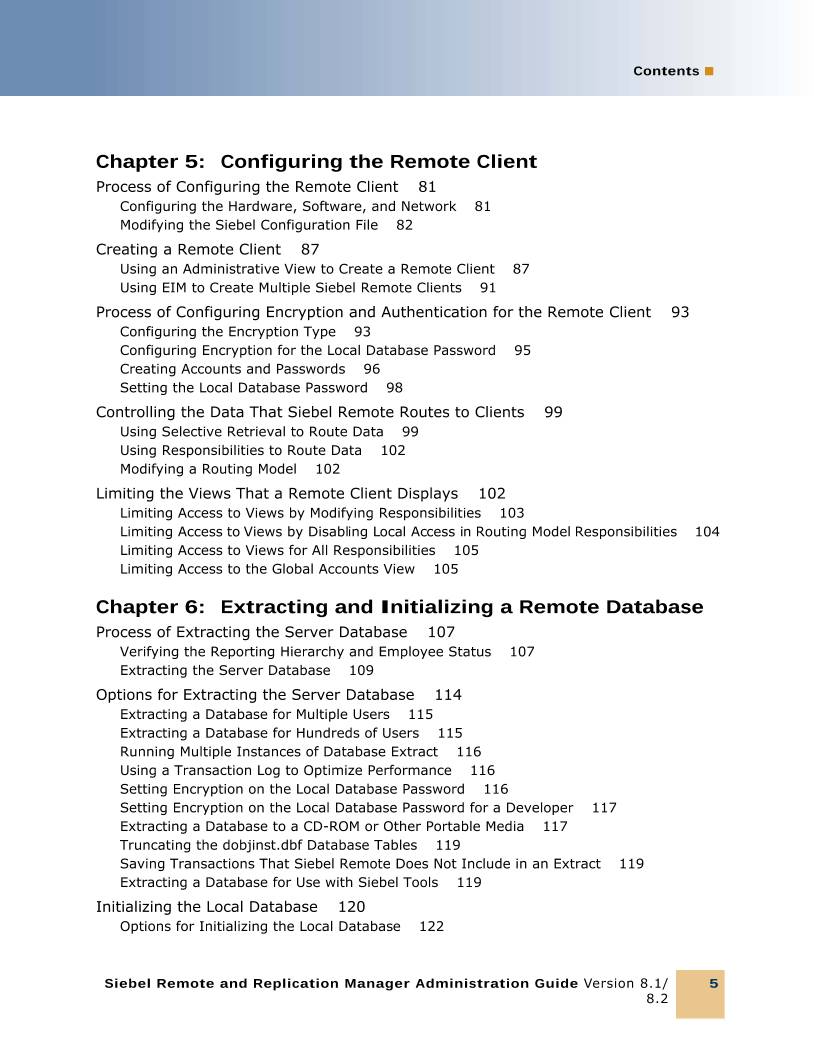


 设备数据采集
 工程招标采购
 搞笑表情
搞笑表情 微信头像
微信头像 CWMS冷库管理系统
 美女图片
美女图片 APP小游戏
 PPT模板
PPT模板 WMS仓库系统
 软件开发
软件开发