1
Kinetic Rate in a PFR Reactor: HYSYS
By Robert P. Hesketh Spring 2002
In this session you will learn how to install a tubular reactor in HYSYS with a kinetic reaction
rate. This HYSYS reaction rate will allow specification of an irreversible reaction. We will
ignore equilibrium in this tutorial.
The references for this section are taken from the 2 HYSYS manuals:
Simulation Basis: Chapter 4 Reactions
Steady-State Modeling: Chapter 9 Reactors
Reactors.
Taken from: 9.7 Plug Flow Reactor (PFR) Property View
The PFR (Plug Flow Reactor, or Tubular Reactor) generally consists of a bank of cylindrical
pipes or tubes. The flow field is modeled as plug flow, implying that the stream is radially
isotropic (without mass or energy gradients). This also implies that axial mixing is negligible.
As the reactants flow the length of the reactor, they are continually consumed, hence, there will
be an axial variation in concentration. Since reaction rate is a function of concentration, the
reaction rate will also vary axially (except for zero-order reactions).
To obtain the solution for the PFR (axial profiles of compositions, temperature, etc.), the reactor
is divided into several subvolumes. Within each subvolume, the reaction rate is considered to be
spatially uniform.
You may add a Reaction Set to the PFR on the Reactions tab. Note that only Kinetic,
Heterogeneous Catalytic and Simple Rate reactions are allowed in the PFR.
Reaction Sets (portions from Simulation Basis: Chapter 4 Reactions)
Reactions within HYSYS are defined inside the Reaction Manager. The Reaction Manager,
which is located on the Reactions tab of the Simulation Basis Manager, provides a location from
which you can define an unlimited number of Reactions and attach combinations of these
Reactions in Reaction Sets. The Reaction Sets are then attached to Unit Operations in the
Flowsheet.
HYSYS PFR Reactors using kinetic rates– Tutorial using Styrene
Styrene is a monomer used in the production of many plastics. It has the fourth highest
production rate behind the monomers of ethylene, vinyl chloride and propylene. Styrene is made
from the dehydrogenation of ethylbenzene:
22565256 HCHCHHCHCHC +=−⇔− (1)
In this reactor we will neglect the aspect that reaction 1 is an equilibrium reaction and model this
system using a power law expression. In HYSYS this is called a Kinetic Rate expression. The
reaction rate expression that you will install is given by the following:
2
−×−=
T
pr EBEB
K mol
cal1.987
molcal21708exp
s kPaL
EB mol1024.4
reactor
3 (2)
Notice that the reaction rate has units and that the concentration term is partial pressure with
units of kPa.
Procedure to Install a Kinetic Reaction Rate:
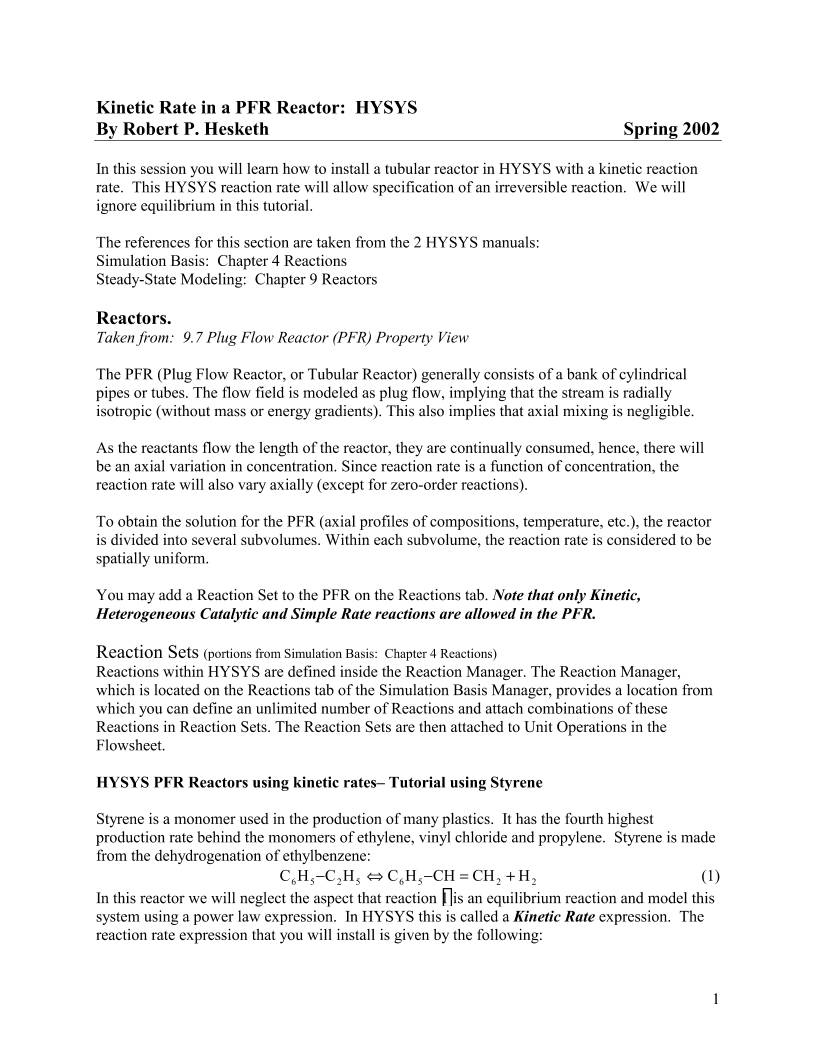
1. Start HYSYS
2. Since these compounds are
hydrocarbons, use the Peng-
Robinson thermodynamic package.
(Additional information on HYSYS
thermodynamics packages can be
found in the Simulation Basis
Manual Appendix A: Property
Methods and Calculations. Note an
alternative package for this system is
the PRSV)
3. Install the chemicals for a styrene reactor: ethylbenzene, styrene, and hydrogen. If they are
not on this list then use the Sort List… button feature.
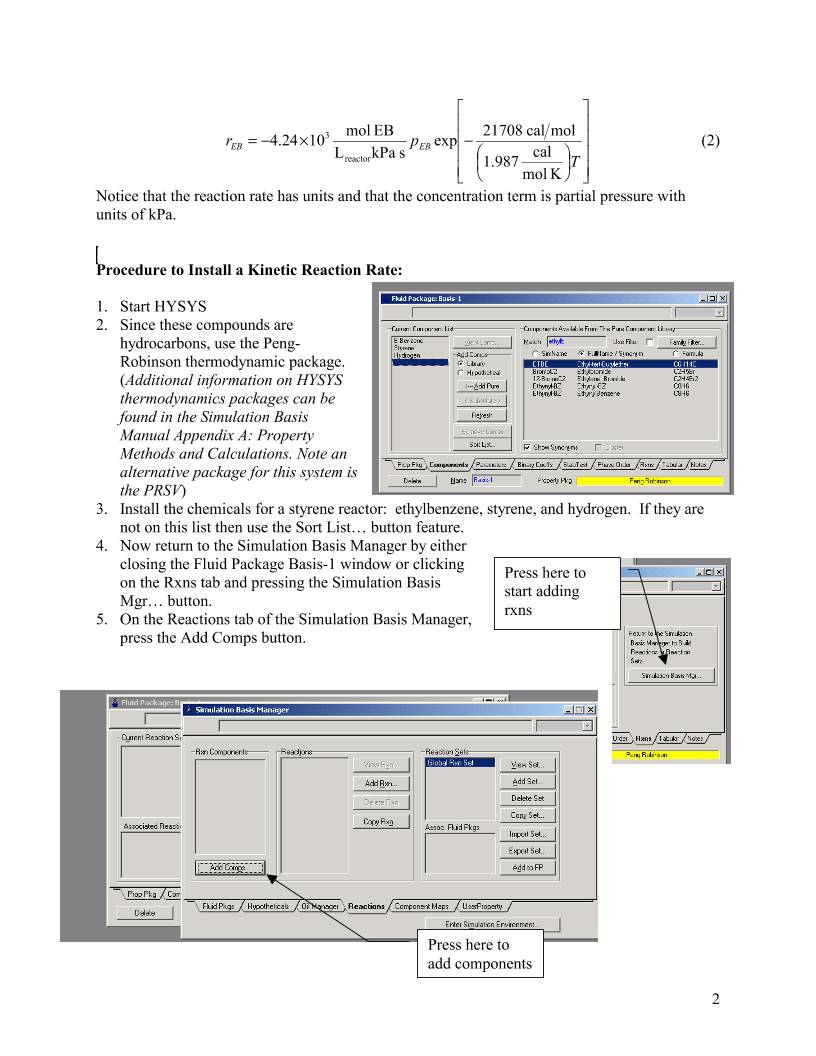
4. Now return to the Simulation Basis Manager by either
closing the Fluid Package Basis-1 window or clicking
on the Rxns tab and pressing the Simulation Basis
Mgr… button.
5. On the Reactions tab of the Simulation Basis Manager,
press the Add Comps button.
Press here to
start adding
rxns
Press here to
add components
3
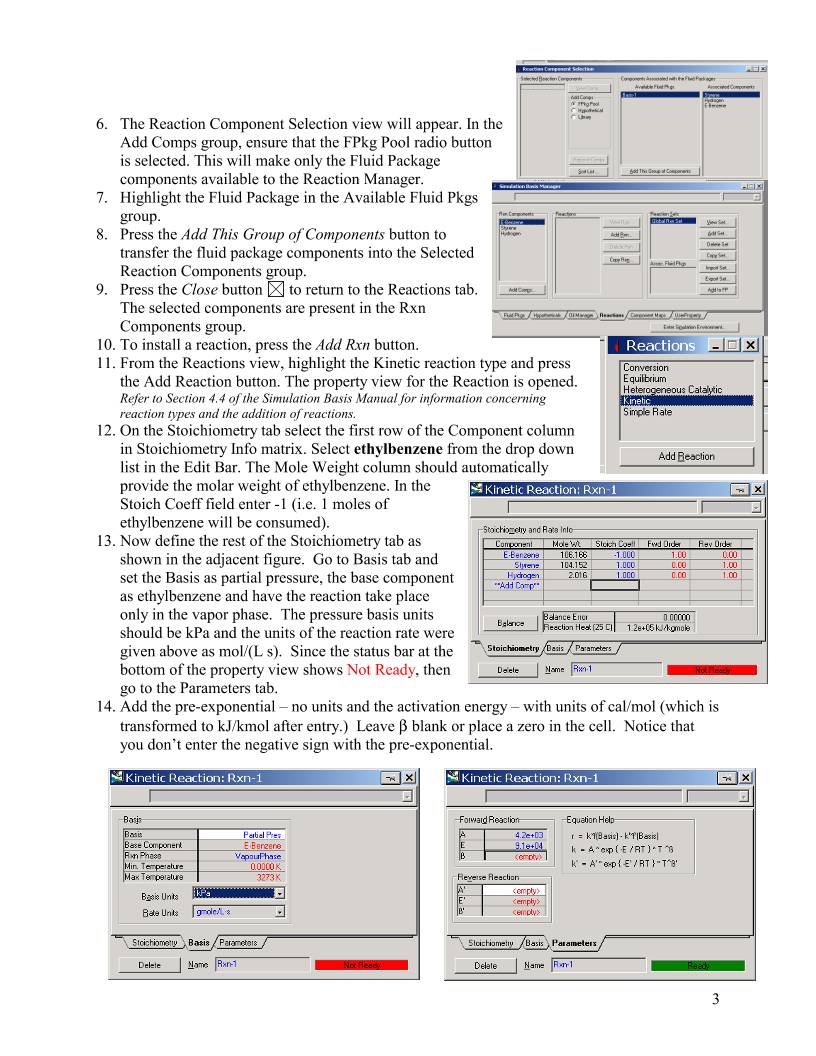
6. The Reaction Component Selection view will appear. In the
Add Comps group, ensure that the FPkg Pool radio button
is selected. This will make only the Fluid Package
components available to the Reaction Manager.
7. Highlight the Fluid Package in the Available Fluid Pkgs
group.
8. Press the Add This Group of Components button to
transfer the fluid package components into the Selected
Reaction Components group.
9. Press the Close button to return to the Reactions tab.
The selected components are present in the Rxn
Components group.
10. To install a reaction, press the Add Rxn button.
11. From the Reactions view, highlight the Kinetic reaction type and press
the Add Reaction button. The property view for the Reaction is opened.
Refer to Section 4.4 of the Simulation Basis Manual for information concerning
reaction types and the addition of reactions.
12. On the Stoichiometry tab select the first row of the Component column
in Stoichiometry Info matrix. Select ethylbenzene from the drop down
list in the Edit Bar. The Mole Weight column should automatically
provide the molar weight of ethylbenzene. In the
Stoich Coeff field enter -1 (i.e. 1 moles of
ethylbenzene will be consumed).
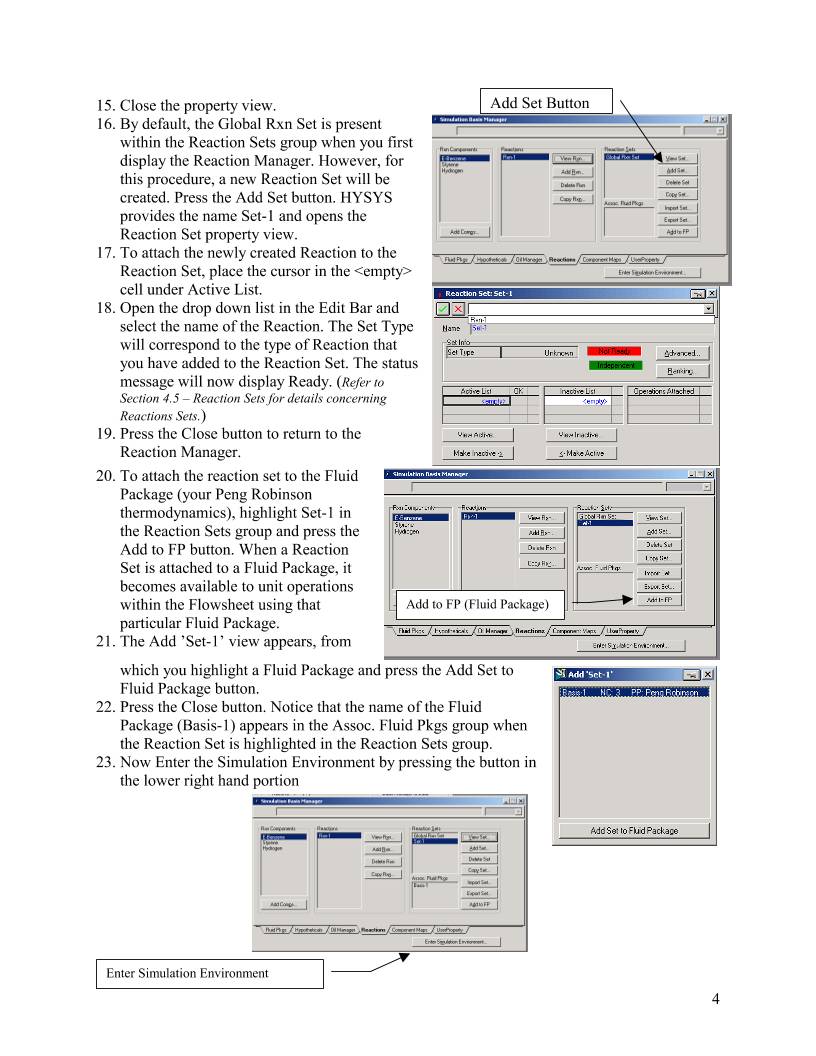
13. Now define the rest of the Stoichiometry tab as
shown in the adjacent figure. Go to Basis tab and
set the Basis as partial pressure, the base component
as ethylbenzene and have the reaction take place
only in the vapor phase. The pressure basis units
should be kPa and the units of the reaction rate were
given above as mol/(L s). Since the status bar at the
bottom of the property view shows Not Ready, then
go to the Parameters tab.
14. Add the pre-exponential – no units and the activation energy – with units of cal/mol (which is
transformed to kJ/kmol after entry.) Leave β blank or place a zero in the cell. Notice that
you don’t enter the negative sign with the pre-exponential.
4
Enter Simulation Environment
15. Close the property view.
16. By default, the Global Rxn Set is present
within the Reaction Sets group when you first
display the Reaction Manager. However, for
this procedure, a new Reaction Set will be
created. Press the Add Set button. HYSYS
provides the name Set-1 and opens the
Reaction Set property view.
17. To attach the newly created Reaction to the
Reaction Set, place the cursor in the
cell under Active List.
18. Open the drop down list in the Edit Bar and
select the name of the Reaction. The Set Type
will correspond to the type of Reaction that
you have added to the Reaction Set. The status
message will now display Ready. (Refer to
Section 4.5 – Reaction Sets for details concerning
Reactions Sets.)
19. Press the Close button to return to the
Reaction Manager.
20. To attach the reaction set to the Fluid
Package (your Peng Robinson
thermodynamics), highlight Set-1 in
the Reaction Sets group and press the
Add to FP button. When a Reaction
Set is attached to a Fluid Package, it
becomes available to unit operations
within the Flowsheet using that
particular Fluid Package.
21. The Add ’Set-1’ view appears, from
which you highlight a Fluid Package and press the Add Set to
Fluid Package button.
22. Press the Close button. Notice that the name of the Fluid
Package (Basis-1) appears in the Assoc. Fluid Pkgs group when
the Reaction Set is highlighted in the Reaction Sets group.
23. Now Enter the Simulation Environment by pressing the button in
the lower right hand portion
Add Set Button
Add to FP (Fluid Package)
5
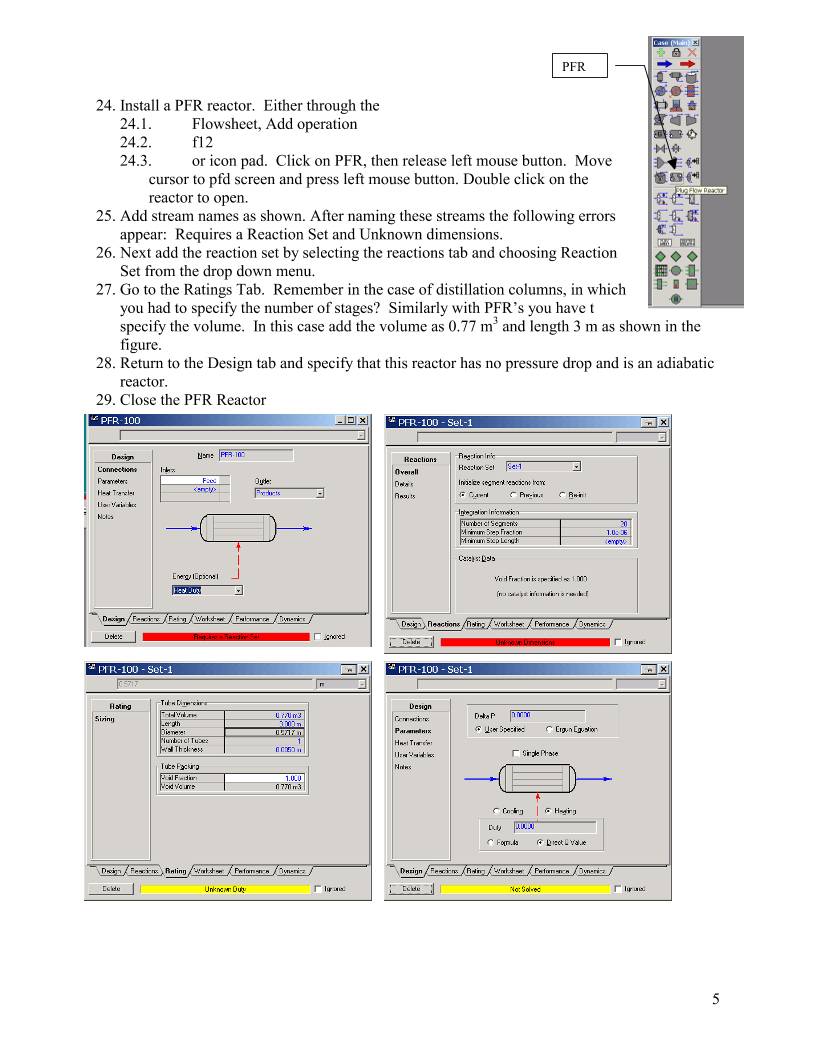
24. Install a PFR reactor. Either through the
24.1. Flowsheet, Add operation
24.2. f12
24.3. or icon pad. Click on PFR, then release left mouse button. Move
cursor to pfd screen and press left mouse button. Double click on the
reactor to open.
25. Add stream names as shown. After naming these streams the following errors
appear: Requires a Reaction Set and Unknown dimensions.
26. Next add the reaction set by selecting the reactions tab and choosing Reaction
Set from the drop down menu.
27. Go to the Ratings Tab. Remember in the case of distillation columns, in which
you had to specify the number of stages? Similarly with PFR’s you have t
specify the volume. In this case add the volume as 0.77 m3 and length 3 m as shown in the
figure.
28. Return to the Design tab and specify that this reactor has no pressure drop and is an adiabatic
reactor.
29. Close the PFR Reactor
PFR
6
30. Open the workbook
31. Now add a feed composition of pure ethylbenzene at 152.2 gmol/s, 880 K, 1.378 bar.
Remember you can type the variable press the space bar and type or select the units.
32. Isn’t it strange that you can’t see the molar flowrate in the composition window? Let’s add
the molar flowrates to the workbook windows. Go to Workbook setup.
33. Press the Add button on the right side
34. Select Component Molar Flow and then press the All radio button.
35. To change the units of the variables go to Tools,
preferences
Workbook
Add Button
Comp
Molar
Flow
Give it a new name
such as
Compositions
7
36. Then either bring in a previously named preference set or go to the variables tab and clone
the SI set and give this new set a name.
37. Change the component molar flowrate units from kmol/hr to gmol/s.
38. Change the Flow units from kmol/hr to gmol/s
39. Next change the Energy from kJ/hr to kJ/s.
40. Save preference set as well as the case. Remember that you need to open this preference set
every time you use this case.
41. Notice that the reactor has converged after you added the conditions of the feed stream.
42. To run an isothermal reactor you need to delete the duty that was specified (in blue) and
specify the outlet temperature. Try it! Isn’t that easy!
43. Examine the output in the reactor screens by opening the reactor. Go to the Performance tab
and make a plot of the composition profile. Notice that you will have to bring the
compositions into the plot.
POLYMATH and Hand Calculations
44. Now we will look at verifying what is going on in HYSYS. Notice that HYSYS is a black
box calculation. You can’t see what it is doing. Reading the help files will give an
indication on how it is integrating the reactor. To fully understand the PFR let’s go to some
hand calculations given on the following page.
8
45. Construct a POLYMATH program to give the following:
POLYMATH Results
Styrene Kinetic Rate Model 02-20-2002, Rev5.1.230
Calculated values of the DEQ variables
Variable initial value minimal value maximal value final value
V 0 0 770 770
FEB 152.2 0.2295141 152.2 0.2295141
FS 0 0 151.97049 151.97049
FH 0 0 151.97049 151.97049
FT 152.2 152.2 304.17049 304.17049
P 137.8 137.8 137.8 137.8
T 880 880 880 880
k 0.0172065 0.0172065 0.0172065 0.0172065
pEB 137.8 0.103978 137.8 0.103978
rEB -2.3710547 -2.3710547 -0.0017891 -0.0017891
ODE Report (RKF45)
Differential equations as entered by the user
[1] d(FEB)/d(V) = rEB
[2] d(FS)/d(V) = -rEB
[3] d(FH)/d(V) = -rEB
Explicit equations as entered by the user
[1] FT = FEB+FS+FH
[2] P = 137.8
[3] T = 880
[4] k = 4.24e3*exp(-21708/1.987/T)
[5] pEB = FEB/FT*P
[6] rEB = -k*pEB
Comments
[9] P = 137.8
kPa
Independent variable
variable name : V
initial value : 0
final value : 770
Precision
Step size guess. h = 0.000001
Truncation error tolerance. eps = 0.000001
General
number of differential equations: 3
number of explicit equations: 6
Data file: C:\ACdrive\Courses Jan 2002\Reaction Engineering\Lectures&Examples\styrene\styrene kinetic rate
model.pol
46. Now let’s compare this solution with that given in HYSYS. Notice that the product flowrates
of ethylbenzene from POLYMATH is 0.23 mol/s and from HYSYS is 0.55 mol/s. Why is
there a difference?
9
47. Increasing the number of segments used in the
integration can reduce the HYSYS product
flowrate of ethylbenzene. Go to the following
screen and change the number of segments and
observe the effect on the product flowrate of
ethylbenzene.
48. Notice that if you increase the number of
segments, then it will take longer to solve this
problem. This could be important when using a
reactor in a complex chemical plant simulation –
in you senior year!
49. Now examine the following screens:
Notice all
significant
digits are
given
10
50. Make a plot of the molar flowrates within the PFR.
Go to the Performance tab and click on composition.
At the end of this exercise submit 4 printouts (5 pages
total).
1) From a word document printout the following (2
pages): (Paste all of your results into one word
document.) Make the following plots from your Conversion
reactor simulation:
a) The effect of inlet temperature on the conversion
of ethylbenzene for an adiabatic reactor. .
b) The effect of reactor temperature on the conversion of ethylbenzene for an isothermal
reactor. Hint: you can do this using the Databook. Create a spreadsheet that you can
import the feed temperature to a cell B1, then export this temperature from a formula in
cell B2 to the product stream. See figures on this page for help.
c) POLYMATH program
2) On a separate sheet printout the Reaction Summary Printout (See Below for instructions)
3) On a separate sheet printout the Reactor Summary Printout
11
Reaction Summary
1. Go back to the simulation Basis
Manager by clicking on the
Erlenmeyer flask.
2. View the reaction
3. Remove the pushpin
4. Select File Print and use the
preview feature to see the
following:
5. Print
Reactor Summary:
Double click on reactor
Undo pushpin
Select Print from main
menu
Then select the
Datablock(s) shown in the
Select Datablock(s) to Print
for PFR figure:
Workbook
Select workbook and print.
Simulation
Basis
Manager
12
13


 设备数据采集
 工程招标采购
 搞笑表情
搞笑表情 微信头像
微信头像 CWMS冷库管理系统
 美女图片
美女图片 APP小游戏
 PPT模板
PPT模板 WMS仓库系统
 软件开发
软件开发