概要信息:
Introduction to HYSYS Plant2.4 bubble dew & Flashes  1
Introduction to HYSYS Simulation
Bubble Point, Dew Point and Flash Calculations
R. P. Hesketh and M. J. Savelski
Chemical Engineering, Rowan University (Revised 4/10/2002)

In this exercise you will simulate several flash processes and calculate bubble and dew point temperatures for a
process stream using a chemical process simulation package from Hyprotech Inc.  This program is used by industry
to design and simulate process plants such as oil and gas refineries, chemical and pharmaceuticals production
facilities.  A typical sampling of well-known companies using this software are given below:
•  DuPont, Eastman Kodak, Monsanto, Hoechst Celanese, Rohm & Haas
•  Shell, Amoco, Exxon Chemical, Olin, Conoco, Phillips
•  Foster Wheeler, Arthur D. Little, Ballard, Koch
•  Hoffman LaRoche, International Flavors and Fragrances,
This software is written in C++ which is a language that you have learned.  The cost of this software is
approximately $45,000 for the dynamic version and $20,000 for the steady-state version.  This price is for only one
user!  For more information on Hyprotech go to www.hyprotech.com

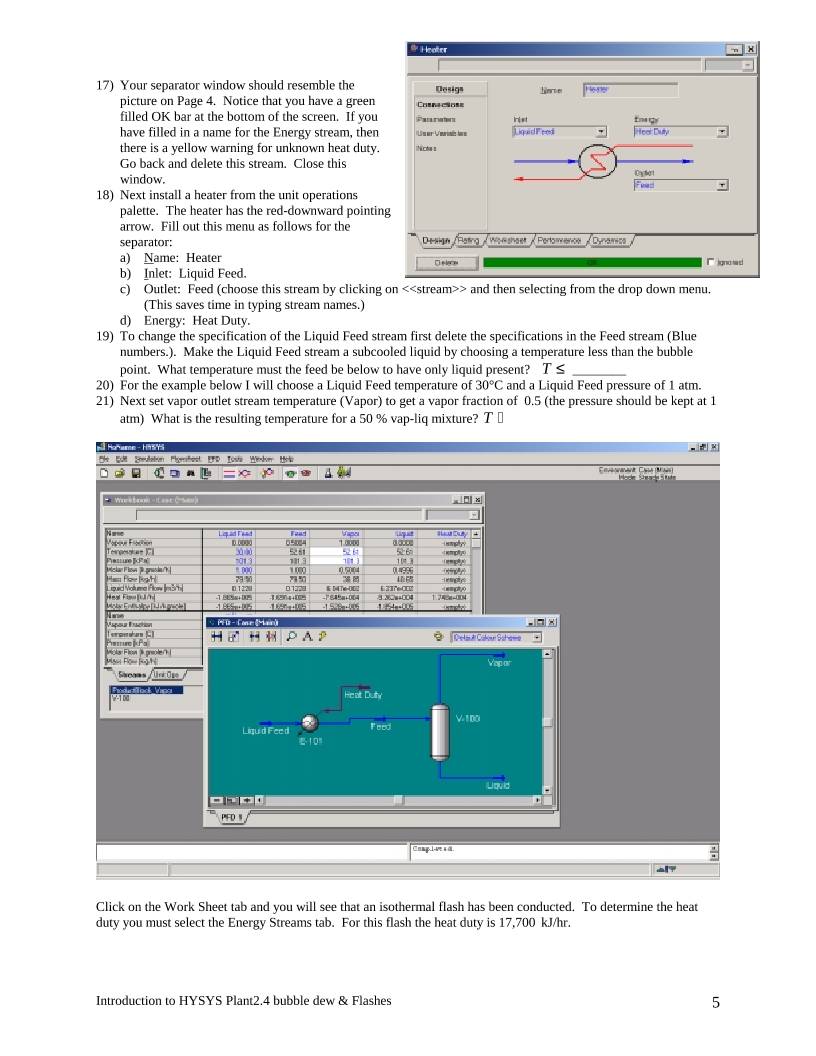
The overall process for this simulation is to
•  Select a thermodynamics package that describes the physical and chemical properties of the chosen chemicals
•  Select the unit operations
•  Define all required inputs and output streams.  Specify required values of temperature, pressure, flowrate and
chemical concentration.

Start your computer:
Rowan University has a license to run HYSYS PLANT version 2.4, which is both a steady state and dynamic
simulation program.

For convenience Hyprotech suggests that you copy the
HYSYS directories to your personal drive on galaxy.
These  are located in \\galaxy\public1\chemical
engineering\HYSYS (To do this you may need to map a
drive (Start, Windows Explorer, Tools, Map Network
Drive…,)  In these directories you will save your
configuration files and cases.

In HYSYS there is a limited online Help package, which
can be obtained using the Help command from the menu
bar or by pressing the F1 key.  There is an extensive
collection of manuals that can be accessed from
\\engnet1\apps\Hysys_Doc\Menu.pdf.  Remember that we
are running HYSYS PLANT.

1) Start HYSYS PLANT
Third Floor Lab (windows NT) Start => Engineering
Network apps => Engineering Apps => HYSYS Plant
First floor labs (windows 2000) Press Start => Engineering Apps
=>HYSYS Plant
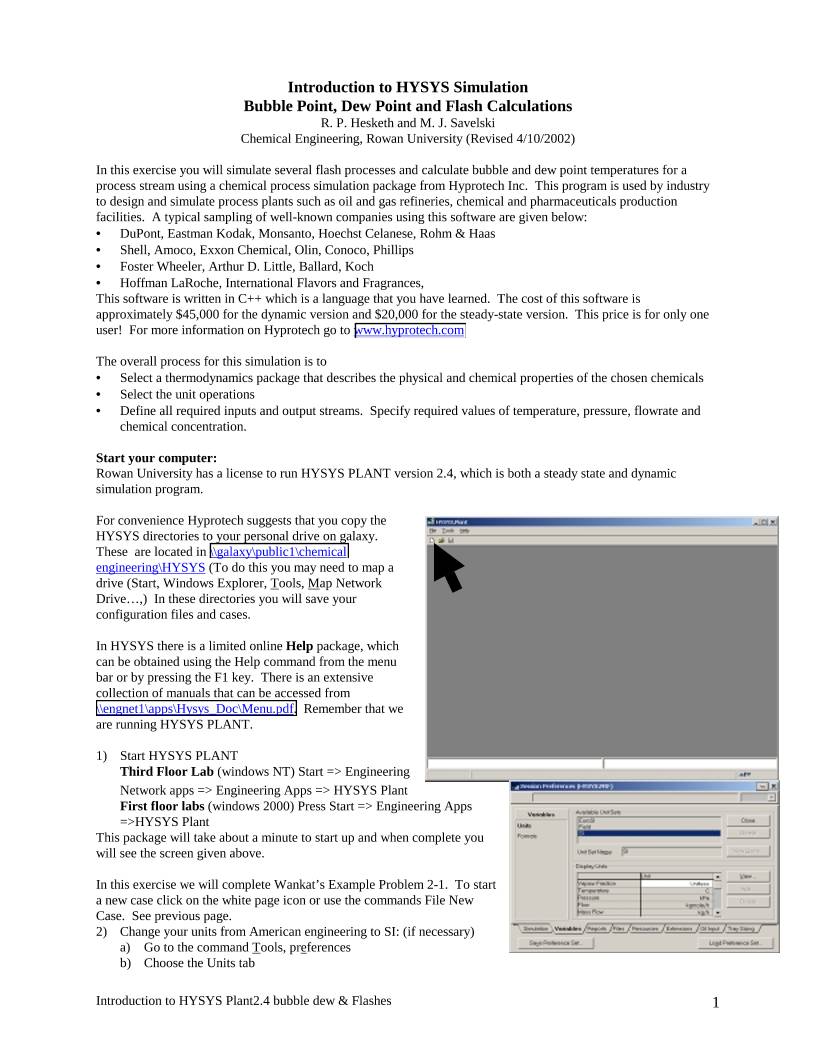
This package will take about a minute to start up and when complete you
will see the screen given above.

In this exercise we will complete Wankat’s Example Problem 2-1.  To start
a new case click on the white page icon or use the commands File New
Case.  See previous page.
2) Change your units from American engineering to SI: (if necessary)
a) Go to the command Tools, preferences
b) Choose the Units tab
Introduction to HYSYS Plant2.4 bubble dew & Flashes  2
b
f
d
c
a
Fit to Screen
Enlarge or (PgUp)
Reduce or (PgDn)
Zoom by Mouse
c) Select SI
d) Press Save Preference Set to your galaxy drive
e) Press close.

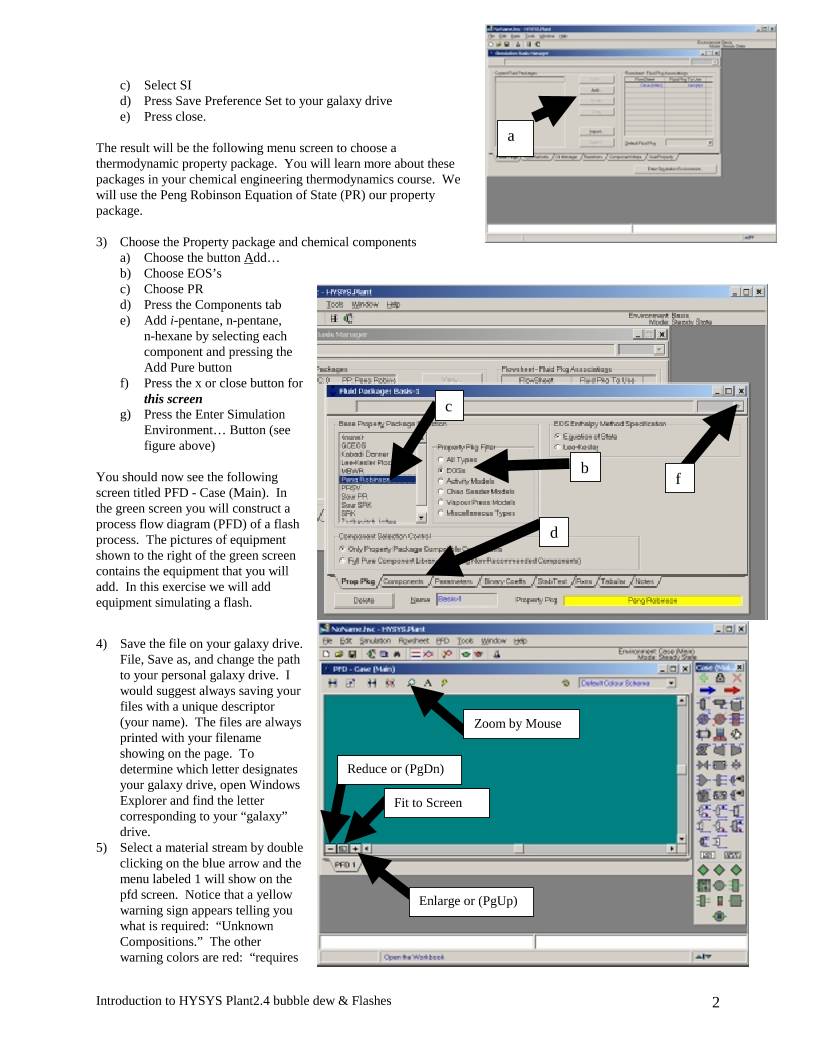
The result will be the following menu screen to choose a
thermodynamic property package.  You will learn more about these
packages in your chemical engineering thermodynamics course.  We
will use the Peng Robinson Equation of State (PR) our property
package.

3) Choose the Property package and chemical components
a) Choose the button Add…
b) Choose EOS’s
c) Choose PR
d) Press the Components tab
e) Add i-pentane, n-pentane,
n-hexane by selecting each
component and pressing the
Add Pure button
f) Press the x or close button for
this screen
g) Press the Enter Simulation
Environment… Button (see
figure above)

You should now see the following
screen titled PFD - Case (Main).  In
the green screen you will construct a
process flow diagram (PFD) of a flash
process.  The pictures of equipment
shown to the right of the green screen
contains the equipment that you will
add.  In this exercise we will add
equipment simulating a flash.

4) Save the file on your galaxy drive.
File, Save as, and change the path
to your personal galaxy drive.  I
would suggest always saving your
files with a unique descriptor
(your name).  The files are always
printed with your filename
showing on the page.  To
determine which letter designates
your galaxy drive, open Windows
Explorer and find the letter
corresponding to your “galaxy”
drive.
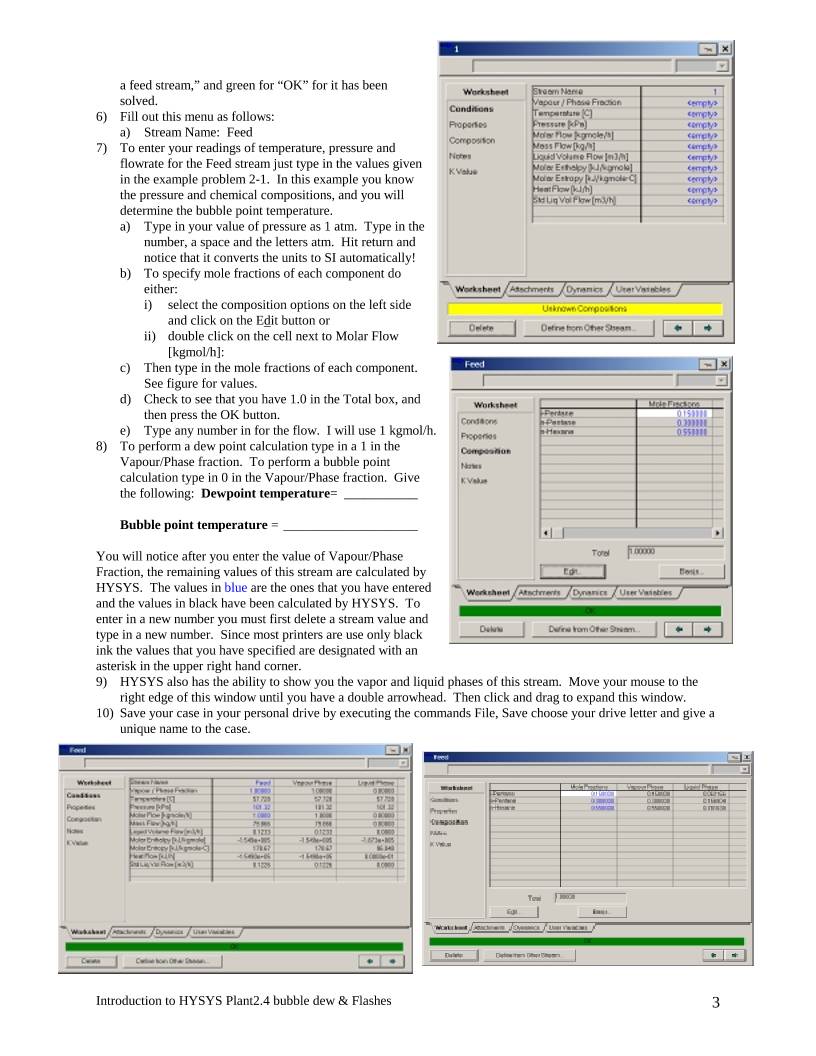
5) Select a material stream by double
clicking on the blue arrow and the
menu labeled 1 will show on the
pfd screen.  Notice that a yellow
warning sign appears telling you
what is required:  “Unknown
Compositions.”  The other
warning colors are red:  “requires
Introduction to HYSYS Plant2.4 bubble dew & Flashes  3
a feed stream,” and green for “OK” for it has been
solved.
6) Fill out this menu as follows:
a) Stream Name:  Feed
7) To enter your readings of temperature, pressure and
flowrate for the Feed stream just type in the values given
in the example problem 2-1.  In this example you know
the pressure and chemical compositions, and you will
determine the bubble point temperature.
a) Type in your value of pressure as 1 atm.  Type in the
number, a space and the letters atm.  Hit return and
notice that it converts the units to SI automatically!
b) To specify mole fractions of each component do
either:
i) select the composition options on the left side
and click on the Edit button or
ii) double click on the cell next to Molar Flow
[kgmol/h]:
c) Then type in the mole fractions of each component.
See figure for values.
d) Check to see that you have 1.0 in the Total box, and
then press the OK button.
e) Type any number in for the flow.  I will use 1 kgmol/h.
8) To perform a dew point calculation type in a 1 in the
Vapour/Phase fraction.  To perform a bubble point
calculation type in 0 in the Vapour/Phase fraction.  Give
the following:  Dewpoint temperature= ___________

Bubble point temperature = ____________________

You will notice after you enter the value of Vapour/Phase
Fraction, the remaining values of this stream are calculated by
HYSYS.  The values in blue are the ones that you have entered
and the values in black have been calculated by HYSYS.  To
enter in a new number you must first delete a stream value and
type in a new number.  Since most printers are use only black
ink the values that you have specified are designated with an
asterisk in the upper right hand corner.
9) HYSYS also has the ability to show you the vapor and liquid phases of this stream.  Move your mouse to the
right edge of this window until you have a double arrowhead.  Then click and drag to expand this window.
10) Save your case in your personal drive by executing the commands File, Save choose your drive letter and give a
unique name to the case.
Introduction to HYSYS Plant2.4 bubble dew & Flashes  4
Flash Calculations - Extension of
Example 2-1
Flash calculations are performed for every
stream in HYSYS.  To perform a flash
calculation on the stream labeled feed:
11) Delete the Vapor/Phase Fraction value.
Type in a temperature value between the
bubble point and dew point temperatures.
( )CTC °<<° 5848 .  Your Vapor
Fraction value should be between 0 and 1!
You have just conducted an isothermal
flash (all streams have the same
temperature)!  What are the mole fractions
of the components in the vapor and liquid
phases?   Select composition and this
screen will give the compositions of the
vapor and liquid phases.
12) Now type in a temperature greater than
60°C or less than 48°C.  Notice that the
value of the vapor fraction is 1 and 0
respectively.  A bubble point and a
dewpoint calculation are only performed
by specifying the vapor fraction as exactly
1 or zero.
13) In an isothermal flash you need to keep the
temperature constant.  This is easy to do in a
chemical process simulator, but in the actual
world you will need to either add or remove heat
using a heat exchanger.  Next you will need to
separate these streams into a vapor and liquid
stream.  This can be done in a process simulator
by installing a unit operation call a separator.
This unit operation will automatically perform
an energy balance to determine the energy
required to perform an isothermal flash.  This
energy is called the heat duty.
14) Press F4 or select Flowsheet, Open Object
Palette.
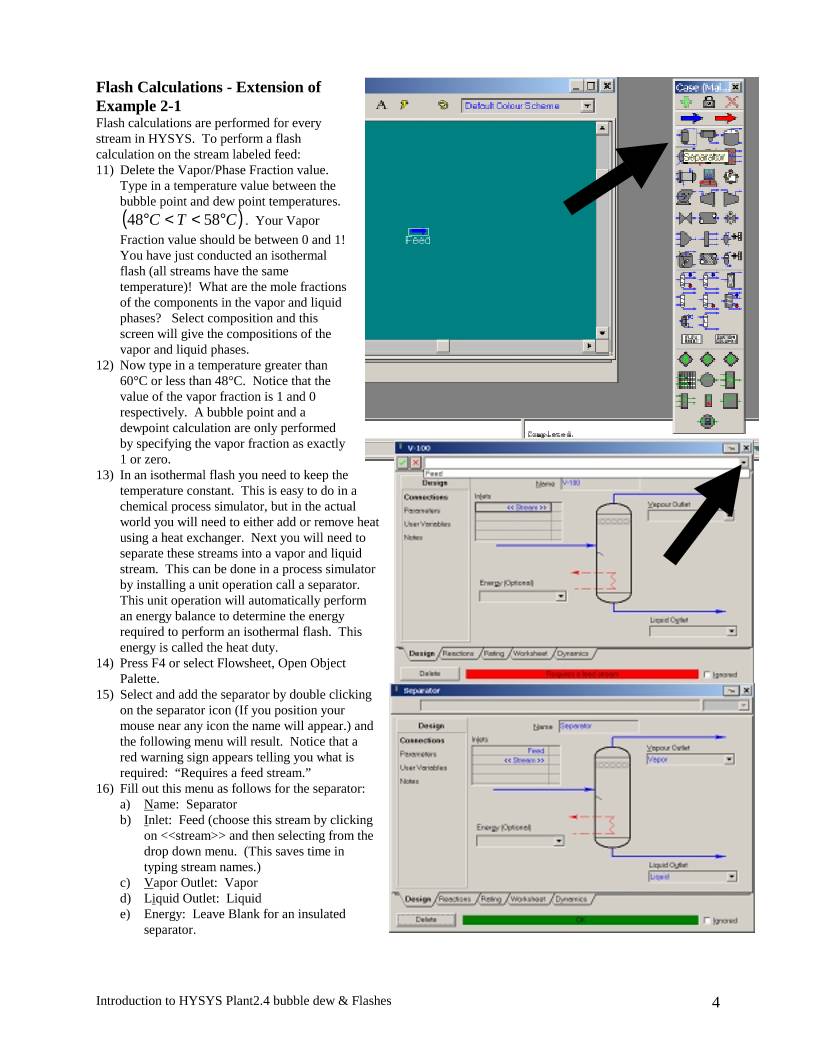
15) Select and add the separator by double clicking
on the separator icon (If you position your
mouse near any icon the name will appear.) and
the following menu will result.  Notice that a
red warning sign appears telling you what is
required:  “Requires a feed stream.”
16) Fill out this menu as follows for the separator:
a) Name:  Separator
b) Inlet:  Feed (choose this stream by clicking
on <> and then selecting from the
drop down menu.  (This saves time in
typing stream names.)
c) Vapor Outlet:  Vapor
d) Liquid Outlet:  Liquid
e) Energy:  Leave Blank for an insulated
separator.
Introduction to HYSYS Plant2.4 bubble dew & Flashes  5
17) Your separator window should resemble the
picture on Page 4.  Notice that you have a green
filled OK bar at the bottom of the screen.  If you
have filled in a name for the Energy stream, then
there is a yellow warning for unknown heat duty.
Go back and delete this stream.  Close this
window.
18) Next install a heater from the unit operations
palette.  The heater has the red-downward pointing
arrow.  Fill out this menu as follows for the
separator:
a) Name:  Heater
b) Inlet:  Liquid Feed.
c) Outlet:  Feed (choose this stream by clicking on <> and then selecting from the drop down menu.
(This saves time in typing stream names.)
d) Energy:  Heat Duty.
19) To change the specification of the Liquid Feed stream first delete the specifications in the Feed stream (Blue
numbers.).  Make the Liquid Feed stream a subcooled liquid by choosing a temperature less than the bubble
point.  What temperature must the feed be below to have only liquid present?   ≤T ________
20) For the example below I will choose a Liquid Feed temperature of 30°C and a Liquid Feed pressure of 1 atm.
21) Next set vapor outlet stream temperature (Vapor) to get a vapor fraction of  0.5 (the pressure should be kept at 1
atm)  What is the resulting temperature for a 50 % vap-liq mixture? ≅T


Click on the Work Sheet tab and you will see that an isothermal flash has been conducted.  To determine the heat
duty you must select the Energy Streams tab.  For this flash the heat duty is 17,700  kJ/hr.
Introduction to HYSYS Plant2.4 bubble dew & Flashes  6

22) Now the real question that all of you are asking is why is this called an isothermal flash?  An isothermal flash is
defined as fully specifying a feed stream ( FF PT , , and compositions) and the temperature and pressure of one
outlet stream.  Remember that the above simulation was obtained by deleting specifications.  If you over specify
the problem (variables > equations) HYSYS will give an error and go to a stopped mode.  Fix the error by
deleting specifications and press the go button (green traffic signal).
23) Printout your HYSYS workbook Specsheets and PFD.  To print a specsheet:
a) Check the printer by selecting File Printer Setup.  The graphics printer prints the pfd’s and the report printer
prints text or workbook.
b) Select the workbook by pressing the toolbar button as shown in the figure below.
c) Select File, Print,
d) Choose All Pages - Compact.
e) Preview it
Also printout your process flow diagram, (PFD) by choosing the print command while the PFD is active.

Adiabatic Flash
A common technique to perform a flash operation of a high pressure fluid is to release it to a low pressure through a
valve.  We will add a valve unit operation in this portion and set the Heat Duty to zero.  A zero heat duty implies that
there are no heat losses in the system.  Once again in order to solve a single stage flash operation the typical
variables specified are the feed stream, and 2 other variables.  In the case of an adiabatic flash the variables are zero
heat duty and the outlet stream pressure.
24) Before adding these streams
delete the specifications to
temperature and pressure in the
feed stream and the vapor
stream.  If you ever get to a
situation that HYSYS stops
calculating values, it is because
you have an inconsistency error.
HYSYS tells you when it has
stopped calculating values
(holding mode) when the GO
icon (stop light signal) is
present.  To have HYSY start
calculating again you must fix
your error and then press the
GO icon to toggle to the
automatic calculation mode.
Currently the separator unit
operation is adiabatic, since no
stream name was provided for
the energy stream within the
separator unit operation.  (If a
stream name was provided then
the separator energy stream
must be specified as zero.  This
will change the color of these
numbers to blue.)
25) Delete the heater and add the
valve by double clicking on the
valve icon in the unit operation
palette (press F4 to show).
26) Label the feed to the valve
“high pressure liquid” and connect the outlet of the valve to the feed.  Specify “high pressure liquid” to have a
pressure of 10 atm and temperature of 118°C.  Check to make sure that you have a liquid below its bubble point.
Determine the bubble point temperature of this “high pressure liquid” stream at 10 atm.  =T
Introduction to HYSYS Plant2.4 bubble dew & Flashes  7
27) The valve is based on the assumption that change of enthalpy of the stream is zero (Isenthalpic).  Set the outlet
pressure of the valve or product stream of the separator to give a vapor fraction of 0.5.  =FEEDP
What is the temperature of the feed to the separator?  =FEEDT ________________________
Why is it so cold compared to the High Pressure Liquid feed to the valve?
28) Add a summary table to your unit operations by right clicking on a unit operation and selecting Show Table.
Note that the “Heat Duty” on the separator is shown in the table as zero – which is adiabatic.
29) Printout your HYSYS workbook Specsheets and PFD.  To print a specsheet:
30) Check the printer by selecting File Printer Setup.  The graphics printer prints the pfd’s and the report printer
prints text or workbook.
a) Select the workbook by pressing the toolbar button as shown in the figure below
b) Select File, Print,
c) Choose All Pages - Compact.
d) Preview it and then print
Also printout your process flow diagram, (PFD) by choosing the print command while the PFD is active.


 设备数据采集
 工程招标采购
 搞笑表情
搞笑表情 微信头像
微信头像 CWMS冷库管理系统
 美女图片
美女图片 APP小游戏
 PPT模板
PPT模板 WMS仓库系统
 软件开发
软件开发