Conversion Reactors:  HYSYS Version 3.0
By Robert P. Hesketh  Spring 2003

In this session you will learn how to install a conversion reactor in HYSYS 3.0.

The references for this section are taken from the 2 HYSYS manuals:
Simulation Basis:  Chapter 5 Reactions
Operations Guide:  Chapter 9 Reactors

Reactors.
Taken from:  Steady-State Modeling 9.1 The Reactor Operation

With the exception of the PLUG FLOW REACTOR (PFR), all of the reactor operations share
the same basic property view. The primary differences are the functions of the reaction type
(conversion, kinetic, equilibrium, heterogeneous catalytic or simple rate) associated with each
reactor. As opposed to a SEPARATOR or GENERAL REACTOR with an attached reaction set,
specific reactor operations may only support one particular reaction type. For instance, a
CONVERSION REACTOR will only function properly with conversion reactions attached. If
you try to attach an equilibrium or a kinetic reaction to a CONVERSION REACTOR, an error
message will appear. The GIBBS REACTOR is unique in that it can function with or without a
reaction set.

Thought to remember:  CONVERSION REACTORS must have a CONVERSION
REACTION SET.

The remainder of this chapter discusses the features of each of these reactors:
Sections 9.2-9.4 GIBBS REACTOR, EQUILIBRIUM REACTOR, CONVERSION
REACTOR or (General Reactors) and CSTR.

Reaction Sets (portions from Simulation Basis:  Chapter 5 Reactions)
Reactions within HYSYS are defined inside the Reaction Manager. The Reaction Manager,
which is located on the Reactions tab of the Simulation Basis Manager, provides a location from
which you can define an unlimited number of Reactions and attach combinations of these
Reactions in Reaction Sets. The Reaction Sets are then attached to Unit Operations in the
Flowsheet.

 1
HYSYS Conversion Reactors – Tutorial on Styrene

Styrene is a monomer used in the production of many plastics.  It has the fourth highest
production rate behind the monmers of ethylene, vinyl chloride and propylene.  Styrene is made
from the dehydrogenation of ethylbenzene:
 2256 HCHCHHC5256 HCHC +=−⇔−
 (1)
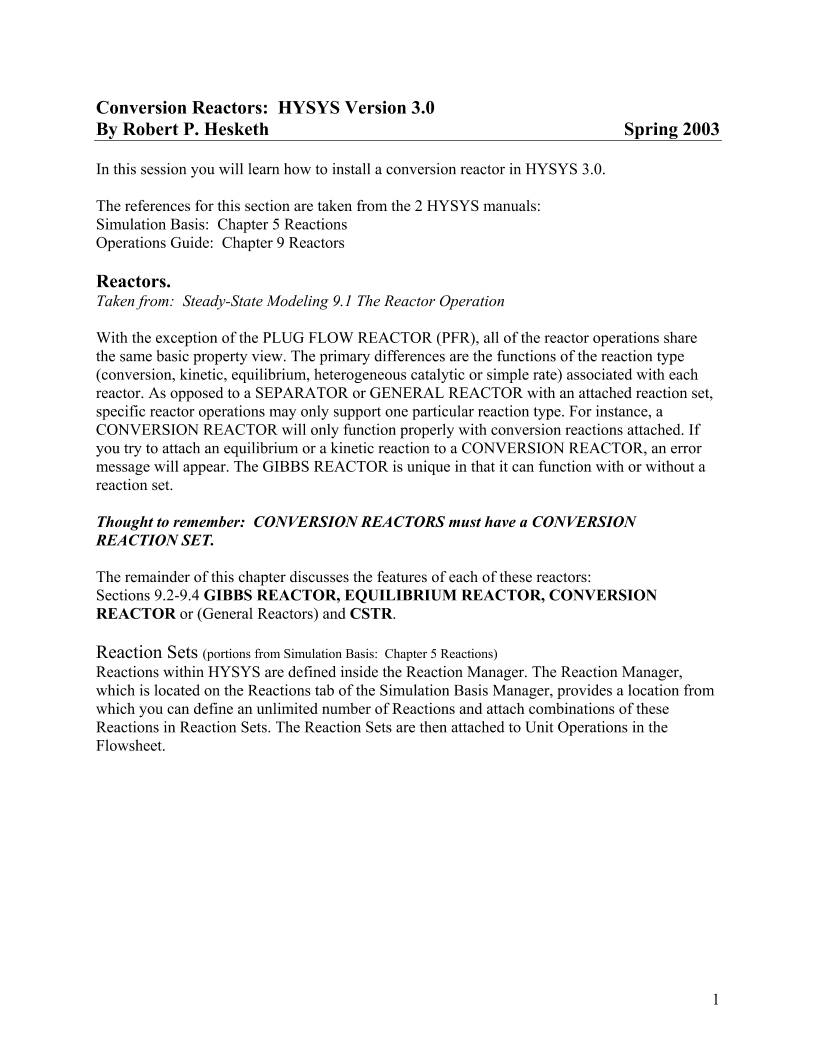
 Start a New Case Procedure to Install a Conversion Reaction Set:

1. Start HYSYS
2. Open a new case by clicking on the blank white page OR use the commands File New.
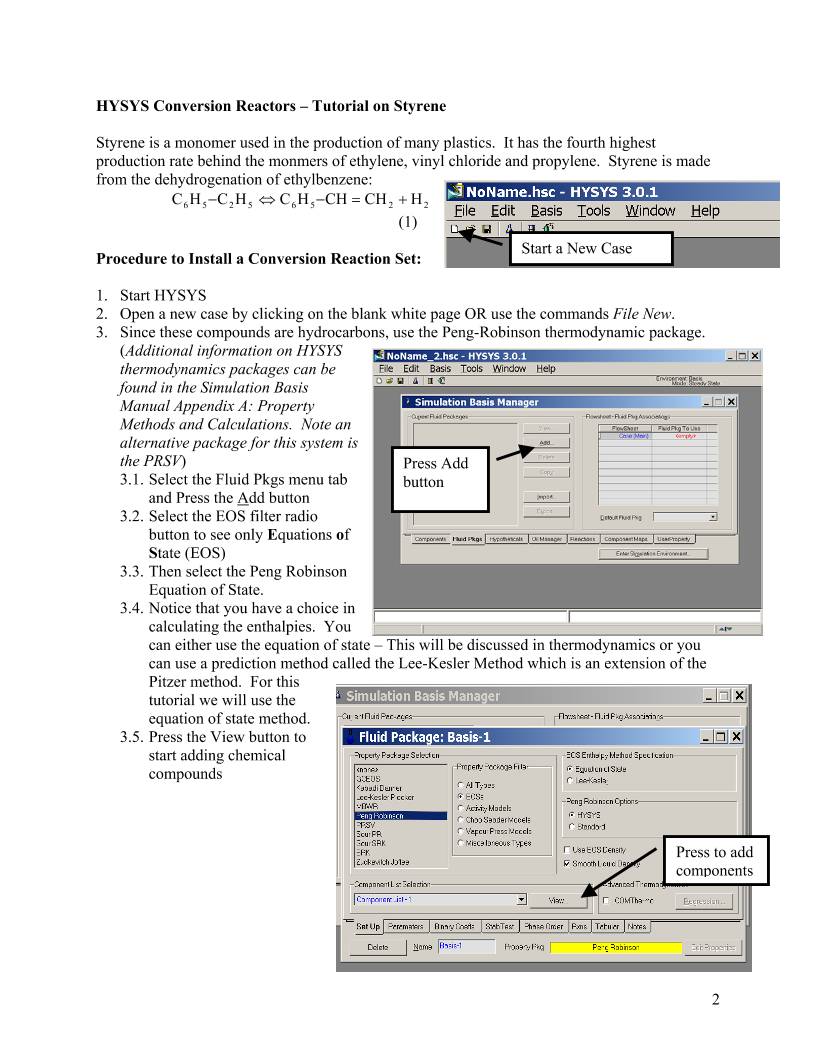
Press Add
button
3. Since these compounds are hydrocarbons, use the Peng-Robinson thermodynamic package.
(Additional information on HYSYS
thermodynamics packages can be
found in the Simulation Basis
Manual Appendix A: Property
Methods and Calculations.  Note an
alternative package for this system is
the PRSV)
3.1. Select the Fluid Pkgs menu tab
and Press the Add button
3.2. Select the EOS filter radio
button to see only Equations of
State (EOS)
3.3. Then select the Peng Robinson
Equation of State.
tate – This will be discussed in thermodynamics or you
e
3.4. Notice that you have a choice in
calculating the enthalpies.  You
can either use the equation of s
can use a prediction method called the Lee-Kesler Method which is an extension of th
Pitzer method.  For thi
tutorial we will use th
equation of state method
Press the View button to
start adding chemical
compounds
s
e
.
3.5.
Press to add
components
 2

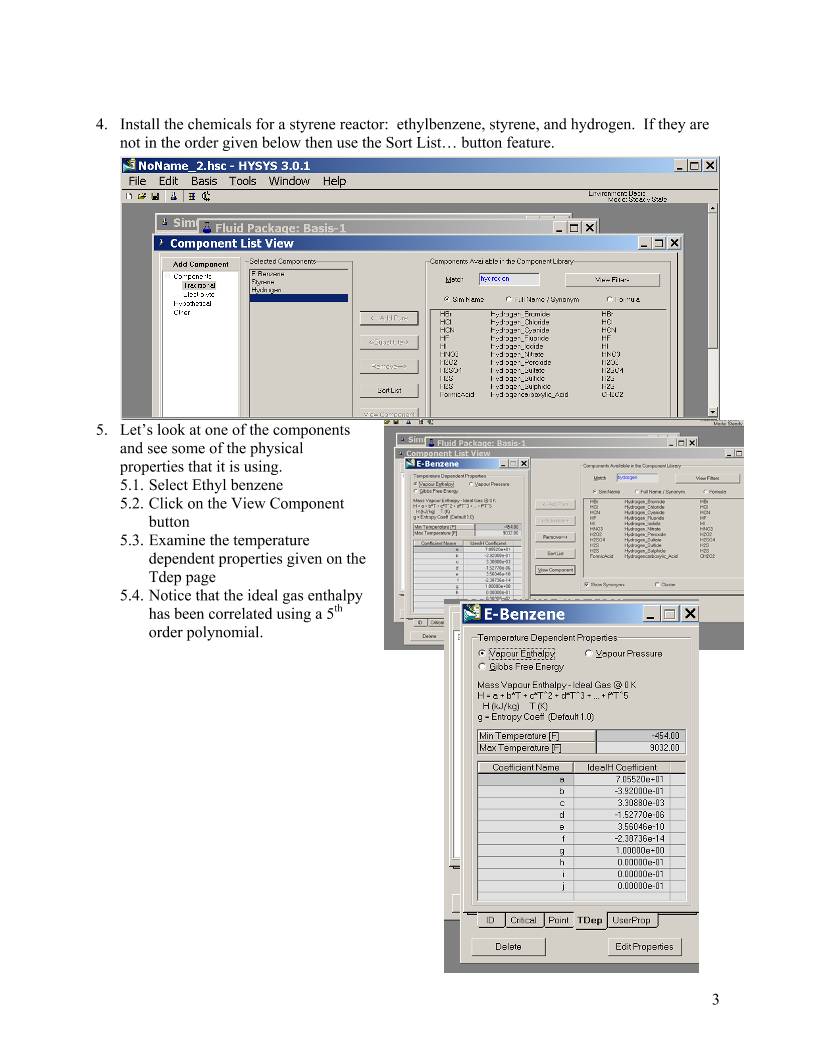
4. Install the chemicals for a styrene reactor:  ethylbenzene, styrene, and hydrogen.  If they are
not in the order given below then use the Sort List… button feature.
5. Let’s look at one of the components
ponent
5.3.  the temperature
 on the
5.4. the ideal gas enthalpy
and see some of the physical
properties that it is using.
5.1. Select Ethyl benzene
5.2. Click on the View Com
button
Examine
dependent properties given
Tdep page
Notice that
has been correlated using a 5th
order polynomial.
 3
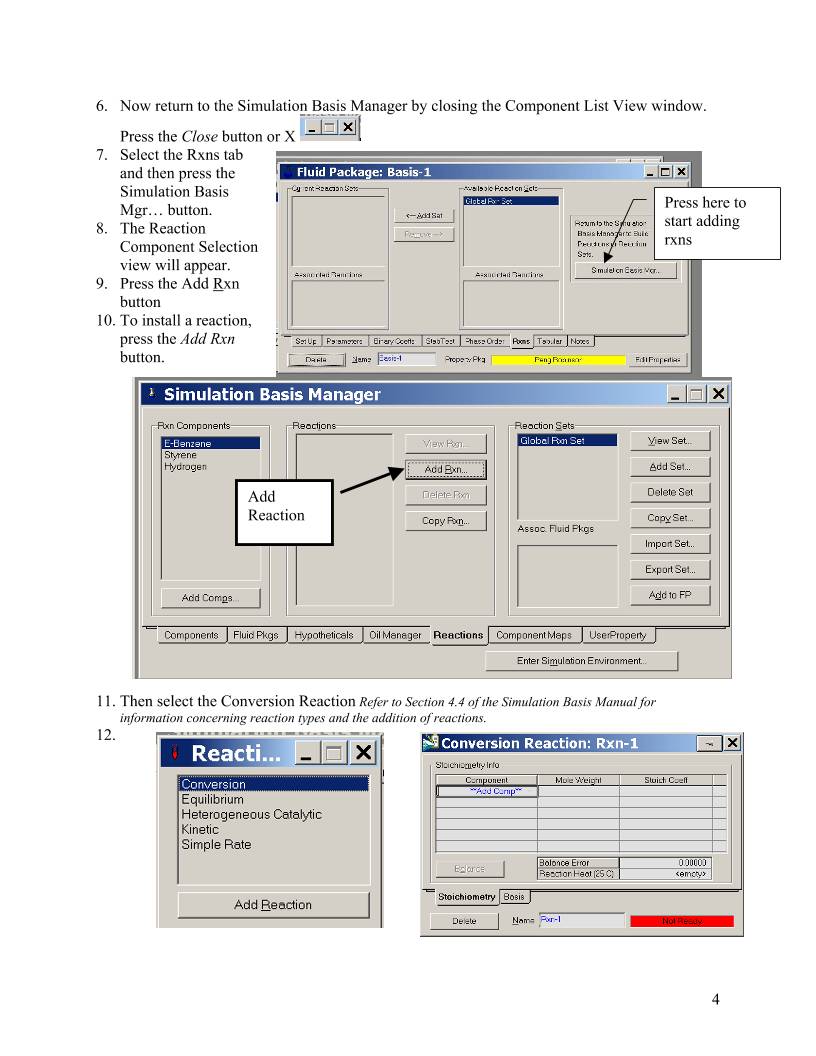
6. Now return to the Simulation Basis Manager by closing the Component List View window.
Press the Close button or X
7. Select the Rxns tab
and then press the
Simulation Basis
Mgr… button.  Press here to
start adding
rxns
8. The Reaction
Component Selection
view will appear.
9. Press the Add Rxn
button
10. To install a reaction,
press the Add Rxn
button.
Add
Reaction
11. Then select the Conversion Reaction Refer to Section 4.4 of the Simulation Basis Manual for
information concerning reaction types and the addition of reactions.
12.
 4
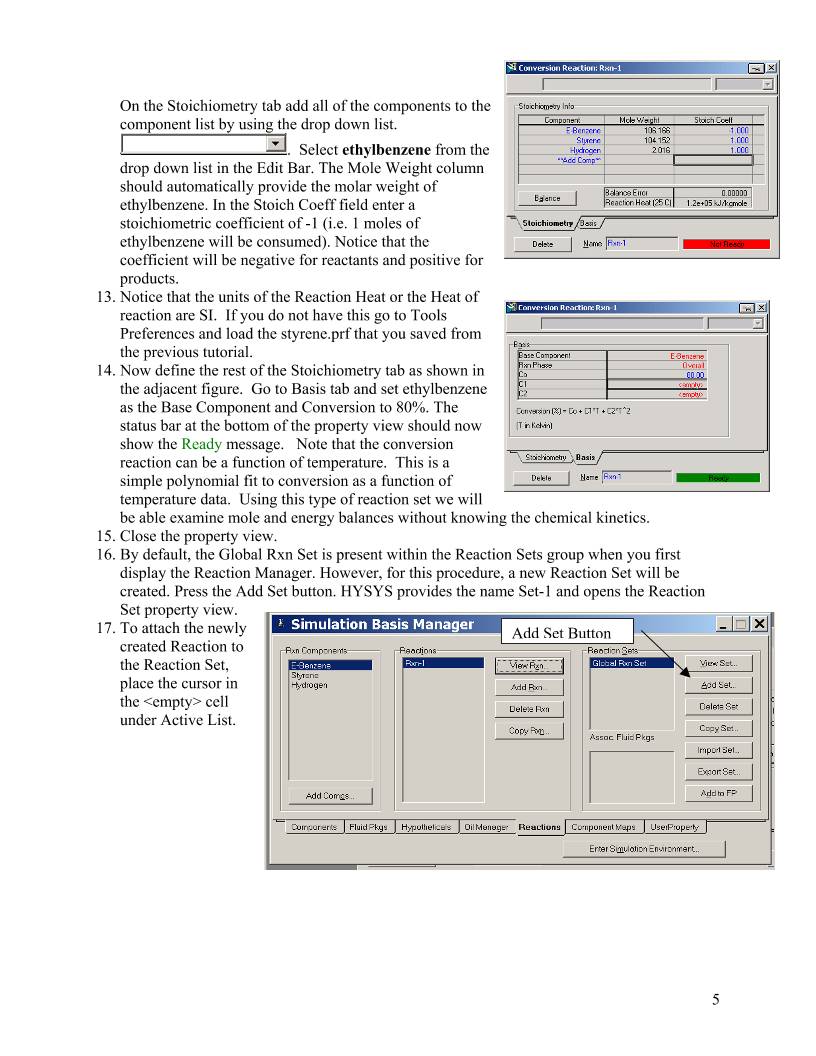
On the Stoichiometry tab add all of the components to the
component list by using the drop down list.
.  Select ethylbenzene from the
drop down list in the Edit Bar. The Mole Weight column
should automatically provide the molar weight of
ethylbenzene. In the Stoich Coeff field enter a
stoichiometric coefficient of -1 (i.e. 1 moles of
ethylbenzene will be consumed). Notice that the
coefficient will be negative for reactants and positive for
products.
13. Notice that the units of the Reaction Heat or the Heat of
reaction are SI.  If you do not have this go to Tools
Preferences and load the styrene.prf that you saved from
the previous tutorial.
14. Now define the rest of the Stoichiometry tab as shown in
the adjacent figure.  Go to Basis tab and set ethylbenzene
as the Base Component and Conversion to 80%. The
status bar at the bottom of the property view should now
show the Ready message.   Note that the conversion
reaction can be a function of temperature.  This is a
simple polynomial fit to conversion as a function of
temperature data.  Using this type of reaction set we will
be able examine mole and energy balances without knowing the chemical kinetics.
15. Close the property view.
16. By default, the Global Rxn Set is present within the Reaction Sets group when you first
display the Reaction Manager. However, for this procedure, a new Reaction Set will be
created. Press the Add Set button. HYSYS provides the name Set-1 and opens the Reaction
Set property view.
17. To attach the newly
created Reaction to
the Reaction Set,
place the cursor in
the  cell
under Active List.
Add Set Button
 5
18. Open the drop down list in
the Edit Bar and select the
name of the Reaction.
The
Set Type will correspond to
the type of Reaction which
you have added to the
Reaction Set. The status
message will now display
Ready. (Refer to Section 5.4 –
Reaction Sets for details
concerning Reactions Sets.)
19. Press the Close button to
return to the Reaction Manager.
20. To attach the reaction set to the Fluid
Package (your peng robinson
thermodynamics), highlight Set-1 in
the Reaction Sets group and press the
Add to FP button. When a Reaction
Set is attached to a Fluid Package, it
becomes available to unit operations
within the Flowsheet using that
particular Fluid Package.
21. The Add ’Set-1’ view appears, from
which you highlight a Fluid Package and press the Add Set to
Fluid Package button.
Add to FP (Fluid Package)
22. Press the Close button. Notice that the name of the Fluid
Package (Basis-1) appears in the Assoc. Fluid Pkgs group w
the Reaction Set is highlighted in the Reaction Sets grou
hen
p.
23. Now Enter the Simulation Environment by pressing the button in
the lower right
hand portion

Enter Simulation Environment
 6
24. Install a conversion reactor.  Either through the
24.1. Flowsheet, Add operation
24.2. f12
24.3. or icon pad.  Click on General Reactors and then a small
pad pops up with a choice of 3 reactors.  Choose the conversion
reactor.  Click on the Conversion Reactor icon, then release left
mouse button.  Move cursor to pfd screen
and press left mouse button. Double cl
on the
ick
reactor to open.
25. Add stream names and a new reactor name as shown. After naming
these streams the following errors appear:  Requires a Reaction Set
and Unknown Duty.
Conversion Reactor
General Reactors
26. Next add the reaction set by selecting the reactions
tab and choosing Reaction Set from the drop down
menu.
27. Close the Conversion Reactor
28. Open the workbook

29. Now add a feed composition of pure ethylbenzene
at 217 gmol/s, 880 K, 1.378 bar.  Remember you
can type the variable press the space bar and type or
select the units.
30. Isn’t it strange that you can’t see the molar flowrate
in the composition window?  Let’s add the molar f
Workbook Setup using the menu commands at the top of your screen.
Workbook
lowrates to the workbook windows.  Go to
 7
31. Press the Add button on the right side
32. Select Component Molar Flow and then press the All radio button.
Add Button
Comp
Molar
Flow
33. To change the units of the variables go to
Tools, preferences, variables tab.  Clone the
SI set and give this new set a name.
34. Change the component molar flowrate units
from kmol/hr to gmol/s if needed.
35. Change the Flow units from kmol/hr to gmol/s
36. Next change the Energy from kJ/hr to kJ/s.
37. Save preference set as well as the case.
Remember that you need to open this
preference set everytime you use this case.
 8
38. Now run the simulation.  For an isothermal reactor specify the outlet temperature.
39. For the adaiabatic reactor, delete the temperature specification and specify the heat duty as 0.
The heat duty can be specified in several ways:
39.1. in the workbook under the Energy Streams tab
39.2. in the reactor in the Design Tab under the parameters option in Duty.


Duty
Duty
Unknown Duty Warning

40. Now change the conversion.  The changes that we will make now will only effect this
reactor.  Go to the reactions tab in the reactor. Select the Conversion% radio button.  Now
type a new conversion value.  Notice that this is in percent conversion.  Use the spread sheet
operations to check you conversion values.

Put cursor here and start
typing
 9
At the end of this exercise submit a printout with the following:
1) Make the following plots from your Conversion reactor simulation:
a) The effect of conversion of ethylbenzene on the heat duty of an isothermal reactor at a constant temperature
of 250°C.
b) The effect of inlet temperature on
outlet temperature for an adiabatic
reactor at a conversion of
ethylbenzene of 80%.
Push
2) Printout the following from one
simulation on HYSYS
Reactor Summary:
Double click on reactor
Undo push pin if present
Select Print from main menu
Then select the Datablock(s) shown in
the second figure:

Property Package
Simulation, Enter Basis Environment
Select View
Print
Select Preview…
Then print the one page document

Reactions
Go to Rxns tab of the fluid
package view
Double click on your reaction
Undo push pin
Select Print
Preview
And printout this one page view

Process Flow Diagram
Click on pfd and choose print

Workbook
Select workbook and print.

 10


 设备数据采集
 工程招标采购
 搞笑表情
搞笑表情 微信头像
微信头像 CWMS冷库管理系统
 美女图片
美女图片 APP小游戏
 PPT模板
PPT模板 WMS仓库系统
 软件开发
软件开发