Search.pdf
- 文件大小: 744.75KB
- 文件类型: pdf
- 上传日期: 2025-10-24
- 下载次数: 0
概要信息:
Siebel Search Administration Guide Siebel Innovation Pack 2013 Version 8.1/8.2 October 2013 Copyright © 2005, 2013 Oracle and/or its affiliates. All rights reserved. This software and related documentation are provided under a license agreement containing restrictions on use and disclosure and are protected by intellectual property laws. Except as expressly permitted in your license agreement or allowed by law, you may not use, copy, reproduce, translate, broadcast, modify, license, transmit, distribute, exhibit, perform, publish, or display any part, in any form, or by any means. Reverse engineering, disassembly, or decompilation of this software, unless required by law for interoperability, is prohibited. The information contained herein is subject to change without notice and is not warranted to be error- free. If you find any errors, please report them to us in writing. If this is software or related documentation that is delivered to the U.S. Government or anyone licensing it on behalf of the U.S. Government, the following notice is applicable: U.S. GOVERNMENT END USERS: Oracle programs, including any operating system, integrated software, any programs installed on the hardware, and/or documentation, delivered to U.S. Government end users are “commercial computer software” pursuant to the applicable Federal Acquisition Regulation and agency-specific supplemental regulations. As such, use, duplication, disclosure, modification, and adaptation of the programs, including any operating system, integrated software, any programs installed on the hardware, and/or documentation, shall be subject to license terms and license restrictions applicable to the programs. No other rights are granted to the U.S. Government. This software or hardware is developed for general use in a variety of information management applications. It is not developed or intended for use in any inherently dangerous applications, including applications that may create a risk of personal injury. If you use this software or hardware in dangerous applications, then you shall be responsible to take all appropriate fail-safe, backup, redundancy, and other measures to ensure its safe use. Oracle Corporation and its affiliates disclaim any liability for any damages caused by use of this software or hardware in dangerous applications. Oracle and Java are registered trademarks of Oracle and/or its affiliates. Other names may be trademarks of their respective owners. Intel and Intel Xeon are trademarks or registered trademarks of Intel Corporation. All SPARC trademarks are used under license and are trademarks or registered trademarks of SPARC International, Inc. AMD, Opteron, the AMD logo, and the AMD Opteron logo are trademarks or registered trademarks of Advanced Micro Devices. UNIX is a registered trademark of The Open Group. This software or hardware and documentation may provide access to or information on content, products, and services from third parties. Oracle Corporation and its affiliates are not responsible for and expressly disclaim all warranties of any kind with respect to third-party content, products, and services. Oracle Corporation and its affiliates will not be responsible for any loss, costs, or damages incurred due to your access to or use of third-party content, products, or services. Documentation Accessibility For information about Oracle's commitment to accessibility, visit the Oracle Accessibility Program website at http://www.oracle.com/pls/topic/lookup?ctx=acc&id=docacc. Access to Oracle Support Oracle customers have access to electronic support through My Oracle Support. For information, visit http://www.oracle.com/pls/topic/lookup?ctx=acc&id=info or visit http://www.oracle.com/pls/topic/lookup?ctx=acc&id=trs if you are hearing impaired. ContentsSiebel Search Administration Guide 1 Chapter 1: What’s New in This Release Chapter 2: Overview of Siebel Search About Siebel Search 17 About Siebel Search Operations 17 About Siebel Find Operations 17 Supported Functionality for Siebel Find and Siebel Search 18 Siebel Search Architecture Overview 20 Siebel Search Web Services 20 Chapter 3: Setting Up Siebel Search with Oracle Secure Enterprise Search About Installing Siebel Search 24 Installing Server Components for Siebel Search 24 Oracle Secure Enterprise Search Pre-Installation Tasks 24 Installing Oracle Secure Enterprise Search 25 Creating the Siebel Search Center Directory Structure on the Siebel Server 26 Creating the Siebel Search Center Directory on Windows 26 Creating the Siebel Search Center Directory on UNIX 27 Configuring the Search Results View for Siebel High Interactivity or Siebel Open UI 27 Configuring EAI File Transport Folder Access for Siebel Search 28 Enabling FTP or HTTP Indexing 28 Configuring the FTP Server for FTP Indexing 29 Configuring the Search FTP Server on Windows 29 Configuring the Search FTP Server on UNIX 30 Configuring the RSS Crawler for FTP Indexing 30 Configuring the RSS Crawler for HTTP Indexing 32 Configuring Field Mapping Settings 34 Administering Siebel Server Component Groups 35Siebel Search Administration Guide Version 8.1/8.2 3 Contents ■ Administering Workflow Management Components 36 Enabling Search Security Web Service 36 Activating the Search Engine 37 Configuring Siebel Search Engine Settings 37 Process of Setting Up the Business Component Source and Connector 43 Configuring the Siebel Business Component Connector 44 Activating the Siebel Identity Plugin Manager for Oracle Secure Enterprise Search 45 Verifying Oracle Secure Enterprise Search Federated Trusted Entities and Siebel Identity Plugin Manager 45 Deploying the Business Component Source 47 Verifying the Oracle Secure Enterprise Search Source for the Business Component Connector 47 Process of Setting Up the File System Source and Connector 49 Configuring the Siebel File System Connector 49 Deploying the File System Source 50 Verifying the Oracle Secure Enterprise Search Source for the File System Connector 51 Enabling Rich Text Format Processing for the External File System Connector 51 Verifying Indexing for the File System Connector 52 Process of Setting Up the Web Crawler Source and Connector 52 Creating an Oracle Secure Enterprise Search Source for the Web Crawler Connector 53 Creating a Source Group for the Web Crawler Connector 54 Verifying Oracle Secure Enterprise Search Indexing of the Web Crawler Source 54 Administering the Siebel Web Crawler Connector 55 Process of Setting Up the Database Source and Connector 55 Creating a Source for the Database Connector 56 Creating a Source Group for the Database Connector 57 Verifying Oracle Secure Enterprise Search Indexing of the Database Source 57 Configuring the Database Connector 57 Process of Setting Up the IMAP Email Source and Connector 58 Creating a Source for the IMAP E-Mail Connector 58 Creating a Source Group for the IMAP E-Mail Connector 59 Verifying Oracle Secure Enterprise Search Indexing of the IMAP E-Mail Source 60 Configuring the IMAP E-Mail Connector 60 Process of Setting Up the Lotus Notes Source and Connector 61 Setting Up Identity Management for Lotus Notes 61 Creating a Source for the Lotus Notes Connector 62 Creating a Source Group for the Lotus Notes Connector 63 Verifying Oracle Secure Enterprise Search Indexing of the Lotus Notes Source 64 Configuring the Lotus Notes Connector 64Siebel Search Administration Guide Version 8.1/8.24 Contents ■Administering Connectors for Oracle Secure Enterprise Search Integration 65 Updating Connector Settings 65 Deleting a Connector 65 Configuring the Default Search Definition 66 Activating Search Run-Time Events 66 Creating Server Repeating Jobs for Incremental Indexing 66 Creating Server Repeating Jobs for HTTP Indexing 68 Configuring Session Mode Settings for HTTP Indexing 69 Configuring Enterprise Application Integration Settings for HTTP Indexing 70 Configuring Secure Sockets Layer Authentication for HTTP Indexing 70 Importing the SSL Certificate for HTTP Indexing 70 Configuring Single Sign-On Authentication for HTTP Indexing 71 Configuring User Authentication for Search Queries 71 Disconnecting from Oracle Secure Enterprise Search and Deactivating the Identity Manager 71 Disconnecting from Oracle Secure Enterprise Search 71 Deactivating the Siebel Identity Plugin Manager 72 Chapter 4: Setting Up Search for Siebel Remote About Installing Search for the Siebel Remote Client 73 Creating the Siebel Search Center Directory Structure on the Siebel Remote Client 74 Installing Siebel Search for Siebel Remote 74 Starting the DSM Listener 75 Configuring Search Field Mapping Settings for Siebel Remote 75 Adding the Siebel Mobile Search Administration Screen for Siebel Remote 76 Verifying the Business Component Search Connector Settings for Siebel Remote 77 Activating Search for Siebel Remote 77 Configuring Search Engine Settings for Siebel Remote 78 Process of Setting Up the Index Definition for the Siebel Remote Client 79 Configuring the Search Definition for Siebel Remote 79 Configuring the Application Configuration File 80 Activating Search Run-Time Events for Siebel Remote 80 Synchronizing Siebel Search for Siebel Remote 80Siebel Search Administration Guide Version 8.1/8.2 5 Contents ■ Search Functionality Supported for Siebel Remote 81 Chapter 5: Configuring Siebel Search About Siebel Tools Configuration Tasks 83 Enabling and Disabling Quick Search Mode for the Search Results View 83 Configuring Pick Views for Search and Attach Records 85 Creating Preview Views for Search 86 Configuring the Frame Size for Search 86 Configuring the Indexing Mode for Index Status Monitoring 87 Process of Configuring Access Control for Search Results 87 Configure sblvisibility Index Field Mappings 87 Configuring the Search Visibility Objects 88 Configuring Drill Down View Sequence for Search Results 89 Administering Searchable Fields 90 Administering Navigable Fields 90 Administering Field Weighting 90 Administering Alternate Keywords 91 Administering Query-Time Clustering Configuration 92 Configuring the Language LOV for Siebel Search 93 Chapter 6: Configuring Siebel Find About Siebel Tools Configuration Tasks 95 About Siebel Tools Find Objects 95 Siebel Tools Find Object Reference 96 Find Object 96 Application Find Object 97 Find Field Object 98 Find View Object 99 Find Field Locale Object 100 Find Locale Object 100 Find Pick View Object 101 Configuring Searchable Find Categories 101 Configuring the Find Results View 101 Configuring Auto-Commit for Find Result Records in the Business Component View 102Siebel Search Administration Guide Version 8.1/8.26 Contents ■Configuring Find and Associate Records 103 Creating Preview Views for Find 104 Configuring the Frame Size for Find 104 Displaying System Fields in Find Results 105 Displaying the ID System Field in Find Results 105 Displaying the Created System Field in Find Results 105 Configuring Siebel Communications Server and Find Integration 106 Configuring Access Control for Find Operations 107 Chapter 7: Configuring Index Mappings About Searchable Objects 109 Defining Index Elements 109 Defining Index Attributes 113 Creating Search Run-Time Events for Custom Search Objects 118 Chapter 8: Administering Siebel Search Index Settings About Search Indexes 119 Creating a New Index Definition 119 Creating a New Index Definition 119 Configuring the Search Definition on the Siebel Web Client 120 Configuring the Search Definition on the Siebel Developer Web Client 120 Creating a Logical Collection 121 Filtering the Index Record-Set 121 Creating Searchable Business Component Fields 122 About Indexing Search Objects 122 Indexing Search Objects 123 Refreshing the Index 124 Enabling Incremental Indexing 125 Administering Asynchronous Indexing and Index Status Monitoring 125 Monitoring Indexing Status 125 Chapter 9: Using Siebel Find and Siebel Search for Siebel High Interactivity Mode Overview of Siebel Search Functionality for Siebel High Interactivity 127 Setting Search Preferences in Siebel High Interactivity 129Siebel Search Administration Guide Version 8.1/8.2 7 Contents ■ Performing a Basic Search Operation in Siebel High Interactivity 130 Performing an Advanced Search Operation in Siebel High Interactivity 131 Saving Search Criteria in Siebel High Interactivity 133 Performing a Find Operation in Siebel High Interactivity 134 Associating Search and Find Results with the Active Record in Siebel High Interactivity 134 Chapter 10: Using Siebel Find and Siebel Search for Siebel Open UI Overview of Siebel Search Functionality for Siebel Open UI 137 Setting Search Preferences in Siebel Open UI 139 Performing a Basic Search Operation in Siebel Open UI 140 Performing an Advanced Search Operation in Siebel Open UI 141 Performing a Find Operation in Siebel Open UI 143 Chapter 11: Siebel Search Integration API Reference Search Integration API Overview 145 InvokeMethod 146 Search Method 148 AdvancedSearch Method 149 Index Method 150 RefreshIndex Method 151 IncrementalIndex Method 152 ValidateEngineSetup Method 153 Integrating a Third-Party Search Adapter with a Siebel Application 153 Appendix A: Preconfigured Search Objects Call Center Searchable Objects 155 eService Searchable Objects 155 Sales Searchable Objects 156 Service Searchable Objects 156 Application and Search Definition Mappings 156 Appendix B: Syntax for Filter Search SpecificationsSiebel Search Administration Guide Version 8.1/8.28 Contents ■Filter Search Specification Syntax 159 Precedence 159 Comparison Operators 160 Logical Operators 160 Pattern Matching with LIKE and NOT LIKE 160 Functions in Calculation Expressions 162 Filter Search Specification Examples 162 Appendix C: Search API Examples Search inputArgs Example 165 Search outputArgs Example 167 Feed File Example 170 Index inputArgs Example 171 IndexSiebel Search Administration Guide Version 8.1/8.2 9 Contents ■ Siebel Search Administration Guide Version 8.1/8.210 1 What’s New in This ReleaseWhat’s New in Siebel Search Administration Guide, Version 8.1/8.2 Table 1 lists changes in this revision of the documentation to support version 8.1.1.11 and version 8.2.2.4 of the software. NOTE: Oracle provides the functionality that this revision describes as part of Siebel Innovation Pack 2013. To complete the Siebel Innovation Pack 2013 prerequisite installation and setup tasks, and postinstallation configuration tasks, see the applicable Siebel Maintenance Release Guide on My Oracle Support. Table 1. What’s New in Siebel Search Administration Guide, Version 8.1/8.2 Topic Description “Supported Functionality for Siebel Find and Siebel Search” on page 18 Modified topic. Support has been added to Oracle’s Siebel Open UI for the following functionality: ■ Parametric search for Siebel Find ■ Automated suggested keywords for Siebel Search ■ Language filter for Siebel Search ■ Saved Find results Support for language filtering has also been added for Siebel High Interactivity. “Configuring EAI File Transport Folder Access for Siebel Search” on page 28 New topic. It describes how to configure the EAIFileTransportFolders parameter for Siebel Search. “Configuring the RSS Crawler for HTTP Indexing” on page 32 Modified topic. Theattribute has been changed to include the Siebel administrative user name in Siebel Search version 8.1.1.9 and later, and Siebel Search version 8.2.2.2 and later. “Configuring Siebel Search Engine Settings” on page 37 Modified topic. The Feed URL Prefix parameter has been changed to include the Siebel administrative user name in Siebel Search version 8.1.1.9 and later, and Siebel Search version 8.2.2.2 and later. “Configuring the Language LOV for Siebel Search” on page 93 New topic. It describes how to create and configure the Language list of values for Siebel Search. “Overview of Siebel Search Functionality for Siebel Open UI” on page 137 Modified topic. Added automated suggested keywords for Siebel Search.Siebel Search Administration Guide Version 8.1/8.2 11 What’s New in This Release ■ “Setting Search Preferences in Siebel High Interactivity” on page 129 “Setting Search Preferences in Siebel Open UI” on page 139 Modified topics. The following search preferences have been added: ■ Language ■ Fetch Language Specific Docs “Performing a Find Operation in Siebel Open UI” on page 143 Modified topic. The following features have been added: ■ Parametric search ■ Saved Find results Table 1. What’s New in Siebel Search Administration Guide, Version 8.1/8.2 Topic DescriptionSiebel Search Administration Guide Version 8.1/8.212 What’s New in This Release ■What’s New in Siebel Search Administration Guide, Version 8.1, Rev. C Table 2 lists changes in this revision of the documentation to support release 8.1.1.10 of the software. NOTE: Oracle provides the functionality that this revision describes as part of an ADR. To use this functionality, you must install the required ADR, and perform the postinstallation configuration tasks. To complete the prerequisite installation and setup tasks, see the applicable Siebel Maintenance Release Guide on My Oracle Support. Table 2. What’s New in Siebel Search Administration Guide, Version 8.1, Rev. C Topic Description “Supported Functionality for Siebel Find and Siebel Search” on page 18 Modified topic. It has been updated to include the following features: ■ Support for Siebel Open UI ■ Automated suggested keywords ■ Database source indexing ■ IMAP email source indexing ■ Lotus Notes source indexing The Search by file format feature has been updated to include filtering on the following file types: ■ HTML ■ Plain text ■ Rich Text Format ■ Asynchronous indexing ■ Index status monitoring “Configuring the Search Results View for Siebel High Interactivity or Siebel Open UI” on page 27 New topic. It describes how to configure the Search results for the UI mode that your application is running in. Both the Search View and Search All Results View are activated by default. The views must be configured in Siebel Tools as follows: ■ If your application is using Siebel High Interactivity, then you must disable Search All Results View. ■ If your application is using Siebel Open UI, then you must disable Search View. “Enabling Search Security Web Service” on page 36 Modified topic. It has been updated to include SOAP header authentication.Siebel Search Administration Guide Version 8.1/8.2 13 What’s New in This Release ■ “Configuring Siebel Search Engine Settings” on page 37 Modified topic. The following search engine settings have been added: ■ Advanced Batching And Indexing. This setting is used to turn the asynchronous indexing and index status monitoring features on or off. ■ Visibility Support. This setting is used to turn the enhanced access control feature on or off. ■ OSESAutoStartSchedule. This setting is used to turn automatic Oracle Secure Enterprise Search scheduling on or off. ■ Remote Admin Support. This setting is used to turn automated remote administration and configuration for the Oracle Secure Enterprise Search Connector on or off. ■ Strong Password Encryption Rules Enforced. This setting is used to turn the enhanced security features on or off. “Enabling Rich Text Format Processing for the External File System Connector” on page 51 New topic. It describes how to enable rich text format processing for the external file system connector. “Process of Setting Up the Database Source and Connector” on page 55 New topic. It describes how to set up the database source and connector. “Process of Setting Up the IMAP Email Source and Connector” on page 58 New topic. It describes how to set up the IMAP email source and connector. “Process of Setting Up the Lotus Notes Source and Connector” on page 61 New topic. It describes how to set up the Lotus Notes source and connector. “Configuring User Authentication for Search Queries” on page 71 New topic. It describes how to configure end user authentication for search queries. “Enabling and Disabling Quick Search Mode for the Search Results View” on page 83 Modified topic. Added information for creating the SamePage record for Business Service User Property. “Process of Configuring Access Control for Search Results” on page 87 Modified topic. It describes how to configure access control for search results. Multiple access control mappings for sblvisibilityid can be passed to Oracle Secure Enterprise Search at index-time. “Configuring the Indexing Mode for Index Status Monitoring” on page 87 New topic. It describes how to configure the indexing mode for index status monitoring. Table 2. What’s New in Siebel Search Administration Guide, Version 8.1, Rev. C Topic DescriptionSiebel Search Administration Guide Version 8.1/8.214 What’s New in This Release ■“Administering Navigable Fields” on page 90 New topic. It describes how to configure which fields are displayed in a Refine Results operation. “Administering Alternate Keywords” on page 91 New topic. It describes how to configure alternate keywords. “Administering Query-Time Clustering Configuration” on page 92 New topic. It describes how to configure query-time clustering to dynamically generate query-time automated keywords. “Administering Asynchronous Indexing and Index Status Monitoring” on page 125 New topic. It describes how to enable and disable the asynchronous indexing and index status monitoring features. “Monitoring Indexing Status” on page 125 New topic. It describes how to monitor the indexing status for both HTTP and FTP indexing modes. “Setting Search Preferences in Siebel High Interactivity” on page 129 Modified topic. Added information for using automated suggested keywords. “Performing an Advanced Search Operation in Siebel High Interactivity” on page 131 Modified topic. Support has been added for indexing and searching the following file types: ■ HTML ■ Plain text ■ Rich text format Table 2. What’s New in Siebel Search Administration Guide, Version 8.1, Rev. C Topic DescriptionSiebel Search Administration Guide Version 8.1/8.2 15 What’s New in This Release ■ What’s New in Siebel Search Administration Guide, Version 8.2, Rev. A Table 2 lists changes in this revision of the documentation to support release 8.2.2.3 of the software. NOTE: Oracle provides the functionality that this revision describes as part of an ADR. To use this functionality, you must install the required ADR, and perform the postinstallation configuration tasks. To complete the prerequisite installation and setup tasks, see the applicable Siebel Maintenance Release Guide on My Oracle Support. Table 3. What’s New in Siebel Search Administration Guide, Version 8.2, Rev. A Topic Description “Supported Functionality for Siebel Find and Siebel Search” on page 18 Modified topic. It has been updated to include support for Siebel Open UI. “Configuring the Search Results View for Siebel High Interactivity or Siebel Open UI” on page 27 New topic. It describes how to configure the Search results for the UI mode that your application is running in. Both the Search View and Search All Results View are activated by default. The views must be configured in Siebel Tools as follows: ■ If your application is using Siebel High Interactivity, then you must disable Search All Results View. ■ If your application is using Siebel Open UI, then you must disable Search View. “Configuring Siebel Search Engine Settings” on page 37 Modified topic. The following search engine settings have been added: ■ Visibility Support. This setting is used to turn the enhanced access control feature on or off. ■ OSESAutoStartSchedule. This setting is used to turn automatic Oracle Secure Enterprise Search scheduling on or off. ■ Remote Admin Support. This setting is used to turn automated remote administration and configuration for the Oracle Secure Enterprise Search Connector on or off. “Monitoring Indexing Status” on page 125 New topic. It describes how to monitor the indexing status for both HTTP and FTP indexing modes. “Setting Search Preferences in Siebel High Interactivity” on page 129 Modified topic. Added information for using automated suggested keywords. Chapter 10, “Using Siebel Find and Siebel Search for Siebel Open UI” New chapter. It describes Siebel Find and Siebel Search end user functionality for applications using Siebel Open UI.Siebel Search Administration Guide Version 8.1/8.216 2 Overview of Siebel SearchThis chapter provides an overview of Oracle’s Siebel Search functionality and architecture, and includes the following topics: ■ “About Siebel Search” on page 17 ■ “Supported Functionality for Siebel Find and Siebel Search” on page 18 ■ “Siebel Search Architecture Overview” on page 20 ■ “Siebel Search Web Services” on page 20 About Siebel Search Oracle’s Siebel Search provides incremental indexing of search fields, basic and advanced search functionality for both structured and unstructured data, and Find operations for real-time database queries. Siebel Search is integrated with Oracle Secure Enterprise Search. About Siebel Search Operations Full text searches can be performed across multiple business components, fields, and files, in one operation. A Search operation allows a broad search by not requiring the user to specify specific fields to search on. Search also gives you the option of searching through attachments. Search operations are case insensitive. Indexed Search requires licensing Oracle Secure Enterprise Search. About Siebel Find Operations A Siebel Find operation consists of a direct query on a database, and allows users to query on a field- by-field basis. Find objects are accessible through the Search Center, and allow users to perform queries on specific predefined fields linked to specific business components (such as querying for a name in the Last Name field). Find results are a real-time reflection of database records. This makes Find appropriate for searching on transactional database records that change frequently, such as Activity or Opportunity records. Find operations are case sensitive. NOTE: The Siebel Query tool is covered in Siebel Fundamentals on the Siebel Bookshelf. The Siebel Bookshelf is published on Oracle Technology Network (OTN) and Oracle E-Delivery.Siebel Search Administration Guide Version 8.1/8.2 17 Overview of Siebel Search ■ Supported Functionality for Siebel Find and Siebel SearchSupported Functionality for Siebel Find and Siebel Search Table 4 summarizes the functionality available for Siebel Find and Siebel Search. Table 4. Supported Functionality for Siebel Find and Siebel Search Functionality Supported for Find Supported for Search Siebel Open UI Yes Yes Siebel High Interactivity Yes Yes Siebel Standard Interactivity Yes Yes Business component indexing Not applicable Yes File system indexing Not applicable Yes Web source indexing Not applicable Yes Database source indexing Not applicable Yes IMAP email source indexing Not applicable Yes Lotus notes source indexing Not applicable Yes Secure indexing Not applicable ■ HTTPS indexing: Highly secure. ■ FTP indexing: Less secure than indexing over HTTPS. Refresh indexing Not applicable Yes Incremental indexing Not applicable Yes Asynchronous indexing Not applicable Yes Index status monitoring Not applicable Yes. Supported for both HTTP and FTP indexing modes. Real time database queries Yes No. Searches are run against search indices. Full text search Not applicable Yes Keyword search No Yes Automated suggested keywords No Yes Parametric search (field based search). Yes ■ Supported for Siebel High Interactivity. ■ Not supported for Siebel Open UI.Siebel Search Administration Guide Version 8.1/8.218 Overview of Siebel Search ■ Supported Functionality for Siebel Find and Siebel SearchWildcard search Yes. Applies to any character, including punctuation characters, such as a space, or a comma. The find operation can span more than one word. Yes. Does not apply to punctuation characters, such as a space, or a comma. Applies to characters only within a word. Case insensitive search No Yes Boolean operators No Yes. Supports AND and OR Boolean operators. Searches on content in attachments No Yes Searches on external data sources and file systems Not applicable Yes Search by file format Not applicable Yes. The search can be filtered by the following file types: ■ All ■ HTML ■ Microsoft Excel ■ Microsoft PowerPoint ■ Microsoft Word ■ PDF ■ Plain text ■ Rich Text Format Search by language Not applicable Yes Associate option in search results ■ Supported for Siebel High Interactivity ■ Not supported for Siebel Open UI ■ Supported for Siebel High Interactivity ■ Not supported for Siebel Open UI Password Encryption Not applicable ■ Supported for HTTPS indexing ■ Not supported for FTP indexing Table 4. Supported Functionality for Siebel Find and Siebel Search Functionality Supported for Find Supported for SearchSiebel Search Administration Guide Version 8.1/8.2 19 Overview of Siebel Search ■ Siebel Search Architecture OverviewSiebel Search Architecture Overview Siebel Search architecture is comprised of the elements in Figure 1. Figure 1 includes the following elements: ■ Siebel Search UI. Interface for retrieval of Find and Search results. ■ Siebel Server. Hosts the search business services and search engine adapters. ■ Search Engine Adapters and Indexing Adapters. Interface with the Siebel data sources and search engine. Index the Siebel business data. ■ Data Sources. Indexed data sources, for example, Siebel business components, Web sources, or file systems. Siebel Search Web Services Siebel Search provides a set of Business Service APIs, which can be implemented as Web services through the Siebel Web services framework. The following Search Web services are provided: ■ SearchExternalService. This Web service can be used as a Search Front End Web service, to facilitate searches on the data stored in the Siebel application, from a non-Siebel Web application. ■ SearchSolutionService. This Web service can be used to search for solutions based on user inputs, and retrieve a solution as a search result. ■ RetrieveAttachmentService. This Web service has one standard QueryPage method to retrieve attachment documents. Figure 1. Siebel Search Architecture OverviewSiebel Search Administration Guide Version 8.1/8.220 Overview of Siebel Search ■ Siebel Search Web Services■ ProductSearchService. Business Service (Search Product Service) for searching product business components, and performing eligibility checks. For more information on Siebel Search Web services, see Siebel CRM Web Services Reference.Siebel Search Administration Guide Version 8.1/8.2 21 Overview of Siebel Search ■ Siebel Search Web ServicesSiebel Search Administration Guide Version 8.1/8.222 3 Setting Up Siebel Search with Oracle Secure Enterprise SearchThis chapter covers setting up Siebel Search with Oracle Secure Enterprise Search. All tasks in this chapter are required for Siebel Search and Oracle Secure Enterprise Search integration. This chapter includes the following topics: ■ About Installing Siebel Search on page 24 ■ Installing Server Components for Siebel Search on page 24 ■ Oracle Secure Enterprise Search Pre-Installation Tasks on page 24 ■ Installing Oracle Secure Enterprise Search on page 25 ■ Creating the Siebel Search Center Directory Structure on the Siebel Server on page 26 ■ Configuring the Search Results View for Siebel High Interactivity or Siebel Open UI on page 27 ■ “Configuring EAI File Transport Folder Access for Siebel Search” on page 28 ■ Enabling FTP or HTTP Indexing on page 28 ■ Configuring the RSS Crawler for FTP Indexing on page 30 ■ Configuring the RSS Crawler for HTTP Indexing on page 32 ■ Administering Siebel Server Component Groups on page 35 ■ Administering Workflow Management Components on page 36 ■ Enabling Search Security Web Service on page 36 ■ Activating the Search Engine on page 37 ■ Configuring Siebel Search Engine Settings on page 37 ■ Process of Setting Up the Business Component Source and Connector on page 43 ■ Process of Setting Up the File System Source and Connector on page 49 ■ Process of Setting Up the Web Crawler Source and Connector on page 52 ■ Process of Setting Up the Database Source and Connector on page 55 ■ Process of Setting Up the IMAP Email Source and Connector on page 58 ■ Process of Setting Up the Lotus Notes Source and Connector on page 61 ■ Administering Connectors for Oracle Secure Enterprise Search Integration on page 65 ■ Configuring the Default Search Definition on page 66 ■ Activating Search Run-Time Events on page 66 ■ Creating Server Repeating Jobs for Incremental Indexing on page 66 ■ Configuring Session Mode Settings for HTTP Indexing on page 69 ■ Configuring Enterprise Application Integration Settings for HTTP Indexing on page 70Siebel Search Administration Guide Version 8.1/8.2 23 Setting Up Siebel Search with Oracle Secure Enterprise Search ■ About Installing Siebel Search■ Configuring Secure Sockets Layer Authentication for HTTP Indexing on page 70 ■ Importing the SSL Certificate for HTTP Indexing on page 70 ■ Configuring Single Sign-On Authentication for HTTP Indexing on page 71 ■ Configuring User Authentication for Search Queries on page 71 ■ Disconnecting from Oracle Secure Enterprise Search and Deactivating the Identity Manager on page 71 About Installing Siebel Search Siebel Search uses Oracle Secure Enterprise Search as the default search engine. This chapter covers installation of Oracle Secure Enterprise Search, and installation of Siebel components related to Search. Upgrading from Siebel Search Version 7.x Any custom search objects which were defined in Siebel Search Version 7.x must be redefined in the Application_Suite_OSES_Field-Mappings.xml file. For more information, see Chapter 7, “Configuring Index Mappings.” Installing Server Components for Siebel Search Siebel Search requires the installation of the Siebel Enterprise Server, including the Siebel Server and the Gateway Name Server, and Oracle Secure Enterprise Search. Oracle Secure Enterprise Search and the Siebel Enterprise Server must be deployed on separate, dedicated servers. For information on system requirements and supported platforms, see Siebel System Requirements and Supported Platforms on Oracle Technology Network, and the Oracle Secure Enterprise Search documentation. The recommended installation and configuration sequence is as follows: ■ Install the Siebel Enterprise Server ■ Install the Oracle Secure Enterprise Search Server ■ Configure Siebel Search on the Oracle Secure Enterprise Search server and Siebel servers. For information on installing server components, see the Siebel Installation Guide for the operating system you are using. Oracle Secure Enterprise Search Pre- Installation Tasks Refer to the Pre-Installation Tasks topic in the Oracle Secure Enterprise Search Installation and Upgrade Guide. This guide is provided on Oracle Technology Network.Siebel Search Administration Guide Version 8.1/8.224 Setting Up Siebel Search with Oracle Secure Enterprise Search ■ Installing Oracle Secure Enterprise SearchInstalling Oracle Secure Enterprise Search This topic covers Oracle Secure Enterprise Search installation and additional installation steps required for Siebel Search. Capture the Search and Administration URLs from the Oracle Secure Enterprise Search install wizard during the Oracle Secure Enterprise Search installation process, as these will be required for post-installation verification. The Administration Password will also be required when configuring the Search Engine Settings in the Siebel Search administration view. The examples in this guide use Siebel1 as the Oracle Secure Enterprise Search Administration Password. Make sure that the file RSS_Crawler_Configuration.xml is accessible to the Oracle Secure Enterprise Search engine and that the file Application_Suite_OSES_Field-Mappings.xml is accessible to the Siebel Server. To install Oracle Secure Enterprise Search 1 Complete the tasks in the Installation Tasks section of the Oracle Secure Enterprise Search Installation and Upgrade Guide. Use the installation values in the following table. 2 Create the Siebel Search Center Config directory under the Siebel File System on the Oracle Secure Enterprise Search Server: ■ On Windows create the Config directory at D:\fs\SSC\Config\. ■ On UNIX create the Config directory at /export/home/fs/SSC/Config/. 3 Copy the file RSS_Crawler_Configuration.xml from the Siebel Server to the SSC Config directory on the Oracle Secure Enterprise Search Server: ■ On Windows copy the crawler file from siebsrvr\bin\ on the Siebel Server to D:\fs\SSC\Config/ on the Oracle Secure Enterprise Search Server. ■ On UNIX copy the crawler file from siebsrvr/lib/ on the Siebel Server to /export/home/fs/ SSC/Config/ on the Oracle Secure Enterprise Search Server. 4 Set the permissions for fs\SSC\Config\ to Full Control for Everyone. Field Value Search Server Name Set the value to SES. Administrative Password Set the value to siebel1. HTTP Port The default port can be used. Destination Path Set the value to D:\oracle\ses\ses version\OH. Data Storage Location Set the value to D:\oracle\ses\ses version\oradata.Siebel Search Administration Guide Version 8.1/8.2 25 Setting Up Siebel Search with Oracle Secure Enterprise Search ■ Creating the Siebel Search Center Directory Structure on the Siebel ServerCreating the Siebel Search Center Directory Structure on the Siebel Server This topic covers creating the Siebel Search Center directory structure on the Siebel Server for storing the XML feed files and feed status files which are generated at runtime. This topic includes the following tasks: ■ “Creating the Siebel Search Center Directory on Windows” on page 26 ■ “Creating the Siebel Search Center Directory on UNIX” on page 27 Creating the Siebel Search Center Directory on Windows This topic covers creating the Siebel Search Center directory structure on the Siebel Server for a Windows environment. The D:\fs\SSC directory on the Siebel Server will also be used as the FTP home directory. To create the Siebel Search Center directory structure on Windows 1 Create a directory for storing the XML feed files on the Siebel Server, for example, D:\fs\SSC\xmlidata. The XML feed files are generated at runtime and temporarily stored in the fs\SSC\xmlidata folder. The feed files are automatically deleted once indexing completes. 2 Create a directory for storing the XML feed status files on the Siebel Server, for example, D:\fs\SSC\xmlidata\err. The XML feed status files are generated at run time, and indicate the error or success status of the crawl operation. 3 Create a directory for storing the XML field mapping file on the Siebel Server, for example, D:\fs\SSC\Config. 4 Copy the file Application_Suite_OSES_Field-Mappings.xml from the installation directory at siebsrvr\bin\ to the config directory at D:\fs\SSC\Config\. ■ Copy the file SSC_OSES_Field-Mappings.xml if you are using a Siebel application that operates across industries, such as Siebel Call Center, Siebel Sales or Siebel Marketing. ■ Copy the file SIA_OSES_Field-Mappings.xml if you are using a Siebel industry application, such as Siebel Finance, Siebel Medical, or Siebel Pharma. 5 Copy the file Search_Engine_Config.xml from the installation directory to the config directory at D:\fs\SSC\Config\. NOTE: Do not modify the contents of the file Search_Engine_Config.xml from the preconfigured settings. 6 Set the permissions for D:\fs\ to Full Control for Everyone.Siebel Search Administration Guide Version 8.1/8.226 Setting Up Siebel Search with Oracle Secure Enterprise Search ■ Configuring the Search Results View for Siebel High Interactivity or Siebel Open UICreating the Siebel Search Center Directory on UNIX This topic covers creating the Siebel Search Center directory structure on the Siebel Server for a UNIX environment. To create the Siebel Search Center directory structure on UNIX 1 Create a directory for storing the XML feed files on the Siebel Server, for example, /export/home/ fs/SSC/xmlidata. The XML feed files are generated at runtime and temporarily stored in the fs/SSC/xmlidata folder. The feed files are automatically deleted once indexing completes. 2 Create a directory for storing the XML feed status files on the Siebel Server, for example, /export/home/fs/SSC/xmlidata/err. The XML feed status files are generated at runtime, and indicate the error or success status of the crawl operation. 3 Create a directory for storing the XML field mapping file on the Siebel Server, for example, /export/home/fs/SSC/Config. 4 Copy the file Application_Suite_OSES_Field-Mappings.xml from the installation directory at siebsrvr/lib/ to the config directory at /export/home/fs/SSC/Config/. ■ Copy the file SSC_OSES_Field-Mappings.xml if you are using a Siebel application that operates across industries, such as Siebel Call Center, Siebel Sales or Siebel Marketing. ■ Copy the file SIA_OSES_Field-Mappings.xml if you are using a Siebel industry application, such as Siebel Finance, Siebel Medical, or Siebel Pharma. 5 Copy the file Search_Engine_Config.xml from the installation directory to the config directory at /export/home/fs/SSC/Config/. NOTE: Do not modify the contents of the file Search_Engine_Config.xml from the preconfigured settings. 6 Set the permissions for /export/home/fs/ to Full Control for Everyone. Configuring the Search Results View for Siebel High Interactivity or Siebel Open UI The Search results view must be configured in Siebel Tools for the UI mode that your application is running in. Both the Search View and Search All Results View are activated by default. The views must be configured as follows: ■ If your application is using Siebel High Interactivity, then you must disable Search All Results View. ■ If your application is using Siebel Open UI, then you must disable Search View.Siebel Search Administration Guide Version 8.1/8.2 27 Setting Up Siebel Search with Oracle Secure Enterprise Search ■ Configuring EAI File Transport Folder Access for Siebel SearchFor more information on configuring your application for Open UI or High Interactivity, see Configuring Siebel Open UI. To configure the search results view for Siebel High Interactivity or Siebel Open UI 1 Log in to Siebel Tools. 2 In the Object Explorer, expand the Screen object. 3 Query for Search View Screen. The list of views is displayed in Screen Views. 4 Configure the Inactive property value as follows: ■ To use the application with Siebel High Interactivity, set the Inactive property for Search All Results View to True. ■ To use the application with Siebel Open UI, set the Inactive property for Search View to True. 5 Stop the Siebel Server. 6 Compile and deploy the repository file. 7 Restart the Siebel Server. 8 Restart the Siebel application. Configuring EAI File Transport Folder Access for Siebel Search The EAIFileTransportFolders parameter must be configured to grant write access to specific folders within the Siebel file system that are required for Siebel Search. For information on configuring the EAIFileTransportFolders parameter, see Transports and Interfaces: Siebel Enterprise Application Integration. Enabling FTP or HTTP Indexing Siebel Search provides both FTP and HTTP options for indexing. Indexing over HTTPS is more secure than indexing over FTP. Each indexing method uses a different type of feed. The feed is defined as the collection of documents in the data repository for the index operation. FTP and HTTP indexing use the following feed types: ■ FTP indexing using directory feed. All feeds are placed in a directory, and this directory is the input to the connector. The directory feed location is configured in the file RSS_Crawler_Configuration.xml. Directory feed is useful when the data feeds are available in a single directory. The number of documents in each directory must be less than 10,000. ■ HTTP indexing using control feed. Individual feeds are generated dynamically, and can be located anywhere. A single control file is generated with links to the feeds. This control file is the input to the connector. The control feed location is configured in the file RSS_Crawler_Configuration.xml. Siebel Search Administration Guide Version 8.1/8.228 Setting Up Siebel Search with Oracle Secure Enterprise Search ■ Configuring the FTP Server for FTP IndexingThe Send Index Feed Via HTTP setting is used to switch between FTP and HTTP indexing. To enable FTP or HTTP indexing 1 Navigate to the Administration – Search screen, and then the Search Engine Settings view. 2 Configure the Send Index Feed Via HTTP settings as follows: ■ Set the value to True to turn on HTTP indexing. ■ Set the value to False to turn on FTP indexing. The default value is False. For information on configuring search engine settings for HTTP or FTP indexing, see “Configuring Siebel Search Engine Settings” on page 37. Configuring the FTP Server for FTP Indexing Siebel Search uses an Oracle Secure Enterprise Search XML framework for submitting records for indexing in the form of XML feeds. The pre-indexed XML feed files are stored on an FTP server for Oracle Secure Enterprise Search access. The FTP server and Siebel Server must be colocated on the same server—all examples in this guide assume that the FTP server and Siebel Server are colocated. Accessing the feeds over FTP is a crawl time operation requiring administrative privileges. The FTP location is not accessed at search time, therefore there is no end user access to the FTP location. This topic includes the following tasks: ■ “Configuring the Search FTP Server on Windows” on page 29 ■ “Configuring the Search FTP Server on UNIX” on page 30 Configuring the Search FTP Server on Windows This topic covers configuring the FTP server on Windows, so that Oracle Secure Enterprise Search can access the Siebel Search XML feed files for crawling and indexing operations. The FTP home directory is set to the Siebel Search Center directory. For more information on setting up the FTP server, see your operating system documentation on Internet Information Services. To configure the Search FTP server on Windows 1 From the Start menu choose Control Panel, Add or Remove Programs, and then the Add/Remove Windows Components option. 2 From the Windows Components list choose Application Server, Details, Internet Information Services (IIS), and then Details. 3 Select File Transfer Protocol (FTP) Service and click OK.Siebel Search Administration Guide Version 8.1/8.2 29 Setting Up Siebel Search with Oracle Secure Enterprise Search ■ Configuring the RSS Crawler for FTP Indexing4 Click Next on Windows Components Wizard. This will install the IIS and FTP services. 5 From the Start menu choose All Programs, Administrative Tools, and then Internet Information Services. The Internet Information Services (IIS) console is launched. 6 Right Click on Default FTP Site and select Properties. 7 Select the FTP Site tab. 8 Enter Siebel Search Center FTP Site in the Description field. 9 Select the Home Directory tab. 10 Select the option Directory Located on this Computer. 11 Set the Home Directory Local Path to D:\fs\SSC. The paths in the RSS Crawler file are configured relative to your FTP Home Directory. 12 Select the options Read, Write and Log visits. 13 Set Directory Listing Style to UNIX. Configuring the Search FTP Server on UNIX This topic covers configuring the FTP server on UNIX, so that Oracle Secure Enterprise Search can access the Siebel Search XML feed files for crawling and indexing operations. To configure the Search FTP server on UNIX 1 Enable the FTP service on the Siebel Server. 2 Set the FTP home directory to /export/home/fs/SSC. The paths in the RSS Crawler file are configured relative to your FTP home directory. Configuring the RSS Crawler for FTP Indexing Oracle Secure Enterprise Search crawls Siebel data in RSS feed format. The file RSS_Crawler_Configuration.xml is located on the Oracle Secure Enterprise Search Server and is used to configure the Oracle Secure Enterprise Search Crawler. The path to this configuration file must be specified when creating the Siebel Source in Oracle Secure Enterprise Search. Siebel Search uses the directory feed type for indexing over FTP.Siebel Search Administration Guide Version 8.1/8.230 Setting Up Siebel Search with Oracle Secure Enterprise Search ■ Configuring the RSS Crawler for FTP IndexingTo configure the RSS Crawler on the Oracle Secure Enterprise Search Server 1 Open the file RSS_Crawler_Configuration.xml on the Oracle Secure Enterprise Search server in an XML or text editor: ■ On Windows this file is located at D:\fs\SSC\Config\. ■ On UNIX this file is located at /export/home/fs/SSC/Config/. 2 Complete the mandatory fields in the Siebel Customer configuration section. The fields are described in the following table. Field Description Mandatory feedLocation The xmlidata\(XML-based indexable data) directory location on the FTP Server, where the XML-based feed files are stored for indexing. This value is specified relative to your FTP Home Directory, for example, if your FTP Home Directory is set to D:\fs\SSC and the xmlidata folder is at D:\fs\SSC\xmlidata, then set the feedLocation value to ftp://Siebel_Server_IP_Address/xmlidata. On Windows this value is specified in the format: ftp://Siebel_Server_IP_Address/xmlidata On UNIX this value is specified in the format: ftp://Siebel_Server_IP_Address/xmlidata NOTE: FTP must be included in the feedLocation value. Yes feedType Type of feed file. Set the value to directoryFeed. Yes errorFileLocation Location on the FTP Server where the FileName.err and FileName.suc files will be stored. This value is specified relative to your FTP Home Directory On Windows and UNIX the value is specified in the format: /xmlidata/err NOTE: FTP is not included in the errorFileLocation value. No securityType Type of security to be enabled. Set the value to attributeBased. Yes sourceName Name of the Siebel data source. Set the value to buscomp. YesSiebel Search Administration Guide Version 8.1/8.2 31 Setting Up Siebel Search with Oracle Secure Enterprise Search ■ Configuring the RSS Crawler for HTTP IndexingExample of Configuring the RSS Crawler for FTP Indexing This extract provides an example of configuring the file RSS_Crawler_Configuration.xml for FTP indexing. ftp://Siebel_Server_IP_Address/xmlidata directoryFeed /xmlidata/err attributeBased buscomp Configuring the RSS Crawler for HTTP Indexing Oracle Secure Enterprise Search crawls Siebel data in RSS feed format. The file RSS_Crawler_Configuration.xml is located on the Oracle Secure Enterprise Search Server and is used to configure the Oracle Secure Enterprise Search Crawler. The path to this configuration file must be specified when creating the Siebel Source in Oracle Secure Enterprise Search. Siebel Search uses the control feed type for indexing over HTTP. To configure the RSS Crawler on the Oracle Secure Enterprise Search Server 1 Open the file RSS_Crawler_Configuration.xml on the Oracle Secure Enterprise Search server in an XML or text editor: securityAttributte Attribute in the feed files that provides the security information. Set the value to sblvisibilityid. Multiple access control mappings for sblvisibilityid can be passed to SES at index-time. Yes Grant This attribute governs the Siebel user’s access to a set of result records. Set the value to True. The Siebel user will have access to the records with Visibility IDs set up for that user. The Visibility ID for each record is set in the XML feed that is generated by Siebel Search for Oracle Secure Enterprise Search to crawl. The set of Visibility IDs accessible to a user is retrieved by Oracle Secure Enterprise Search from Siebel CRM through the Siebel Web service, when the user logs in to Oracle Secure Enterprise Search. No Field Description MandatorySiebel Search Administration Guide Version 8.1/8.232 Setting Up Siebel Search with Oracle Secure Enterprise Search ■ Configuring the RSS Crawler for HTTP Indexinga On Windows this file is located at D:\fs\SSC\Config\. b On UNIX this file is located at /export/home/fs/SSC/Config/. 2 Complete the mandatory fields in the Siebel Customer configuration section. The fields are described in the following table. Example of Configuring the RSS Crawler for HTTP Indexing This extract provides an example of configuring the file RSS_Crawler_Configuration.xml for HTTP indexing. The following extract provides sample RSS_Crawler_Configuration.xml content: Field Description Mandatory feedLocation Location on the HTTP server where the control file is generated with links to the feeds. On Windows and UNIX the value is specified in the format: http://[Siebel_Web_Server]/eai_[language]/ start.swe?OSESRequest=true&SWEExtSource=Searc hDataProcessor&SWEExtCmd=Execute&FeedTy pe=controlFeed&UserName=[Siebel_admin_user] Yes feedType Type of feed file. Set the value to controlFeed. Yes errorFileLocation Location on the HTTP server where the FileName.err and FileName.suc files will be stored. On Windows and UNIX the value is specified in the format: http://[Siebel_Web_Server]/eai_[language]/ start.swe?OSESRequest=true&FeedType=statusFeed No securityType Type of security to be enabled. Set the value to attributeBased. Yes sourceName Name of the Siebel data source. Set the value to buscomp. Yes securityAttributte Attribute in the feed files that provides the security information. Set the value to sblvisibilityid. Yes Grant This attribute governs the Siebel user’s access to a set of result records. Set the value to True. The Siebel user will have access to the records with Visibility IDs set up for that user. The Visibility ID for each record is set in the XML feed that is generated by Siebel Search for Oracle Secure Enterprise Search to crawl. The set of Visibility IDs accessible to a user is retrieved by Oracle Secure Enterprise Search from Siebel CRM through the Siebel Web service, when the user logs in to Oracle Secure Enterprise Search. NoSiebel Search Administration Guide Version 8.1/8.2 33 Setting Up Siebel Search with Oracle Secure Enterprise Search ■ Configuring Field Mapping Settings Configuring Field Mapping Settings The settings enclosed in percentages in the field mapping file must be configured for integration between Siebel Search and Oracle Secure Enterprise Search. There are two mapping files and the correct one to use is as follows: ■ Use the file SSC_OSES_Field-Mappings.xml if you are using a Siebel application that operates across industries, such as Siebel Call Center, Siebel Sales or Siebel Marketing. ■ Use the file SIA_OSES_Field-Mappings.xml if you are using a Siebel industry application, such as Siebel Finance, Siebel Medical, or Siebel Pharma. To configure field mapping settings 1 Open the file Application_Suite_OSES_Field-Mappings.xml, located on the Siebel Server, in an XML or text editor. ■ On Windows this file is located at D:\fs\SSC\Config\. ■ On UNIX this file is located at /export/home/fs/SSC/Config/. 2 Configure all fields enclosed in the percentage symbol. The fields are described in the following table. Field Description %webserver% Set the value to IP_Address:Port_Number of the Siebel application server. Port number is optional for Windows. %objmgr% This is the application object manager. Set the value to the application that is running, for example, CallCenter or Fins.Siebel Search Administration Guide Version 8.1/8.234 Setting Up Siebel Search with Oracle Secure Enterprise Search ■ Administering Siebel Server Component GroupsAdministering Siebel Server Component Groups This procedure enables the EAI Object Manager and Search Data Processor server component groups. These two component groups must be enabled for all indexing operations. The SearchDataProcessor component processes Search data and builds the index. Once the Search server is set up and the indices have been defined, the components must be synchronized. For more information on Siebel Server component groups, see Siebel System Administration Guide. NOTE: This task is required only for thin client deployments. To administer Siebel Server component groups 1 Navigate to the Administration - Server Configuration screen, and then the Component Groups view. 2 Query on the Search Processing Component Group. 3 On the Component Groups applet, click the Enable button. 4 Query on the EAI Component Group. 5 On the Component Groups applet, click the Enable button. 6 Restart the Siebel Server. 7 Navigate to Administration – Server Management screen, then the Servers and Component Groups view. 8 Make sure that the Search Processing and EAI Component Groups have state Online. 9 Navigate to Administration – Server Configuration screen, then the Enterprises and Synchronize view. 10 Query on the Search Data Processor Component in the list applet. 11 Click Synchronize. 12 Restart the Siebel Server. %lang% Set the value to the language for which the Siebel application is configured, for example, the value for English is enu. %hostName% Set the value to the IP address of the Siebel host. Field DescriptionSiebel Search Administration Guide Version 8.1/8.2 35 Setting Up Siebel Search with Oracle Secure Enterprise Search ■ Administering Workflow Management ComponentsAdministering Workflow Management Components This topic covers enabling the Workflow Management Server components. All Workflow Management components must be enabled for incremental and refresh indexing. For more information on Siebel Server component groups, see Siebel System Administration Guide. To administer Workflow Management Components for incremental and refresh indexing 1 Navigate to Administration - Server Configuration screen, and then the Component Groups view. 2 Query on the Workflow Management Component Group. 3 On the Component Groups applet, click the Enable button. 4 Restart the Siebel Server. 5 Navigate to Administration - Server Management screen, then the Enterprises, Servers and Components view. 6 Query on each of the following Workflow Management components and verify that the State of each is Online: ■ Workflow Action Agent ■ Workflow Monitor Agent ■ Workflow Process Batch Manager ■ Workflow Process Manager ■ Workflow Recovery Manager ■ Generate Triggers 7 Click the Startup button for any Workflow Management component that is not online. Enabling Search Security Web Service This topic covers enabling the SearchSecurityService Inbound Web service for integration with Oracle Secure Enterprise Search. This Web service uses SOAP header authentication. To enable security for Search inbound Web services 1 Navigate to Administration - Web Services screen, and then the Inbound Web Services view. 2 Click on the Query button on the Inbound Web Services applet. 3 Enter SearchSecurityService in the Name field and click Go. 4 On the Address field of the Service Ports applet, substitute the address variables in the following URL:Siebel Search Administration Guide Version 8.1/8.236 Setting Up Siebel Search with Oracle Secure Enterprise Search ■ Activating the Search Enginehttp:// http:// /eai_ / start.swe?OSESRequest=true&SWEExtSource=SearchDataProcessor&SWEExtCmd=Exec ute&FeedType=controlFeed&UserName=[Siebel_admin_user] controlFeed http:// /eai_ / start.swe?OSESRequest=true&FeedType=statusFeed attributeBased buscomp /eai_ / start.swe?SWEExtSource=WebService&SWEExtCmd=Execute&WSSOAP=1 a Substitute the WebServer variable with the IP_Address:Port_Number of the Siebel application server. Port number is optional for Windows. b Substitute the language variable with the Siebel application language, for example, enu. 5 On the Service Ports applet select Menu, and then the Save Record menu item. 6 Click the Clear Cache button on the Inbound Web Services applet. Activating the Search Engine A search engine is activated by selecting the Default Flag option in the Search Engine Settings view. Only one search engine can be activated at any time—make sure that the Default Flg option is selected for just one search engine. To activate the search engine 1 Navigate to Administration – Search screen, and then the Search Engine Settings view. 2 Select the Default Flag option for Oracle Secure Enterprise Search. Configuring Siebel Search Engine Settings This topic covers configuration of the Oracle Secure Enterprise Search and Siebel Search integration fields in the Search Engine Settings view of the Siebel Search Administration UI. Settings that are listed as specific to FTP indexing are not required for HTTP indexing. Settings that are listed as specific to HTTP indexing are not required for FTP indexing. To configure Siebel Search engine settings for Oracle Secure Enterprise Search integration 1 Navigate to the Administration – Search screen, and then the Search Engine Settings view.Siebel Search Administration Guide Version 8.1/8.2 37 Setting Up Siebel Search with Oracle Secure Enterprise Search ■ Configuring Siebel Search Engine Settings2 Complete the search engine settings. The settings are described in the following table. Setting Description Admin API Namespace The Namespace for the OracleSearchAdminService Web service. This Oracle Secure Enterprise Search Web service invokes the Oracle Secure Enterprise Search Schedule that crawls and indexes the Siebel business component data. Set the value to http:// search.oracle.com/AdminService/2006-09-15. Admin API Webserver Address The Web server address for the Oracle Secure Enterprise Search OracleSearchAdminService Web service. Set the value to http://SES_Server:Port/search/ws/admin/ SearchAdmin. Advanced Batching And Indexing This setting is used to turn the asynchronous indexing and index monitoring features on or off: ■ Set the value to True to enable the asynchronous indexing and index monitoring features. ■ Set the value to False to disable the asynchronous indexing and index monitoring features. The default value is True. Batch Split Size The number of business component records in a batch. The Object Manager query performance, search engine footprint size, and Siebel Server specification are used in determining optimum Batch Split Size. Set the value to one of the following: ■ If you are using FTP indexing, set the value to less than or equal to 4500. ■ If you are using HTTP indexing, set the value to less than or equal to 10000. Batch Submit Size The number of records submitted at a time for indexing. The Object Manager query performance, search engine footprint size, and Siebel Server specification are used in determining optimum Batch Submit Size. Set the value to one of the following: ■ If you are using FTP indexing, set the value to less than or equal to 1500. ■ If you are using HTTP indexing, set the value to less than or equal to 1000. Dupmarked This functionality is not supported. Set the value to false. NOTE: This setting is case sensitive.Siebel Search Administration Guide Version 8.1/8.238 Setting Up Siebel Search with Oracle Secure Enterprise Search ■ Configuring Siebel Search Engine SettingsDupremoved This is a Boolean setting to enable or disable the removal of duplicates from the result set. Set the value to true to remove duplicates from the results. NOTE: This setting is case sensitive. Feed Access Password This is the password for accessing the RSS feeds that Oracle Secure Enterprise Search will crawl. ■ If you are using FTP indexing, then set the value to the password used to log in to the FTP server where the XML feed files are generated. ■ If you are using HTTP indexing, then set the value to the password used to access the Siebel EAI component. Feed Access User ID is set in the Search Connector Settings view. Feed URL Prefix This setting is specific to HTTP indexing. The value is set to the HTTP URL used for HTTP indexing. Set the value to http://Siebel_Server:HTTP_Port/eai_language/ start.swe?OSESRequest=true&UserName=[Siebel_Admi n_User]& Filename The path to the Application_Suite_OSES_Field- Mappings.xml file on the Siebel Server. ■ Use the file SSC_OSES_Field-Mappings.xml if you are using a Siebel application that operates across industries, such as Siebel Call Center, Siebel Sales or Siebel Marketing. ■ Use the file SIA_OSES_Field-Mappings.xml if you are using a Siebel industry application, such as Siebel Finance, Siebel Medical, or Siebel Pharma. This file is located on the Siebel Server in the \fs\SSC\Config directory. Login URL The administration URL for Oracle Secure Enterprise Search. The URL format is http:// SES_Server:HTTP_Port/search/admin/control/login.jsp. Namespace The name of the Oracle Secure Enterprise Search Web service. Set the value to OracleSearchService. Setting DescriptionSiebel Search Administration Guide Version 8.1/8.2 39 Setting Up Siebel Search with Oracle Secure Enterprise Search ■ Configuring Siebel Search Engine SettingsOSESAutoStartSchedule This setting is used to turn automatic Oracle Secure Enterprise Search scheduling on or off. ■ Set the value to True to enable automatic scheduling of the index operation in Oracle Secure Enterprise Search. The schedule is automatically started once Siebel Search generates the feed files. ■ Set the value to False to disable automatic scheduling of the index operation. This option requires manually starting the indexing schedule in Oracle Secure Enterprise Search. The default value is True. Password This is the Oracle Secure Enterprise Search Administration User Password. The examples in this guide use siebel1. For more information, see “Installing Oracle Secure Enterprise Search” on page 25. Recordcount This setting configures the inclusion of an estimate in the result for the number of records in the result set. Set the value to True. Remote Admin Support This setting is used to turn the remote administration feature for the Oracle Secure Enterprise Search Connector on or off: ■ Set the value to True to enable the remote administration feature. ■ Set the value to False to disable the remote administration feature. The default value is True. Schedule Name This is used for starting the Oracle Secure Enterprise Search Schedule remotely. This field takes the same value as the Business Component Connector Library Name, and is set to buscomp. This value is case sensitive. Schedule URL Oracle Secure Enterprise Search schedule URL for starting the crawler remotely using the Oracle Secure Enterprise Search HTTP API. Set the value to http:// SES_Server:HTTP_Port/search/admin/schedules/ schedules.jsp. The Oracle Secure Enterprise Search Server can be specified using either the DNS name or IP address. Setting DescriptionSiebel Search Administration Guide Version 8.1/8.240 Setting Up Siebel Search with Oracle Secure Enterprise Search ■ Configuring Siebel Search Engine SettingsSearch Engine Config Filename The path to the search engine configuration file on the Siebel server. The value is set to \\SearchServer\fs\SSC\config\Search_Engine_Config.x ml Send Index Feed Via HTTP This setting is used to turn HTTP indexing on or off: ■ Set the value to True to turn on HTTP indexing. ■ Set the value to False to turn on FTP indexing. The default value is False. SES Password This is the password which Siebel Search uses to access the application for the search operation. This value corresponds to the Entity Password which is set when creating the Oracle Secure Enterprise Search Federation Trusted Entities. The examples in this guide use Welcome as the Oracle Secure Enterprise Search Password/Entity Password. For more information, see “Verifying Oracle Secure Enterprise Search Federated Trusted Entities and Siebel Identity Plugin Manager” on page 45. SES Username This is the unique User ID which Siebel Search uses to access the application for the search operation. This value corresponds to the Entity Name which is set when creating the Oracle Secure Enterprise Search Federation Trusted Entities. The examples in this guide use sblsesuser as the Oracle Secure Enterprise Search Username/Entity Name. For more information, see “Verifying Oracle Secure Enterprise Search Federated Trusted Entities and Siebel Identity Plugin Manager” on page 45. Shared Search UNC Location This setting is specific to FTP indexing. The value is set to the Siebel Search Center shared FTP UNC location where Siebel Search decompresses the Siebel File System files. It is the parent directory of the Xmlidata directory. ■ The address format on Windows is: \\IP address\fs\SSC ■ The address format on UNIX is: /export/home/qa/fs/SSC NOTE: Adding a slash (/) or backslash (\) after SSC will create an error. Setting DescriptionSiebel Search Administration Guide Version 8.1/8.2 41 Setting Up Siebel Search with Oracle Secure Enterprise Search ■ Configuring Siebel Search Engine SettingsSSC FTP Location This setting is specific to FTP indexing. The value is set to the FTP Server shared search center location from where Oracle Secure Enterprise Search reads the Siebel File System files. The FTP Home directory is configured on the FTP server. The value must be set to ftp:// Siebel_Server_IP_Address/. Strong Password Encryption Rules Enforced This setting is used to turn the enhanced security features on or off: ■ Set the value to True to enable the enhanced security features. ■ Set the value to False to disable the enhanced security features. The default value is True. Use Session Mode This setting is specific to HTTP indexing: ■ Set the value to True to use a single HTTP session for retrieving all batches of data required for the index operation. NOTE: Make sure that cookies are enabled in the Web browser. ■ Set the value to False to use a separate HTTP session for retrieving each batch of data required for the index operation. The HTTP request will log in again every time the schedule service is invoked during the index operation. NOTE: Setting the value to False might impact indexing performance. Username This is the Oracle Secure Enterprise Search Administration User ID. The default value is eqsys. Visibility Support This setting is used to turn enhanced access control functionality on or off: ■ Set the value to True to enable the enhanced access control feature. ■ Set the value to False to disable the enhanced access control feature. The default value is True. Setting DescriptionSiebel Search Administration Guide Version 8.1/8.242 Setting Up Siebel Search with Oracle Secure Enterprise Search ■ Process of Setting Up the Business Component Source and Connector3 Select Save Record on the list applet. NOTE: The Siebel Server must be restarted every time a change is made to Search Engine Settings configuration. Process of Setting Up the Business Component Source and Connector The business component source and connector must be set up to integrate Siebel Search and Oracle Secure Enterprise Search. Web Service Endpoint Address This is the Siebel authentication and validation Web service endpoint. Set the value to http:// / eai_ / start.swe?SWEExtSource=WebService&SWEExtCmd=Ex ecute&WSSOAP=1. This value can be copied from where it was configured in the Inbound Web Services view of the Siebel administration UI, removing the username and password from the URL. For more information, see “Enabling Search Security Web Service” on page 36. Web Service Endpoint Password This is the Siebel administrative User Password. This value is used by Oracle Secure Enterprise Search when connecting to the Siebel server and authenticating the connection. Web Service Endpoint Username This is the Siebel administrative User ID. This value is used by Oracle Secure Enterprise Search when connecting to the Siebel server and authenticating the connection. WebServer Address URL for the Oracle Search Service. The address format is http://SES_Server:HTTP_Port/search/query/ OracleSearch. XML Indexable Data Location This setting is specific to FTP indexing. Set the value to the Siebel Search Center shared FTP location for storing data for the RSS crawler to access and index. ■ The path format on Windows is: \\IP address\fs\SSC\xmlidata\ ■ The path format on UNIX is: /home/export/fs/SSC/xmlidata/ Setting DescriptionSiebel Search Administration Guide Version 8.1/8.2 43 Setting Up Siebel Search with Oracle Secure Enterprise Search ■ Process of Setting Up the Business Component Source and ConnectorTo set up the business component source and connector for integration with Oracle Secure Enterprise Search, perform the following tasks: ■ “Configuring the Siebel Business Component Connector” on page 44 ■ “Activating the Siebel Identity Plugin Manager for Oracle Secure Enterprise Search” on page 45 ■ “Verifying Oracle Secure Enterprise Search Federated Trusted Entities and Siebel Identity Plugin Manager” on page 45 ■ “Deploying the Business Component Source” on page 47 ■ “Verifying the Oracle Secure Enterprise Search Source for the Business Component Connector” on page 47 Configuring the Siebel Business Component Connector This topic covers configuration of the business component connector settings for integration with Oracle Secure Enterprise Search. This task is a step in “Process of Setting Up the Business Component Source and Connector” on page 43. To configure the Siebel business component connector settings 1 Navigate to Administration – Search screen, and then the Search Connector Settings view. The Search Connector Settings List applet is displayed. 2 Complete the business component connector fields. Some fields are described in the following table. Values are case-sensitive. Field Value Name This field is preconfigured and takes the value Bus Comp. Do not change the preconfigured value. Library Name This field is preconfigured and takes the value buscomp. Do not change the preconfigured value. Engine Name This field is preconfigured and takes the value OSES. Do not change the preconfigured value. Configuration URL This is the file URL of the crawler configuration file. Set the value to the location of the RSS_Crawler_Configuration.xml file on the Oracle Secure Enterprise Search server. ■ On Windows set the value to file://localhost/fs/SSC/ config/RSS_Crawler_Configuration.xml ■ On UNIX set the value to file://localhost//export/home/fs/ SSC/config/RSS_Crawler_Configuration.xmlSiebel Search Administration Guide Version 8.1/8.244 Setting Up Siebel Search with Oracle Secure Enterprise Search ■ Process of Setting Up the Business Component Source and ConnectorActivating the Siebel Identity Plugin Manager for Oracle Secure Enterprise Search The Oracle Secure Enterprise Search Federation Trusted Entities and Siebel Identity Plugin Manager are activated remotely when the Siebel SES adapter connects to Oracle Secure Enterprise Search. This task is a step in “Process of Setting Up the Business Component Source and Connector” on page 43. To activate the Siebel Identity Plugin Manager for Oracle Secure Enterprise Search 1 Navigate to the Administration – Search screen, and then the Search Engine Settings view. 2 Select the CSSOSESAdapter search engine library, and click Connect. The Connected flag in the Search Engine Settings view is set to true. Verifying Oracle Secure Enterprise Search Federated Trusted Entities and Siebel Identity Plugin Manager This task covers verification of the Federation Trusted Entities settings, and configuration and activation of the Identity Plugin Manager. It is recommended to execute this task if the status of the CSSOSESAdapter search engine library does not update correctly after the Connect operation, or if the error message “Error in RemoteAdmin Adapter” is displayed. This task is a step in “Process of Setting Up the Business Component Source and Connector” on page 43. Feed Access User ID This is the User ID for accessing the RSS feeds that Oracle Secure Enterprise Search will crawl. Set the value to the User ID used to log in to the FTP server where the XML feed files are generated. If the server has user accounts registered in multiple domains then use the format Domain\UserID. Feed Access Password is set in the Search Engine Settings view. Scratch Directory Create a Temp/ local directory on the Oracle Secure Enterprise Search server where status files can be temporarily written. Type Set the value to buscomp. This value is case sensitive. className This field is preconfigured and takes the value oracle.search.plugin.security.auth.siebel.SiebelAuthManager. Do not change the preconfigured value. jarFile This field is preconfigured and takes the value /oracleapplications/Siebel8Crawler.jar. Do not change the preconfigured value. Field ValueSiebel Search Administration Guide Version 8.1/8.2 45 Setting Up Siebel Search with Oracle Secure Enterprise Search ■ Process of Setting Up the Business Component Source and ConnectorTo verify Federated Trusted Entities and the Siebel Plugin Manager 1 Log in to the Oracle Secure Enterprise Search Administration application. 2 Navigate to the Global Settings screen, and then the Federation Trusted Entities view. 3 Verify the fields described in the following table. 4 Navigate to the Global Settings screen, and then the Identity Management Setup view. 5 Verify that the oracle.search.plugin.security.identity.siebel.SiebelIdentityPluginMgr Identity Plugin Manager is listed as an active plug-in. 6 Verify the Authorization Manager plugin fields described in the following table. Field Description Key Siebel Search uses this value to access the application for the search operation. Verify that the value is set to sblsesuser. This value corresponds to the Oracle Secure Enterprise Search Username configured in the Siebel Search Engine Settings view. This value also corresponds to the Entity Name in the Key column of the Oracle Secure Enterprise Search Trusted Entities table. For more information, see “Configuring Siebel Search Engine Settings” on page 37. Description Verify that the description is set to Trusted Siebel-Oracle Secure Enterprise Search user. Authentication Verify that the value is set to Password. Authentication Attribute This field is not used for Siebel Search integration and is empty. Field Description Siebel 8 authentication web service endpoint This is the Siebel authentication Web service endpoint. Verify that the value is set to http:// /eai_ / start.swe?SWEExtSource=WebService&SWEExtCmd=Execute&WSSOAP= 1. For more information, see “Enabling Search Security Web Service” on page 36. Siebel 8 validation web service endpoint This is the Siebel user validation Web service endpoint. Verify that the value is set to http:// /eai_ / start.swe?SWEExtSource=WebService&SWEExtCmd=Execute&WSSOAP= 1. For more information, see “Enabling Search Security Web Service” on page 36.Siebel Search Administration Guide Version 8.1/8.246 Setting Up Siebel Search with Oracle Secure Enterprise Search ■ Process of Setting Up the Business Component Source and ConnectorDeploying the Business Component Source This topic covers remote administration of the Oracle Secure Enterprise Search Connector. This task configures the Oracle Secure Enterprise Search business component Source and Source Group, and creates the Oracle Secure Enterprise Search business component Schedule. This task is a step in “Process of Setting Up the Business Component Source and Connector” on page 43. To deploy the business component Source 1 Navigate to the Administration – Search screen, and then the Search Connector Settings view. The Search Connector Settings List applet is displayed. 2 Select Bus. Comp Connector and click Create Source. The Deployed Flag field is automatically selected when the business component source has been deployed. Verifying the Oracle Secure Enterprise Search Source for the Business Component Connector This topic covers verification of the Oracle Secure Enterprise Search Source to integrate with the Siebel Search business component connector. It is recommended to execute this task if the status of the business component connector does not update correctly after the Deploy operation, or if the error message “Error in RemoteAdmin Adapter” is displayed. This task is a step in “Process of Setting Up the Business Component Source and Connector” on page 43. To verify the Oracle Secure Enterprise Search Source for the business component connector 1 Start the Oracle Secure Enterprise Search Administration application. 2 Navigate to the Sources screen. 3 Select the Edit option for the buscomp Source. The Source Configuration tab is displayed for the buscomp Source. User ID This is the Siebel administrative user ID. Password This is the Siebel administrative password. Field DescriptionSiebel Search Administration Guide Version 8.1/8.2 47 Setting Up Siebel Search with Oracle Secure Enterprise Search ■ Process of Setting Up the Business Component Source and Connector4 Verify the Source fields and values against the following table. 5 Select the Authorization tab. 6 Verify that Crawl-time ACL Stamping is set to ACLs Controlled by the Source. 7 Verify the Authorization Manager fields and values against the following table: Field Description Source Name Verify that the value is set to buscomp. This value corresponds to the buscomp connector library name in the Siebel Search Connector Settings view. NOTE: This value is case sensitive. Configuration URL This is the file URL of the configuration file. Verify that the value is set to the location of the RSS_Crawler_Configuration.xml file on the Oracle Secure Enterprise Search server. ■ On Windows the value is set to file://localhost/fs/SSC/config/ RSS_Crawler_Configuration.xml. ■ On UNIX the value is set to file://localhost//export/home/fs/SSC/ config/RSS_Crawler_Configuration.xml Authentication Type This field is not supported. The value must be empty. User ID This setting corresponds to, and takes the same value as, the business component connector Feed Access User ID field. For more information, see “Configuring the Siebel Business Component Connector” on page 44. Password This setting corresponds to, and takes the same value as, the business component connector Feed Access Password field. For more information, see “Configuring the Siebel Business Component Connector” on page 44. Realm This field is not supported for Siebel Search and Oracle Secure Enterprise Search integration. Verify that this field is empty. Scratch Directory This value points to a Temp/ local directory on the Oracle Secure Enterprise Search server where status files can be temporarily written. Max. no. of connection attempts This is the maximum number of connection attempts to access the data feed or upload the status feed. Verify that the value is set to 3. Field Description Plug-in Class Name This field takes the value oracle.search.plugin.security.auth.siebel.SiebelAuthManager. JAR File Name This field takes the value oracleapplications/Siebel8Crawler.jar. Siebel 8 authorization Web service endpoint This field takes the value http:// /eai_ / start.swe?SWEExtSource=WebService&SWEExtCmd=Execute&WSSOAP= 1.Siebel Search Administration Guide Version 8.1/8.248 Setting Up Siebel Search with Oracle Secure Enterprise Search ■ Process of Setting Up the File System Source and Connector8 Start the Oracle Secure Enterprise Search application, and verify that buscomp appears as a searchable source on the Search home page. 9 Navigate to the Sources screen. 10 Select the Edit option for the buscomp Source. The Source Configuration tab is displayed for the buscomp Source. 11 Select the Authorization tab. 12 Verify that the SBLVISIBILITYID attribute is listed, with a value of Grant, in the Security Attributes table. If the attribute has not been created you might have specified an incorrect path to the file RSS_Crawler_Configuration.xml. Process of Setting Up the File System Source and Connector The file system source and connector must be set up if you want external file systems to be indexed and searched by Oracle Secure Enterprise Search. NOTE: The file system is not a required connector for Siebel Search and Oracle Secure Enterprise Search integration. This process is only required if the Siebel File System connector will be used. To set up the file system source and connector for integration with Oracle Secure Enterprise Search, perform the following tasks: ■ “Configuring the Siebel File System Connector” on page 49 ■ “Deploying the File System Source” on page 50 ■ “Verifying the Oracle Secure Enterprise Search Source for the File System Connector” on page 51 ■ “Enabling Rich Text Format Processing for the External File System Connector” on page 51 ■ “Verifying Indexing for the File System Connector” on page 52 Configuring the Siebel File System Connector The file system connector must be set up if you want external file systems to be indexed and searched by Oracle Secure Enterprise Search. NOTE: The file system is not a required connector for Siebel Search and Oracle Secure Enterprise Search integration. This process is only required if the Siebel File System Connector will be used. User ID This is the Siebel administrative User ID. Password This is the Siebel administrative User password. Field DescriptionSiebel Search Administration Guide Version 8.1/8.2 49 Setting Up Siebel Search with Oracle Secure Enterprise Search ■ Process of Setting Up the File System Source and ConnectorThis task is a step in “Process of Setting Up the File System Source and Connector” on page 49. To configure the Siebel file system connector 1 Navigate to Administration – Search screen, and then the Search Connector Settings view. The Search Connector Settings List applet is displayed. 2 Click on the New button on the list applet. 3 Complete the following file system connector fields. 4 Select Save Record on the Connector list. Deploying the File System Source This topic covers remote administration of the Oracle Secure Enterprise Search File System Connector. This task configures the Oracle Secure Enterprise Search File System Source and Source Group, and creates the Oracle Secure Enterprise Search file system Schedule. This task is a step in “Process of Setting Up the File System Source and Connector” on page 49. To deploy the file system Source 1 Navigate to Administration – Search screen, and then the Search Connector Settings view. The Search Connector Settings List applet is displayed. Field Value Name filesystem Version 1.0 Library Name filesystem Engine Name OSES StartingUrl The starting URL is the location where the files or directories are crawled for indexing. If a URL represents a single file, then the crawler searches only that file. If a URL represents a directory, then the crawler recursively crawls all files and subdirectories in that directory. Only local host file URLs are allowed. You cannot specify file URLs on a remote computer. It is recommended to set the Starting URL to a shared folder. On Windows set the value to file://localhost/// SiebelServerIPAddress/fs/. On UNIX set the value to file://localhost//directory_1/ directory_2Siebel Search Administration Guide Version 8.1/8.250 Setting Up Siebel Search with Oracle Secure Enterprise Search ■ Process of Setting Up the File System Source and Connector2 Select Filesystem Connector and click Deploy. Verify that the deployment status of the file system Connector changes in the Search Connector Settings view. Verifying the Oracle Secure Enterprise Search Source for the File System Connector This topic covers verification of the Oracle Secure Enterprise Search Source to integrate with the Siebel Search file system connector. It is recommended to execute this task if the status of the file system connector does not update correctly after the Deploy operation, or if the error message “Error in RemoteAdmin Adapter” is displayed. This task is a step in “Process of Setting Up the File System Source and Connector” on page 49. To verify the Oracle Secure Enterprise Search Source for the file system connector 1 Start the Oracle Secure Enterprise Search Administration application. 2 Navigate to the Sources screen. 3 Select the Edit option for the Filesystem Source. The Source Configuration tab is displayed for the Filesystem Source. 4 Verify that the Starting URL is set to file://localhost///SiebelServerIPAddress/fs/. 5 Start the Oracle Secure Enterprise Search application, and verify that Filesystem appears as a searchable source on the Search home page. Enabling Rich Text Format Processing for the External File System Connector Rich Text Format file types are not processed by default by Oracle Secure Enterprise Search. This task enables indexing and searching of RTF files for the external file system connector. This task is a step in “Process of Setting Up the File System Source and Connector” on page 49. To enable Rich Text Format processing for the external File System Connector 1 Start the Oracle Secure Enterprise Search Administration application. 2 Navigate to the Sources screen. 3 Select the Edit option for the file system Source. The Customize File Source screen is displayed for the file system source. 4 Select the Document Types tab. The supported document types are listed for the source type.Siebel Search Administration Guide Version 8.1/8.2 51 Setting Up Siebel Search with Oracle Secure Enterprise Search ■ Process of Setting Up the Web Crawler Source and Connector5 Select RTF Document in the Not Processed column, and click the right arrow to move it to the Processed column. 6 Click Apply. Verifying Indexing for the File System Connector The crawling and indexing operations can be invoked from the Oracle Secure Enterprise Search administration UI to make sure that the Oracle Secure Enterprise Search File System Source has been configured correctly. It is recommended to execute this task if the status of the business component connector does not update correctly after the Deploy operation, or if the error message “Error in RemoteAdmin Adapter” is displayed. This task is a step in “Process of Setting Up the File System Source and Connector” on page 49. To verify indexing for the file system connector 1 Navigate to the Schedules screen in the Oracle Secure Enterprise Search administration application. 2 Select Filesystem Schedule and click Start. 3 Click the Status link to view status details. 4 Start the Oracle Secure Enterprise Search application, and verify that Filesystem appears as a searchable source on the Search home page. Process of Setting Up the Web Crawler Source and Connector The crawler source and connector must be set up if you want web sources to be indexed and searched by Oracle Secure Enterprise Search. NOTE: The Web Crawler is not a required connector for Siebel Search and Oracle Secure Enterprise Search integration. This process is only required if the Siebel Web Crawler connector will be used. To set up the Web Crawler source and connector for integration with Oracle Secure Enterprise Search, perform the following tasks: ■ “Creating an Oracle Secure Enterprise Search Source for the Web Crawler Connector” on page 53 ■ “Creating a Source Group for the Web Crawler Connector” on page 54 ■ “Verifying Oracle Secure Enterprise Search Indexing of the Web Crawler Source” on page 54 ■ “Administering the Siebel Web Crawler Connector” on page 55Siebel Search Administration Guide Version 8.1/8.252 Setting Up Siebel Search with Oracle Secure Enterprise Search ■ Process of Setting Up the Web Crawler Source and ConnectorCreating an Oracle Secure Enterprise Search Source for the Web Crawler Connector This topic covers creation of an Oracle Secure Enterprise Search Web Crawler Data Source to integrate with the Siebel Search Web Crawler connector. This task is a step in “Process of Setting Up the Web Crawler Source and Connector” on page 52. To create an Oracle Secure Enterprise Search source for the Web crawler connector 1 Start the Oracle Secure Enterprise Search Administration application. 2 Navigate to the Sources screen. 3 Select Web from the Source Type list. 4 Click Create. 5 Complete the Web Source fields. The fields are described in the following table. 6 Click Create. Field Description Source Name The name for the Web Source. This value corresponds to the crawler connector Library name in the Siebel Search Administration Search Connector Settings view. Set the value to crawler. This value is case sensitive. Starting URL The URL for the crawler to begin crawling. The starting address can be in HTTP or HTTPS format, for example, http://www.oracle.com. Self Service Enable Self Service so that Web sources that require user authentication can be crawled and indexed. Enabling Self Service means that end users can enter their credentials and authenticate themselves to crawl their data. Start Crawling Immediately Select this to start crawling automatically after the source is created. Clear this for crawling to begin at the next scheduled time. Note: If the Create and Customize button is clicked rather than the Create button, or if Self Service is enabled, then this option is ignored.Siebel Search Administration Guide Version 8.1/8.2 53 Setting Up Siebel Search with Oracle Secure Enterprise Search ■ Process of Setting Up the Web Crawler Source and ConnectorCreating a Source Group for the Web Crawler Connector The Oracle Secure Enterprise Search File System Source must be assigned to an Oracle Secure Enterprise Search Source Group. The Oracle Secure Enterprise Search Source Group name must correspond to the Source name and the Siebel connector library name. This task is a step in “Process of Setting Up the Web Crawler Source and Connector” on page 52. To create a source group for the File System connector 1 Start the Oracle Secure Enterprise Search Administration application. 2 Navigate to the Search screen, and then the Source Groups view. 3 Click Create. 4 Enter crawler as the name of the Source Group. This value is case sensitive. 5 Click Proceed to Step 2. 6 Select Web from the Select Source Type list. 7 Click Go. 8 Select crawler from the Available Sources list, and click the right arrow button to add it to Assigned Sources. 9 Click Finish. 10 Start the Oracle Secure Enterprise Search application, and verify that crawler appears as a searchable source on the Search home page. Verifying Oracle Secure Enterprise Search Indexing of the Web Crawler Source This topic covers invoking the crawling and indexing operations from the Oracle Secure Enterprise Search administration UI, to make sure that the Oracle Secure Enterprise Search crawler source has been configured correctly. This task is a step in “Process of Setting Up the Web Crawler Source and Connector” on page 52. To verify Oracle Secure Enterprise Search indexing of the Web Crawler data source 1 Navigate to Schedules view in the Oracle Secure Enterprise Search administration application. 2 Select the crawler Schedule and click Start. 3 Click the Status link to view status details.Siebel Search Administration Guide Version 8.1/8.254 Setting Up Siebel Search with Oracle Secure Enterprise Search ■ Process of Setting Up the Database Source and ConnectorAdministering the Siebel Web Crawler Connector The Siebel Search web crawler connector is required for integrating with the Oracle Secure Enterprise Search web crawler source. It is administered in the Search Connector Settings view. This task is a step in “Process of Setting Up the Web Crawler Source and Connector” on page 52. To configure the Siebel Search web crawler connector 1 Navigate to Administration – Search screen, and then the Search Connector Settings view. The Search Connector Settings List applet is displayed. 2 Click the New button on the list applet. 3 Complete the following fields. 4 Select Save Record on the Connector list. Process of Setting Up the Database Source and Connector The database source and connector must be set up if you want JDBC sources to be indexed and searched by Oracle Secure Enterprise Search. NOTE: The Database Connector is not a required connector for Siebel Search and Oracle Secure Enterprise Search integration. To set up the Database source and connector for integration with Oracle Secure Enterprise Search, perform the following tasks: ■ “Creating a Source for the Database Connector” on page 56 ■ “Creating a Source Group for the Database Connector” on page 57 ■ “Verifying Oracle Secure Enterprise Search Indexing of the Database Source” on page 57 ■ “Configuring the Database Connector” on page 57 Field Value Name crawler Version 1.0 Library Name crawler Engine Name OSESSiebel Search Administration Guide Version 8.1/8.2 55 Setting Up Siebel Search with Oracle Secure Enterprise Search ■ Process of Setting Up the Database Source and ConnectorCreating a Source for the Database Connector This topic covers creation of an Oracle Secure Enterprise Search Source to integrate with the Siebel Search Database Connector. This task is executed in the Oracle Secure Enterprise Search Administration application. This task is a step in the “Process of Setting Up the Database Source and Connector” on page 55. To create a source for the Database Connector 1 Navigate to the Sources screen. 2 Select Database from the Source Type menu. 3 Click Create. 4 Complete the Database Source fields. The fields are described in the following table. 5 Click Next. 6 Select ACLs Controlled by the Source to secure the table that is crawled. 7 Click Create. Field Description Source Name The name of the Database Source. This value corresponds to the crawler connector Library name in the Siebel Search Administration Search Connector Settings view. Set the value to Database. Database Connection String The JDBC connection string for the database. ■ Set the value to jdbc:oracle:thin@ : : for an Oracle database. ■ Set the value to jdbc:sqlserver:// : . Port number is not required if the Domino server is using the default 80 port.Siebel Search Administration Guide Version 8.1/8.2 61 Setting Up Siebel Search with Oracle Secure Enterprise Search ■ Process of Setting Up the Lotus Notes Source and Connector5 Click Finish. Creating a Source for the Lotus Notes Connector This topic covers the creation of an Oracle Secure Enterprise Search source to integrate with the Siebel Search Lotus Notes connector. This task is executed in the Oracle Secure Enterprise Search Administration application. This task is a step in the “Process of Setting Up the Lotus Notes Source and Connector” on page 61. To create a source for the Lotus Notes Connector 1 Navigate to the Sources screen. 2 Select Lotus Notes from the Source Type list. 3 Click Create. 4 Complete the Lotus Notes Source fields. The fields are described in the following table. User Name Name of the Lotus Domino server user to be used for crawling the Lotus Notes databases. Password Password for the Lotus Domino server user to be used for crawling the Lotus Notes databases. Field Description Source Name The name of the Lotus Notes source. This value corresponds to the crawler connector Library name in the Siebel Search Administration Search Connector Settings view. Set the value to Lotus Notes. Server Name The IP address of the Domino server. The value is specified in the format :< HTTP port number>. Attribute List The list of attribute names in the Lotus Notes database to be crawled. The attributes are specified in a comma- separated list in the format , . User Name The Lotus Notes user who has access to the Lotus Notes database used for crawling. Password The password for the Lotus Notes account. Field DescriptionSiebel Search Administration Guide Version 8.1/8.262 Setting Up Siebel Search with Oracle Secure Enterprise Search ■ Process of Setting Up the Lotus Notes Source and ConnectorCreating a Source Group for the Lotus Notes Connector The Oracle Secure Enterprise Search Lotus Notes source must be assigned to an Oracle Secure Enterprise Search source group. The Oracle Secure Enterprise Search source group name must correspond to the source name and the Siebel connector library name. This task is executed in the Oracle Secure Enterprise Search Administration application. This task is a step in the “Process of Setting Up the Lotus Notes Source and Connector” on page 61. To create a source group for the Lotus Notes Connector 1 Navigate to the Search screen, and then the Source Groups view. 2 Click Create. 3 Enter Lotus Notes as the name of the Source Group. 4 Click Proceed to Step 2. 5 Select Lotus Notes from the Select Source Type list. 6 Click Go. 7 Select Lotus Notes from the Available Sources list, and click the right arrow button to add it to Assigned Sources. 8 Click Finish. 9 Start the Oracle Secure Enterprise Search application, and verify that Lotus Notes appears as a searchable source on the Search home page. Container Name The names of the containers to be crawled. Multiple container names are specified in a comma-separated list. The container name can include folders, databases, views and folders within databases. For example, database-abc.nsf, folders-folder1, views- abc.nsf:By Author, and db-abc.nsf:folder\subfolder. Authentication Attribute The name of the authentication attribute that is used to validate the ACL. For Active Directory identity plug- in manager, the value is set to USER_NAME. For the Lotus Notes identity plug-in manager, the value is set to NATIVE. Notes Title Field This field is used to specify the text fields that are parsed to retrieve the title field, such as Subject. Field DescriptionSiebel Search Administration Guide Version 8.1/8.2 63 Setting Up Siebel Search with Oracle Secure Enterprise Search ■ Process of Setting Up the Lotus Notes Source and ConnectorVerifying Oracle Secure Enterprise Search Indexing of the Lotus Notes Source This topic covers invoking the crawling and indexing operations from the Oracle Secure Enterprise Search administration UI, to make sure that the Lotus Notes source has been configured correctly. This task is a step in the “Process of Setting Up the Lotus Notes Source and Connector” on page 61. To verify Oracle Secure Enterprise Search indexing of the Lotus Notes Source 1 Navigate to Schedules view in the Oracle Secure Enterprise Search administration application. 2 Select the Lotus Notes Schedule, and click Start. 3 Click the Status link to view status details. Configuring the Lotus Notes Connector The Siebel Search Lotus Notes Connector is required for integrating with the Oracle Secure Enterprise Search E-Mail source. It is administered in the Siebel Search Connector Settings view. This task is a step in the “Process of Setting Up the Lotus Notes Source and Connector” on page 61. To configure the Lotus Notes Connector 1 Navigate to Administration – Search screen, and then the Search Connector Settings view. The Search Connector Settings List applet is displayed. 2 Click the New button on the list applet. 3 Complete the following fields. 4 Select Save Record on the Connector list. Field Value Name Lotus Notes Version 1.0 Library Name Lotus Notes Engine Name OSESSiebel Search Administration Guide Version 8.1/8.264 Setting Up Siebel Search with Oracle Secure Enterprise Search ■ Administering Connectors for Oracle Secure Enterprise Search IntegrationAdministering Connectors for Oracle Secure Enterprise Search Integration This topic covers administering connectors for Siebel Search and Oracle Secure Enterprise integration. To administer connectors for Siebel Search and Oracle Secure Enterprise integration, perform the following tasks: ■ “Updating Connector Settings” on page 65 ■ “Deleting a Connector” on page 65 Updating Connector Settings This topic covers updating Search connector settings for a connector which has already been deployed. The changes are entered in the Siebel Search Connector Settings view, and submitted to Oracle Secure Enterprise Search for remote update. This task is a step in “Administering Connectors for Oracle Secure Enterprise Search Integration” on page 65. To update connector settings 1 Navigate to Administration – Search screen, then the Search Connector Settings view. The Search Connector Settings List applet is displayed. 2 Select the Connector for which settings have been changed, and click Update Source. Deleting a Connector This task deletes the Siebel connector, the corresponding Oracle Secure Enterprise Search source, source group, and schedule, and all index records for that connector. It is recommended to execute this task if a malformed connector must be deleted and recreated. This task is a step in “Administering Connectors for Oracle Secure Enterprise Search Integration” on page 65. To delete a connector 1 Navigate to Administration – Search screen, and then the Search Connector Settings view. The Search Connector Settings List applet is displayed. 2 Select the Connector and click Delete Source.Siebel Search Administration Guide Version 8.1/8.2 65 Setting Up Siebel Search with Oracle Secure Enterprise Search ■ Configuring the Default Search DefinitionConfiguring the Default Search Definition The list of Categories displayed in the Search Index Settings view is determined by the default Search Definition in the Search Definition view. Each Siebel application is mapped to a Search Definition. Before indexing business components or configuring Search Categories in the Search Index Settings view for a particular application, the corresponding Search Definition must be set up as the default Definition in the Search Definition view. For more information on Search Definition and Siebel application mappings, see “Application and Search Definition Mappings” on page 156. To configure the default search definition 1 Navigate to Administration – Search screen, and then the Search Definition view. 2 Select the Search Definition that is to be set as the default. 3 Select the Default Flg option. Activating Search Run-Time Events Activating preconfigured Search run-time events is required to enable incremental indexing and refresh indexing. This task is required for both thick and thin clients. Search runtime events monitor create, update and delete events executed on Search Objects in the data repository. The Action Sets create records in the transaction table (S_SRCH_CHG_TXN) and trigger the Search Content business service method UpdateIndex. To activate the Search run-time events 1 Navigate to Administration - Runtime Events screen, and then the Action Sets view. 2 Query on the Update Index Action Set. 3 Select the Active and Enable Export options to activate the Update Index run-time events. Creating Server Repeating Jobs for Incremental Indexing This topic covers creating server repeating jobs to enable incremental indexing. Incremental indexing enables the index to automatically update, at preconfigured intervals, with create, update and delete operations that have been executed on the data source since the last index update. It provides a more efficient method of updating the index without the overhead of a full Refresh Index operation. Incremental indexing is supported for thin clients. Refresh indexing must be used on thick clients.Siebel Search Administration Guide Version 8.1/8.266 Setting Up Siebel Search with Oracle Secure Enterprise Search ■ Creating Server Repeating Jobs for Incremental IndexingWhen importing a batch of data, it is recommended that incremental indexing is turned off and a one time Index All operation is performed. Incremental indexing is turned off by deactivating the Update Index action set on the Runtime Events Action Set view. For more information on server component repeating jobs, see Siebel System Administration Guide. NOTE: This task is required only for thin client deployments. To create server repeating jobs for incremental indexing 1 Navigate to Administration - Server Configuration screen, and then the Job Templates view. 2 In the Jobs Templates list, click New. 3 Set the Name to Search Incremental Indexer. 4 Set the Short Name to SII. 5 In the Component/Job field, click the list and select the SearchDataProcessor server component. 6 In the Job Parameters list, add the following two parameters for the component job. 7 Navigate to Administration - Server Management screen, and then the Jobs view. 8 Add a new repetitive job with the values described in the following table. Name Value Business Service Name Search Data Processor Method Name CreateIncrementalIndex Field Description Component/Job Set this to Search Incremental Indexer. Scheduled Start The scheduled start date and time of the component job. Expiration The date at which the component job is no longer valid. Requested Server Set if you want to target a server component on a specific Siebel Server. Request Key Set if you want to target a component or repeating component job to a specific instance of the server component identified by the request key. In all other situations, keep this field blank. Delete Interval Set with Delete Unit field, this field determines the length of time before the component job is deleted. If not updated, this field defaults to 1. Delete Unit Set with Delete Interval field, this field determines the length of time before the component job is deleted. If not updated, this field defaults to Weeks. Repeating This option must be selected.Siebel Search Administration Guide Version 8.1/8.2 67 Setting Up Siebel Search with Oracle Secure Enterprise Search ■ Creating Server Repeating Jobs for HTTP Indexing9 In the Job Parameters list, add the following two parameters for the component job. 10 Click Start to start the new job. Creating Server Repeating Jobs for HTTP Indexing This topic describes how to create the Search Schedule Monitor repeating job for HTTP indexing. Search Schedule Monitor starts the Oracle Secure Enterprise Search Scheduler. For more information on server component repeating jobs, see Siebel System Administration Guide. NOTE: This task is required only for thin client deployments. To create server repeating jobs for HTTP indexing 1 Navigate to the Administration - Server Configuration screen, and then the Job Templates view. 2 In the Jobs Templates list, click New. 3 Set the Name to Search Schedule Monitor. 4 Set the Short Name to SSM. 5 In the Component/Job field, select the SearchDataProcessor server component. Repeat Units Set the value to Seconds. Repeat Interval Set the value to 600. Retry on Error This option must be selected. This option will retry the component job in case of error. Sleep Time This field determines the amount of time before the component job is retried. The value is specified in seconds. Set the value to 60. Number of Retries This field determines the number of times the component job is retried. Set the value to 1. Name Value Business Service Name Search Data Processor Method Name CreateIncrementalIndex Field DescriptionSiebel Search Administration Guide Version 8.1/8.268 Setting Up Siebel Search with Oracle Secure Enterprise Search ■ Configuring Session Mode Settings for HTTP Indexing6 In the Job Parameters list, add the following two parameters for the component job. 7 Navigate to Administration - Server Management screen, and then the Jobs view. 8 Add a new repetitive job with the values described in the following table. 9 Click Submit Job. Configuring Session Mode Settings for HTTP Indexing The eapps.cfg file contains parameters that control interactions between the Siebel Web Engine and the Siebel Web Server Extension (SWSE), for all Siebel Business Applications deploying the Siebel Web Client. To use session mode for HTTP indexing, configure the SessionTracking parameter in the eapps.cfg file. For more information on eapps.cfg, see Siebel Security Guide. To configure session mode settings for HTTP indexing 1 Navigate to the SWEAPP_ROOT\bin directory. SWEAPP_ROOT is the directory in which you installed the SWSE. 2 Open the file eapps.cfg 3 Set SessionTracking to Cookie. Name Value Business Service Name Search Data Processor Method Name ScheduleMonitor Field Description Component/Job Set to Search Schedule Monitor Repeating This option must be selected. Repeat Units Set the value to Minutes. Repeat Interval Set the value to 5. Retry on Error This option must be selected. This option will retry the component job in the event of an error. Sleep Time This field determines the amount of time before the component job is retried. The value is specified in seconds. Set the value to 60. Number of Retries This field determines the number of times the component job is retried. Set the value to 1.Siebel Search Administration Guide Version 8.1/8.2 69 Setting Up Siebel Search with Oracle Secure Enterprise Search ■ Configuring Enterprise Application Integration Settings for HTTP IndexingConfiguring Enterprise Application Integration Settings for HTTP Indexing The topic describes the Enterprise Application Integration settings that are required to enable indexing over HTTP. Verify if the settings exist in the file eai.cfg. For more information on configuring Enterprise Application Integration settings, see Integration Platform Technologies: Siebel Enterprise Application Integration. To configure Enterprise Application Integration settings for HTTP indexing 1 Open the file eai.cfg. 2 Add the following section and settings: [SearchDataProcessor] Service = Search Data Processor Method = GetSiebelData 3 Add the following setting to the [HTTP Services] section: SearchDataProcessor = SearchDataProcessor 4 Save the changes. 5 Restart the Siebel Server. Configuring Secure Sockets Layer Authentication for HTTP Indexing For information on configuring Secure Sockets Layer (SSL) authentication for HTTP indexing, see Siebel Security Guide. Importing the SSL Certificate for HTTP Indexing Oracle Secure Enterprise Search uses the default keystore in J2SE: $ORACLE_HOME/jdk/jre/lib/ security/cacerts. The Siebel SSL certificate must be imported into this keystore to use SSL for HTTP indexing. NOTE: Back up the keystore file before modifying it. To import the SSL certificate for HTTP indexing 1 Copy the Siebel SSL certificate from the Siebel Server to the Oracle Secure Enterprise Search server at SES_HOME/ses1/jdk/jre/lib/security/. 2 Execute the following command:Siebel Search Administration Guide Version 8.1/8.270 Setting Up Siebel Search with Oracle Secure Enterprise Search ■ Configuring Single Sign-On Authentication for HTTP IndexingSES_HOME/ses1/jdk/jre/bin keytool -import -trustcacerts -alias ohs -file ../lib/ security/certificate.cer -keystore ../lib/security/cacerts -storepass changeit 3 Select Yes when asked for confirmation to import the certificate into your specified keystore. Configuring Single Sign-On Authentication for HTTP Indexing For information on configuring Single Sign-On (SSO) authentication for HTTP indexing, see Siebel Security Guide. Configuring User Authentication for Search Queries This topic describes configuring end user authentication for search queries. To require user login for secure content, configure the Login Requirement value in Oracle Secure Enterprise Search. To configure user authentication for search queries 1 Log in to the Oracle Secure Enterprise Search Administration application. 2 Navigate to the Global Settings screen, and then the Query Configuration view. 3 Set the Login Requirement value to one of the following options: ■ Require login for secure content only. This is the default. Users can search public content without logging in, but they must log in to retrieve secure content. ■ Require login for public and secure content. Users must first log in to retrieve any content. Disconnecting from Oracle Secure Enterprise Search and Deactivating the Identity Manager This topic covers disconnecting from Oracle Secure Enterprise Search, and deactivating the identity plugin manager for Siebel. Disconnecting from Oracle Secure Enterprise Search This topic covers disconnecting from Oracle Secure Enterprise Search, using the Siebel Search Administration UI.Siebel Search Administration Guide Version 8.1/8.2 71 Setting Up Siebel Search with Oracle Secure Enterprise Search ■ Disconnecting from Oracle Secure Enterprise Search and Deactivating the Identity ManagerTo disconnect from Oracle Secure Enterprise Search 1 Navigate to the Administration – Search screen, and then the Search Engine Settings view. 2 Select the CSSOSESAdapter search engine library, and click Disconnect. The Connected flag in the Search Engine Settings view is set to false. Deactivating the Siebel Identity Plugin Manager This topic covers deactivating the Siebel identity plugin manager, using the Oracle Secure Enterprise Search Administration UI. To Deactivate the Siebel Identity Plugin Manager 1 Log in to the Oracle Secure Enterprise Search Administration application. 2 Navigate to the Global Settings screen. 3 Select Identity Management Setup. The Siebel Identity Plugin Manager is displayed. 4 Click Deactivate.Siebel Search Administration Guide Version 8.1/8.272 4 Setting Up Search for Siebel RemoteThis chapter covers setting up Siebel Search for Siebel Remote. This chapter includes the following topics: ■ “About Installing Search for the Siebel Remote Client” on page 73 ■ “Creating the Siebel Search Center Directory Structure on the Siebel Remote Client” on page 74 ■ “Installing Siebel Search for Siebel Remote” on page 74 ■ “Starting the DSM Listener” on page 75 ■ “Configuring Search Field Mapping Settings for Siebel Remote” on page 75 ■ “Adding the Siebel Mobile Search Administration Screen for Siebel Remote” on page 76 ■ “Verifying the Business Component Search Connector Settings for Siebel Remote” on page 77 ■ “Activating Search for Siebel Remote” on page 77 ■ “Configuring Search Engine Settings for Siebel Remote” on page 78 ■ “Process of Setting Up the Index Definition for the Siebel Remote Client” on page 79 ■ “Activating Search Run-Time Events for Siebel Remote” on page 80 ■ “Synchronizing Siebel Search for Siebel Remote” on page 80 ■ “Search Functionality Supported for Siebel Remote” on page 81 About Installing Search for the Siebel Remote Client This chapter covers installation of Search for Siebel Remote, and installation of related Siebel components. The Siebel Mobile Client must be installed before installing Search for Siebel Remote. See Siebel Remote and Replication Manager Administration Guide for information on the Siebel Mobile Web Client and Siebel Remote. Siebel Search for Siebel Remote is supported in employee- facing applications, and is not supported in customer-facing applications. NOTE: Siebel Search for Siebel Remote is supported only on the Windows operating system. Upgrading from Siebel Search Version 7.x Any custom search objects which were defined in Siebel Search Version 7.x must be redefined in the file SSC_DSM_Field-Mappings.xml. See Chapter 7, “Configuring Index Mappings.”Siebel Search Administration Guide Version 8.1/8.2 73 Setting Up Search for Siebel Remote ■ Creating the Siebel Search Center Directory Structure on the Siebel Remote ClientCreating the Siebel Search Center Directory Structure on the Siebel Remote Client This topic covers creation of the directories that are required when using Siebel Search for Siebel Remote. To create the Siebel Search Center Directory Structure on the Siebel Remote Client 1 Create the Siebel Search Center Config directory D:\fs\SSC\Config\ under the Siebel File System on the Siebel Remote client. 2 Create a directory for storing the XML feed files on the Siebel Server, for example, D:\fs\SSC\xmlidata. The XML feed files are generated at runtime and temporarily stored in the \xmlidata folder. The feed files are automatically deleted once indexing completes. 3 Create a directory for storing the XML field mapping file on the Siebel Server, for example, D:\fs\SSC\Config. Installing Siebel Search for Siebel Remote Siebel Mobile Search crawls Siebel data in RSS feed format. The file ConfigRSS.exe is used to install and configure Siebel Mobile Search. To install Siebel Search for Siebel Remote 1 Install the client for Siebel Remote. This installs dsm.zip to \BIN\ 2 Extract the contents of dsm.zip to create the directory \BIN\dsm\. 3 Copy the XML field mapping file from the mobile Client installation directory at \BIN\ to the config directory at D:\fs\SSC\Config\. The correct mapping file to copy is determined as follows: ■ Copy the file SSC_OSES_Field-Mappings.xml if you are using a Siebel application that operates across industries, such as Siebel Call Center, Siebel Sales, or Siebel Marketing. ■ Copy the file SIA_OSES_Field-Mappings.xml if you are using a Siebel industry application, such as Siebel Finance, Siebel Clinical, or Siebel Pharma. 4 Rename the XML field mapping file to SSC_DSM_Field-Mappings.xml. 5 Double-click on the file ConfigRSS.exe to install the Disconnected Search Module (DSM) client.Siebel Search Administration Guide Version 8.1/8.274 Setting Up Search for Siebel Remote ■ Starting the DSM Listener6 Complete the DSM Configuration fields. Some fields are described in the following table. 7 Click Install. Starting the DSM Listener This topic covers enabling Siebel Search for Siebel Remote by starting the Disconnected Search Module (DSM) Listener. To start the Disconnected Search Module Listener 1 Double-click on the file SearchAPI.exe on the Siebel Mobile client. This file is located at \BIN\dsm\. 2 Enter the DSM User Name and Password. 3 Select Debug Mode to enable debug logging level. This setting is optional, and is only required if you wish to view logging information. 4 Click Start Listener. Configuring Search Field Mapping Settings for Siebel Remote This topic covers configuring the Search field mapping settings for Siebel Remote The settings enclosed in percentage tags in the field mapping file must be configured to Search for Siebel Remote Field Description Install Directory This is the install directory for the DSM log file and encrypted password file. The default value is C:\Documents and Settings\ \My Documents\Disconnected Search. Feed Location Location where the XML-based indexable data files will be generated. Set the value to D:\fs\SSC\xmlidata. HTTP Port This is the port of the DSM listener. The default value is 8095. This value will be required when configuring the DSM Index Listener field in the Mobile Search administration view. User Name Create a user name for DSM. This value is also required when setting the DSM Username setting in the Search Engine Settings view. Password Create a password for DSM. This value is also required when setting the DSM Password setting in the Search Engine Settings view.Siebel Search Administration Guide Version 8.1/8.2 75 Setting Up Search for Siebel Remote ■ Adding the Siebel Mobile Search Administration Screen for Siebel RemoteTo configure Search field mapping settings for Siebel Remote 1 Open the file D:\fs\SSC\Config\SSC_DSM_Field-Mappings.xml in an XML or text editor. 2 Configure all fields enclosed in percentage tags. The fields are described in the following table: Adding the Siebel Mobile Search Administration Screen for Siebel Remote The Siebel Mobile Search Administration screen must be added for each application project in Siebel Tools. NOTE: The Mobile Search Administration screen has already been added for the Call Center application. To add the Mobile Search Administration screen for Siebel Remote 1 Connect to Tools. 2 From the Object Explorer, expand the Application object type. 3 Select the application in the Object Explorer. Note the project to which the application belongs. 4 Lock the application project. 5 From the Object Explorer, expand the Application object type. 6 Select Screen Menu Item. 7 Choose Edit, and then New Record, and use the information in the following table to define the object properties: Field Description %webserver% Set the value to the IP address of the Mobile Client host computer. %objmgr% Set the object manager value to the application that is running, for example, CallCenter or Fins. %lang% Set the value to the language which the Siebel application is configured for, for example, the value for English is enu. %hostName% Set the value to the IP address of the Mobile Client host computer. Property Description Screen Set the value to Search Mobile Admin View Screen.Siebel Search Administration Guide Version 8.1/8.276 Setting Up Search for Siebel Remote ■ Verifying the Business Component Search Connector Settings for Siebel Remote8 Compile the changes. Verifying the Business Component Search Connector Settings for Siebel Remote The Search business component connector for Siebel Remote is preconfigured. This task covers verifying the connector settings. To verify the Search Connector settings for Siebel Remote 1 Navigate to the Administration – Mobile Search screen, and then the Search Connector Settings view. The Search Connector Settings List applet is displayed. 2 Verify the settings in the following table. Values are case-sensitive. Activating Search for Siebel Remote Siebel Search for Siebel Remote is activated by selecting the Default Flag option in the Search Engine Settings view. Only one search engine can be activated at any one time—make sure that the Default Flg option is selected for just one search engine. To activate Search for Siebel Remote 1 Navigate to Administration – Mobile Search screen, and then the Search Engine Settings view. 2 Select the Default Flag option for DSM Search Engine. Sequence Use Screen View Sequence Editor to determine the sequence of views. Do not edit the Sequence property of the Screen View Object manually. See Configuring Siebel Business Applications for defining Sequence for Screen View Objects. Text - String Reference Set the value to SBL_ADMINISTRATION_-_MOBILE_SEARCH Field Description Name The preconfigured value must be set to Mobile Business Component. Library Name The preconfigured value must be set to buscomp. Engine Name The preconfigured value must be set to DSM. Property DescriptionSiebel Search Administration Guide Version 8.1/8.2 77 Setting Up Search for Siebel Remote ■ Configuring Search Engine Settings for Siebel RemoteConfiguring Search Engine Settings for Siebel Remote This topic covers configuration of the Search Engine Settings view for Siebel Remote. To configure search engine settings for Siebel Remote 1 Navigate to the Administration – Mobile Search screen, and then the Search Engine Settings view. 2 Complete the search engine fields. The fields are described in the following table: Field Description Batch Submit Size The number of records submitted at a time in each feed for indexing. Set the value to less than or equal to 1500. The Object Manager query performance, search engine footprint size, and Siebel Server specification are used in determining optimum Batch Submit Size. DSM Index Listener Set the value to http:// : /?index, where HTTP Port is the port of the DSM Listener. HTTP Port is defined when installing the Mobile Search client. The default value is http:// localhost:8095/?index. DSM Password This is the password that was created when installing the DSM client. See “Installing Siebel Search for Siebel Remote” on page 74. DSM Username This is the user name that was created when installing the DSM client. See “Installing Siebel Search for Siebel Remote” on page 74. Dupmarked This setting configures the marking of duplicates in the result set. Set the value to False. Dupremoved This setting configures the removal of duplicates from the result set. Set the value to True. Filename This value configures the path of the DSM field mapping file SSC_DSM_Field-Mappings.xml on the Mobile client. Set the value to D:\fs\SSC\Config\SSC_DSM_Field-Mappings.xml Recordcount This setting configures the inclusion of an estimate in the result for the number of records in the result set. Set the value to True. Shared Search UNC Location This is the Siebel Search Center location for storing configuration and XML data files. It is the parent directory of the Xmlidata directory. The address format is D:\fs\SSC.Siebel Search Administration Guide Version 8.1/8.278 Setting Up Search for Siebel Remote ■ Process of Setting Up the Index Definition for the Siebel Remote Client3 Select Save Record on the list applet. 4 Log out and log in to the Mobile Client for the changes to take effect. NOTE: The Siebel Server must be restarted every time a change is made to Search Engine Settings configuration. Process of Setting Up the Index Definition for the Siebel Remote Client Search Categories for each Siebel application are defined in Search Definition groupings in the Search Definition view. This view can be used for creating or customizing Search Definitions and Search Definition Categories. This topic covers configuring the Mobile Client Search Definition in the Siebel Mobile Search administration UI, and then adding the definition to the application configuration file. To set up the index definition for the Search mobile client, perform the following tasks: ■ “Configuring the Search Definition for Siebel Remote” on page 79 ■ “Configuring the Application Configuration File” on page 80 Configuring the Search Definition for Siebel Remote This topic covers configuring the Mobile Client Search definition in the Search Definition view of the Administration – Mobile Search screen. The list of Categories displayed in the Search Index Settings view is determined by the default Search Definition in the Search Definition view. To configure the default search definition for Siebel Remote 1 Navigate to Administration – Mobile Search screen, and then the Search Definition view. 2 Select Mobile Client Search Definition. 3 Select the Default Flg option. WebServer Address URL for the Search Service. The address format is http:// localhost: /. The default value is http:// localhost:8095/. XML Indexable Data Location This is the Siebel Search Center location where the XML feed files are temporarily stored for the DSM Listener to access and index. The path format is: D:\fs\SSC\xmlidata\. Field DescriptionSiebel Search Administration Guide Version 8.1/8.2 79 Setting Up Search for Siebel Remote ■ Activating Search Run-Time Events for Siebel RemoteConfiguring the Application Configuration File This topic covers configuring the Search Definition in the SearchDefName parameter of the application configuration file for the Siebel Mobile Client. Application configuration file names are in the format .cfg, for example, the file shm.cfg is the Siebel Hospitality application configuration file, and the file uagent.cfg is the Siebel Call Center application configuration file. Verify that you are using the correct application configuration file by checking the ApplicationName parameter in the file. NOTE: This configuration change must be applied to each application configuration file for each language in the enterprise. To configure the application configuration file 1 Open the application configuration file in a text editor. On Windows the file is located at: bin\ \ .cfg 2 Scroll to the SIEBEL section of the configuration file. 3 Change the value of the SearchDefName parameter to Mobile Client Search Definition, and save the changes. Activating Search Run-Time Events for Siebel Remote Activating preconfigured Search run-time events is required to enable refresh indexing. Search runtime events monitor create, update and delete events executed on Search Objects in the data repository. The Action Sets create records in the transaction table and trigger the Search Content business service method UpdateIndex. To activate the Search run-time events for Siebel Remote 1 Navigate to Administration - Runtime Events screen, and then the Action Sets view. 2 Query on the Update Index Action Set. 3 Select the Active and Enable Export options to activate the Update Index run-time events. NOTE: Incremental indexing is not supported for disconnected Mobile Search. Synchronizing Siebel Search for Siebel Remote See Siebel Remote and Replication Manager Administration Guide for information on synchronizing a Mobile Web Client with the Siebel Remote server.Siebel Search Administration Guide Version 8.1/8.280 Setting Up Search for Siebel Remote ■ Search Functionality Supported for Siebel RemoteSearch Functionality Supported for Siebel Remote Table 5 summarizes the Search functionality available for Siebel Remote. Table 5. Supported Search Functionality for Siebel Remote Functionality Supported for Siebel Remote Siebel Open UI No. Siebel High Interactivity Yes. Siebel Standard Interactivity Yes. Business component indexing Yes. File system indexing No. Web source indexing No. Database source indexing No. IMAP email source indexing No. Lotus notes source indexing No. Secure indexing No. Refresh indexing Yes. Incremental indexing Manual incremental indexing supported. Asynchronous indexing No. Index status monitoring No. Real time database queries No. Searches are run against search indices. Full text search Yes. Keyword search Yes. Automated suggested keywords No. Filter field search (also called parametric search). Yes. Wildcard search Yes. Does not apply to punctuation characters, such as spaces, or commas. Applies to characters only within a word. Case insensitive search Yes. Boolean operators Yes. Supports AND and OR Boolean operators. Searches on content in attachments Yes. Searches on external data sources and file systems Yes.Siebel Search Administration Guide Version 8.1/8.2 81 Setting Up Search for Siebel Remote ■ Search Functionality Supported for Siebel RemoteSearch by file format No. Associate option in search results Yes. Password Encryption No. Table 5. Supported Search Functionality for Siebel Remote Functionality Supported for Siebel RemoteSiebel Search Administration Guide Version 8.1/8.282 5 Configuring Siebel SearchThis chapter describes how to configure Siebel Search views, and execution settings. It includes the following topics: ■ “About Siebel Tools Configuration Tasks” on page 83 ■ “Enabling and Disabling Quick Search Mode for the Search Results View” on page 83 ■ “Configuring Pick Views for Search and Attach Records” on page 85 ■ “Creating Preview Views for Search” on page 86 ■ “Configuring the Frame Size for Search” on page 86 ■ “Configuring the Indexing Mode for Index Status Monitoring” on page 87 ■ “Process of Configuring Access Control for Search Results” on page 87 ■ “Administering Searchable Fields” on page 90 ■ “Administering Navigable Fields” on page 90 ■ “Administering Field Weighting” on page 90 ■ “Administering Alternate Keywords” on page 91 ■ “Administering Query-Time Clustering Configuration” on page 92 ■ “Configuring the Language LOV for Siebel Search” on page 93 This chapter assumes that you know how to use Siebel Tools. For more information, see Using Siebel Tools. About Siebel Tools Configuration Tasks Siebel Tools is a declarative software development tool that allows you to configure the underlying data and data presentation of your Siebel application without making changes to the program source code. Siebel Business Applications provide a core set of search object definitions that you can use as a basis for your tailored application. There are no source code modifications, nor modifications to schema. Siebel Tools allows you to create and maintain a custom Siebel Repository file (.srf) to store your custom configurations. Enabling and Disabling Quick Search Mode for the Search Results View The Search results can be configured to display either in Quick Search mode in the business component view on the right hand side, or in the Search Results view on the left hand side. The display options differ as follows:Siebel Search Administration Guide Version 8.1/8.2 83 Configuring Siebel Search ■ Enabling and Disabling Quick Search Mode for the Search Results View■ Quick Search Mode. Displays the search results in the business component view on the right hand side, and bypasses the intermediate search results page. In this mode the list of search results are lost when the user drills down on an individual search result. Preview and Attach features are not available in this mode. ■ Results Retention Mode. Displays the Search results in the Search Results view on the left, under the Look-In applet. In this mode, the user can drill down on a record to get the detailed record information displayed on the right hand side, and the search results are retained under the Look In panel on the left hand side. Preview and Attach features are available in this mode. The Search results view is configured in Siebel Tools. NOTE: If Preview or Attach features are required, the Search results must be configured to display in the Search Results view on the left hand side. To enable or disable quick search mode for Search Results View 1 Log in to Siebel Tools. 2 Choose Tools, and then Lock Project, to lock the Search project. 3 Select Applet in the Object Explorer. 4 Query for Search lookin applet. 5 Navigate to Applet User Prop. 6 Configure the SamePage value as follows: ■ Set SamePage to FALSE to display the Search results in the business component view on the right hand side in Quick Search mode. ■ Set SamePage to TRUE, and GotoResultsView to Search lookin Results View, to display the Search results on the left under the Look-In panel. 7 Navigate to Business Service. 8 Query for Search External Service. 9 Select Business Service User Property in the Object Explorer. 10 Create the SamePage record. 11 Configure the SamePage value as follows: ■ Set SamePage to FALSE to display the Search results in the business component view on the right hand side in Quick Search mode. ■ Set SamePage to TRUE, and GotoResultsView to Search lookin Results View, to display the Search results on the left under the Look-In panel. 12 Compile the Siebel.srf file. 13 Restart the Siebel Server.Siebel Search Administration Guide Version 8.1/8.284 Configuring Siebel Search ■ Configuring Pick Views for Search and Attach RecordsConfiguring Pick Views for Search and Attach Records Users can associate Search results from the search center with the active record in the top applet in the main content area. The Pick View object, located under Find Pick View, identifies the applet that can receive the selected item from the Search Results list as an associated record. This applies only to applets that can handle such associations. In order to attach a record in the Search Results list applet to an active parent object in the Content Area, the relationship between the record and the applet must be many-to-many. In Siebel Tools, this relationship is implemented by creating a link between the two business components with an intersection table. If you select a business object and find out that a Search object is one of its business components, and there is a many-to-many link between them, it is permissible to attach this result row to an object. This association happens in the business object layer, in terms of Siebel Three-Level Architecture. To support the user to go to a view directly to verify the association, there is a requirement that Pick View be added to the Search object. This Pick View defines the view that users can go to after an association occurs, as well as the candidate association. You must add new Pick Views in order to add this Search object to a business object. Pick views have been created for all existing business components. Pick views must be created in Siebel Tools for any new or custom business component. To create Search Pick Views for custom business components 1 Log in to Siebel Tools. 2 Lock the project that will contain the Pick View object you want to add. 3 In the Object Explorer choose Find, and then Find Pick View. 4 In the Find Pick Views window, create a new record, and enter the required property values. Some properties are described in the following table: 5 To commit your changes, click anywhere outside the modified row, or move outside the row using the up and down arrow keys. 6 Compile your changes to the SRF file. Property Description Required Applet Name Name of the applet Yes View Name Name of the view containing the applet Yes Name Logical name of the pick view Yes Field Name Name of the multivalue group field that will receive the search result NoSiebel Search Administration Guide Version 8.1/8.2 85 Configuring Siebel Search ■ Creating Preview Views for SearchCreating Preview Views for Search In order for a user to preview a result record, you must define the view to use for the preview. You define the view by setting the Preview property of the Search Category object. The view will show up in a pop-up window when the user clicks on the Preview button. Siebel Search does not support any navigation in the pop-up Preview view. The Preview view is read-only with no navigation buttons. When you have a preview view defined for a search category object, the Drilldown business component property must be populated. The Drilldown View property does not have to be populated. To create a preview view for Search 1 Log in to Siebel Tools. 2 Choose Tools, and then Lock Project to lock the project that will contain the Preview View object you want to add. 3 Choose an existing applet that best fits your preview purpose. This applet must be a Form Applet, and must be based on the class CSSFrameBase. 4 Create a Base type Applet Web Template and comment it as being for Search Preview. 5 Map Data type Controls to Applet Web Template Items. Do not map any button type controls that are command controls. 6 Configure a new view, and associate the applet in Base mode with your new view. 7 Associate this view with a screen that will exist in the application where you are running Search Center. Viewbar Text and Menu Text are not required. 8 Compile your changes in the SRF file. Make sure to add the view to the user’s responsibilities and restart the services to refresh the responsibilities. Configuring the Frame Size for Search This topic covers configuration of the frame size for the left and right frames in the Siebel Search Center. To configure the frame size for Search 1 Log in to Siebel Tools. 2 In the Object Explorer, expand Business Service. 3 Query for the Invoke Search business service. 4 In the Object Explorer, click Business Service User Prop. 5 In the Business Service User Props view, select Invoke Search.Siebel Search Administration Guide Version 8.1/8.286 Configuring Siebel Search ■ Configuring the Indexing Mode for Index Status Monitoring6 Set the SWEFrameSize values for the left and right frames, for example, entering 35%,65% assigns a value of 35% for the left frame, and a value of 65% for the right frame. 7 Compile the changes in the Siebel repository file. Configuring the Indexing Mode for Index Status Monitoring This topic covers configuration of the indexing mode for index status monitoring. The indexing mode is configured for FTP indexing by default. For information on index status monitoring, see “Monitoring Indexing Status” on page 125. To configure the indexing mode for index status monitoring 1 Log in to Siebel Tools. 2 Query for the Search Index Batches BC business component. 3 Configure the Search Specification property using the following SQL conditions: ■ Set Search Specification to Index Mode<>’FTP’ for HTTP indexing. ■ Set Search Specification to Index Mode<>’HTTP’ for FTP indexing. 4 Compile the changes in the Siebel repository file. Process of Configuring Access Control for Search Results User access to a particular view in the search results is determined by the sblvisibilityid index field mapping, and the account profile of the logged in user, such as Position ID or Account ID. To configure access control for search results, perform the following tasks: ■ Configure sblvisibility Index Field Mappings on page 87 ■ Configuring the Search Visibility Objects on page 88 ■ Configuring Drill Down View Sequence for Search Results on page 89 Configure sblvisibility Index Field Mappings The sblvisibilityid index fields are mapped to business component access control fields, such as Position ID or Account ID. The sblvisibilityid index fields can also be mapped to custom access control fields. Multiple sblvisibilityid index fields can be defined for each business component. The sblvisibilityid index fields are configured in Application_Suite_OSES_Field-Mappings.xml. For more information on configuring index field mappings, see Chapter 7, “Configuring Index Mappings.” For more information on access control, see the access control chapter in Siebel Security Guide.Siebel Search Administration Guide Version 8.1/8.2 87 Configuring Siebel Search ■ Process of Configuring Access Control for Search ResultsThis task is a step in the “Process of Configuring Access Control for Search Results” on page 87. To configure sblvisibilityid index field mappings 1 Open the index mapping file Application_Suite_OSES_Field-Mappings.xml. The correct mapping file to use is determined as follows: ■ Use the file SSC_OSES_Field-Mappings.xml if you are using a Siebel application that operates across industries, such as Siebel Call Center, Siebel Sales or Siebel Marketing. ■ Use the file SIA_OSES_Field-Mappings.xml if you are using a Siebel industry application, such as Siebel Finance, Siebel Medical, or Siebel Pharma. 2 Set the bc-name attribute of each sblvisibilityid field to a business component access control field. 3 Save the changes to the mapping file. 4 Restart the Siebel server to populate the Search Index Settings and Available Fields views of the search administration UI with any new index fields. Example of Mapping sblvisibilityid index fields This extract provides an example of configuring the sblvisibilityid index field. Configuring the Search Visibility Objects This task covers configuring search visibility objects for determining access control for search result views. This task is a step in the “Process of Configuring Access Control for Search Results” on page 87. To configure the search visibility objects 1 Navigate to the Administration - Search screen, and then the Search Visibility Objects view.Siebel Search Administration Guide Version 8.1/8.288 Configuring Siebel Search ■ Process of Configuring Access Control for Search Results2 Add the Search Visibility objects. The search visibility objects are described in the following table. 3 Configure the search visibility object fields. The search visibility object fields are described in the following table. 4 Save the record. Configuring Drill Down View Sequence for Search Results This topic covers configuration of the sequence of drill down views for Search results. User access to a particular view is determined by the sblvisibilityid index field mapping, and the account profile of the logged in user, such as Position ID or Account ID. This task is a step in the “Process of Configuring Access Control for Search Results” on page 87. To configure drill down view sequence for Search results 1 Navigate to Administration - Search screen, and then the Search Index Settings view. 2 Select the Search Category for which drill down views are to be configured in the Search Index Settings applet. 3 Select the drill down view in the View Name column. Multiple views can be selected. 4 Enter a sequence number in the Sequence column. Visibility Object Description Business Object This is the business object name. Business Component This is the business component name. Input Field Name This is a field name in the business component, such as Login Name, used to retrieve the access control values assigned to that user. The access control values retrieved can include fields such as PositionId, OrganizationId, or AccountId. Visibility Object Field Description Field The field name of the business component field used to determine access control, such as PositionId, OrganizationId, or AccountId. Multi Valued Set to Y for a multi valued field. Parent Field (Optional) The parent field name. It must be set if the parent field is to be included in determining access control.Siebel Search Administration Guide Version 8.1/8.2 89 Configuring Siebel Search ■ Administering Searchable FieldsAdministering Searchable Fields The Searchable fields option on the Available Fields list applet determines which Search Category fields are displayed on the Search Center UI as searchable fields. To administer searchable fields 1 Navigate to the Administration – Search screen, and then the Search Index Settings view. 2 Select the Search Category for which searchable fields are to be configured in the Search Index Settings applet. The fields for that Search Category are displayed in the Available Fields applet. 3 Select Y (searchable) or N (not searchable) in the Searchable column for each field. 4 Enter a Display Name if it does not already exist. The Display Name appears on the searchable field text box on the Search Center UI. 5 Select Save Record on the Available Fields list. Administering Navigable Fields The Navigable fields option on the Available Fields list applet determines which fields are displayed in a Refine Results operation. To administer navigable fields 1 Navigate to the Administration – Search screen, and then the Search Index Settings view. 2 Select the Search Category for which navigable fields are to be configured in the Search Index Settings applet. The fields for that Search Category are displayed in the Available Fields applet. 3 Select Y (navigable) or N (not navigable) in the Navigable column for each field. 4 Enter a Display Name if it does not already exist. The Display Name appears in the Refined Results view on the Search Center UI. 5 Select Save Record on the Available Fields list. Administering Field Weighting The Search Index Settings view enables different weights to be defined for each searchable field in the search criteria, determining the field’s ranking in the search results. For example, in the Service Request Category, a weighting of 4 could be assigned to the Description field and a weighting of 2 could be assigned to the Abstract field, to rank the Description field higher in the search results, and thereby make the results more relevant. The search is executed first against the fields that have more weighting. Siebel Search Administration Guide Version 8.1/8.290 Configuring Siebel Search ■ Administering Alternate KeywordsThe Siebel Search numeric weights are mapped to the Oracle Secure Enterprise Search weight parameters in the file Search_Engine_Config.xml. Do not modify the contents of the file Search_Engine_Config.xml from the preconfigured settings. The Siebel Search numeric weights are mapped to the Oracle Secure Enterprise Search weight parameters in the file Search_Engine_Config.xml. Do not modify the contents of the file Search_Engine_Config.xml from the preconfigured settings. To administer field weighting 1 Navigate to Administration - Search screen, and then the Search Index Settings view. 2 Select the Search Category for which field weightings are to be configured in the Search Index Settings applet. The fields for that Search Category are displayed in the Available Fields applet. 3 Enter a Weighting for each field in the Weighting factor column. The available weightings and corresponding rankings are described in the table below. 4 Select Save Record. Administering Alternate Keywords Use alternate keywords to suggest alternative search queries to users. This is useful for fixing common errors that users make in searching (for example, entering Oracel instead of Oracle). Also, synonyms can provide more relevant results; for example, cellular phones for cell phones. Alternate keywords can also be used for product code names, acronyms and abbreviations. This task is executed in the Oracle Secure Enterprise Search Administration application. To administer alternate keywords 1 Navigate to the Search screen, and then the Alternate Words view. Numeric Weighting Ranking 4 Very high 3 High 2 Medium 1 Low 0 Very lowSiebel Search Administration Guide Version 8.1/8.2 91 Configuring Siebel Search ■ Administering Query-Time Clustering Configuration2 Complete the Alternate Words fields. The fields are described in the following table. 3 Click Add. Administering Query-Time Clustering Configuration Siebel Search uses the Oracle Secure Enterprise Search Cluster Nodes framework to dynamically generate query-time automated keywords. This task covers verifying the Oracle Secure Enterprise Search cluster settings that are required for Siebel Search automated keywords. It is recommended to assign the “keywords” value to the in-name attribute of a descriptive business component field, if automated keywords are required. For information on defining index attributes, see “Defining Index Attributes” on page 113. For more information on cluster configuration and search attributes, see Oracle Secure Enterprise Search Administrator's Guide. The Siebel Search automated keywords framework is mapped to the mapped to the Oracle Secure Enterprise Search cluster configuration framework in the file Search_Engine_Config.xml. Do not modify the contents of the file Search_Engine_Config.xml from the preconfigured settings. To verify Oracle Secure Enterprise Search query-time clustering configuration 1 Start the Oracle Secure Enterprise Search Administration application. 2 Navigate to the Global Settings screen, and then the Clustering Configuration view. 3 Confirm that Enable Clustering is selected under Cluster Tree Configuration. 4 Confirm that the Topic cluster tree has been created under Cluster Trees with the following values: Field Description User Input Keyword This is the search term the user will enter, for example, SES. Alternate Keyword This is the suggested text that will appear above the search results, whenever the user query contains the matching keyword(s). For example, if the user enters the search term SES, the suggested text Oracle Secure Enterprise Search will be displayed. Auto-Expand Set this option to automatically include the alternate keyword as part of the search. Field Value Tree Name Topic Cluster Type TopicSiebel Search Administration Guide Version 8.1/8.292 Configuring Siebel Search ■ Configuring the Language LOV for Siebel SearchConfiguring the Language LOV for Siebel Search This topic describes how to create and configure the Language list of values for the Search Preferences applet. The examples in this topic use English, German, and Korean. To configure the Language LOV for Siebel Search 1 Navigate to the Administration - Data screen, and then the List of Values view. 2 Create the LOV header record, using the information in the following table. 3 Select the Active option. 4 Select the Translate option. 5 Set the Replication Level to All. 6 Define the list of languages to display in the Language LOV, using the information in the following table. 7 Select the Active option. 8 Select the Translate option. 9 Set the Replication Level to All. Attributes Keywords, Title, eqsnippet, eqtopphrases Status Enabled Type Display Value Language Independent Code LOV_TYPE SEARCH_LANGUAGE SEARCH_LANGUAGE Type Display Value Language Independent Code Language Name Order SEARCH_LANGUAGE English English English-American 1 SEARCH_LANGUAGE German German English-American 2 SEARCH_LANGUAGE Korean Korean English-American 3 Field ValueSiebel Search Administration Guide Version 8.1/8.2 93 Configuring Siebel Search ■ Configuring the Language LOV for Siebel SearchSiebel Search Administration Guide Version 8.1/8.294 6 Configuring Siebel FindThis chapter describes how to administer Siebel Find objects and Find functionally. It includes the following topics: ■ “About Siebel Tools Configuration Tasks” on page 95 ■ “About Siebel Tools Find Objects” on page 95 ■ “Siebel Tools Find Object Reference” on page 96 ■ “Configuring Searchable Find Categories” on page 101 ■ “Configuring the Find Results View” on page 101 ■ “Configuring Auto-Commit for Find Result Records in the Business Component View” on page 102 ■ “Configuring Find and Associate Records” on page 103 ■ “Creating Preview Views for Find” on page 104 ■ “Configuring the Frame Size for Find” on page 104 ■ “Displaying System Fields in Find Results” on page 105 ■ “Configuring Siebel Communications Server and Find Integration” on page 106 ■ “Configuring Access Control for Find Operations” on page 107 This chapter assumes knowledge of Siebel Tools. For more information, see Using Siebel Tools. About Siebel Tools Configuration Tasks Siebel Tools is a declarative software development tool that allows you to configure the underlying data and data presentation of your Siebel application without making changes to the program source code. Siebel Business Applications provide a core set of search object definitions that you can use as a basis for your tailored application. There are no source code modifications, nor modifications to schema. Siebel Tools allows you to create and maintain a custom Siebel Repository file (.srf) to store your custom configurations. About Siebel Tools Find Objects Your Siebel application contains a list of application-specific Find objects. Users have access to the Find objects that are associated to the application being used, depending on their responsibilities. You can also specify a default Find object for your Siebel application. Find objects identify business components and corresponding fields that can be searched. Global Find items are used to perform find operations on particular business components. Following execution of a Find, the Find Results View in the main window lists records from the application that satisfy the Find criteria. Siebel Search Administration Guide Version 8.1/8.2 95 Configuring Siebel Find ■ Siebel Tools Find Object ReferenceSiebel Tools Find Object Reference This topic contains reference information on Find Objects contained in your Siebel application. These include the following: ■ “Find Object” on page 96 ■ “Application Find Object” on page 97 ■ “Find Field Object” on page 98 ■ “Find View Object” on page 99 ■ “Find Field Locale Object” on page 100 ■ “Find Locale Object” on page 100 ■ “Find Pick View Object” on page 101 Find Object A Find object definition creates a searchable Find Category that can be added to the Search Center Look In list, and a corresponding set of Find fields and possible views. The Find fields and find views are implemented as child object definitions of the Find object. Predefined Find objects are provided for each Siebel application. Find Object Properties Table 6 lists the Find object properties. Table 6. Find Object Properties Property Required Description Applet Required The applet that will be used by the Find object. It is required that the applet defined be on every one of the views defined in the Find views for the Find operation to work properly. When configuring the Find object, the choices you have for selecting come from the business component on the applet. Destination Field Optional A TRUE or FALSE value, which if TRUE, highlights this Find object definition in the Search Center list. This property applies only to the initial find operation in the application. Display Name Optional The name that will be displayed to the user, such as Accounts. Siebel Search Administration Guide Version 8.1/8.296 Configuring Siebel Find ■ Siebel Tools Find Object ReferenceApplication Find Object An application Find object definition associates one Find object definition with one application. Application Find is a child object type of Application. The name of the Find object definition appears in the Find property in the Application Find object definition. Each application has multiple Find objects defined as Find Categories in the Search Center Look In list, each one included by virtue of an Application Find object definition. You can also specify a default find in the Object Properties list. Application Find Object Properties Table 7 lists the Application Find object properties. Drilldown View Optional The view that appears when the user drills down. If this property is left blank, then the view is taken from the Find View records. If a Drilldown View is not specified, the view in the Find Views that the user has access to will be used. You cannot disable the drilldown on find objects. Name Required The name of the Find object definition. This is referenced when setting up Application Find object definitions that use this Find object definition. Preview Optional The view that appears when a user invokes the Preview button. This feature allows the user to preview a result record in a pop-up window. Table 7. Application Find Object Properties Property Required Description Default Find Optional Valid values for the Application Find Default Find object are TRUE or FALSE. Setting this value to TRUE allows you to set the default Find object for your application. The default find object is defined in the Application Default Find property. For information on the Application Default Find property, see Siebel Object Types Reference. The default Find object displays as the default Find category in the Search Center Look In list. Find Required The Find object definition to include in the application. Example values include Contact and Account. Name Required It is the same as the Find property. Table 6. Find Object Properties Property Required DescriptionSiebel Search Administration Guide Version 8.1/8.2 97 Configuring Siebel Find ■ Siebel Tools Find Object ReferenceFind Field Object The Find Field is a child object type of Find. A Find Field object definition adds a find field to its parent Find object definition. The find field appears as a text box in the Search Center when the parent Find is active. Each child Find Field object definition provides the parent Find with a find value text box and corresponding Find field name to search. Find Field Object Properties Table 8 lists the Find Field object properties. Sequence Required The order in which the Find Category appears in the Search Center Look In list. This property takes an Integer value. Text Required The translatable text that appears as the title of the Find dialog box. Table 8. Find Field Object Properties Property Required Description Display Name Optional The text (or key to localized text) that will be displayed for this find field when its parent Find object definition is active in the Search Center window. Field Required The field being searched in the business component. Name Required Name of the search field added. Sequence Optional The position of this find field in the list of fields displayed in the Search Center-Find category for the parent Find object definition. Display in Results Optional Selecting this option allows the field to be displayed on the find results applet in the Search Center. By default, the whole field value will be displayed, but you can set a limit so that characters after the maximum length will be skipped. An ellipsis (...) is appended to the end of the results when a limit is set. You must use the user property in Find Results List Applet to set the length limit. Use the following applet user properties: ■ User Property Name: [Find object Name] ■ User Property Value: [Find Field] = [Length] If there is more than one, use the following applet user property syntax: User Property Value: [Find Field Name] = [Length], [Find Field Name] = [Length], [Find Field Name] = [Length]... Table 7. Application Find Object Properties Property Required DescriptionSiebel Search Administration Guide Version 8.1/8.298 Configuring Siebel Find ■ Siebel Tools Find Object ReferenceFind Field Object Rules and Assumptions ■ Boolean operators are not supported when searching on a Find object. ■ The field specified in a find field must be a field that exists in the business component for the applet for the Find object definition. ■ The Search Center-Find category and a query by example (QBE) can have different behavior for multi value fields, because the Search Center will generate the same query as if you did an EXISTS query on the field in QBE. You can verify this by embedding your QBE expression with Exists(), for example, (Ada*). ■ QBE supports both types of querying, but to keep the Search Center simple, Siebel Business Applications implement a query that works in all cases. This query uses the syntax Ada* (where the wildcard, as indicated by an asterisk (*) is appended to the search text). If you want to mimic the behavior of the nonExists version with the Search Center-Find category, you must create a join from the primary ID field for the MVLink to the table containing the data. Then add a field to the table you joined to, and point your find field to this new field. This configuration change will cause the query to do a query on the join field that does not use EXISTS. ■ If you want to do an exact search in a Find field, prefix the search text with an equal sign (=), for example, = Ada. The query uses the syntax = Ada. (No wildcard is appended to the text.) Find View Object Each Find view object definition specifies a view that can be activated when the parent Find is initiated from the Search Center. Each find view specifies a different visibility level for the same business component. The views are acted upon in a fixed order, as specified in the Sequence property of the Find view object, until a view is encountered in which the user can view data. The visibility for this view is then applied to the results from the query on the Find object. For a given user, the find operation uses the first find view object definition that is in the user’s responsibility list. Because different views apply different visibility, you have the least restrictive views, first in the list, and the most restrictive, last. This order allows users with different responsibilities to find items using the most broad visibility that they have access to use. Display in Entry Optional Selecting this option allows the field to be displayed on the find entry applet in the Search Center. Drilldown View Drilldown Business Component Drilldown Source Field Optional Supports multiple drilldowns. When these properties are configured and Display in Results is set to TRUE, a drilldown link will be rendered for this field in the Find Results List. Table 8. Find Field Object Properties Property Required DescriptionSiebel Search Administration Guide Version 8.1/8.2 99 Configuring Siebel Find ■ Siebel Tools Find Object ReferenceFind View Object Properties Table 9 lists the Find View object properties. Find Field Locale Object Locale objects are children of Find Field objects and contain all translatable information. Locale objects represent language-specific overrides used with the Find Field object type. Find Field Locale Object Properties Table 10 lists the Find Field Locale object properties. Find Locale Object Find Locale objects are children of UI objects and contain all translatable information. They represent the language-specific overrides, used with the Find object type. Find Locale Object Properties Table 11 lists the Find Locale object properties. Table 9. Find View Object Properties Property Required Description Sequence Optional The order that views are used for the Find object definition. View Required The name of the view to be used for the find operation when this find view is used. Table 10. Find Field Locale Object Properties Property Required Description Display Name Optional The text or that will be displayed for this find field when its parent Find object definition is active in the Search Center. Name Required The abbreviation of the language being used. For example, the value ENU is used to denote U.S. English. Table 11. Find Locale Object Properties Property Required Description Display Name Optional Description on the Find Locale object property. Name Required The abbreviation of the language. For example, the value ENU is used to denote U.S. English. Siebel Search Administration Guide Version 8.1/8.2100 Configuring Siebel Find ■ Configuring Searchable Find CategoriesFind Pick View Object Users can associate Find results from the Search Center with the active record in the top applet in the main content area. The Pick View object, located under Find Pick View, identifies the applet that can receive the selected item from the Find Results List as an associated record. This applies only to applets that can handle such associations. For more information see “Configuring Find and Associate Records” on page 103. Find Pick View Object Properties Table 12 lists the Find Pick View object properties. Configuring Searchable Find Categories This topic covers the activation of Find objects to display as searchable Find categories in the Search Center Look In list. To configure searchable Find categories 1 Log in to Siebel Tools. 2 Select the application for which Find categories are to be configured in the Application Object Explorer. 3 Navigate to Application Find in the Object Explorer and activate the Find Objects that you want to display as searchable Find categories in the Search Center Look In list. 4 Make sure that the relevant Business Components are part of the Search Execution Business Object. 5 Compile your changes to the Siebel Repository File. Configuring the Find Results View The Find results can be configured to display either in Quick Find mode in the business component view on the right, or in the Find Results view on the left. The display options differ as follows: Table 12. Find Pick View Object Properties Property Required Description Applet Name Required Name of the applet View Name Required Name of the view containing the applet Name Required Logical name of the pick view Field Name Optional Name of the multivalue group field that will receive the search result Siebel Search Administration Guide Version 8.1/8.2 101 Configuring Siebel Find ■ Configuring Auto-Commit for Find Result Records in the Business Component View■ Quick Find Mode. Displays the Find results in the business component view on the right, and bypasses the intermediate Find results page. For example, if the Find results are configured to display on the right, and the Contacts category is selected for the Find operation, the Find results are displayed on the right in the All Contacts Across Organization business component view. In this mode, the list of Find results are lost when the user drills down on an individual Find result. Preview and Attach features are not available in this mode. ■ Results Retention Mode. Displays the Find results in the Find Results view on the left, under the Look-In applet. In this mode, the user can drill down on a record to get the detailed record information displayed on the right hand side, and the Find results are retained under the Look In panel on the left hand side. Preview and Attach features are available in this mode The Find results view is configured in Siebel Tools. NOTE: If Preview or Attach features are required, the Find results must be configured to display in the Find Results view on the left hand side. To configure the Find results view 1 Log in to Siebel Tools. 2 In the Object Explorer, select Applet. 3 Query for Find Applet. 4 Choose Tools and Lock Project (or Alt+L) to lock the project. 5 Select Applet User Prop, and then GoToView. 6 Configure the GoToView value as follows: ■ Set GoToView to an empty value to display the Find results in the business component view on the right. ■ Set the GoToView value to Find Results View to display the Find results in the Find Results view on the left under the Look-In panel. 7 Compile the Siebel.srf file. 8 Restart the Siebel Server. Configuring Auto-Commit for Find Result Records in the Business Component View Edits made to Find result records in the business component view are not automatically saved. To auto commit changes made in the business component view, the PostMainViewData user property must be configured. To configure auto-commit for Find result records in the business component view 1 Log in to Siebel Tools.Siebel Search Administration Guide Version 8.1/8.2102 Configuring Siebel Find ■ Configuring Find and Associate Records2 In the Object Explorer, select Applet. 3 Query for Find Applet. 4 Choose Tools and Lock Project. 5 Select Control, and then ButtonFind. 6 Add a Control User Prop named PostMainViewData to ButtonFind. 7 Set PostMainViewData value to True. 8 Compile the Siebel.srf file. 9 Restart the Siebel Server. Configuring Find and Associate Records Users can associate Find results from the search center with the active record in the top applet in the main content area. The Pick View object, located under Find Pick View, identifies the applet that can receive the selected item from the Find Results list as an associated record. This applies only to applets that can handle such associations. In order to attach a record in the Find Results list applet to an active parent object in the Content Area, the relationship between the record and the applet must be many-to-many. In Siebel Tools, this relationship is implemented by creating a link between the two business components with an intersection table. If you select a business object and find out that a Find object is one of its business components, and there is a many-to-many link between them, it is permissible to attach this result row to an object. This association happens in the business object layer, in terms of Siebel Three-Level Architecture. But to support the user to go to a view directly to verify the association, there is a requirement that Pick View be added to the Find object. This Pick View defines the view that users can go to after an association occurs, as well as the candidate association. You must add new Pick Views in order to add this Find object to a business object. Find Pick Views have been created for all existing business components. Find Pick Views must be created in Siebel Tools for any new or custom business component. To create Find Pick Views for custom business components 1 Log in to Siebel Tools. 2 Lock the project that will contain the Pick View object you want to add. 3 In the Object Explorer choose Find, and then Find Pick View. 4 In the Find Pick Views window, create a new record, and enter the required property values. See Table 12 for a description of the properties. 5 To commit your changes, click anywhere outside the modified row, or move outside the row using the up and down arrow keys. 6 Compile your changes to the SRF file.Siebel Search Administration Guide Version 8.1/8.2 103 Configuring Siebel Find ■ Creating Preview Views for FindCreating Preview Views for Find In order for a user to preview a result record, you must define the view to use for the preview. You define the view by setting the Preview property of the Search Category object or Find object. The view will show up in a pop-up window when the user clicks on the Preview button. Siebel Search does not support any navigation in the pop-up Preview view. The Preview view is read-only with no navigation buttons. When you have a preview view defined for a search category object, the Drilldown business component property must be populated. The Drilldown View property does not have to be populated. The Find Object Preview property is used to define preview views for both Find and Search. See Table 6 on page 96 for information on the Preview property. To create a preview view for Search 1 Log in to Siebel Tools. 2 Lock the project that will contain the Preview View object you want to add. 3 Choose an existing applet that best fits your preview purpose. This applet must be a Form Applet, and must be based on the class CSSFrameBase. 4 Create a Base type Applet Web Template and comment it as being for Search Preview. 5 Map Data type Controls to Applet Web Template Items. Do not map any button type controls that are command controls. 6 Configure a new view, and associate the applet in Base mode with your new view. 7 Associate this view with a screen that will exist in the application where you are running Search Center. Viewbar Text and Menu Text are not required. 8 Compile your changes in the SRF file. Be sure to add the view to the user’s responsibilities and restart the services to refresh the responsibilities. Configuring the Frame Size for Find This topic covers configuration of the frame size for the left and right frames for Siebel Find. To configure the frame size for Find 1 Log in to Siebel Tools. 2 In the Object Explorer, expand Business Service. 3 Query for the Search Client Service business service. 4 In the Object Explorer, click Business Service User Prop.Siebel Search Administration Guide Version 8.1/8.2104 Configuring Siebel Find ■ Displaying System Fields in Find Results5 In the Business Service User Props view, select Search Client Service. 6 Set the SWEFrameSize values for the left and right frames, for example, entering 35%,65% assigns a value of 35% for the left frame, and a value of 65% for the right frame. 7 Compile the changes in the Siebel repository file. Displaying System Fields in Find Results This topic covers exposing system fields in Find results. For more information on system fields and system columns, see Configuring Siebel Business Applications. Displaying the ID System Field in Find Results This topic provides an example of exposing a system field that already exists in the Field picklist, such as the ID system field. The ID system field represents the ROW_ID column in the base table. This example uses the Accounts business component. To display the ID system field in Find Results 1 Log in to Siebel Tools. 2 Select Find in the Object Explorer. 3 Query for Account. 4 In the Object Explorer, navigate to the Find Field object. 5 Right click on the Find Field object and create a new record with the following details: ■ Display Name = ID ■ Field = Row ID ■ Display In Results = TRUE 6 Compile the changes in the Siebel repository file. Displaying the Created System Field in Find Results This topic provides an example of exposing a system field that does not already exists in the Field picklist, such as the Created system field. An alias field must be created for the system field, such as Date Created. For information on which column name to use for each system field, see Configuring Siebel Business Applications. This example uses the Accounts business component. To display the Created system field in Find Results 1 Log in to Siebel Tools. 2 Select Business Component in the Object Explorer.Siebel Search Administration Guide Version 8.1/8.2 105 Configuring Siebel Find ■ Configuring Siebel Communications Server and Find Integration3 Query for Account. 4 In the Object Explorer, navigate to the Field object. 5 Right click on the Find field and create a new record with the following details: ■ Column = CREATED ■ Name = Date Created 6 Select Find in the Object Explorer. 7 Query for Account. 8 In the Object Explorer, navigate to the Find Field object. 9 Right click on the Find Field object and create a new record with the following details: ■ Display Name = Created ■ Field = Create Date ■ Display In Results = TRUE 10 Compile the changes in the Siebel repository file. Configuring Siebel Communications Server and Find Integration This topic covers defining Find parameters for the CTI (Computer Telephony Integration) OnInboundCallReceived event response to automatically launch the Search Center, with pre- populated Find criteria, when an agent accepts a call on the CTI toolbar. Siebel CTI provides voice-channel support for call center agents using Siebel Business Applications. Agents are notified of incoming calls through the communications toolbar, and can perform a range of call-handling activities using the toolbar and related menu commands. If the FindDialog, FindField.CSN, and FindField.First Name event response parameters are defined for the OnInboundCallReceived Event Response, then the Search Center is automatically launched when the agent accepts a call, and is pre-populated with the information specified in the Find Event Response parameters. For more information on Siebel CTI, see Siebel CTI Administration Guide. To configure an OnInboundCallReceived Event Response for CTI and Find Integration 1 Navigate to the Administration - Communications screen, and then the All Configurations view. 2 Select the Configuration for which to define the Event Response. 3 Select the Event Handlers tab. 4 Select the OnInboundCallReceived Event Response.Siebel Search Administration Guide Version 8.1/8.2106 Configuring Siebel Find ■ Configuring Access Control for Find Operations5 Click the Event Response Parameters view tab and configure the Find parameters. Some fields are described in the following table. Configuring Access Control for Find Operations Access control for Find is accomplished through specifying views for a Find object. For example, you can define All Accounts across Organizations as a Find View for an Account Find object. Within Siebel Search, visibility determines the set of records displayed to the user from specific business components in the Find results. The user’s access to records is determined through a combination of user position, Siebel Tools object attributes, and record values. The following visibility modes can be applied for Find operations within Siebel Business Applications: ■ All Organizations view. The user has access to all records. ■ All view. User has access to all records in his or her own organization. ■ Team view. User has access to records in his or her team. ■ My view. User has access only to his or her own records. For more information on each visibility mode, and on setting up visibility within your Siebel application, see Security Guide for Siebel Business Applications. Field Description FindDialog Find Object name to determine what Find Category is displayed in the Look In field when the Search Center is launched. The Find Object name must match that defined in the Find column of the Application Find view in Siebel Tools for the Siebel application that you are using. FindField. The FindField. Event Response Parameter can be used to dynamically pre-populate Find fields in the Search Center. The following sample FindField. Event Response Parameters are used to define pre-populated field values for the Service Requests Find Category: ■ FindField.CSN. This field must be set to {ANI} to pre-populate the Service Requests CSN (Customer Service Number) field with the incoming telephone phone number. At runtime, on answering a call from the CTI toolbar, the Find CSN field in the Search Center is pre-populated with the telephone number of the incoming call. ■ FindField.First Name. This field must be set to {@UserName} to pre-populate the Service Requests First Name field with the agent’s User Name. At runtime, on answering a call from the CTI toolbar, the Find First Name field in the Search Center is pre- populated with the agent’s User Name for the Siebel application.Siebel Search Administration Guide Version 8.1/8.2 107 Configuring Siebel Find ■ Configuring Access Control for Find OperationsSiebel Search Administration Guide Version 8.1/8.2108 7 Configuring Index MappingsThis chapter covers customizing and extending search objects for integration with Oracle Secure Enterprise Search, and includes the following topics: ■ “About Searchable Objects” on page 109 ■ “Defining Index Elements” on page 109 ■ “Defining Index Attributes” on page 113 ■ “Creating Search Run-Time Events for Custom Search Objects” on page 118 About Searchable Objects All searchable objects are defined in an XML mapping file, rather than through Siebel Tools. Siebel Search ships with the preconfigured search categories listed in Appendix A, “Preconfigured Search Objects.” To create additional custom search objects, or to add 7.x custom search objects, the object definition must be mapped in a field mapping XML file. The elements and attributes defined in the XML field mapping file populate the Search Index Settings and Available Fields views of the search administration UI. The search objects can be configured in the search administration UI once the search object has been created in the XML mapping file. These index mapping definitions are used to generate the XML data feed files, which Oracle Secure Enterprise Search crawls and indexes. If amendments to the XML field mapping are required to create custom Search Objects, it is recommended that these are completed before the index is initially built, if possible. If the XML field mapping file is edited after initial deployment, the Siebel Server must be restarted, and an Index All operation must be executed to index any new or modified search objects. Defining Index Elements Siebel Search index mapping fields are mapped to business component fields in the file SIA_OSES_Field-Mappings.xml or the file SSC_OSES_Field-Mappings.xml, to define searchable objects. The definitions in this mapping file are used to generate the XML data feed files, which Oracle Secure Enterprise Search crawls and indexes. Once the index mappings have been defined in Application_Suite_OSES_Field-Mappings.xml, the Siebel Server must be restarted, and the Search Administration UI must be populated with the new Search Categories or Available Fields. See Chapter 8, “Administering Siebel Search Index Settings.” The correct mapping file to use is determined as follows: ■ Use the file SSC_OSES_Field-Mappings.xml if you are using a Siebel application that operates across industries, such as Siebel Call Center, Siebel Sales or Siebel Marketing. ■ Use the file SIA_OSES_Field-Mappings.xml if you are using a Siebel industry application, such as Siebel Finance, Siebel Medical, or Siebel Pharma.Siebel Search Administration Guide Version 8.1/8.2 109 Configuring Index Mappings ■ Defining Index ElementsTable 13 lists the elements and attributes for defining business component index mappings. Table 13. Mapping Elements and Attributes Element Attributes Description Mandatory BusComp name Name of the business component, for example, name="Service Request Attachment" Yes ui-name This is the string that will be displayed in the user interface, for example, ui-name="SR Attachments" Yes on-name This attribute is not supported. No url This attribute takes the following format: url="http://%webserver%/%objmgr%_%lang%/ start.swe?SWECmd=GotoView&SWEView=#VIEWNAME# &SWERF=1&SWEHo=%hostName%&SWEBU=1&SWEApplet0 =#APPLETNAME#&SWERowId0=#ROWID#" Yes parent This attribute is used to specify the parent of a child business component, for example, parent="Service Request" No fkey-field This attribute is used to define a foreign key field, for example, fkey-field="Activity Id" No field bc-name Name of the business component field, for example, bc-name="Attachment List" The value displays in the Field Name column of the Available Fields list applet. Yes in-name This is the index field for the business component field, for example, in-name="listing01" See “Defining Index Attributes” on page 113 for a list of required, recommended and optional in-name definitions. YesSiebel Search Administration Guide Version 8.1/8.2110 Configuring Index Mappings ■ Defining Index Elementsui-name This is the string that will be displayed as the search result snippet in the user interface, for example, ui-name="Attachments" This value populates the Available Fields list applet on the Siebel Search administration UI. The field name is displayed on the application UI if the Searchable flag option is selected in the Available Fields list applet. No on-name This attribute is not supported. No nv-name This attribute is not supported. No is-id This attribute is not supported. No id-rank This attribute is not supported. No on-name This attribute is not supported. No Table 13. Mapping Elements and Attributes Element Attributes Description MandatorySiebel Search Administration Guide Version 8.1/8.2 111 Configuring Index Mappings ■ Defining Index Elementsone2many This attribute is used for passing the business component child category information. This attribute is mandatory when you want to index a child business component, and the child business component has multiple rows associated with the parent business component. The one-to-many mapping must conform with the following format: : , for example, Service Request Attachment:ActivityFileSrcPath,ActivityFileN ame,ActivityFileExt,Activity Id. In the above example the constituent parts are as follows: Child Business Component Name. This must be the exact name defined in Siebel Tools. Child Business Component Name takes just one value, for example, Service Request Attachment. Child Fields. Comma separated list of child business component fields to be indexed, for example, ActivityFileSrcPath,ActivityFileName. One or more values can be entered for Child Fields, each value must be separated by a comma. Child Reference Field. Child Reference Field is the foreign key equivalent of the parent Business Component linked to PAR_ROW_ID of the child table, for example Activity Id. Child Reference Field takes just one value. Yes type Used to define the file type represented by the field. This attribute is mandatory for file fields. Valid values are as follows: ■ type="path" ■ type="filename" ■ type="ext" ■ type="na” Yes Table 13. Mapping Elements and Attributes Element Attributes Description MandatorySiebel Search Administration Guide Version 8.1/8.2112 Configuring Index Mappings ■ Defining Index AttributesDefining Index Attributes This topic covers defining the attribute values for the in-name attribute. Attributes are defined in name-value pairs. In the example , in-name is an attribute name, and “keywords” is an optional attribute value. Table 14 lists the mandatory, recommend and optional attribute values for assigning to the in-name attribute. The in-name attribute and values are defined in the file Application_Suite_OSES_Field-Mappings.xml. The index fields are reusable for mapping across business component fields. Table 14. The in-name Attribute and Attribute Values Attribute Name Attribute Value Description Mandatory in-name accessURL Used for mapping to the business component access URL field. No alias Used for mapping to name fields. No author This index field is reserved and cannot be mapped to user-defined fields. This index field maps to the business component Updated By field. The Updated By field must also be populated in the Search Index Settings Available Fields applet in the Administration - Search UI. Yes body Used for mapping to main content field. This field is mandatory and is used to generate search results. Yes city Used for mapping to city name fields. No code01 Used for mapping to generic code or ID fields. No code02 Used for mapping to generic code or ID fields. No comment Used for mapping to comment fields. No country Used for mapping to country name fields. No createdBy This index field is reserved and cannot be mapped to user-defined fields. This index field maps to the business component Created By field. The Created By field must also be populated in the Search Index Settings Available Fields applet in the Administration - Search UI. YesSiebel Search Administration Guide Version 8.1/8.2 113 Configuring Index Mappings ■ Defining Index AttributescreatedOn This index field is reserved and cannot be mapped to user-defined fields. This index field maps to the Created business component field. The Created field must also be populated in the Search Index Settings Available Fields applet in the Administration - Search UI. Yes csn Used for mapping to customer ID number fields. No date01 Used for mapping to date fields. No date02 Used for mapping to date fields. No description Used for mapping to generic descriptive fields, such as comments, FAQ or details. Recommended emailed Used for mapping to email address fields. No faxNumber Used for mapping to fax number fields. No firstName Used for mapping to first name fields. No Table 14. The in-name Attribute and Attribute Values Attribute Name Attribute Value Description MandatorySiebel Search Administration Guide Version 8.1/8.2114 Configuring Index Mappings ■ Defining Index Attributeskeywords This index field corresponds to the Oracle Secure Enterprise Search Keywords search attribute, and, if configured, is used for cluster configuration. This field is recommended if automated keywords are required. The following provides an example keywords definition for the SR Resolution Item business component: This configuration ensures that the content of the SR Resolution Item Description field is mapped to the Oracle Secure Enterprise Search Keywords attribute. This definition tags the Description value as a keyword in the feed file. When Oracle Secure Enterprise Search crawls and indexes the feed file, it processes the value of the Description field as a keyword for cluster configuration and automated keywords. For information on administering cluster configuration for automated keywords, see “Administering Query-Time Clustering Configuration” on page 92 For more information on search attributes, see Oracle Secure Enterprise Search Administrator's Guide. Recommended language Used for mapping to language identifier fields. No lastModifiedDate This index field is reserved and cannot be mapped to user-defined fields. This index field maps to the business component Updated field. The Updated field must also be populated in the Search Index Settings Available Fields applet in the Administration - Search UI. Yes lastName Used for mapping to last name fields. No level Used for mapping to level fields. No listing01 Only to be used for one-to-many field mapping. No listing02 Only to be used for one-to-many field mapping. No Table 14. The in-name Attribute and Attribute Values Attribute Name Attribute Value Description MandatorySiebel Search Administration Guide Version 8.1/8.2 115 Configuring Index Mappings ■ Defining Index Attributeslocation Used for mapping to site, directory, or path fields. No name Used for mapping to name fields. No orgName Used for mapping to organization name fields. No owner Used for mapping to Organization Information or other visibility information fields. No phoneNumber01 Used for mapping to phone number fields. No phoneNumber02 Used for mapping to phone number fields. No price Used for mapping to price fields. No sblbctype This index field is reserved and cannot be mapped to user-defined fields. This index field is used for mapping to the BC Name business component field, and is used to generate search results. The BC Name field must also be populated in the Search Index Settings Available Fields applet in the Administration - Search UI. Yes sblrowid This index field is reserved and cannot be mapped to user-defined fields. This index field is used for mapping to the business component ID field. The ID field must also be populated in the Search Index Settings Available Fields applet in the Administration - Search UI. Yes Table 14. The in-name Attribute and Attribute Values Attribute Name Attribute Value Description MandatorySiebel Search Administration Guide Version 8.1/8.2116 Configuring Index Mappings ■ Defining Index Attributessblvisibilityid The sblvisibilityid index field is used for mapping to business component fields used for access control, such as the business component’s Organization ID, Contact ID, Owner Position ID, or Account ID fields. The sblvisibilityid index field can also be mapped to custom access control fields. Multiple sblvisibilityid index field mappings can be used for each business component. The visibility ID is captured at index-time and stored in the database with the indexed records. At query-time, the User ID is sent with the search criteria and authenticated by the Oracle Secure Enterprise Search Web Service. The search results are filtered based on the field's sblvisibilityid settings, and the profile of the logged in user. This mapping is mandatory for access controlled business components. See the access control chapter in Siebel Security Guide for more information. Yes sblvisibilityinfo This index field is reserved and cannot be mapped to user-defined fields. This index field is used for mapping to the business component Organization Information or other visibility information fields. This mapping is optional, and is used for access controlled business components. No sourceHierarchy Used for mapping to hierarchy information fields. No state Used for mapping to geographical state fields. No status Used for mapping to BusComp status fields. No street Used for mapping to street address fields. No summary Used for mapping to descriptive summary fields. Recommended textID Used for mapping to text ID fields. No Title Used for mapping to title information fields. Yes type Used for mapping to record type fields. No value Used for mapping to String value fields. No zipcode Used for mapping to zip-code, postal-code and pin-code fields. No Table 14. The in-name Attribute and Attribute Values Attribute Name Attribute Value Description MandatorySiebel Search Administration Guide Version 8.1/8.2 117 Configuring Index Mappings ■ Creating Search Run-Time Events for Custom Search ObjectsCreating Search Run-Time Events for Custom Search Objects Search run-time events must be created for any custom search object that you create. Run-time events must be created to enable incremental indexing and refresh indexing for custom Search Objects. This topic covers configuration of search runtime events for monitoring create, update and delete events executed on Search Objects in the data repository. These runtime events can be customized to monitor any type of event. The Action Sets create records in the transaction table and trigger the Search Content business service method UpdateIndex(). See Siebel Personalization Administration Guide for more information on Siebel Run-Time Events. To create Search run-time events for custom search objects 1 Navigate to the Administration - Runtime Events screen, and then the Action Sets view. 2 Query on the Update Index Action Set. 3 Click the Event Aliases tab. 4 Click the New button on the Event Alias screen. 5 Complete the Event Alias fields for each buscomp create, update and delete operation. Use the Service Request values in the following table for reference. 6 Select Save Record. Name Object Type Object Name Event Service Request - New BusComp Service Request NewRecord Service Request - Write BusComp Service Request WriteRecord Service Request - PreDelete BusComp Service Request PreDeleteRecordSiebel Search Administration Guide Version 8.1/8.2118 8 Administering Siebel Search Index SettingsThis chapter covers administering Search indexes, and enabling server components required for indexing. This chapter includes the following topics: ■ “About Search Indexes” on page 119 ■ “Creating a New Index Definition” on page 119 ■ “Creating a Logical Collection” on page 121 ■ “Filtering the Index Record-Set” on page 121 ■ “Creating Searchable Business Component Fields” on page 122 ■ “About Indexing Search Objects” on page 122 ■ “Administering Asynchronous Indexing and Index Status Monitoring” on page 125 ■ Monitoring Indexing Status on page 125 About Search Indexes The search indexes definition determines what fields in a data source or business component are included in the index and are available for searching, and what fields are displayed in the Search Center UI as searchable fields. The index definition can enable more efficient and relevant indexing and searching by omitting less relevant fields from the index and search operations. Search indexes are defined and configured in the Search Index Settings view of the search administration UI. Creating a New Index Definition Search Categories for each Siebel application are defined in Search Definition groupings in the Search Definition view. This view can be used for creating or customizing Search Definitions and Search Definition Categories. The business component for any new custom Search Category must first be mapped in the file Application_Suite_OSES_Field-Mappings.xml. See “Defining Index Elements” on page 109 for information on creating custom search objects for Oracle Secure Enterprise Search integration. When a new Search Definition is created, the Definition must be added to the application Object Manager for a Siebel Web Client, or to the application configuration file, for a Siebel Developer Web Client. Creating a New Index Definition This topic covers creating a new Search Definition. The Definition is created in the Search Definition view of the Siebel Search Administration UI.Siebel Search Administration Guide Version 8.1/8.2 119 Administering Siebel Search Index Settings ■ Creating a New Index DefinitionTo create a new index definition 1 Navigate to Administration – Search screen, and then the Search Definition view. 2 Click on the New button. 3 Complete the Definition fields. The Name field is mandatory. 4 Select the Default Flg field if this Definition is to be set as the default. 5 In the Search Definition Categories list applet click on the New button. 6 Complete the Category fields. The Name, View Name and Business Component fields are mandatory. The business component which corresponds to the Search Category must be selected from the list. 7 Select Save Record on the Search Definition list. Configuring the Search Definition on the Siebel Web Client This topic covers configuring a new Search Definition on the Siebel Web Client. To configure the Search Definition on the Siebel Web Client 1 Navigate to Administration – Server Configuration screen, and then the Servers and Components view. 2 Select the Object Manager Component for your application. 3 In the Parameters list applet click Advanced. 4 Query for the Search – Definition Name parameter. 5 Replace the value of the Search – Definition Name parameter with your Search Definition Name. 6 Restart the Siebel services. Configuring the Search Definition on the Siebel Developer Web Client This topic covers configuring the Search Definition in the SearchDefName parameter of the application configuration file for the Siebel Developer Web Client. Application configuration file names are in the format .cfg, for example, the file shm.cfg is the Siebel Hospitality application configuration file, and the file uagent.cfg is the Siebel Call Center application configuration file. Verify that you are using the correct application configuration file by checking the ApplicationName parameter in the file. NOTE: This configuration change must be applied to each application configuration file for each language in the enterprise.Siebel Search Administration Guide Version 8.1/8.2120 Administering Siebel Search Index Settings ■ Creating a Logical CollectionTo configure the Search Definition on the Siebel Developer Web Client 1 Open the application configuration file in a text editor: ■ On Windows the file is located at: \siebsrvr\bin\ \ .cfg ■ On UNIX the file is located at /siebsrvr/lib/ / .cfg 2 Scroll to the SIEBEL section of the configuration file. 3 Change the value of the SearchDefName parameter to the Search Definition Name value configured in the Search Definition view, and save the changes. Creating a Logical Collection This procedure covers grouping Search Categories into Logical Collections, for example, a People Logical Collection could be created to include the search Categories Employees and Contacts. A search on the People Logical Collection would then include a search on both the Employees and Contacts Search Categories. To create a logical collection 1 Navigate to Administration – Search screen, and then the Search Index Settings and Search Indices Parent Category View. 2 Click New on the Search Indices Parent Category applet. 3 Enter the Parent Category Name. 4 Select the Parent Category option. 5 Enter a Sequence Number. 6 Select Save Record on the Search Index Settings list. 7 Click on the New button on the Search Category List applet. 8 Select the Categories to be included from the list of available categories. 9 Select Save Record on the Search Category List. Filtering the Index Record-Set The index record-set can be filtered at the Category level, to incorporate custom business rules, using the Filter Search Spec field. This field takes SQL statements that comply with the syntax defined in Appendix B, “Syntax for Filter Search Specifications.” To filter the index record-set 1 Navigate to Administration – Search screen, and then the Search Index Settings view.Siebel Search Administration Guide Version 8.1/8.2 121 Administering Siebel Search Index Settings ■ Creating Searchable Business Component Fields2 Enter the SQL statement in the Filter Search Spec field for each category that is to be pre-filtered. The syntax must comply with that defined in Appendix B, “Syntax for Filter Search Specifications.” Creating Searchable Business Component Fields Specific fields in a business component can be excluded from the indexing and search operation, to enable more efficient indexing and searching, and more relevant results. The Available Fields list applet determines which fields are included in an index operation, and therefore which fields are available for searching. The new custom fields must first be mapped in the file Application_Suite_OSES_Field-Mappings.xml. See “Defining Index Elements” on page 109 for information on mapping custom fields for Oracle Secure Enterprise Search. To create searchable business component fields 1 Navigate to Administration – Search screen, and then the Search Index Settings view. 2 Select the business component for which the new fields will be indexed. 3 Click on the New button in the Available Fields applet and complete the fields. 4 Select the Field Name from the list. This field is mandatory. 5 Select Save Record. About Indexing Search Objects The indexing process is comprised of a number of tasks on the Siebel side and on the Oracle Secure Enterprise Search side. When indexing initiates, the Status Code changes to a null value in the Siebel Search Index Settings view, and a set of SearchDataProcessor jobs are created. The SearchDataProcessor jobs create temporary XML feed files under the XML Indexable Data Location. For each batch of rows to be indexed, a separate job is created. The index operation starts the relevant Oracle Secure Enterprise Search Schedule. Oracle Secure Enterprise Search uses a crawler to collect data from the XML feed files for each data source, and to generate the index. This index is used for searching data sources. The SearchDataProcessor status can be monitored in the Jobs view of the Administration – Server Management screen. When complete, each SearchDataProcessor job updates the status code for the search index to Indexed, and the Status Details reflect the number of indexed rows. The index operation is complete on the Siebel side when all of the SearchDataProcessor jobs have a status of success or error. The status details for the search index reflect the number of rows successfully transferred to feed files. If the number of indexed rows is lower than the number of records in the business component, it is recommended that the SearchDataProcessor logs are checked for errors on the jobs that have not executed successfully.Siebel Search Administration Guide Version 8.1/8.2122 Administering Siebel Search Index Settings ■ About Indexing Search ObjectsThe Oracle Secure Enterprise Search schedule status can be monitored in the Crawler Schedules table of the Schedules tab on the Oracle Secure Enterprise Search administration UI. For more information on indexing status, select the log file icon in the Crawler Schedules table. Siebel Search provides the following indexing operations: ■ Full Indexing. The full indexing operation can be executed on all search objects defined in the XML mapping file, or on a specific business component or connector. This operation is available for thin and thick clients. ■ Refresh Indexing. Refreshes the index with any create, update or delete operations which have been executed on the data source since the last index operation. This operation is available for thin and thick clients. ■ Incremental Indexing. Updates the index, at preconfigured intervals, with any create, update or delete operations which have been executed on the data source since the last index operation. This operation is available for thin clients. This topic contains the following sub-topics: ■ “Indexing Search Objects” on page 123 ■ “Refreshing the Index” on page 124 ■ “Enabling Incremental Indexing” on page 125 Indexing Search Objects Full indexing can be executed against all entries in the selected Search Category (business component or external file system), by selecting the Index operation, or against all entries in the default Search Definition listed in the Search Index Settings applet, adding any new fields from the field mapping file, by selecting the Index All operation. Upon successful completion of indexing, the Status Code changes to Indexed, and the Status Details column details the number of records indexed. The number of rows indexed must correspond to the number of records in the business component. The number of records indexed is displayed when indexing a business component, and is not displayed when indexing a file system. To index search objects for Oracle Secure Enterprise Search 1 Navigate to Administration – Search screen, and then the Search Index Settings view. 2 Choose one of the following to index one or all search components: a Select the component to be indexed and click Index. b Click Index All to index all components for the Default Search Definition. When indexing initiates, the Status Code changes to a null value. When indexing completes the Status Code changes to Indexed. 3 Start the Oracle Secure Enterprise Search administration application to monitor indexing from the Oracle Secure Enterprise Search side: a Select the Oracle Secure Enterprise Search Schedules tab.Siebel Search Administration Guide Version 8.1/8.2 123 Administering Siebel Search Index Settings ■ About Indexing Search Objectsb Click the Launching or Executing link in the Status table. c Click on the Statistics link. The Crawler Progress Summary is displayed, with a list of the number of documents crawled. Indexing is completed from the Oracle Secure Enterprise Search side once the Schedule Status has changed to Scheduled. Refreshing the Index Refresh indexing provides for immediate update of the search index. It is supported for both thick and thin clients. The Status Details field is incremented by the number of new records and decremented by the number of deleted records. Record updates do not contribute to the Status Details record count. Refresh indexing is supported for business components, and is not supported for the File System Connector. Activating search run-time events is a prerequisite for using the index refresh function. To enable refresh indexing for preconfigured search objects, see “Activating Search Run-Time Events” on page 66. To enable refresh indexing for custom search objects, see “Activating Search Run-Time Events” on page 66 and “Creating Search Run-Time Events for Custom Search Objects” on page 118. To refresh index search objects for Oracle Secure Enterprise Search 1 Navigate to Administration – Search screen, and then the Search Index Settings view. 2 Select the component to be indexed and click Refresh. When indexing initiates the Status Code changes to a null value. When indexing completes the Status Code changes to Indexed. 3 Start the Oracle Secure Enterprise Search administration application to monitor indexing from the Oracle Secure Enterprise Search side: a Select the Oracle Secure Enterprise Search Schedules tab. b Click the Launching or Executing link in the Status table. c Click on the Statistics link. The Crawler Progress Summary is displayed, with a list of the number of documents crawled. Indexing is completed from the Oracle Secure Enterprise Search side once the Schedule Status has changed to Scheduled.Siebel Search Administration Guide Version 8.1/8.2124 Administering Siebel Search Index Settings ■ Administering Asynchronous Indexing and Index Status MonitoringEnabling Incremental Indexing Incremental indexing is used to schedule automatic refresh indexing on all search objects. The index for all search objects (business components or search categories) is updated, at preconfigured intervals, with any create, update or delete operations which have been executed on the data source since the last index. The interval is configured at the level of each business component, and a different interval can be configured for each business component. For example, a Service Request business component index could be scheduled to update every five minutes, and an Account business component index could be scheduled to update every ten minutes. Incremental indexing is supported for business components, and is not supported for the File System Connector. NOTE: Incremental indexing is supported only on thin clients. To enable incremental indexing for preconfigured search objects, see “Activating Search Run-Time Events” on page 66. To enable incremental indexing for custom search objects, see “Activating Search Run-Time Events” on page 66 and “Creating Search Run-Time Events for Custom Search Objects” on page 118. Administering Asynchronous Indexing and Index Status Monitoring This topic covers enabling and disabling the asynchronous indexing and index status monitoring features. These features are enabled by default. For information on configuring indexing mode settings in Siebel Tools, see “Configuring the Indexing Mode for Index Status Monitoring” on page 87. To administer asynchronous indexing and index status monitoring 1 Navigate to the Administration – Search screen, and then the Search Engine Settings view. 2 Configure the Advanced Batching and Indexing setting as follows: ■ Set Advanced Batching And Indexing to True to enable the asynchronous indexing and index monitoring features. ■ Set Advanced Batching And Indexing to False to disable the asynchronous indexing and index monitoring features. 3 Restart the Siebel server. Monitoring Indexing Status The indexing status for both HTTP and FTP indexing modes can be monitored in the Search Index Status view. The data feed for indexing is collated into index batches, and submitted to the Oracle Secure Enterprise Search crawler for indexing. The number of records in each index batch is defined by the Batch Submit Size setting in the Search Engine Settings view. For information on configuring indexing mode settings in Siebel Tools, see “Configuring the Indexing Mode for Index Status Monitoring” on page 87.Siebel Search Administration Guide Version 8.1/8.2 125 Administering Siebel Search Index Settings ■ Monitoring Indexing StatusTo monitor indexing status 1 Navigate to the Administration – Search screen, and then the Search Index Status view. 2 Click Query to populate the table with the status of the index batches for the current indexing operation. 3 Verify the status for each index batch in the Index Status column. 4 Click Refresh to update the status for the records in the table. 5 Click Purge to clear the status records from the table.Siebel Search Administration Guide Version 8.1/8.2126 9 Using Siebel Find and Siebel Search for Siebel High Interactivity ModeThis chapter describes Siebel Find and Siebel Search end user functionality for applications using Siebel High Interactivity. It includes the following topics: ■ “Overview of Siebel Search Functionality for Siebel High Interactivity” on page 127 ■ “Setting Search Preferences in Siebel High Interactivity” on page 129 ■ “Performing a Basic Search Operation in Siebel High Interactivity” on page 130 ■ “Performing an Advanced Search Operation in Siebel High Interactivity” on page 131 ■ “Saving Search Criteria in Siebel High Interactivity” on page 133 ■ “Performing a Find Operation in Siebel High Interactivity” on page 134 ■ “Associating Search and Find Results with the Active Record in Siebel High Interactivity” on page 134 Overview of Siebel Search Functionality for Siebel High Interactivity Siebel Search allows you to perform search operations on indexed data sources. The Look In list displays Find and Search categories in the following order: Find Objects, which are database queries, followed by Search Categories which have been indexed and can be queried against. The search categories map to individual business components. Multiple search categories can be grouped into logical collections, to enable a single search to be executed against multiple search categories. The Look In field is preconfigured with different search categories, depending on the Siebel application. See Appendix A, “Preconfigured Search Objects” for the list of preconfigured search objects provided for each Siebel application. The search categories can be configured by the administrator in the Search Definition view of the Search Administration UI. Users can perform queries against Siebel business component records from anywhere in their Siebel application. Siebel Search provides the following functionality: Single Term Search A search operation on a single search term. The search term must contain more than one character. Oracle Secure Enterprise Search does not support single character searches. Multiple Term Search A search operation on a multiple search terms. The implicit Search Term Separator is AND. For example, if you enter the text performance tuning, it is executed as performance AND tuning. Only results that contain all search terms are returned. Siebel Search Administration Guide Version 8.1/8.2 127 Using Siebel Find and Siebel Search for Siebel High Interactivity Mode ■ Overview of Siebel Search Functionality for Siebel High InteractivityPhrase Search A search operation on a phrase. The phrase must be entered in quotation marks. Wildcard Search A wildcard search operation using the asterisk wildcard operator. You use the wildcard character either to represent a single character, or a sequence of characters. For example, searching for the string Ora* finds documents that contain all words beginning with "Ora" such as "Oracle" and "Orator". You can also insert an asterisk in the middle of a word. For example, searching for the string A*e finds documents that contain words such as "Apple" and "Ape". Special Character Search This search operation retrieves special characters other than those facilitated by wildcard searches. For example, if you search for the term on?line, the search returns matches to on line, on-line, on;line and on.line. Searching Logical Collections Users can choose from a number of categories listed in the Look In list against which they can search. Multiple search categories can be grouped in a single logical collection, for simultaneous searching. Logical collections are defined in the Search Indices Parent Category View of the Search Administration UI. For information on defining logical collections, see “Creating a Logical Collection” on page 121. Previewing Search Results When the Preview option in the Search Center is invoked, a database record is opened in a popup window allowing users to view the record without changing their current application context. External files are opened and presented in their native application. Setting the Customer Dashboard The customer dashboard can be updated with the selected search result. Sorting Search Results After obtaining the results of a search, the user can sort the results by relevance, data source, result type, or date. Refining Results Using Automated Keywords Dynamic keywords are generated by Oracle Secure Enterprise Search, and are displayed in the search results applet. After obtaining results of a search, the user can further refine the results based on dynamically generated keywords. The selected keyword is processed with the previous search criteria in a Boolean AND operation. On further refining with additional keywords, the new keywords will be appended to the last executed search criteria.Siebel Search Administration Guide Version 8.1/8.2128 Using Siebel Find and Siebel Search for Siebel High Interactivity Mode ■ Setting Search Preferences in Siebel High InteractivitySaving Search Queries The search criteria can be saved for reuse. Saved searches are listed in the Recent Saved Searches applet in the Search Center. Setting Search Preferences in Siebel High Interactivity You can set search preferences to configure search results, such as the number of result records displayed on each page, and the default sort mechanism. Search preferences are applied only to Search operations, and are not applied to Find operations. After configuring the search preferences you must log back into the Siebel application for the preferences to take effect. To set search preferences in Siebel High Interactivity 1 Navigate to the Search screen, and then the Search Preferences view. 2 Configure the search preferences. Search preferences are described in the following table. Search Preference Description Number of Records From the list, choose the number of records to display on each page in the Search Results view. Results Window Select this option to display the search results displayed in a separate browser window. Automated Suggestion Select this option to enable automated alternate keywords, and alternate words expansion. When enabled, Siebel Search automatically includes predefined alternate keywords as part of the search, and provides a suggestion for a query in the form of a Did you mean... message for alternate word pairs, and abbreviation expansion. For example, if the alternate word pair SES and Oracle Secure Enterprise Search is defined, then a query for SES returns documents containing the word SES, and the automated suggestion Did you mean Oracle Secure Enterprise Search. Default Sort Results can be sorted by the following options: ■ Data Source. The results can be sorted by individual business component, for example, Service Request or Account, or by external data source, for example by File System or Web Crawler. ■ Date. The date that the document was last modified. ■ Relevance. The relevance ranking is determined by Oracle Secure Enterprise Search algorithms and is based on variables such as proximity and frequency. ■ Result Type. The result data type, for example, a database record or a PDF document.Siebel Search Administration Guide Version 8.1/8.2 129 Using Siebel Find and Siebel Search for Siebel High Interactivity Mode ■ Performing a Basic Search Operation in Siebel High Interactivity3 Click Save Preference. Performing a Basic Search Operation in Siebel High Interactivity Basic Search allows you to perform full text searches using Boolean operators. Boolean operators allow you to create a more precise query. The type of object that you choose from the Look In list determines whether you execute a Find or a Search operation. User access to search results is determined by the sblvisibilityid index field mapping, and the account profile of the logged in user, such as Position ID or Account ID. For information on configuring the sblvisibilityid index field, see “Defining Index Attributes” on page 113. To perform a basic search operation in Siebel High Interactivity 1 Select Search from the application-level menu. 2 From the Look In list, select the Search Object you want to search against. The Look In list displays categories in the following order; each category is separated by a dotted line: ■ Find categories. Find objects that database queries can be executed against in a Find operation. The Search For field is disabled for Find objects. ■ Search categories. Business components that have been indexed and can be queried against in a Search operation. ■ External data sources. Data sources, such as Web sources, and external file systems, that have been indexed and can be queried against in a Search operation. Context Sensitivity Select this option if you want the Look In default option set by the screen context, for example, if the Search Center is invoked from the context of a particular screen, such as Service Request, the Look In control will automatically be set to that Search object. Criteria Reservation Criteria Reservation is configured using the following options: ■ Resume previous search. The search criteria of the previous search operation is preserved, and the search fields are pre- filled for the subsequent search. ■ Clear previous search. The search criteria of the previous search operation is deleted. Language Select a language to enable searching on keywords in a specific language. English is the default search language. Fetch Language Specific Docs Select this option to exclude search result records that are not in the selected language. Search Preference DescriptionSiebel Search Administration Guide Version 8.1/8.2130 Using Siebel Find and Siebel Search for Siebel High Interactivity Mode ■ Performing an Advanced Search Operation in Siebel High Interactivity3 Enter your search criteria in the Search For field, including the search operator, and click Go. The Search For field is disabled for Find objects. The following table describes supported search operators. 4 From the Search Results view, click the hyperlink to go to the results of your search. Search results can be further refined by Relevance, Data Source, Result Type, or Date. NOTE: Sorting is applied to the search results that appear in the results page rather than the entire result set. Performing an Advanced Search Operation in Siebel High Interactivity Advanced Search is enabled only when a search engine has been configured and set as the default, see “Activating the Search Engine” on page 37. Search Operator Function Syntax and Description * (Asterisk) Wildcard Placed at the end of a string, returns items containing the string, or containing the string plus any additional characters at the position at which it appears, up to (or beginning with) a space. For example, searching for the string Ora* returns all words beginning with Ora, such as Oracle and Orator. AND & Boolean AND Placed between search terms, returns only records and documents containing both terms. For example, searching for Oracle AND Siebel returns only records and documents containing both terms. OR | Boolean OR Placed between search terms, returns records and documents containing either term or both terms. For example, searching for Oracle OR Siebel returns only records and documents containing one or both terms. - NOT Exclusion Placed before search terms, returns only records and documents that do not contain the search term. For example, searching for Oracle -Siebel returns only records and documents that contain the word Oracle and that do not contain the word Siebel. “ “ (Quotation marks) Phrase Search Surrounds a string that, unless modified by a wildcard, must be matched exactly. Allows searching for groups of words in their exact order. For example, searching for “Oracle Secure Enterprise Search” returns only records and documents that contain the entire phrase Oracle Secure Enterprise Search.Siebel Search Administration Guide Version 8.1/8.2 131 Using Siebel Find and Siebel Search for Siebel High Interactivity Mode ■ Performing an Advanced Search Operation in Siebel High InteractivityTo perform an advanced search operation in Siebel High Interactivity 1 Select Search from the application-level menu. 2 Click Advanced Search. The following table describes the Advanced Search options. Option Description All these words This option performs a Boolean AND search operation. This option returns only records and documents containing all search terms. For example, inputting Oracle Siebel returns only records and documents containing both Oracle and Siebel. Any of these words This option performs a Boolean OR search operation. This option returns records and documents containing one or more of the search terms entered. For example, inputting Oracle Siebel returns records and documents containing Oracle, or Siebel, or both. Exact phrase This option returns records and documents that exactly match the entered phrase. For example, searching for Oracle Secure Enterprise Search returns only records and documents that contain the entire phrase. NOTE: Quotation marks are not supported for this field. None of these words This option returns only records and documents that do not contain the search term. NOTE: Quotation marks are not supported for this field. Look In The Advanced Search Look In field displays the business components that have been indexed for that Search Definition. Select the business component or components to include in the advanced search operation. Modified Between Select this option to get search results for files modified between two particular dates.Siebel Search Administration Guide Version 8.1/8.2132 Using Siebel Find and Siebel Search for Siebel High Interactivity Mode ■ Saving Search Criteria in Siebel High Interactivity3 From the Search Results view, click the hyperlink to go to the results of your search. Saving Search Criteria in Siebel High Interactivity Search criteria can be saved to the Recent Saved Searches list for future use. Saved Searches can be queried or deleted in the Saved Searches view. Selecting saved search criteria from the Recent Saved Searches list executes the search. To save your search criteria in Siebel High Interactivity 1 Click Save Search in the Search Results view. 2 In the Save As field, enter a unique name for your search. 3 In the Note field, enter a brief description of your search. 4 Click Save. File Format This option provides the ability to search by file format. The files are processed by MIME type for this search operation. The search can be filtered by the following file types: ■ All ■ HTML ■ Microsoft Excel ■ Microsoft PowerPoint ■ Microsoft Word ■ PDF ■ Plain text ■ Rich Text Format Data Source You can choose to retrieve your search results from multiple data sources. This feature is available if external data sources have been enabled, for example, a File System Connector or a Web Crawler Connector. To enable the File System Connector, see “Configuring the Siebel File System Connector” on page 49. To enable the Web Crawler Connector, see “Process of Setting Up the Web Crawler Source and Connector” on page 52. Option DescriptionSiebel Search Administration Guide Version 8.1/8.2 133 Using Siebel Find and Siebel Search for Siebel High Interactivity Mode ■ Performing a Find Operation in Siebel High InteractivityPerforming a Find Operation in Siebel High Interactivity Siebel Find supports real-time database queries on a field-by-field basis. The Find functionality is independent of any search engine. The type of object that you choose from the Look In list determines whether you execute a Find or a Search operation. Find results are filtered based on the user’s Visibility ID. For more information on data visibility and access control, see the chapter about access control in Siebel Security Guide. Preview and Associate functionality is available for Find results if the Find results have been configured in Siebel Tools to display in the Find Results view. To perform a Find operation in Siebel High Interactivity 1 Select Search from the application-level menu. 2 From the Look In list, select the Find category you want to search against. The Find categories are listed first, and are separated from the Search categories by a dotted line. The Search For field is disabled when a Find category is selected. 3 Enter your search criteria in the category fields and click Go. The Find results are displayed in the Find Results view under the Look In panel. 4 Click the hyperlink to go to the results of your Find operation, or select the Preview button to preview the Find results. Associating Search and Find Results with the Active Record in Siebel High Interactivity The Associate function enables you to associate two data types that have a parent-child relationship. The Find results can be associated with the Siebel object, where a relationship has been defined between the object types in Siebel Tools, and a value has been populated in the Link Inter Table field. For example, in Siebel Tools, the Service Request Business Object is a parent object of the Solution Business Object Component, and the link between the two objects is set to active, with a value in the Inter Table field. Solution result records can therefore be associated with the active Service Request record on the Dashboard. If you select a record that has an associated attachment, clicking on the attachment name opens the attachment in its native application. Only one result can be attached to a parent record at any one time. To associate a Search or Find result record with the active record in Siebel High Interactivity 1 In the application window, display the record with which you want to associate the result record. Siebel Search Administration Guide Version 8.1/8.2134 Using Siebel Find and Siebel Search for Siebel High Interactivity Mode ■ Associating Search and Find Results with the Active Record in Siebel High Interactivity2 On the Siebel application toolbar, click the Search button and perform a search or find operation to find the record to attach. The records that match your search criteria appear in the Find Results list. 3 In the Find Results list, select the record to associate, then click Attach. The results record is attached to the active record in the application window.Siebel Search Administration Guide Version 8.1/8.2 135 Using Siebel Find and Siebel Search for Siebel High Interactivity Mode ■ Associating Search and Find Results with the Active Record in Siebel High InteractivitySiebel Search Administration Guide Version 8.1/8.2136 10 Using Siebel Find and Siebel Search for Siebel Open UIThis chapter describes Siebel Find and Siebel Search end user functionality for applications using Siebel Open UI. It includes the following topics: ■ “Overview of Siebel Search Functionality for Siebel Open UI” on page 137 ■ “Setting Search Preferences in Siebel Open UI” on page 139 ■ “Performing a Basic Search Operation in Siebel Open UI” on page 140 ■ “Performing an Advanced Search Operation in Siebel Open UI” on page 141 ■ “Performing a Find Operation in Siebel Open UI” on page 143 Overview of Siebel Search Functionality for Siebel Open UI Siebel Search allows you to perform search operations on indexed data sources. The Look In list displays Find and Search categories in the following order: Find Objects, which are database queries, followed by Search Categories which have been indexed and can be queried against. The search categories map to individual business components. Multiple search categories can be grouped into logical collections, to enable a single search to be executed against multiple search categories. The Look In field is preconfigured with different search categories, depending on the Siebel application. See Appendix A, “Preconfigured Search Objects” for the list of preconfigured search objects provided for each Siebel application. The search categories can be configured by the administrator in the Search Definition view of the Search Administration UI. Users can perform queries against Siebel business component records from anywhere in their Siebel application. Siebel Search provides the following functionality: Single Term Search A search operation on a single search term. The search term must contain more than one character. Oracle Secure Enterprise Search does not support single character searches. Multiple Term Search A search operation on a multiple search terms. The implicit Search Term Separator is AND. For example, if you enter the text performance tuning, it is executed as performance AND tuning. Only results that contain all search terms are returned. Phrase Search A search operation on a phrase. The phrase must be entered in quotation marks.Siebel Search Administration Guide Version 8.1/8.2 137 Using Siebel Find and Siebel Search for Siebel Open UI ■ Overview of Siebel Search Functionality for Siebel Open UIWildcard Search A wildcard search operation using the asterisk wildcard operator. You use the wildcard character either to represent a single character, or a sequence of characters. For example, searching for the string Ora* finds documents that contain all words beginning with Ora such as Oracle and Orator. You can also insert an asterisk in the middle of a word. For example, searching for the string A*e finds documents that contain words such as Apple and Ape. Special Character Search This search operation retrieves special characters other than those facilitated by wildcard searches. For example, if you search for the term on?line, the search returns matches to on line, on-line, on;line and on.line. Searching Logical Collections Users can choose from a number of categories listed in the Look In list against which they can search. Multiple search categories can be grouped in a single logical collection, for simultaneous searching. Logical collections are defined by the administrator in the Search Indices Parent Category View of the Search Administration UI. For information on defining logical collections, see “Creating a Logical Collection” on page 121. Automated Suggested Keywords The automated suggested keywords feature displays alternate search queries that are based on related keywords. The automated suggested keywords are displayed in the form of a Did you mean: [Suggested Keyword(s)] message. This automated message is useful for fixing common errors in search queries, for example, entering Oracel instead of Oracle. Also, synonyms can provide more relevant results, for example, cellular phones for cell phones. Alternate keywords can also be used for product code names, acronyms, and abbreviations. Alternate keywords for the automated suggested keywords feature are defined by the administrator in the Oracle Secure Enterprise Search Administration application. For information on setting up automated suggested keywords, see “Administering Alternate Keywords” on page 91. Sorting Search Results After obtaining the results of a search, the user can sort the results by relevance, data source, result type, or date. Refining Results Using Automated Dynamic Keywords Dynamic keywords are generated by Oracle Secure Enterprise Search, and are displayed in the search results applet. After obtaining the results of a search, the user can further refine the results based on dynamically generated keywords. The selected keyword is processed with the previous search criteria in a Boolean AND operation. On further refining with additional keywords, the new keywords will be appended to the last executed search criteria.Siebel Search Administration Guide Version 8.1/8.2138 Using Siebel Find and Siebel Search for Siebel Open UI ■ Setting Search Preferences in Siebel Open UISetting Search Preferences in Siebel Open UI You can set search preferences to configure search results, such as the number of result records displayed on each page, and the default sort mechanism. Search preferences are applied only to Search operations, and are not applied to Find operations. After configuring the search preferences you must log back into the Siebel application for the preferences to take effect. To set search preferences in Siebel Open UI 1 Navigate to the Search screen, and then the Search Preferences view. 2 Configure the search preferences. Search preferences are described in the following table. 3 Click Save. Search Preference Description Number of Records The number of records to display on each page of the Search Results view. Default Sort Results can be sorted by the following options: ■ Data Source. The results can be sorted by individual business component, for example, Service Request or Account, or by external data source, for example by File System or Web Crawler. ■ Date. The date that the document was last modified. ■ Relevance. The relevance ranking is determined by Oracle Secure Enterprise Search algorithms and is based on variables such as proximity and frequency. ■ Result Type. The result data type, for example, a database record or a PDF document. Language Select a language to enable searching on keywords in a specific language. English is the default search language. Fetch Language Specific Docs Select this option to exclude search result records that are not in the selected language.Siebel Search Administration Guide Version 8.1/8.2 139 Using Siebel Find and Siebel Search for Siebel Open UI ■ Performing a Basic Search Operation in Siebel Open UIPerforming a Basic Search Operation in Siebel Open UI Basic Search allows you to perform full text searches using Boolean operators. Boolean operators allow you to create a more precise query. The type of object that you choose from the Look In list determines whether you execute a Find or a Search operation. User access to search results is determined by the sblvisibilityid index field mapping, and the account profile of the logged in user, such as Position ID or Account ID. For information on configuring the sblvisibilityid index field, see “Defining Index Attributes” on page 113. To perform a basic search operation in Siebel Open UI 1 Select Search from the application-level menu. 2 From the Look In list, select the Search Object you want to search against. The Look In list displays categories in the following order; each category is separated by a dotted line: ■ Find categories. Find objects that database queries can be executed against in a Find operation. The Search For field is disabled for Find objects. ■ Search categories. Business components that have been indexed and can be queried against in a Search operation. ■ External data sources. Data sources, such as Web sources, and external file systems, that have been indexed and can be queried against in a Search operation. 3 Enter your search criteria in the Search For field, including the search operator, and click Go. The Search For field is disabled for Find objects. The following table describes supported search operators. Search Operator Function Syntax and Description * (Asterisk) Wildcard Placed at the end of a string, returns items containing the string, or containing the string plus any additional characters at the position at which it appears, up to (or beginning with) a space. For example, searching for the string Ora* returns all words beginning with Ora, such as Oracle and Orator. AND & Boolean AND Placed between search terms, returns only records and documents containing both terms. For example, searching for Oracle AND Siebel returns only records and documents containing both terms. OR | Boolean OR Placed between search terms, returns records and documents containing either term or both terms. For example, searching for Oracle OR Siebel returns only records and documents containing one or both terms.Siebel Search Administration Guide Version 8.1/8.2140 Using Siebel Find and Siebel Search for Siebel Open UI ■ Performing an Advanced Search Operation in Siebel Open UI4 From the Search Results view, click the hyperlink to go to the results of your search. Search results can be further refined by Relevance, Data Source, Result Type, or Date. NOTE: Sorting is applied to the search results that appear in the results page rather than the entire result set. Performing an Advanced Search Operation in Siebel Open UI Advanced Search is enabled when a search engine has been configured and set as the default, see “Activating the Search Engine” on page 37. To perform an advanced search operation in Siebel Open UI 1 Select Search from the application-level menu. 2 Click Advanced Search. The following table describes the Advanced Search options. - NOT Exclusion Placed before search terms, returns only records and documents that do not contain the search term. For example, searching for Oracle -Siebel returns only records and documents that contain the word Oracle and that do not contain the word Siebel. “ “ (Quotation marks) Phrase Search Surrounds a string that, unless modified by a wildcard, must be matched exactly. Allows searching for groups of words in their exact order. For example, searching for “Oracle Secure Enterprise Search” returns only records and documents that contain the entire phrase Oracle Secure Enterprise Search. Option Description All these words This option performs a Boolean AND search operation. This option returns only records and documents containing all search terms. For example, inputting Oracle Siebel returns only records and documents containing both Oracle and Siebel. Any of these words This option performs a Boolean OR search operation. This option returns records and documents containing one or more of the search terms entered. For example, inputting Oracle Siebel returns records and documents containing Oracle, or Siebel, or both. Search Operator Function Syntax and DescriptionSiebel Search Administration Guide Version 8.1/8.2 141 Using Siebel Find and Siebel Search for Siebel Open UI ■ Performing an Advanced Search Operation in Siebel Open UI3 From the Search Results view, click the hyperlink to go to the results of your search. Exact phrase This option returns records and documents that exactly match the entered phrase. For example, searching for Oracle Secure Enterprise Search returns only records and documents that contain the entire phrase. NOTE: Quotation marks are not supported for this field. None of these words This option returns only records and documents that do not contain the search term. NOTE: Quotation marks are not supported for this field. Source The Advanced Search Source field displays the business components that have been indexed for that Search Definition. Select the business component or components to include in the advanced search operation. File Format This option provides the ability to search by file format. The files are processed by MIME type for this search operation. The search can be filtered by the following file types: ■ All ■ HTML ■ Microsoft Excel ■ Microsoft PowerPoint ■ Microsoft Word ■ PDF ■ Plain text ■ Rich Text Format Data Source You can choose to retrieve your search results from multiple data sources. This feature is available if external data sources have been enabled, for example, a File System Connector or a Web Crawler Connector. To enable the File System Connector, see “Configuring the Siebel File System Connector” on page 49. To enable the Web Crawler Connector, see “Process of Setting Up the Web Crawler Source and Connector” on page 52. Option DescriptionSiebel Search Administration Guide Version 8.1/8.2142 Using Siebel Find and Siebel Search for Siebel Open UI ■ Performing a Find Operation in Siebel Open UIPerforming a Find Operation in Siebel Open UI Siebel Find supports real-time database queries on a field-by-field basis. The Find functionality is independent of the search engine. The type of object that you choose from the Look In list determines whether you execute a Find or a Search operation. Parametric search is supported for the fields of the selected Find category. The results are saved in the Find Results view until a subsequent Find operation is executed. Find results are filtered based on the user’s Visibility ID. For more information on data visibility and access control, see the chapter about access control in Siebel Security Guide. To perform a Find operation in Siebel Open UI 1 Select Search from the application-level menu. 2 From the Look In list, select the Find category you want to search against. The Find categories are listed first, followed by the Search categories. The search fields for the selected Find category are displayed. 3 Enter your search criteria in the fields for the selected Find category. The search criteria is saved until the next Find operation. 4 Click Find to view the search results. The results are displayed in the Find Results view. 5 Drill down on a result item to display the record in its native view.Siebel Search Administration Guide Version 8.1/8.2 143 Using Siebel Find and Siebel Search for Siebel Open UI ■ Performing a Find Operation in Siebel Open UISiebel Search Administration Guide Version 8.1/8.2144 Siebel Search Administration Guide Version 8.1/8.2 145 11 Siebel Search Integration API Reference This chapter covers the Search integration API, which you can use to build an adapter that integrates with a third-party search engine. This chapter includes the following topics: ■ “Search Integration API Overview” on page 145 ■ “InvokeMethod” on page 146 ■ “Search Method” on page 148 ■ “AdvancedSearch Method” on page 149 ■ “Index Method” on page 150 ■ “RefreshIndex Method” on page 151 ■ “IncrementalIndex Method” on page 152 ■ “ValidateEngineSetup Method” on page 153 ■ “Integrating a Third-Party Search Adapter with a Siebel Application” on page 153 Search Integration API Overview Siebel Search can be integrated with a third-party search engine by implementing the Search integration API (application programming interface). Use the API method reference to build an adapter to integrate with a third-party search engine. All arguments passed between the Siebel application and the third-party adapter are in XML format. The communication format between the third-party adapter and search engine is not predetermined. When a third-party adapter has been implemented it must be enabled in Siebel Tools and in the Siebel Search Administration UI, see “Integrating a Third-Party Search Adapter with a Siebel Application” on page 153. A third-party implementation of the Search API will be comprised of the following elements outlined in Figure 2: ■ Third-Party search adapter. A third-party implementation of the Search Open API to integrate a Siebel application and a third-party search engine. ■ Siebel application. Creates the XML feed files which are input into the index operation. The Siebel application sends the index request and search query to the third-party search engine through the adapter’s InvokeMethod. ■ InvokeMethod. All Search API operations, including validation, index, and search operations, are called through InvokeMethod. All arguments passed between the Siebel application and InvokeMethod are in XML format. Siebel Search Administration Guide Version 8.1/8.2 Siebel Search Integration API Reference ■ InvokeMethod 146 ■ Third-Party search engine. Consumes the XML feed files from the Siebel application, processes the index and search operations, and returns the search results to the Siebel application. InvokeMethod InvokeMethod is used for Search Open API method calls between the Siebel application and the third- party adapter. Syntax int InvokeMethod (const wchar_t * pMethodName, const wchar_t * inputArgs, wchar_t * & outputArgs) Figure 2. Third-Party Search Adapter Implementation Siebel Search Integration API Reference ■ InvokeMethod Siebel Search Administration Guide Version 8.1/8.2 147 Arguments Usage Use the InvokeMethod function to pass calls from the adapter to the appropriate Search method. The Siebel application communicates with the adapter only through InvokeMethod, and all Siebel Search operations are passed as arguments to InvokeMethod. This is the only Search API method that is called directly by the Siebel application. Invoked From Business service Return Value Zero (0) is returned on success. An error code is returned on failure. Example This example shows how InvokeMethod is invoked. var1 = LoadLibrary(AdapterDLL); typedef ErrCode (*ADPT_METHOD_PTR)(const SSbyte*, const SSbyte*, SSbyte *&); ADPT_METHOD_PTR pInvokeMethod; pInvokeMethod = (ADPT_METHOD_PTR)GetProcAddress(var1, SStext("InvokeMethod")); var2 = (*pInvokeMethod)(pMethodName, InputArgs, OutputArgs); Argument Description Mandatory pMethodName A string indicating the name of the Search API method to be called by InvokeMethod. pMethodName can take any of the following values: ■ Search ■ Index ■ RefreshIndex ■ IncrementalIndex ■ ValidateEngineSetup Yes inputArgs An XML string containing input for the specified method. Yes outputArgs An XML string containing output from the specified method. Yes Siebel Search Administration Guide Version 8.1/8.2 Siebel Search Integration API Reference ■ Search Method 148 Search Method This method is used to invoke a basic search operation from the third-party search engine. Syntax InvokeMethod (“Search”, InputArgs, OutputArgs) The Search Type tag in the InputArgs XML string must be set to BASIC. NOTE: Both the Search and AdvancedSearch methods are invoked by passing Search as the pMethodName value in InvokeMethod calls. The Search Type tag determines which method is invoked. Arguments inputArgs Tags The following search method inputArgs XML tags are used by the third-party search adapter. Other inputArgs tags are used internally by the Siebel application. Argument Description inputArgs An XML string containing the input for the search operation, such as the engine parameters, query, and keyword. For sample format and values, see “Search inputArgs Example” on page 165. outputArgs An XML string of search results returned by the third-party search engine. This argument is required. For sample format and values, see “Search outputArgs Example” on page 167. InputArgs Tag Description BCType Business component, for example, Contacts or Solution. Syntax example: 2#15#Service Request8#Contacts The first character denotes the number of business components in the search operation. 15 and 8 denote the number of characters after #. Query The filter query string to determine which records are searched against. For example, First Name::Anil$$@@Last Name::Goyal$$@@ This query string executes a search against records where the First Name is Anil and the Last Name is Goyal. First Name and Last Name are fields in a business component. $$@@ is the delimiter used to separate terms in a query. Siebel Search Integration API Reference ■ AdvancedSearch Method Siebel Search Administration Guide Version 8.1/8.2 149 outputArgs Tags The following search method outputArgs XML tags are used by the third-party search adapter. Other outputArgs tags are used internally by the Siebel application. Usage Use this method to process and return the search results from the third-party search engine. Invoked From Invoked by the third-party adapter from InvokeMethod. Return Value An XML string of search results returned by the third-party adapter. AdvancedSearch Method This method is used to invoke an advanced search operation on the third-party search engine. SelectedSearch The selected searchable category in the Siebel Search Center Look In list. The search category also corresponds to the Name parameter in the Search Administration Search Index Settings view, for example, Solution (call center). Freetext The text to search for. This is the input from the Search For field in the Siebel Search Center. The freetext string can include any wildcard or Boolean operators supported by the third party search engine, for example, Ora* AND Sieb*. Collection The search data source, for example, business component or file system. The Collection value uses the same syntax and delimiters as BCType, for example, 2#7#buscomp11#File System. From, To The sequence of result records to request from the search engine, for example, values of from=0, to=9 indicate a request to return the first ten records from the search results. InputArgs Tag Description TotalRecords The total number of records in the search results. From, To The sequence of records from the search results currently displaying. For example, values of from=0, to=9 indicate the first ten records from the search results. The remaining OutputBlock tags contain the result record details, for example, business component type, document type, result summary, date, and data source. InputArgs Tag Description Siebel Search Administration Guide Version 8.1/8.2 Siebel Search Integration API Reference ■ Index Method 150 Syntax InvokeMethod (“Search”, InputArgs, OutputArgs) The Search Type tag in the InputArgs XML string must be set to ADVANCED. NOTE: Both the Search and AdvancedSearch methods are invoked by passing Search as the pMethodName value in InvokeMethod calls. The Search Type tag determines which method is invoked. Arguments Usage Use this method to process and return the advanced search results from the third-party search engine. The search results can be filtered using constraints such as Boolean operators, modification date, file format, or data source. Invoked From Invoked by the third-party adapter from InvokeMethod. Return Value An XML string of advanced search results returned by the third-party adapter. Index Method This method is used to index the data in the XML feed file that is generated by the Siebel application. For sample feed file see “Feed File Example” on page 170. Syntax InvokeMethod (“Index”, InputArgs, OutputArgs) Argument Description Mandatory inputArgs An XML string containing input for the advanced search operation, such as the engine parameters, query, keyword, and logical operator. Yes outputArgs An XML string of search results returned by the third-party search engine. Yes Siebel Search Integration API Reference ■ RefreshIndex Method Siebel Search Administration Guide Version 8.1/8.2 151 Arguments Usage Use this method to push the XML feed file to the third-party search engine, and index the data. The feed file is created by the Siebel application, and contains the records to be indexed. The location of the feed file is specified in the _XML_spcIndexable_spcData_spcLocation tag of the inputArgs XML string. Invoked From Invoked by the third-party adapter from InvokeMethod. Return Value An XML string of the success or error status of the index operation. RefreshIndex Method This method is used to update the index with any create, update or delete operations that have been executed on the source data since the last index operation. Syntax InvokeMethod (“RefreshIndex”, InputArgs, OutputArgs) Arguments Argument Description Mandatory inputArgs An XML string containing input for the index operation. The tag Shared_spcSearch_spcUNC_spcLocation, indicates the location where attachments are extracted to when a search category with attachments is indexed. For sample format and values see “Index inputArgs Example” on page 171. Yes outputArgs An XML string of index results, such as Success or Error status, and number of records indexed. Yes Argument Description Mandatory inputArgs An XML string containing input for the refresh index operation. Yes outputArgs An XML string of the index results, such as Success or Error status. Yes Siebel Search Administration Guide Version 8.1/8.2 Siebel Search Integration API Reference ■ IncrementalIndex Method 152 Usage Use this method to push the XML feed file to the third-party search engine, and update the index with any create, update, or delete operations that have been executed on the data source since the last index operation. The feed file is created by the Siebel application, and contains the records to be indexed. The location of the feed file is specified in the _XML_spcIndexable_spcData_spcLocation tag of the inputArgs XML string. The refresh index operation is supported on both thick and thin clients. Invoked From Invoked by the third-party adapter from the InvokeMethod method. Return Value An XML string of the success or error status of the index operation. IncrementalIndex Method This method is used to automatically update the index at pre-set intervals. The index is updated with any create, update or delete operations that have been executed on the source data since the last index operation. Syntax InvokeMethod (“IncrementalIndex”, InputArgs, OutputArgs) Arguments Usage Use this method to push the XML feed file to the third-party search engine, and automatically index the set of data that has changed since the last index operation. The feed file is created by the Siebel application, and contains the records to be indexed. The location of the feed file is specified in the _XML_spcIndexable_spcData_spcLocation tag of the inputArgs XML string. The incremental index operation is supported on thin clients. Invoked From Invoked by the third-party adapter from the InvokeMethod method. Argument Description Mandatory inputArgs An XML string containing input for the index operation. Yes outputArgs An XML string of the search results returned by the third-party search engine. Yes Siebel Search Integration API Reference ■ ValidateEngineSetup Method Siebel Search Administration Guide Version 8.1/8.2 153 Return Value An XML string of the success or error status of the index operation. ValidateEngineSetup Method This method is used to verify that the third-party search engine is running and initialized. Syntax InvokeMethod (“ValidateEngineSetup”, InputArgs, OutputArgs) Arguments Usage Use this method to verify that the third-party search engine is running, and initialized for an index or search operation. Invoked From Invoked by the third-party adapter from InvokeMethod. Return Value An XML string indicating whether or not the third-party search engine is operational. Zero (0) is returned if the search engine is running. Integrating a Third-Party Search Adapter with a Siebel Application When a third-party adapter has been implemented, using the Search Open API, the adapter must be integrated with the Siebel application. This topic covers the required integration steps in Siebel Tools and in the Siebel Search Administration UI. To integrate a third-party search adapter with a Siebel application 1 Start Siebel Tools. 2 In the Object Explorer, expand Business Service. 3 In the Business Service list, select Search External Service. Argument Description Mandatory inputArgs inputArgs is empty when calling ValidateEngineSetup. Yes outputArgs outputArgs will contain an appropraite error message in the event of an error. Yes Siebel Search Administration Guide Version 8.1/8.2 Siebel Search Integration API Reference ■ Integrating a Third-Party Search Adapter with a Siebel Application 154 4 Choose Tools, and then Lock Project (or Alt+L) to lock the project. 5 In the Object Explorer, click Business Service User Prop. 6 In the Business Service User Props view, select Search External Service. 7 Set the OpenAPI Value to 1. 8 Compile the Siebel.srf file. 9 In the Siebel application navigate to the Administration – Search screen, and then the Search Engine Settings view. 10 Set the Library Name to the name and path of the adapter dll file. 11 Select the Default Flag field for the third-party adapter. A Preconfigured Search ObjectsThis appendix lists the searchable objects that come preconfigured with Oracle’s Siebel Search, and the application and Search Definition mappings. This appendix includes the following topics: ■ “Call Center Searchable Objects” on page 155 ■ “eService Searchable Objects” on page 155 ■ “Sales Searchable Objects” on page 156 ■ “Service Searchable Objects” on page 156 ■ “Application and Search Definition Mappings” on page 156 Call Center Searchable Objects This topic lists the business components that are preconfigured as searchable objects in the Call Center Search Definition: ■ Account ■ Catalog Category ■ Contact ■ Decision issue ■ Employee ■ Internal Product ■ Opportunity ■ Service Request ■ Service Request Attachment ■ Solution ■ SR Resolution Item eService Searchable Objects This topic lists the business components that are preconfigured as searchable objects in the eService Search Definition: ■ Documentation ■ Downloads ■ Product Literature Siebel Search Administration Guide Version 8.1/8.2 155 Preconfigured Search Objects ■ Sales Searchable Objects■ Product News ■ Resolution Documents ■ Solution Sales Searchable Objects This topic lists the business components that are preconfigured as searchable objects in the Sales Search Definition: ■ Catalog Category ■ Decision issue ■ Internal Product ■ Sales Tool Service Searchable Objects This topic lists the business components that are preconfigured as searchable objects in the Sales Search Definition: ■ Internal Product ■ Sales Tool ■ Solution ■ SR Resolution Item To create or customize Search objects for Oracle Secure Enterprise Search integration, see Chapter 7, “Configuring Index Mappings.” Application and Search Definition Mappings Table 15 lists the preconfigured mappings in the application configuration files between Siebel Business Applications and Search Definitions. See “Creating a New Index Definition” on page 119 for information on creating and customizing Search Definitions. Table 15. Siebel Application and Search Definition Mappings Siebel Application Search Definition Siebel Automotive Call Center Siebel Call Center Call Center Siebel Search Administration Guide Version 8.1/8.2156 Preconfigured Search Objects ■ Application and Search Definition MappingsSiebel Consumer Sector Call Center Definition Siebel Customer Relationship Console Call Center Definition Siebel eBanking eBanking Definition Siebel eBriefings eBriefings Definition Siebel eChannel eChannel Definition Siebel eChannel for CG eChannel Definition Siebel eChannel for CME Call Center Definition Siebel eConsumer eCustomer Definition Siebel eConsumerPharma eConsumerPharma Definition Siebel eCustomer eCustomer Definition Siebel eCustomer for CME eCustomer Definition Siebel eDealer eChannel Definition Siebel eMail Response Service Definition Siebel eMarketing eMarketing Definition Siebel Energy Call Center Definition Siebel eProfessionalPharma eProfessionalPharma Definition Siebel ERM ePortal Definition Siebel ERM Administration ERM Administrator Definition Siebel ERM Embedded ePortal Definition Siebel ERM Portal ePortal Definition Siebel eSales eSales Definition Siebel eSales for CME eSales Definition Siebel eService eService Definition Siebel eSitesClinical eSitesClinical Definition Siebel E-Support eCommerce Definition Siebel Field Service Service Definition Siebel Financial eBrokerage eBanking Definition Siebel Financial eChannel Call Center Definition Siebel Financial eCustomer eCustomer Definition Siebel Financial eEnrollment eService Definition Siebel Financial eService eService Definition Table 15. Siebel Application and Search Definition Mappings Siebel Application Search DefinitionSiebel Search Administration Guide Version 8.1/8.2 157 Preconfigured Search Objects ■ Application and Search Definition MappingsSiebel Financial Services Call Center Definition Siebel Financial Services Marketing Marketing Definition Siebel FINS eSales FINSeSales Definition Siebel Hospitality Call Center Definition Siebel Industry Marketing Enterprise Marketing Definition Siebel Insurance Not supported Siebel Life Sciences Call Center Definition Siebel Life Sciences Sales Definition Siebel Loyalty Call Center Definition Siebel Loyalty Customer Portal eCustomer Definition Siebel Loyalty Partner Portal eChannel Definition Siebel Marketing Enterprise Marketing Definition Siebel Medical Call Center Definition Siebel Mobile Connector Sales Definition Siebel Oil, Gas & Chemicals Call Center Definition Siebel Partner Manager Partner Manager Definition Siebel Power Communications Call Center Definition Siebel Public Sector Call Center Definition Siebel Sales Enterprise Sales Definition Siebel Transportation Call Center Definition Siebel Travel Call Center Definition Siebel Universal Customer Master Call Center Definition Table 15. Siebel Application and Search Definition Mappings Siebel Application Search DefinitionSiebel Search Administration Guide Version 8.1/8.2158 B Syntax for Filter Search SpecificationsThis appendix covers the syntax for filtering the index record-set to incorporate custom business rules. See Chapter 8, “Administering Siebel Search Index Settings” for information on using the Filter Search Spec field. This appendix includes the topic: “Filter Search Specification Syntax.” Filter Search Specification Syntax This topic describes the supported syntax elements for filter search specifications, which are used for filtering the index record-set. Filter search specifications are specified in the Search Administration - Search Definitions and Search Index Settings views. This topic includes the following information: ■ “Precedence” on page 159 ■ “Comparison Operators” on page 160 ■ “Logical Operators” on page 160 ■ “Pattern Matching with LIKE and NOT LIKE” on page 160 ■ “Functions in Calculation Expressions” on page 162 Precedence Precedence refers to the order in which the various search operators within the filter search query specification are evaluated. Table 16 shows the levels of precedence. Expressions within parentheses are evaluated first. Using parentheses can alter the order of precedence within an expression. Oracle’s Siebel Business Applications evaluate the expression within the parentheses first, before evaluating the expression outside. Table 16. Level of Precedence Level Operator 1 () 2 NOT 3 AND 4 ORSiebel Search Administration Guide Version 8.1/8.2 159 Syntax for Filter Search Specifications ■ Filter Search Specification SyntaxComparison Operators Table 17 describes the purpose of each comparison operator, and gives an example of how it is used. NOTE: The last four operators are used only for Date fields. Logical Operators Table 18 explains what a value of TRUE or FALSE means for each logical operator. Pattern Matching with LIKE and NOT LIKE The LIKE operator is used in character string comparisons with pattern matching. The syntax is as follows: char1 LIKE char2 where: ■ char1 is the value to be compared with the pattern. ■ char2 is the pattern to which char1 is compared. The NOT logical operator can be used in conjunction with LIKE to exclude patterns. Table 17. Comparison Operators Operator Purpose Example = Equality Text [Publish External] = “Y” <> Inequality text [Role] <> LookupValue (“ROLE_TYPE”, “Manager”) > Greater than [Start Date] > Today() < Less than [End Date] < Today() + 4 >= Greater than or equal to [Start Date] >= Today() <= Less than or equal to [End Date] <= Today() - 4 Table 18. Logical Operators Operator Returns TRUE Returns FALSE AND If all component conditions evaluate to TRUE If any component condition evaluates to FALSE OR If any component condition evaluates to TRUE If all component conditions evaluate to FALSESiebel Search Administration Guide Version 8.1/8.2160 Syntax for Filter Search Specifications ■ Filter Search Specification SyntaxThe syntax including the NOT logical operator is one of the following: char1 NOT LIKE char2 NOT (char1 LIKE char2) While the equal (=) operator does exact matching, the LIKE operator matches a portion of one character value to another. Patterns can use special characters to denote different characters. These characters are given in Table 19. Table 19. Pattern Matching Using Special Characters Character Purpose Example * Zero or more characters [Sales Type] LIKE Sales* returns all records whose [Sales Type] value starts with the characters Sales, as in Sales-Brochure, Sales-Presentation, and so on. ? One character [Sales Type] NOT LIKE Sale? returns all records whose [Sales Type] value was five characters long, and did not start with the letters Sales. Records with the word Sales would not be returned.Siebel Search Administration Guide Version 8.1/8.2 161 Syntax for Filter Search Specifications ■ Filter Search Specification SyntaxFunctions in Calculation Expressions Functions that can be used in the filter search specification are listed in Table 20. Filter Search Specification Examples Assigning a search expression to an object definition’s Search Specification property is similar to the predefined query’s expression; however, identifying the business component and specifying the reserved word Search is not required. NOTE: The Search Specification expression must be on one line. If more than one line is used the search specification might not be processed correctly. The following are examples of filter search specification syntax: ■ [Close Date] > “04/15/07” ■ [Sales Tool Type] LIKE “Cal*” Table 20. Functions That Can Be Used in Filter Search Specifications Function Purpose Example GetProfileAttr ("[Attribute]") String Returns the value stored in the profile attribute if that attribute has been defined. Used in personalization to retrieve values of attributes in a user profile and to pass information from a script to the UI. Set a session-specific personalization attribute equal to the value of the shared global, and reference the personalization attribute in a calculated field. NOTE: For an undefined attribute or for an attribute that has not been set up, GetProfileAttr returns NULL. Search Server does not support NULL values in the query. LookupValue (type, lang_ind_code) String Finds a row in S_LST_OF_VAL table where the TYPE column matches the type argument, the CODE column matches the lang_ind_code argument, and the LANG_ID column matches the language code of the currently active language. Returns the display value (the VAL column) for the row. This function is used to obtain the translation of the specified untranslated value in the specified LOV into the currently active language. Today Date Today’s date (in the format mm/dd/yy). GetValidCatalogCategories() String Returns a list of valid catalog categories for the current logged in user. Siebel Search Administration Guide Version 8.1/8.2162 Syntax for Filter Search Specifications ■ Filter Search Specification Syntax■ [Start Date] >= Today () AND [End Date] <= Today() + 100 ■ [Solution Type] = LookupValue (“SOLUTION_TYPE”, “Solution”) AND ([Publish External] = “Y” ■ [PriceListId]=GetProfileAttr(“DefaultPriceListId”) NOTE: For date formats in filter Search Specification, use the business component format. To reference a field value, you must use [Filter Field Name]. Also, string constants must be enclosed in double quotation marks (“string”). The fields declared must exist within the designated search filter field object definition.Siebel Search Administration Guide Version 8.1/8.2 163 Syntax for Filter Search Specifications ■ Filter Search Specification SyntaxSiebel Search Administration Guide Version 8.1/8.2164 C Search API ExamplesThis appendix lists Search Open API sample formats for the Search and Index methods, and the feed file. For information on the Search Open API, see Chapter 11, “Siebel Search Integration API Reference.” This appendix includes the following topics: ■ “Search inputArgs Example” on page 165 ■ “Search outputArgs Example” on page 167 ■ “Feed File Example” on page 170 ■ “Index inputArgs Example” on page 171 Search inputArgs Example This XML listing displays sample format and values for inputArgs when the Search method is invoked from the InvokeMethod method. Siebel Search Administration Guide Version 8.1/8.2166 Search API Examples ■ Search outputArgs ExampleSearch outputArgs Example This XML listing displays sample format and values for outputArgs when the Search method is invoked from the InvokeMethod method. Feed File Example This is a sample index feed file for two records. Oracle's Siebel application creates the XML feed files which are input into the index operation. - Siebel Search Administration Guide Version 8.1/8.2 167 Search API Examples ■ Search outputArgs Example - Siebel Search Center http://www.oracle.com/apps/rssThis channel contains feed for Siebel BusComp data. 2008-05-13T08:03:39.00Z -- buscomp 2008-05-13_08-03-39 2 - http://
-/callcenter_enu/ start.swe?SWECmd=GotoView&SWEView=User+Catalog+Explorer+View&SWERF=1&SWEHo=sdchs21 n381&SWEBU=1&SWEApplet0=InfoCenter+Explorer+List+Applet&SWERowId0=1-12931 - - - http:// /callcenter_enu/ start.swe?SWECmd=GotoView&SWEView=#VIEWNAME#&SWERF=1&SWEHo=sdchs21n381&SWEBU=1&SWE Applet0=#APPLETNAME#&SWERowId0=#ROWID# Siebel Distance Learning - ESN Siebel Search Administration Guide Version 8.1/8.2170 Search API Examples ■ Index inputArgs ExampleApproved - [Name:Siebel Distance Learning - ESN] [Status:Approved] - PUB STATUS_OK_FOR_INDEX - http://
/callcenter_enu/ start.swe?SWECmd=GotoView&SWEView=User+Catalog+Explorer+View&SWERF=1&SWEHo=sdchs21 n381&SWEBU=1&SWEApplet0=InfoCenter+Explorer+List+Applet&SWERowId0=99-27Y6K - - - http:// /callcenter_enu/ start.swe?SWECmd=GotoView&SWEView=#VIEWNAME#&SWERF=1&SWEHo=sdchs21n381&SWEBU=1&SWE Applet0=#APPLETNAME#&SWERowId0=#ROWID# eMR Solution 6 Approved Index inputArgs Example This XML listing displays sample format and values for inputArgs when the Index method is invoked from the InvokeMethod method. \fs\SSC Filename="\\ \fs\ssc\config\SSC_OSES_Field-Mappings.xml" Filter_spcSpec="" CategoryName="Solution (Call Center)" XParam="Xval" Batch_spcSplit_spcSize="1500" AdptClassName="\\ \fs\XSearchAdapter.dll" Search_spcBC_spcName="Solution" Connector_spcId="04-KFT4D" Adapter_spcInstance_spcCount="0" SSC_spcFTP_spcLocation="ftp:// /" Type="buscomp" EngineId="42-CLX4P" SearchCategoryName="Solution (Call Center)" Batch_spcSubmit_spcSize="1000" Operation="Index" > Siebel Search Administration Guide Version 8.1/8.2 173 Search API Examples ■ Index inputArgs ExampleSiebel Search Administration Guide Version 8.1/8.2174 IndexA Access Control Find, configuring 107 sblvisibilityid, configuring 117 sblvisibilityinfo, configuring 117 Search, configuring 87, 117 user authentication, configuring 71 Advanced Search, Configuring 131, 141 AND logical operator, filter search 160 application find objects, table of 97 architecture, search 20 Authorization Manager configuring fields 48 configuring plugin fields 46 Available fields 122 B Batch Split Size configuring for SES integration 38 Batch Submit Size configuring for Mobile Search 78 configuring for SES integration 38 utility functions 146, 148, 150, 151 Business Component Connector See Connector administration Business Component Source See Source administration C Call Center preconfigured searchable objects 155 Categories Find 101 Categories, Search 79, 119, 121 comparison operators, filter search 160 Connector administration Business Component Connector 44 File System Connector 49 See also Source administration Web Crawler Connector 55, 57, 60, 64 context sensitivity, configuring 130 criteria reservation, configuring 130 CTI Find, configuring 106 custom search objects 118 D default sort, configuring 129, 139 Definition, Search 79, 119, 121 Disconnected Search See Mobile Search DSM Listener, Mobile Search 75 E eqsys administrative user, SES 42 errorFileLocation, configuring 31, 33 eService preconfigured searchable objects 155 F feed type control feed 28 directory feed 28 FTP indexing, configuring 30 HTTP indexing, configuring 32 File System Connector See Connector administration Filter Search Specification 121, 159 AND logical operator 160 comparison operators 160 functions 162 LIKE operator, pattern matching 160 NOT LIKE operator, pattern matching 161 OR logical operator 160 precedence 159 Find access control 107 configuring preview view 104 configuring results view 101 CTI and Find integration 106 Find and Associate records, configuring 103 Searchable Find Categories 101 Find Field Locale object properties, table of 100 Find Field object properties, table of 98 rules and assumptions 99 Find Locale object properties, table of 100 Find objectsSiebel Search Administration Guide Version 8.1/8.2 175 Index ■ GSee also Siebel Tools application find objects, table of 97 Find Field Locale object properties, table of 100 Find Field object properties, rules and assumptions 99 Find Field object properties, table of 98 Find Locale object properties, table of 100 Find Pick View object properties, table of 101 Find view object, about 99 Find view object, properties 100 properties, table of 96 Siebel Tools object for find, about 95 Find operation, differences between Search and Find 17 Find view objects about 99 properties 100 FTP indexing enabling 28 RSS Crawler, configuring 30 Search Engine Settings, configuring 37 FTP Server configuring on UNIX 30 configuring on Windows 29 functions, filter search 162 G Grant field, configuring RSS crawler 32, 33 H HTTP indexing batch processing, monitoring 125 eapps.cfg, configuring 69 enabling 28 RSS Crawler, configuring 32 Search Engine Settings, configuring 37 server repeating job, configuring 68 SSL, configuring 70 SSO, configuring 71 HTTP Port configuring for Disconnected Search Module 75 configuring for SES 25 I incremental indexing 125 index definition Mobile Search 79 indexes Available fields 122 creating new index Category 79, 119 creating parent Category 121 field weighting 90 Filter Search Specification 121 Oracle SES custom search objects 118 Searchable fields 90 indexing FTP 28 HTTP 28 incremental 125 refresh 124 installation Mobile Search 73 installing Oracle Secure Enterprise Search 25 Siebel Enterprise Server 24 Siebel Search 24 J J2SE keystore 70 K Keyword search difference between Find, Search, and Mobile Search 18, 81 using keyword search 127, 130, 137, 140 L LIKE pattern matching operator, filter search 160 Logical Collections 121 M Mobile Search index definition 79 installation 73 run-time events 80 starting the DSM Listener 75 synchronizing 80 Mobile Search Connector See Connector administration N NOT LIKE pattern matching operator, filter search 161 O OR logical operator, filter search 160 Oracle Secure Enterprise Search installing 25 organizational visibility view, about 107Siebel Search Administration Guide Version 8.1/8.2176 Index ■ PP pick views creating 85, 103 Position visibility view, about 107 precedence, filter search 159 Preferences, Search context sensitivity 130 criteria reservation 130 default sort 129, 139 records per page 129, 139 results window 129 Preferences, Search, Configuring 129, 139 preview views creating 86, 104 creating, about 86, 104 product adding order/quote, function described 147, 149, 150, 151, 152, 153 Q Query tool, Siebel 17 R records per page, configuring 129, 139 refresh indexing 124 results view Find, configuring 101 results window, configuring 129 RSS Crawler FTP indexing, configuring for 30 HTTP indexing, configuring for 32 RSS feed files Mobile Search indexing, configuring for 74 run-time events Mobile Search 80 S Sales preconfigured searchable objects 156 search button, using to open Search Center 130, 140 performing 130, 140 Search Center, about 130, 140 Search Architecture 20 Search External Service, Web Service 20 search operations, advanced pick views, creating 85, 103 preview views, about creating 86, 104 preview views, creating 86, 104 Search, Configuring Advanced Search 131, 141 context sensitivity 130 criteria reservation 130 default sort 129, 139 preferences 129, 139 records per page 129, 139 results window 129 Searchable fields 90 searchable objects, preconfigured Call Center application 155 eService application 155 Sales application 156 Service application 156 searching Find operation, difference between 17 Security authentication web service, configuring 46 Search Security Web Service, configuring 36 SearchSecurityService, configuring 36 securityAttribute name, RSS crawler 32, 33 securityType field, RSS crawler 31, 32, 33 See also Access Control validation web service, configuring 46 Web service, configuring 36 Service preconfigured searchable objects 156 SES administrative user, eqsys 42 Setting Search Preferences 129, 139 Siebel Enterprise Server installing 24 Siebel Search directory structure 26 installing 24 Source administration Business Component SES Source 47, 51 See also Connector administration Web Crawler Connector SES Source 53, 56, 58, 62 SSC_Field-Mappings.xml 109, 110, 113 SSC_Index-Profile.xml 110, 113 T Team visibility view, about 107 U user authentication search queries 71 Web sources 53 V visibility See Access ControlSiebel Search Administration Guide Version 8.1/8.2 177 Index ■ WW Web Crawler Connector See Connector administration Web Crawler Source See Source administration Web Service, Search External Service 20 Web services ProductSearchService 20 RetrieveAttachmentService 20 SearchExternalService 20 SearchSolutionService 20 Weighting, field 90 X XML Indexable Data Location configuring for Mobile Search 79 configuring for SES integration 43 xmlidata defined 31 RSS feed file configuration for Mobile Search 75Siebel Search Administration Guide Version 8.1/8.2178
缩略图:

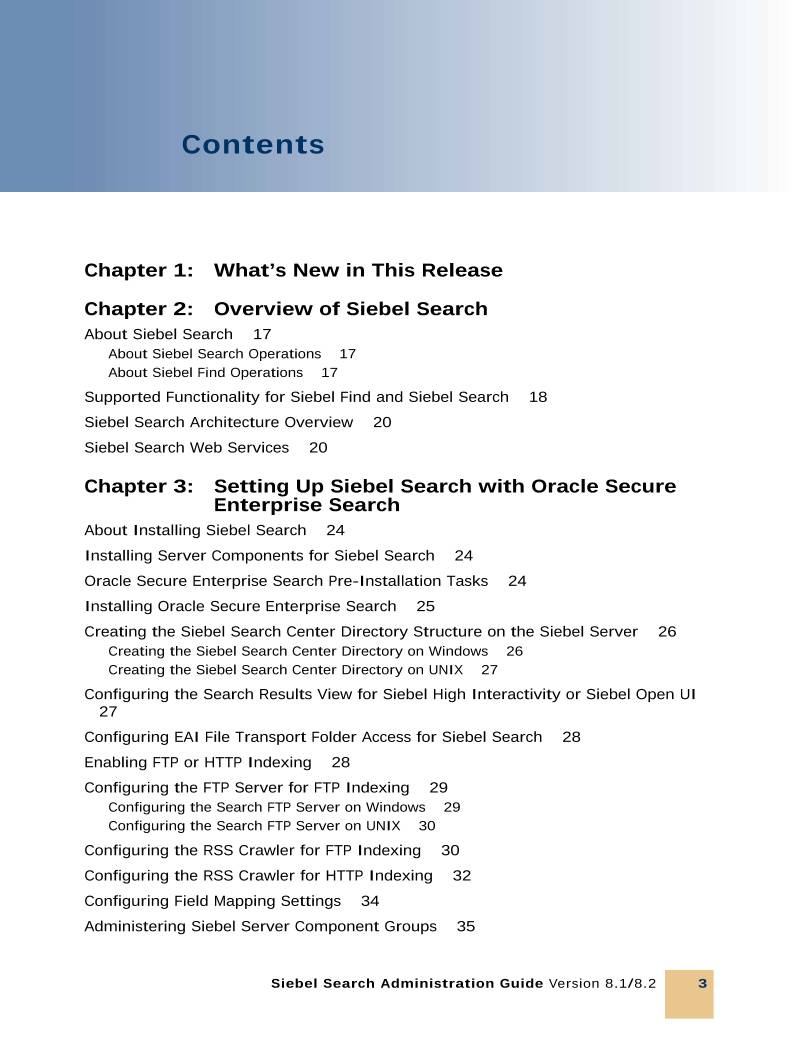
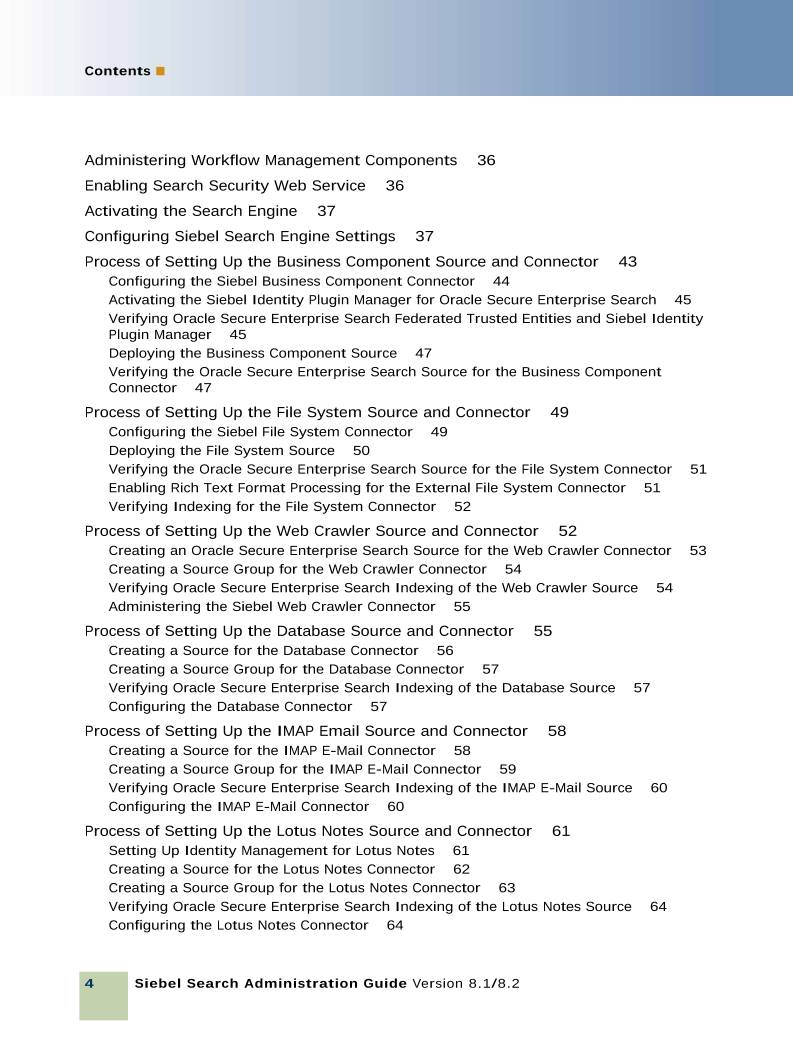
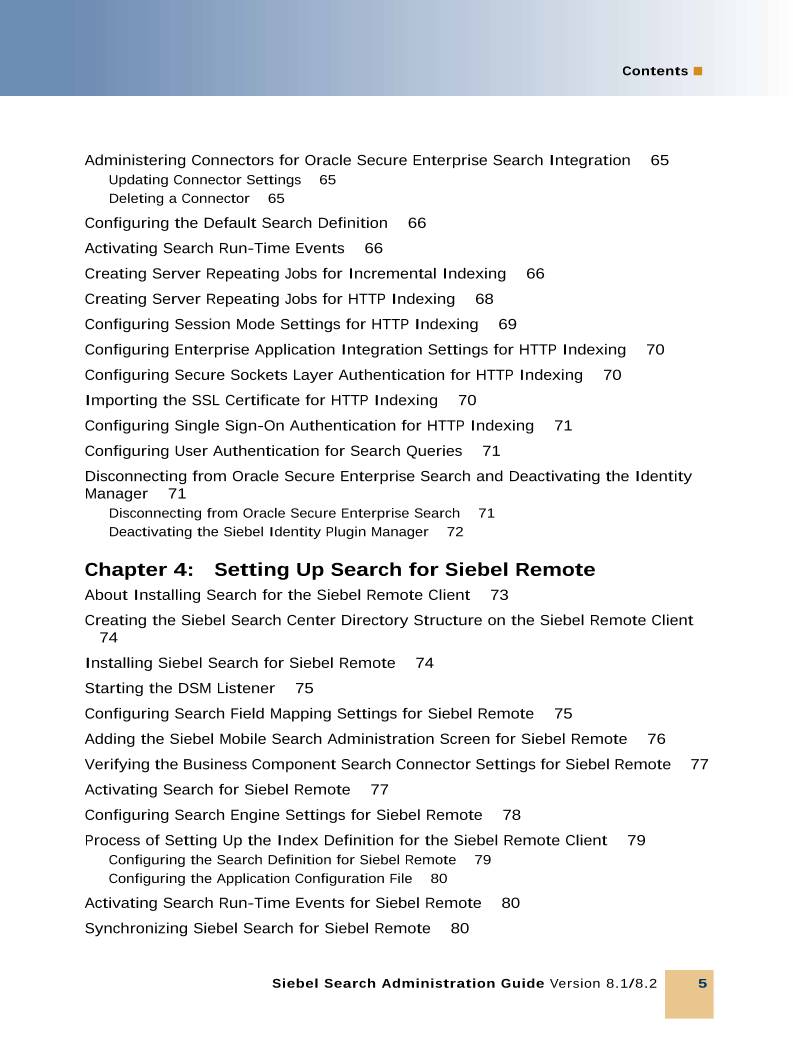
高速下载:
正在进行安全检测...
点击后进入安全下载页,再进行实际下载。下载链接有效期 24 小时,过期会自动刷新。
下载说明:
- 文件描述:Search.pdf,可用于在线分享与下载使用。
- 文件分类:文档资料
- 用途建议:适用于资料分享、学习交流、办公协作。
- 适合人群:学生、教师、办公人员、项目协作团队。
- 适配系统:Windows、macOS、Android、iOS 均可下载访问。