Quick Installation Guide.pdf
- 文件大小: 319.89KB
- 文件类型: pdf
- 上传日期: 2025-08-23
- 下载次数: 0
概要信息:
1 Installation
To install OSIRIS for DaVinci Resolve or Adobe Speedgrade (MAC/PC) simply run the respective installers from the “Installers” folder.
If you want to use the OSIRIS LUTs with another application (see official documentation for full list of supported software) we suggest
creating a dedicated folder on your hard drive.  Copying the LUTs from the downloaded .zip folder is performed simply by using
drag & drop.
Example PC: C:\Program Files\VisionColor OSIRIS\<”LUTs” folder goes here>
Example MAC: \Library\Application Support\VisionColor OSIRIS\<”LUTs” folder goes here>
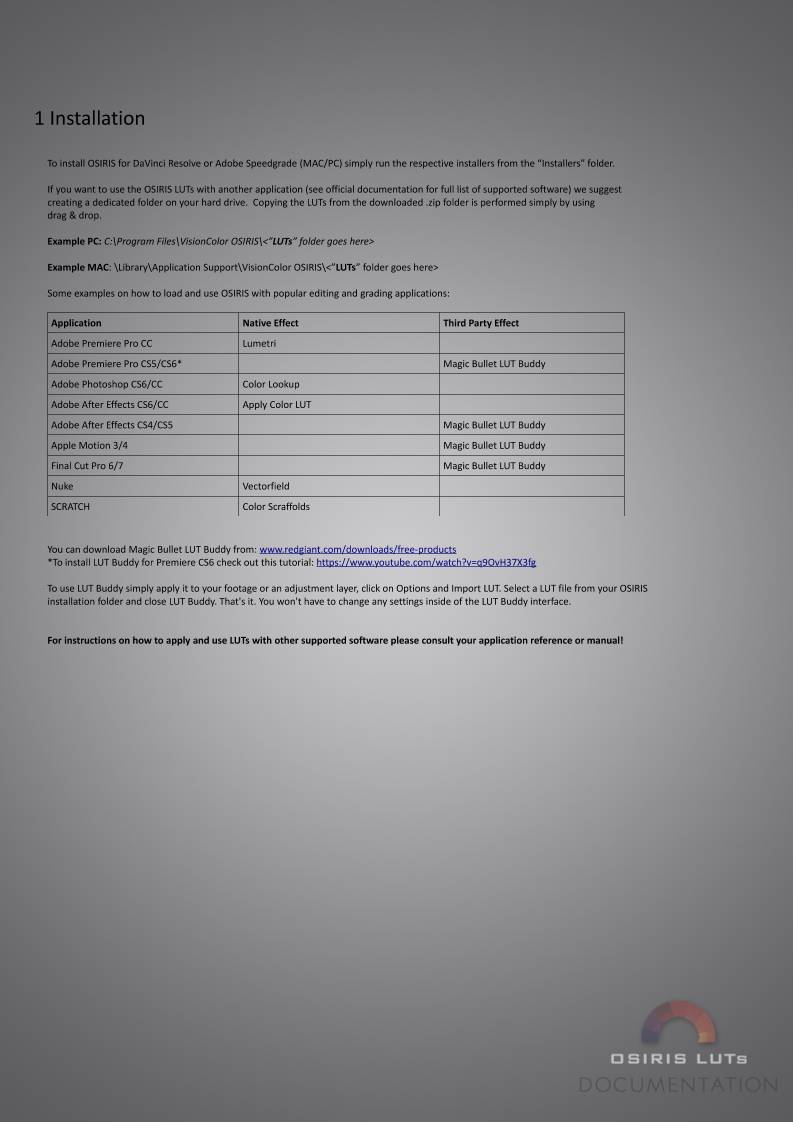
Some examples on how to load and use OSIRIS with popular editing and grading applications:
Application Native Effect Third Party Effect
Adobe Premiere Pro CC Lumetri
Adobe Premiere Pro CS5/CS6* Magic Bullet LUT Buddy
Adobe Photoshop CS6/CC Color Lookup
Adobe After Effects CS6/CC Apply Color LUT
Adobe After Effects CS4/CS5 Magic Bullet LUT Buddy
Apple Motion 3/4 Magic Bullet LUT Buddy
Final Cut Pro 6/7 Magic Bullet LUT Buddy
Nuke Vectorfield
SCRATCH Color Scraffolds
You can download Magic Bullet LUT Buddy from: www.redgiant.com/downloads/free-products
*To install LUT Buddy for Premiere CS6 check out this tutorial: https://www.youtube.com/watch?v=q9OvH37X3fg
To use LUT Buddy simply apply it to your footage or an adjustment layer, click on Options and Import LUT. Select a LUT file from your OSIRIS
installation folder and close LUT Buddy. That's it. You won't have to change any settings inside of the LUT Buddy interface.
For instructions on how to apply and use LUTs with other supported software please consult your application reference or manual!
缩略图:
高速下载:
正在进行安全检测...
点击后进入安全下载页,再进行实际下载。下载链接有效期 24 小时,过期会自动刷新。
下载说明:
- 文件描述:Quick Installation Guide.pdf,可用于在线分享与下载使用。
- 文件分类:文档资料
- 用途建议:适用于资料分享、学习交流、办公协作。
- 适合人群:学生、教师、办公人员、项目协作团队。
- 适配系统:Windows、macOS、Android、iOS 均可下载访问。